
A bank statement (also called transaction history, statement of account) converter is a tool that turns a PDF bank statement into a structured file (Excel,
This page is the directory of bank statement conversion. It covers what a converter is, which type fits your situation, the conversion workflow, and the trade-offs.
What most guides miss about this: the right output format depends on the destination, not the source. The same PDF can produce 4 different output files, each with different downstream impact.
The detailed guides for 60+ US banks and credit unions are linked below, plus the use-case cluster (mortgage, tax, loan, rental) under bank statement for applications.
A bank statement converter (also called a bank statement Excel converter or PDF-to-Excel bank statement tool) is the bridge from the bank’s PDF to a row-and-column dataset. Modern converters read both digital and scanned statements and emit clean rows with date, description, amount, and balance. The output is most commonly an .xlsx file (Excel) for editing, a .csv file for scripts, or a .qbo file for QuickBooks.
4 groups of people need this: small business owners doing their own books, freelancers pulling together a year for tax prep, bookkeepers serving multiple clients, and individuals preparing a statement for a loan or rental application. The conversion step is the same regardless of who you are. The choice of output format is what changes based on where the data is going next.
For specific banks, see the bank export guide and the credit union export guide. For the Excel-specific deep-dive, see convert bank statement to Excel.
What a Bank Statement Converter Actually Is
In plain language, a bank statement (also called a monthly statement or account statement) converter is a tool that takes the document your bank produced for human reading (a PDF, usually) and turns the transaction table inside it into a structured file a machine can read. That output can be an Excel workbook, a CSV, a Google Sheets-compatible spreadsheet, or a QBO file for QuickBooks.
The whole job is to close the gap between two worlds. Your bank gives you a report designed for your eyes. Your accountant, your spreadsheet, your bookkeeping software, and your loan application all want the same information in rows and columns. A converter is the bridge between those two worlds.
It is worth knowing what a converter is not. A converter is not a generic PDF table extractor. A converter knows what a bank statement looks like and looks for the transaction block specifically.
A converter is not OCR by itself, since OCR is one mechanism a converter may use, only for image-based. For the 4-stage OCR pipeline (text detection, character recognition, table detection, post-processing), see the OCR for bank statements guide. statements. A converter is not a bank’s own export feature, which is a direct download from online banking. A converter is not bookkeeping software. A converter produces the input file, while QuickBooks or Xero is where the actual bookkeeping happens.
A useful mental model: a bank statement PDF is a report. A converted bank statement is a dataset. The conversion is the move from one to the other.
Why People Convert Bank Statements
Four groups of people need this, and each has a slightly different angle on it.
- Small business owners doing their own books, and real estate agents verifying client financial position for purchase offers. They have monthly statements from Chase Business Checking, Wells Fargo, and other banks. For the real estate agent’s 3-step review workflow and the 5 red flags, see the bank statements for real estate agents guide. The conversion step is the same regardless of who you are. The choice of output format is what changes based on where the data is going next. They have a monthly statement from Chase Business Checking, a PNC operating account, or a Mercury account, and they need every transaction in QuickBooks by the end of the week.
- Freelancers and 1099 contractors pulling together a year of deposits and expenses for tax prep, and tax preparers handling Schedule C clients. For the 4-step annual workflow, the 5 Schedule C categories, and the 4 IRS 1099 forms to match, see the bank statements for tax preparers guide. For tax prep. They are working with personal checking and a couple of business cards, and they need it all in one spreadsheet for their accountant.
- Bookkeepers and accountants serving multiple clients. They do this ten or twenty times a month for different clients, often on tight deadlines around month-end close.
- Individuals who need a statement for a loan application, a mortgage refinance, a rental application, or an immigration case. The bank gave them a PDF. Whoever is asking wants a spreadsheet.
What all four have in common: they have a document and they need it as data. That is the job a converter exists to do.
For US-based readers, bank statements themselves are issued under Regulation DD (the Truth in Savings Act), enforced by the Consumer Financial Protection Bureau. The document you receive is a regulated artifact. A converter’s job is just to take what is already on that document and put it into rows and columns.
Turn That PDF Into a Spreadsheet in Minutes
You've seen how to do it manually — now let the tool handle the heavy lifting. Upload your bank statement and get Excel, CSV, or QBO in a few clicks.
Try It FreeThe Anatomy of a Bank Statement
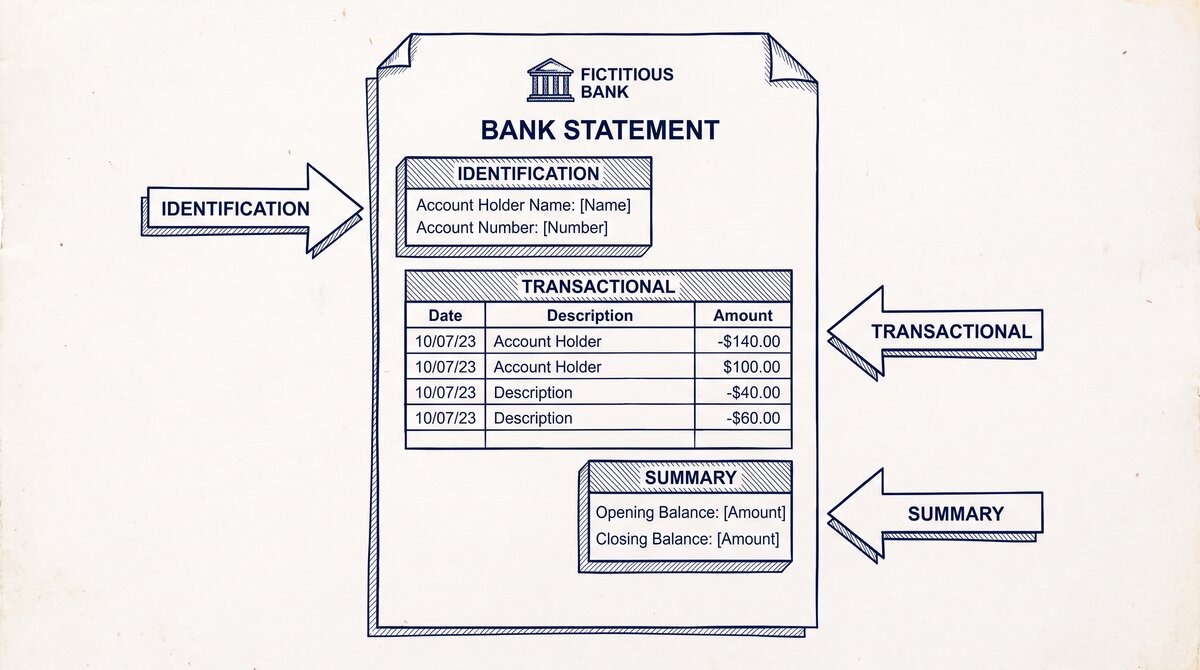
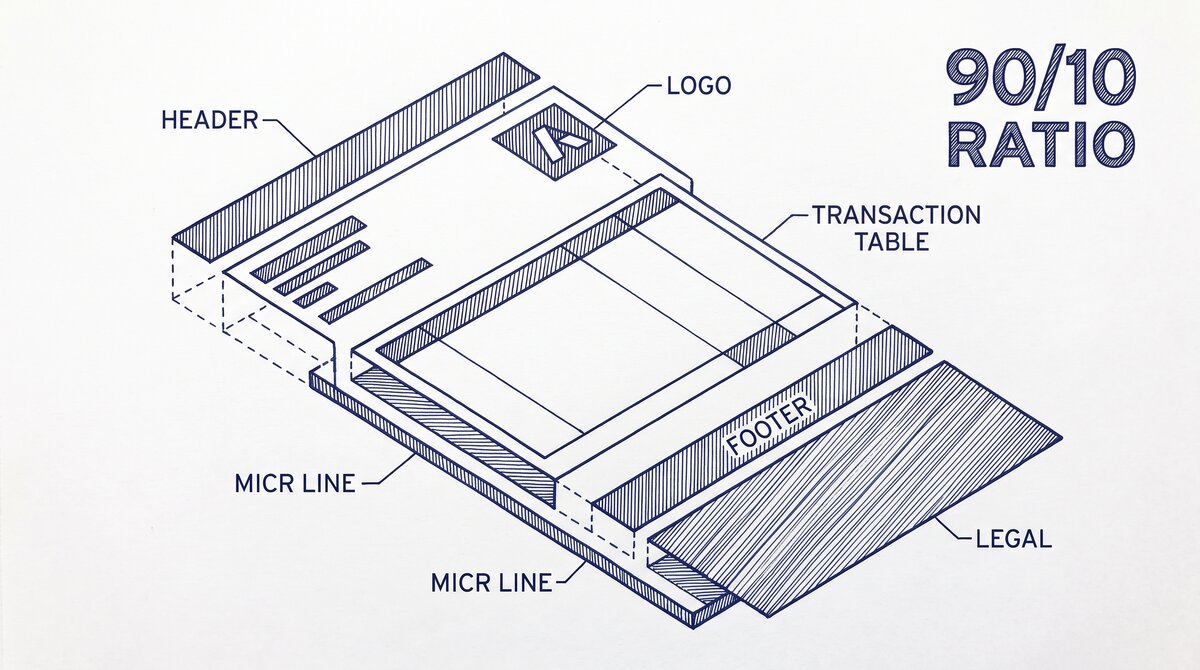
For the full breakdown of the 6 components and the 90/10 conversion split, see the bank statement anatomy guide. Bank statements look different on the surface, since every bank has its own layout, but the structure underneath is the same. Every US bank statement has these six things.
- Account holder name and account number, often partially masked.
- Statement period, which is the date range the statement covers.
- Opening and closing balance for the period.
- The transaction list, a table of every deposit, withdrawal, fee, and interest posting during the period.
- Summary totals in some statements, covering deposits, withdrawals, and fees.
- A running balance column that walks from the opening balance through every transaction to the closing balance.
For the converter, the transaction list is what matters. Every other element is metadata. The transaction list is the part that becomes rows and columns in the output file.
Bank layouts vary. Some put the date in the first column, some put the description first. Some use a single Amount column where debits are negative and credits are positive. Others split into separate Debit and Credit columns. A good converter handles both layouts without you having to specify which one your bank uses.
What a Converter Does, Step by Step
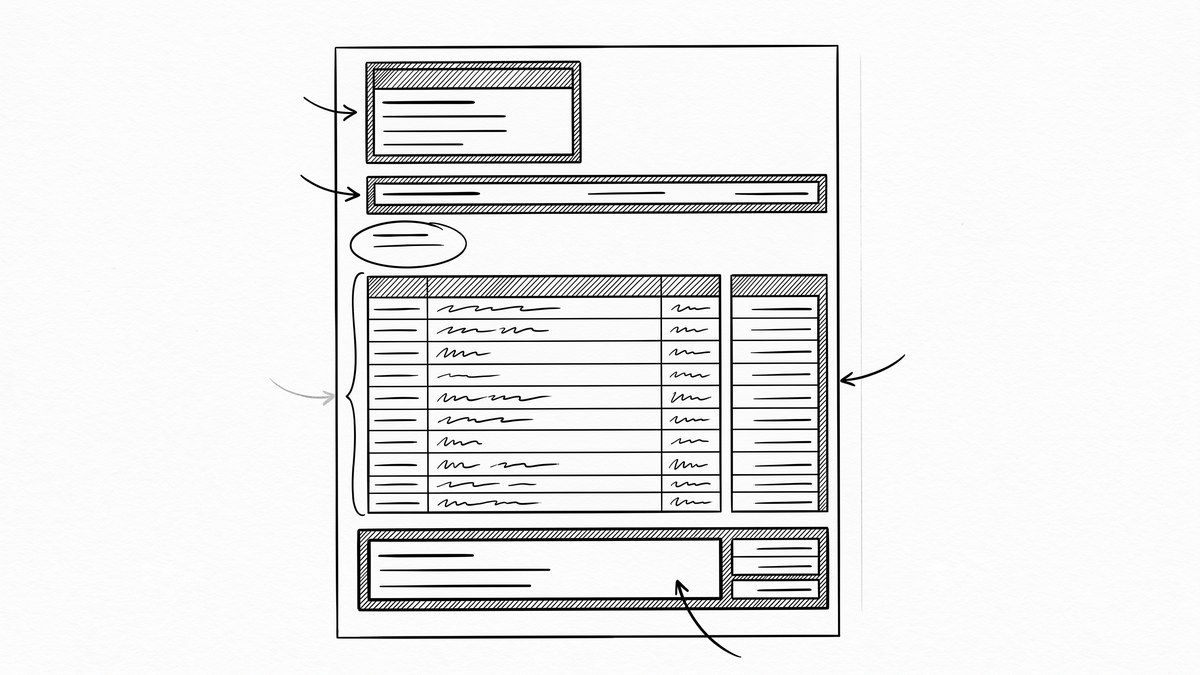
The conversion itself is invisible to the end user. You hand over a statement, and you get back a file with hundreds of neatly lined-up rows. Under the hood, every converter is doing the same four things.
- Read the source document. If the PDF was generated by the bank from a database, it has a text layer. The numbers and words are real text inside the file, and a converter can pick them up directly. If the PDF is a scan, a photo, or an image-only file, there is no text layer, and the converter has to run OCR (optical character recognition) to read what is on the page.
- Find the transaction block. The statement has a header, account info, summary totals, and the transaction list. A converter has to identify which block is the transaction list, and ignore the rest. This is harder than it sounds because layouts vary across 60-plus banks.
- Parse each row into fields. Once the transaction block is located, every line has to be split into its components: date, description, amount, balance. Date formats differ (01/15/2026 vs Jan 15, 2026 vs 15-Jan-2026). Description strings can include check numbers, reference codes, and merchant names. Amounts can be in a single column with sign convention, or split into debit and credit columns.
- Emit the output file. The parsed transactions get written into the format the user picked: a multi-sheet Excel workbook, a flat CSV file, a QBO file that imports into QuickBooks, or a CSV or XLSX that opens cleanly in Google Sheets.
Steps one and two are where most errors happen. Step three is where parser quality shows. Step four is usually deterministic, since once the data is right, writing it out is mechanical.
The reason modern converters feel almost magical is that AI-based extraction has gotten very good at steps one through three, even on weird bank layouts. For more on the mechanism itself, see the four-step extraction process.
How long does conversion take?
For a typical one or two-page statement, modern online converters finish in under a minute, usually 20 to 40 seconds. Multi-page statements (three to twelve months of activity) take a bit longer, but rarely more than two minutes. The bottleneck is usually the upload speed on your end, not the conversion itself.
What is the difference between a bank statement converter and a PDF-to-Excel converter?
A generic PDF-to-Excel converter treats every PDF the same way. It tries to extract whatever tables it can find and put them in a spreadsheet.
A bank statement converter knows the structure of a bank statement specifically. It knows where the transaction block lives. It knows that the date column and amount column are positioned differently at every bank. It can normalize the output to a consistent four-column layout. For a bank statement, a specialized converter will be faster and more accurate than a generic one.
The Four Common Output Formats
This is where most of the decision-making happens. A converter can usually produce any of the four common outputs from the same source, and the choice is about what your next step is.
| Format | Best for | Strengths | Limits |
|---|---|---|---|
| Excel (.xlsx) | Human editing, spreadsheet analysis, reports | Formatting, formulas, multiple sheets, opens in Excel, Sheets, and Numbers | Larger file size, and some downstream tools do not read .xlsx natively |
| CSV | Universal handoff to scripts, databases, and accounting software | Plain text, tiny, opens everywhere, scriptable | No formatting, no formulas, encoding pitfalls (UTF-8 vs Windows-1252) |
| Google Sheets | Cloud collaboration and sharing with a bookkeeper | Live, shareable, version history | Same as Excel, and it needs XLSX or CSV under the hood |
| QBO (QuickBooks Web Connect) | Direct import into QuickBooks Online or Desktop | Imports as bank transactions with payee, amount, and balance | QuickBooks-specific, and not useful outside QuickBooks |
CSV is the most universal. If you do not know which format you need, CSV is the safe default. Xero, Wave, Zoho Books, FreshBooks, Google Sheets, Excel, every database import, and every accounting script take it natively. See the CSV output guide for the full workflow.
Excel is the most editable. If a person is going to open the file, sort it, add formulas, and do further analysis, Excel is friendlier. For the specifics, see the Excel conversion guide.
QBO is the right answer for QuickBooks users. It is a Web Connect file that imports bank transactions directly without re-keying. For the QuickBooks workflow end to end, see the QuickBooks conversion guide.

What is the difference between CSV and Excel output?
Both contain the same transaction data, but the file format is different. CSV (Comma-Separated Values) is a plain-text file: every row is a line, every column is separated by a comma. It opens in any spreadsheet app, but it carries no formatting, no formulas, and no multiple sheets. Excel (.xlsx) is a binary workbook format that supports formatting, formulas, multiple sheets, and charts.
CSV is the better choice when software (QuickBooks, Xero, scripts, databases) will read the file. Excel is the better choice when a person will open it and do further analysis. If you are not sure, CSV is the safer default because every tool reads it.
For the format-specific CSV workflow (with details on encoding, delimiter, and software imports), see the CSV conversion guide.
For the format-specific QBO workflow (with details on QuickBooks Online and Desktop import steps), see the QBO conversion guide.
The Two Input Flavors: Digital vs Scanned
Bank statements come in two main flavors, and they behave differently inside a converter.
Digital (born-digital) PDFs. Most banks now email statements or let you download them from online banking as a real PDF. The text and numbers are baked into the file, with selectable rows and machine-readable tables. These convert almost perfectly because the data already exists as text. No OCR is needed. A converter just has to find the transaction block and parse each row.
Scanned, image-based, or photographed PDFs. Older statements, paper statements you scanned at home, and statements from smaller regional banks sometimes come as image-only PDFs. There is no text layer, and the document is essentially a picture of a statement.
Converting one of these requires OCR, and OCR quality varies. Modern AI-based converters handle scans and photos reliably, but a blurry photo of a folded statement is still a hard input.
The trade-off is simple: digital PDFs are near-perfect. Scanned PDFs depend on OCR quality. If you can download a fresh statement from your bank rather than scanning a paper one, always do that first.
Can a converter read scanned or photographed statements?
Modern AI-powered converters can. They use OCR (optical character recognition) to read text from image-based PDFs, scans, and even photos of paper statements taken with a phone. Quality depends on the scan: a clean, straight, well-lit scan converts almost perfectly, while a folded, wrinkled, or low-resolution scan may need a human review pass.
If you can download a fresh digital statement from your bank, always do that first. It is faster and more accurate than scanning.
Types of Bank Statement Converters
Converters come in four categories. Each has a different delivery model, cost structure, and limit. Knowing the category tells you whether the tool is even a fit for your situation before you look at features.
| Category | How it works | Best for | Honest limit |
|---|---|---|---|
| Online tools | Browser-based, upload PDF and download file | One-off or low-volume, fast turnaround, no install | You are uploading financial data, so data handling matters. Pick a tool that processes in memory and does not store your file. |
| Desktop software | Install on your machine, conversion happens locally | High-volume, recurring, sensitive data, no upload | Usually paid upfront or by subscription, with a maintenance burden and less flexibility across machines |
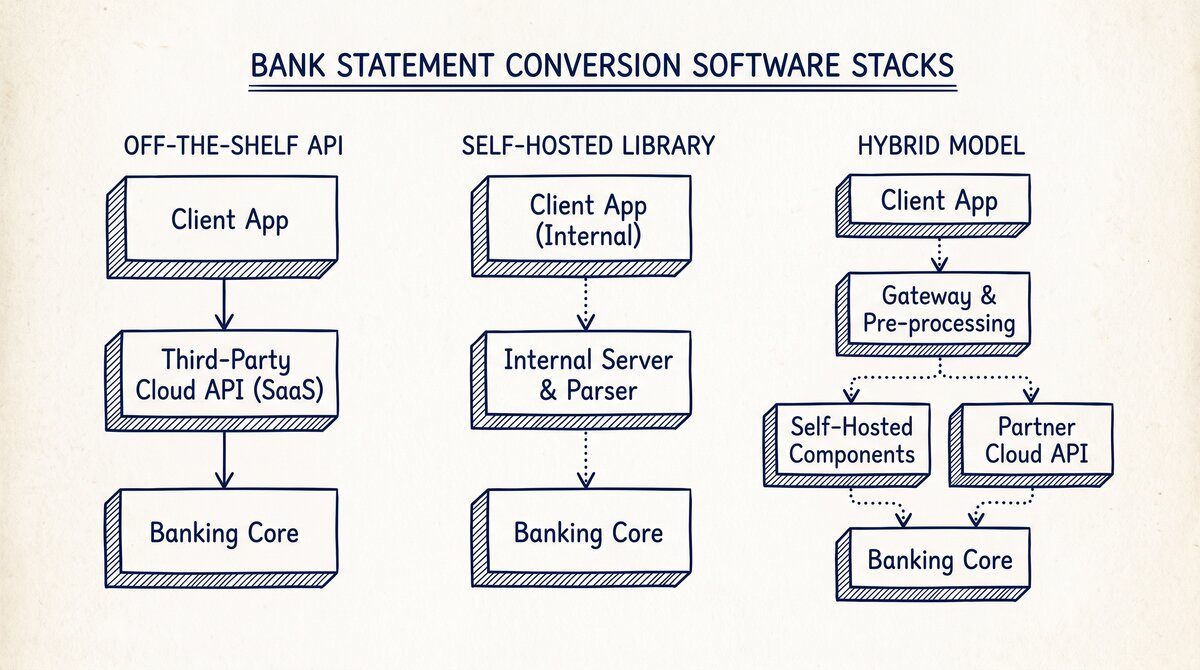
| AI-powered tools | Online or desktop, using AI or LLM extraction for layout and OCR | Scanned statements, weird layouts, edge cases | Edge cases still need a human review, and AI extraction is not magic on every document. For software products that need to integrate conversion into their own pipeline, the bank statement API for developers guide covers the 3 API approaches (off-the-shelf, self-hosted, hybrid) and the 5 evaluation criteria |
| Manual | Open the PDF and the spreadsheet side by side, then copy-paste row by row | One or two transactions, no tool available | Error rate climbs fast with volume, and the work is not viable past a handful of rows |
For most users with a recurring workflow, an online AI-powered converter is the lowest-friction path. The conversion takes under a minute, and the file never has to be saved to a server you do not control (if the tool processes in memory).
The AI handles layout variation across banks without you configuring anything per bank. EasyStatementSheet is one example in this category. It processes 60-plus US banks and credit unions and never writes the statement to disk. There are others in the same category, including DocuClipper, MoneyThumb, and BankStatementConverter. The right one for you depends on bank support, output formats, and how you handle the data.
Is it safe to upload a bank statement to an online converter?
It depends on the tool. The right answer is to use a converter that processes the file in memory and never writes it to disk or persistent storage, and that has a clear privacy policy you can read. For the 5 questions to ask before uploading (retention, location, encryption, third-party sharing, deletion verification) and the 3 regulatory frameworks (GDPR, CCPA, GLBA), see the bank statement privacy and security guide.
Look for specific language about in-memory processing, zero data retention, and what (if anything) is logged for billing. Avoid tools that do not explain what happens to your file after the download finishes. EasyStatementSheet’s trust page is one example of the kind of detail to look for. Whatever tool you use, it should be at least that explicit.
Which US banks and credit unions are supported?
Coverage varies by converter, but the major tools cover the 50-plus largest US banks: Chase, Bank of America, Wells Fargo, Capital One, Citibank, PNC, US Bank, Truist, TD Bank, and Charles Schwab, plus most regional banks and credit unions like Navy Federal, Pentagon Federal, Golden 1, Alliant, and SchoolsFirst.
The full list of supported institutions is a useful reference, but the most important check is whether your specific bank is on the converter’s list before you commit.
How to Pick the Right Converter for Your Situation
The decision is simpler than it looks. Match your situation to one of these paths.
- One-time, personal, one or two statements. Use a free online tier. Most tools offer two or three free conversions without a card. Do not pay for what you do not need.
- Recurring, business, QuickBooks destination. Use a paid online tool that supports QBO output directly. Manual CSV import into QuickBooks works but loses payee matching, while QBO preserves it.
- Recurring, business, Xero, Wave, or Zoho Books destination. Use any tool that produces clean CSV with four columns. For the Xero-specific 4-step manual import workflow, see the bank statement to Xero guide. For other destinations, the generic CSV export works.ns (date, description, amount, balance). All of those tools accept that format natively.
- Scanned paper statements or older statements. Use a tool with strong OCR. Modern AI-powered converters handle these reliably, but verify with a sample before committing.
- Sensitive data, regulated industry, or just cautious about cloud uploads. Use a tool that processes in memory and never stores the file. This is the single most important privacy check. The rest is details.
- High volume or batch processing (dozens of statements per month). Use a subscription tier with batch support. Per-conversion pricing kills your margin at scale. Per-page subscription pricing is built for this.
For a fuller decision framework that walks through choosing between online, desktop, and manual workflows, see the decision guide for choosing.
What “Conversion Accuracy” Actually Means
Accuracy is the most over-claimed number in this space, so it deserves a clear unpacking. Here is what a converter can verify, and here is what it cannot.
What a converter can do. A converter can reconcile parsed transactions against the statement’s printed running balance. If the bank printed a closing balance of $4,820.00, a good converter’s output should walk to that same number when you sum it up. This is called balance verification, and it is the strongest accuracy signal a converter can give you.
A converter can also count the transactions in the output against the transactions visible in the source. A 60-transaction statement should produce 60 output rows. It can detect duplicates when the same statement is converted twice (same date, amount, and description equals likely duplicate). It can catch obvious parsing failures, like broken columns, missing dates, or misaligned amounts, before you download the file.
What a converter cannot do. A converter cannot verify that the bank’s numbers are correct. If the bank printed the wrong amount, the converter will faithfully extract the wrong amount. It cannot tell you whether a transaction is personal or business. The categorization step happens after conversion, in your bookkeeping software.
A converter cannot interpret a merchant’s name beyond extracting it as text. “SQ *BLUE BOTTLE COFFEE” is what you will see in the description column. Understanding that it is a coffee shop happens later. It cannot guarantee 100% accuracy on every statement ever produced. Even the best parsers occasionally miss a transaction on an unusual layout, a torn scan, or a non-standard bank format.
This is why validating converted data is part of the workflow, not an optional step. A converter does the heavy lifting. A 60-second review catches the rare edge case.
How accurate is the conversion really?
For digital PDFs, modern AI-based converters are accurate to within a handful of rows out of hundreds, usually zero or one error on a 100-row statement, almost always caught by the balance-verification step. For scanned statements, accuracy depends on scan quality, but a good AI extractor is reliable enough that a 60-second visual review catches any remaining issues.
The honest framing: balance verification is the strongest accuracy signal a converter can give you, and any tool that does not reconcile against the running balance is leaving accuracy on the table.
A Concrete Example: What Converted Data Looks Like
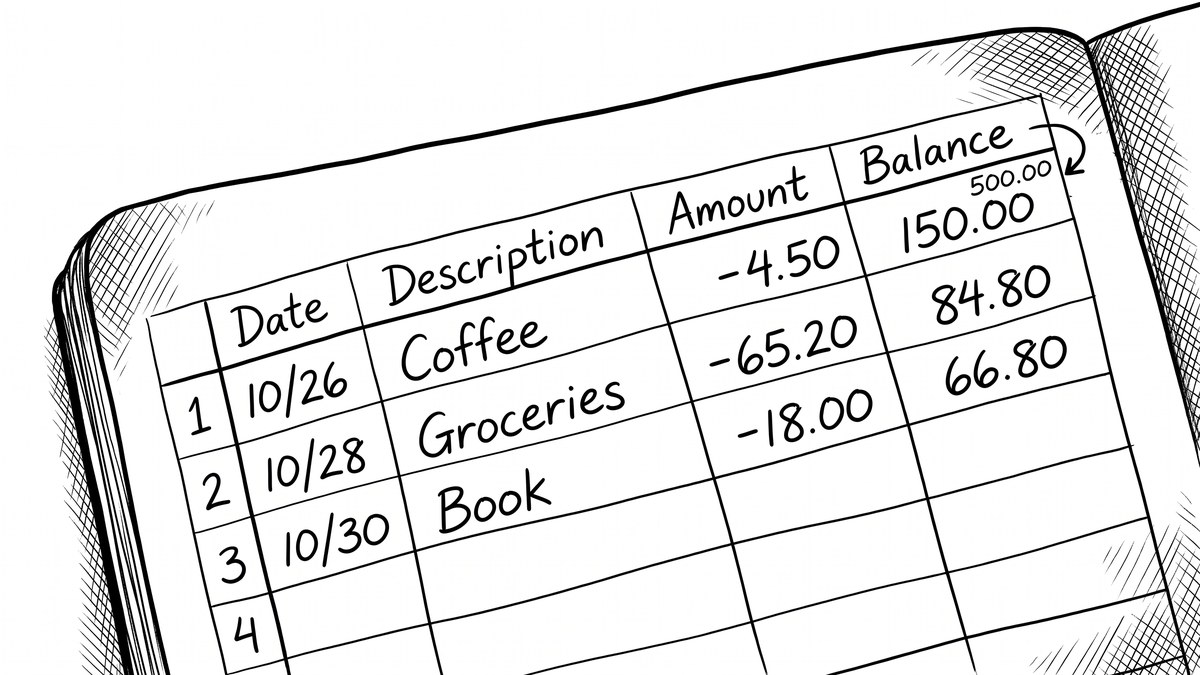
Before you ever run a conversion, it helps to know what the output actually looks like. Most converters produce a four-column table with one row per transaction.
| Date | Description | Amount | Balance |
|---|---|---|---|
| 2026-01-15 | Payment received from Acme Co | 1,250.00 | 4,820.00 |
| 2026-01-16 | Office supplies at Staples | -86.45 | 4,733.55 |
| 2026-01-17 | Subscription to Adobe | -54.99 | 4,678.56 |
Three things to notice in this layout. First, the amount column uses a single value with sign convention: deposits are positive, withdrawals are negative. Some banks use separate Debit and Credit columns instead. Both are valid, and a good converter handles either bank style without you specifying which.
Second, the date is in ISO format (YYYY-MM-DD) because that is unambiguous. The original statement might have read “01/15/2026” or “Jan 15, 2026” and the converter has normalized it. Third, the running balance carries forward, which is what makes balance verification possible. You can sum the amounts and reconcile against the closing balance in seconds.
This is the universal shape. Whether you open the file in Excel, Google Sheets, Xero, or a database import, this is what the data will look like.
When NOT to Use a Converter
A converter is the right tool for most situations, but not all. Skip it in these cases.
- Your bank offers a direct OFX, QFX, or QBO download. Some online banking portals let you export transactions in a machine-readable format directly, without ever producing a PDF statement. If yours does, use that. It is a cleaner input than a PDF.
- You have one or two transactions. Manual entry is faster than uploading, converting, downloading, and reviewing for two rows.
- You need a wire instruction, payee detail, or routing number. That is not a statement. That is a different document type entirely.
- You need audited financial statements. A bank statement converter turns PDFs into transaction data. Audited financial statements are produced by a CPA firm under PCAOB auditing standards, not by a converter.
- You need to verify the bank’s own numbers. The converter extracts what is printed. If you suspect the bank made an error, the fix is a bank dispute under Regulation E, not a different converter.
Outside those five cases, a converter is the right tool.
A common failure mode bookkeepers report is treating this as a single operation rather than a chain of dependent steps. The temptation is to find a tool that ‘just works’ and stop investigating the mechanism. The result is a wrong-fix cycle: the tool gives partial output, the bookkeeper spends 30+ minutes troubleshooting, the fix is for the wrong step, and the same error recurs on the next statement. The fix: identify which step failed and apply the right intervention to that step.
Where a Converter Fits in Your Workflow
Conversion is almost never the end of the work. It is the bridge. Once you have the data in a structured file, it feeds into one of these downstream workflows.
- Bookkeeping and accounting. The data flows into QuickBooks, Xero, Wave, or your spreadsheet. From there, you categorize, reconcile, and produce reports.
- Bank reconciliation. You match the converted transactions against your bookkeeping entries to confirm everything is recorded. The running balance is the check. For statements that straddle month-end, see the bank reconciliation cutoff guide for the period-end split mechanics.
- Tax preparation. You hand your accountant a year of clean transaction data instead of a stack of PDFs. The conversion is what makes that practical.
- Loan and mortgage applications. Lenders often want a clean statement of deposits and balances. A converted spreadsheet is what they expect.
- Expense reports and reimbursement. Pull a date range, filter by merchant, and you have an expense report without manual entry.
The conversion step is the same regardless of which downstream workflow you have. The choice of output format (Excel vs CSV vs QBO) is what changes based on where the data is going next. If you are specifically working with credit card statements rather than bank account statements, most of the same logic applies. See credit card statement conversion for the differences. For the time investment of each method, see how long it takes to convert a bank statement. For the 11 standard transaction categories used in bookkeeping, see the bank transaction categorization guide. For the 5 security questions to ask any bank statement converter before uploading, see the is a bank statement converter safe guide. For more on this, see the bank statement for small business page. For more on this, see the bank statement for freelancers page.
For more on this, see the bank statement converter pricing page.
For more on this, see the convert Navy Federal statement to Excel page.
For more on this, see the convert PenFed statement to Excel page.
For more on this, see the convert BECU statement to Excel page.
For more on this, see the convert America First statement to Excel page.
For more on this, see the convert SchoolsFirst statement to Excel page.
For more on this, see the convert Golden 1 statement to Excel page.
For more on this, see the convert DCU statement to Excel page.
For more on this, see the convert Alliant statement to Excel page.
For more on this, see the convert First Tech statement to Excel page.
For more on this, see the MCC code reference page.
For more on this, see the statement balance explained page.
For more on this, see the ACH vs wire transfer page.
For bank-specific conversion, see the Us Bank page.
For bank-specific conversion, see the Pnc page.
For bank-specific conversion, see the Td Bank page.
For bank-specific conversion, see the Regions Bank page.
For bank-specific conversion, see the Truist page.
For bank-specific conversion, see the Discover page.
For bank-specific conversion, see the Capital One 360 page.
For bank-specific conversion, see the M T Bank page.
For bank-specific conversion, see the Fifth Third page.
For bank-specific conversion, see the Keybank page.
For more on this, see the bank statements for tax preparation page.
For more on this, see the bank statement loan page.
For more on this, see the bank statement to Google Sheets page.
For more on this, see the bank statement for rental application page.
For more on this, see the bank statement for debt consolidation page.
For bank-specific conversion, see the Hsbc page.
For bank-specific conversion, see the Synchrony page.
For bank-specific conversion, see the Marcus Goldman Sachs page.
For bank-specific conversion, see the Barclays page.
For bank-specific conversion, see the Huntington page.
For more on this, see the how to read a bank statement page.
For more on this, see the bank statement PDF vs paper page.
For more on this, see the bank statement vs transaction history page.
For more on this, see the how to verify converted data page.
For more on this, see the bank statement audit response page.
For more on this, see the export Citibank statement to Excel page.
Turn PDF Bank Statements Into Workable Spreadsheets
Your bank statement is a mess of numbers, but your books shouldn't be. Use our converter to get Excel, CSV, or QBO files — ready for QuickBooks.
Try It Free Now