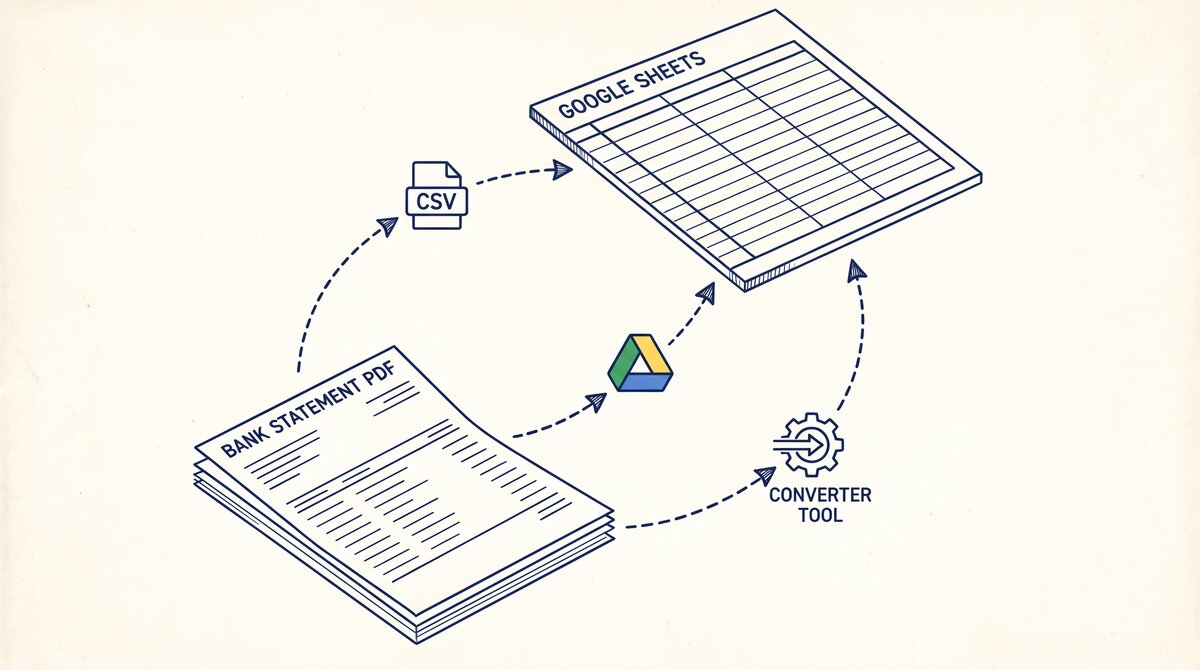

Convert a bank statement to Google Sheets in 3-5 minutes using a browser-based converter. The output is a clean Google Sheet with date, description, amount,
The short answer: download the PDF from your bank, convert to Excel using a browser-based converter, then upload the Excel file to Google Drive and open it as a Google Sheet. The 3-5 minute estimate is for a typical statement with 50-150 transactions. Google Sheets is the most common spreadsheet for personal finance because it’s free, accessible from any device, and shares easily with a CPA or bookkeeper.
TL;DR. To convert a bank statement to Google Sheets: (1) download the PDF from your bank, (2) convert it to Excel using a browser-based converter, (3) upload the Excel to Google Drive, (4) open it as a Google Sheet. Total time: 3-5 minutes per statement. Google Sheets is better than Excel for sharing and collaboration, but worse for large datasets (over 100K rows). The 4 common mistakes: column format issues, date format issues, missing transactions, and large file size errors. The 3 best practices: use a browser-based converter (not a cloud one), keep the file under 100K rows, and use Google Sheets’ IMPORTDATA function for ongoing imports.
Why Google Sheets for Bank Statements
Google Sheets is the most popular spreadsheet for personal finance and small business bookkeeping, for 3 reasons:
- Free: No cost, no license, no installation. Just a Google account and a browser.
- Accessible: Available on any device, anywhere, with no local install. The same data on your phone, laptop, and tablet.
- Shareable: Send a link to your CPA, bookkeeper, or spouse with view/comment/edit permissions. No more email attachments with version conflicts.
The 3 reasons Google Sheets is NOT the right choice:
- Large datasets: Google Sheets maxes out at 10 million cells. A 100K-row statement with 10 columns is at the limit. For larger files, use Excel or a database.
- Complex formulas: Excel has more powerful formulas (VLOOKUP, XLOOKUP, complex array formulas) that Google Sheets lacks or has in limited form.
- Offline editing: Google Sheets is online-first. Offline editing is supported but limited. Excel is offline-first.
For 90% of personal finance and small business use cases, Google Sheets is the right choice. The 10% who need Excel are typically accountants doing complex analyses.
The 3 Methods to Convert Bank Statement to Google Sheets
3 methods, in order of recommendation:
Method 1: Convert to Excel, Upload to Drive, Open as Google Sheet (3-5 minutes). This is the recommended method for most users. The steps:
- Download the PDF from your bank’s online portal.
- Use a browser-based converter to extract the transactions to an Excel file. The output is a clean .xlsx with date, description, amount, balance.
- Go to Google Drive, click New, click File Upload, and select the .xlsx file.
- Double-click the uploaded file in Google Drive. Google Sheets opens it automatically (or prompts you to convert).
- If prompted, click “Open as Google Sheet” to convert the Excel file to a Google Sheet.
The conversion preserves the data (numbers, text, dates) but may lose some Excel-specific formatting (cell colors, formulas, pivot tables). For most bank statement conversions, the data is all that matters.
The bank statement converter handles the PDF-to-Excel step in 2-5 minutes with no upload to a server, which is the safest option for sensitive financial data.
Method 2: Google Drive OCR (10-15 minutes, less reliable). Google Drive has a built-in OCR feature that can extract text from PDFs. The steps:
- Upload the PDF to Google Drive.
- Right-click the PDF, click “Open with” then “Google Docs”.
- Google Docs opens the PDF with the OCR text below the original. The transactions are extracted as plain text, not as a structured table.
- Copy the text into a new Google Sheet, then manually parse the rows and columns.
Method 2 is slower and less reliable. The OCR misreads some characters (especially numbers), and the table structure is lost. The result is a manual cleanup step that takes 10-15 minutes per statement. This method is not recommended for most users.
Method 3: Google Sheets IMPORTDATA Function (for ongoing imports). If you have a CSV file hosted on a stable URL, you can use the IMPORTDATA function to bring the data into Google Sheets automatically. The function refreshes every 15 minutes (or when the sheet is opened). The steps:
- Host the CSV file on a server (your own, or a service like GitHub, S3, or Google Cloud Storage).
- In Google Sheets, click a cell and type =IMPORTDATA(“https://your-server.com/statement.csv”).
- Google Sheets imports the data. The import refreshes every 15 minutes.
Method 3 is best for ongoing imports (for example, importing a daily transaction log). For one-time bank statement conversions, Method 1 is faster.
From Bank Statement to QuickBooks-Ready File
That manual cleanup you just read about? This tool skips it. Turn your PDF into QBO for QuickBooks without storing your data anywhere.
Start ConvertingThe 4 Common Mistakes
4 mistakes that come up frequently with bank statements in Google Sheets:
1. Column format issues. Excel and Google Sheets handle number formats slightly differently. An amount like $1,234.56 may import as text “1,234.56” (with the dollar sign stripped) or as the number 1234.56. The fix: after import, select the amount column, click Format, Number, and choose the currency format.
2. Date format issues. A date like “01/15/2026” may import as text “01/15/2026” instead of a date. The fix: select the date column, click Format, Number, and choose Date. The text will be converted to a date. If the date format is wrong (for example, “15/01/2026” was imported as January 15 when it should be January 15 in MM/DD format, that’s fine), use the DATEVALUE function to re-parse.
3. Missing transactions. Some statements have transactions split across multiple pages. The converter may miss transactions on the last page (the summary page) or in the footer. The fix: count the transactions in the Google Sheet and compare to the statement summary. If they differ, check the last page of the PDF for transactions that may have been missed.
4. Large file size errors. A statement with 1,000+ transactions may exceed Google Sheets’ import size limits. The error message is “File too large”. The fix: split the file into chunks of 500 rows each, upload separately, then combine in a master tab.
3 Best Practices for Bank Statements in Google Sheets

3 best practices that make the workflow faster and more reliable:
1. Use a browser-based converter, not a cloud-based one. A browser-based converter (like the bank statement converter) processes the PDF locally, with no upload to a server. This is faster (no upload/download time) and more secure (your financial data never leaves your computer). Cloud-based converters require upload, which adds 1-3 minutes and creates a security risk.
2. Keep files under 100K rows. Google Sheets handles up to 10 million cells, but performance degrades above 100K rows. For monthly bank statements (50-200 rows each), this is not a problem. For annual combined statements (1,000+ rows), keep each tab under 100K rows.
3. Use a consistent naming convention. Name each file with the account, year, and month: “Chase_Checking_2026-01.xlsx”. The naming convention makes it easy to find the right file later, and it sorts correctly in Google Drive.
Beyond Conversion: Analyzing in Google Sheets
Once the data is in Google Sheets, the analysis options open up:
- SUMIF: Total spending by category. For example, =SUMIF(D:D, “Restaurant”, C:C) totals all transactions in the Restaurant category.
- Pivot tables: Google Sheets has a basic pivot table feature under Data, Pivot Table. Useful for summarizing by month, category, or account.
- Charts: Visualize spending by category, by month, or by account. Line charts for trends, bar charts for comparisons, pie charts for composition.
- Conditional formatting: Highlight large transactions (over $500 in red), highlight recurring transactions (the same description in yellow), highlight refunds (negative amounts in green).
For the full conversion workflow, see the bank statement converter page. For specific bank conversion, see the convert PDF bank statement to Google Sheets guide. For combining multiple statements, see the combine multiple bank statements guide. For the underlying data extraction, see the bank statement data extraction workflow.
Turn any PDF statement into a clean sheet
Skip the typos and the hours of copying. Our converter handles any bank statement format and outputs Excel, CSV, or QBO for QuickBooks. No file retention, free to try.
Convert your statement