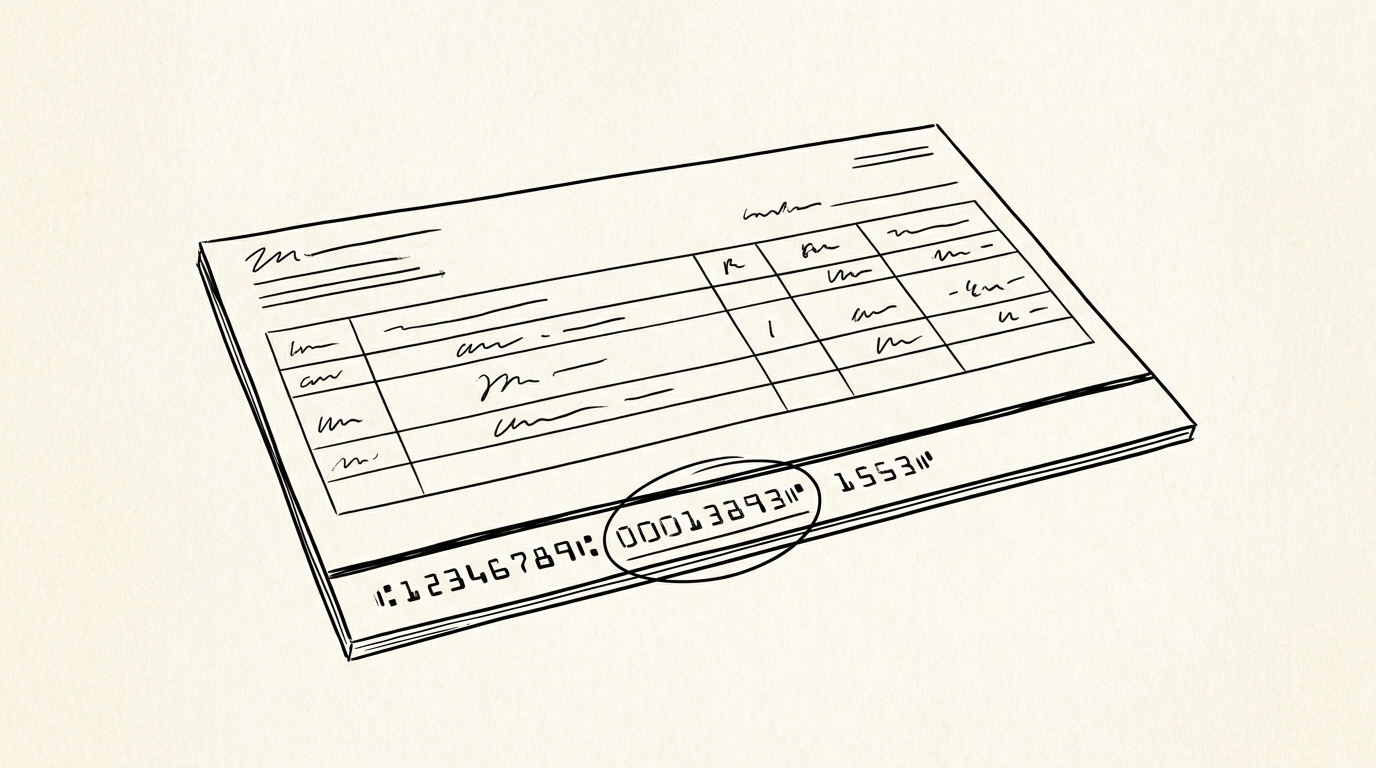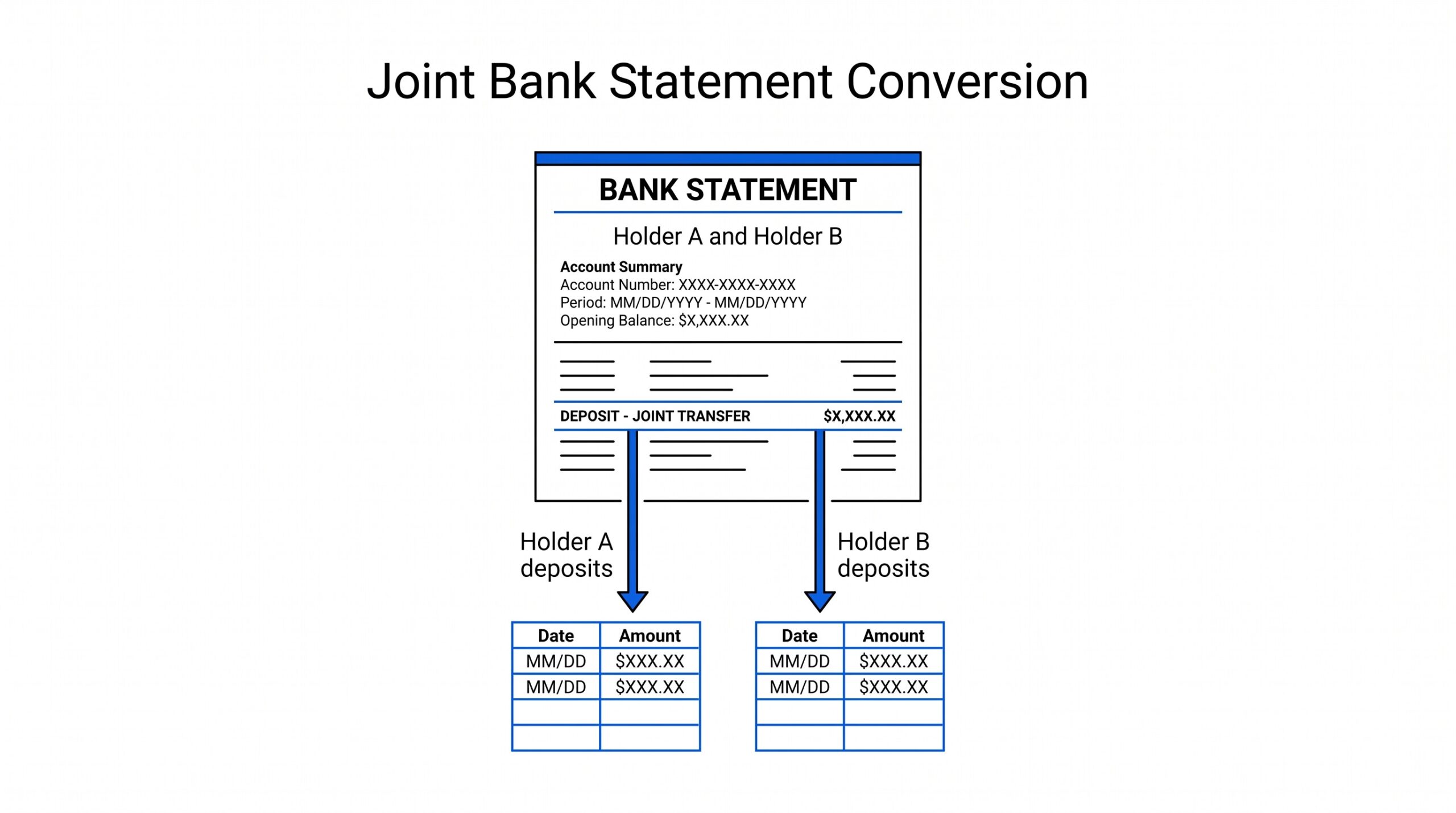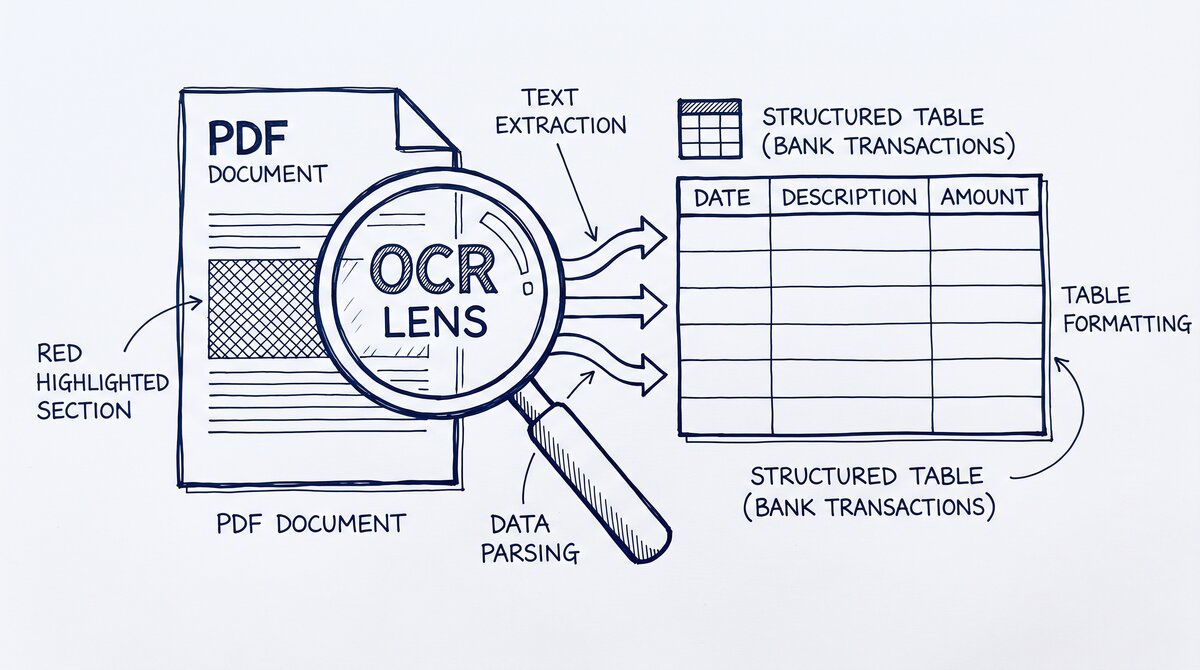

Converting a PDF bank statement to Google Sheets sounds like a single operation, but the steps you take depend on whether your PDF is digital (with a real text layer) or scanned (an image of a paper statement). The two paths produce very different results: one preserves the table structure, the other requires manual reconstruction. The mechanism that handles both is OCR, but OCR is not a single thing; the implementation matters. This sub-pillar is the mechanism deep dive for the broader bank statement to Google Sheets workflow.
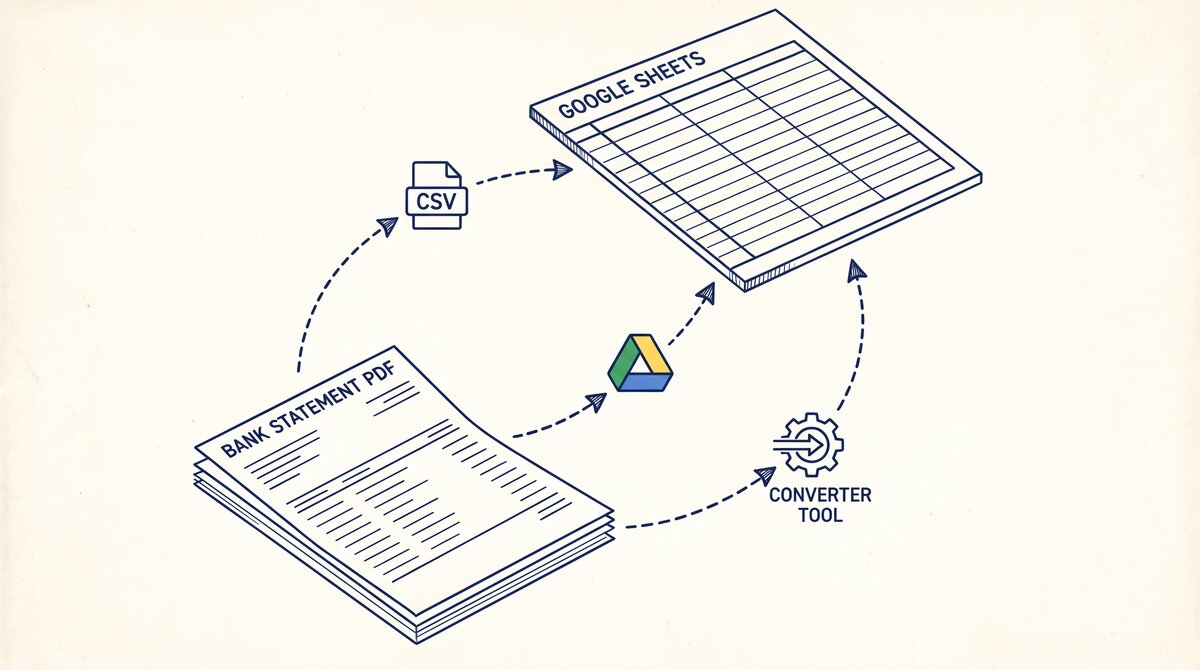
TL;DR. To convert a PDF bank statement to Google Sheets, choose between two paths: the Drive OCR path (free, works best on digital PDFs, loses table structure) or the converter-then-Sheets path (faster, more accurate, preserves structure). The Drive OCR path is a 5-step procedure that opens the PDF as a Google Doc; the converter path outputs a Sheets-ready file directly. Use Drive OCR for short clean statements, use a converter for multi-page or scanned ones.
What “Convert PDF to Google Sheets” Actually Means
“Convert PDF to Google Sheets” is shorthand for three different operations depending on context:
- Re-create the data as a spreadsheet. Take the transaction table in the PDF and put it into a Sheet where each row is a transaction and each column is a field (date, description, amount, balance).
- Preserve the visual layout. Keep the statement looking like a statement, but inside a Sheet. This is rarely what users want and is hard to do well.
- Extract just one or two fields. Pull only the opening balance, the closing balance, or the total debits, not the full transaction list. This is a subset of the first operation.
Which Operation You Actually Need
Most readers who search for “convert PDF to Google Sheets” want the first operation: a clean sheet of transactions. The visual-layout option is what spreadsheet apps like Excel do natively with “Save As PDF” in reverse, and the field-extraction option is what a one-off formula or script handles. The article focuses on the first operation, with notes on the third.
The Hidden Question: Do You Have the PDF or Just a Link?
The phrase also hides a question: do you have the PDF as a file, or do you have a link to a statement in your bank’s portal? Most users have a downloaded PDF file. If you only have a link, the bank may offer a CSV or XLS download directly, which skips the PDF entirely. The bank statement to CSV path handles this case.
How Google Drive OCR Handles a PDF Bank Statement
Google Drive’s “Open with Google Docs” feature on a PDF is the closest thing to a free, built-in PDF-to-Sheets converter. The mechanism:
Google Drive detects the file is a PDF.
On opening as a Google Doc, the OCR engine runs on every page.
The output is a Google Doc with the recognized text and a best-effort attempt to preserve the visual layout.
The OCR engine is the same one that powers Google Lens and Google Translate. It works on typed text in digital PDFs almost perfectly. It works on scanned text with character-level accuracy in the 90%+ range for clean scans and drops to 70-80% for low-resolution or noisy scans.
Why the Output Is a Doc, Not a Sheet
The critical limitation: the output is a Google Doc, not a Sheet. The OCR engine does not understand that the data is a table. It produces one text element per visual line in the PDF. If a transaction in the bank statement wraps to two visual lines (long merchant name, two-line address), the OCR splits the transaction into two output elements. The user has to manually re-merge them in the Sheet.
The OCR also does not detect headers, footers, or section breaks in any structured way. Page numbers, the bank logo, the “Page 1 of 5” footer, and the “Continued on next page” text all become text elements in the output, mixed in with the actual transaction data.
From PDF to Excel in one click
Forget retyping line by line. Upload any bank statement, get a spreadsheet you can actually use. Your files are never stored, and you can test the converter with 3 free conversions.
Try it freeWhen Drive OCR Works and When It Breaks
The Decision Rule
Drive OCR is the right choice when the statement is one or two pages, the PDF is digital, the transaction table has clean borders, and the user is willing to spend 5-10 minutes cleaning up after the import.
Drive OCR breaks when the statement is multi-page (5+ pages) with consistent transaction tables on each page, the PDF is scanned from a paper statement, the transaction rows have merged cells, or the statement has subtotals, running balances, or section breaks.
A simple rule of thumb: if your bank statement is 1-2 pages, digital, with simple one-row-per-transaction tables, use Drive OCR. If your statement is longer, scanned, or has any of the complex features above, use a converter.
The 4-Step Workflow for Clean Imports
For statements where Drive OCR is the right path, the procedure that produces a clean Sheet:
Upload the PDF to Google Drive. Open the Drive folder, click “New > File upload,” and select the PDF. Wait for the upload to complete.
Right-click the uploaded PDF, choose “Open with > Google Docs.” A new browser tab opens with the OCR’d text. Wait for the OCR to finish; for a 2-page statement, this is usually under 30 seconds.
Select the transaction rows in the Google Doc. Use Ctrl+A to select all, or click and drag to select just the transaction block. Copy with Ctrl+C.
Open a new Google Sheet. Click on cell A1, paste with Ctrl+V. The text pastes as a single column. Use Data > Split text to columns, choose “Space” as the separator (or “Custom” with the actual delimiter from the statement), and confirm.
The result is a Sheet with each transaction on its own row and the columns split out. Some columns may need adjustment (the date column might still be in the wrong format, the amount column might be text instead of number), and the row-split issue (one transaction across two OCR lines) will still need manual fixing.
Fixing Common Import Errors: Dates, Encoding, and Row Splits
Three errors appear consistently in the Drive OCR path.
Date Format Errors
The OCR may read “03/04/2024” as “March 4, 2024” or as “03-Apr-2024” depending on the bank’s format. After splitting to columns, the date column has mixed formats. The fix: use a formula in a helper column to parse the dates into a standard format, or use Format > Number > Date to coerce Google Sheets to interpret the values.
Encoding Errors
Special characters in merchant names (curly quotes, accented letters, em-dashes) may render as garbled text after the OCR. The OCR engine is generally good at this for typed text, but scanned text with non-ASCII characters often fails. The fix: search the pasted text for known garbled patterns (e.g. “é” for “é”) and replace them, or re-OCR the original PDF with a different tool.
Row Split Errors
This is the most common and the most painful. A transaction with a long merchant name or a two-line address gets split into two OCR output lines, which become two rows in the Sheet. Bookkeepers often catch this in reconciliation when a single transaction shows up as two unmatched entries. The fix: scan the Sheet for rows that are missing a date or have an amount of zero, identify the row above as a continuation, and merge the cells manually. For statements with many long merchant names, this can take an hour.
When You Should Use a Dedicated Converter Instead
A dedicated converter handles the failure modes above automatically. The converter reads the PDF, detects the table structure, identifies the header row, splits the transactions correctly across page breaks, and outputs a Sheets-ready file.
The Decision Rule for Converters vs Drive OCR
- Use Drive OCR when the statement is short, digital, and clean. The 5-30 minutes of cleanup is acceptable.
- Use a converter when the statement is multi-page, scanned, has merged cells, or has many long merchant names. The time saved on cleanup exceeds the cost of the converter.
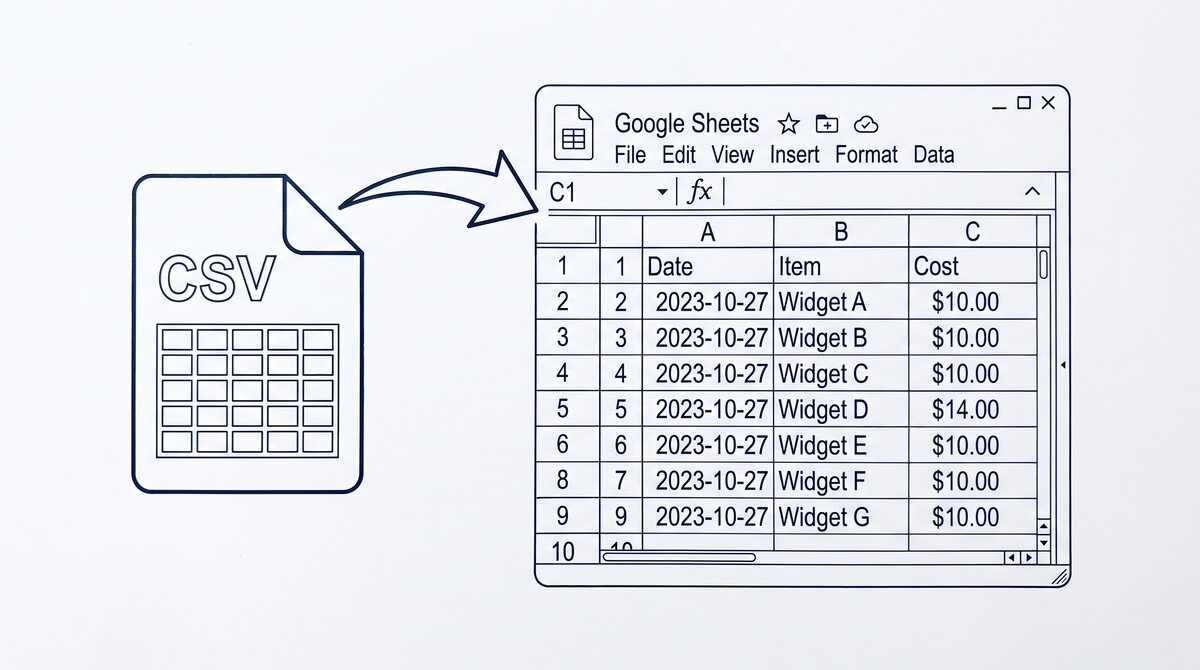
- Use the CSV intermediate path when the bank offers a CSV download but you also want the data in Sheets. The CSV path is more accurate than Drive OCR for any statement the bank has structured.
The Google Sheets conversion path handles all three of these cases. For long statements or recurring workflows, the converter path is the one that scales.
For a deeper understanding, see: google sheets deep dive. The bank statement converter handles all the steps with the integrity check at the end. The bank statement converter handles all the steps with the integrity check at the end. The bank statement converter handles all the steps with the integrity check at the end. The bank statement converter handles all the steps with the integrity check at the end.
From Bank Statement to QuickBooks-Ready File
That manual cleanup you just read about? This tool skips it. Turn your PDF into QBO for QuickBooks without storing your data anywhere.
Start Converting