
Bank statement to CSV conversion produces a plain-text file with one transaction per row. This page covers the output format, when CSV is the right choice, the conversion workflow, and the 5 things that go wrong.
What most guides miss about this: the right output format depends on the destination, not the source. The same PDF can produce 4 different output files, each with different downstream impact.
The bank-specific conversion guides for 11 major US banks are linked below. For CSV format requirements, see the CSV format guide.
Converting a bank statement to CSV (also called turning a bank statement into CSV, bank statement to comma separated values, or bank statement CSV converter) produces a .csv file with one transaction per row. The columns are date, description, amount, balance. CSV is the universal data format: any spreadsheet, any tax software, any custom script can read it without special converters.
CSV is the right format when software will read the file. Excel is the right format when a person will open the file. QBO is the right format when QuickBooks will receive the file as a native bank feed. The conversion step is the same regardless of the output format. For converting bank transactions to CSV (the transactions specifically, not the whole statement), see the extract transactions from bank statement guide.
For specific banks, see the bank export guide. For QuickBooks-specific CSV format, see the QuickBooks CSV format guide. For the PDF-specific conversion workflow, see the convert PDF bank statement to CSV guide. For the broader bank statement workflow, see the bank statement converter guide.
What “Converting a Bank Statement to CSV” Actually Means
In plain language, it means taking the transaction list inside a PDF bank statement (also called a monthly statement or account statement) and writing it into a plain-text file where every row is a line and every column is separated by a comma. The output is a single .csv file that opens in every spreadsheet app, every text editor, and every accounting tool that accepts structured imports.
CSV is the most universal output format for structured data. It is plain text, so it works anywhere a text file works. It is comma-separated, so the structure survives copy, paste, email, and any file transfer. And it has a four-column layout that every accounting tool, every script, and every database already knows how to read.
It is worth being clear about what the output is not. It is not a PDF that looks like a table. It is not an Excel workbook with formulas and formatting. It is not a QBO file that imports with payee matching. It is a plain-text .csv file with a header row and one transaction per row.
A useful mental model: a bank statement PDF is a report. A converted bank statement CSV is a structured dataset that any software can read. The conversion is the move from one to the other.
What columns will my CSV file have?
The standard column set is four: date, description, amount, and balance. Some converters add optional columns like reference number, transaction type, or original currency. A few add metadata such as a statement ID, the source filename, or a conversion timestamp at the top of the file.
For the amount column, the sign convention is explicit. Deposits are positive numbers. Withdrawals are negative numbers. There is one amount column, not separate debit and credit columns. This is the format every accounting tool expects, and it is what balance verification checks against.
Why CSV Is the Right Format (and When It Is Not)
CSV wins in one situation: when software reads the file. If you are feeding accounting software, a database, a script, or any automated workflow, CSV is the right answer.
The format is universal. Xero, Wave, Zoho Books, FreshBooks, and QuickBooks all accept a four-column CSV with date, description, amount, and balance. Python, pandas, R, and any database import script take CSV natively. Google Sheets and Excel both open it. There is no software in the data-handling world that does not accept a CSV.
CSV is also lighter than Excel. A 12-month bank statement as CSV is 30 to 100 KB. The same statement as Excel is 200 to 500 KB. For high-volume workflows, large files, or repeated runs, the smaller file adds up.
CSV is the wrong format when a person will open the file and do further work. CSV has no formulas, no charts, no conditional formatting, and no multiple sheets. If you want to add a SUM column, a VLOOKUP, or a chart, you need Excel. If you want to hand the file to a bookkeeper who works in Excel, you might want Excel too.
CSV is also the wrong format for direct QuickBooks import. QuickBooks Online and Desktop prefer QBO format, which imports with payee matching. CSV works for QuickBooks too, but with less automation.
Should I choose CSV or Excel for my workflow?
CSV if software reads it. Excel if a person opens it. Most bookkeepers feeding Xero, Wave, or Zoho Books directly pick CSV. Most small business owners who want to review the data themselves first pick Excel. The two formats contain the same data, so the choice is about the next step, not the data itself.


Turn That PDF Into a Spreadsheet in Minutes
You've seen how to do it manually — now let the tool handle the heavy lifting. Upload your bank statement and get Excel, CSV, or QBO in a few clicks.
Try It FreeThe CSV File You’ll Get
A converted bank statement CSV is structured in a specific way. Knowing the structure before you open it means you will recognize the data the moment it loads.
The file is plain text. The first line is the header row, with four column names separated by commas. Every line after that is one transaction, with the four field values in the same order, separated by commas. There is no styling, no formatting, no formulas, and no metadata. Just the data.
| Date | Description | Amount | Balance |
|---|---|---|---|
| 2026-01-15 | Payment received from Acme Co | 1,250.00 | 4,820.00 |
| 2026-01-16 | Office supplies at Staples | -86.45 | 4,733.55 |
| 2026-01-17 | Subscription to Adobe | -54.99 | 4,678.56 |
Three things to notice about the structure. First, the amount column uses a single value with sign convention. Deposits are positive, withdrawals are negative. Second, the dates are in ISO format, which is unambiguous across locales. Third, the running balance carries forward, which is what makes balance verification possible.
The file is typically encoded in UTF-8 and uses a comma as the delimiter. These are the modern standards, and they are what every tool expects by default. Some older files may use Windows-1252 encoding or a semicolon delimiter, which is the source of the common pitfalls covered below.

How a Statement Becomes a CSV File
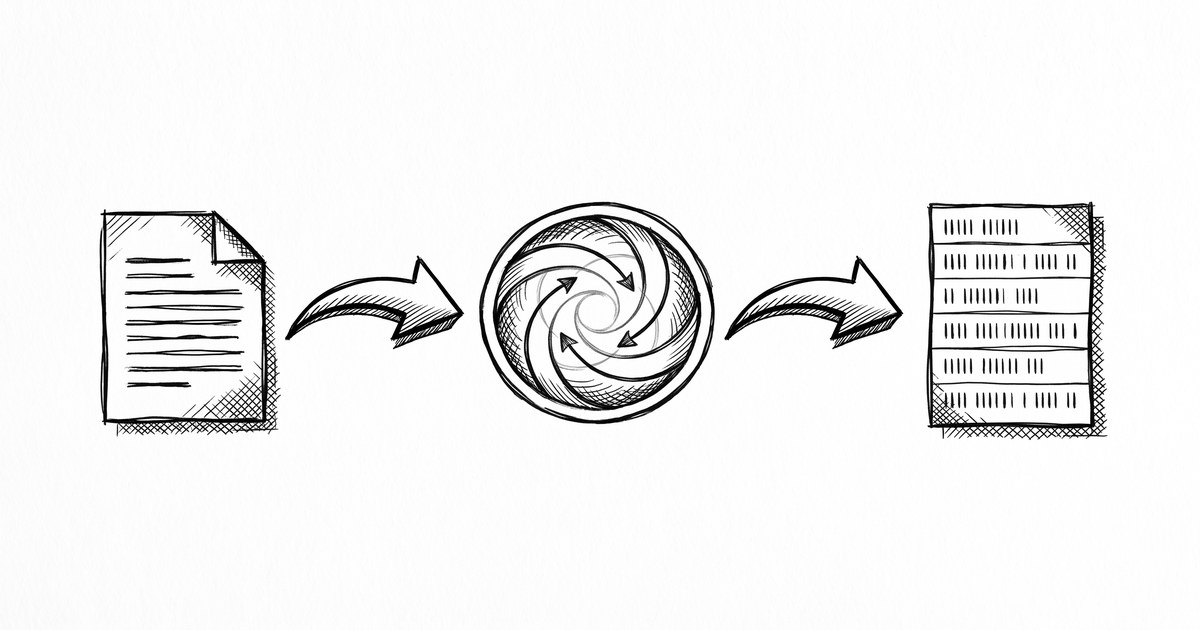
The conversion itself is invisible to the end user. Under the hood, it follows the same four steps as any bank statement conversion, with the final step being the CSV write.
- Read the source PDF (text layer for digital, OCR for scanned).
- Find the transaction block in the page.
- Parse each row into date, description, amount, and balance.
- Write the parsed rows as comma-separated lines to a .csv file.
Step four is what makes the output specifically a CSV. The writer opens a file, writes the header line, then writes each transaction as one line. Values are joined with commas. Strings that contain commas get wrapped in quotes. The file is saved with a .csv extension and UTF-8 encoding.
For the full mechanism with all four steps explained in depth, see the four-step extraction process.
How long does it take to convert a statement to CSV?
For a typical one or two-page statement, the conversion finishes in 20 to 40 seconds. Multi-page statements take a bit longer but rarely more than two minutes. CSV writing is the fastest of the four output formats because the file is plain text and the write is sequential.
The Four CSV Pitfalls (and How to Avoid Them)
A common failure mode in this scenario: underestimating the time required. The fix: plan for 2x your initial estimate.
CSV is the most universal format, but it has four common pitfalls. None of them are deal-breakers, but each is easier to handle if you see it coming.
Encoding: UTF-8 vs Windows-1252. Modern tools produce UTF-8, which handles every character set. Older tools and some European banks produce Windows-1252, which can break special characters (like the é in café) when opened in the wrong locale. The fix: open the file in Excel (which auto-detects) or specify UTF-8 in your text editor.
Delimiter: comma vs semicolon. The US standard is a comma. The European standard is often a semicolon, because commas are used as decimal separators in many European locales. The fix: when opening in Excel, use Data > Text to Columns and pick the right delimiter, or specify the delimiter in your import wizard.
Date format: 01/03/2026 ambiguity. The date 01/03/2026 means March 1 in the US and January 3 in the UK. A good converter normalizes to ISO format (2026-01-03 or 2026-03-01) to remove the ambiguity. If you see non-ISO dates, set the column format to ISO in your spreadsheet or import wizard.
Decimal separator: 1,250.00 vs 1.250,00. A US-formatted file uses a period for decimals. A European file uses a comma. If you open a US file in a European locale, the amounts can be misread. The fix: change your spreadsheet’s locale, or use a software import wizard that lets you specify the format.
These four pitfalls are why a good converter normalizes dates to ISO and uses UTF-8 by default. When you import the CSV, the pitfalls rarely appear. When you encounter them, the fixes above handle them in seconds.
How do I open a CSV file in Excel?
Just double-click the file, or use File > Open in Excel. Excel auto-detects the encoding and delimiter for most files. If the columns merge into a single column, use Data > Text to Columns with comma as the delimiter, and Excel will split them into the right columns.
Can I edit a CSV file?
Yes, in any text editor or spreadsheet. Be careful: saving back to CSV from Excel can reformat the file. Excel may add quotes around values, change the encoding, or save as .xlsx by default. Use Save As > CSV UTF-8 to keep the format. For safer editing, use a plain text editor (TextEdit, Notepad, VS Code).
How to Import a CSV into Accounting Software
Every modern accounting tool accepts a four-column CSV with date, description, amount, and balance. The import path differs by tool, but the result is the same: a batch of transactions posted to the right account.
Xero: Files > Import, then Bank Statement, then upload the CSV. Map the date, description, and amount columns. Xero reads the sign convention natively (negative for withdrawals).
Wave: Accounting > Transactions > Import, then upload the CSV. Map the columns the same way. Wave handles the sign convention automatically.
Zoho Books: Settings > Import Data, then Bank or Credit Card Statement, then upload the CSV. Map the date, description, and amount columns.
FreshBooks: Accounting > Import, then upload the CSV. Map the columns.
Sage: Imports > Bank statements, then upload. Map the columns to the right fields.
For all five tools, the import wizard walks you through column mapping and date format selection. The whole import takes under a minute once the CSV is ready. The full workflow lives on each tool’s documentation page; the format itself is the same.
How do I import a CSV into QuickBooks?
QuickBooks Online and Desktop prefer QBO format for bank statements, which imports with payee matching. CSV works too, via Banking > Upload. For best results with QuickBooks, see the QBO conversion guide
Digital vs Scanned PDFs: How Each Affects the CSV Output
The quality of the source PDF directly affects the quality of the CSV output. Digital PDFs convert cleanly. Scanned PDFs depend on OCR. The same trade-off that applies to Excel output applies here.
Digital PDFs come straight from the bank’s database, with text and numbers baked into the file. The converter reads the text directly, finds the transaction block, and writes each row into CSV with the correct values. The output is clean.
Scanned PDFs are pictures of statements. There is no text layer, so the converter runs OCR to read the page. AI-based OCR handles most statements well, but edge cases can show up in the CSV: a misread amount, a misaligned column, a number that lands in the description field. A 60-second visual review catches these.
Can a converter turn a scanned statement into CSV?
Yes, AI-based converters can. They use OCR to read the text from image-based PDFs and write the extracted rows as CSV lines. Quality depends on the scan. A clean, straight, well-lit scan converts almost perfectly. A wrinkled or low-resolution scan may need a quick review pass.

How to Convert a Bank Statement to CSV
The actual workflow is short. Most of the time is in the upload and download, not the conversion itself.
- Get the PDF. Download the statement from your bank. Digital is cleaner. A 12-month statement is usually 5 to 15 pages.
- Pick a converter that supports CSV output. Most modern converters do. EasyStatementSheet is one example, with in-memory processing and a focus on the statement-to-CSV workflow.
- Upload the PDF. Drag and drop or use the file picker.
- Pick CSV as the output format. The converter will offer Excel, CSV, Google Sheets, and QBO as options. For this workflow, pick CSV.
- Download the file. The conversion takes 20 to 40 seconds for a one-page statement, under two minutes for a 12-month statement.
- Open or import it. Open in Excel, Google Sheets, Numbers, or a text editor. Or import directly into Xero, Wave, Zoho Books, FreshBooks, or Sage.
- Spot-check the data. A 60-second review confirms the row count, dates, and balance match the source. For a deeper workflow, see the data check workflow.
Is it safe to upload a bank statement to get a CSV file?
It depends on the tool. The right answer is to use a converter that processes the file in memory and never writes it to disk, and that has a clear privacy policy you can read. Look for specific language about in-memory processing, zero data retention, and what is logged for billing.
EasyStatementSheet’s trust page is one example of the kind of detail to look for. Whatever tool you use, it should be at least that explicit about what happens to your file.
When to Choose a Different Format Instead
CSV is the right choice for most software workflows. There are a few cases where a different format is better.
- A person will open the file? Use Excel. CSV has no formulas, no charts, no formatting. For the full Excel workflow, see the Excel output guide.
- Feeding QuickBooks directly? Use QBO. It imports with payee matching. See the QBO conversion guide.
- Just want to view the data? The PDF statement is fine. Conversion is only worth it if you are going to do something with the data.
- Need formulas, charts, or conditional formatting? Use Excel.
From PDF to Excel in one click
Forget retyping line by line. Upload any bank statement, get a spreadsheet you can actually use. Your files are never stored, and you can test the converter with 3 free conversions.
Try it free