
Bank statement to QBO conversion produces a QuickBooks Web Connect file. This page covers the QBO file structure, when QBO is the right choice, the import dance in QuickBooks Online and Desktop, and the 5 pitfalls to avoid.
What most guides miss about this: the right output format depends on the destination, not the source. The same PDF can produce 4 different output files, each with different downstream impact.
The bank-specific conversion guides for 11 major US banks are linked below. For the broader QuickBooks workflow, see the QuickBooks conversion guide.
A QBO file (also called QuickBooks Web Connect file, QBO format, QBO file format, QBO file structure, QBO file example, or QBO file requirements) is a financial data file that QuickBooks Online and QuickBooks Desktop import as a native bank feed. The format is built on the OFX (Open Financial Exchange) standard. A single QBO file contains the signon credentials, the bank account info, and the statement transactions (date, amount, fitid, memo). For a QBO file specification with the full tag structure, see QuickBooks bank transaction CSV format for the related CSV variant.
Converting a bank statement to QBO (also called creating or generating a QBO file, create QBO from bank statement, generate QBO from PDF, PDF to QBO bank statement, or bank statement QBO converter) produces this .qbo file from the bank’s PDF. QuickBooks imports the file with payee matching and de-duplication working out of the box. The input is most commonly a PDF bank statement (digital or scanned), and the output is a single .qbo file ready to import.
QBO is the right format when QuickBooks will receive the file as a native bank feed. Excel is the right format when a person will open the file. CSV is the right format when you want a raw data file. For QBO vs CSV, see the CSV vs QBO for QuickBooks comparison. For the format differences between QBO and OFX or QFX, see the QBO file structure section below.
What “Converting a Bank Statement to QBO” Actually Means
In plain language, it means taking the transaction list inside a PDF bank statement (also called a monthly statement or account statement) and writing it into a QuickBooks Web Connect file. The output is a single .qbo file that QuickBooks Online or QuickBooks Desktop imports as a native bank feed, with payee matching and de-duplication working out of the box.
QBO is a QuickBooks-specific format. It is built on the OFX (Open Financial Exchange) standard, which is the open format that banks and accounting software use to exchange transaction data. QBO is the Intuit-flavored version of OFX, with the headers and signon block that QuickBooks expects.
It is worth being clear about what the output is not. It is not a CSV with a .qbo extension. It is not a QFX (Quicken variant, different license terms). It is not a PDF that looks structured. It is a plain-text file with OFX/SGML tags, and QuickBooks recognizes it as a bank feed the moment it imports.
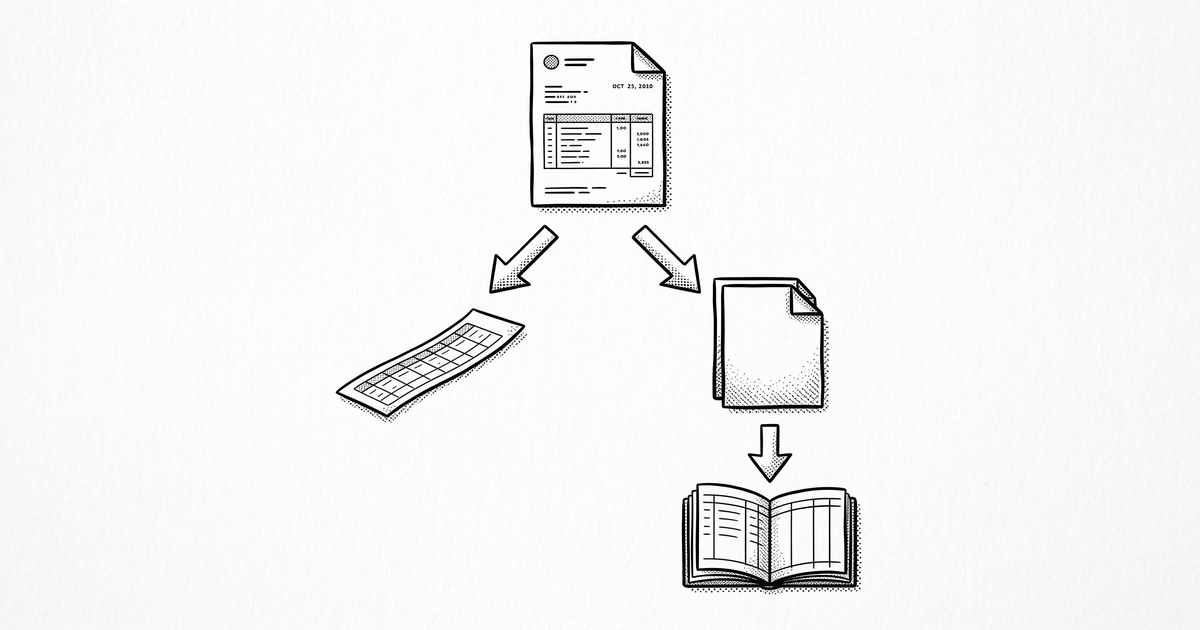
A useful mental model: a bank statement PDF is a report. A QBO file is a structured envelope that QuickBooks recognizes. The conversion is the move from one to the other.
What is a QBO file?
A QBO file is a QuickBooks Web Connect file, a small structured file built on the OFX 1.0.3 or 2.x standard. The file is plain text with SGML-style tags. It contains four parts.
First, a signon message block that identifies who is sending the file. Second, an account info block that names the bank, the account type, and the account number.
Third, a statement transactions list with one row per transaction, each carrying a date, a description, a signed amount, a unique transaction ID called a FITID, and a transaction type. Fourth, a balance block that reports the ledger balance at the end of the statement period.
The four-part structure is what lets QuickBooks recognize the file as a bank feed and route the transactions correctly. The FITID per transaction is what lets QuickBooks detect duplicates on re-import.
Why QBO Is the Right Choice for QuickBooks (and the Wrong Choice for Xero)
QBO is the right answer when your destination is QuickBooks. The format is built for it. QuickBooks reads the file as a native bank feed, the transactions land in the right account, and payee matching works the same way it does for live bank feeds.
QBO is the wrong answer for Xero, Wave, Zoho Books, and FreshBooks. Those tools do not accept QBO. They accept CSV (or OFX in Xero’s case). If your destination is one of those, use CSV instead.
The decision is straightforward. If you use QuickBooks, use QBO. If you use Xero, Wave, Zoho, or FreshBooks, use CSV. If you want to review the data yourself first, use Excel. The format choice is about the destination, not the data.
What’s the difference between QBO and CSV for QuickBooks?
QBO arrives pre-structured with the OFX envelope. QuickBooks reads the bank name, account number, transactions, and balance without any column-mapping step. CSV arrives as flat rows, and QuickBooks asks you to map each column to a field. The result is the same transactions either way, but QBO requires less post-import cleanup and preserves payee matching across re-imports.

What is the difference between QBO, QFX, and OFX?
All three are built on the same OFX standard. QBO has Intuit-specific headers for QuickBooks. QFX is the Quicken variant with license restrictions (Quicken verifies QFX licensing and may refuse files that lack it).
OFX is the open standard any software can read. For QuickBooks, use QBO. For Quicken, use QFX (or OFX if the converter produces it). For Xero, use OFX (Xero does not accept QBO).


From PDF to Excel in one click
Forget retyping line by line. Upload any bank statement, get a spreadsheet you can actually use. Your files are never stored, and you can test the converter with 3 free conversions.
Try it freeThe QBO File Structure
A QBO file is plain text. Open it in any text editor and you can read it. The structure is four blocks, in order.
Signon message. Identifies the sender (your bank or your converter) and the version of OFX used. QuickBooks reads this to recognize the file as a Web Connect import.
Account info. Names the bank, the account type (checking, savings, credit card), and the account number. QuickBooks uses this to route the transactions to the right account. For QuickBooks Desktop, the account number is what lets Web Connect auto-match an existing account.
Statement transactions. One row per transaction, with date, description, signed amount, FITID, and transaction type (DEBIT or CREDIT). The FITID is a unique transaction ID that lets QuickBooks detect duplicates on re-import. A good converter generates a FITID by hashing the date, amount, and description.
Balance. The ledger balance at the end of the statement period. QuickBooks uses this as a check against the imported transactions during the review step.
How a Statement Becomes a QBO File
The conversion itself is invisible to the end user. Under the hood, it follows the same four steps as any bank statement conversion, with the final step being the QBO write.
- Read the source PDF (text layer for digital, OCR for scanned).
- Find the transaction block in the page.
- Parse each row into date, description, amount, and balance.
- Wrap the transactions in the OFX envelope with a unique FITID per transaction, and write the file as a .qbo.
Step four is what makes the output specifically a QBO file. The writer generates a FITID for each transaction (usually a hash of date + amount + description), wraps the transactions in the OFX structure with the right signon, account info, and balance blocks, and writes the result as a plain-text .qbo file.
How long does it take to convert a statement to QBO?
For a typical one or two-page statement, the conversion finishes in 20 to 40 seconds. Multi-page statements take a bit longer but rarely more than two minutes. QBO writing is similar speed to CSV writing, with a small overhead for the OFX envelope generation.
How to Import a QBO File into QuickBooks Online
QuickBooks Online has a built-in upload flow for bank files. It accepts CSV, QBO, QFX, and OFX files up to 350 KB per upload, which is Intuit’s published size limit. For larger statements, split into multiple files.
- Go to Transactions, then Bank transactions in the left menu.
- Click the dropdown next to Link account, then choose Upload from file.
- Select your .qbo file.
- Choose the destination QuickBooks account from the dropdown. This must be an account in your chart of accounts, not the bank’s name.
- Review the imported rows under For review.
- Accept them.
QuickBooks reads the bank name, account type, and transactions from the QBO file. The bank name inside the file does not have to match your QuickBooks account name, because QuickBooks uses the account you selected, not the one in the file.
How to Import a QBO File into QuickBooks Desktop
QuickBooks Desktop accepts QBO Web Connect files as bank feeds. The import has one critical prerequisite that catches most people the first time.
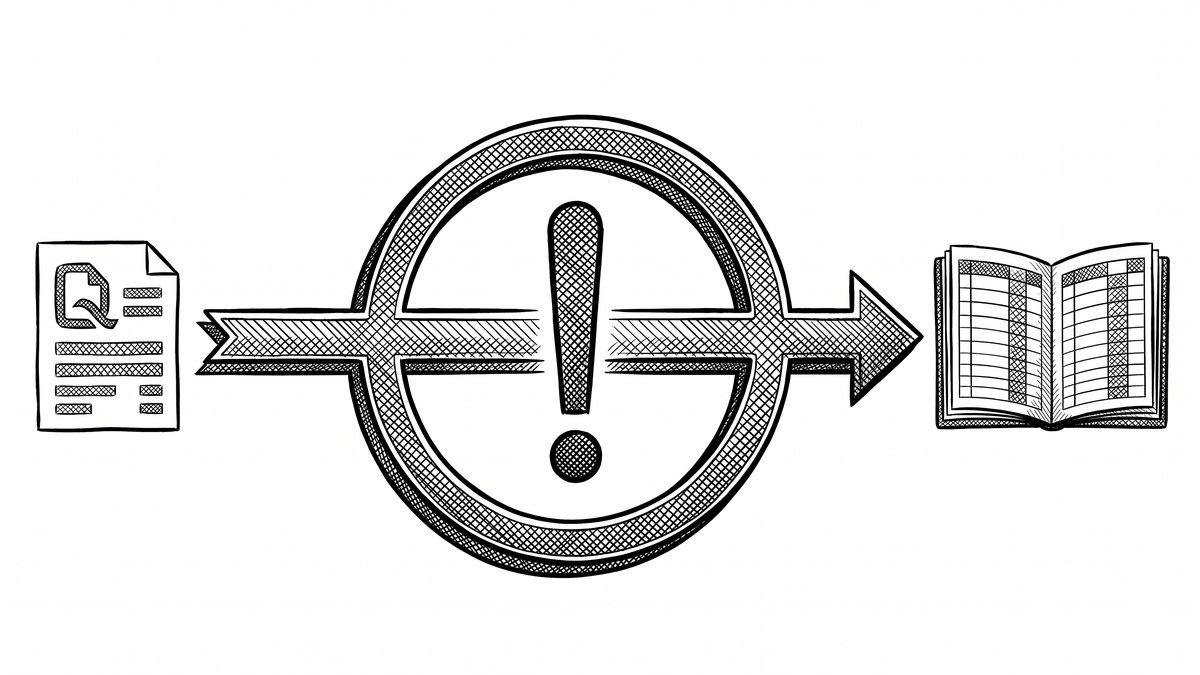
First, deactivate the live bank feed. If the destination account has an active direct-connect or live bank feed (shown as a yellow strike icon in the Chart of Accounts), the Web Connect import will fail.
To deactivate, open Lists, then Chart of Accounts, right-click the account, choose Edit Account, go to Bank Feed Settings, and click Deactivate All Online Services. The yellow icon will disappear. The account is now ready to receive a Web Connect import.
- Deactivate any live bank feed on the destination account (above).
- Go to File, then Utilities, then Import, then Web Connect Files.
- Select your .qbo file.
- Choose the destination QuickBooks account. Match the bank label, account type, and account number carefully.
- Open the Bank Feeds Center (Banking menu, then Bank Feeds) to review the imported transactions.
- Assign a vendor and an expense or income account to each transaction before adding it to the register.
After the import, if you want the live bank feed back, you can re-enable it. The Web Connect import and the live feed cannot be active on the same account at the same time, but the Web Connect file remains a complete historical record after the import.
Why do I have to deactivate the live bank feed before importing?
QuickBooks Desktop will refuse the import if the account has an active live bank feed. The two are mutually exclusive. Deactivate the live feed first, then run the Web Connect import. You can re-activate the live feed after the import completes if you want both. This is the most common stumbling block for first-time QBO users in QuickBooks Desktop.
Common QBO Pitfalls (and How to Avoid Them)
A common failure mode in this scenario: underestimating the time required. The fix: plan for 2x your initial estimate.
Four pitfalls come up often enough to be worth knowing about. None of them are deal-breakers, but each is easier to handle if you see it coming.
File size limit in QuickBooks Online. The upload limit is 350 KB per file. A 12-month statement as QBO is usually 100 to 200 KB, well under the limit. For multi-year histories, split into multiple QBO files by quarter or year.
Live bank feed conflict in QuickBooks Desktop. Covered above. Deactivate the live feed before importing. The error message is unhelpful, which is why most people hit this and give up.
Date format in the OFX envelope. The OFX standard uses YYYYMMDDHHMMSS. A good converter handles this automatically. If you see malformed dates in the QBO file, the converter has a bug, or you are hand-editing the file (which is not recommended).
Missing FITID per transaction. Every transaction must have a unique FITID, or QuickBooks cannot de-duplicate on re-import. A good converter always assigns one, usually by hashing the date, amount, and description. If you are missing FITIDs, the QBO file was poorly constructed.
Can I convert a PDF to QBO?
Yes. AI-based converters can read the transaction table from a digital or scanned PDF, wrap the transactions in the OFX envelope with the right signon and account info, and assign a FITID per transaction.
The resulting QBO imports cleanly into QuickBooks Online or Desktop. Quality depends on the conversion, but the workflow is the same as converting to any other output format, with one extra step at the end (the OFX envelope generation).
How to Convert a Bank Statement to QBO
The actual workflow is short. Most of the time is in the upload and download, not the conversion itself.
- Get the PDF. Download the statement from your bank. Digital is cleaner.
- Pick a converter that supports QBO output. Most modern converters do. EasyStatementSheet is one example, with in-memory processing and a focus on the statement-to-QBO workflow.
- Upload the PDF. Drag and drop or use the file picker.
- Pick QBO as the output format. The converter will offer Excel, CSV, Google Sheets, and QBO. For this workflow, pick QBO.
- Download the .qbo file. The conversion takes 20 to 40 seconds for a one-page statement, under two minutes for a 12-month statement.
- Import into QuickBooks Online or Desktop. Use the steps in the earlier sections. For Desktop, deactivate the live bank feed first.
- Spot-check the data. A 60-second review confirms the row count, dates, and balance. For a deeper workflow, see the data check workflow.
Is it safe to upload a bank statement to get a QBO file?
It depends on the tool. The right answer is to use a converter that processes the file in memory and never writes it to disk, and that has a clear privacy policy you can read. Look for specific language about in-memory processing, zero data retention, and what is logged for billing.
EasyStatementSheet’s trust page is one example of the kind of detail to look for. Whatever tool you use, it should be at least that explicit about what happens to your file.
When to Choose a Different Format Instead
QBO is the right choice for QuickBooks. There are a few cases where a different format is better.
- Feeding Xero, Wave, Zoho Books, or FreshBooks? Use CSV. Those tools do not accept QBO. For the full workflow, see the CSV output guide.
- A person will open the file? Use Excel. QBO is plain text with OFX tags, which is unreadable without parsing. For the full Excel workflow, see the Excel output guide.
- Just want to view the data? The PDF statement is fine. Conversion is only worth it if you are going to do something with the data.
- Need formulas, charts, or conditional formatting? Use Excel.
Turn any PDF statement into a clean sheet
Skip the typos and the hours of copying. Our converter handles any bank statement format and outputs Excel, CSV, or QBO for QuickBooks. No file retention, free to try.
Convert your statement