
Bank statement to Excel conversion takes a PDF and turns it into a structured . xlsx workbook with date, description, amount, and balance in named columns. This page covers the output format, the conversion workflow, when Excel is the right choice, and the 5 pitfalls to avoid.
What most guides miss about this: the right output format depends on the destination, not the source. The same PDF can produce 4 different output files, each with different downstream impact.
The bank-specific conversion guides for 11 major US banks are linked below. For the broader conversion workflow, see the converter guide.
Converting a bank statement to Excel (also called turning a bank statement into Excel, converting to XLSX, or bank statement to Excel conversion) produces a multi-column .xlsx workbook with one row per transaction and standardized columns: date, description, amount, balance (and any extra fields the bank provides). The Excel deep-dive covers how to structure the workbook, what formulas to use, how to handle multi-sheet exports, and the trade-offs versus CSV.
This page is the Excel-specific guide. For the spreadsheet overview (Excel, Google Sheets, Numbers, Open Office), see convert a bank statement to a spreadsheet. For Google Sheets specifically, see convert PDF bank statement to Google Sheets. For CSV (raw tabular data, no formatting), see convert bank statement to CSV.
For converting bank transactions to Excel (the transactions specifically, not the whole statement), see extract transactions from bank statement. For scanned or paper statements, the OCR step adds a quality review pass. See convert bank statement PDF for the scanned workflow.
What “Converting a Bank Statement to Excel” Actually Means
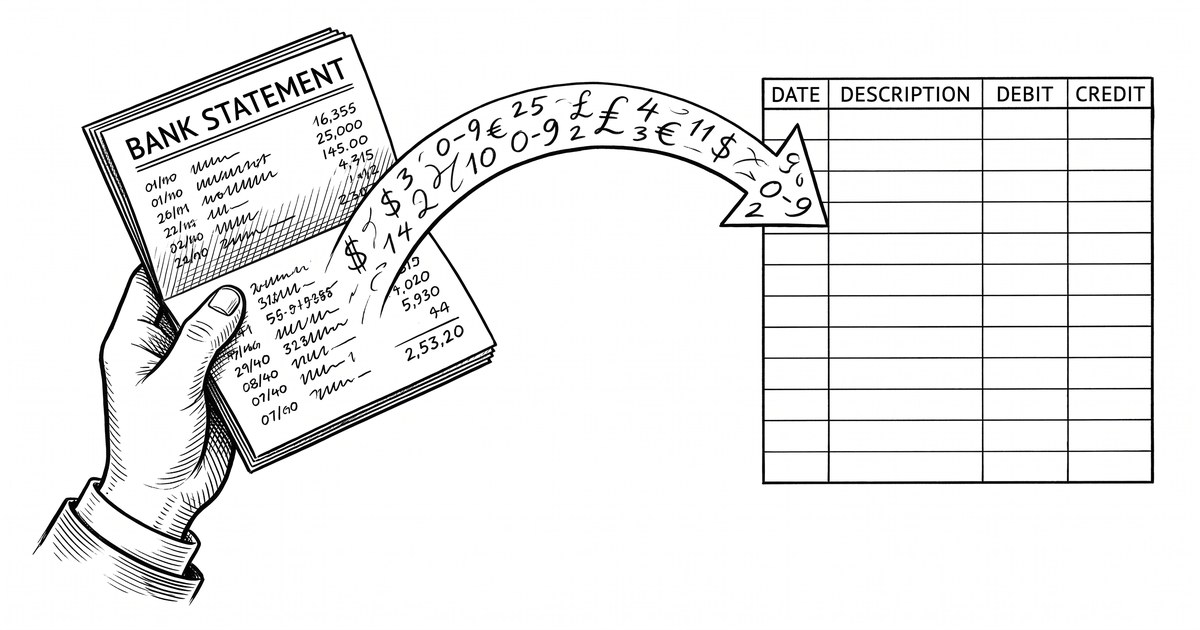
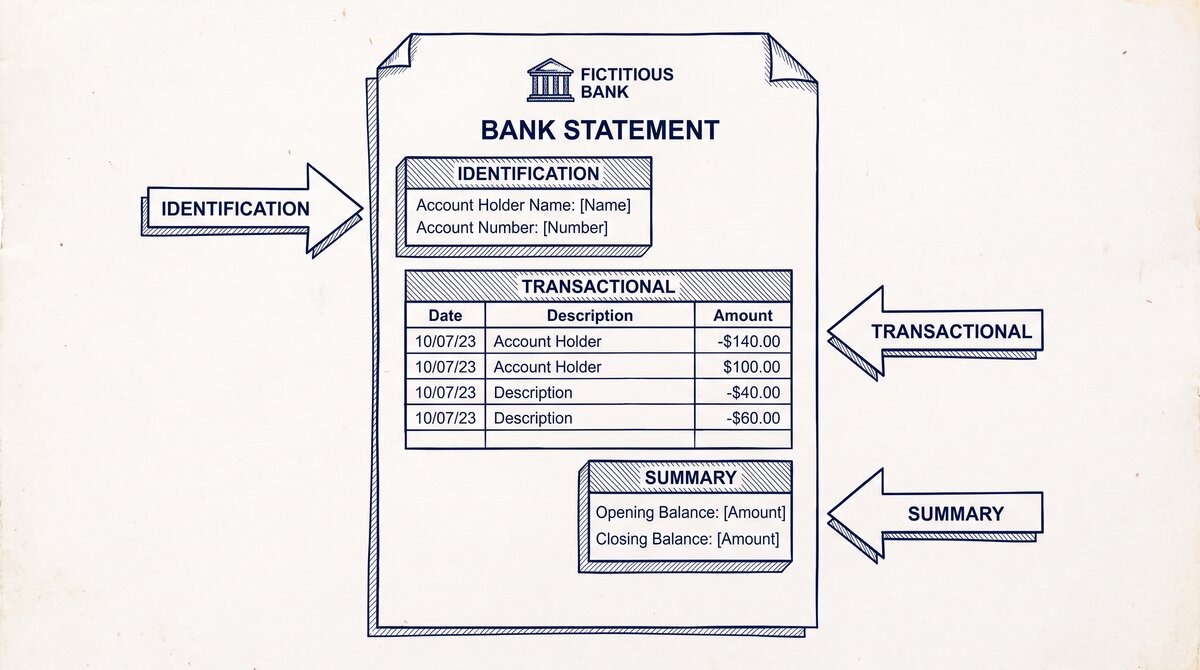
In plain language, it means taking the transaction list inside a PDF bank statement (also called a monthly statement or account statement) and writing it into a Microsoft Excel workbook. The output is a single .xlsx file you can open in Excel, Google Sheets, Numbers, or LibreOffice Calc.
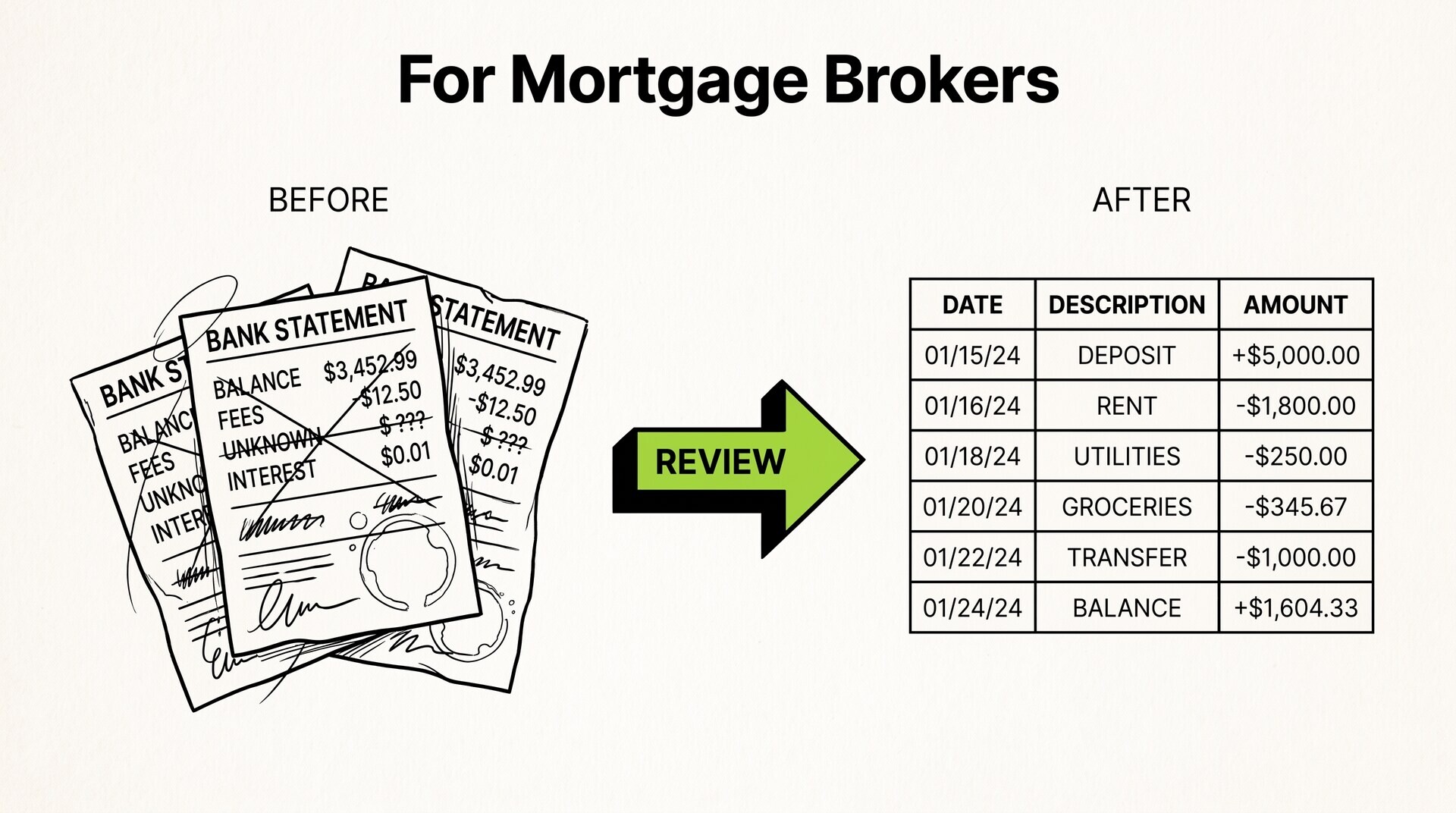
Each transaction in the source statement becomes a row in the output workbook. Each piece of information about that transaction becomes a named column. The first row is a header that labels the columns. From there, the file is a real spreadsheet: you can sort it, filter it, run a SUM, build a pivot table, and add charts.
It is worth being clear about what the output is not. It is not a PDF that looks like a spreadsheet. It is not a scanned image of a table. It is not a CSV with an .xlsx extension. It is a proper Excel workbook with real number formatting, real dates, and a header row that downstream tools and humans can read.
A useful mental model: a bank statement PDF is a report. A converted bank statement Excel file is a dataset you can analyze. The conversion is the move from one to the other.
Why Convert a Bank Statement to Excel
Four situations are where Excel is the right format, and one where it is not.
You want to do your own analysis. If you will open the file in Excel yourself to run a SUM, build a pivot, sort by amount, or filter by date, Excel is the right format. The number formatting and the cell types are already correct, so formulas work without cleanup.
You want formulas, conditional formatting, or charts. None of these work in a flat CSV. Excel supports them natively. If your next step is to build a spending-by-category chart or highlight every transaction over $500, Excel is what you need.
You are handing the file to a person. If you are sending the data to a bookkeeper, accountant, or business partner who will open it and look at it, Excel is more human-friendly than CSV. The header row is clearly labeled, the dates are formatted, the amounts have currency styling.
You want cloud sharing via Google Sheets. Google Sheets opens .xlsx files natively. Upload the file to Google Drive, double-click, and you have a shareable, version-controlled spreadsheet in the cloud.
When Excel is the wrong choice: if software will read the file directly (Xero, Wave, Zoho Books, FreshBooks, a database, a script), CSV is usually better. CSV is lighter, more universal, and avoids the locale-formatting pitfalls Excel can have. For QuickBooks specifically, QBO is better than either.
Turn PDF Bank Statements Into Workable Spreadsheets
Your bank statement is a mess of numbers, but your books shouldn't be. Use our converter to get Excel, CSV, or QBO files — ready for QuickBooks.
Try It Free NowThe Excel Workbook You’ll Get
A converted bank statement Excel file is structured in a specific way. Knowing the structure before you open it means you will recognize the data the moment it loads.
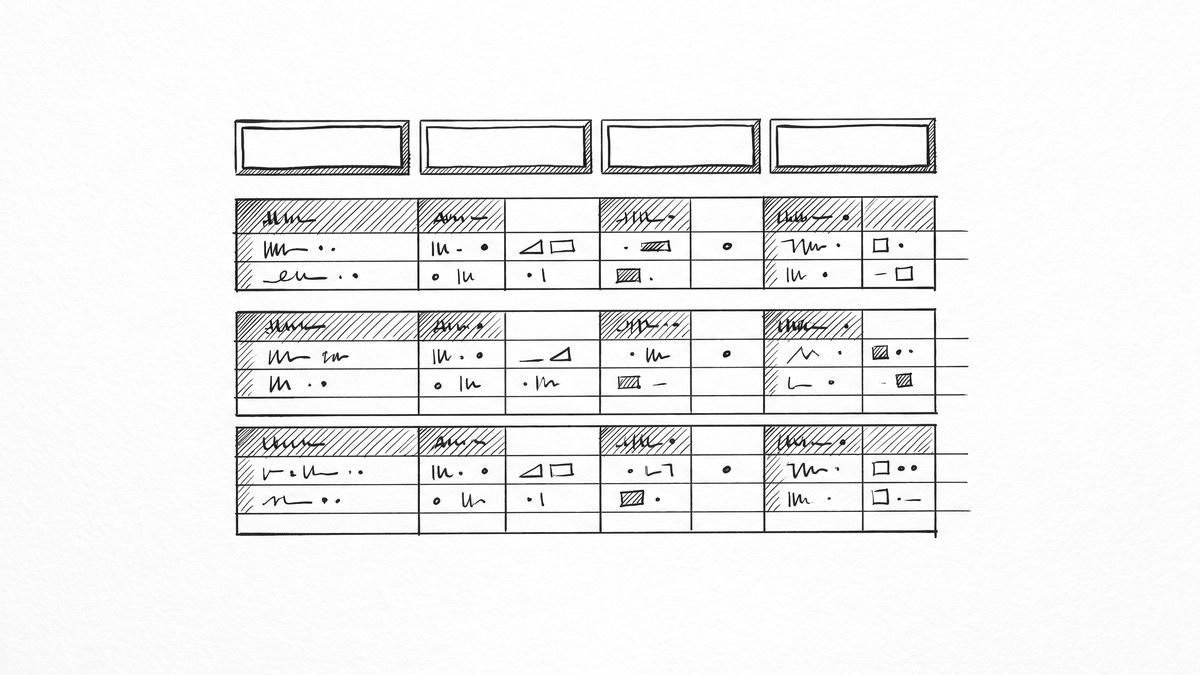
The workbook has one worksheet. The first row is a header that labels the columns. The remaining rows are transactions, one per row, ordered by date. There is no summary section, no chart, and no formula in the file. It is clean transaction data, ready for you to work with.
| Date | Description | Amount | Balance |
|---|---|---|---|
| 2026-01-15 | Payment received from Acme Co | 1,250.00 | 4,820.00 |
| 2026-01-16 | Office supplies at Staples | -86.45 | 4,733.55 |
| 2026-01-17 | Subscription to Adobe | -54.99 | 4,678.56 |
Three things to notice about the structure. First, the amount column uses a single value with sign convention: deposits are positive, withdrawals are negative. Second, the dates are in ISO format (YYYY-MM-DD), which is unambiguous across locales. Third, the running balance carries forward, which is what makes balance verification possible.
Number formatting is consistent throughout. Amounts have two decimal places. Balances have two decimal places. Currency symbols are usually absent in the data itself (Excel will add them based on cell formatting), which keeps the file easy to import elsewhere if you decide to switch formats later.
What columns will my Excel file have?
The standard column set is four: date, description, amount, and balance. Some converters add optional columns like reference number, transaction type, or original currency. A few add metadata such as a statement ID, the source filename, or a conversion timestamp at the top of the file.
If the extra columns are not useful to you, delete them. They are designed to be removable, and the standard four-column structure is the one most downstream tools expect.
How a Statement Becomes an Excel File
For the underlying 6-link conversion mechanism in detail, see Convert Bank Statement to Excel: The 6-Link Mechanism. For the 4-step transaction extraction process specifically, see Extract Transactions from PDF Bank Statement: The 4-Step Mechanism.
For the underlying 6-link conversion mechanism in detail, see Convert Bank Statement to Excel: The 6-Link Mechanism. For the 4-step transaction extraction process specifically, see Extract Transactions from PDF Bank Statement: The 4-Step Mechanism.
The conversion itself is invisible to the end user, but under the hood it follows the same four steps as any bank statement conversion.
- Read the source PDF (text layer for digital, OCR for scanned).
- Find the transaction block in the page.
- Parse each row into date, description, amount, and balance.
- Write the parsed rows into the Excel workbook with a header row in row 1.
Step four is what makes the output specifically an Excel file. The parser hands the structured rows to a workbook writer that creates a worksheet, writes the header, then writes each row as a row of cells. Amounts become number cells, dates become date cells, descriptions become text cells.
For the full mechanism with all four steps explained in depth, see the four-step extraction process.
How long does it take to convert a statement to Excel?
For a typical one or two-page statement, the conversion finishes in 20 to 40 seconds. Multi-page statements take a bit longer but rarely more than two minutes. Writing to Excel is roughly the same speed as writing to CSV, since both are sequential file writes.
The bottleneck is usually the upload on your end, not the conversion or the Excel writing.
Excel vs CSV vs QBO: When Excel Is the Right Choice
Each output format has a clear strength. The choice depends on who or what will read the file next.
| Format | Best for | Strength | Limit |
|---|---|---|---|
| Excel (.xlsx) | Human editing, formulas, charts, cloud sharing | Formatting, formulas, multiple sheets, opens in Excel and Sheets | Larger file size than CSV, locale-formatting edge cases |
| CSV | Software handoff (Xero, Wave, Zoho Books, scripts) | Universal, lightweight, scriptable, no encoding edge cases | No formatting, no formulas, harder for a human to scan |
| QBO | Direct import into QuickBooks Online or Desktop | Imports with payee matching, no manual mapping | QuickBooks-specific, not useful elsewhere |
The decision is simple in most cases. Pick Excel if a person will open the file. Pick CSV if software will read it. Pick QBO if QuickBooks is the destination. For more on the CSV path, see the CSV output guide. For the QuickBooks path, see the QBO conversion guide.
Should I choose Excel or CSV?
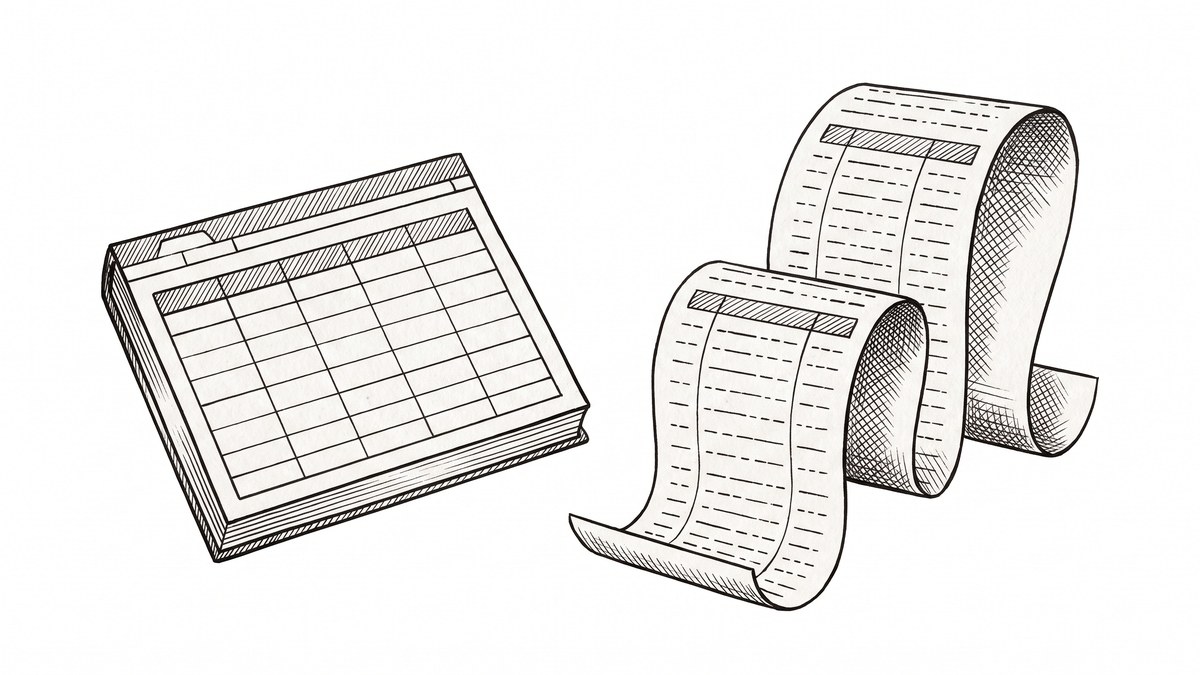
Excel if a person opens it. CSV if software reads it. For most small business owners who want to review the data themselves first and then hand it to a bookkeeper, Excel is the better default. For bookkeepers feeding Xero, Wave, or Zoho Books directly, CSV is the better default.
Digital vs Scanned PDFs: How Each Affects the Excel Output
The quality of the source PDF directly affects the quality of the Excel output. Digital PDFs convert cleanly. Scanned PDFs depend on OCR.
Digital PDFs come straight from the bank’s database, with text and numbers baked into the file. The converter reads the text directly, finds the transaction block, and writes each row into Excel with the correct data types. Header row correct, amounts as numbers, dates as dates, descriptions as text. The output is clean.
Scanned PDFs are pictures of statements. There is no text layer, so the converter runs OCR to read the page. AI-based OCR handles most statements well, but edge cases can show up in the Excel output: a misread amount, a misaligned column, a number that lands in the description column. A 60-second visual review catches these.
The trade-off is simple: digital PDFs produce clean Excel. Scanned PDFs produce mostly-clean Excel with rare edge cases. If you can download a fresh statement from your bank rather than scanning a paper one, the Excel output will be cleaner from the start.
Can a converter turn a scanned statement into Excel?
Yes. AI-based converters can. They use OCR to read the text from image-based PDFs and write the extracted rows into Excel. Quality depends on the scan: a clean, straight, well-lit scan converts almost perfectly. A folded, wrinkled, or low-resolution scan may need a quick review pass.
If you can download a fresh digital statement from your bank, always do that first. The Excel output will be cleaner and the conversion will be faster.
How to Convert a Bank Statement to Excel
The actual workflow is short. Most of the time is in the upload and download, not the conversion itself.
- Get the PDF. Download the statement from your bank’s website, or have the scanned PDF ready. Digital is cleaner. A 12-month statement is usually 5 to 15 pages.
- Pick a converter that supports Excel output. Most modern converters do. EasyStatementSheet is one example, with in-memory processing and a focus on the statement-to-Excel workflow.
- Upload the PDF. Drag and drop or use the file picker. The upload takes a few seconds on a typical broadband connection.
- Pick Excel as the output format. The converter will offer Excel, CSV, Google Sheets, and QBO as options. For this workflow, pick Excel (.xlsx).
- Download the file. The conversion takes 20 to 40 seconds for a one-page statement, under two minutes for a 12-month statement.
- Open the file. Microsoft Excel, Google Sheets, Numbers, and LibreOffice Calc all open .xlsx files. The header row is in row 1, transactions below.
- Spot-check the data. A 60-second review confirms the row count, dates, and balance match the source statement. For a deeper workflow, see the data check workflow.
Is it safe to upload a bank statement to get an Excel file?
It depends on the tool. The right answer is to use a converter that processes the file in memory and never writes it to disk, and that has a clear privacy policy you can read. Look for specific language about in-memory processing, zero data retention, and what is logged for billing.
EasyStatementSheet’s trust page is one example of the kind of detail to look for. Whatever tool you use, it should be at least that explicit about what happens to your file.
What to Do With the Excel File Once You Have It
Three common next steps, depending on what you are trying to do.
Open in Excel and work with it. Add a SUM column, a VLOOKUP against a category table, conditional formatting to highlight large transactions, a pivot table to summarize by month. All of these work because the data types are correct: dates are real dates, amounts are real numbers.
Upload to Google Sheets for cloud sharing. Drag the .xlsx file into Google Drive, double-click, and you have a shareable, version-controlled spreadsheet. This is the easiest way to hand the data to a bookkeeper or accountant who works in the cloud.
Hand the file to your accountant or bookkeeper. They will open it in Excel, Google Sheets, or their accounting software. Most modern accounting tools accept .xlsx imports, though CSV is more universal. If your accountant has a preference, follow it.
One thing the Excel file is not designed for is direct import into QuickBooks. For that, use QBO output. QuickBooks treats QBO imports with full payee matching; .xlsx imports are treated as manual entries.
Can I open the Excel file in Google Sheets?
Yes, just upload it to Google Drive and double-click, or use File > Import in Google Sheets. The four-column structure, header row, and number formatting all carry over cleanly. If you have a non-US locale, dates may need a one-time format adjustment, since Google Sheets infers the format from your account locale.
Will the Excel file preserve formulas and formatting from the source?
The source PDF has no formulas or formatting. The Excel output is clean data. Any formulas you want (SUM, VLOOKUP, IF, and so on) are added by you after opening the file. This is by design. The conversion’s job is to deliver clean rows and columns, not to guess what formulas you want.
Common Excel-Specific Pitfalls (and How to Avoid Them)
A common failure mode in this scenario: underestimating the time required. The fix: plan for 2x your initial estimate.
Three pitfalls come up often enough to be worth knowing about. None of them are deal-breakers, but each is easier to handle if you see it coming.
Decimal separator mismatch. A US-formatted Excel file uses a period for decimals (1,250.00). A European Excel expects a comma (1.250,00). If you open a US file in a European locale, the amounts can be misread. The fix: change Excel’s locale to English (US) for that file, or convert the columns to numbers after import.
Date format ambiguity. The date 01/03/2026 means March 1 in the US and January 3 in the UK. A good converter normalizes to ISO format (2026-01-03 or 2026-03-01) to avoid this. If you see non-ISO dates in your Excel file, change the column format to a date format that matches your locale.
File size for long histories. A 12-month Excel file with one row per transaction is usually 100 to 500 KB. That is fine for email and cloud sharing. For multi-year histories or high-volume business accounts, the file gets larger. CSV is lighter and may be a better choice for very large histories.
If you are feeding accounting software, see the CSV conversion guide.
If you are feeding QuickBooks directly, see the QBO conversion guide.
For best results with QuickBooks, see the QBO conversion guide and how the four-step mechanism works.
When to Choose a Different Format Instead
Excel is the right choice for most personal and small business workflows. There are a few cases where a different format is better.
For more on this, see the how to read a bank statement page.
For more on this, see the bank statement PDF vs paper page.
For more on this, see the bank statement vs transaction history page.
- Feeding QuickBooks Online or Desktop directly? Use QBO. It imports with payee matching, no manual mapping.
- Feeding Xero, Wave, Zoho Books, or FreshBooks? Use CSV. All four accept a four-column CSV with date, description, amount, and balance, no manual mapping needed.
- Just want to view the data, not edit? The PDF statement is fine. Conversion is only worth it if you are going to do something with the data.
- Multiple statements, large volume, or automation? CSV is lighter per file, which adds up at scale. Most automation tools and scripts take CSV natively.
- You only have one or two transactions? Manual entry is faster than conversion.
Turn any PDF statement into a clean sheet
Skip the typos and the hours of copying. Our converter handles any bank statement format and outputs Excel, CSV, or QBO for QuickBooks. No file retention, free to try.
Convert your statement