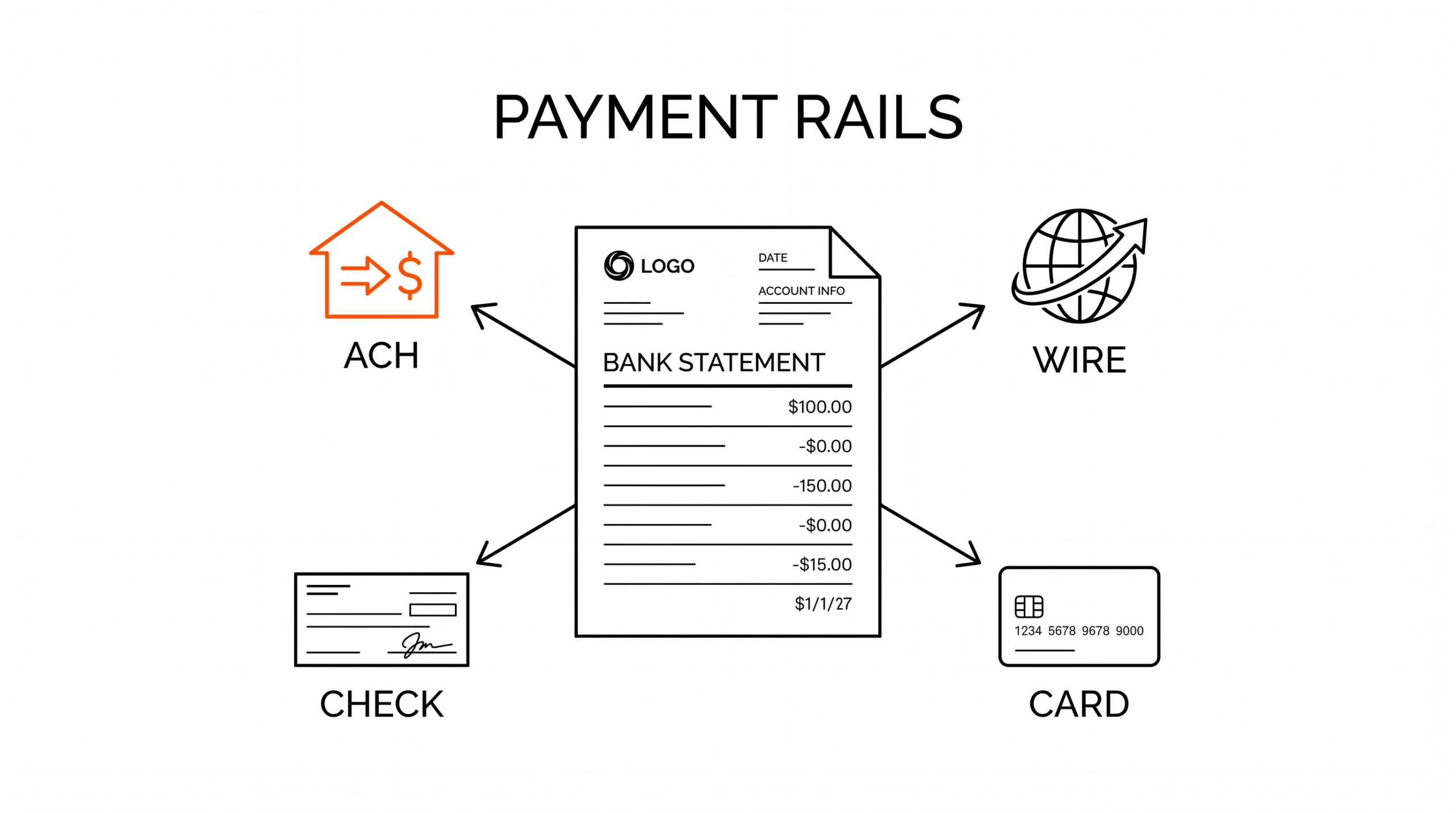
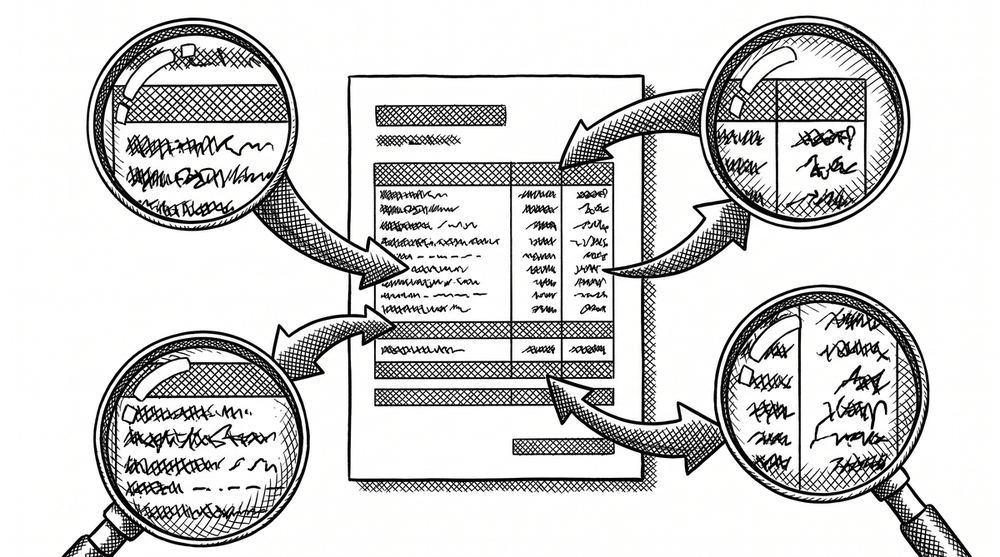
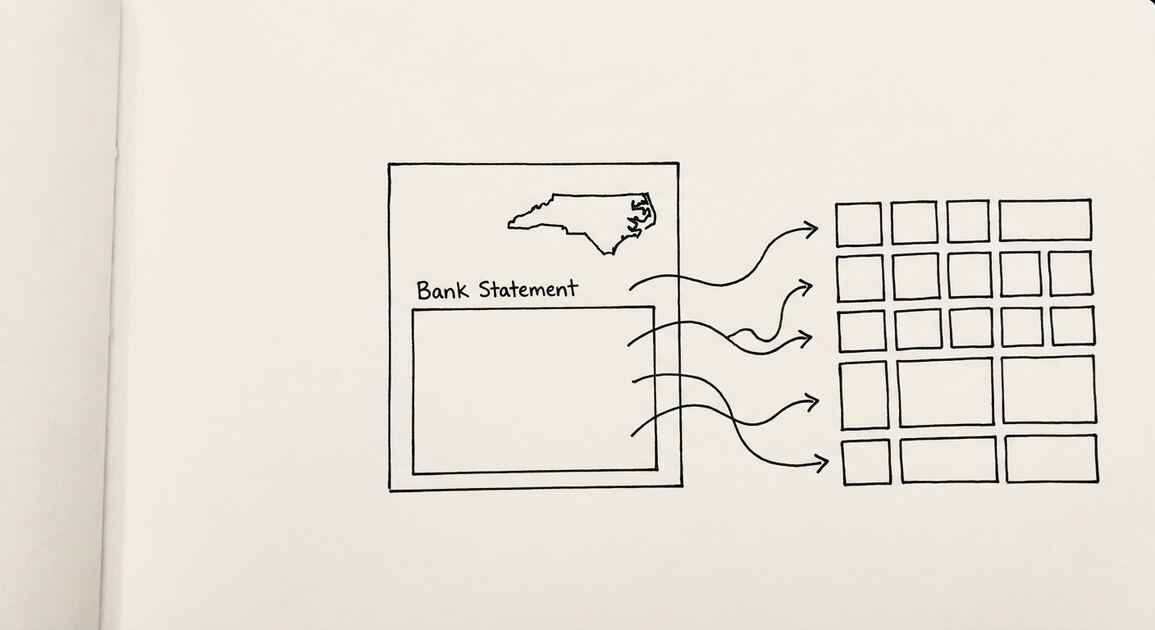
You have a bank statement. You need the transactions extracted into a structured file.
The wrong tool gives you half the fields, the wrong dates, or a balance that does not tie out.
This page is the guide to extracting transactions from a bank statement. It covers the 4-step mechanism, the data dictionary, the 5 main use cases, and the validation layer. The detailed guides for PDF-specific extraction, scanned statements, and password-protected statements are linked below.
Extracting transactions from a bank statement means pulling the structured fields (date, description, amount, balance) out of the PDF and writing them into a file software can process. The output is the dataset the downstream tool consumes.
The mechanism is the same regardless of the source: read the PDF, find the transaction table, parse each row, write the output. The differences are in the input (digital vs scanned), the format (Excel vs CSV vs QBO), and the validation layer.
For the PDF-specific mechanism, see the PDF extraction guide. For the field dictionary, see the data extraction guide.
What “Extracting Transactions from a Bank Statement” Actually Means
In plain language, it means taking a PDF bank statement, finding the transaction list inside it, and writing that list as structured data. The output is rows of transactions, each with a date, a description, an amount, and a balance, ready for Excel, CSV, QBO, Google Sheets, or any accounting software.
What most guides miss about PDF extraction is that the quality depends on the mechanism, not on the tool. Two tools that look different on the surface often run the same 4-step process underneath: read, find, parse, verify. The difference is in how well each step handles edge cases (merged cells, missing balances, non-standard date formats, scanned vs digital input). Choosing between tools based on UI alone misses the actual quality lever.
The source is a PDF. The PDF was either generated by the bank (digital) or produced by scanning a paper statement (scanned). The destination is a structured file. The mechanism in between is what this page covers.
It is worth distinguishing this from related workflows. Extracting transactions is not the same as opening a PDF and reading it. It is also not the same as importing a CSV your bank already gave you. It is the step in between: turning the bank’s report into a dataset.
The Four-Step Mechanism
Every bank statement converter, from a free online tool to a multi-thousand-line enterprise system, runs the same four steps. The difference between tools is how well each step handles edge cases.

Step 1: Read the Source PDF
The converter opens the PDF and reads its content. The way this works depends on whether the PDF is digital or scanned.
Digital PDFs have a text layer. The numbers and words are real text inside the file. A converter can extract them directly with no extra processing. This is the easy case, and modern bank statements are mostly digital.
For the scanned-statement guide, see the 5-minute pre-processing.
Scanned PDFs are pictures of statements. There is no text layer, so the converter cannot read the page directly. It runs OCR (optical character recognition) to convert the image into text. Modern AI-based OCR handles most statements well, but it is the source of most extraction errors (covered below).
Step 2: Find the Transaction Block
A bank statement has multiple sections: account info, statement period, opening balance, transaction list, summary totals, and a running balance column. The transaction list is what the reader wants, but it is one block among several. Step 2 is identifying which block is the transaction list.
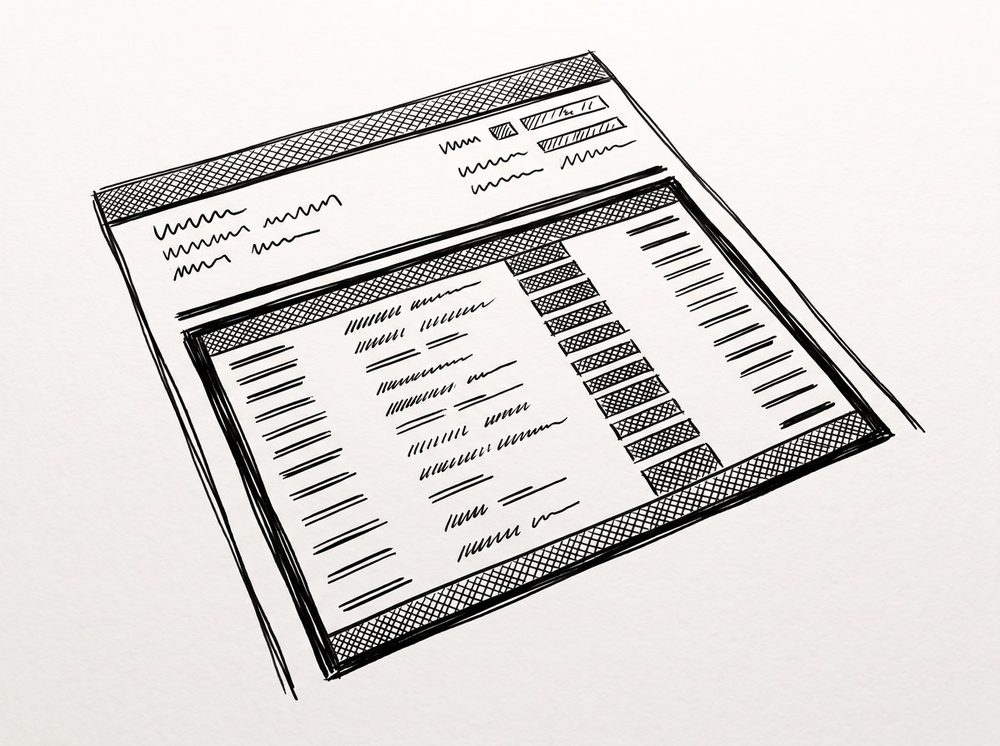
This is harder than it sounds because bank layouts vary. Chase puts the transaction block in a different position than Bank of America. Wells Fargo uses different column headers than Citibank.
A good converter has layout models for hundreds of banks, plus a fallback that detects the transaction block by structure (repeated rows with date-like, description-like, and amount-like fields) when the bank is not in the model. The bank statement converter applies this approach to every supported bank, with the integrity check at the end.
Step 3: Parse Each Row into Fields
Once the transaction block is located, every line has to be split into its components: date, description, amount, balance. This is parsing.
The parser has to handle several kinds of variation. Date formats differ: 01/15/2026 vs Jan 15, 2026 vs 15-Jan-2026. Description strings can include check numbers, reference codes, and merchant names. Amounts can be in a single column with sign convention or split into separate Debit and Credit columns.
A good converter normalizes all of this to a standard four-column structure.
Step 4: Emit the Output File
The parsed transactions get written into the format the user picked. The four common output formats are Excel (.xlsx), CSV, Google Sheets, and QBO (QuickBooks Web Connect).
Each format has its own write step. Excel is written as a workbook with cells. CSV is written as plain text lines with commas. QBO is wrapped in the OFX envelope with a signon, account info, and a unique FITID per transaction. The parsed data is the same; the envelope is what changes.

Turn PDF Bank Statements Into Workable Spreadsheets
Your bank statement is a mess of numbers, but your books shouldn't be. Use our converter to get Excel, CSV, or QBO files — ready for QuickBooks.
Try It Free NowHow Digital PDFs Differ from Scanned PDFs
The biggest factor in extraction quality is whether the source PDF is digital or scanned.
Digital PDFs are clean. The text layer has every number and word as real text. The converter can extract them with high accuracy. Errors, when they happen, are usually in the parser (misaligned columns, wrong date format) rather than the reader.
Scanned PDFs are pictures. The converter cannot read text from a picture. It has to run OCR first, then parse the OCR output. The OCR step is the source of most extraction errors on scanned statements. A misread digit in OCR becomes a wrong amount in the output. A misread comma can split one row into two, or merge two rows into one.
The trade-off is straightforward. If you can download a fresh statement from your bank (digital), the extraction is near-perfect. If you only have a scanned paper statement, the extraction is mostly correct with rare edge cases. A 60-second visual review catches the edge cases.
When should I scan a paper statement instead of downloading it?
Almost never. If the bank is online (and most US banks are), the online portal has a download option that produces a digital PDF. The digital version is faster, cleaner, and more accurate than any scan you can produce.
The only reason to scan is if the bank no longer has the statement online (closed accounts, old statements beyond the retention window), or if you need a paper document for legal or audit reasons.
OCR and Its Pitfalls
OCR (optical character recognition) is the technology that turns a picture of text into actual text. It is the difference between a scanned statement being readable or unreadable. Modern OCR has three generations: traditional (template-based), AI-based (computer vision), and LLM-based (large language models reading the page).
Traditional OCR is fast but fragile. It uses pattern matching against known fonts. A wrinkled scan or unusual font can break it. AI-based OCR is more flexible. It uses computer vision to recognize text regardless of font. LLM-based OCR is the newest. It treats the page as a document and reads it like a human would, understanding structure and context.
For bank statements specifically, AI-based and LLM-based OCR are the right choice. They handle the layout variation across banks without requiring per-bank templates.
Four common OCR pitfalls show up in extraction output:
- Misread digits. A 0 can be misread as an O, a 1 as an l, a 5 as an S. Amounts are the most affected. A misread amount of $1,250.00 becomes $l,250.00 or $1,2S0.00 in the output.
- Misread dates. 01/15/2026 might become 0l/lS/2O26 or 01/1S/2026. The day or month is wrong, and the date sort breaks.
- Merged or split rows. A two-line description in the source can be merged into one, or one row can be split into two if the OCR misreads a line break.
- Misaligned columns. A misread amount can land in the description column, or a description can land in the amount column. The output rows are technically valid but the data is in the wrong field.
A good converter handles most of these automatically. A 60-second visual review of the extracted rows against the source catches anything the converter missed. The full validation workflow is in the data check guide.
Balance Verification: The Quality Check
Balance verification is the strongest quality check a converter can do, and not all converters do it. The idea is simple: the bank prints a running balance on the statement. A good converter checks that the running balance in the output matches the bank’s printed balance.
How it works in practice. Each row in the source statement has a printed balance. The converter sums the amounts and walks through the rows, comparing the running total to the printed balance at each step. If the running total matches, the amounts are correct. If it does not, the converter knows there is an error somewhere and can flag it.
Balance verification catches most extraction errors. A misread amount throws the running total off. A merged or split row throws it off. A misaligned column throws it off. The verification step is the catch-all.
For QBO output specifically, the running balance appears in the balance block at the end of the file. QuickBooks uses it as a check during the import review. For Excel and CSV, the running balance is just a column in the output.
Either way, the verification step is what makes the difference between a converter that catches its own errors and one that hands you a file to debug.

How Output Format Choice Affects the Pipeline
The first three steps of the mechanism are the same regardless of output format. Step four (emit) is what changes.
For Excel, the writer creates a workbook with one worksheet, writes the header row in row 1, then writes each transaction as a row of cells. Amounts become number cells, dates become date cells, descriptions become text cells. The result is a workbook that opens in Excel, Google Sheets, Numbers, and LibreOffice Calc.
For CSV, the writer creates a plain-text file. The header row is the first line, with column names separated by commas. Each transaction is a line, with field values separated by commas. Strings that contain commas are wrapped in quotes. The file is UTF-8 encoded by default. The result is a file that opens in every spreadsheet app, every text editor, and every accounting tool.
For QBO, the writer wraps the transactions in the OFX envelope. The file gets a signon message block, an account info block, a statement transactions list (with a unique FITID per transaction), and a balance block. The result is a file that QuickBooks Online and QuickBooks Desktop import as a native bank feed.
For Google Sheets, the writer produces either an XLSX file that uploads cleanly to Sheets, or a CSV that imports with the same structure. The format on disk is the same as Excel or CSV; the destination is just cloud-hosted.
What to Look for in a Converter
The mechanism above is what every tool is doing, whether they say so or not. The differences between tools come down to how well each step handles the edge cases. Here is what to evaluate.
Layout coverage. How many banks does the converter know about? A converter with explicit models for Chase, Bank of America, Wells Fargo, and 50 other major US banks will be more accurate on those statements than a generic OCR-only tool. Look for a list of supported banks on the tool’s website.
OCR quality. For scanned statements, the OCR step is the bottleneck. AI-based or LLM-based OCR is meaningfully better than template-based OCR. Look for evidence that the tool uses modern OCR, not just “supports scans.”
Balance verification. Does the converter reconcile the output against the bank-printed balance? This is the strongest quality check. A converter without it is handing you a file to debug yourself.
Output flexibility. Can the tool produce the format you need (Excel, CSV, QBO, Google Sheets)? For QuickBooks users, QBO support is essential. For Xero/Wave users, CSV. For people who want to review the data themselves, Excel.
Data handling. For online tools, the question is what happens to your file during and after the conversion. Look for in-memory processing (the file never writes to disk) and clear privacy language. For more on this, see the trust and security standard to look for.
What is the difference between a converter and OCR software?
OCR software reads a picture and produces text. A bank statement converter reads a PDF and produces structured transaction data. The converter uses OCR as one of its four steps, but the output is not text; it is rows of date, description, amount, and balance.
A converter that does not include the parser, the transaction block detection, and the output formatting is just an OCR tool, not a converter.
A common failure mode bookkeepers report is treating this as a single operation rather than a chain of dependent steps. The temptation is to find a tool that ‘just works’ and stop investigating the mechanism. The result is a wrong-fix cycle: the tool gives partial output, the bookkeeper spends 30+ minutes troubleshooting, the fix is for the wrong step, and the same error recurs on the next statement. The fix: identify which step failed and apply the right intervention to that step.
When the Mechanism Fails (and What to Do)
The mechanism is reliable for clean inputs. It is less reliable for messy ones. Three failure modes come up often.
Wrong transaction count. The output has more or fewer rows than the source statement. The cause is usually a merged or split row in the OCR step (scanned PDF) or a parser misread (digital PDF). The fix is a visual review against the source. The full troubleshooting is in the missing-transactions guide.
Wrong amounts. A specific row has an amount that does not match the source. The cause is an OCR misread or a sign convention error (the converter interpreted a deposit as a withdrawal, or vice versa). The fix is to spot the row, correct the amount, and re-import.
Wrong dates. A specific row has a date in the wrong format or the wrong day. The cause is a date format misread. The fix is to set the column to a date format and re-check the row.
These three failure modes cover most of what goes wrong. Each has a specific cause and a specific fix. A converter with balance verification catches the first two automatically. The third is a visual review task.
For deeper understanding, see: Bank Statement Extract Transactions Mechanism, How Extract From Pdf Mechanism. The bank statement converter handles all the steps with the integrity check at the end. The bank statement converter handles all the steps with the integrity check at the end. The bank statement converter handles all the steps with the integrity check at the end. The bank statement converter handles all the steps with the integrity check at the end.
Turn any PDF statement into a clean sheet
Skip the typos and the hours of copying. Our converter handles any bank statement format and outputs Excel, CSV, or QBO for QuickBooks. No file retention, free to try.
Convert your statement