
Your converted file has 200 rows. The row count matches. The total matches. The dates are in range. But the data is wrong. The transactions are in the right place, with the wrong values. This is the silent pattern most people miss. Here’s the 2-minute diagnosis, the 4 common errors, and the fix for each.
This page is the troubleshooting guide for wrong transaction data after a conversion. The missing-transaction guide is on the missing transactions page. The duplicate-transaction guide is on the duplicate transactions page. The 5-point validation check is on the validation page. This page zooms in on the “totals match but something is wrong” question.
TL;DR. If your converted file passes the 5-point check but the data still feels wrong, the cause is one of 4 silent data errors: missing decimal ($5.00 instead of $50.00), extra zero ($500 instead of $50), character substitution ($5.0O instead of $5.00), or date format (01/15 became 10/15).
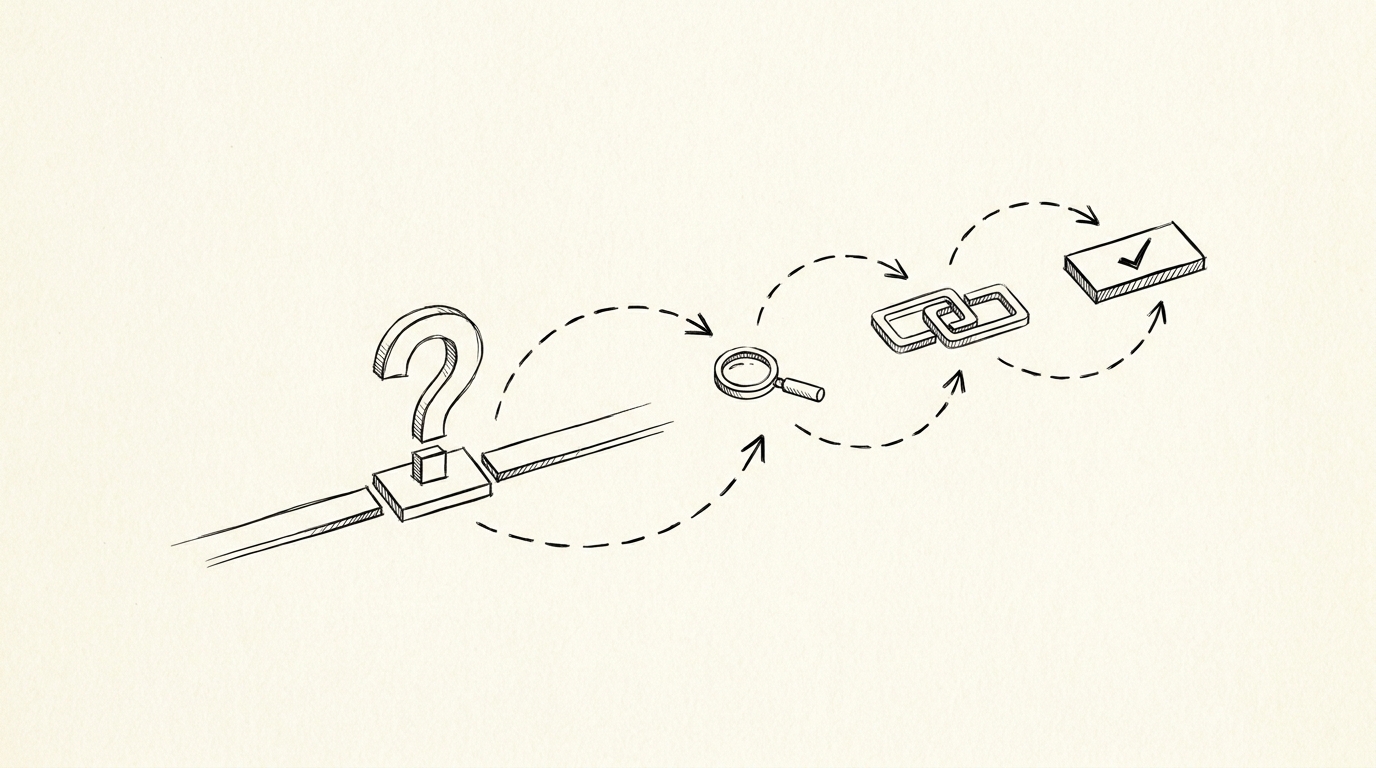
The fastest diagnosis is 2 minutes: spot-check 5 random transactions against the PDF. The fix depends on the cause.
The “silent” wrong data is when the totals match but the individual values are wrong. Two errors cancel each other out. This is the hardest case to catch. Always spot-check, even when the totals pass.
The Silent Pattern
You ran the 5-point check. The row count matches. The total matches. The date range is right. The chart of accounts is correct. Everything looks good. Then you reconcile against the bank statement and a specific transaction doesn’t tie. The converted file says $50.00. The bank statement says $5.00. Where did the zero go?
This is the silent pattern. The aggregated checks pass. The individual values are wrong. The cause is one of 4 errors that don’t affect totals in predictable ways: missing decimals, extra zeros, character substitutions, date format mismatches. Each is fixable. None are obvious from the 5-point check alone.
When the totals match but the data is wrong
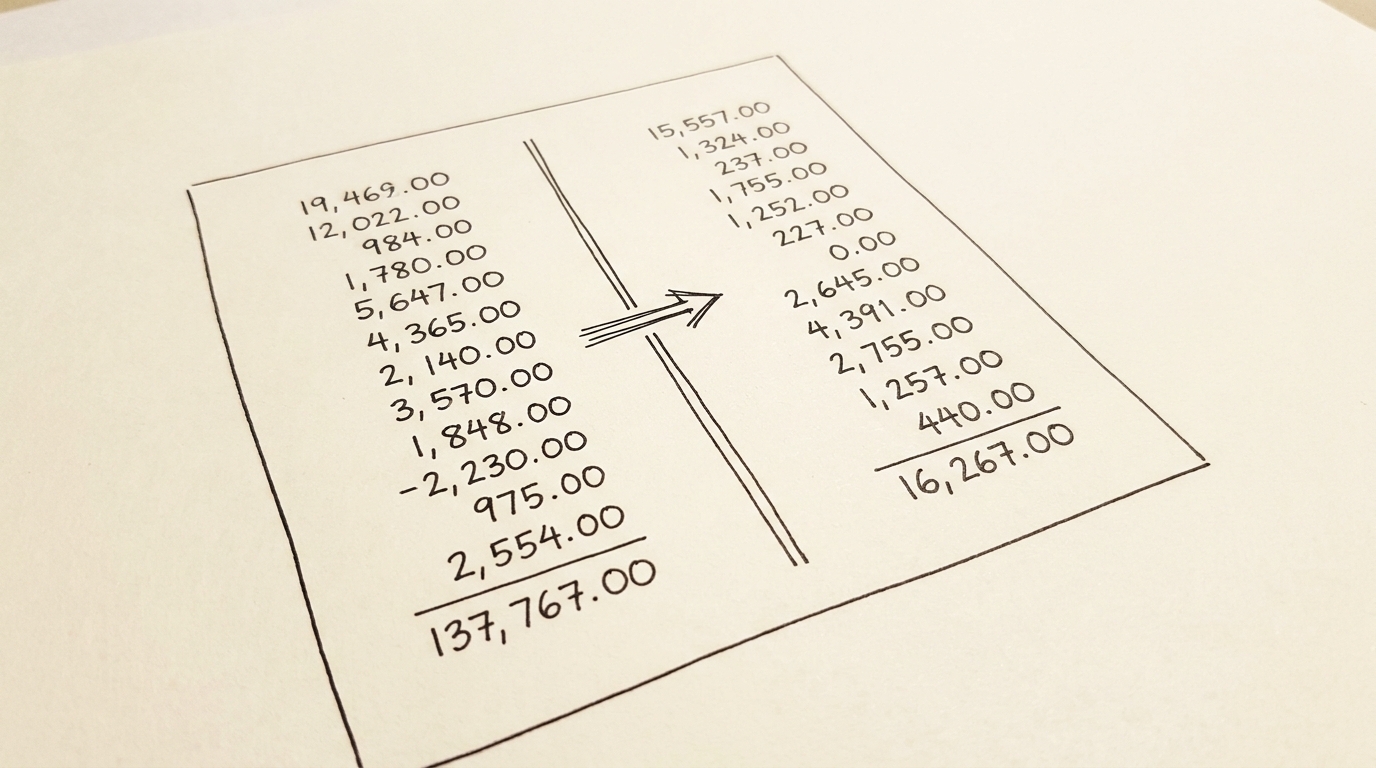
The silent pattern: two errors cancel each other out. Row 1 has $50.00 instead of $5.00 (an extra zero). Row 2 has $5.00 instead of $50.00 (a missing zero). The row count matches. The total matches. But 2 individual values are wrong. The reconciliation fails on those 2 transactions.
The fix: spot-check more than 5 transactions. If the totals match suspiciously perfectly (to the cent), assume there are silent errors. Run a 10-row spot-check instead of a 5-row.
The 4 common data errors
I see these in roughly this order of frequency. The first one (missing decimal) is the most common. The fourth (date format) is the rarest but the most disruptive because it changes the chronological order.
- Missing decimal: $5.00 instead of $50.00. The decimal point was skipped during OCR.
- Extra zero: $500 instead of $50. The OCR added a zero that wasn’t there.
- Character substitution: $5.0O instead of $5.00. The zero became the letter O.
- Date format: 01/15 became 10/15. The day and month got swapped.
The 2-Minute Diagnosis
The 5-point check doesn’t catch silent data errors. You need a separate diagnosis: spot-check 5 random transactions against the PDF. It takes 2 minutes. I skip this for a month once and ended up with 8 wrong transactions in a 200-row statement. 8 × 15 minutes of reconciliation = 2 hours. The spot-check would have taken 2 minutes.
Step 1: Pick 5 random rows
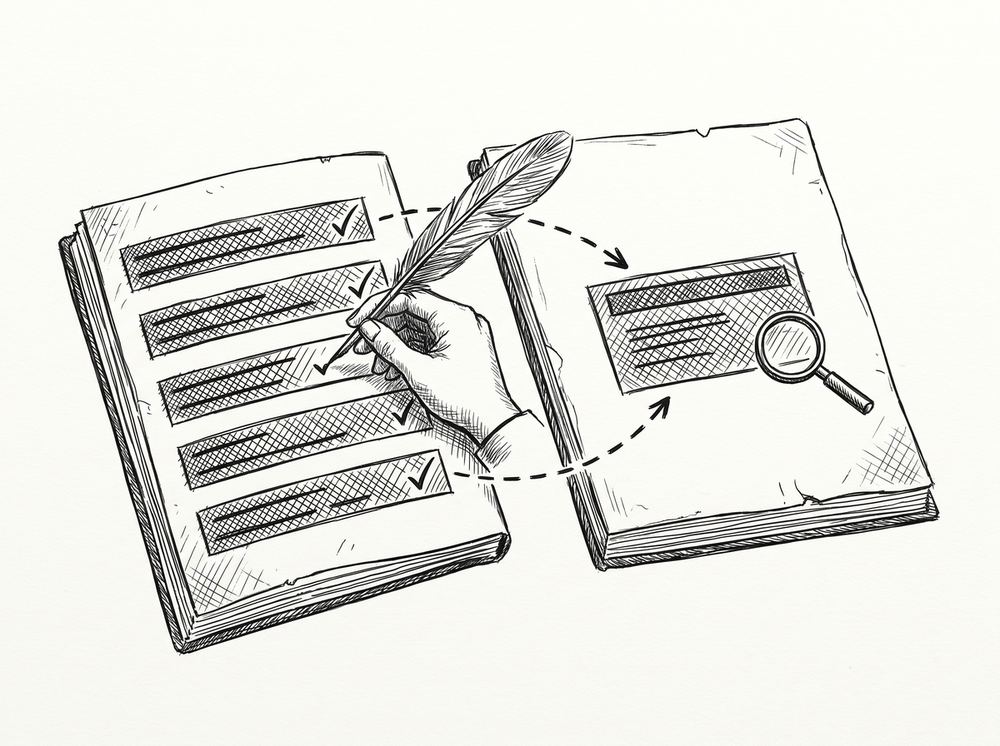
Open the converted file. Pick 5 rows that are not at the beginning or end of the statement. The middle of the file is where OCR errors hide. Use a random number generator if you want to be rigorous.
Or just pick row 50, 100, 150, 200, 250. The point is to avoid the obvious rows (first deposit, last withdrawal) which are the ones the converter is most likely to get right.
Step 2: Cross-reference against the PDF
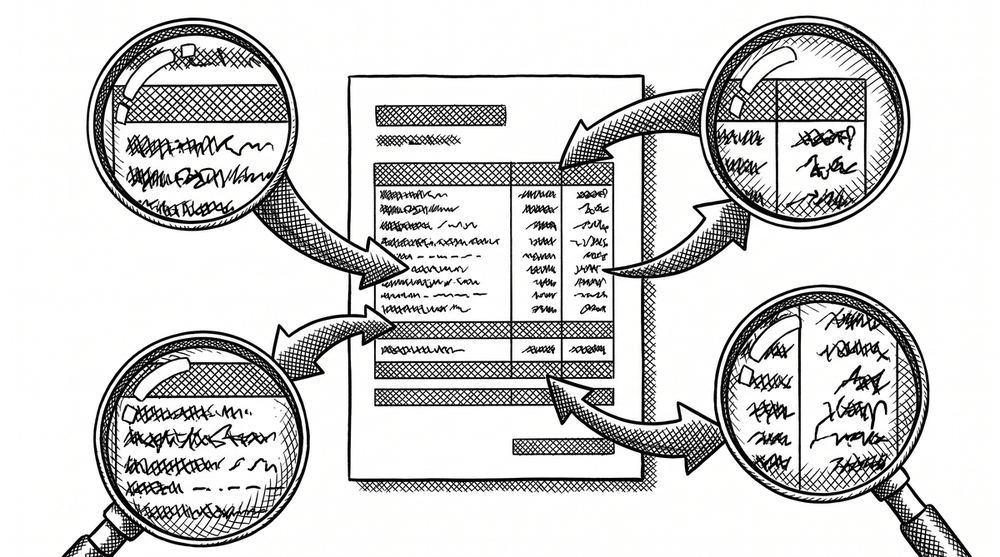
For each of the 5 rows, find the matching line on the source PDF. Verify 3 things: the date is correct, the amount is correct (to the cent), the payee or description matches. If any of the 3 is wrong, the conversion made an error. Note which row and which field. Don’t fix yet. Note all 5 first, then fix in a batch.
Step 3: Look for the OCR pattern
If you find errors, look for the OCR pattern. The 4 most common substitutions are 0 (zero) and O (letter), 1 (one) and l (lowercase L), 5 (five) and S (letter), 8 (eight) and B (letter).
Search the converted file for any of these letters in the amount or date columns. If you see $5.0O, that’s $5.00 with an O instead of a 0. The fix: replace the O with 0.

From PDF to Excel in one click
Forget retyping line by line. Upload any bank statement, get a spreadsheet you can actually use. Your files are never stored, and you can test the converter with 3 free conversions.
Try it freeThe 4 Common Data Errors
If the diagnosis found errors, you’re dealing with one of 4 patterns. Each has a specific signature. Learn the signatures, and you’ll spot the errors in 5 seconds instead of 5 minutes.
Missing decimal: $5.00 instead of $50.00
The OCR skipped the decimal point. The amount on the PDF is $50.00. The converted file has $5.00. The total is off by the difference ($45 per occurrence).
The fix: search the converted file for amounts ending in .00 with a value less than $10. These are suspicious. Cross-reference each one against the PDF. If 5+ transactions have this pattern, the converter has a systematic decimal-skipping bug. Switch tools.
Extra zero: $500 instead of $50
The OCR added a zero that wasn’t there. The amount on the PDF is $50. The converted file has $500. The total is off by the difference ($450 per occurrence). The fix: search the converted file for round-number amounts ($100, $200, $500, $1000) that are higher than the typical transaction size. Cross-reference each one. Same systematic test: if 5+ transactions have this pattern, switch tools.
Character substitution: $5.0O instead of $5.00
The OCR mistook a digit for a letter or vice versa. The amount on the PDF is $5.00. The converted file has $5.0O (with a letter O). The total is off by the difference, but the difference is hard to calculate because the values look the same ($5 vs $5).
The fix: search the converted file for any letter (O, l, S, B) in the amount column. Replace with the corresponding digit. Always cross-reference the row before changing.
Date format: 01/15 became 10/15
The day and month got swapped. The transaction on the PDF is January 15 (01/15). The converted file has 10/15 (October 15). The total matches (the amount is the same). The date is in the right range (October is in the statement period if the period is October-November). But the chronological order is wrong, and reconciliation against the bank statement fails on that date.
The fix: sort the converted file by date and look for dates that are out of order or in the wrong month. If you see a January transaction in the October section, swap the day and month.
The systematic test: if multiple dates are swapped, the converter has a locale mismatch (it’s reading DD/MM/YYYY and writing MM/DD/YYYY, or vice versa). Switch tools or fix the locale.
The Fix for Each Error
Once you’ve identified the cause, the fix is fast. Most cases resolve in 5-10 minutes. The 2-hour hunts I used to do? They went away once I started running the spot-check.
Re-convert with a different tool
If the cause is missing decimals or extra zeros (systematic error), the easiest fix is to re-convert with a different tool. A different tool may handle the decimal point correctly. The trade-off: you have to wait for the re-conversion, and you have to compare the new file to the old one to make sure no NEW errors were introduced. The conversion-and-import guide covers the workflow.
Re-OCR the specific row
If the cause is character substitution (one or a few rows affected), the easiest fix is to re-OCR just the affected rows. Most OCR tools let you select a region of the PDF and re-read it. The trade-off: re-OCR can introduce new errors. Always run the spot-check on the re-OCR’d rows before adding them to the converted file.
Manually fix the wrong value
If the cause is a date format mismatch or a one-off error, the easiest fix is to manually correct the wrong value in the converted file. Open the file in Excel, change the value, save. The trade-off: you’re trusting your eyes, not the tool. The 5-point check on the validation page catches any errors you introduce.
When to Suspect Silent Data Errors
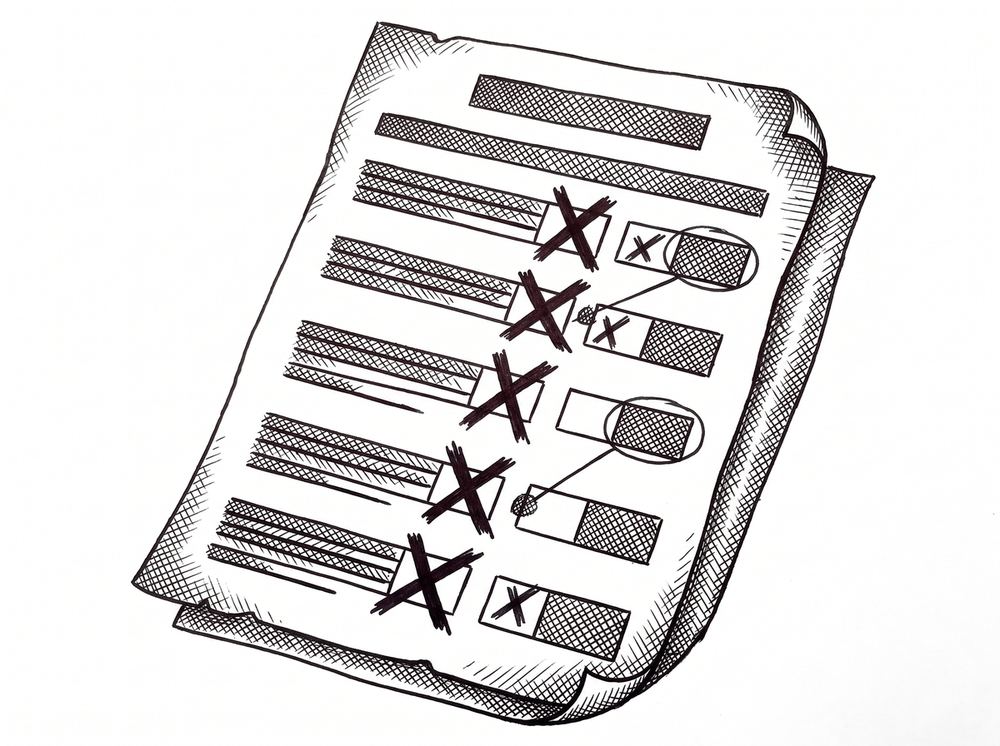
Most silent data errors are found by accident during reconciliation. But there are 2 warning signs that suggest the data is wrong even when the 5-point check passes. Watch for these.
When the totals match suspiciously perfectly
If the converted file’s total matches the PDF’s total to the cent on every statement in a batch, that’s actually a red flag. Real conversions have small variances. A 99% accuracy tool should be off by $0.50-$5 per 200-row statement on average. If your batch has zero variance across 50+ statements, assume there are silent errors and run a 10-row spot-check instead of a 5-row.
When you can’t reconcile a specific transaction
You know you paid a specific vendor on a specific date. The converted file has a row that matches the vendor and date, but the amount is off by $5 or $50 or $500. That’s a silent data error.
The fix: cross-reference that specific row against the PDF, identify the error (missing decimal, extra zero, character substitution), and correct it. The 5-point check missed this because the total was off by a small amount that cancelled out elsewhere.
Related Pages
For the broader conversion workflow, see the bank statement converter guide. For the Excel validation steps, see the bank statement to Excel guide. For OCR quality on scanned statements, see the scanned statement conversion guide.
For a deeper understanding, see: troubleshooting pillar.
From PDF to Excel in one click
Forget retyping line by line. Upload any bank statement, get a spreadsheet you can actually use. Your files are never stored, and you can test the converter with 3 free conversions.
Try it free