
You converted a bank statement. The converted file has duplicate transactions.Duplicate transactions inflate the totals and break the reconciliation.
This page is the troubleshooting guide for duplicate transactions after a bank statement conversion. It covers the 4 most common causes, the 3-step diagnostic, and the 4 fixes that eliminate the duplicates. The related troubleshooting guides for missing and incorrect transactions are linked below.
Duplicate transactions after a bank statement conversion usually have one of 4 causes: the source PDF has the same transaction listed twice (rare but possible), the converter ran on both pages of a two-page statement and counted the header row twice, the converter split a multi-line transaction into two rows, or the user accidentally imported the converted file twice.
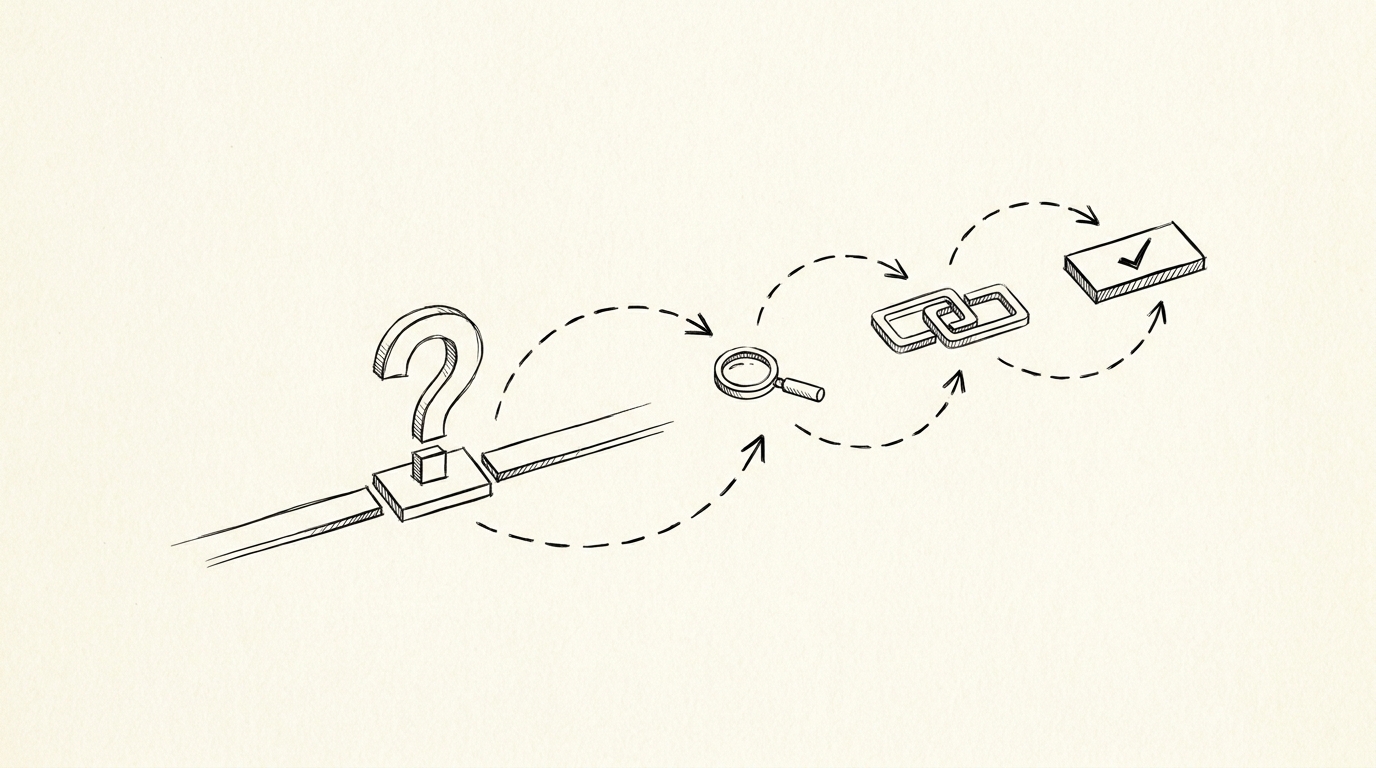
The 3-step diagnostic is: sort the converted file by Date and Amount, find the rows with the same Date and Amount, verify against the source PDF. The fix is usually to remove the duplicates (keeping the first occurrence) or to fix the converter’s row-splitting logic.
For related issues, see the missing transactions guide and the incorrect data guide.
The 30-Second Find
Don’t panic. Don’t manually scan 200 rows. Run the 3-step find. It takes 30 seconds and tells you exactly which rows are duplicates. I spent 2 hours deleting duplicates by eye once. I never did that again. The find is the difference between a 5-minute fix and a 2-hour hunt.
Step 1: Sort by date + amount
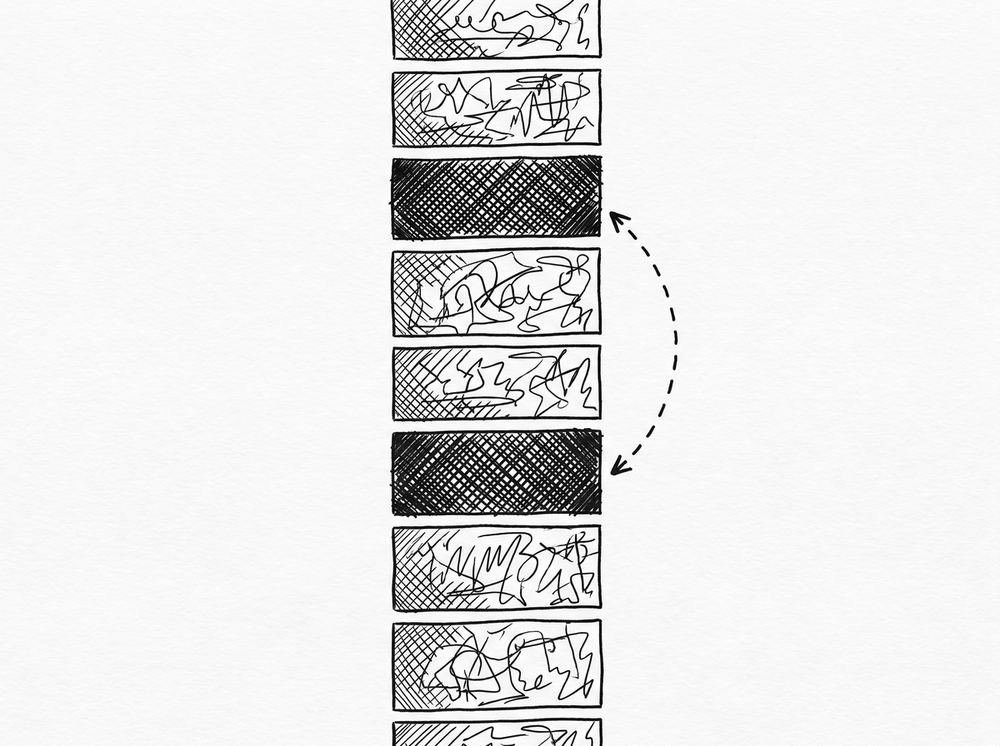
Open the converted file in Excel or Google Sheets. Select all the data. Sort by Date (ascending), then by Amount (ascending). The duplicates cluster: two rows with the same date and same amount will be next to each other in the sorted view. Don’t sort by description or payee: the duplicates often have different payees, which makes them invisible to a description sort.
Step 2: Look for the twins
Scan the sorted view. Any two adjacent rows with the same date and same amount are twins. Twins are the most common form of duplicate. Note the row numbers. Don’t delete yet. The next step decides which one to keep.
Step 3: Cross-reference against the PDF
Open the source PDF. For each pair of twins, find the matching line on the PDF. One of the twins is correct. The other is the duplicate. The correct one has the right payee and the right description. The duplicate has a different payee, a different description, or both.
If both twins look the same, you have a “true” duplicate (the file ran twice). Keep one, delete the other. If the twins have different payees, you have a “ghost” duplicate. Cross-reference carefully: one matches the PDF, the other is from a different transaction that happened to land on the same date with the same amount.
The 4 Common Causes
If your find says “there are twins”, you’re dealing with one of 4 causes. I see these in roughly this order of frequency. The first one (file ran twice) is by far the most common. If you’re not sure, start with the first. The full extraction mechanism is on the parent page.
You ran the file twice
You forgot you’d already converted the file. Or you re-ran the conversion to fix an issue, and didn’t clear the old file first. Both versions of the file got imported.
QuickBooks caught the obvious duplicates (same date, same amount, same payee). The twins that remain are the rows that have the same date and amount but slightly different payees. The fix: delete the older import and keep the newer one.
Same transaction in two accounts
The transaction is in your checking account AND your credit card account. You converted both statements. Both files have the same transaction. The import went to both registers. The fix: the transaction is correct in both accounts (a transfer). Don’t delete. Just be aware that some transactions legitimately appear in two places.
The transaction got split, then re-merged
The source PDF has two transactions on the same day with the same amount (e.g., two $50 ATM withdrawals). The converter merged them into one row, then re-split them incorrectly. The result: 2 rows, but one is the original and one is a duplicate. The fix: cross-reference both rows against the PDF. One matches a real transaction. The other is a duplicate from the split.
The QBO file went to the wrong account
The QBO file’s ACCTID field didn’t match the account number in QuickBooks. The import failed silently (0 transactions added). You re-tried with a different account. The original import actually went to a different account (or was rejected). Now the same file is in two accounts. The fix: check both accounts, delete the wrong one.

From PDF to Excel in one click
Forget retyping line by line. Upload any bank statement, get a spreadsheet you can actually use. Your files are never stored, and you can test the converter with 3 free conversions.
Try it freeThe 30-Second Fix
Once you’ve found the twins and identified the cause, the fix is fast. Most duplicates can be deleted in 5-15 minutes. The 2-hour hunts I used to do? They went away once I started running the find first.
Delete the duplicate
In QuickBooks, find the duplicate row. Right-click, then Delete. QuickBooks asks you to confirm. Confirm. The row is gone. The register now matches the PDF. The fix is done.
Don’t delete yet: cross-reference first
If both rows look the same, don’t delete either one until you cross-reference against the PDF. The 30-second find is just the first step. The cross-reference is the second. The delete is the third. Skipping the cross-reference is how you accidentally delete the right row and keep the wrong one. I’ve done it. Don’t be me.
When both rows are wrong (the ghost duplicate)
You cross-referenced, and both rows are wrong. One has the right date and amount but the wrong payee. The other has the right date but a different amount. This is the “ghost” duplicate.
The fix: keep the row that matches the date and amount (with a corrected payee), delete the other, and re-add the missing transaction manually. The 5-point check on the validation page catches any errors you introduce.
How QuickBooks’ Built-In Detection Works
QuickBooks has built-in duplicate detection on import. It catches most obvious duplicates. It misses the non-obvious ones. Knowing what it catches (and what it doesn’t) saves you from trusting the import summary.
What it catches (date+amount+payee match)
QuickBooks’ detection matches on three fields: date, amount, and payee (or description). If all three match an existing transaction in the register, the new row is flagged as a duplicate. The import skips it. You see a summary at the end: “X added, Y duplicates skipped.” The Y is the count of duplicates QuickBooks caught. The X is the new transactions.
What it doesn’t catch (different payees, different accounts)
QuickBooks’ detection doesn’t catch duplicates where the payee is different (the ghost duplicate). It doesn’t catch duplicates where the amount has a small difference (a $50.00 vs $50.00 where one was a misread).
It doesn’t catch duplicates where the file went to the wrong account (the ACCTID silent failure, covered in the import guide). Always check the register after import, even if QuickBooks says it caught all the duplicates.

A common failure mode bookkeepers report is treating this as a single operation rather than a chain of dependent steps. The temptation is to find a tool that ‘just works’ and stop investigating the mechanism. The result is a wrong-fix cycle: the tool gives partial output, the bookkeeper spends 30+ minutes troubleshooting, the fix is for the wrong step, and the same error recurs on the next statement. The fix: identify which step failed and apply the right intervention to that step.
When to Start Over Instead of Fixing
Sometimes the fix takes longer than starting over. Here’s when to consider the nuclear option.
When 30%+ of the file is duplicates
If more than 30% of the imported transactions are duplicates, the fix will take longer than starting over. Delete the entire import. Re-import the file fresh. This is faster than deleting 60+ individual rows one at a time. The 5-point check on the validation page will catch any errors in the new import.
When you can’t find the original
If you don’t know which row is the original and which is the duplicate, the fix is risky. The nuclear option: delete everything you imported, find the source PDF, and start over. Don’t guess. The risk of deleting the wrong row is higher than the cost of starting over. For the related how to fix missing transactions after bank statement conversion page, see the linked article. For the related how to fix duplicate transactions after bank statement conversion page, see the linked article. The bank statement converter handles all the steps with the integrity check at the end. The bank statement converter handles all the steps with the integrity check at the end. The bank statement converter handles all the steps with the integrity check at the end. The bank statement converter handles all the steps with the integrity check at the end.
From PDF to Excel in one click
Forget retyping line by line. Upload any bank statement, get a spreadsheet you can actually use. Your files are never stored, and you can test the converter with 3 free conversions.
Try it free