
Choose a bank statement converter based on 6 criteria: security (browser-based preferred), output formats (Excel, CSV, QBO), accuracy (99%+ for digital PDFs), speed (2-5 minutes
The short answer: the right converter depends on your use case. For most personal and small business use, a browser-based converter is the best choice because it combines security (no upload), speed (2-5 minutes), and accuracy (99%+) without installation. For high-volume users, a subscription tool with API access may be more efficient. For sensitive data, a desktop app with offline processing is the most secure.
The 6 Criteria for Choosing a Converter
6 specific criteria to evaluate when choosing a bank statement converter:
What most guides miss about this workflow is that the quality depends on the mechanism, not on the tool. Two tools that look different on the surface often run the same 4-step process underneath: read, find, parse, verify. The difference is in how well each step handles edge cases (merged cells, missing balances, non-standard date formats, scanned vs digital input).
Choosing between tools based on UI alone misses the actual quality lever.
1. Security model. The most important criterion. The 3 security models:
- Browser-based: The conversion happens in your browser, with no upload to a server. The PDF never leaves your computer. This is the most secure option. Examples: EasyStatementSheet, DocuClipper (browser version), and most modern converters.
- Cloud-based: The PDF is uploaded to the converter’s server, processed, and the result is downloaded. The PDF is on the server for some period (typically 1 hour to 30 days, depending on the service). This is less secure because the PDF is on a third-party server.
- Desktop: The conversion happens on your computer using installed software. The PDF never leaves your computer. This is the most secure but requires installation and may require a paid license.
The right choice depends on the sensitivity of the data. For personal accounts, browser-based is sufficient. For business accounts with sensitive financial data, browser-based or desktop is preferred. For accounting firms handling client data, browser-based or desktop is strongly preferred.
2. Output formats. The right output format depends on the use case:
- Excel (.xlsx): The most common format. Editable, shareable, compatible with all spreadsheet software.
- CSV: The most compatible format. Editable in any text editor, importable to any software, smaller file size than Excel.
- QBO (QuickBooks Online): Direct import to QuickBooks Online. Saves the import step.
- OFX (Open Financial Exchange): For accounting software like Quicken, GnuCash, or bank aggregation tools.
- JSON: For programmatic use, APIs, or custom integrations.
The right choice depends on the destination. For QuickBooks, QBO is best. For Excel analysis, Excel is best. For Google Sheets, CSV is best. The right converter should support all 3 (Excel, CSV, QBO) at minimum.
3. Accuracy. Accuracy varies by PDF type:
- Digital PDF (text-based): 99%+ accuracy is the standard. The converter reads the text directly.
- Scanned PDF (image-based): 95-99% accuracy. The converter uses OCR to read the text first, then structures it.
- Password-protected PDF: 99%+ accuracy, but the converter needs the password first.
- Multi-page PDF: 99%+ accuracy, but the converter needs to handle transactions split across pages.
The accuracy claim should be verified with a real test. The free trial is the test. Convert 5-10 real statements, compare the output to the source PDF, count the errors. A converter claiming 99% accuracy should have at most 1 error per 100 transactions.
4. Speed. The speed varies by statement size and PDF quality:
- Small statement (50 transactions, 2 pages): 30 seconds to 2 minutes
- Medium statement (200 transactions, 5 pages): 2-5 minutes
- Large statement (500+ transactions, 20+ pages): 5-15 minutes
The right choice is 2-5 minutes per statement for typical use. Faster is better only if the speed comes from batch processing (multiple statements at once) rather than skipping accuracy checks.
5. Price. The price varies by model:
- Free (browser-based): $0/month, limited to 1-3 statements per month. Good for occasional use.
- Free (cloud-based): $0/month, but the PDF is uploaded to a server (privacy trade-off). Good for non-sensitive data only.
- Pay-per-statement (cloud-based): $1-5 per statement. Good for occasional use with sensitive data.
- Subscription (cloud-based): $10-30/month for unlimited statements. Good for regular use.
- Subscription (browser-based): $10-30/month for unlimited statements with no upload. Good for security-conscious users.
- One-time license (desktop): $50-300 for unlimited statements. Good for high-volume users.
The right choice depends on the volume. For 1-3 statements per month, the free tier is sufficient. For 10+ statements per month, a subscription is more cost-effective than pay-per-statement.
6. Ease of use. The ease of use varies by interface:
- Drag-and-drop: The easiest interface. Drop the PDF, wait, download the result.
- Multi-step: Select the PDF, choose the output format, click convert, download. More clicks but more control.
- API: For developers. Programmatic conversion, integration with other tools.
The right choice is drag-and-drop for most users. Multi-step is for users who need more control. API is for developers and integrators.
The 3 Best Converter Types in 2026
3 converter types that work well for most users:
1. Browser-based (best for most users). The conversion happens in your browser, with no upload to a server. The PDF never leaves your computer. The security, speed, and accuracy are all strong. The best use cases: personal accounts, small businesses, accounting firms handling client data. Examples: EasyStatementSheet, DocuClipper (browser version).
2. Cloud-based (best for high volume). The PDF is uploaded to the converter’s server. The conversion is typically faster for batch operations. The security is lower (PDF on third-party server). The best use cases: high-volume users who can verify the privacy policy is strict. Examples: BankXLSX, CapyParse, ScanPilot.
3. Desktop (best for sensitive data). The conversion happens on your computer using installed software. The PDF never leaves your computer. The security is the highest. The best use cases: financial institutions, accounting firms with strict security requirements. Examples: Adobe Acrobat Pro, DocuClipper Pro.


Turn PDF Bank Statements Into Workable Spreadsheets
Your bank statement is a mess of numbers, but your books shouldn't be. Use our converter to get Excel, CSV, or QBO files — ready for QuickBooks.
Try It Free NowThe 3 Mistakes When Choosing
3 mistakes to avoid:
1. Choosing by price alone. The cheapest converter may be the most expensive in the long run if it requires manual cleanup, fails to convert certain statement types, or has poor customer support. The right choice balances price with security, accuracy, and ease of use.
2. Ignoring the security model. A cloud-based converter that uploads the PDF to a server creates a data breach risk. For sensitive financial data, the security model is more important than the price. Choose browser-based or desktop for sensitive data.
3. Not testing on real statements. A converter that demos well on clean PDFs may fail on real statements with multi-page transactions, check images, or unusual formatting. The free trial is the test. Convert 5-10 real statements, compare the output to the source PDF, count the errors.
The Decision Tree
The 5-question decision tree:
- How sensitive is the data? For sensitive data, choose browser-based or desktop. For non-sensitive, any model works.
- How many statements per month? For 1-3, choose free. For 4-10, choose pay-per-statement. For 10+, choose subscription.
- What output format is needed? For Excel/CSV, any converter works. For QBO, choose a converter with QuickBooks integration. For OFX, choose a desktop or specialized tool.
- What is the budget? For $0, choose free. For $10-30/month, choose subscription. For $50-300 one-time, choose desktop.
- How important is speed? For 1-2 minutes per statement, browser-based. For batch processing, cloud-based or desktop.
The answers to the 5 questions point to the right converter type. For most personal and small business use, the answers point to a browser-based subscription at $10-30/month with Excel/CSV/QBO output.
3 Best Practices for Converter Selection
3 best practices that make the selection process faster:
1. Test on real statements before committing. The free trial is the test. Convert 5-10 real statements, compare the output, count the errors. If the converter fails 5+ statements out of 10, try a different converter.
2. Read the privacy policy. For sensitive data, the privacy policy is more important than the features. Look for: data retention period (shorter is better), data sharing with third parties (less is better), and security certifications (SOC 2, ISO 27001 are good signs).
3. Start with a free tier or short trial. Don’t commit to a year-long subscription without testing. Most converters offer a free tier (1-3 statements per month) or a short trial (7-14 days). Use the free tier for a month, then decide if a paid tier is worth it.
Recommended Converters by Use Case
3 use cases and the recommended converter:
Personal use (1-2 statements per month): A free browser-based converter. The free tier is sufficient. The bank statement converter offers 3 free conversions per month with no signup.
Small business (10+ statements per month): A subscription browser-based converter. The subscription is $10-30/month. The conversion is fast (2-5 minutes per statement) and the security is strong (no upload). Look for converters with QuickBooks integration for direct QBO import.
Accounting firm (50+ statements per month, multiple clients): A subscription with API access or batch processing. The subscription is $30-100/month. Look for converters that support multiple users, audit logs, and SOC 2 compliance. The desktop option may also be appropriate for the highest-security clients.
A common failure mode bookkeepers report is treating this as a single operation rather than a chain of dependent steps. The temptation is to find a tool that ‘just works’ and stop investigating the mechanism.
The result is a wrong-fix cycle: the tool gives partial output, the bookkeeper spends 30+ minutes troubleshooting, the fix is for the wrong step, and the same error recurs on the next statement. The fix: identify which step failed and apply the right intervention to that step.
Related Resources
| Resource | What You Get |
|---|---|
| Bank Statement Converter | See-also resource |
| Pdf Vs Csv Vs Qbo Vs Excel | See-also resource |
| How To Verify Converted Data | See-also resource |
| Bank Statement Glossary | See-also resource |
For the underlying conversion step, see the bank statement converter page. For the format-specific decision, see the PDF vs CSV vs QBO vs Excel guide. For the validation step, see the how to verify converted data reference. For the broader bank statement glossary, see the bank statement glossary.
How conversion quality ties to MCC and payment-rail codes
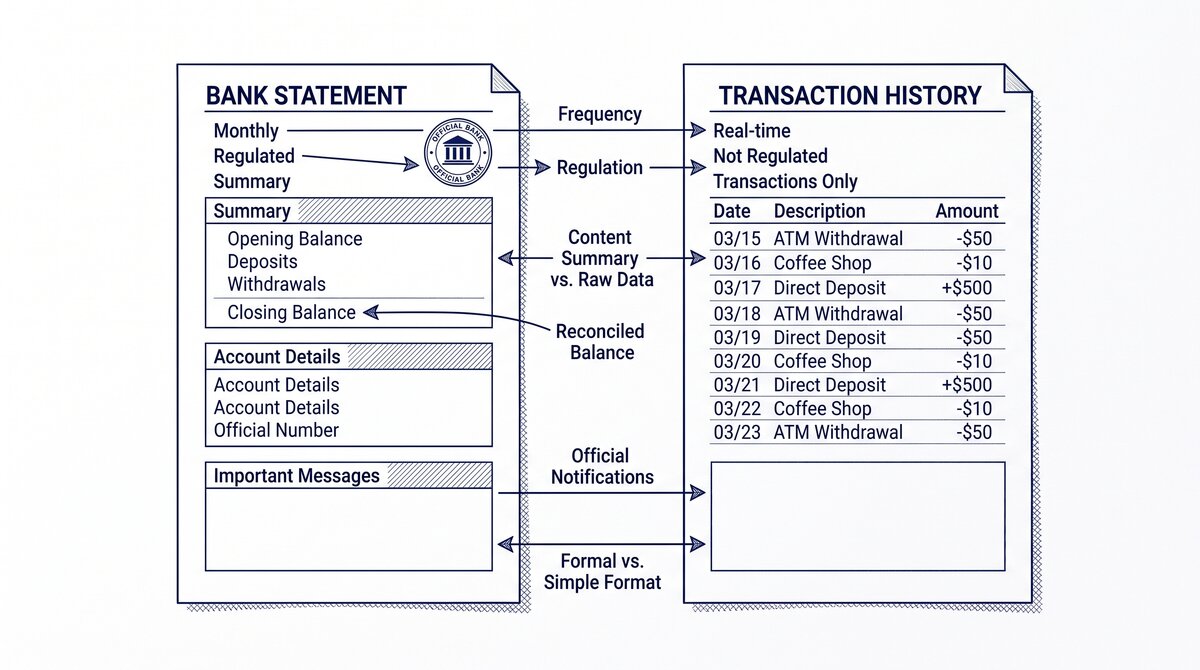
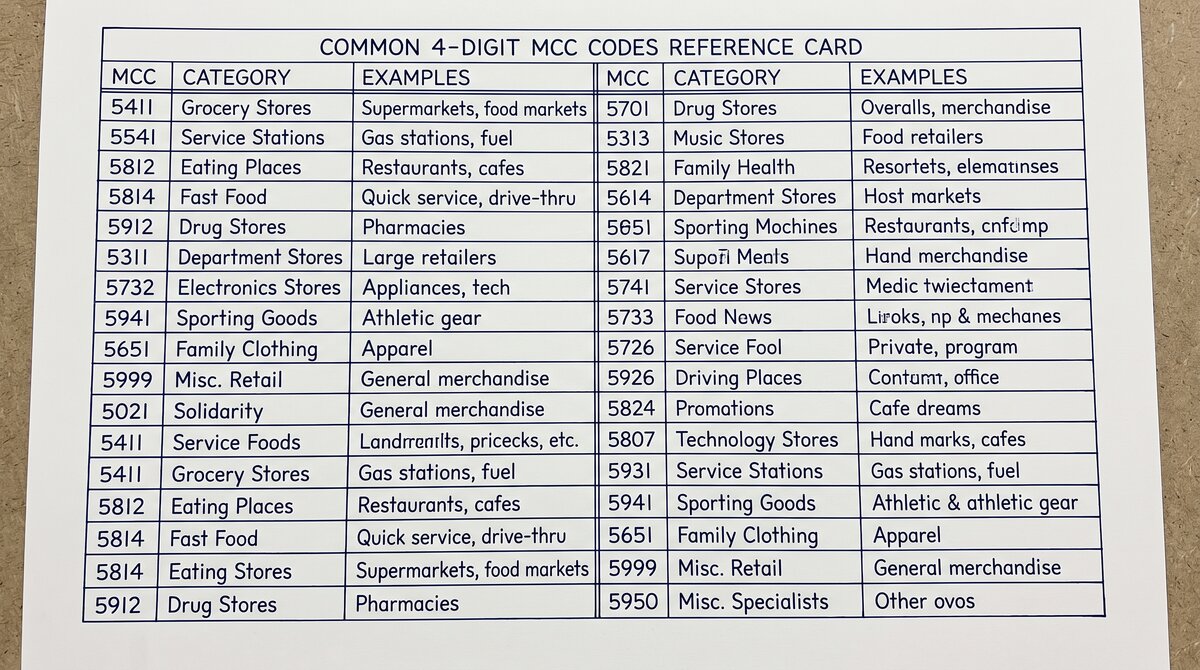
When evaluating a converter, consider whether the merchant category codes will survive the conversion. The most accurate converters preserve the MCC label on credit-card statements alongside Date, Description, and Amount. See the complete MCC guide for what those codes mean.
For bank-account statements, the converter should also preserve the ACH or wire transaction code so the reconciliation stays auditable. See the complete US bank payment rails guide for what each transaction code signals.
What to test before committing to a tool
The best test for any bank statement converter is whether it preserves all four columns through normalization. Date, Description, Amount, and Balance. The Balance is the canonical fourth column. For credit-card statements, the canonical four columns are Date, Description, Amount, and Balance. The merchant category code label travels as part of the merchant description in addition to the four canonical columnse the merchant category code.
For bank-account statements, the canonical fourth column is the Balance.
If the converter cannot preserve the MCC label on credit-card statements, it cannot compete on accuracy. Most free PDF-to-spreadsheet converters strip the MCC, which makes reconciliation back-breaking for any small business or bookkeeper onboarding many clients per month.
For bank-account statements, the converter should also preserve the ACH SEC code. ACH transfers carry a PPD, CCD, WEB, or TEL code that tells you the kind of authorization backing the transaction. A converter that loses this code makes your audit trail incomplete.
Most small businesses and bookkeepers should test a tool against 5-10 actual statements before committing. Look for balance verification (each row reconciled against the printed running balance), in-memory processing (files never stored), and a clean direct-to-QBO export.
What feature should you pay attention to?
When evaluating a converter, ask whether it reads credit-card statements with the merchant category code (MCC) label inline within the merchant description, and bank-account statements with the ACH SEC code label inline within the description bank-account statements. If the answer is no, the conversion is partial and the categorization layer is still manual.
Ask whether the converter preserves the running balance on bank-account statements. Without the running balance, you cannot run the variance-check that catches errors. Most free PDF converters strip the balance column.
Ask whether the converter handles password-protected statements. Many bank statements come with customer-specific passwords. A converter that requires a re-typing step for passwords is fine; a converter that loses the password-protection layer entirely is risky for compliance.
One more thing to test for
Easy Statement Sheet converts US bank or credit-card statements to a clean four-column output (Date, Description, Amount, plus Merchant Category Code for credit-card or running balance for bank-account). The conversion is free for the first three statements of any kind. No credit card required.
For self-employed borrowers preparing a mortgage packet, the first three-statement test confirms whether the converter handles password-protected PDFs, multiple-page statements, and scanned-image documents. Most free PDF-to-spreadsheet converters fail at least one of these.
For bookkeepers onboarding new clients, the first three-statement test confirms whether the converter preserves the ACH SEC code label inline within the description on bank-account statements and the MCC label on credit-card statements. Without preserving the merchant category code label and the running balance, reconciliation is manual.
Easy Statement Sheet handles all three: password-protection, multi-page, and scanned-image statements. The free tier lets you verify before committing.
Where this fits in the broader statement-reading clusters
For related reading on the broader clusters, the complete MCC guide covers credit-card statement reading, the complete US bank payment rails guide covers ACH and wire transaction codes, and the expanded bank statement anatomy is a useful primer.
For the converter comparison framework, this page is the hub; comparison-and-selection, manual-entry-vs-converter, csv-vs-qbo, and excel-vs-csv are the side-by-side breakdowns.
How this fits the conversion workflow
For converting supported bank statement or credit-card statement PDFs into the four canonical columns, Easy Statement Sheet is one practical option. Choose the output by what happens next: XLSX for human review or spreadsheet analysis, CSV for software and data pipelines, Google Sheets-compatible for cloud-spreadsheet work, and QBO for QuickBooks import.
The service runs entirely in volatile memory; uploaded statement contents and converted financial data are not persistently retained.
Independent of any specific tool, the workflow is the same: extract, validate against the printed running balance, and route to the format your downstream workflow expects. Tools that preserve the four canonical columns plus the merchant category code label and rail label inline within the merchant description make the rule-based reconciliation layer scriptable across many clients.
Output format: which one matches the destination?
Picking the right output format is a separate decision from picking the right converter.
XLSX for human spreadsheet review. CSV for downstream scripts and tools. Google Sheets-compatible for shared cloud review. QBO for QuickBooks.
The four canonical columns are preserved across every format. What differs is how the downstream consumer expects the rows.
For a side-by-side rule of thumb that maps destination to format, see the decision framework on the output format pillar.
Read the full output format decision framework
Turn That PDF Into a Spreadsheet in Minutes
You've seen how to do it manually — now let the tool handle the heavy lifting. Upload your bank statement and get Excel, CSV, or QBO in a few clicks.
Try It Free