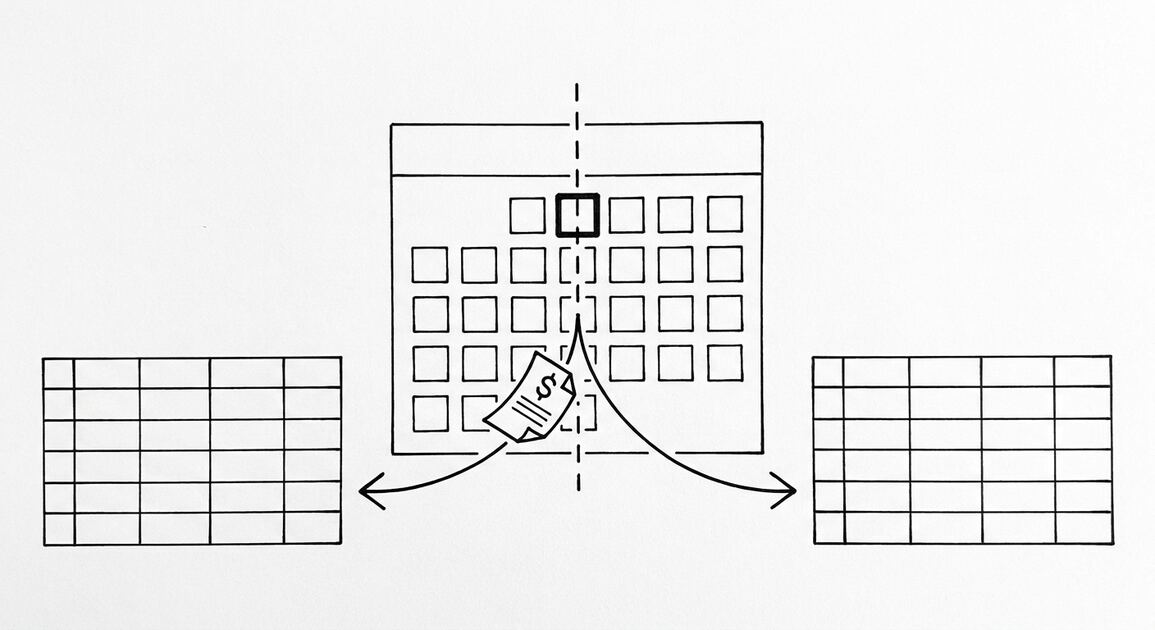

Verify converted bank statement data in 5 minutes by running 5 checks: row count, opening and closing balance, sum of transactions, date range, and description
The short answer: convert the PDF, then run the 5 checks before importing to your accounting software. The 5 checks take 5-10 minutes total and prevent hours of cleanup later. Verification is the difference between a clean conversion and a 2-hour manual review.
TL;DR. To verify converted bank statement data, run 5 checks: (1) row count matches the statement summary, (2) opening and closing balance match, (3) sum of transactions matches the net change, (4) date range matches the statement period, (5) description format is clean. The 5 checks take 5-10 minutes. The 3 common errors: missing transactions (2-5% of total), OCR errors in descriptions (1-3% of characters), sign convention errors (deposits as withdrawals). The 3 best practices: verify every conversion, automate the checks with formulas, keep a verification log.
Why Verification Matters
Bank statement conversion is fast (2-5 minutes with a good converter), but the conversion is not perfect. The most accurate converter has 99% accuracy; the most common error modes are 1-3% of characters or 2-5% of transactions. For a 100-transaction statement, this means 2-5 errors that need to be caught and fixed before the data is used for accounting, tax prep, or loan applications.
Verification is the process of catching those errors before they propagate. Without verification, the errors flow downstream: the bookkeeper imports incorrect data, the tax return is wrong, the loan application is denied, the audit reveals discrepancies. The cost of not verifying: hours of cleanup, possible restatement of financials, or audit penalties.
With verification, the 5-10 minutes of upfront work prevents hours of downstream cleanup. The verification is the highest-leverage step in the conversion workflow.
The 5 Verification Checks
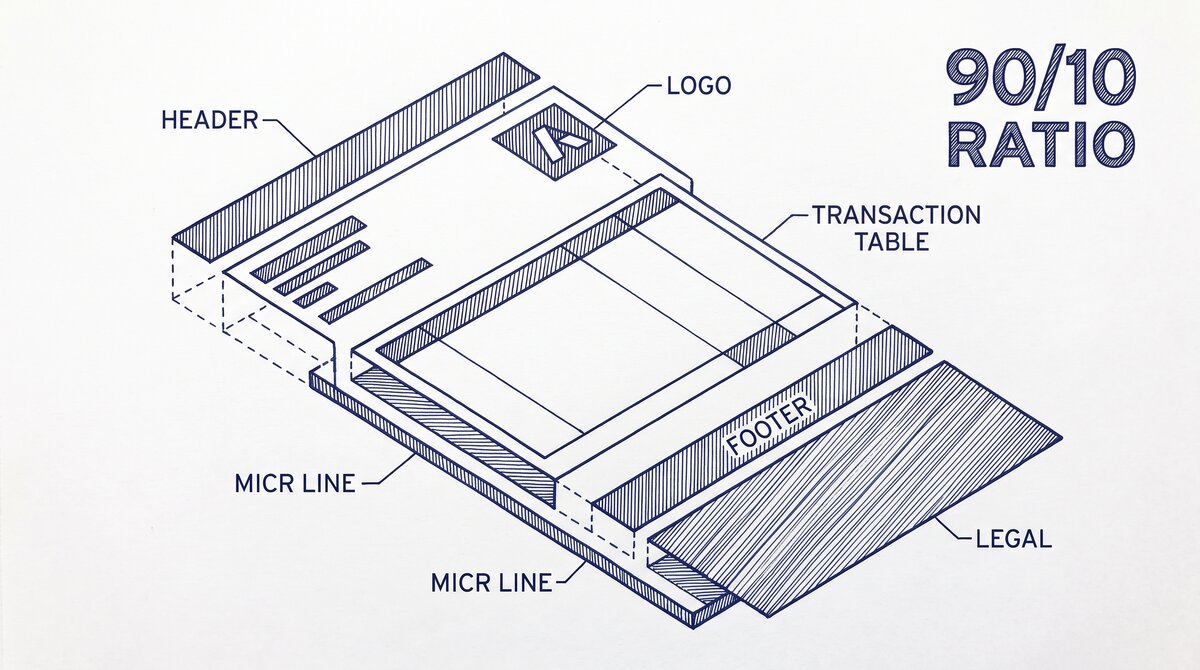
5 specific checks to run on every conversion:
Check 1: Row Count. Count the rows in the converted Excel file. Compare to the number of transactions in the statement summary (typically shown in the footer as “Total Items” or by counting the rows in the PDF). The counts should match within 1-2 (the converter may exclude subtotal or fee rows that aren’t actual transactions).
The check: =COUNTA(A2:A1000) in Excel, where column A is the date column. Compare the result to the statement’s transaction count. If they differ by more than 2, the conversion is missing or duplicating transactions.
Check 2: Opening and Closing Balance. The first row’s balance should match the opening balance shown in the statement header. The last row’s balance should match the closing balance shown in the statement footer. The check: compare the cell B2 (first row’s balance) to the statement’s opening balance, and the last row’s balance to the statement’s closing balance. If either differs by more than $0.01, the conversion is missing or has an extra transaction.
Check 3: Sum of Transactions. Sum the “Amount” column in Excel. The total should equal (Closing balance – Opening balance). The check: =SUM(D2:D1000) in Excel, where column D is the amount column. Compare to (closing – opening). If the difference is non-zero, the conversion has an error.
Note: if the statement has interest, fees, or other non-transaction balance changes, the sum may not equal the net change exactly. The difference should equal the sum of the non-transaction changes (interest + fees – refunds).
Check 4: Date Range. The first row’s date should be within the statement period (on or after the period start). The last row’s date should also be within the statement period (on or before the period end). The check: compare the date in the first and last row to the period dates on the statement. If a date is outside, the converter may have misread a header or footer row as a transaction.
Check 5: Description Format. Scan 10-20 random descriptions. They should be the merchant names you’d expect (for example, “AMAZON.COM”, “STARBUCKS”, “SHELL OIL”). If a description is garbled (for example, “AMA ZON.CO M”), the OCR misread a column break. Common OCR errors: extra spaces, missing characters, transposed characters.
The check: visually scan the description column, or use Excel’s filter to see all unique descriptions. If you see “AMA ZON.COM” (with a space) instead of “AMAZON.COM”, the conversion has a consistent error. Search the source PDF for the correct spelling and fix.
Turn PDF Bank Statements Into Workable Spreadsheets
Your bank statement is a mess of numbers, but your books shouldn't be. Use our converter to get Excel, CSV, or QBO files — ready for QuickBooks.
Try It Free NowThe 3 Common Errors
3 errors that the verification catches most often:
1. Missing transactions (2-5% of total). A transaction that posts on the last day of the period may be missed if the converter doesn’t read the last page. Or a transaction split across multiple pages may be counted once instead of twice. The fix: check the row count against the statement summary, and look at the last few rows of the converted data to confirm they match the last few transactions in the PDF.
2. OCR errors in descriptions (1-3% of characters). OCR misreads characters, especially in low-quality or scanned statements. Common errors: “0” (zero) read as “O” (letter), “1” (one) read as “l” (letter), “$” read as “S” or “5”. The fix: check a sample of descriptions, and search for the most common errors in the description column.
3. Sign convention errors (deposits as withdrawals). Some banks use parentheses for negative numbers, some use a minus sign, some use a separate debit/credit column. A converter that misreads the sign convention will show deposits as withdrawals (and vice versa). The fix: check the first few rows against the statement PDF, and verify the running balance changes in the expected direction (up for deposits, down for withdrawals).
Automating the Verification
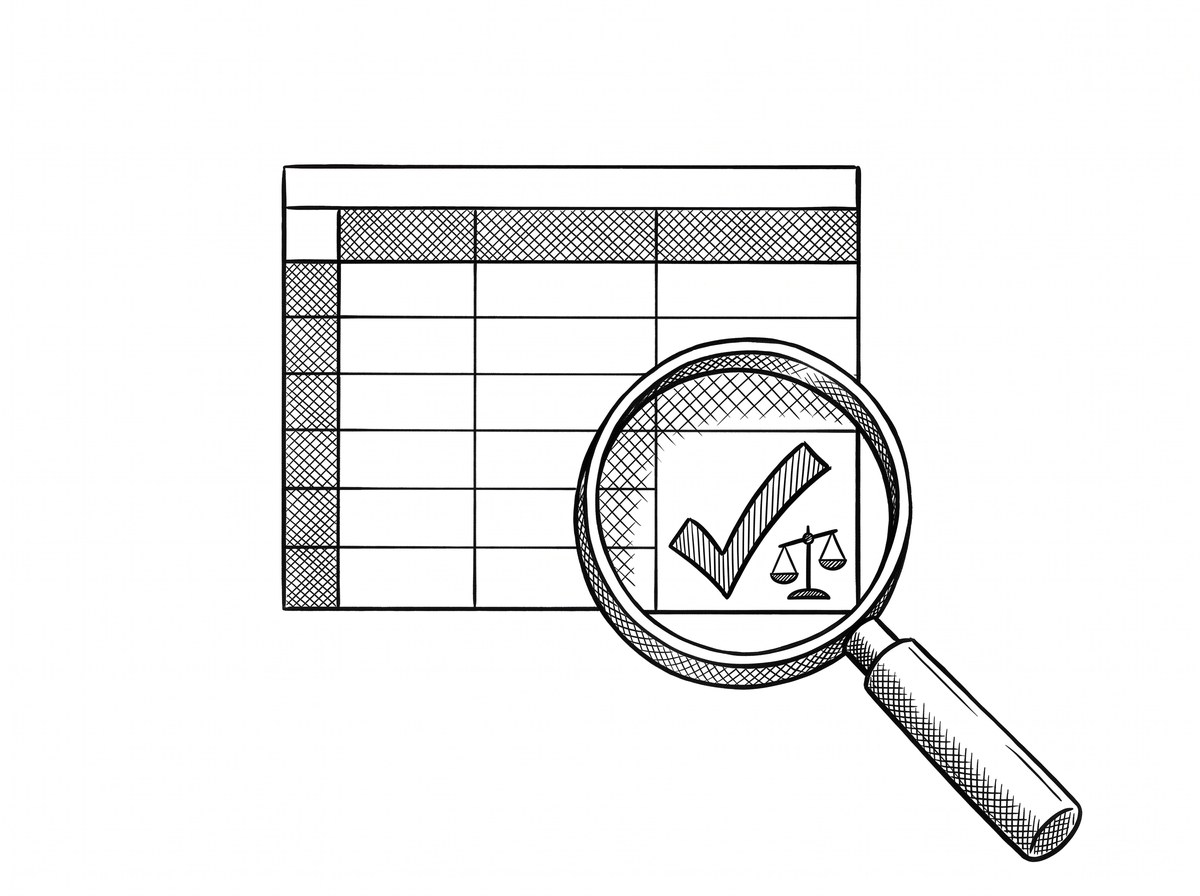
3 formulas in Excel that automate the 5 checks:
Row count formula: =COUNTA(A2:A1000) where column A is the date column. Compare to the statement’s transaction count.
Sum of transactions formula: =SUM(D2:D1000) where column D is the amount column. Compare to (closing – opening balance).
Date range formula: =MIN(A2:A1000) and =MAX(A2:A1000) where column A is the date column. Verify the min is on or after the period start, and the max is on or before the period end.
For more complex verification (for example, checking that the sum equals the net change including interest and fees), use SUMIF or a custom formula. For multi-statement verification (for example, combining 12 monthly statements and verifying the year’s total), use a pivot table or SUMIF across all statements.
3 Best Practices for Verification
3 best practices that make verification faster and more reliable:
1. Verify every conversion. Even if the converter has been 99% accurate in the past, every conversion is different. The bank may have changed the statement format, the PDF may be a different version, or the converter may have a bug that only triggers on specific inputs. The fix: verify every conversion, every time. The 5-10 minutes is worth it.
2. Automate the checks with formulas. The 5 checks can be done manually in 5-10 minutes, or automated with formulas in 30 seconds. The formulas catch the same errors as the manual check, but faster. The fix: set up the formulas in a template, then copy the template to each new conversion.
3. Keep a verification log. Record the verification result for each conversion: date, statement period, row count, sum, verification pass/fail. The log is useful for identifying patterns (which banks have which errors), tracking time, and providing evidence of due diligence in case of audit. The log can be a simple spreadsheet or a more formal document.
The Right Verification Workflow
The 5-check verification, in sequence:
- Convert the PDF to Excel: Use a browser-based converter. The conversion takes 2-5 minutes.
- Run the 5 automated checks: Use the formulas above. The checks take 30 seconds.
- Visual scan of descriptions: Scan 10-20 descriptions for garbled text. The scan takes 2-3 minutes.
- Fix any errors: If a check fails or descriptions are garbled, fix the data in Excel. The fix takes 5-10 minutes per error.
- Import to accounting software: Once the verification passes, import the data to your accounting software (QuickBooks, Xero, Wave). The import takes 2-5 minutes.
Total verification time: 10-15 minutes per statement. The investment prevents hours of downstream cleanup and the risk of incorrect financial records. For the conversion step, see the bank statement converter page. For the 12-check validation workflow, see the bank transaction validation checklist guide. For the 5 common mistakes after conversion, see the how to check converted bank statement data page. For the broader data cleaning workflow, see the bank transaction data cleaning reference.
For deeper understanding, see: Bank Statement Extract Transactions Mechanism, How Extract From Pdf Mechanism.
Turn any PDF statement into a clean sheet
Skip the typos and the hours of copying. Our converter handles any bank statement format and outputs Excel, CSV, or QBO for QuickBooks. No file retention, free to try.
Convert your statement