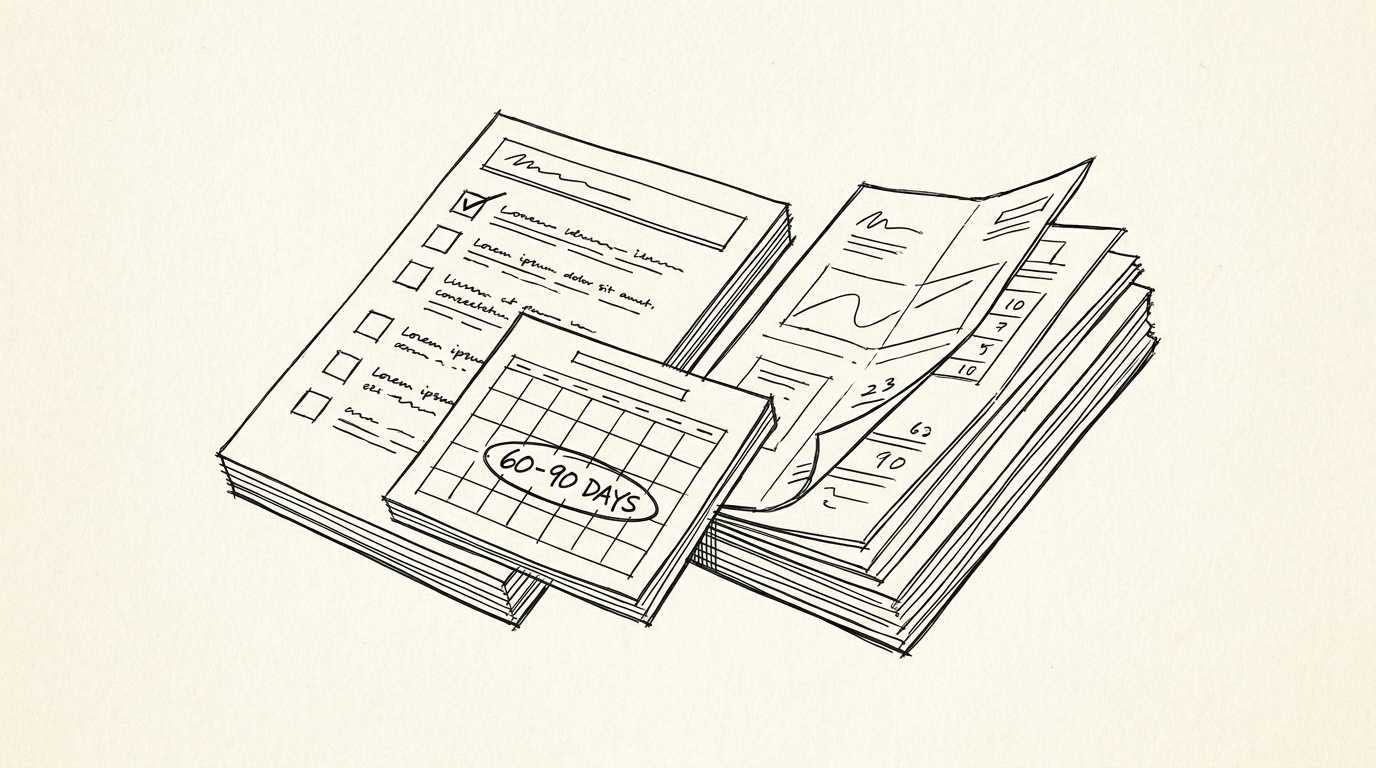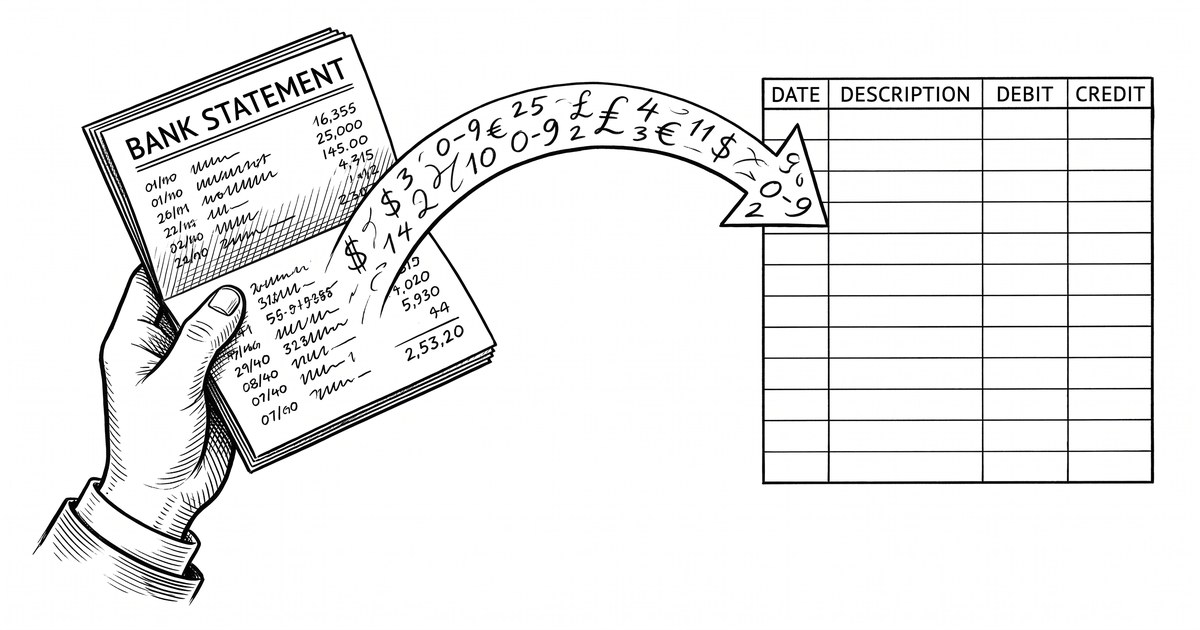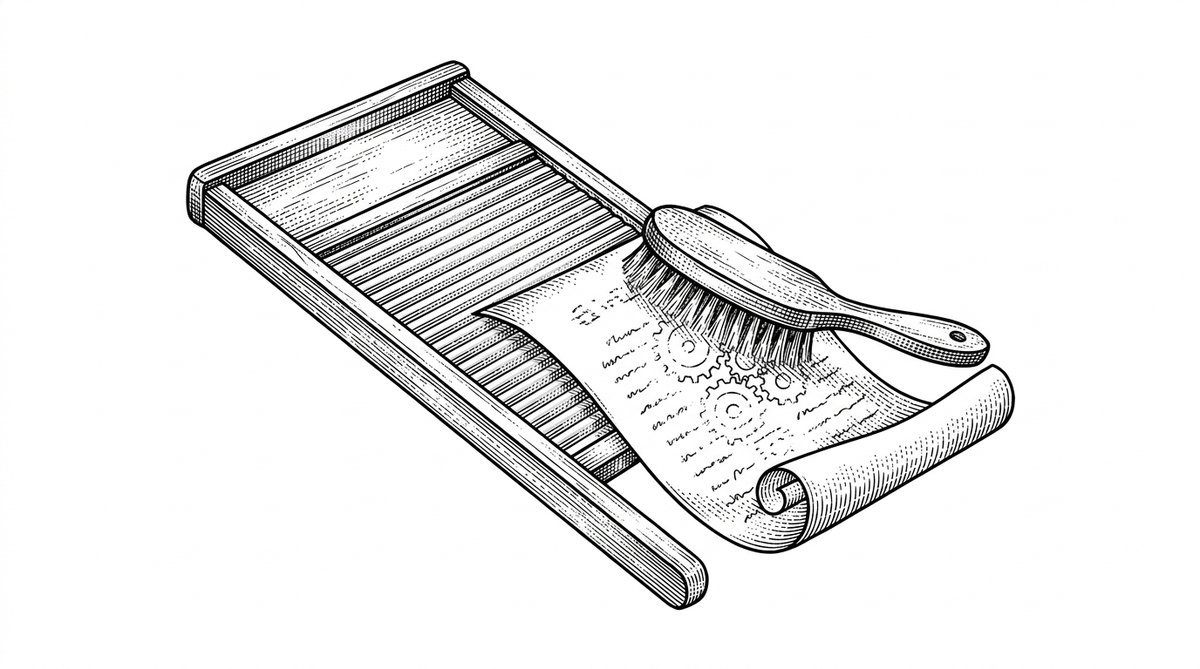

Bank transaction data cleaning takes 5 steps and approximately 20 to 45 minutes per statement. The short answer: cleaning bank transaction data (also called cleaning bank transactions, cleaning bank statement data, monthly statement cleanup, account statement cleanup, or preparing bank transactions for import) means taking the raw data from the PDF or CSV and producing a verified, normalized, deduplicated dataset ready for bookkeeping for both bank statements and bank statement transactions. The 5 steps are: normalize the columns, fix the date formats, standardize the descriptions, remove the duplicates, verify the running balance.
TL;DR. Bank transaction data cleaning takes 5 steps and 20 to 45 minutes per statement. The 5 steps: normalize columns, fix date formats, standardize descriptions, reconcile signs, validate totals. Common issues: date format (40%), description spacing (25%), amount sign (15%), missing rows (12%), duplicate rows (8%). A converter produces the clean starting data.
| Step | What to Do | Time |
|---|---|---|
| 1. Normalize columns | Map all source columns to canonical 4-column schema (Date, Description, Amount, Balance) | 2 to 10 minutes |
| 2. Fix date formats | Convert all dates to YYYY-MM-DD using DATEVALUE or Format Cells | 2 to 10 minutes |
| 3. Standardize descriptions | Create a lookup table mapping merchant variants to canonical names | 10 to 30 minutes |
| 4. Remove duplicates | Sort by date + amount + description, identify and remove overlapping transactions | 5 to 20 minutes |
| 5. Verify running balance | Check that the last transaction’s balance matches the statement’s closing balance | 5 to 15 minutes |
For a 1,200-transaction year, the workflow takes approximately 1 to 2 hours manually, or 15 to 30 minutes when starting from a converter’s output.
This page covers the 5 steps, the 4 most common data quality issues, the 3 categories of transactions that need the most cleaning, and the verification step that catches the 2 to 5 percent of errors that typically remain after the clean. If you want to skip the manual cleaning, see the bank statement converter. For the format-specific workflow, see convert bank statement to Excel.
Bank transaction data cleaning (also called cleaning bank transactions, cleaning bank transaction data, clean bank transactions in Excel, prepare bank transactions for import, or cleaning bank statement data) means taking the raw converted data and producing a verified, normalized, deduplicated dataset. The 5 steps are: normalize the columns, fix the date formats, standardize the descriptions, remove the duplicates, and verify the running balance. Total time: 1 to 2 hours for a 1,200-transaction year manually, or 15 to 30 minutes when starting from a converter’s output. The 4 most common data quality issues are: inconsistent column names, mixed date formats, inconsistent merchant descriptions, and duplicate transactions from overlapping statement periods. Cleaning is the step between conversion and bookkeeping, and skipping it produces 2 to 5 percent of errors that compound into larger problems during reconciliation.
For the data extraction step (the one before cleaning), see extract transactions from bank statement. For the validation step (the one after cleaning), see duplicate transactions after conversion. For the format-specific decision (Excel vs CSV), see bank statement to Excel vs CSV. If you want to skip the manual work, the bank statement converter produces a clean dataset in 2 to 5 minutes per statement.
Why Bank Transaction Data Cleaning Matters (The 2 to 5 Percent Problem)
Raw bank transaction data has 2 to 5 percent of errors on average. For a 1,200-transaction year, that’s 24 to 60 wrong rows. The errors are usually small: a digit off in an amount, a date in the wrong format, a merchant name that varies across transactions, or a duplicate from overlapping statement periods. Individually, these errors are minor. In aggregate, they cause reconciliation problems that take hours to debug.
The fix is not to avoid the errors at the source (you cannot, the bank produces them). The fix is to clean the data after conversion, before the data goes into bookkeeping or analysis. Cleaning is a 1 to 2 hour investment that saves 5 to 20 hours of debugging later. For a bookkeeper doing 10 clients per year, this matters because it is the difference between a sustainable practice and one that burns out on debugging.
The 5-Step Cleaning Workflow
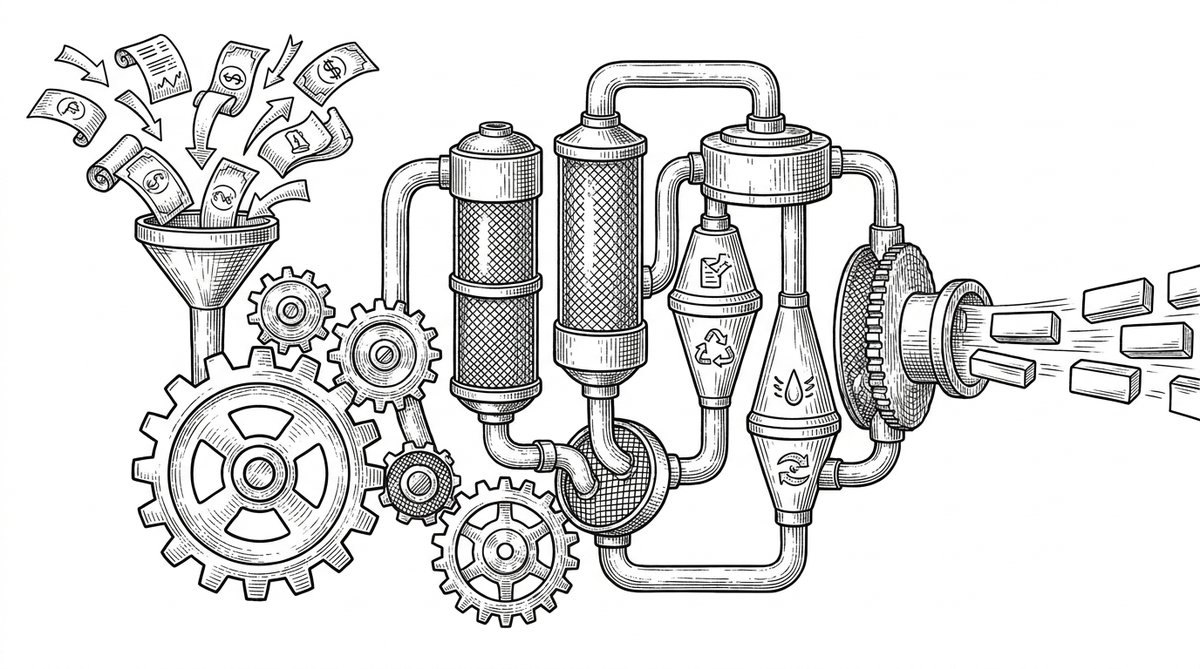
The 5 steps work for any converted bank statement. The time per step varies with the data quality, but the order is fixed.
Step 1: Normalize the Columns (2 to 10 Minutes)
The goal is to get the data into a canonical schema: Date, Description, Amount, Balance. The original may use different names (Posting Date, Transaction Date, Withdrawal, Deposit, Debit, Credit, etc.). The first step is to map all of these to the canonical 4 columns. The mapping is mechanical: each non-canonical name maps to exactly one canonical name. This matters because the downstream formulas, sort, and dedup all depend on the column names being consistent.
A common failure mode is leaving the original column names and just adding a new “Amount” column with a formula. This produces a hybrid schema where some calculations work and others don’t. The fix: rename the original columns to the canonical names, or copy the data into a new sheet with the canonical schema. The cleaner the data model, the fewer bugs downstream.
Step 2: Fix the Date Formats (2 to 10 Minutes)
Bank statements use different date formats depending on the bank and country. US banks typically use MM/DD/YYYY. Canadian banks typically use DD/MM/YYYY. European banks typically use YYYY-MM-DD. Some banks use text dates like “Jan 15, 2026.” The format may also be inconsistent within a single statement (e.g., a US bank that uses “01/15/26” for older transactions and “2026-01-15” for newer ones). This matters because mixing date formats in the same column produces wrong sort results and wrong date math.
The fix: in Excel, use the “Format Cells” option to convert all dates to a single format. Or, use the DATEVALUE function to convert text dates to date values, then format as YYYY-MM-DD. This is a 2 to 10 minute step for a 1,200-transaction year, depending on the source variety. The verification is mechanical: after the conversion, sort by date and confirm the order is correct.
Step 3: Standardize the Descriptions (10 to 30 Minutes)
Bank transaction descriptions are free text and vary wildly. The same merchant may appear as “AMZN MKTP US”, “AMAZON.COM*MKTPLACE”, “AMZN MKTP US*RE”, “AMAZON MKTPLACE PMTS”, and 10 other variations. For bookkeeping and analysis, you want one consistent name per merchant. The fix is to standardize the descriptions using a lookup table or a rule-based mapping.
The simplest approach: create a column called “Standardized Description” and use a formula or VLOOKUP to map the original description to a canonical name. For example, anything containing “AMZN” or “AMAZON” maps to “Amazon.” Anything containing “ATT” or “AT&T” maps to “AT&T.” The rule-based approach scales to thousands of transactions and is the standard practice for bookkeepers doing monthly close. This step takes 10 to 30 minutes for a 1,200-transaction year, mostly for setting up the initial mapping table.
Step 4: Remove the Duplicates (5 to 20 Minutes)
Duplicates happen when the same transaction appears in two overlapping statements (e.g., a January statement and a January-to-February statement that both cover January 15 to January 31). The duplicate transactions have the same date, amount, and description (usually). The fix is to sort by date, then by amount, then by description, then visually scan for rows that match across all 3 columns. Or, use a dedup formula in Excel.
The dedup formula approach: add a column that concatenates date + amount + description, then use COUNTIF to flag rows where the same value appears more than once. For a 1,200-transaction year with 2 to 5 percent duplicates, the dedup step takes 5 to 20 minutes depending on the overlap. For the full dedup workflow and edge cases, see duplicate transactions after conversion.
Step 5: Verify the Running Balance (5 to 15 Minutes)
The running balance is the single best verification of the data. The last transaction’s running balance should match the statement’s closing balance. If it doesn’t, you have either a missing transaction, a duplicate transaction, or a sign convention error. The fix is to find the discrepancy by summing the amounts and comparing to the expected net change.
This is the step most people skip, and it’s the step that catches the 2 to 5 percent of errors that survive the first 4 steps. The 5 to 15 minutes of verification is well worth it. For the full verification workflow, see duplicate transactions after conversion.
Turn That PDF Into a Spreadsheet in Minutes
You’ve seen how to do it manually, now let the tool handle the heavy lifting. Upload your bank statement and get Excel, CSV, or QBO in a few clicks.
From Bank Statement to QuickBooks-Ready File
That manual cleanup you just read about? This tool skips it. Turn your PDF into QBO for QuickBooks without storing your data anywhere.
Start ConvertingThe 4 Most Common Data Quality Issues
These are the 4 issues that consume the most cleaning time.
Issue 1: Inconsistent Column Names Across Statements.
When you combine statements from different banks (or even the same bank with different export formats), the column names often differ. Chase uses “Posting Date” while Wells Fargo uses “Date.” Bank of America uses “Withdrawal” and “Deposit” while Chase uses “Amount.” The fix is to map all of these to a canonical schema before combining. The mapping is mechanical, but it requires knowing the source’s conventions. For the column-by-column reference, see bank statement anatomy.
Issue 2: Mixed Date Formats.
US banks typically use MM/DD/YYYY. International banks use YYYY-MM-DD or DD/MM/YYYY. Some banks use text dates. The fix: convert all to a single format (YYYY-MM-DD is the most Excel-friendly) before doing any date math. A common failure mode is mixing formats in the same column, which produces wrong sort results and wrong date math. The fix is mechanical: use DATEVALUE for text dates, and Format Cells for date values.
Issue 3: Inconsistent Merchant Descriptions.
The same merchant may appear under 5 to 15 different names across a year of statements. Amazon is the classic example. The fix is a lookup table that maps the original descriptions to canonical names. The lookup table is built once and reused. For high-volume merchants, the lookup table is 50 to 200 entries. For long-tail merchants, you accept the variation and categorize them as “Other.”
Issue 4: Duplicate Transactions from Overlapping Periods.
When you combine 2 statements that overlap (e.g., one covers Dec 15 to Jan 15, the other covers Jan 1 to Jan 31), the overlap period (Jan 1 to Jan 15) appears in both. Without dedup, those transactions are double-counted. The fix is the dedup step (Step 4). The most reliable dedup key is the FITID or reference number, when available. When not available, the date + amount + description is the fallback.
The 3 Categories of Transactions That Need the Most Cleaning
Not all transactions need the same level of cleaning. These 3 categories need the most attention.
Category 1: Recurring Subscriptions.
Subscriptions like Netflix, Spotify, and Adobe have predictable amounts but variable descriptions. The amount might be $9.99 one month and $10.99 the next (after a price increase). The description might be “NETFLIX.COM” or “NETFLIX 866-579-7172” or “NFLX*SUB” depending on how the merchant processes the charge. The cleaning: standardize the description, flag price changes, and verify the subscription is still active.
Category 2: Transfers Between Accounts.
Transfers between your own accounts (e.g., from checking to savings) appear as a transaction in both accounts. For bookkeeping, transfers should not be counted as income or expense. The cleaning: identify transfers by matching transactions across accounts (same date, same amount, opposite signs), and exclude them from the P&L. This is a 10 to 20 minute step for a year of statements.
Category 3: Foreign Currency Transactions.
If you travel or buy from international merchants, the foreign currency transactions have 2 amounts: the original currency and the converted USD amount. The cleaning: keep both amounts, mark which is which, and apply the exchange rate. The exchange rate can b
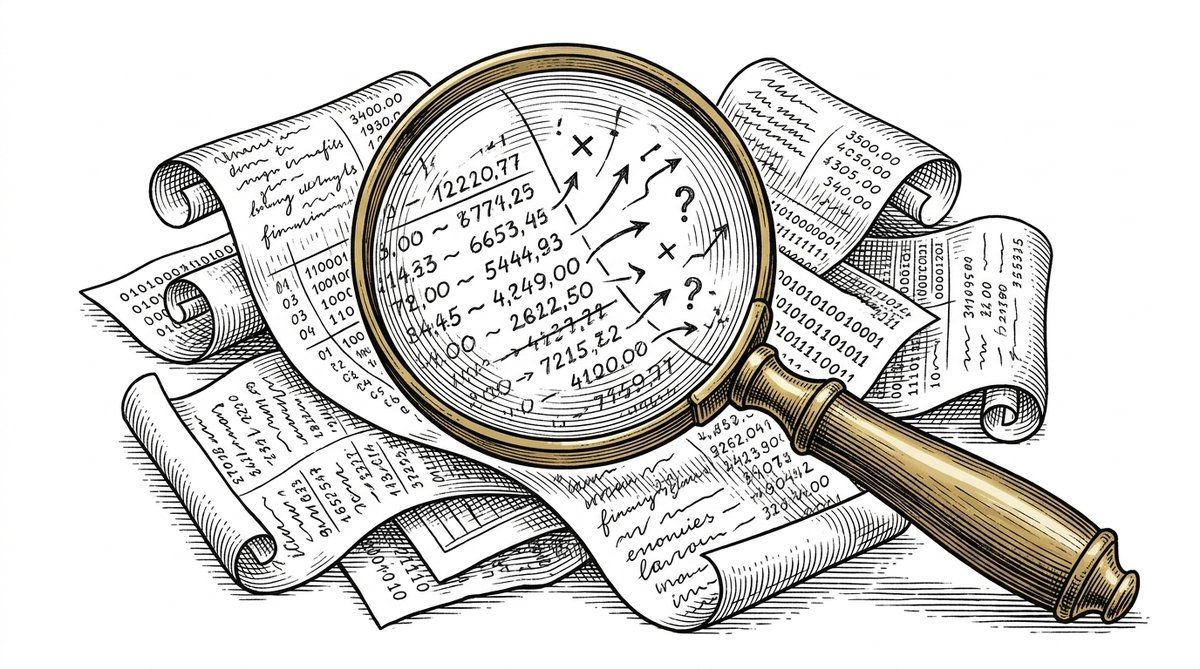
e looked up from
the date the transaction posted. This is a niche cleaning step but important if you have any foreign transactions.
How Long Bank Transaction Data Cleaning Takes (By Scenario)
The cleaning time depends on the data quality and the number of statements.
1 Statement (1 Month, 100 Transactions)
Total time: 10 to 20 minutes. The data quality is usually good (single bank, single format), so most of the cleaning is the description standardization (5 to 10 minutes) and the verification (2 to 5 minutes). The other steps are 1 to 2 minutes each.
12 Statements (1 Year, 1,200 Transactions)
Total time: 1 to 2 hours. The data quality is usually good (single bank, single format), so the bottleneck is the description standardization (30 to 60 minutes for the lookup table) and the verification (10 to 15 minutes). The other steps are 2 to 10 minutes each.
Multiple Banks, Multiple Formats (Annual Business Close)
Total time: 3 to 6 hours. The data quality is usually poor (different banks, different formats, different date ranges), so the column normalization is the bottleneck (1 to 2 hours). The dedup is also slow (30 to 60 minutes) because of the higher duplicate rate. The other steps are 10 to 30 minutes each.
4 Common Cleaning Mistakes
These are the 4 mistakes that cause the most trouble.
Mistake 1: Skipping the Date Format Normalization.
If the dates are in different formats, the sort will be wrong and the date math will be off. This is the #1 cause of “my reconciliation doesn’t balance” problems. The fix: in Step 2, explicitly convert all dates to a single format before doing any other step. A common failure mode is underestimating how many edge cases exist (e.g., 01/02/2026 could be January 2 or February 1 depending on the source).
Mistake 2: Cleaning the Wrong Data.
Always clean a copy of the data, not the original. The original is the source of truth, and any mistakes in cleaning can be reversed by re-cleaning the original. A common failure mode is editing the converted file in place, which makes the cleaning irreversible. The fix: work on a copy, and keep the original file as the source of truth.
Mistake 3: Over-Cleaning.
Cleaning is not about perfect data. It’s about good-enough data for the downstream use. For tax prep, you need the totals to match. For P&L reports, you need the categories to be consistent. For audit, you need the running balance to match. You do not need to standardize every merchant name variation. The fix: set a “good enough” threshold and stop cleaning when you reach it.
Mistake 4: Skipping the Verification.
The verification step (Step 5) is the only one that catches the 2 to 5 percent of errors that survive the first 4 steps. Skipping it means accepting the data without checking. The errors compound: a 1 percent error in the data becomes a 5 percent error in the P&L, which becomes a 25 percent error in the quarterly tax estimate. The fix: always verify before the data goes into the next workflow.
Start with the Workflow
The fastest path is to start with the conversion step, which produces the data that every other step needs. The bank statement converter handles the PDF-to-Excel step in 2-5 minutes, with no upload to a server.
For a complete reference of the terms used throughout this article, see the bank statement glossary.
Then clean: if you have a converted dataset that needs cleaning, follow the 5 steps in order. Start with Step 1 (normalize columns) and end with Step 5 (verify running balance). Skipping any step produces the 2 to 5 percent error rate described above. For the dedup step (Step 4) in detail, see duplicate transactions after conversion.
Or use the converter: if you want to skip the manual work, see the bank statement converter page to try the converter. It produces a clean dataset in 2 to 5 minutes per statement. The converter handles the normalize, fix-dates, and dedup steps automatically. You handle the description standardization (which is the only step that requires human judgment). For the format choice (Excel vs CSV vs QBO), see bank statement to Excel vs CSV. The memorable line: cleaning is 5 steps, takes 1 to 2 hours for a year manually, and the verification step is what catches the errors that survive the first 4 steps.
Turn any PDF statement into a clean sheet
Skip the typos and the hours of copying. Our converter handles any bank statement format and outputs Excel, CSV, or QBO for QuickBooks. No file retention, free to try. After cleaning, the next step is to apply the 11 standard transaction categories to each transaction. For more on this, see the accountant workflow page.
For more on this, see the bank statement for small business page.
For more on this, see the bank statement for freelancers page.
Turn That PDF Into a Spreadsheet in Minutes
You've seen how to do it manually — now let the tool handle the heavy lifting. Upload your bank statement and get Excel, CSV, or QBO in a few clicks.
Try It Free