
The standard bank statement Excel template has 4 columns and 3 to 7 optional columns. The short answer: a bank statement Excel template is a spreadsheet with the standard 4 columns (Date, Description, Amount, Balance) plus 3 to 7 optional columns (Transaction Type, Check Number, Category, Reference, Running Balance). There are 4 standard variants: the minimal 4-column template, the 5-column template with Type, the 6-column template with Check Number, and the 7-column template with Category. The minimal 4-column template is what a converter typically outputs. The 7-column template is what an accountant or bookkeeper uses for monthly close.
TL;DR. A standard bank statement Excel template has 4 required columns (Date, Description, Amount, Balance) plus 3 to 7 optional columns (Transaction Type, Check Number, Category, Reference, Running Balance). The 4 standard variants: minimal 4-column, 5-column with Type, 6-column with Check Number, 7-column with Category. The minimal template is what most converters output.
This page covers the 4 standard template variants, the exact column headers each bank uses, the 3 optional columns that matter most, and the 4 common mistakes when setting up a custom template. If you want a ready-made template, see the bank statement converter output. For the converter-specific format, see convert bank statement to Excel.
A bank statement Excel template (also called a bank statements Excel template, monthly statement Excel template, or account statement spreadsheet) is a spreadsheet with 4 required columns (Date, Description, Amount, Balance) and 3 to 7 optional columns (Transaction Type, Check Number, Category, Reference, Running Balance). The 4 standard variants are: minimal (4 columns), with Type (5 columns), with Check Number (6 columns), and with Category (7 columns). The minimal template is what a converter produces; the 7-column template is what an accountant or bookkeeper uses for monthly close. Most US banks use 1 of 3 standard column header sets: Date/Description/Amount/Balance, Posting Date/Memo/Withdrawal/Deposit, or Transaction Date/Payee/Debit/Credit. The output format is row 1 = headers, row 2 onwards = transactions, with one row per transaction and one cell per column.
For the format specification (CSV vs Excel vs QBO), see bank statement to Excel vs CSV. For the column reference anatomy, see bank statement anatomy. For the field-level entity map, see bank statement fields explained. If you want a pre-formatted template, the bank statement converter produces a clean Excel file in 2 to 5 minutes.
The 4 Required Columns (Universal Across Banks)
Every bank statement in the world has these 4 columns, in some form. The exact header names vary, but the data is the same.
Date, Description, Amount, Balance (The 4 Required Columns)
The date the transaction was posted to the account, not the date the user made the purchase. For most banks, this is a single date. For some banks (e.g., credit cards), this is split into “Transaction Date” and “Posting Date.” The format varies: US banks use MM/DD/YYYY, Canadian banks use DD/MM/YYYY, European banks use YYYY-MM-DD, and some banks use “Jan 15, 2026” text format. A common failure mode is mixing formats across statements; the fix is to normalize to YYYY-MM-DD before combining. For date format details, see bank statement anatomy.
Column 2: Description.
The merchant name or transaction description. This is the free-text column that varies the most. It can be 10 characters (“AMZN MKTP”) or 50 characters (“AMAZON.COM*MKTPLACE AMZN.COM/BILL WA”). It includes the merchant name, the location (sometimes), and a reference number (sometimes). There is no standard format. For typical descriptions, see bank statement fields explained.
Column 3: Amount.
The transaction amount. There are 3 conventions for representing debits and credits: (1) a single Amount column with positive for credits and negative for debits, (2) two columns Withdrawal and Deposit with empty cells for the non-applicable side, (3) two columns Debit and Credit with the same convention. The single-Amount convention is the most common in modern exports. The two-column convention is the legacy standard. The sign convention matters when you combine statements from different banks, because the convention is not always the same. For the sign convention, see bank statement anatomy.
Column 4: Balance.
The running balance after this transaction was posted. Not all banks include this. When included, it lets you verify the conversion by checking that the balance math is correct (starting balance + sum of amounts = ending balance). When not included, you can compute it with an Excel formula: =SUM($C$2:C2) where C is the Amount column. A common failure mode is using the wrong sign convention in the formula, which produces a running balance that is consistently off by the total credit amount.
The 4 Standard Template Variants

The 4 variants differ in how many optional columns they include. The choice depends on the downstream use.
Variant 1: Minimal 4-Column Template
Columns: Date, Description, Amount, Balance. This is the minimum useful template. It has everything needed to verify the data, reconcile against the bank, and produce basic reports. Most converters (including the bank statement converter) output this variant by default. For personal use or simple bookkeeping, this is enough.
Variant 2: With Transaction Type (5 Columns)
Columns: Date, Description, Type, Amount, Balance. The Type column distinguishes between debit card purchases, credit card payments, ATM withdrawals, fees, interest, direct deposits, and transfers. This is useful for categorizing transactions for tax prep or for distinguishing business expenses from personal expenses. The Type values are typically 2 to 6 character codes (e.g., “DEB”, “CRD”, “ATM”, “FEE”, “INT”, “DIR”).
Variant 3: With Check Number (6 Columns)
Columns: Date, Description, Check Number, Type, Amount, Balance. The Check Number column is for paper check transactions, which are still common in business banking. For personal accounts, this column is often empty. For business accounts that pay by check, this column is essential for tracking which check paid which vendor.
Variant 4: With Category (7 Columns)
Columns: Date, Description, Check Number, Type, Category, Amount, Balance. The Category column is a manual or auto-assigned classification (e.g., “Office Supplies”, “Travel”, “Utilities”). This is the full bookkeeper template. It enables P&L reports, expense categorization, and tax prep categorization. The Category values are usually set after the conversion, either manually or via a categorization rule (e.g., all transactions from “ATT” get “Utilities”).
Turn any PDF statement into a clean sheet
Skip the typos and the hours of copying. Our converter handles any bank statement format and outputs Excel, CSV, or QBO for QuickBooks. No file retention, free to try.
From PDF to Excel in one click
Forget retyping line by line. Upload any bank statement, get a spreadsheet you can actually use. Your files are never stored, and you can test the converter with 3 free conversions.
Try it freeThe 3 Standard Column Header Sets (By Bank Convention)
Different banks use different column header names for the same data. The 3 most common sets in the US are Chase, Bank of America, and Wells Fargo conventions. Most other banks use one of these 3.
Set 1: Chase Convention (Date, Description, Amount, Balance)
Used by Chase, Capital One, Discover, and most credit card exports. The Amount column uses the single-column sign convention (positive for credits, negative for debits). This is the simplest convention and the most converter-friendly. Most modern converters output in this format because it requires no additional processing.
Set 2: Bank of America Convention (Date, Description, Withdrawal, Deposit, Balance)
Used by Bank of America and many regional banks. The Withdrawal and Deposit columns are separate, with empty cells for the non-applicable side. This is the legacy bank statement format. To convert to the single-Amount convention, take Withdrawal as a negative number and Deposit as a positive number, then combine into a single Amount column. A common failure mode is summing the Withdrawal and Deposit columns separately, which produces a different total than the single-Amount sum.
Set 3: Wells Fargo Convention (Date, Description, Amount, Type, Balance)
Used by Wells Fargo, Citi, and most business banking exports. The Type column indicates the transaction category (e.g., “DEBIT”, “CREDIT”, “FEE”). The Amount column uses the single-column sign convention. This is the most bank-statement-of-a-business-account convention, where the Type is needed for reconciliation against the general ledger.
3 Optional Columns That Matter Most
If the 4 required columns are the foundation, these 3 optional columns add the most value for most use cases.
Optional Column 1: Running Balance (Computed)
The running balance is critical for verification. If the statement includes it, use it directly. If not, compute it with =SUM($C$2:C2) in Excel (where C is the Amount column, the dollar signs lock the start of the range). The running balance at the end should match the statement’s closing balance. If it doesn’t, the data has an error. The verification is mechanical: compare the computed running balance to the statement’s closing balance, and if they differ, find the missing or extra transaction. This is the single most valuable optional column for catching conversion errors.
Optional Column 2: Transaction Type (Categorical)
The transaction type tells you what kind of transaction it was: debit, credit, fee, interest, transfer, ATM, check, etc. This is essential for categorizing transactions for bookkeeping. Most banks include the type in their export, but the type values vary (e.g., “DEB” vs “Debit” vs “Debit Card Purchase”). The fix is to normalize the type values to a canonical set of 5 to 8 values before analysis.
Optional Column 3: Reference Number (Identifier)
The reference number is a unique identifier for the transaction, used for de-duplication. Most banks include it, but under different names (Reference, Ref, Transaction ID, Trace Number). For QBO imports, the reference is the FITID field. For matching transactions across multiple statements (e.g., to find duplicates), the reference number is the most reliable join key. A common failure mode

is using the
date + amount as the join key, which produces false matches when the same amount happens on the same day for different merchants.
4 Common Mistakes When Setting Up a Custom Template
These are the 4 mistakes that cause the most trouble with custom templates.
Mistake 1: Including the Header Row in the Sort.
If the header row (Date, Description, Amount, Balance) is mixed in with the data rows when you sort, the sort will treat the header as data and put it somewhere in the middle. The fix: in Excel, when you sort, use the “My data has headers” option, which keeps the header row in place. Or, freeze the top row before sorting. This is a common failure mode that takes 5 to 10 minutes to fix after the fact.
Mistake 2: Mixing Date Formats.
If some dates are text (e.g., “Jan 15, 2026”) and some are date values (e.g., “2026-01-15”), the sort will be wrong. The fix: in Excel, use the “Format Cells” option to convert all dates to the same format. Or, use the DATEVALUE function to convert text dates to date values. This is the #1 cause of “I sorted my data and it’s in the wrong order” problems.
Mistake 3: Using the Wrong Sign Convention.
If you assume a sign convention that doesn’t match the data, the running balance will be consistently off by the total credit or debit amount. The fix: check the first few transactions. If a purchase is positive and a refund is negative, that’s the single-Amount convention. If purchases and refunds are in separate columns, that’s the two-column convention. If a purchase is negative and a refund is positive, the bank uses the opposite convention. The sign convention is the most fundamental data assumption, and getting it wrong corrupts every downstream calculation.
Mistake 4: Not Including the Running Balance.
Without the running balance, you cannot verify the conversion. A common failure mode is importing the data and starting to work with it before checking that the totals match. The fix: always include the running balance, either from the source statement or computed. Then verify that the last transaction’s balance matches the statement’s closing balance. This is a 5-minute step that catches 2 to 5 percent of typical errors.
How to Build a Custom Template
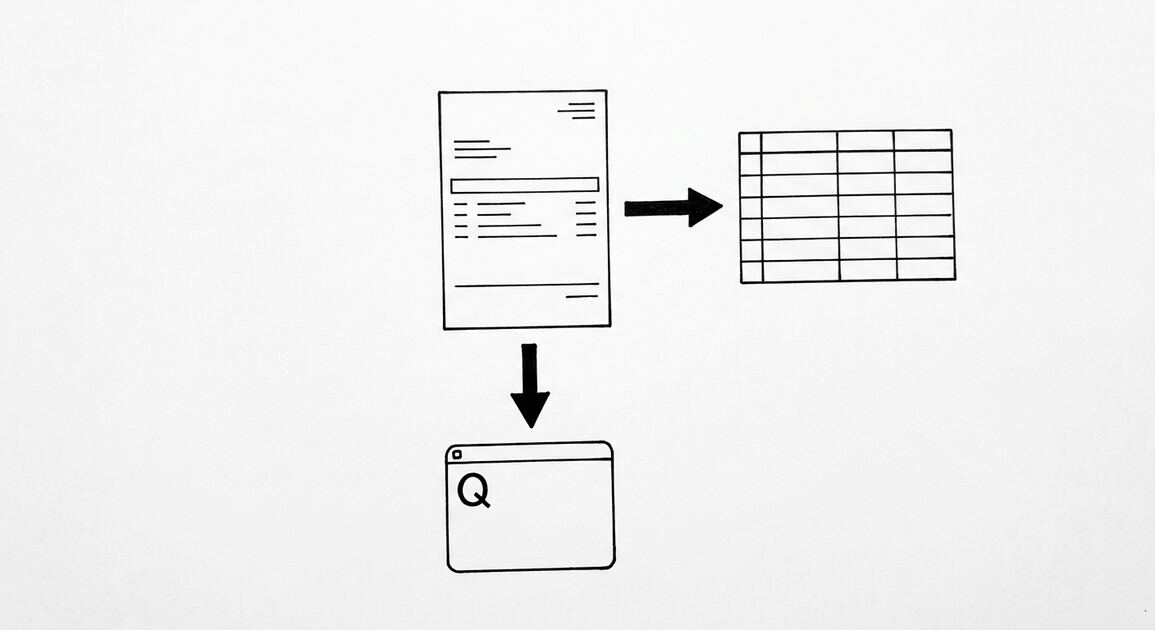
The simplest approach is to use a converter’s output as the template. The bank statement converter outputs the 4-column minimal template by default, with proper headers, dates, and running balance. If you need more columns, add them after the conversion: insert a Type column, a Check Number column, etc. This is faster than building the template from scratch, and the converter’s output is already verified.
If you want to build from scratch, the 4-step setup is: (1) create a new Excel file with 4 columns labeled Date, Description, Amount, Balance, (2) paste the data from each statement, (3) add a running balance formula, (4) verify the totals. This takes 10 to 20 minutes for 1 statement and scales linearly for more. The 4-column minimal template is the right starting point for 90 percent of use cases.
Start with the Workflow
The fastest path is to start with the conversion step, which produces the data that every other step needs. The bank statement converter handles the PDF-to-Excel step in 2-5 minutes, with no upload to a server.
For a complete reference of the terms used throughout this article, see the bank statement glossary.
Turn That PDF Into a Spreadsheet in Minutes
You’ve seen how to do it manually, now let the tool handle the heavy lifting. Upload your bank statement and get Excel, CSV, or QBO in a few clicks.
For more on this, see the accountant workflow page.
Turn PDF Bank Statements Into Workable Spreadsheets
Your bank statement is a mess of numbers, but your books shouldn't be. Use our converter to get Excel, CSV, or QBO files — ready for QuickBooks.
Try It Free Now