An accountant’s bank statement workflow is the difference between a 60-hour month and a 200-hour month. The 7 steps below are what
The bottleneck is not the conversion. The bottleneck is the receipt and the categorization. Optimizing the conversion saves 5% of the time. Optimizing the receipt and categorization saves 70% of the time. Most accountants optimize the wrong step.
This page is for accountants and bookkeepers with 10-20 small business clients, processing 30-100 statements per month. The 7 steps below cover the standard workflow from statement receipt to archive, with the time estimates and the failure modes for each step. For the underlying conversion technology, see the bank statement converter page. For the security question that matters for client data, see the is a bank statement converter safe guide.
TL;DR. The standard accountant bank statement workflow has 7 steps: receive (from client), convert (PDF to Excel), clean (validate and standardize), categorize (apply chart of accounts), reconcile (match to bank), report (P&L, balance sheet), archive (7-year retention). The monthly cycle: receive by the 10th, process by the 20th, deliver by the 25th. The 4-client rule: above 4 clients per month, the ad-hoc workflow breaks. The 5-minute rule: above 5 minutes per conversion, the conversion step is unprofitable. The 2 mistakes that cost the most time: manual reformatting (40% of the time) and double-entry (30% of the time). The workflow is the product. The conversion is one step. Most accountants optimize the wrong step.
The 7 Steps of the Standard Workflow
The standard accountant bank statement workflow has 7 steps, executed monthly per client. The steps are sequential, but the receipt step overlaps with the processing step for the next client.
Step 1: Receive. The client sends the statement (PDF, image, or download link) by the 10th of the month following the statement cycle. The accountant receives the statement in a shared folder (Dropbox, Google Drive, or client portal). The time: 2-3 minutes per client to confirm receipt and check the file is openable. The failure mode: late or missing statements, which cascade through the rest of the workflow.
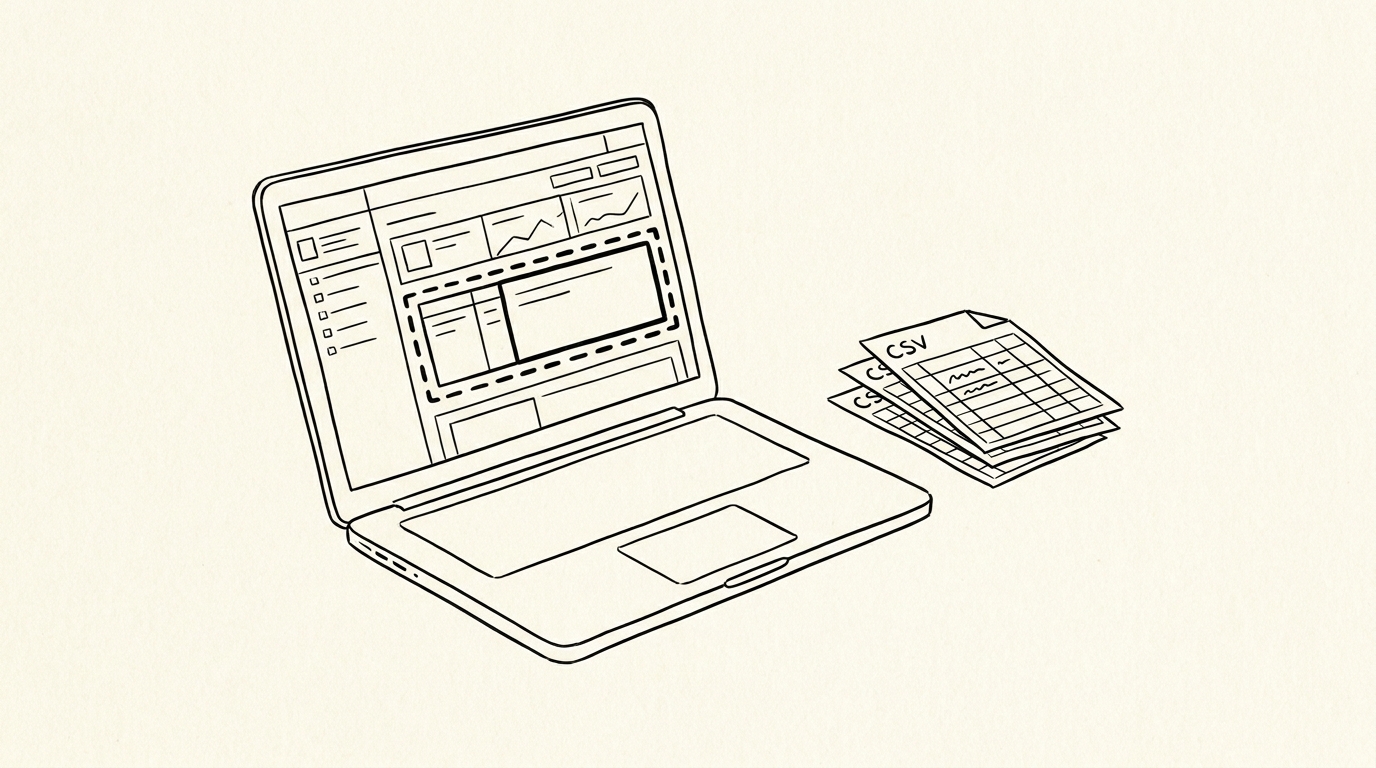
Step 2: Convert. The accountant converts the PDF to Excel (or CSV, depending on the destination software). The conversion is browser-based or local, with the data never leaving the computer. The time: 2-5 minutes per statement, depending on the tool and the statement quality. The output: a clean Excel file with date, description, amount, balance columns.
For the conversion workflow, see the conversion checklist and the PDF vs CSV guide.
Step 3: Clean. The accountant validates the converted data: check for missing rows, check for OCR errors in the description, check the totals match the statement summary. The time: 3-5 minutes per statement for a clean conversion, 10-15 minutes for a dirty conversion. The output: a validated Excel file ready for categorization.
For the cleaning workflow, see the bank transaction data cleaning page and the validation checklist.
Step 4: Categorize. The accountant applies the client’s chart of accounts to each transaction. The categorization is the longest step: 15-30 minutes per statement, depending on the volume and the client’s complexity. The output: a categorized Excel file with each transaction assigned to a chart of accounts category.
For the categorization framework, see the bank transaction categorization page.
Step 5: Reconcile. The accountant matches the categorized statement to the bank balance and to the general ledger. The reconciliation catches errors (missing transactions, miscategorized amounts, duplicate entries). The time: 5-10 minutes per statement. The output: a reconciled statement with all transactions tied out.
For the reconciliation workflow, see the bank statement reconciliation page and the reconciliation cutoff.
Step 6: Report. The accountant produces the monthly financial statements: P&L, balance sheet, cash flow statement. The reporting is the value the client pays for: the report shows the financial position, the trends, and the issues. The time: 10-20 minutes per client. The output: a PDF report delivered to the client by the 25th.
Step 7: Archive. The accountant stores the statement, the converted file, the categorized file, the reconciliation, and the report. The archive is the audit trail: 7 years of monthly records per client. The time: 2-3 minutes per client. The output: a cloud folder organized by year, client, and month.
The 3-Month Cycle

The monthly cycle has 3 phases, with hard deadlines that prevent the cycle from breaking down.
Phase 1: Receive (1st-10th). The client is expected to send the statement by the 10th of the month following the statement cycle. The accountant sends a reminder on the 5th, a second reminder on the 10th, and escalates to a phone call on the 15th if the statement is still missing. The deadline is hard: statements received after the 15th are processed in the next month’s cycle.
Phase 2: Process (10th-20th). The accountant converts, cleans, categorizes, reconciles, and prepares the report. The processing phase is the bulk of the work: 30-60 minutes per client, depending on complexity. The deadline is soft: the report is ready by the 20th, in time for the delivery phase.
Phase 3: Deliver (20th-25th). The accountant delivers the monthly report to the client. The delivery is a 15-30 minute call or email, with questions answered and issues flagged. The deadline is hard: the client expects the report by the 25th, in time for the client’s own monthly close.
The 3-phase cycle is the standard. The hard deadlines prevent the workflow from breaking down. The soft deadline in the middle (the 20th) gives the accountant 5 days of buffer to handle exceptions.
From Bank Statement to QuickBooks-Ready File
That manual cleanup you just read about? This tool skips it. Turn your PDF into QBO for QuickBooks without storing your data anywhere.
Start ConvertingThe 4-Client Rule
Above 4 clients per month, the ad-hoc workflow breaks. The reason: with 4 clients, the accountant can track each client’s status mentally, remember the exceptions, and recover from a missed deadline. Above 4 clients, the volume exceeds the working memory and the exceptions compound.
The 4-client rule is a scaling signal. When the practice reaches 4 clients, the workflow must be standardized: a shared folder structure, a naming convention, a deadline calendar, a client communication template. The standardization takes 5-10 hours to set up. The result is the capacity to handle 8-12 clients per month without proportionally more time.
Above 12 clients, the standardization breaks again. The reason: with 12 clients, the accountant needs to delegate. The delegation is the next scaling step: hire a junior accountant or a bookkeeper, train them on the standardized workflow, supervise their work. The delegation takes 20-40 hours of training. The result is the capacity to handle 20-30 clients per month with the same senior accountant time.
The 3 scaling levels: 1-4 clients (solo, ad-hoc), 5-12 clients (solo, standardized), 13-30 clients (delegated, supervised), 30+ clients (firm, multiple accountants). The level determines the workflow.
The 5-Minute Per Conversion Rule
Above 5 minutes per conversion, the conversion step is unprofitable. The reason: at $50/hour billing rate, a 5-minute conversion is $4.17 per statement. A 10-minute conversion is $8.33. A 30-minute conversion is $25. The difference between 5 and 30 minutes is $20 per statement, which is the entire margin on a typical monthly bookkeeping engagement.
The 5-minute rule is a tool selection signal. When the conversion tool takes more than 5 minutes per statement, the accountant either needs a better tool or needs to charge more. Most browser-based converters deliver 1-2 minute conversions for clean PDFs, 3-5 minutes for average PDFs, and 5-10 minutes for dirty PDFs (scanned, low-resolution, multi-column). The tool selection is based on the typical statement quality, not the best case.
A common failure mode accountants report is using a free converter that takes 20 minutes per conversion, then discovering that the free converter is more expensive than the $30/month subscription tool. The fix: measure the time per conversion across 10-20 statements, calculate the total cost, and select the tool that minimizes the total cost (subscription + time).
For the pricing comparison, see the bank statement converter pricing page.

The 2 Mistakes That Cost the Most Time
2 mistakes that consistently consume the most accountant time:
1. Manual reformatting (40% of the time). The accountant converts the statement, then reformat the output to match the destination software (QuickBooks, Xero, Sage). The reformatting includes: changing column order, fixing date formats, fixing amount formats (parens vs minus signs), splitting combined fields (date + description), standardizing the description. The reformatting is 15-30 minutes per statement, which is 40% of the total processing time.
The fix: choose a converter that outputs the right format for the destination software. For QuickBooks, the converter should output a QBO file directly. For Xero, the converter should output a CSV with the Xero column structure. For Sage, the converter should output a CSV with the Sage column structure. The right output format eliminates 90% of the reformatting time.
For the format selection, see the PDF vs CSV guide.
2. Double-entry (30% of the time). The accountant enters the data twice: once into the spreadsheet for review, and once into the accounting software for the journal entry. The double-entry is 10-20 minutes per statement, which is 30% of the total processing time. The double-entry exists because the spreadsheet and the accounting software are separate systems.
The fix: use an accounting software that imports the converted statement directly (QuickBooks, Xero, Sage, Wave). The import eliminates the double-entry. The accountant reviews the imported transactions, not re-enters them. The review is 3-5 minutes per statement, which is a 70% reduction.
For the import workflow, see the QBO file format page and the import into QuickBooks guide.
The Client Email Template
The client email template is the most effective tool for preventing late or missing statements. Send the same email every month, with the same subject line, the same content, the same deadline. The repetition trains the client to expect the email and respond on time.
Subject line: Monthly statement for [Month] due by the 10th.
Body:
Hi [Client name],
It’s time to send me the bank statement for [Month]. Please send it by the 10th of [Next month] so I can process it and have your monthly report ready by the 25th.
What I need:
1. The PDF statement (downloaded from your bank’s website, not a screenshot)
2. For each account (checking, savings, credit card)
3. The full statement, not just the first page
4. The previous month’s statement if I don’t have it
Where to send it:
[Dropbox link, Google Drive link, or client portal]
What happens if it’s late:
Statements received after the 15th will be processed in the next month’s cycle. The monthly report will be delayed by 2-3 weeks.
Thanks,
[Accountant name]
The email is short, specific, and has a clear deadline with a clear consequence. The consequence is not a penalty; it’s the natural result of the processing queue. The client understands the deadline because the email says exactly when the report will be ready if the statement arrives on time.
The Hard Deadline for Late Statements
Statements received after the 15th should be processed in the next month’s cycle. The hard deadline is not a penalty; it’s a workflow protection. The reason: processing a late statement in the current cycle means re-doing work, missing the 25th report deadline, and frustrating the on-time clients who expect their report.
The hard deadline is communicated in the client email, in the engagement letter, and in the first month of service. The deadline is the same every month. The consistency trains the client to send the statement on time.
A common failure mode accountants report is accepting late statements as a one-time exception, which becomes the new normal. The client learns that the deadline is soft, and the workflow becomes a constant catch-up exercise. The fix: enforce the deadline on the first late statement, with a clear explanation of why the deadline is hard.
The 3 Best Practices for the Accountant Workflow
3 best practices that prevent the 2 mistakes and the 4-client rule from breaking down:
1. Standardize the folder structure across all clients. The structure: one folder per year, one subfolder per client, one subfolder per month, named “YYYY-MM-client-name”. The statement, conversion, categorization, reconciliation, and report all live in the month folder. The structure is searchable, audit-ready, and consistent across clients. The standardization takes 5-10 hours to set up. The result is the capacity to find any document in 30 seconds, regardless of the client.
2. Use a converter that outputs the right format for the destination software. The converter should output a clean Excel or CSV for review, and a direct import format (QBO, OFX, IIF) for the destination software. The right output format eliminates 90% of the reformatting and 70% of the double-entry. For the format selection, see the PDF vs CSV guide and the Excel template page.
3. Use a client portal for statement receipt, not email. The client portal is a shared folder (Dropbox, Google Drive, or specialized client portal) where the client uploads the statement. The portal is better than email because: (a) the statement doesn’t get lost in the inbox, (b) the statement is in the right place from the start, (c) the accountant can see the upload timestamp, (d) the statement is automatically named correctly. The portal eliminates the “I sent it, where is it?” problem that wastes 5-10 minutes per client per month.
Standardize Before You Scale
The biggest time-saver for an accountant practice is standardizing the workflow before adding the 5th client. The folder structure, the client email template, the hard deadline, and the converter output format together eliminate 70% of the time spent on receipt and categorization. The conversion checklist is the starting point for standardizing the conversion step.
For the data validation step that catches errors early, the validation checklist walks through the 12 checks to run before importing into the accounting software.
Turn any PDF statement into a clean sheet
Skip the typos and the hours of copying. Our converter handles any bank statement format and outputs Excel, CSV, or QBO for QuickBooks. No file retention, free to try.
Convert your statement