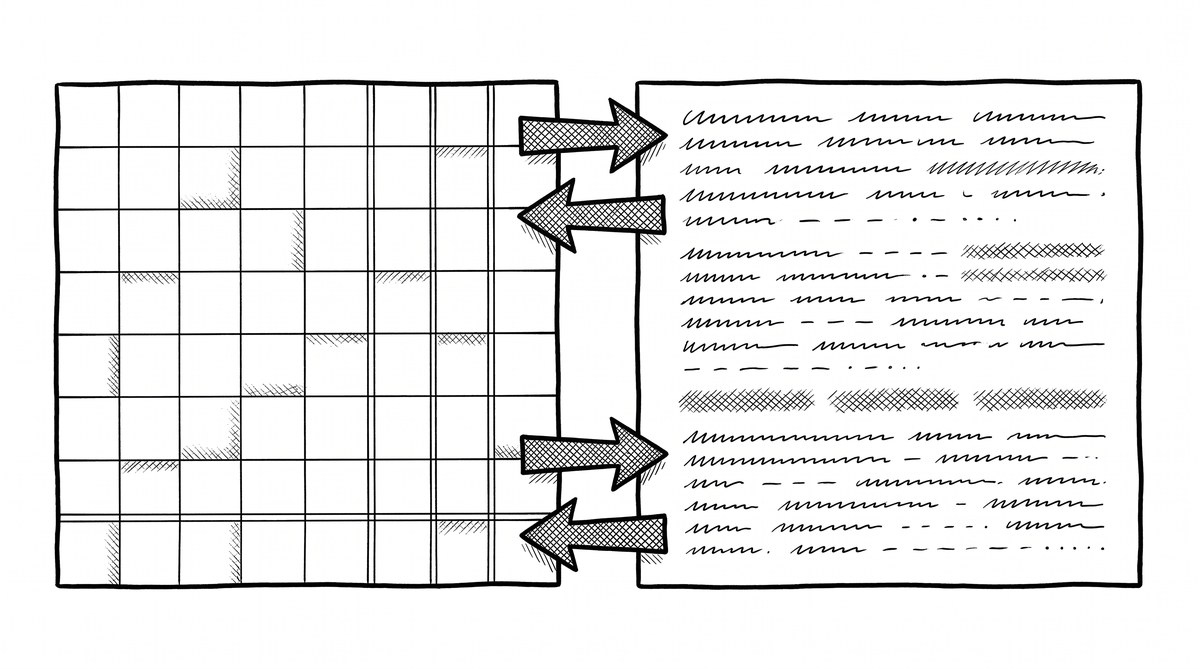

The real number: 2 to 5 minutes for a typical statement with an automated converter, 1 to 2 hours by hand. The short answer: approximately 2 to 5 minutes for a typical bank statement using an automated converter. The longer answer depends on 4 factors: transaction count, page count, whether the PDF is digital or scanned, and the method you use. A 100-transaction, 3-page digital PDF converts in 2 to 5 minutes. The same statement takes 1 to 2 hours by manual entry and 30 to 60 minutes by copy-paste.
TL;DR. Converting a bank statement to Excel takes 2 to 5 minutes with an automated converter, 30 to 60 minutes by copy-paste, and 1 to 2 hours by manual entry. The actual time depends on 4 factors: transaction count, page count, PDF type (digital vs scanned), and method. A 100-transaction, 3-page digital PDF is the baseline.
This page covers the realistic time for each method, the 4 factors that determine your actual time, and the time savings for high-volume users like bookkeepers processing 10+ statements per week. If you want to skip ahead to the tool that does this in minutes, see the bank statement converter. For the format-specific workflow, see convert bank statement to Excel.
Converting a bank statement to Excel takes approximately 2 to 5 minutes per statement with an automated converter, 30 to 60 minutes by copy-paste, and 1 to 2 hours by manual entry. The actual time depends on transaction count, page count, and whether the PDF is digital or scanned. A bookkeeper processing 10 statements per week saves approximately 14 hours per week by using a converter instead of manual entry.
The 4 factors that determine conversion time: (1) transaction count, typically 50 to 300 per monthly statement, (2) page count, typically 1 to 5 pages, (3) PDF type, digital text vs scanned image, and (4) method, manual vs copy-paste vs automated converter. A 100-transaction, 3-page digital PDF is the baseline: 2 to 5 minutes automated, 30 to 60 minutes copy-paste, 1 to 2 hours manual.
For the format-specific workflow (Excel, CSV, QBO), see convert bank statement to Excel. For scanned statements (which take 5 to 10 minutes due to OCR), see convert scanned bank statement to Excel. If you want to try the tool, see the bank statement converter.
Bank Statement Conversion Methods and Time Per Statement (3 Scenarios)
Three methods are commonly used to convert a bank statement to Excel: manual entry, copy-paste, and an automated converter. The time for each varies by 10x to 50x.
What most guides miss about Excel conversion is that the quality depends on the mechanism, not on the tool. Two tools that look different on the surface often run the same 4-step process underneath: read, find, parse, verify. The difference is in how well each step handles edge cases (merged cells, missing balances, non-standard date formats, scanned vs digital input). Choosing between tools based on UI alone misses the actual quality lever.
Method 1: Manual Entry (1 to 2 Hours Per Statement)
Manual entry means opening the PDF, reading each transaction, and typing it into Excel by hand. For a 100-transaction statement, this takes approximately 1 to 2 hours. The bottleneck is human typing speed, which is typically 40 to 60 words per minute. Each transaction is 5 to 8 words (date, description, amount, balance), so 100 transactions require approximately 500 to 800 words typed, which is 8 to 20 minutes of pure typing. The remaining 40 to 100 minutes is reading the PDF, switching between windows, fixing typos, and double-checking the math.
Manual entry is rarely the right choice in 2026. It is the slowest method, the most error-prone. A common failure mode is underestimating the time commitment: bookkeepers budget 2 hours but spend 4 to 6 because the cleanup phase is rarely accounted for (typical error rate of 1 to 3 percent, or 1 to 3 wrong transactions per 100), and the most exhausting. The only legitimate use case is when you have 1 statement per quarter and the data is highly sensitive.
Method 2: Copy-Paste From PDF (30 to 60 Minutes Per Statement)
Copy-paste is faster than manual entry but still slow. The workflow: open the PDF, select the transaction rows with the mouse, copy, paste into Excel, then clean up the formatting. Each paste typically grabs 10 to 20 transactions, so a 100-transaction statement requires 5 to 10 paste operations, each followed by 2 to 5 minutes of cleanup. Total: 30 to 60 minutes.
The cleanup is where the time goes. PDFs are designed for printing, not for data extraction, so the pasted text comes in as one long string per row, with extra spaces, missing columns, and broken alignment. The bookkeeper spends 20 to 40 minutes fixing this.
Method 3: Automated Converter (2 to 5 Minutes Per Statement)
An automated converter reads the PDF directly and outputs a structured Excel file. The workflow: upload the PDF, wait for processing, download the Excel file. The actual conversion takes 30 seconds to 2 minutes; the rest is upload/download time, which depends on your internet speed and PDF size.
A 100-transaction, 3-page digital PDF converts in 2 to 5 minutes total. A 300-transaction, 10-page statement converts in 5 to 10 minutes. A scanned 100-transaction statement (which requires OCR) converts in 5 to 10 minutes. The accuracy rate is typically 99 percent or higher for digital PDFs and 95 to 99 percent for scanned PDFs.
The 4 Factors That Determine Bank Statement Conversion Time
The 2-to-5-minute estimate is for a typical statement. Your actual time depends on 4 factors.
Factor 1: Transaction Count
Transaction count is the largest single determinant. The time scales roughly linearly: 50 transactions = 1 to 3 minutes, 100 transactions = 2 to 5 minutes, 300 transactions = 5 to 10 minutes, 500 transactions = 10 to 15 minutes. A monthly checking account typically has 50 to 150 transactions. A business account typically has 200 to 500. A credit card account typically has 30 to 100.
Factor 2: Page Count
Page count matters less than transaction count, but it still affects time. Each page in a PDF is typically 30 to 60 transactions. A 3-page statement is the most common. A 10-page statement is unusual for personal accounts but common for business accounts with high transaction volume.
Factor 3: PDF Type (Digital vs Scanned)
Digital PDFs are text-based. The converter can read the text directly. Conversion time is 2 to 5 minutes per statement, with 99 percent or higher accuracy.
Scanned PDFs are image-based. The converter must use OCR (Optical Character Recognition) to read the text first, then structure it. Conversion time is 5 to 10 minutes per statement, with 95 to 99 percent accuracy. The accuracy gap is real but small, and pre-processing the scan (deskewing, denoising) closes most of it. For more on this, see how OCR works for bank statements.
Factor 4: Method (Manual vs Copy-Paste vs Automated)
This is the largest single determinant. The method you choose changes your time by 10x to 50x. The 3 methods are covered in detail above.
Turn PDF Bank Statements Into Workable Spreadsheets
Your bank statement is a mess of numbers, but your books shouldn’t be. Use our converter to get Excel, CSV, or QBO files, ready for QuickBooks.
Try It Free NowFrom PDF to Excel in one click
Forget retyping line by line. Upload any bank statement, get a spreadsheet you can actually use. Your files are never stored, and you can test the converter with 3 free conversions.
Try it freeBank Statement Conversion Time Comparison Table (Side by Side)
| Method | Time per Statement | 10 Statements | Accuracy |
|---|---|---|---|
| Manual entry | 1 to 2 hours | 10 to 20 hours | 97 to 99 percent |
| Copy-paste | 30 to 60 minutes | 5 to 10 hours | 95 to 99 percent |
| Automated converter | 2 to 5 minutes | 20 to 50 minutes | 99 percent or higher |
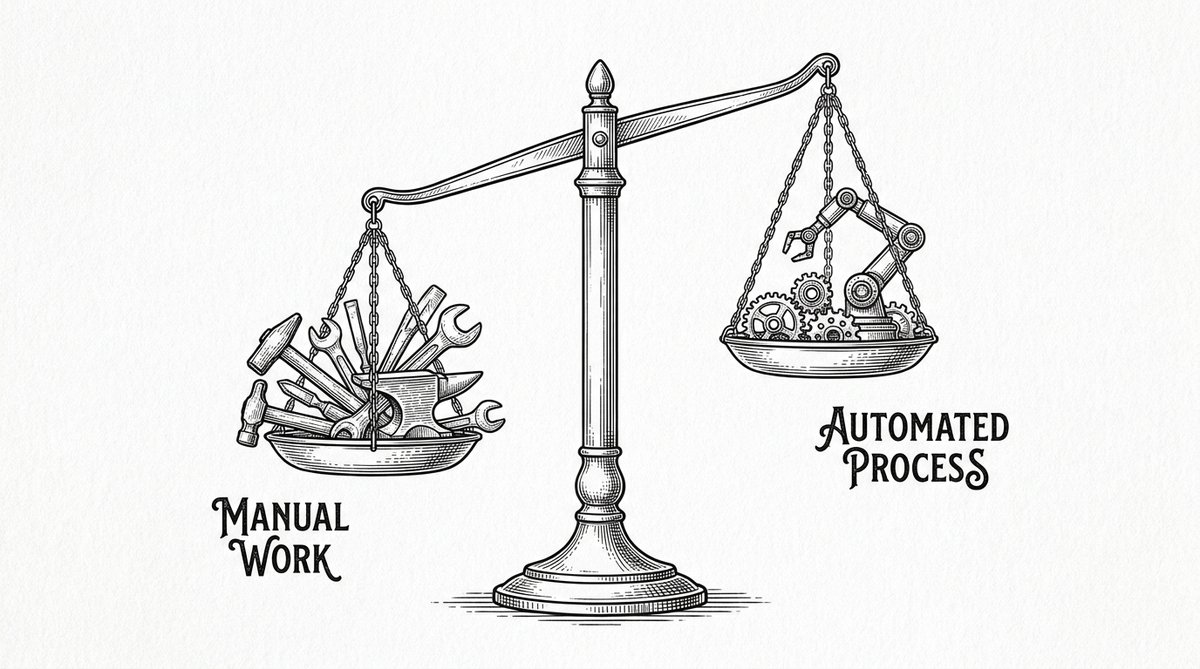
The table shows the time difference clearly. A bookkeeper processing 10 statements per week saves approximately 14 hours per week by switching from manual entry to an automated converter. That is 2 full workdays reclaimed every month.
Bank Statement Edge Cases That Slow Conversion
Some statements take longer than the baseline. Here is what to expect.
Scanned PDF With OCR (5 to 10 Minutes)
A scanned PDF requires OCR before conversion. The 5 to 10 minute estimate includes the OCR step. This matters because OCR accuracy is the most common reason a “fast” conversion becomes a 30-minute fix-everything job. Pre-processing the scan (deskewing, denoising, increasing contrast) reduces the time by 1 to 2 minutes and improves accuracy by 1 to 3 percentage points.
Password-Protected PDF (2 to 7 Minutes)
A password-protected PDF requires entering the password before conversion. This adds 30 seconds to 2 minutes, depending on whether you know the password or have to look it up. For more on this, see convert password-protected bank statement.
Multiple Statements Batched (5 to 10 Minutes Per Statement)
Most converters support batch processing. The per-statement time is the same as a single statement (2 to 5 minutes each), but the setup time is amortized. A batch of 10 statements takes 20 to 50 minutes total.
Old Statements (Paper Scans) (10 to 15 Minutes)
A paper statement from 10+ years ago, scanned at low DPI, with faded ink, takes 10 to 15 minutes. The OCR acc
uracy d
rops to 90 to 95 percent. For more, see convert old bank statements.
3 Common Mistakes When Estimating Bank Statement Conversion Time
These are the 3 mistakes that lead to underestimating conversion time.
Mistake 1: Forgetting the Cleanup Time
The conversion itself is 30 seconds to 2 minutes. The cleanup (verifying totals, fixing formatting, reconciling with the source PDF) is 2 to 5 minutes. Bookkeepers who budget 2 minutes per statement are surprised when it actually takes 5 to 7 minutes. Always budget 1.5x to 2x the raw conversion time.
Mistake 2: Not Testing on a Single Statement First
The first time you use any new converter, there is a learning curve. The setup, the upload, the download, the verification all take longer than the second time. Always test on 1 statement before committing to a batch of 10. This adds 10 to 15 minutes upfront but saves hours of frustration later.
Mistake 3: Ignoring the Page Count Until It Is Too Late
A 3-page statement is fast. A 10-page statement is 3x slower. A 30-page statement (unusual but possible for some business accounts) is 10x slower. Check the page count before starting, especially for business accounts. If the page count is high, budget 10 to 15 minutes per statement instead of 2 to 5.
Time Savings for Bank Statement Conversion at Volume (Bookkeepers, Accountants)
For a bookkeeper processing 10 statements per week, the time difference between manual and automated is approximately 14 hours per week. This matters because those 14 hours are the difference between taking on a 5th client and turning work away. That is 56 hours per month, or roughly 1.5 full work weeks. The cost of those hours (at a typical bookkeeper rate of $30 to $50 per hour) is $1,680 to $2,800 per month. The cost of an automated converter is typically $20 to $50 per month, or roughly 1 percent of the labor cost.
For a tax preparer processing 50 statements per quarter (during tax season), the time difference is approximately 70 hours per quarter. The math is similar: the converter pays for itself in the first week of use.
Start with the Workflow
The fastest path is to start with the conversion step, which produces the data that every other step needs. The bank statement converter handles the PDF-to-Excel step in 2-5 minutes, with no upload to a server.
For a complete reference of the terms used throughout this article, see the bank statement glossary.
What most guides miss is the cleanup time, not the conversion time. The 30x speedup is real, and the math is on your side. The 30x speedup is real, and the math is on your side.
Turn any PDF statement into a clean sheet
Skip the typos and the hours of copying. Our converter handles any bank statement format and outputs Excel, CSV, or QBO for QuickBooks. No file retention, free to try. For the 5 security questions to ask any bank statement converter before uploading, see the is a bank statement converter safe guide.
For more on this, see the is a bank statement converter safe page.
For more on this, see the bank statement converter pricing page.
For more on this, see the how to verify converted data page.
Convert your statementFrom PDF to Excel in one click
Forget retyping line by line. Upload any bank statement, get a spreadsheet you can actually use. Your files are never stored, and you can test the converter with 3 free conversions.
Try it free