
You use Wave Accounting (free) and want to reconcile your monthly bank statement without paying for a paid accounting software. Wave’s reconciliation is simpler than QuickBooks Online’s or Sage Intacct’s because Wave focuses on freelancers and small businesses, not multi-entity mid-market. The whole workflow takes about 10 minutes per account per month.
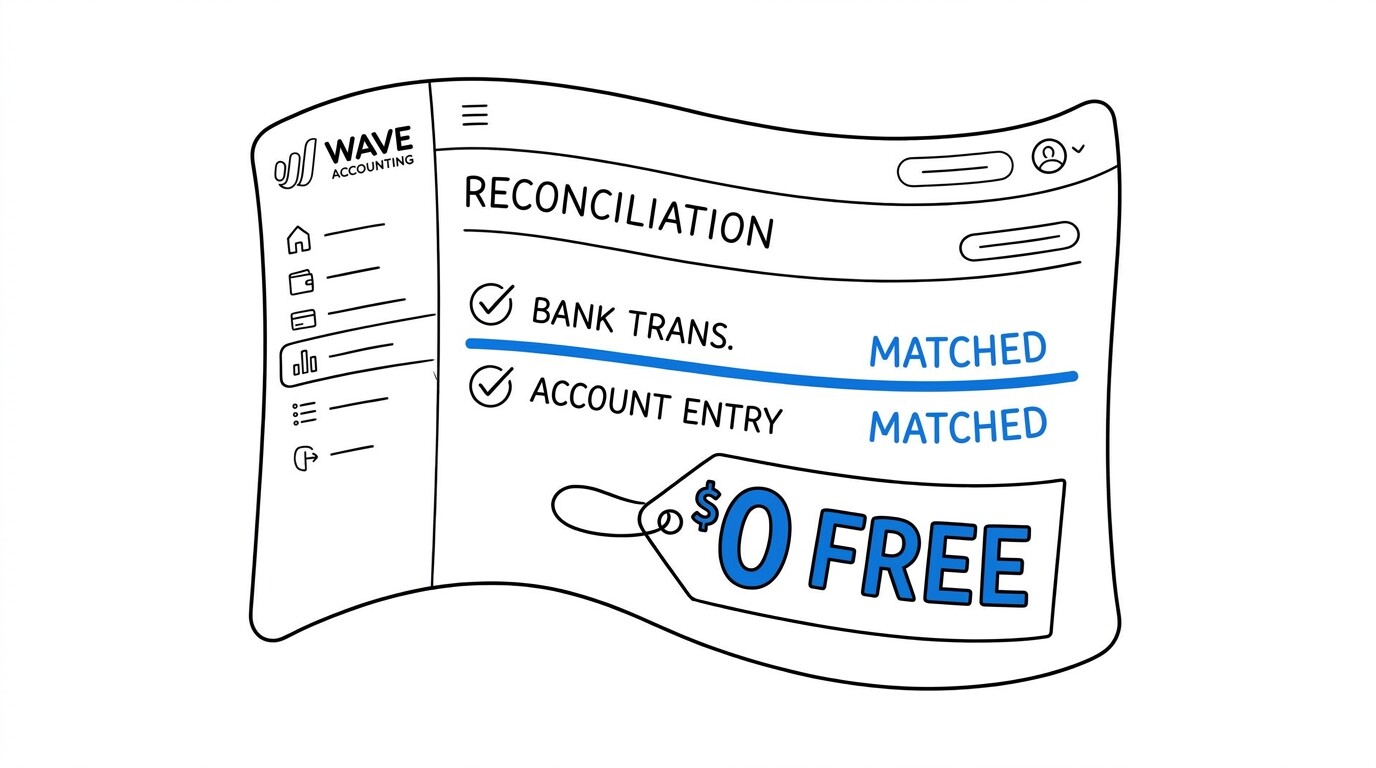
Quick Answers: Wave Accounting reconciliation works in the Accounting tab under Reconcile. You select the bank account, enter the statement ending balance and date, then Wave matches imported transactions against the register automatically. The whole process takes about 10 minutes per account per month. Wave’s free tier includes unlimited bank feeds and unlimited reconciliation, which is a significant advantage over paid alternatives. For businesses that need multi-entity or multi-currency, Wave is not the right tool, but for freelancers and single-entity small businesses, Wave’s reconciliation is fully featured for free.
What is Wave’s reconciliation workflow?
Wave’s reconciliation is in the Accounting tab under “Reconcile.” You select the bank account you want to reconcile, enter the statement ending balance and ending date from the bank statement, and Wave opens the reconciliation screen showing all transactions in the selected period.
You check off transactions that appear on the bank statement, leave unchecked transactions that are outstanding, and the cleared balance updates in real time to show whether your register matches the statement.
Wave’s matching logic is simpler than QuickBooks Online‘s: it shows all transactions in the date range, and you manually check each one. There is no auto-match confidence scoring, but Wave’s “Suggested matches” feature flags transactions where the bank feed transaction matches an existing register transaction by amount and approximate date.
For most freelancers with 50-100 transactions per month, the manual workflow with suggestions takes about 10 minutes per account per month.
The reconciliation completes when the difference between the cleared balance and the statement balance is zero. Wave shows the difference in red if non-zero, in green if zero. Once you reach zero, you click “Finish” and the reconciliation is saved. The reconciliation history is preserved indefinitely, and you can re-open past reconciliations from the Accounting tab.
What about Wave’s bank feed for reconciliation?
Wave’s bank feed is powered by Plaid and Finicity, the two largest U.S. bank data aggregators. Once you connect your bank account via Plaid, transactions appear in Wave automatically within 1-2 business days of posting at the bank. The bank feed pulls the last 30-90 days of historical transactions when first enabled, which gives you a backfill of recent activity.
The bank feed reduces reconciliation time because you don’t have to enter transactions manually. For a typical freelancer with 50 transactions per month, the bank feed auto-populates all of them, and the reconciliation workflow is just confirming matches and clearing them. Without the bank feed, you would convert PDF to CSV and import manually, which adds 5 minutes but is still fast.
Wave’s bank feed is free with all paid Wave plans (Starter, Pro, Receipts) and the free bookkeeping tier. The free tier includes unlimited bank feeds, which is unusual: most accounting software charges for bank feeds or limits them to specific plans. Wave’s approach is to monetize through payment processing and payroll, not bookkeeping features.
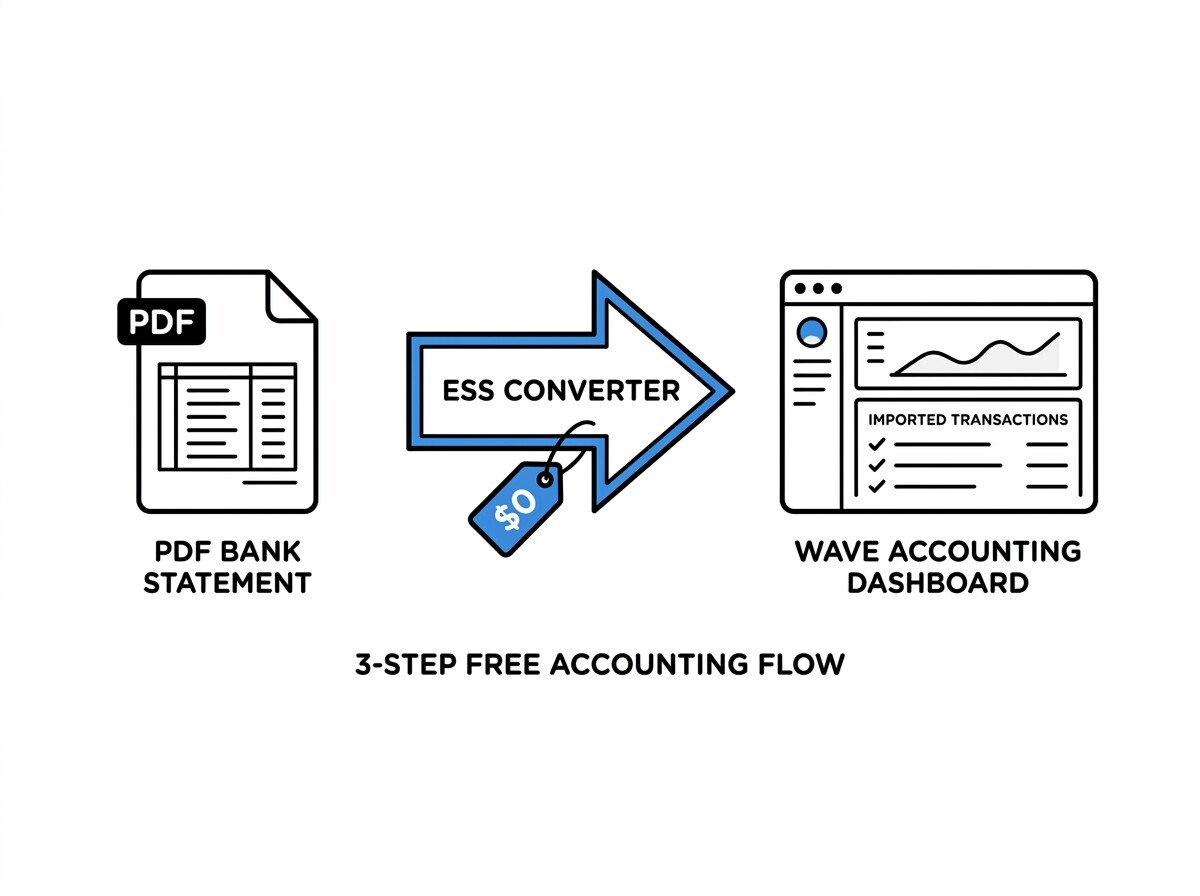
From Bank Statement to QuickBooks-Ready File
That manual cleanup you just read about? This tool skips it. Turn your PDF into QBO for QuickBooks without storing your data anywhere.
Start ConvertingHow do you handle outstanding transactions?
Outstanding transactions are transactions in your Wave register that have not yet posted to your bank. The most common examples are checks you have written but the recipient has not yet cashed, and deposits you have recorded but the bank has not yet processed. Outstanding transactions leave the reconciliation difference as a non-zero amount, but that is expected and correct.
The recommended workflow is: leave outstanding transactions unchecked in the reconciliation, and verify before import they reconcile in the following month’s statement when they clear. If an outstanding transaction does not clear within 60-90 days, investigate: the check may have been lost, the deposit may have been rejected, or the transaction may have been entered in error.
For businesses with many outstanding transactions (50+ checks in transit, common for businesses that pay vendors by check), the reconciliation can show a large outstanding balance that takes months to clear. This is normal but requires ongoing monitoring. Wave does not have an automated stale-check alert, so you need to track outstanding transactions manually or use a third-party tool.
What about the statement balance adjustment?
Bank fees, interest, and other adjustments need to be entered in Wave before reconciliation completes. Wave’s recommended workflow is: enter the bank fee or interest as a transaction in the register (categorized to “Bank Fees” or “Interest Income”), and the transaction appears as cleared when you import the bank statement.
For example, if your bank charged a $15 wire fee on the 25th of the month, you enter a -$15 transaction dated 25th in your Wave register, categorized to “Bank Fees.” When you import the bank statement (or the bank feed pulls it), the $15 fee appears as a transaction matching your register entry, and the reconciliation balances.
For interest income on deposits, you enter a positive transaction categorized to “Interest Income.” For NSF fees (when a customer’s check bounces), you enter a -$30 transaction categorized to “Bank Fees” or “Returned Check Fees.” The exact category naming is up to you, but consistent categorization makes your financial reports meaningful.
How often should you reconcile?
Most Wave users reconcile monthly, within a week of receiving the bank statement. The monthly cadence keeps the workload manageable and prevents discrepancies from accumulating. For freelancers and very small businesses with low transaction volume, monthly reconciliation is sufficient.
For businesses with high transaction volume (200+ per month), bi-weekly reconciliation may be more practical. The workload per reconciliation is smaller, and you catch errors faster. For seasonal businesses (e.g., retail during the holiday season), daily reconciliation during peak periods is sometimes necessary to keep up with the transaction volume.
The general guideline is: reconcile as often as your transaction volume and error tolerance require. If you can tolerate errors for a month, monthly reconciliation is fine. If you need real-time accuracy (common for businesses with high fraud risk), reconcile more frequently. For most Wave users (freelancers, sole proprietors), monthly is the right cadence.
What about reconciling multiple accounts?
Wave supports multiple bank accounts, credit cards, and loan accounts. Each account reconciles independently. For a freelancer with one checking account and one credit card, the monthly reconciliation takes about 20 minutes total (10 minutes per account). For a small business with 3-5 accounts, the monthly reconciliation takes 30-50 minutes.
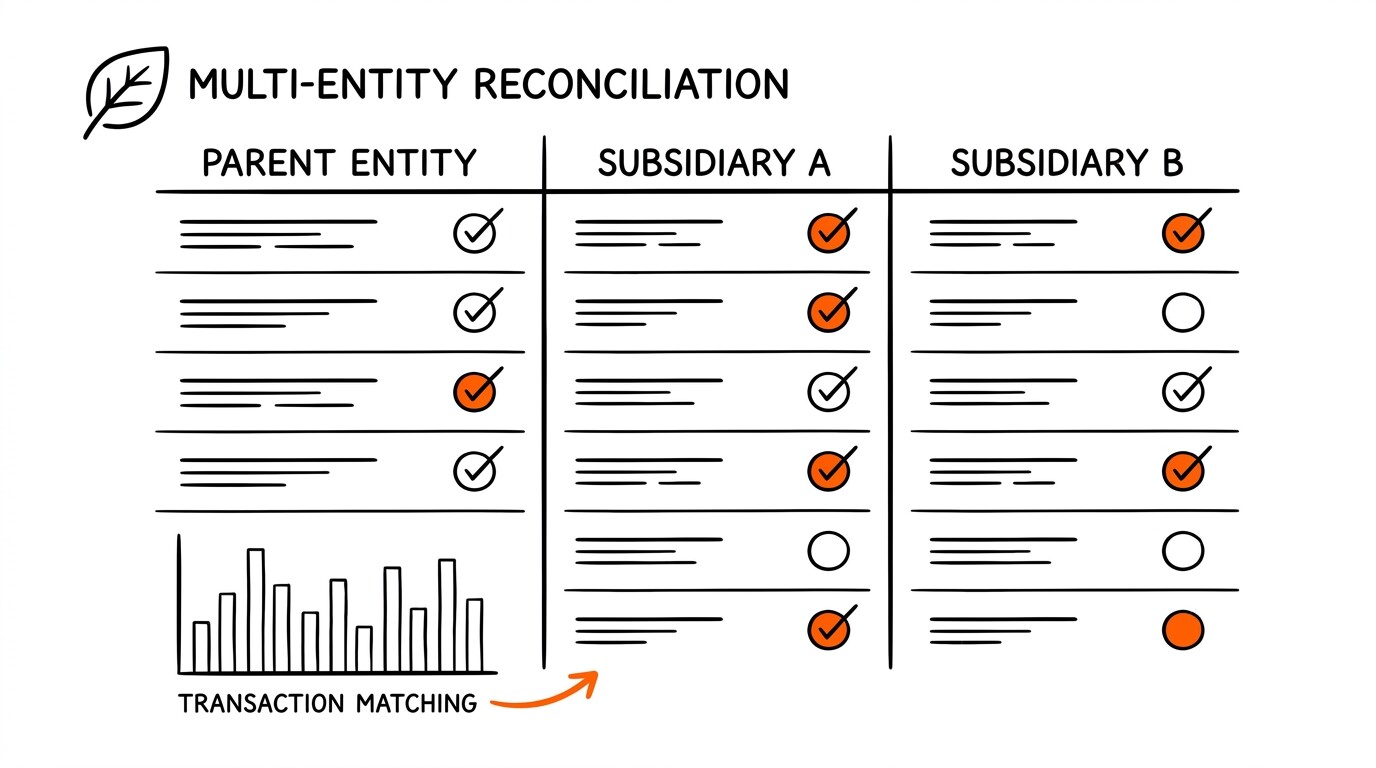
Wave does not have a consolidated reconciliation view that shows all accounts at once. Each account is reconciled separately in the Accounting tab. This is a minor inconvenience compared to QuickBooks Online or Sage Intacct, which both offer account list views with reconciliation status.
For Wave users with 5+ accounts, the recommended workflow is to batch reconciliations on a single day at month-end, working through each account in sequence. Most users can reconcile 3-5 accounts per hour, so a 5-account close takes about 1-2 hours total. This is faster than QuickBooks Online for high-volume users because Wave’s interface is simpler.
What are common Wave reconciliation errors?
Error 1: “Difference doesn’t reach zero.” This usually means a transaction has the wrong amount or date in your register, or you missed entering a bank fee. The fix is to find the incorrect transaction, edit it, and the reconciliation balance updates. For older discrepancies, use Wave’s Account History report to trace the offending transaction.
Error 2: “Bank feed transaction doesn’t match register transaction.” This happens when the bank posts a transaction on a slightly different date or amount than you entered. The fix is to either accept the bank’s date/amount or edit your register entry to match.
If the difference is a fee (e.g., $5 fee on a $100 payment = $105 actual), enter the $5 fee as a separate transaction.
Error 3: “Reconciliation is locked from prior month.” Wave locks reconciliations after a few months to preserve audit trail. If you need to edit a transaction in a closed reconciliation, you must first “un-reconcile” the prior period, which Wave allows but flags as an audit trail change. The recommended workflow is to leave closed reconciliations alone and add adjustments in the current period.
How does Wave reconciliation compare to QuickBooks and Sage?
Compared to QuickBooks Online, Wave is free where QBO starts at $30/month. Wave’s reconciliation is simpler but has fewer advanced features (no batch reconciliation, no multi-currency, no project-based categorization). For freelancers and sole proprietors, Wave is the most cost-effective option. For small businesses with growth ambitions, QBO is the better long-term choice.
Compared to Sage 50cloud or Sage Intacct, Wave is dramatically cheaper but supports fewer advanced features (no multi-entity, no project-based accounting, no industry-specific features). For single-entity small businesses, Wave’s free tier is hard to beat. For multi-entity mid-market companies, Sage is the right choice despite the cost.
For freelancers and sole proprietors processing 50-100 transactions per month, Wave’s reconciliation workflow is the right balance of features and cost: free, fast, simple, with bank feeds included. The main limitations are the lack of multi-entity and multi-currency support, which most freelancers don’t need.
When the business outgrows Wave (typically when transaction volume exceeds 200/month or when multi-entity is needed), the next step is QuickBooks Online or Sage 50cloud.
Workflow example for this topic in practice
Consider a small-business owner handling monthly reconciliation. They receive a bank statement and a credit-card statement each month. They run each through a converter that produces a four-column output, with Date, Description, Amount, and Merchant Category Code on the credit-card portion and Running Balance on the bank-account portion. They import the converted files into QuickBooks Online and run the rule-based categorization.
The merchant category code on each credit-card transaction drives the expense category assignment. The ACH or wire label on each bank-account transaction determines whether the line item maps to Revenue, Expense, or Owner Draw. The conversion output handles the categorization automatically. The owner only manually categorizes vendors not yet in the rule set.
Consider a bookkeeper onboarding a new client mid-year. The conversion workflow is the same, but the rule set is built fresh for the new client. The most labor-intensive step is the first month, where the chart of accounts and the categorization rules are aligned. From the second month forward, the workflow runs in roughly 60-90 minutes per client including the variance check.
Consider a lender underwriting a mortgage. They pull the bank statement and credit-card statement from the applicant. The four-column output makes the merchant category and rail labels obvious. Cash advances at MCC 6011 and quasi-cash at MCC 6051 draw scrutiny regardless of the applicant profile. Self-employed applicants with significant merchant category code complexity on their business credit-card statement require additional documentation.
Easy Statement Sheet handles all three of these workflows. The four-column output is the same across small-business, bookkeeper, and lender workflows. Plans start at $15 per month after the first three free conversions. Files are never stored and conversion runs in memory.
Turn any PDF statement into a clean sheet
Skip the typos and the hours of copying. Our converter handles any bank statement format and outputs Excel, CSV, or QBO for QuickBooks. No file retention, free to try.
Convert your statement