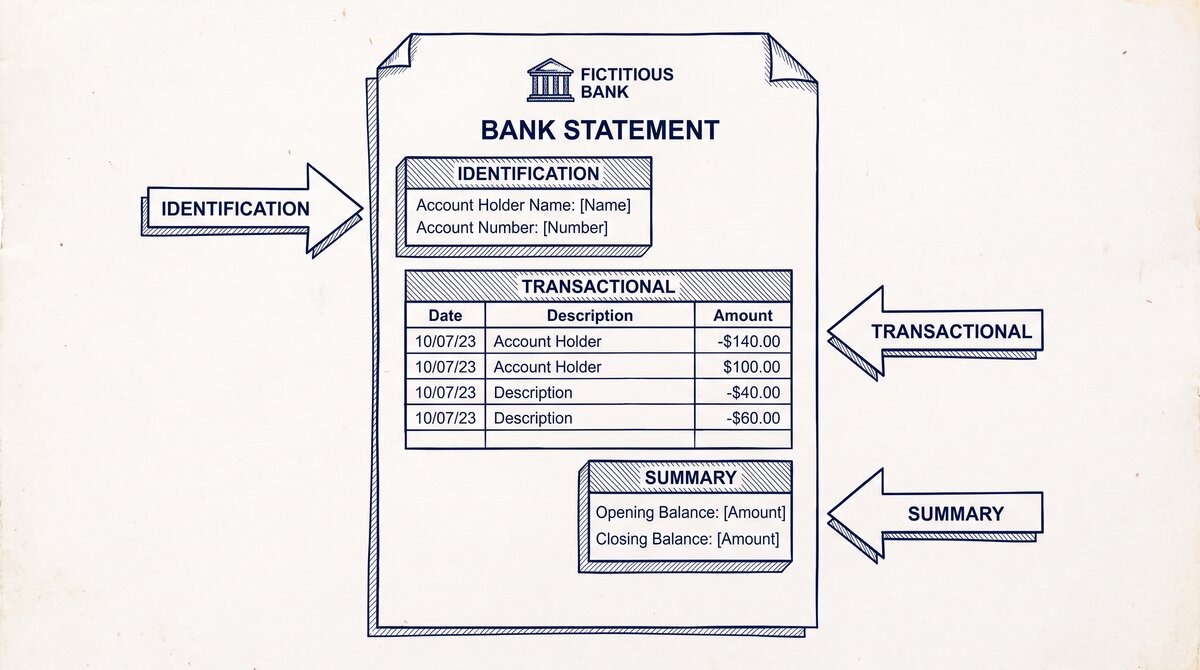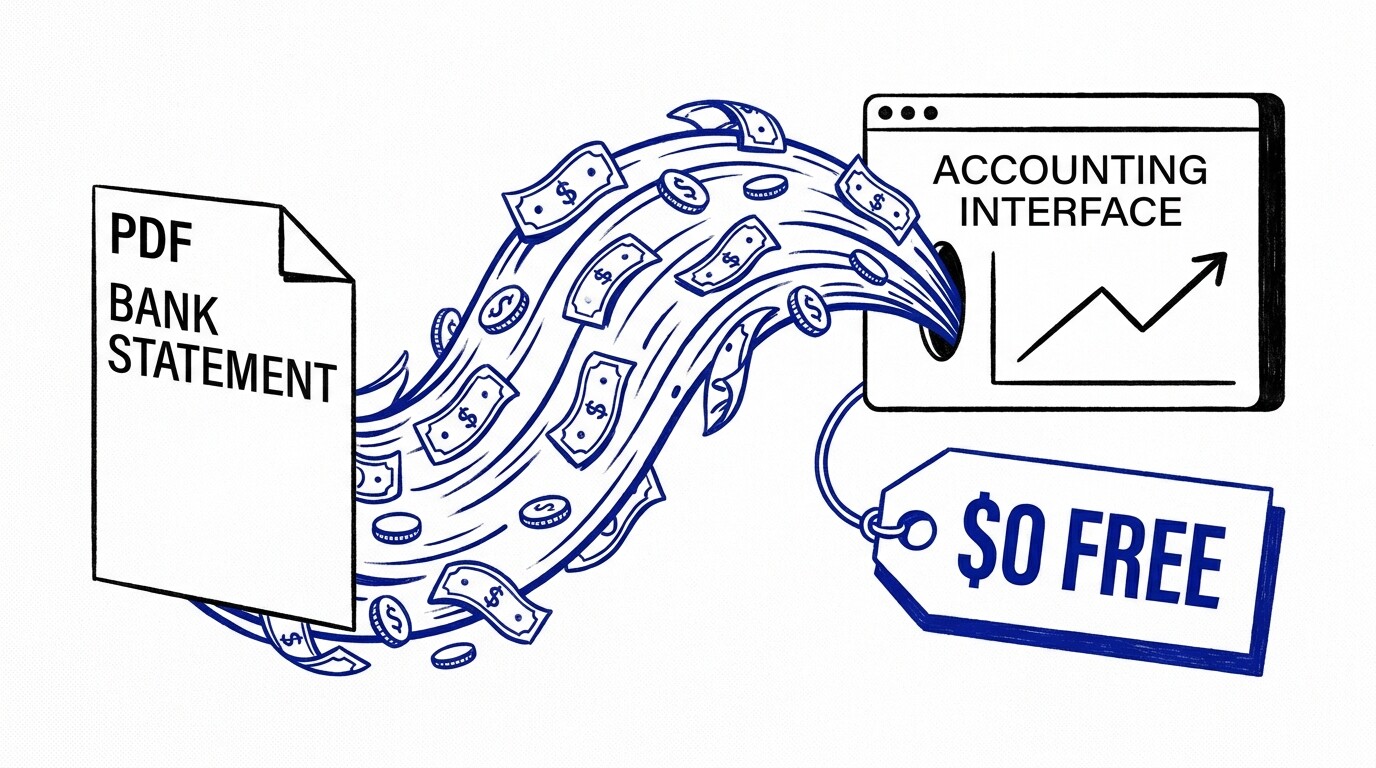

You use Wave Accounting (or are considering it because it’s free), and you want to import a PDF bank statement without paying for the import feature that some other accounting software charges for. Wave’s free tier includes unlimited bank statement imports if you connect a real bank feed, but PDF imports require a manual CSV upload workflow.
The good news: the workflow takes about 5 minutes per statement.
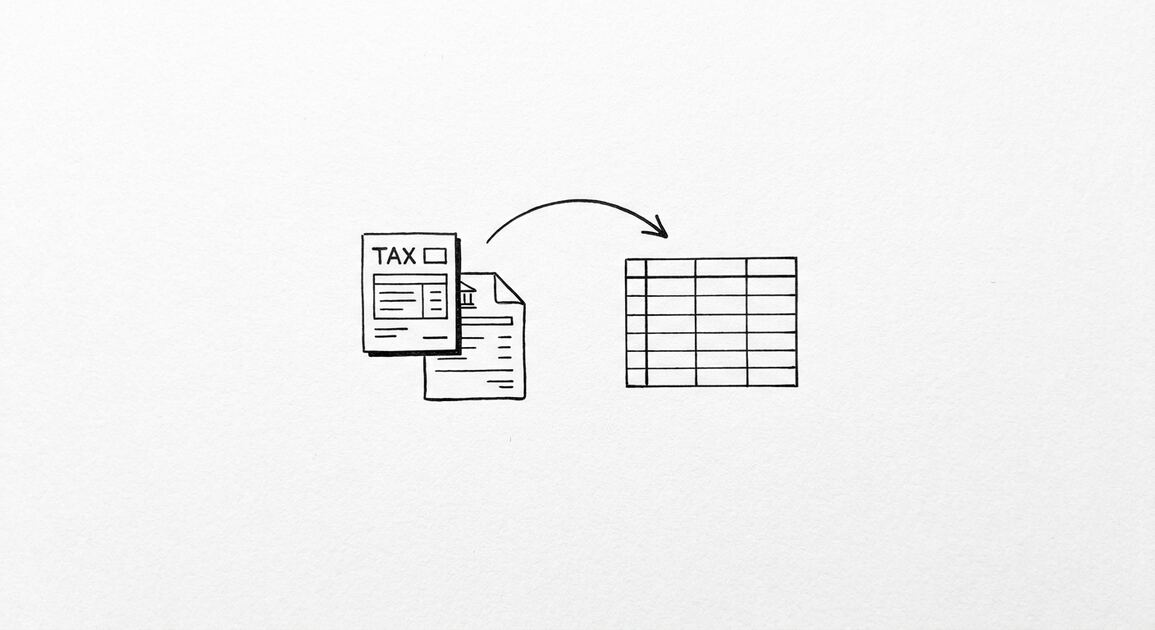
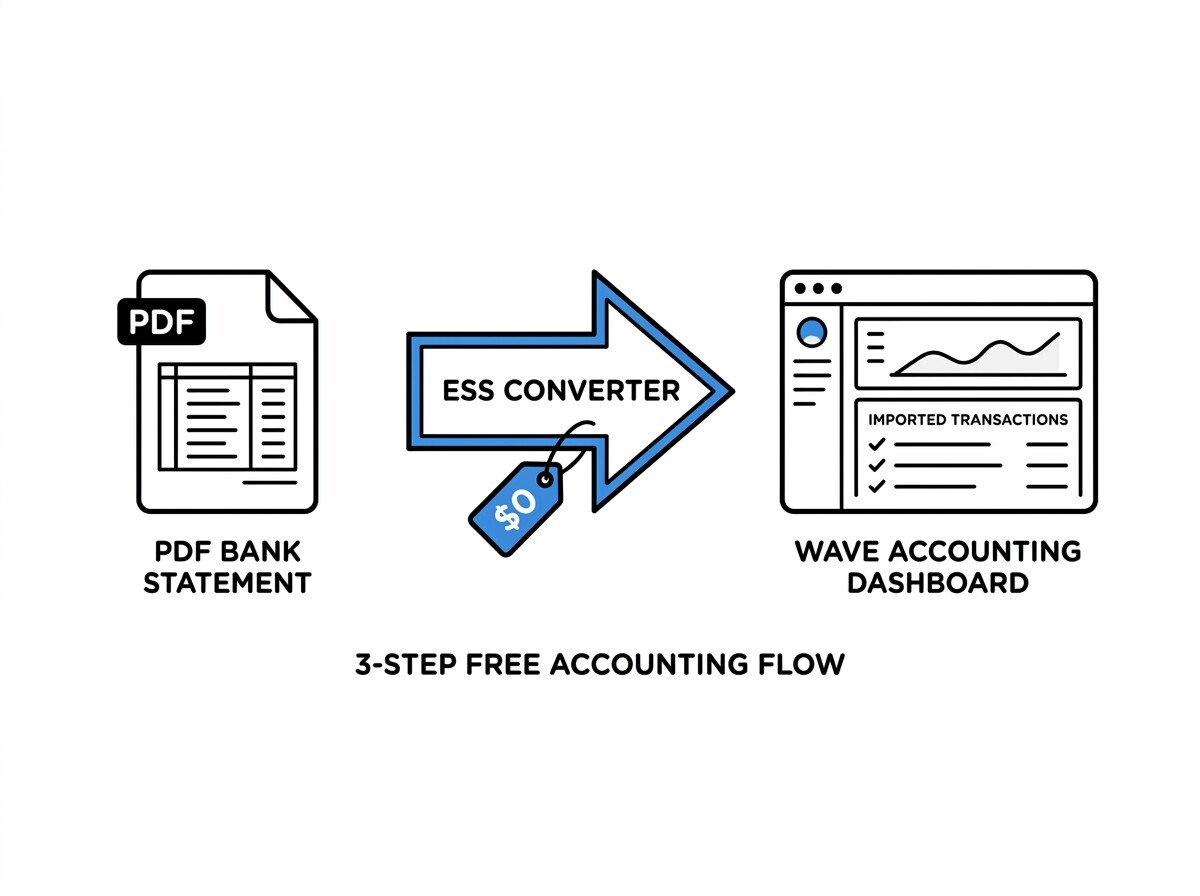
Quick Answers: Wave Accounting supports PDF bank statement import through two paths: (1) automatic bank feed import (recommended, free for all accounts, requires connecting your bank via Plaid or similar), and (2) manual CSV import via the Transactions page Upload button (free, supports date/description/amount/balance columns). The fastest PDF-to-Wave workflow is: PDF → ESS conversion tool conversion → CSV with Wave-compatible columns → Upload to Wave Transactions page. Bank feed import is faster for ongoing use, but CSV import is the only option for historical statements or banks not supported by Wave’s bank-feed partners.
What is Wave Accounting and who is it for?
Wave Accounting is a free cloud-based accounting software for small businesses, freelancers, and solopreneurs, owned by H&R Block since 2019. Wave offers unlimited bank account connections, unlimited bookkeeping, invoicing, and receipt scanning in its free tier, which makes it the most-used free accounting software in the United States with over 3 million users.
Wave does charge for payment processing (2.9% + $0.60 per credit-card transaction) and payroll (which is separately priced), but the core bookkeeping functionality is free indefinitely.
Wave is best for freelancers, sole proprietors, single-member LLC setups, and very small businesses with simple bookkeeping needs. It does not support multi-entity accounting, project-based accounting, or complex inventory, which makes it less suitable for mid-market companies or businesses with subsidiaries. For these use cases, Sage Intacct, QuickBooks Online, or Xero are better choices.
The main limitation of Wave for high-volume transaction import is the lack of automation hooks. Wave does not have a public API for transaction upload, which means every import is a manual click-through process in the Wave UI. For freelancers processing 50-100 transactions per month, this is fine.
For small businesses with 500+ transactions per month, the manual import becomes tedious and they often outgrow Wave for a more automation-friendly platform.
What does the Wave CSV import format require?
Wave accepts CSV files in a specific column structure for transaction imports. The required columns are: Date, Description, and Amount (with negative amounts for expenses and positive amounts for income, or vice versa depending on your Wave configuration). Optional but recommended columns are: Account (the GL account or category), Balance (running balance after the transaction), and Reference Number.
The CSV file must use UTF-8 encoding and comma separation.
Wave’s CSV import is more forgiving than Sage’s or QuickBooks Desktop’s because Wave auto-maps columns based on header names. If your CSV header says “Date,” Wave recognizes it. If it says “Transaction Date” or “Posted Date,” Wave still recognizes it. The only common failure is when the Amount column has currency symbols ($) or thousand separators (commas), which Wave does not strip automatically.
The fix is to remove currency formatting from the Amount column before import.
From PDF to Excel in one click
Forget retyping line by line. Upload any bank statement, get a spreadsheet you can actually use. Your files are never stored, and you can test the converter with 3 free conversions.
Try it freeHow do you import a converted bank statement into Wave?
Wave’s import workflow is in the Transactions page under “Upload” or in the Accounting tab under “Import Transactions.” The process is: select your CSV file, Wave auto-detects the column mapping, you confirm the destination account (which bank account or credit card the transactions should be associated with), and click Import.
Wave validates the file size and format, processes the import, and shows a confirmation screen with the imported transaction count.
The import typically takes 10-30 seconds for a typical monthly bank statement with 100-300 transactions. After import, the transactions appear in the Transactions page as “uncategorized” with auto-categorization rules applied if you have any configured. Wave’s auto-categorization is simpler than QuickBooks Online’s but works for common patterns like “Starbucks” → “Meals and Entertainment” or “PG&E” → “Utilities.”
After import, the next step is reconciliation: matching each imported transaction against the actual bank statement to identify discrepancies. Wave’s reconciliation tool is in the Accounting tab under “Reconcile.” You select the account, enter the statement ending balance and date, and Wave shows matched and unmatched transactions. The process is straightforward and takes about 5 minutes per account for a typical monthly statement.
What about Wave’s automatic bank feed import?
Wave’s automatic bank feed import is the recommended path for ongoing transaction tracking. You connect your bank account once via Plaid or Finicity (Wave’s bank-feed partners), and transactions appear in Wave automatically within 1-2 business days of posting at your bank.
The bank feed is free, supports thousands of U.S. banks and credit unions, and includes balance and transaction metadata that manual CSV imports do not always capture.
The two situations where manual CSV import is still needed are: (1) historical statements older than 90 days (most bank feeds only pull the last 90 days of transactions), and (2) banks not supported by Plaid or Finicity (smaller credit unions, some regional banks, business-only accounts with limited online access). For these cases, the PDF-to-CSV-to-Wave workflow is the right path.
The workflow for using both paths together is: connect your bank feed for ongoing transactions, then use PDF-to-CSV import once for historical backfill (typically the previous 12-24 months of statements). This gives you complete transaction history in Wave without manual retyping, and the imported historical transactions reconcile cleanly against the imported bank statements.
How does Wave handle scanned paper bank statements?
Wave does not have native OCR for scanned PDF bank statements. If you have a scanned image PDF (from a paper statement that was scanned or faxed), you need a conversion tool with OCR capability to extract the text before importing to Wave. ESS includes OCR for scanned PDFs, but as with all OCR tools, accuracy depends on scan quality.
A 300 DPI scan typically converts at 99% accuracy, while a 150 DPI scan may have 5-10% character errors that require manual cleanup.
The cleanup workflow for low-quality scanned statements is: convert PDF to CSV with OCR, review the CSV in a spreadsheet (sort by Amount, look for obvious errors), correct any misread amounts or descriptions, then import the cleaned CSV to Wave. The review step typically takes 10-15 minutes for a 100-transaction statement, which is faster than retyping the entire statement from scratch.
What are the limits and operational rules for Wave imports?
Wave imposes a 5,000-row limit per CSV import, which is roughly 6-12 months of transactions for a small business or freelancer. For larger imports, you must split the CSV into multiple files and import sequentially. Wave also limits CSV file size to 10MB, which is rarely an issue for typical bank statements but can matter for high-volume businesses with very long transaction histories.
Wave’s bank feed partners (Plaid and Finicity) impose their own rate limits: typically 100-500 transactions per refresh, with refreshes every 4-24 hours depending on the bank. For most users, this is invisible because transactions are pulled in smaller batches throughout the day.
For high-volume businesses, the rate limits mean the bank feed may take 1-3 business days to fully sync a large historical backfill, while a manual CSV import completes the same backfill in seconds.
Wave does not support scheduled imports or API-based uploads, so every CSV import is a manual click-through in the UI. For most freelancers and small businesses, this is fine because they import monthly or quarterly, not daily. If you need daily automation, Wave is the wrong tool, and you should consider Xero, QuickBooks Online, or Sage Intacct, which all support API-based transaction upload.
How does Wave compare to QuickBooks, Xero, and Sage?
Compared to QuickBooks Online, Wave is free where QuickBooks starts at $30/month. Compared to Xero (which starts at $15/month for 5 users), Wave is also free for unlimited users. Compared to Sage (which is mid-market-priced), Wave is dramatically cheaper but supports fewer advanced features.
The trade-off is clear: Wave is the most affordable option for users who do not need multi-entity, project-based, or industry-specific accounting.
For bank statement import specifically, all four platforms support the same basic workflow: PDF to CSV (via a conversion tool), CSV upload to the platform, and reconciliation against the bank statement. The differences are in CSV format strictness, automation hooks, and bank feed coverage.
Wave has the most lenient CSV format and the broadest bank feed coverage (because Plaid covers thousands of U.S. banks), but lacks the automation hooks of QuickBooks Online and Xero.
For freelancers, sole proprietors, and very small businesses, Wave is the right choice: free, easy to use, broad bank feed coverage, and PDF import works. For small businesses with growth ambitions that need automation and multi-user collaboration, QuickBooks Online or Xero is the better long-term choice, even with the monthly fee.
Wave is also the right choice for businesses testing the waters with their first accounting software, because the free tier removes the cost barrier to entry.
What is the typical monthly close workflow with Wave?
A typical Wave monthly close for a freelancer or very small business takes about 30 minutes total: 5 minutes to convert the PDF bank statement to CSV, 5 minutes to upload and reconcile in Wave, 10 minutes to categorize transactions (or use Wave’s auto-categorization rules), 5 minutes to review income and expense reports, and 5 minutes to mark the period closed.
This is dramatically faster than the 2-4 hours a manual close would take with retyped transactions.
The monthly close works best when you maintain Wave’s records continuously throughout the month rather than batching all imports and categorization at month-end. With continuous bookkeeping, the monthly close becomes a 30-minute review rather than a 4-hour catch-up project. Wave’s mobile app supports receipt capture and quick categorization on the go, which fits the continuous-bookkeeping model.
For Wave users specifically, the PDF-to-CSV-to-Wave workflow is reliable and well-documented once you understand the column format and import process. The main time investment is the initial setup (defining the bank feed connection or the manual CSV format), and after that, each monthly close takes about 30 minutes including the PDF conversion step.
The result is a clean set of books with all bank transactions imported and ready for tax preparation or financial review.
Turn any PDF statement into a clean sheet
Skip the typos and the hours of copying. Our converter handles any bank statement format and outputs Excel, CSV, or QBO for QuickBooks. No file retention, free to try.
Convert your statement