
You use Oracle NetSuite for your company’s accounting and have hundreds of transactions across multiple subsidiaries that need to land as journal entries in the general ledger. Manually importing bank statement transactions one by one takes days, and you need a workflow that handles multi-entity, multi-currency, and project-based transactions at enterprise scale.
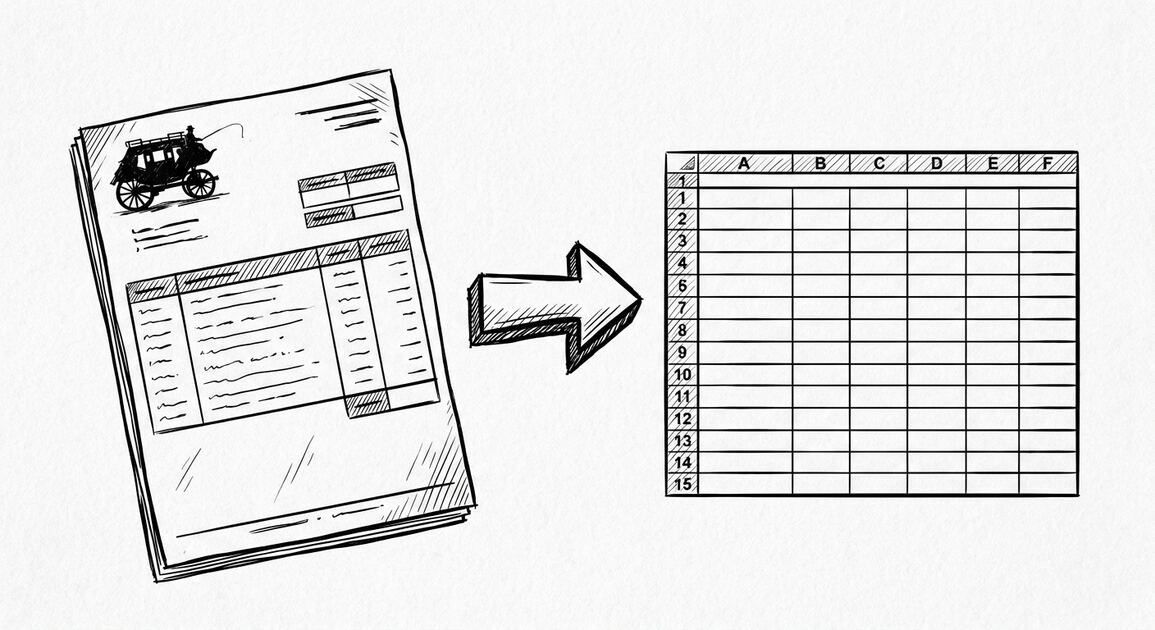
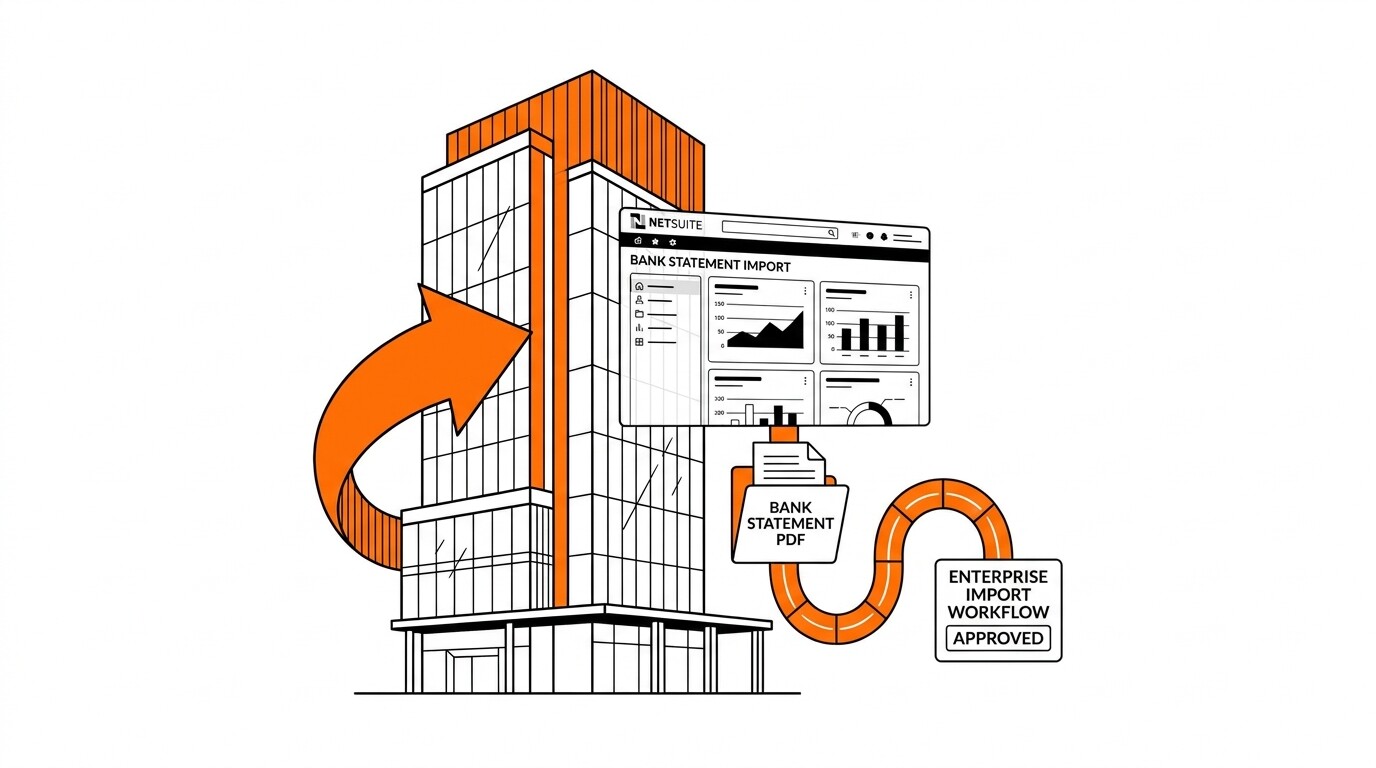
Quick Answers: Oracle NetSuite supports PDF bank statement import through three paths: (1) the Journal Entry import via CSV upload (free with all NetSuite licenses), (2) the Bank Statement Parsing SuiteApp (paid add-on, ~$5,000/year, AI-driven transaction capture), and (3) NetSuite’s native bank feed integrations with major U.S. banks. The fastest PDF-to-NetSuite workflow for most companies is: PDF → ESS conversion → CSV with NetSuite-compatible columns → Journal Entry CSV import, which takes about 5-15 minutes per statement depending on transaction count and entity count. Multi-subsidiary setups require entity column mapping in the CSV.
What is NetSuite and who uses it?
Oracle NetSuite is a cloud-based Enterprise Resource Planning (ERP) system used by over 31,000 companies worldwide. NetSuite combines accounting, CRM, e-commerce, inventory, and project management in a single platform, with pricing typically starting at $999/month for the financial module and scaling based on users, modules, and transaction volume. For U.S. mid-market companies ($10M-$500M revenue), NetSuite is the dominant cloud ERP choice.
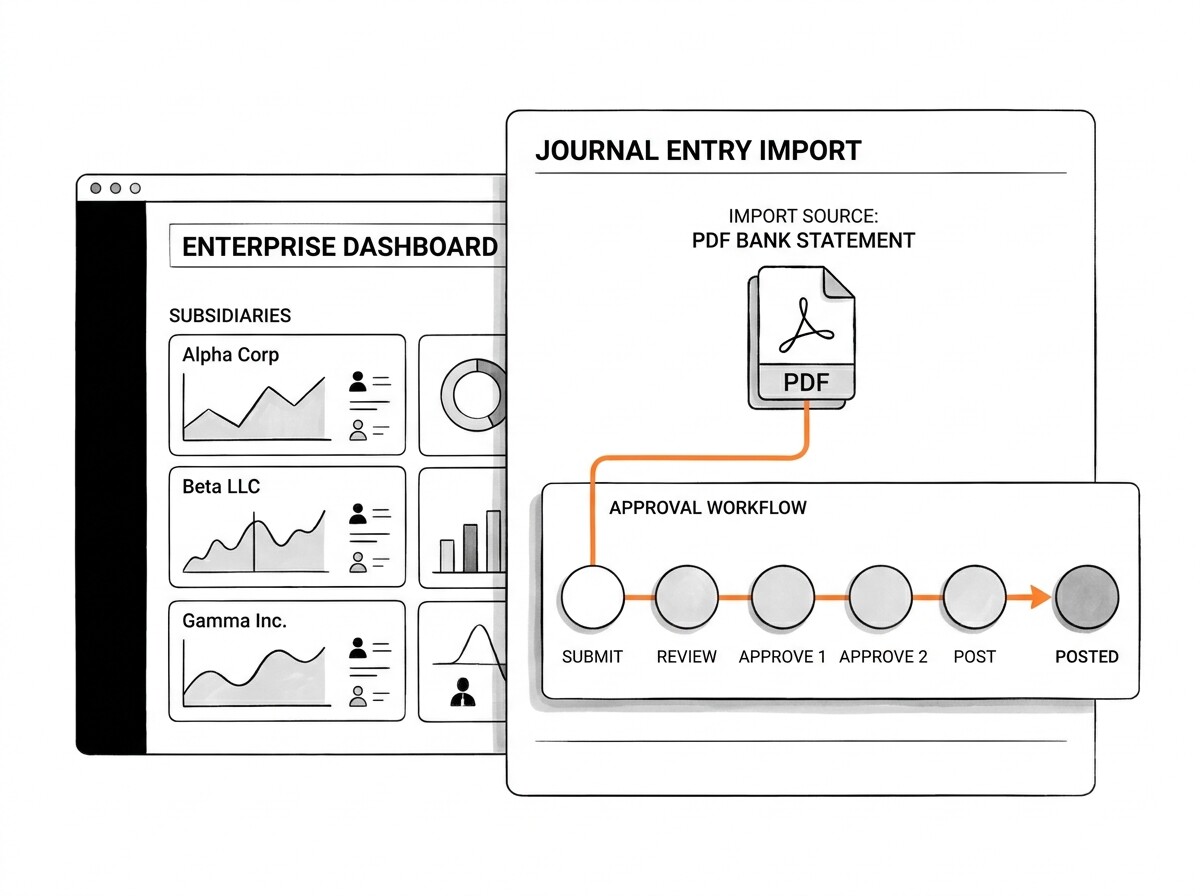
NetSuite’s bank statement import is a core feature of the accounting module. Unlike simpler accounting software that imports to a single account, NetSuite supports multi-entity imports where a single CSV file contains transactions for 5, 10, or 50 subsidiaries, each routed to its own general ledger. This is essential for holding companies, PE-backed companies with multiple portfolio entities, and multinational corporations.
The main alternative to manual CSV import is NetSuite’s Bank Statement Parsing SuiteApp, which uses AI to extract transactions from PDF bank statements directly. This add-on costs roughly $5,000/year and is licensed per company. For high-volume monthly closes (1,000+ transactions across multiple entities), the SuiteApp can be cost-effective.
For smaller companies or those with simpler setups, manual CSV import via ESS conversion is faster and cheaper.
What does the NetSuite CSV import format require?
NetSuite accepts CSV files in a specific column structure for Journal Entry imports. The required columns are: External ID (unique identifier for each transaction), Date, Account (the GL account number or ID), and Amount (with debits as positive and credits as negative, or following the company’s accounting convention).
Optional but recommended columns are: Memo, Class (for project-based accounting), Department, Location, Entity (vendor or customer), and Subsidiary (for multi-entity setups).
The two NetSuite-specific requirements that often trip up first-time importers are: (1) every journal entry must balance to zero (total debits = total credits), and (2) every transaction needs an External ID that is unique across the entire NetSuite instance. If you import 200 transactions in a CSV but one row has unbalanced debits/credits, NetSuite rejects the entire import.
If two rows have the same External ID, NetSuite treats them as the same transaction and may create duplicates or skip rows.
Turn any PDF statement into a clean sheet
Skip the typos and the hours of copying. Our converter handles any bank statement format and outputs Excel, CSV, or QBO for QuickBooks. No file retention, free to try.
Convert your statementHow do you import a converted CSV into NetSuite?
NetSuite’s Journal Entry import workflow is in the Lists menu under “Accounting” then “Import/Export” then “Import CSV Records.” The process is: select Journal Entry as the record type, upload your CSV file, map columns to NetSuite fields, validate, save, and run the import. NetSuite typically returns a Saved CSV Import record that you can re-run with modifications if the first attempt fails.
The import typically takes 1-5 minutes for a typical monthly bank statement with 100-300 transactions. For larger imports (1,000+ transactions), NetSuite processes in batches and may take 10-30 minutes. After import, the journal entries appear in the unposted journal entry queue, where you review, edit if needed, and post them to the GL.
The “post in bulk” feature lets you post all imported journal entries at once, which is much faster than posting one at a time. After posting, the transactions appear in the GL and the bank account, and the monthly reconciliation becomes a matter of matching the GL transactions against the actual bank statement.
For companies that reconcile monthly, this workflow takes about 30 minutes for a typical multi-account close.
How does multi-subsidiary setup work in NetSuite?
For companies with multiple subsidiaries (which is the majority of NetSuite customers), the import workflow has one extra step: selecting the subsidiary (legal entity, ledger, or book) for each transaction. NetSuite’s OneWorld feature enables multi-currency, multi-entity accounting, and every transaction must be assigned to a specific subsidiary. The CSV must include a Subsidiary column with the subsidiary ID or name.
The common multi-entity setup is 5-10 subsidiaries with shared chart of accounts, where each subsidiary has its own bank account and its own GL. When you import a CSV with transactions for 5 subsidiaries, NetSuite validates that every transaction references an existing subsidiary ID and an existing GL account within that subsidiary.
If a transaction references an invalid account or subsidiary, NetSuite rejects the entire import.
The workaround for invalid accounts is to map your converted CSV’s account codes to the NetSuite subsidiary-specific account codes before import. For example, if Subsidiary A uses “1000-Cash” and Subsidiary B uses “1000A-Cash” for the same logical cash account, you need to map the converted CSV’s “1000” account code to the correct subsidiary-specific code before importing.
ESS’s CSV output can be customized with these mappings, or you can do the mapping in a spreadsheet before importing to NetSuite.
What about multi-currency bank statements?
Multi-currency bank statements (USD, EUR, GBP, CAD) require the CSV to include a Currency column for each transaction. NetSuite’s multi-currency feature handles the conversion automatically using the configured exchange rate (spot rate, average rate, or historical rate depending on the transaction type). The CSV’s Amount column should be in the transaction’s original currency, and NetSuite converts to the subsidiary’s base currency using the configured rate.
The exchange rate risk to be aware of is that the rate at the time of import may differ from the rate at the time the transaction actually occurred. For most companies, this is acceptable because the rate variance is small (often less than 1%), but for high-volume FX transactions, the cumulative variance can be material.
NetSuite supports retroactive exchange rate adjustments, which is a separate workflow run at month-end or quarter-end.
For companies that need precise exchange rate handling, the workflow is: convert PDF to CSV with original currency amounts, import to NetSuite using the spot rate as of the transaction date, run a periodic FX adjustment to true up the rates. This is the same workflow most enterprise ERPs use, and NetSuite’s implementation is one of the cleanest in the industry.
What is the Bank Statement Parsing SuiteApp?
The Bank Statement Parsing SuiteApp is NetSuite’s first-party AI tool for direct PDF import. It works by uploading a PDF bank statement to NetSuite, running it through an AI parser that extracts transactions, and then validating the extracted transactions against the GL. The SuiteApp handles multi-page PDFs, multi-entity setups, and complex bank statement layouts.
The SuiteApp is licensed separately from NetSuite’s core accounting module and costs roughly $5,000/year per company. For companies processing 500+ bank statement transactions per month, the time savings can justify the cost. For smaller companies, the manual PDF-to-CSV-to-NetSuite workflow via ESS is faster and cheaper.
For most companies, the right choice is to start with manual CSV import (which works for any NetSuite license level), then consider the SuiteApp only if monthly close times are bottlenecked by the import step. Many companies find that 30 minutes of monthly import work does not justify a $5,000/year add-on, even when the SuiteApp would reduce it to 5 minutes.
What are the limits and operational rules for NetSuite imports?
NetSuite’s CSV import has practical limits based on the file size and the user’s role permissions. The CSV file size limit is 10MB, which translates to roughly 50,000 transactions per file. For larger imports, you must split the CSV into multiple files.
NetSuite also limits the number of saved CSV imports per account (typically 50-100 active saved imports), and you may need to delete old imports to make room for new ones.
User role permissions matter: only users with the “Import CSV Records” permission and the appropriate subsidiary access can run imports. For multi-entity companies, you need to be assigned access to all the subsidiaries you want to import to. If you import to a subsidiary you don’t have access to, NetSuite rejects the import with a permission error.
NetSuite supports scheduled CSV imports via SuiteScript, which means you can automate the full PDF-to-NetSuite pipeline: ESS converts PDF to CSV, your script uploads to NetSuite via SFTP or REST API, NetSuite imports the transactions, and the reconciliation completes without manual intervention. This is the right setup for companies processing 1,000+ transactions per month, but it requires SuiteScript development work and ongoing maintenance.
How does the NetSuite workflow compare to other ERP systems?
Compared to Sage Intacct (the closest competitor), NetSuite has stronger multi-entity, multi-currency, and project-based accounting support, but is more expensive and complex. Sage Intacct is typically the choice for companies in the $5M-$50M revenue range with simpler multi-entity needs, while NetSuite dominates the $50M+ range and companies with global operations.
Compared to QuickBooks Online and Xero, NetSuite is dramatically more expensive (often 10x the cost) but supports multi-entity, multi-currency, project-based, and industry-specific accounting that QuickBooks and Xero cannot handle. For a small business with a single entity, NetSuite is over-engineered. For a mid-market company with 5+ subsidiaries or international operations, NetSuite is the right choice despite the cost.
The key decision criterion for choosing NetSuite is whether your business needs multi-entity or multi-currency accounting at scale. If you have a single entity with U.S.-only operations, QuickBooks Online, Xero, or Sage Intacct will meet your needs at lower cost. If you have multiple subsidiaries, international operations, or industry-specific requirements, NetSuite’s premium pricing is justified by the unified platform that handles everything in one system.
Turn any PDF statement into a clean sheet
Skip the typos and the hours of copying. Our converter handles any bank statement format and outputs Excel, CSV, or QBO for QuickBooks. No file retention, free to try.
Convert your statement