
You have a Wells Fargo bank account. You need the statement in Excel.
Wells Fargo offers 24 months of monthly PDF statements plus 18 months of combined OFX. The right download depends on what you need.
This page is the Wells Fargo export guide. It covers the 2 download formats (PDF, OFX), the 2 paths (personal vs business), the 5 things to know about Wells Fargo’s statement cycle, and the 3 things to do after the export. The general bank export guide is linked below.
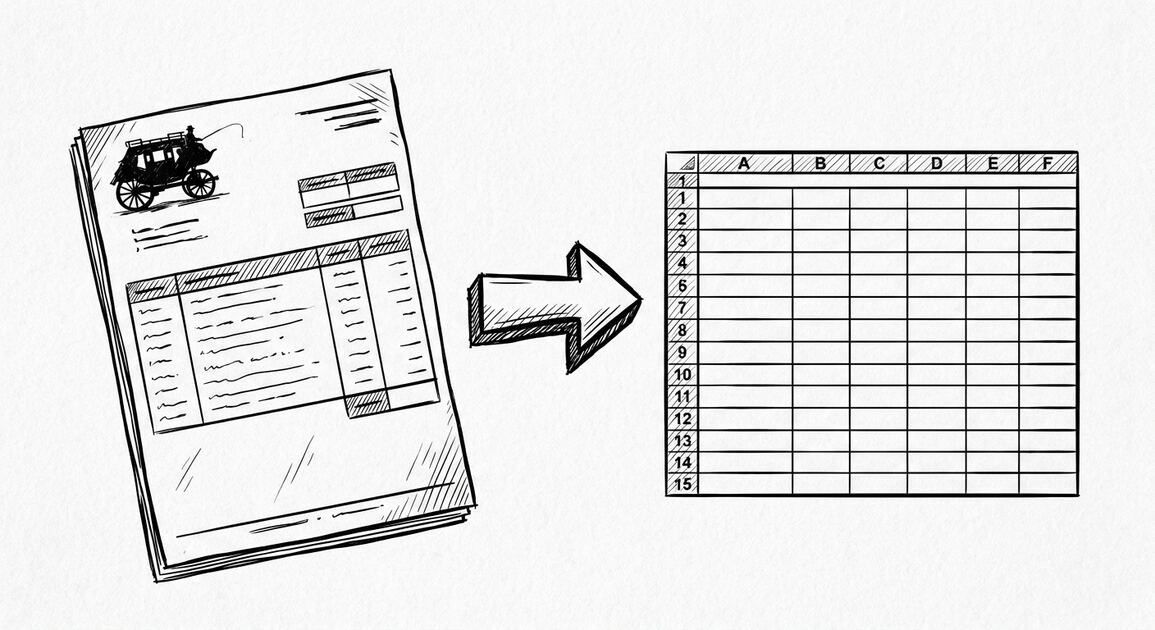
Exporting a Wells Fargo bank statement to Excel takes the statement from Wells Fargo’s online portal and turns it into a file you can open in Excel. Wells Fargo offers 2 download formats: PDF (the official statement) and OFX (the raw transaction data). The PDF requires conversion. The OFX imports directly into Excel or QuickBooks.
Wells Fargo’s statement cycle is anchored to the day the account was opened, similar to Chase and Ally. Different customers have different cycle dates. The cycle date is visible in the Wells Fargo app under “Account Services.” Wells Fargo business banking has its own cycle, often on the last business day of the month.
For the general bank export guide, see the bank export guide. For the Wells Fargo-specific recon cutoff, see the Wells Fargo recon guide.
How Wells Fargo Statements Work
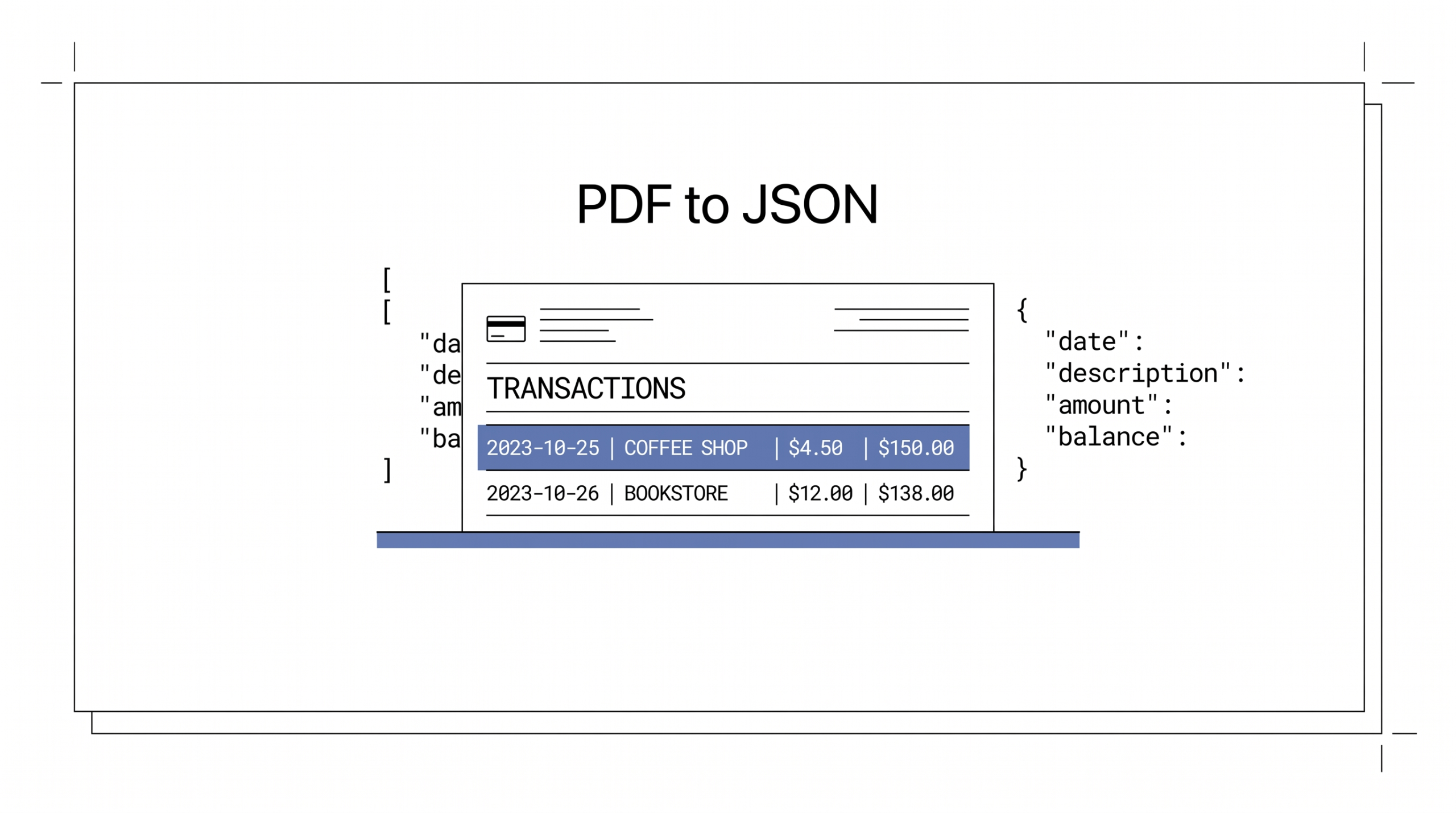
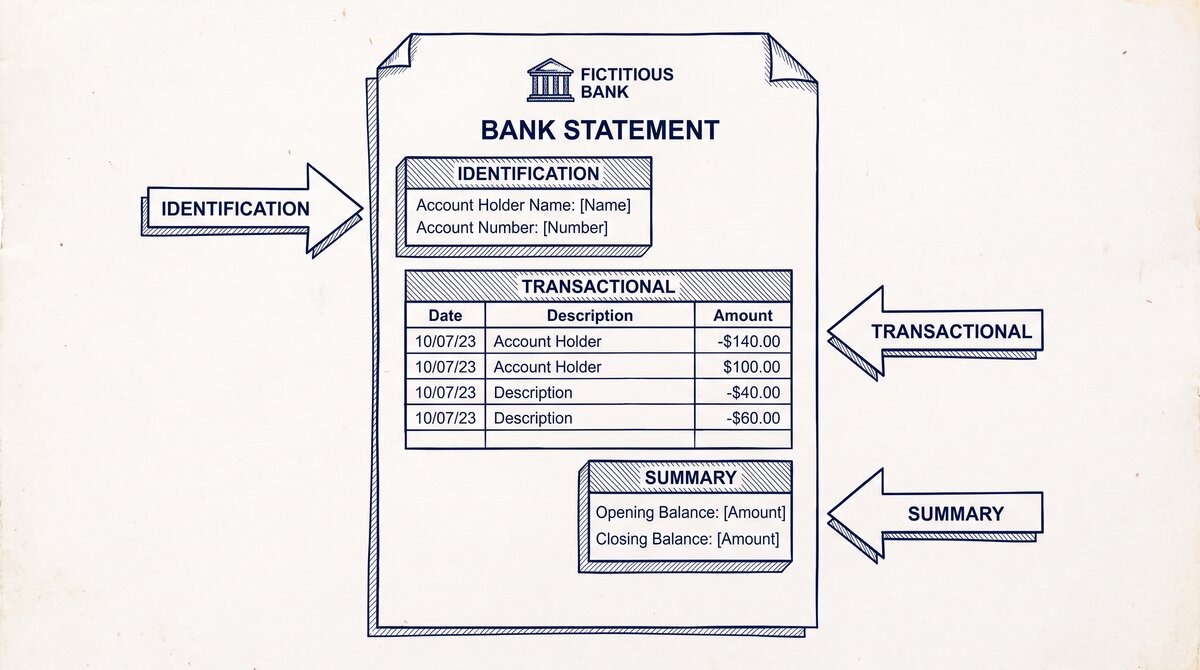
Wells Fargo issues monthly statements as PDFs through wellsfargo.com. The PDF is text-based (not a scanned image), which means a converter can extract the data directly. The PDF includes 4 columns: date, description, amount, and balance. Check transactions include the check number in the description.
What most guides miss about Excel conversion is that the quality depends on the mechanism, not on the tool. Two tools that look different on the surface often run the same 4-step process underneath: read, find, parse, verify. The difference is in how well each step handles edge cases (merged cells, missing balances, non-standard date formats, scanned vs digital input). Choosing between tools based on UI alone misses the actual quality lever.
Wells Fargo statements are consistent across account types: checking, savings, business checking, credit card. The format is the same. The PDF is available for the last 7 years of statements. Older statements require a request to Wells Fargo support.
Wells Fargo also has a built-in CSV export on the accounts page, not the statements page. The CSV is for the last 90 days of transactions. The CSV has 4 columns: date, description, amount, balance. For full statement history or older statements, the PDF + converter is the path.
The 2 Ways to Get a Wells Fargo Statement into Excel
In 2026, there are 2 distinct paths from a Wells Fargo PDF statement to Excel. Each path has a different starting point, a different output, and a different cost.
Path 1: Wells Fargo’s built-in CSV export. Log in to wellsfargo.com. Go to the specific account (e.g., Wells Fargo Business Checking). Click “Download” or “Export” in the transactions area. The output is CSV with the last 90 days. The CSV has 4 columns: date, description, amount, balance. The export is free, instant, and the data is Wells Fargo’s own.
Path 2: Convert the PDF statement. Download the PDF statement from wellsfargo.com. Go to Statements & Documents. Select the month. Click “Download PDF.” The PDF includes the full statement. Upload to a converter, get Excel. The converter handles any month back to 7 years. The output is clean Excel with all 4 columns plus statement-level metadata.
For 90% of bookkeepers, the PDF + converter is the right path. Wells Fargo’s CSV export is fine for the last 90 days but misses older statements. The converter handles everything.
Turn PDF Bank Statements Into Workable Spreadsheets
Your bank statement is a mess of numbers, but your books shouldn't be. Use our converter to get Excel, CSV, or QBO files — ready for QuickBooks.
Try It Free NowThe 4-Step Converter Workflow for Wells Fargo
Here is the 4-step workflow for converting a Wells Fargo PDF statement to Excel.
Step 1: Download the PDF statement. Log in to wellsfargo.com. Go to Statements & Documents. Select the account. Choose the month. Click “Download PDF.” The file is named like “WF-Statement-2024-01.pdf” or similar. Save it to your downloads folder.
Step 2: Open the converter. Go to the converter website in your browser. Most converters have a drag-and-drop area for the PDF. Drag the Wells Fargo PDF into the upload area or click to browse. The converter auto-detects Wells Fargo from the PDF content.
Step 3: Select the output format. Choose Excel (.xlsx). The converter defaults to Excel for Wells Fargo. The output is a single sheet with 4 columns: date, description, amount, balance. Check transactions have the check number in the description column.
Step 4: Download the Excel. The conversion takes 30-90 seconds for a typical Wells Fargo statement. The output is clean Excel, no cleanup needed. The accuracy is 99%+ against Wells Fargo’s printed balance. Total time: 1-3 minutes per statement.
The free tier covers 3 conversions per user. For monthly use, the paid tiers start at $15/month for 400 pages. A typical Wells Fargo statement is 4-6 pages, so $15/month covers 60-100 statements.
Wells Fargo-Specific Formatting Notes
Wells Fargo statements have a few specific formatting details that the converter handles automatically. Here is what to know.
Date format. Wells Fargo uses MM/DD/YYYY in the PDF and CSV. The converter preserves this. If you need DD/MM/YYYY, change the column format in Excel after the conversion.
Amount signs. Wells Fargo uses positive numbers for credits and negative numbers (with a leading minus) for debits. The converter preserves this. The amount sign convention is the same as Chase and most US banks.
Check numbers. Check transactions include the check number in the description column (e.g., “Check #1234 – $50.00”). The converter preserves this in the description field. Wells Fargo also includes the check image reference in the PDF, but the converter only extracts the text data.
Pending transactions. Wells Fargo’s PDF statement does not include pending transactions. The statement is the final, posted transactions only. For pending transactions, use the online banking view.
The converter handles all of this automatically. The output Excel is clean and matches the printed statement.
The 3 Cases Where You Should Use the Converter (Not the CSV)
Three real cases where the converter beats Wells Fargo’s CSV export.
Case 1: Older than 90 days. Wells Fargo’s CSV is limited to the last 90 days. For Q1 statements needed in Q3, the CSV doesn’t have them. The PDF + converter does.
Case 2: Multi-month reconciliation. For a 6-month or 12-month reconciliation, the CSV gives you partial data. The PDF + converter gives you all months as separate Excel files or as a single Excel with multiple tabs.
Case 3: Business accounts. Wells Fargo business accounts often have more complex transactions (ACH batches, wire transfers, merchant card deposits). The PDF preserves the full transaction details, the CSV may simplify them. The converter preserves the original descriptions.
These 3 cases are the 80% of bookkeeper needs. The CSV is the 20% for current-month work.
QuickBooks Integration for Wells Fargo
If you use QuickBooks with Wells Fargo, the converter can output QBO instead of Excel. The QBO is a QuickBooks-specific format that imports directly into QuickBooks Online or Desktop.
The workflow: convert Wells Fargo PDF to QBO. The QBO is a single file with all transactions, opening balance, closing balance, and statement period. In QuickBooks Online, drag the QBO into the bank feed area. QuickBooks reads the metadata, identifies Wells Fargo, sets the date range, and creates the bank feed. Total time: 3-5 minutes per statement.
For multi-month work, the QBO format saves hours over manual CSV imports. The conversion guide has the full QBO workflow.
Wells Fargo vs Chase: The Same Workflow
Wells Fargo and Chase have the same PDF statement structure, the same 4 columns, and the same conversion workflow. The only differences are the bank name in the PDF and the login URL. The converter handles both banks identically.
For bookkeepers with mixed clients (some Chase, some Wells Fargo), the same converter workflow applies to both. The converter auto-detects the bank from the PDF content. You don’t need to set the bank manually.
For the bank-specific details (Chase vs Wells Fargo), the conversion guide has the full comparison. The short version: same workflow, same output, different login.
A common failure mode bookkeepers report is treating this as a single operation rather than a chain of dependent steps. The temptation is to find a tool that ‘just works’ and stop investigating the mechanism. The result is a wrong-fix cycle: the tool gives partial output, the bookkeeper spends 30+ minutes troubleshooting, the fix is for the wrong step, and the same error recurs on the next statement. The fix: identify which step failed and apply the right intervention to that step.
Related Pages
For more on this topic, see the Excel guide. For the broader conversion workflow, see the bank statement converter guideFor more on this topic, see the converter guide.
Turn That PDF Into a Spreadsheet in Minutes
You've seen how to do it manually — now let the tool handle the heavy lifting. Upload your bank statement and get Excel, CSV, or QBO in a few clicks.
Try It Free