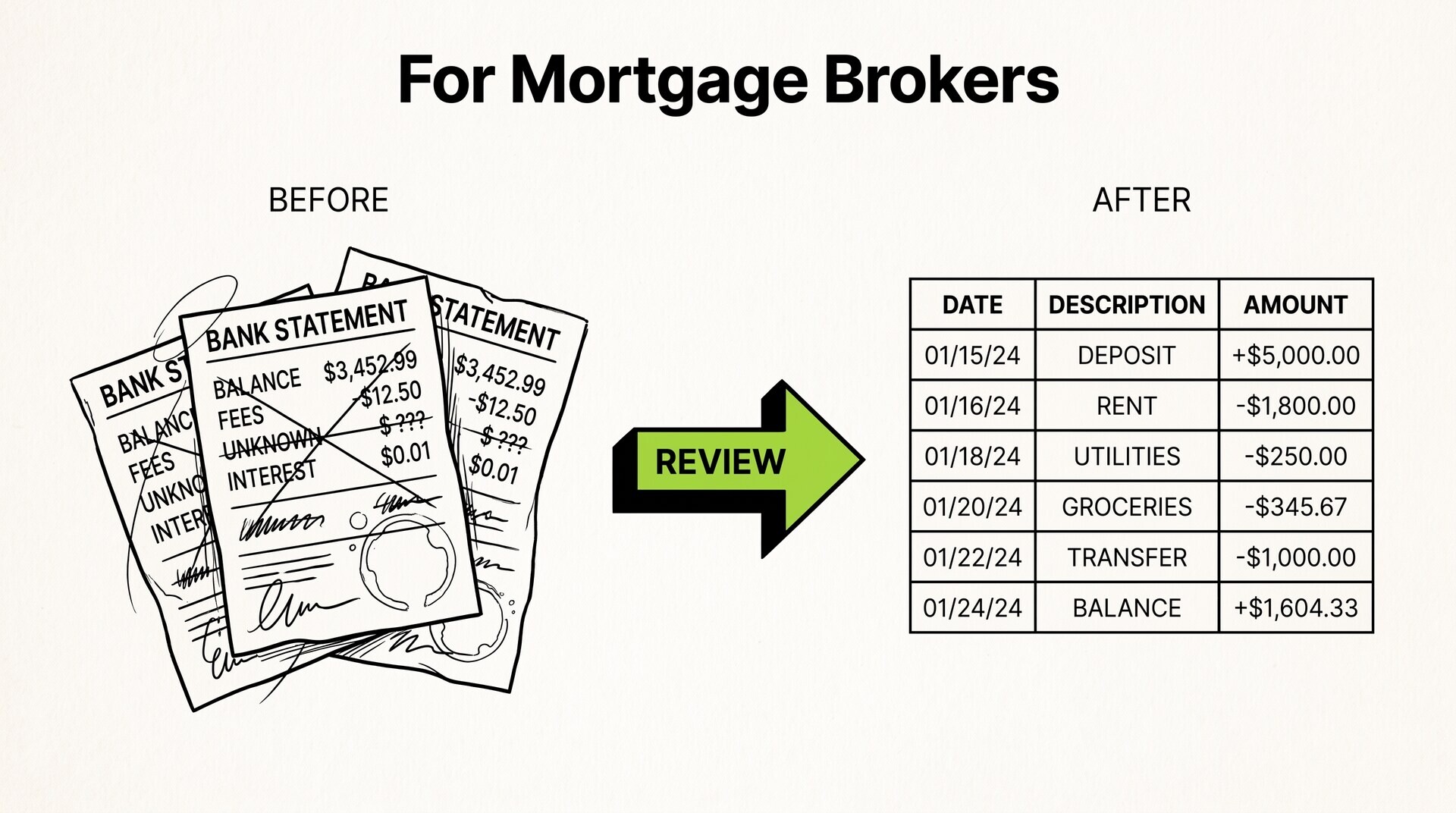

Extracting transactions from a bank statement PDF is the process of converting unstructured data into structured Excel or CSV. The short answer: extracting from a PDF is a 5-step process. The steps: identify the PDF type, choose the method, run the extraction, validate, and archive. The 4 methods: direct (99%+ accuracy), OCR (95-99%), manual (97-99%), and hybrid. The right choice depends on the PDF type and the accuracy needed.
TL;DR. Extracting from a PDF has 5 steps: identify, choose, run, validate, archive. The 4 methods: direct (99%+), OCR (95-99%), manual (97-99%), hybrid. The 3 best tools: browser-based converter, OCR software, spreadsheet with validation. The 3 most common issues: missing transactions, OCR errors, split rows.
Why PDF Extraction Matters
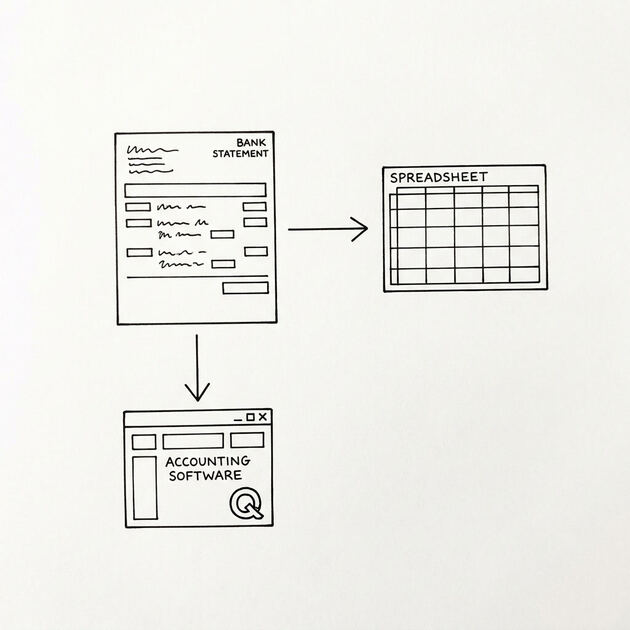
PDF extraction is the bridge between the bank’s PDF format and the structured data that accounting software, spreadsheets, and other tools need. The extraction is the first step in most bank statement workflows (tax, loan, rental, bookkeeping). The quality of the extraction determines the quality of the downstream work.
For 3 use cases, extraction is the first step: tax preparation (where the data is needed for the tax return), loan applications (where the data is needed for the loan decision), and bookkeeping (where the data is needed for the accounting records). For 2 other use cases, extraction is less critical: budgeting (where the data is approximate) and personal tracking (where the goal is just to see the data).
The 5-Step Process
5 steps to extract transactions from a bank statement PDF:
- Identify the PDF type. Open the PDF, try to select the text. If the text is selectable, it’s a digital PDF. If the text is not selectable, it’s a scanned PDF. The PDF type determines the method.
- Choose the method. Digital PDF: direct extraction. Scanned PDF: OCR. Mixed: hybrid. Difficult case: manual.
- Run the extraction. Use a browser-based converter. The conversion is 2-10 minutes depending on the method and the statement size.
- Validate the result. Check the row count, the opening/closing balance, the sum, the date range, and the description format. The validation is 5-10 minutes.
- Archive the source PDF. Keep the PDF alongside the Excel file. The dual archive allows verification in case of audit or dispute.
Total time: 10-30 minutes per statement. For the conversion step, see the bank statement converter page.
From Bank Statement to QuickBooks-Ready File
That manual cleanup you just read about? This tool skips it. Turn your PDF into QBO for QuickBooks without storing your data anywhere.
Start ConvertingThe 4 Methods
4 methods for extracting transactions from a bank statement PDF:
1. Direct text extraction (digital PDFs). The PDF is text-based, with selectable text. The converter reads the text directly. The accuracy is 99%+. The speed is 30 seconds to 2 minutes. The method is the fastest and most accurate.
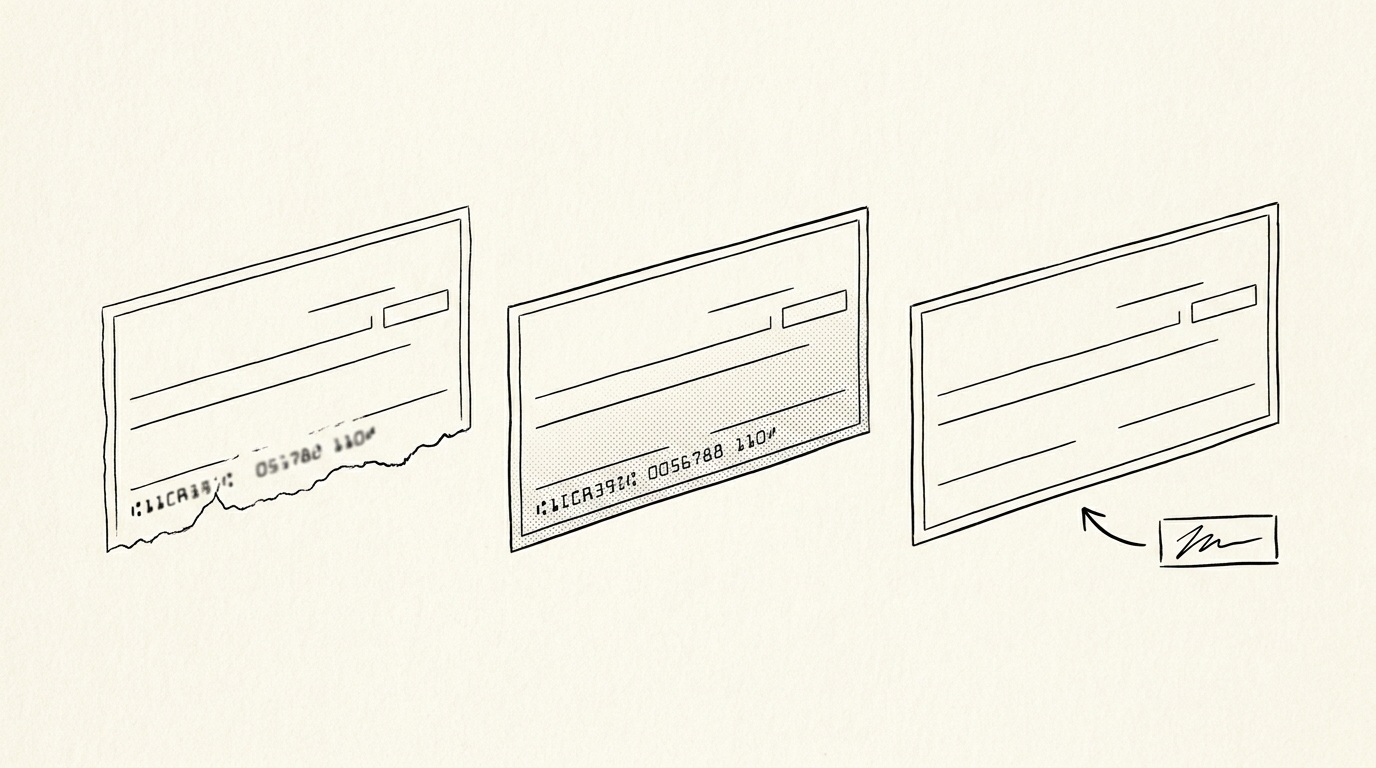
2. OCR (scanned PDFs). The PDF is image-based. The converter uses OCR to read the text from the image. The accuracy is 95-99%. The speed is 2-10 minutes.
3. Manual transcription. The accountant opens the PDF and types each transaction into Excel. The accuracy is 97-99%. The speed is 1-2 hours per statement.
4. Hybrid. The PDF has some text and some images. The converter uses direct extraction for the text and OCR for the images. The accuracy is 98%+. The speed is 2-5 minutes.

3 Best Tools
3 tools that make extraction faster:
1. Browser-based converter. The bank statement converter handles both digital and scanned PDFs in 2-10 minutes with no upload. The conversion is the first step in the workflow.
2. OCR software (for scanned PDFs). Adobe Acrobat Pro, ABBYY FineReader, or Google Drive OCR. The OCR software converts the image-based PDF to a text-based PDF or to a Word document, which can then be converted to Excel.
3. Spreadsheet with validation. Excel or Google Sheets with the 5-check validation formulas pre-built. The validation catches errors automatically.
3 Most Common Issues
3 issues that come up frequently in PDF extraction:
1. Missing transactions. A transaction that posts on the last day of the period may be missed. Or a transaction split across multiple pages may be counted once instead of twice. The fix: check the row count against the statement summary.
2. OCR errors in descriptions. OCR misreads characters, especially in low-quality or scanned statements. The fix: check a sample of descriptions and search for common errors.
3. Split multi-line transactions. A merchant name that wraps to 2 visual lines may be split into 2 rows. The fix: look for rows where the date is missing and merge them.
Tools and Resources
3 resources for PDF extraction:
Related Resources
| Resource | What You Get |
|---|---|
| Bank Statement Converter | Convert to Excel |
| How To Verify Converted Data | See reference |
| Best Ocr For Scanned | See reference |
| Extract Transactions From Statement | See reference |
| Data Extraction Pillar | See reference |
- Browser-based converter: The bank statement converter handles digital and scanned PDFs.
- OCR software: For high-volume OCR or difficult cases, specialized OCR software (Adobe Acrobat Pro, ABBYY FineReader) may be appropriate.
- Extraction guide: The extract transactions from bank statement reference has the detailed process.
For the conversion step, see the bank statement converter page. For the validation, see the how to verify converted data reference. For the OCR context, see the best OCR for scanned bank statements page. For the data extraction, see the bank statement data extraction pillar reference. For the broader context, see the bank statement anatomy expanded page.
Turn PDF Bank Statements Into Workable Spreadsheets
Your bank statement is a mess of numbers, but your books shouldn't be. Use our converter to get Excel, CSV, or QBO files — ready for QuickBooks.
Try It Free Now