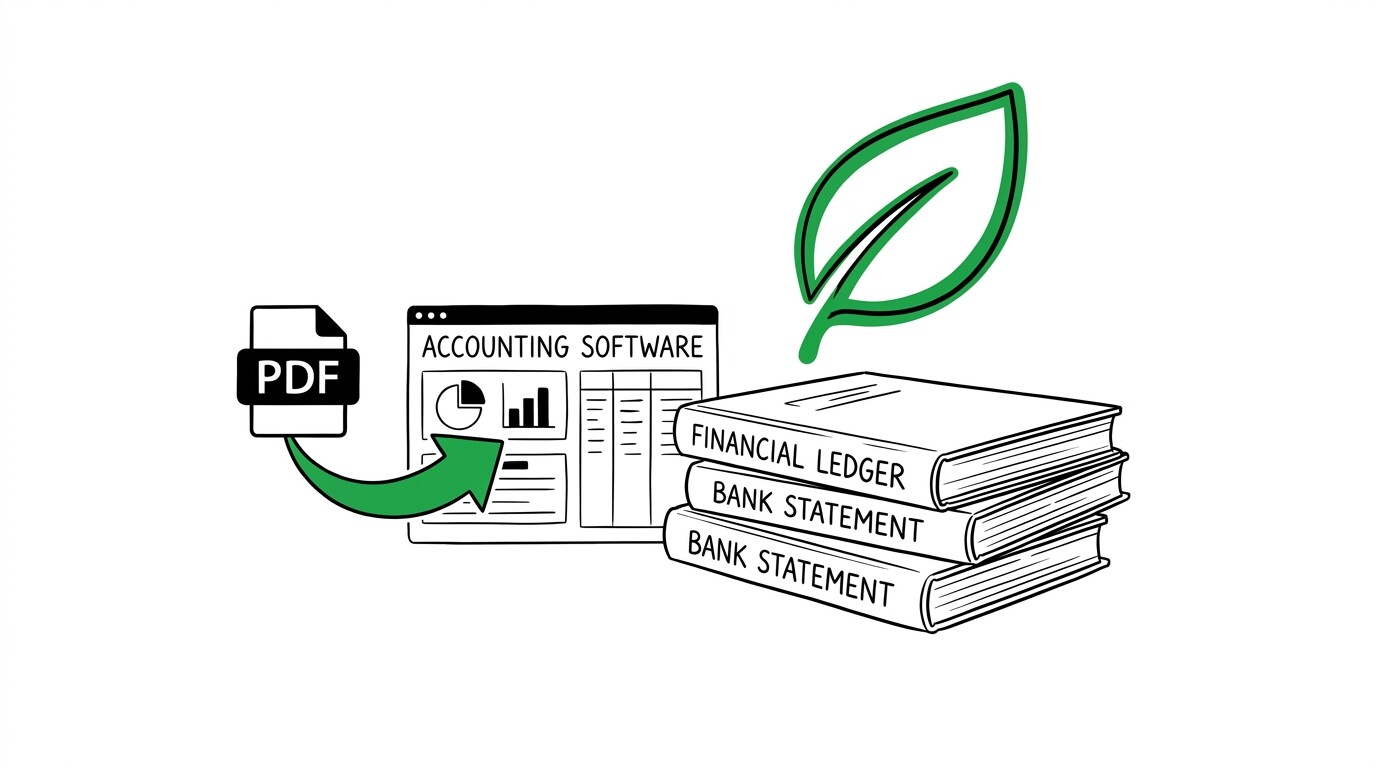

You use Sage Intacct or Sage 50cloud and have a stack of PDF bank statements from your monthly close that need to land as journal entries or imported transactions. Manually retyping 200-500 transactions per account per month is the slowest part of your close, and you want a 5-minute workflow instead of a 5-hour one.
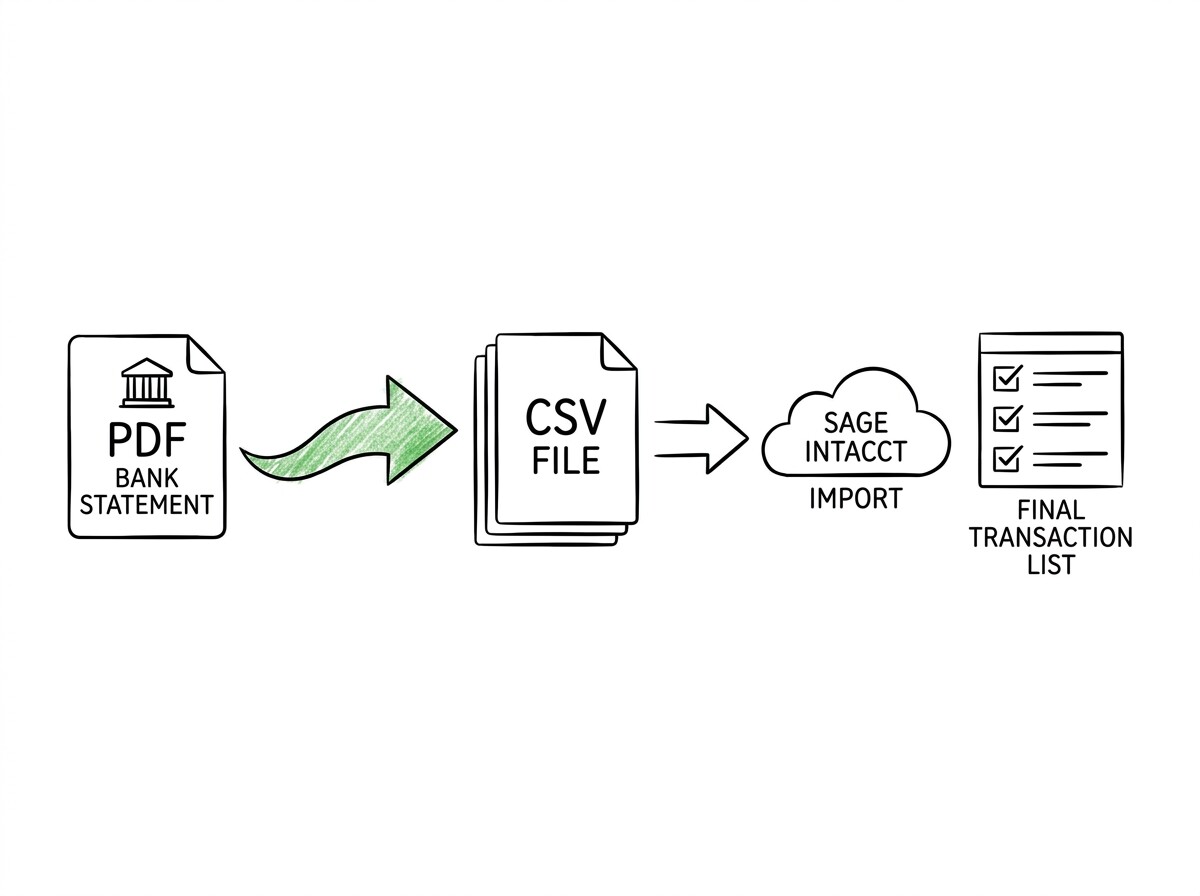
Quick Answers: Sage supports PDF bank statement import through three paths: (1) the Journal Entry import wizard for manual CSV upload, (2) Sage Intacct’s Vendor Invoice Automation module for AI-driven transaction capture, and (3) Sage 50cloud’s Bank Reconciliation module that pulls CSV-formatted transactions and matches them to GL accounts. The fastest path is PDF → ESS conversion tool conversion tool → CSV with Sage-compatible column headers → Journal Entry import, which takes about 5 minutes per statement and produces 200-500 imported transactions.
Which Sage product do you actually use?
Sage publishes roughly 30 active accounting products worldwide, but for U.S. small and mid-size businesses, three products handle bank statement imports: Sage 50cloud Accounting (formerly Peachtree, on-premise with cloud sync), Sage 100 Contractor (project-based accounting for construction and field services), and Sage Intacct (cloud-native multi-entity accounting for mid-market and SaaS companies).
Each has a different import workflow, and the CSV format you produce from your converted bank statement differs between them.
The two products most ESS users ask about are Sage 50cloud (small business, single entity, on-premise) and Sage Intacct (mid-market, multi-entity, cloud-native). Sage 100 Contractor is less common in the bank-statement-conversion context because construction companies tend to receive paper or emailed PDFs that need OCR first, and they usually have project-tagged transactions that complicate a generic CSV import.
For Sage 100 Contractor, the import workflow is closer to project-tagged journal entries than to bank statement transactions.
If you are unsure which Sage product you have, check the title bar of your Sage application or your login URL. Sage 50cloud shows “Sage 50” or “Peachtree” branding.
Sage Intacct shows “Sage Intacct” or the URL contains “intacct.” Sage 100 Contractor shows “Sage 100” or “Sage Contractor.” Each product’s import workflow is different, and using the wrong CSV format is the most common reason for failed imports.
What does the Sage CSV import format require?
Sage accepts CSV files in a specific column structure for bank transaction imports. The required columns are: Transaction Date, GL Account, Description, and Amount (with debits as positive numbers and credits as negative numbers, or vice versa depending on your Sage configuration). Optional but recommended columns are: Reference Number, Vendor/Customer Name, and Project/Class ID (for Sage Intacct multi-entity and Sage 100 Contractor).
The CSV file must use UTF-8 encoding and either comma or tab separation.
The two common failure modes when importing CSV to Sage are mismatched GL account codes and inconsistent date formats. Sage validates every GL account against the chart of accounts and rejects the import if any code does not exist or is formatted differently than expected. Date format must match Sage’s configured preference (typically MM/DD/YYYY in the U.S. or DD/MM/YYYY in the UK and Europe).
The fix for both is to map the converted CSV’s account codes and date format to match your Sage configuration before import.
Turn That PDF Into a Spreadsheet in Minutes
You've seen how to do it manually — now let the tool handle the heavy lifting. Upload your bank statement and get Excel, CSV, or QBO in a few clicks.
Try It FreeHow do you import the converted CSV into Sage Intacct?
Sage Intacct’s import workflow is in the General Ledger module under “Import Journal Entries” or in the Cash Management module under “Import Bank Transactions.” The process is: select your CSV file, map columns to Intacct fields, validate, and commit. Validation typically catches errors before commit, so you can fix issues without a partial import.
After commit, the imported transactions appear in the unposted journal entry queue, where you review and post them to the GL.
The “import bank transactions” path is faster than the “import journal entries” path because Intacct auto-matches imported transactions to bank feeds and reconciliation rules. If your converted CSV has a Reference Number column populated with the bank’s transaction reference, Intacct uses that to match against existing bank-feed transactions, eliminating duplicate reconciliation work.
If the CSV has only Date, Description, and Amount, Intacct creates unmatched journal entries that you must manually reconcile later.
For multi-entity Sage Intacct users, the import workflow has one extra step: selecting the entity (legal entity, ledger, or book) for each row. The CSV must include a column with the entity ID or name, and Intacct validates every row against your entity list.
If you have 5 entities and your converted CSV contains transactions for only 2, you can either include all 5 entity columns or filter the CSV before import to keep only the rows for the entities you are importing.
How do you import the converted CSV into Sage 50cloud?
Sage 50cloud’s import workflow is in the Banking module under “Import Transactions” or “Bank Reconciliation.” Unlike Intacct, Sage 50cloud does not have a generic CSV importer, instead, it expects a specific CSV format tied to your bank account setup. You set up the import once per bank account, and Sage 50cloud remembers the column mapping for subsequent imports.
The setup process requires you to specify the source bank account, the destination GL account for the import, and the CSV column order. Once set up, subsequent imports take about 30 seconds: select the CSV file, click Import, and Sage 50cloud processes the transactions. Imported transactions appear in the bank reconciliation screen as “pending” until you mark them cleared against the bank statement.
The Sage 50cloud-specific gotcha is the “split transactions” handling. If your converted CSV has a transaction that needs to be split across multiple GL accounts (for example, a $500 vendor payment that is $400 expense and $100 sales tax), Sage 50cloud requires you to split it manually after import, which can be tedious for high-volume bank statements.
The workaround is to either (1) pre-split the transactions in your spreadsheet before CSV export, or (2) accept the post-import manual splitting and budget time for it.
What about OCR for scanned paper statements paper bank statements?
Most modern bank statements arrive as native PDFs (text-based, machine-readable), which convert cleanly to CSV with no OCR needed. Scanned paper statements (image-based PDFs from a scanner or fax) require OCR to extract the text first.
ESS’s conversion tool includes OCR for scanned PDFs, but the accuracy depends on scan quality: a 300 DPI scan converts at 99% accuracy, while a 150 DPI faxed statement converts at 80-90% accuracy with some manual cleanup needed.
For Sage import specifically, OCR accuracy matters more than for Excel because Sage validates account codes. A single misread account code (for example, “5720” instead of “5270”) causes the entire import to fail validation. The workaround for low-quality scans is to manually review the converted CSV in a spreadsheet before importing to Sage, correcting any account code or amount errors.
ESS’s output format makes this review easy because every transaction is one row with explicit columns.
How does bank reconciliation work in Sage after import?
After importing the converted CSV, Sage’s Bank Reconciliation module shows two lists: the imported transactions and the actual bank statement balance. The reconciliation process is matching each imported transaction against the bank statement, marking them as cleared, and identifying any discrepancies (missing transactions, unmatched amounts, timing differences).
When the cleared balance equals the statement balance, the reconciliation is complete and you post it to the GL.
The two timing differences that cause reconciliation problems are: (1) transactions in transit at month-end (checks written but not cashed, deposits in transit), and (2) bank fees or interest posted by the bank but not in your converted CSV.
ESS includes a “Statement Date” column that helps identify in-transit items: if a check was written before the statement date but not cashed until after, it appears in the bank statement the following month, not the current one. Bank fees require a manual adjustment entry in Sage to match the bank’s posting.
What are the limits and operational rules for Sage imports?
Sage Intacct and Sage 50cloud impose file size limits on CSV imports. Sage Intacct allows up to 10,000 rows per CSV file, which is roughly 6-12 months of transactions for a small business. Sage 50cloud allows up to 5,000 rows per import, which is roughly 3-6 months of transactions. For larger imports, you must split the CSV into multiple files and import sequentially.
Both products support scheduled imports via API for businesses that want to automate the monthly close.
Sage Intacct’s API supports direct CSV upload via the Intacct Web Services, which means you can automate the full PDF-to-Sage pipeline: ESS converts PDF to CSV, your script uploads to Sage Intacct API, Intacct imports the transactions, and the reconciliation completes without manual intervention.
Sage 50cloud does not have a public API for CSV upload, so the import remains a manual click-through process in the UI.
For most small and mid-size businesses, the manual click-through import is the right balance of speed and accuracy. A 5-minute PDF-to-Sage workflow for one bank statement per month is reasonable; automating the pipeline is worth it only when you have 5+ bank statements per month across multiple entities.
If you have a single small business with one or two bank accounts, the manual workflow is fast enough that automation is over-engineering.
How does the Sage workflow compare to QuickBooks and Xero?
Compared to QuickBooks Online and Xero, the Sage workflow is more manual and has stricter validation rules. QuickBooks accepts nearly any CSV format and parses it generously, tolerating header variations and column order swaps. Xero has bank feed auto-import that pulls transactions directly from your bank, requiring no manual CSV import at all.
Sage Intacct and Sage 50cloud require more careful CSV preparation and column mapping, but they support multi-entity and project-based accounting that QuickBooks and Xero handle less elegantly.
The choice between Sage, QuickBooks, and Xero for bank statement import depends on three factors: (1) what your accountant or bookkeeper already uses (changing accounting software is a major project), (2) whether you need multi-entity or project-based accounting (Sage Intacct is the strongest), and (3) whether your bank supports direct feeds (Xero and QuickBooks have the deepest bank integrations).
For a single-entity small business with basic accounting needs, the choice is largely about which software you already have.