
The bank statement CSV format has 4 standard columns: Date, Description, Amount, Balance. This page covers the date formats, the sign conventions, the encoding, and the 5 things that go wrong.
The format-specific guides for QuickBooks CSV and other destinations are linked below. For the broader conversion workflow, see the CSV output guide.
The bank statement CSV format has 4 standard columns: Date, Description, Amount, Balance. Some banks add Check Number, Transaction Type, and Category. The date format is usually MM/DD/YYYY (US banks) or YYYY-MM-DD (international and some conversion tools).
The sign convention is the most important detail. Deposits are positive, withdrawals are negative, fees are negative. The Balance column is the running balance after each transaction. The encoding is usually UTF-8, but some banks use Windows-1252 for accented characters.
For specific formats, see the CSV output guide. For QuickBooks-specific format, see the QuickBooks CSV format guide.
What “Bank Statement CSV Format” Means
The bank statement (also called a monthly statement or account statement) CSV format is a specific application of the generic CSV (Comma-Separated Values) format, designed for the structured export of bank statement transaction data. The format follows RFC 4180 for the basic file structure and adds bank-statement-specific conventions for the column headers, date format, amount format, and encoding.
What most guides miss about CSV conversion is that the quality depends on the mechanism, not on the tool. Two tools that look different on the surface often run the same 4-step process underneath: read, find, parse, verify. The difference is in how well each step handles edge cases (merged cells, missing balances, non-standard date formats, scanned vs digital input). Choosing between tools based on UI alone misses the actual quality lever.
The format in one sentence
A bank statement CSV is a plain-text file, UTF-8 encoded, with one header row of column names followed by one row per transaction. The fields are separated by commas. Strings containing commas, quotes, or newlines are wrapped in double quotes. Double quotes inside strings are escaped by doubling them. Lines end with CRLF or LF.
Why CSV is the right format for bank statements
CSV is the universal interchange format for tabular data. Every spreadsheet app reads it (Excel, Google Sheets, Numbers, LibreOffice Calc). Every accounting app imports it (QuickBooks, Xero, Wave, FreshBooks, Sage). Every programming language can parse it.
It is human-readable (open it in a text editor and understand it). It is durable (it will still parse in 50 years). For bank statements, CSV is the format with the lowest friction downstream. For users who want the data in a Google Sheet rather than Excel, the CSV path is one of the 3 conversion paths covered in the bank statement to Google Sheets guide.
The RFC 4180 Foundation
RFC 4180 is the IETF specification for CSV, published in 2005. It defines the core rules that every CSV file follows. The rules are simple, but each one has a specific reason for existing.
Delimiter
Fields are separated by a comma. In RFC 4180, the comma is the only standard delimiter. Some software (especially European Excel) uses semicolon instead, but the RFC standard is comma.
The choice of comma creates one problem: if a field contains a comma, it must be quoted (covered below). Why comma? It is the character least likely to appear in text fields like names and descriptions.
Line endings
Each record is on its own line. RFC 4180 specifies CRLF as the line ending, but most modern software also accepts LF. The key rule: the line ending must be consistent within a file. A mix of CRLF and LF in the same file may cause some parsers to fail.
Why CRLF originally? Historical compatibility with Windows and DOS. Why LF is also OK today? macOS and Linux have used LF for decades, and modern parsers handle both.
Header row
The first line is an optional header row containing the field names. RFC 4180 calls it optional, but for bank statement CSVs the header row is mandatory. Without it, the consumer cannot know which column is Date, which is Amount, and which is Balance. The header uses the same comma-and-quote rules as the data rows.
Quoting
A field may be enclosed in double quotes. Quoting is required when a field contains a comma, a double quote, or a line break. Quoting is optional otherwise. The most common pattern: quote fields that contain commas and leave simple fields unquoted.
Why quote? A comma inside the field would be misinterpreted as a field separator if not quoted. Quoting is the only way to embed commas, quotes, or newlines inside a field.
Escaping
When a field is enclosed in double quotes, a literal double quote inside the field is escaped by doubling it. For example, the description Joe’s “Special” Cafe becomes “Joe’s “”Special”” Cafe” in the CSV.
Why double? The doubling is the standard escape pattern. The parser sees “” as a single literal quote, not the end of the field.
Equal field count
Every row in the file must have the same number of fields. If the header has 4 columns, every data row must have 4 fields too. Empty fields are represented as nothing between commas (e.g., 01/15/2026,ACME CORP,,500.00).
Why equal count? The parser uses the column count to know when a row ends. A row with 3 fields when the header has 4 is either an error or a different schema.


Turn That PDF Into a Spreadsheet in Minutes
You've seen how to do it manually — now let the tool handle the heavy lifting. Upload your bank statement and get Excel, CSV, or QBO in a few clicks.
Try It FreeThe Standard Column Structure
Bank statement CSVs follow a standard column structure. The exact columns vary by destination software, but the core set is consistent across the industry.

Required columns
Every bank statement CSV has at minimum: Date and Amount. That is the minimum for any tool to recognize the file as transaction data. The most common minimum standard, used by 95% of accounting software, is three columns: Date, Description, Amount. The fourth column, Balance, is strongly recommended because it enables balance verification (a strong quality check).
Optional columns
Optional columns that appear in many bank statement CSVs: Check Number (for cleared checks), Memo (additional transaction detail), Currency (ISO 4217 code, for multi-currency accounts), Reference (bank-side reference number), Category (assigned by the bank), Payee (extracted from description, useful for matching). A good converter captures these when present. The CSV guide covers the standard format in detail.
Single Amount vs split Debit/Credit
There are two conventions for representing the amount. Single Amount column with signed numbers: deposits are positive, withdrawals are negative (e.g., 100.00 for deposit, -50.00 for withdrawal). Split Debit and Credit columns: Debit for withdrawals (positive number), Credit for deposits (positive number), unused column is empty.
Which to pick depends on the destination software. QuickBooks accepts both. Xero prefers a single Amount column. Wave requires split Debit/Credit. FreshBooks is flexible. Sage 50 requires split Debit/Credit. If you don’t know which the destination needs, use the single Amount column. It is the most common and is accepted by the most software. For more on the conversion workflow, see the PDF-to-CSV workflow.
Character Encoding Deep-Dive
Character encoding is the part of CSV that causes the most silent failures. The file is technically correct but appears broken in the destination software. The fix is to understand what encoding is and which one to use.
UTF-8
UTF-8 is the universal character encoding. It supports every character in every language. For bank statement CSVs, UTF-8 is the standard. It handles currency symbols (€, £, ¥), accented characters (é, ü, ñ), and special characters in merchant names. Every modern tool reads UTF-8 correctly. If a tool doesn’t read UTF-8, that tool is out of date.
UTF-8 with BOM
The BOM (Byte Order Mark) is a 3-byte sequence at the start of a UTF-8 file. It signals to software that the file is UTF-8. The BOM is invisible in most text editors.
The BOM is helpful for one specific case: Excel on Windows. Without the BOM, Excel on Windows may interpret the file as Windows-1252 or Latin-1, which breaks non-ASCII characters. With the BOM, Excel auto-detects UTF-8 and reads everything correctly.
For maximum compatibility, use UTF-8 with BOM. For pure data pipelines (Python, R, SQL imports), UTF-8 without BOM is fine.
The Excel-on-Windows quirk
This is the single most common cause of “the CSV looks wrong in Excel” complaints. The user opens a CSV in Excel on Windows, sees accented characters as broken text, and assumes the file is corrupted. The file is not corrupted. Excel is just guessing the encoding wrong.
The fix: use UTF-8 with BOM, OR open the file through Excel’s Import wizard and explicitly choose UTF-8 as the file origin. For 90% of cases, the BOM fixes it. The other 10% need the import wizard.
Date Format Conventions
Date format is the second most common source of CSV import errors. The format is determined by the source bank’s locale and the destination software’s expectations. The four common formats are: ISO 8601 (YYYY-MM-DD), US (MM/DD/YYYY), EU (DD/MM/YYYY), and UK (DD/MM/YYYY). All four are valid; the rule is to be consistent within a file and to match the destination software’s expectation.
ISO 8601 (YYYY-MM-DD)
ISO 8601 is the international standard for date representation. The format is unambiguous (01/02/2026 means January 2 in US, February 1 in EU, but 2026-01-02 always means January 2). It sorts correctly as text (alphabetical sort = chronological sort). Most modern accounting software accepts it directly. The recommendation: use ISO 8601 whenever you control the date format.
US format (MM/DD/YYYY)
US banks use MM/DD/YYYY. The slash separator is the convention. This is the format for Chase, Bank of America, Wells Fargo, and most US banks. US accounting software (QuickBooks US, Wave US) expects this format by default. If you are processing US bank statements for US accounting software, this is the natural format.
EU format (DD/MM/YYYY)
EU banks use DD/MM/YYYY. The slash or dot separator is the convention. This is the format for most European banks. EU accounting software (DATEV, Lexware, Sage EU) expects this format. The decimal separator is typically a comma (1.234,56), which creates a different problem: a CSV written for the EU uses semicolons as delimiters to avoid the decimal comma being misinterpreted as a field separator.
UK format (DD/MM/YYYY)
UK banks use DD/MM/YYYY with period as the decimal separator. This is the same date format as the EU but with US-style decimal separator. Xero (UK) and Sage UK expect this format.
The locale trap
The most common silent error in CSV imports: a date that means January 5 in the source becomes May 1 in the destination. The data is wrong, but no error is raised. The fix: use ISO 8601 (unambiguous) OR explicitly specify the date format during import. For 95% of cases, ISO 8601 is the safest choice.
Amount Format Conventions
Amount format follows the locale conventions for the decimal separator. The sign convention (positive for credit, negative for debit, or split) is the choice of single vs split covered earlier.
Decimal separator
US and UK use period (1,234.56). EU uses comma (1.234,56). The decimal separator must be consistent within a file. Mixing periods and commas in the same file is invalid. For US/UK software, use period. For EU software, use comma and semicolon as the field delimiter.
Sign convention
In the single Amount column, deposits are positive and withdrawals are negative. The minus sign is a leading dash, e.g., -50.00. Parentheses around the number are also acceptable in some software (e.g., (50.00)) but not in CSV. Use the leading dash for maximum compatibility.
Currency symbols
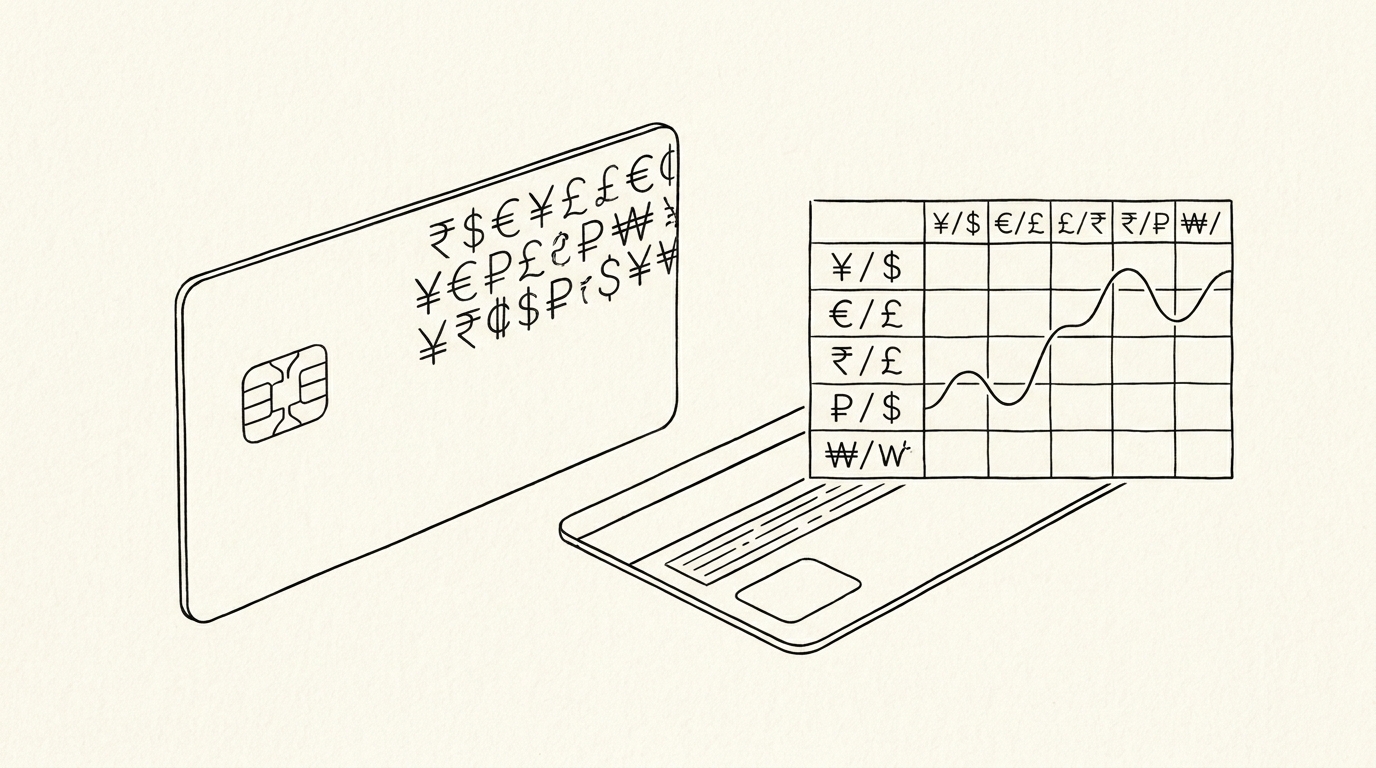
No currency symbols in the Amount column. No $, no €, no £. The number is the value; the currency is in a separate column (or implicit from the source bank). Currency symbols cause import errors in most accounting software. If you need to indicate the currency, use a separate Currency column with the ISO 4217 code (USD, EUR, GBP).
Software-Specific Header Requirements
Each accounting software has its own header conventions. Most are flexible (case-insensitive, accepts common synonyms), but some are strict. Here is the most common pattern for each major tool.
QuickBooks
QuickBooks accepts both single Amount and split Debit/Credit. Headers: Date, Description, Amount. Optional: Check Number, Memo, Balance. Case-insensitive. QuickBooks Online and Desktop both follow the same conventions.
Xero
Xero prefers a single Amount column. Headers: Date, Amount, Description. Optional: Reference, Payee, Category. Case-insensitive. Xero handles ISO 8601 and US dates directly. For more on the import workflow, see the QuickBooks conversion guide (when published).
Wave
Wave requires split Debit and Credit columns. Headers: Date, Description, Debit, Credit. Optional: Account, Category. Wave does not accept a single Amount column for the import.
FreshBooks
FreshBooks uses “Payee” instead of “Description”. Headers: Date, Payee, Amount. Optional: Category, Notes. Flexible on date format. FreshBooks is the most forgiving of the major tools.
Sage
Sage 50 requires split Debit and Credit. Headers: Date, Reference, Debit, Credit. Optional: Account Code, Department. Sage is the strictest of the major tools. Header matching is case-sensitive. The full conversion workflow is on the CSV conversion guide.
Common CSV Mistakes
Five mistakes show up in CSV bank statements more than any others. Each has a specific cause and a specific fix.
Comma in description
The description contains a comma (e.g., “ACH DEBIT, ACME CORP”). Without quoting, the parser treats the comma as a field separator, splitting the description into two columns. The fix: the field must be wrapped in double quotes, e.g., “ACH DEBIT, ACME CORP”. A good converter does this automatically.
Quote in description
The description contains a double quote (e.g., Joe’s “Special” Cafe). The double quote ends the field prematurely. The fix: escape the quote by doubling it, e.g., “Joe’s “”Special”” Cafe”.
Date format mismatch
The source bank uses MM/DD/YYYY (US) and the destination expects DD/MM/YYYY (EU). The dates import successfully but with wrong values. January 5 becomes May 1 silently. The fix: use ISO 8601 (YYYY-MM-DD) which is unambiguous, OR specify the date format during import.
Wrong decimal separator
The source uses period (US) and the destination expects comma (EU). The numbers import as text or as wrong values. The fix: use the correct decimal separator for the destination software’s locale, or use a tool that handles the conversion.
BOM missing
The CSV is UTF-8 but without the BOM, Excel on Windows misinterprets the encoding. Non-ASCII characters appear broken. The fix: add the BOM (3 bytes at the start of the file), or open through Excel’s Import wizard.
A common failure mode bookkeepers report is treating this as a single operation rather than a chain of dependent steps. The temptation is to find a tool that ‘just works’ and stop investigating the mechanism. The result is a wrong-fix cycle: the tool gives partial output, the bookkeeper spends 30+ minutes troubleshooting, the fix is for the wrong step, and the same error recurs on the next statement. The fix: identify which step failed and apply the right intervention to that step.
How to Validate the CSV
Validation is the strongest quality check. Three specific checks catch almost every error.

Open in text editor
Open the CSV in a text editor (VS Code, Sublime, Notepad++). The text editor shows the raw structure: the header row, the comma separators, the quote escaping, the line endings. A quick scan catches encoding issues, quoting problems, and date format mismatches. The text editor view is the ground truth.
Open in spreadsheet
After the text editor check, open the CSV in Excel or Google Sheets. Confirm the columns line up correctly. Verify the dates are dates (not text). Verify the amounts are numbers (not text). If the dates are text, the import needs an explicit format mapping. The full workflow is on the data check guide.
Try the import
Run the actual import in the destination software (QuickBooks, Xero, Wave). The import wizard will tell you immediately if the CSV has problems: missing columns, wrong date format, wrong decimal separator, invalid characters. The import is the final test.
Turn PDF Bank Statements Into Workable Spreadsheets
Your bank statement is a mess of numbers, but your books shouldn't be. Use our converter to get Excel, CSV, or QBO files — ready for QuickBooks.
Try It Free Now