
Moving a bank statement into Google Sheets is one of those tasks that looks like a single step and turns out to be three very different paths. The path you pick decides how clean the result is, whether the dates and merchant names survive the trip, and whether you end up with a spreadsheet you can actually use or a sheet that needs another hour of cleanup. None of the three paths is wrong, but the differences between them are not obvious until you hit them.
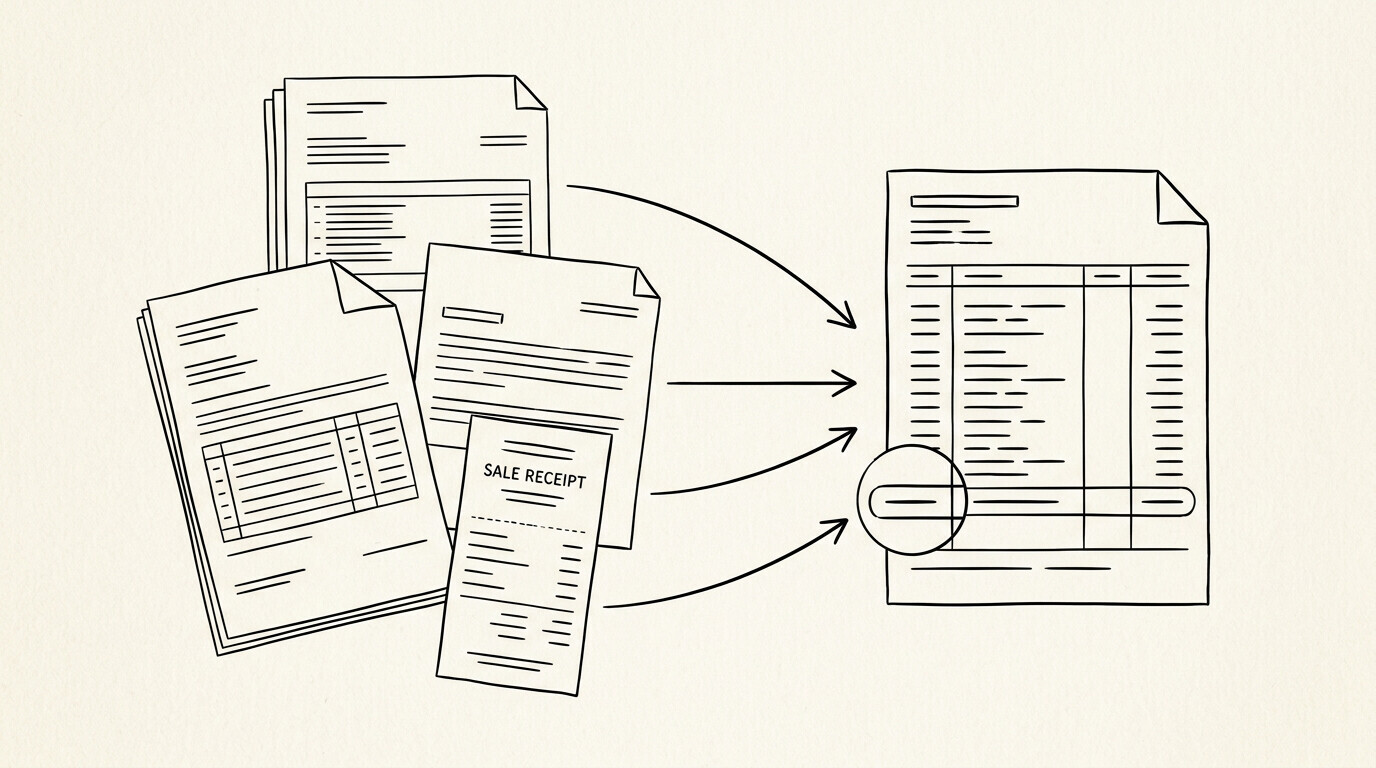
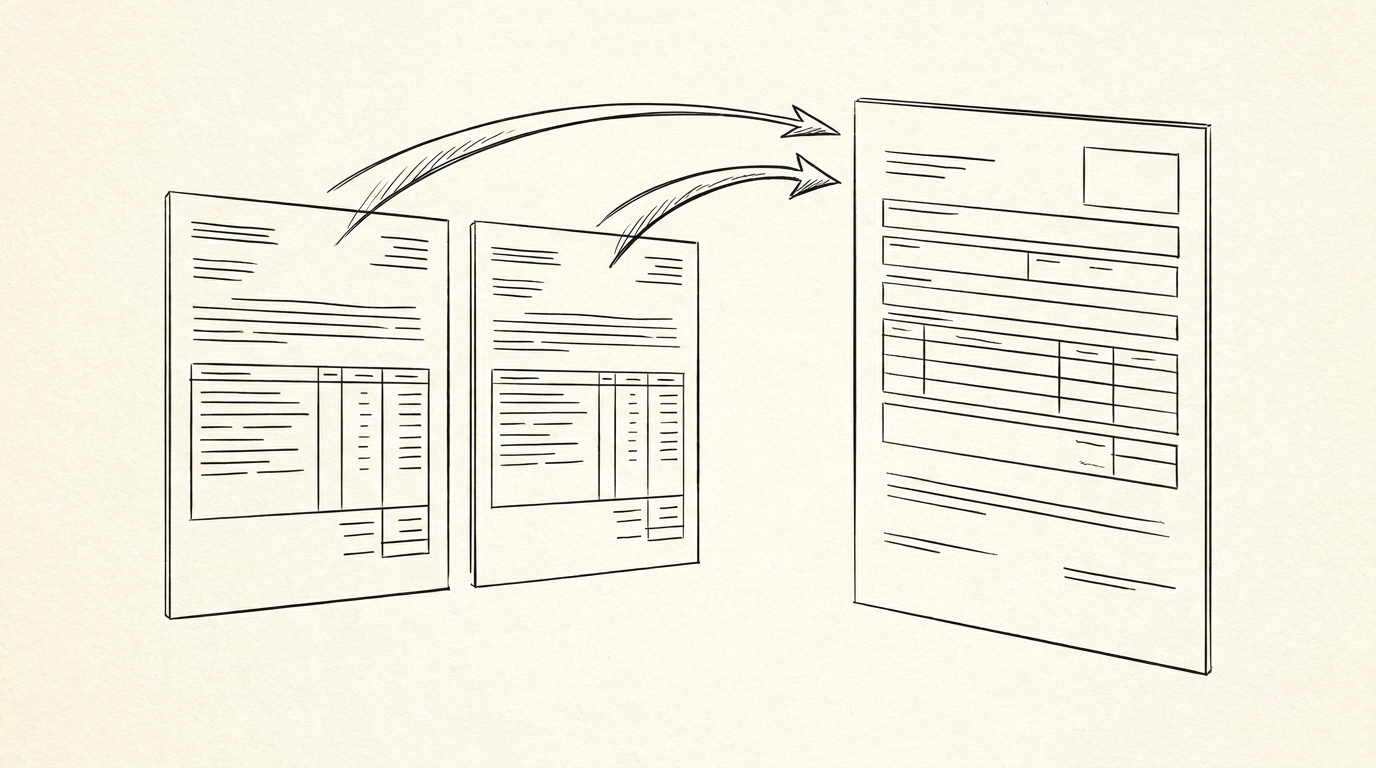
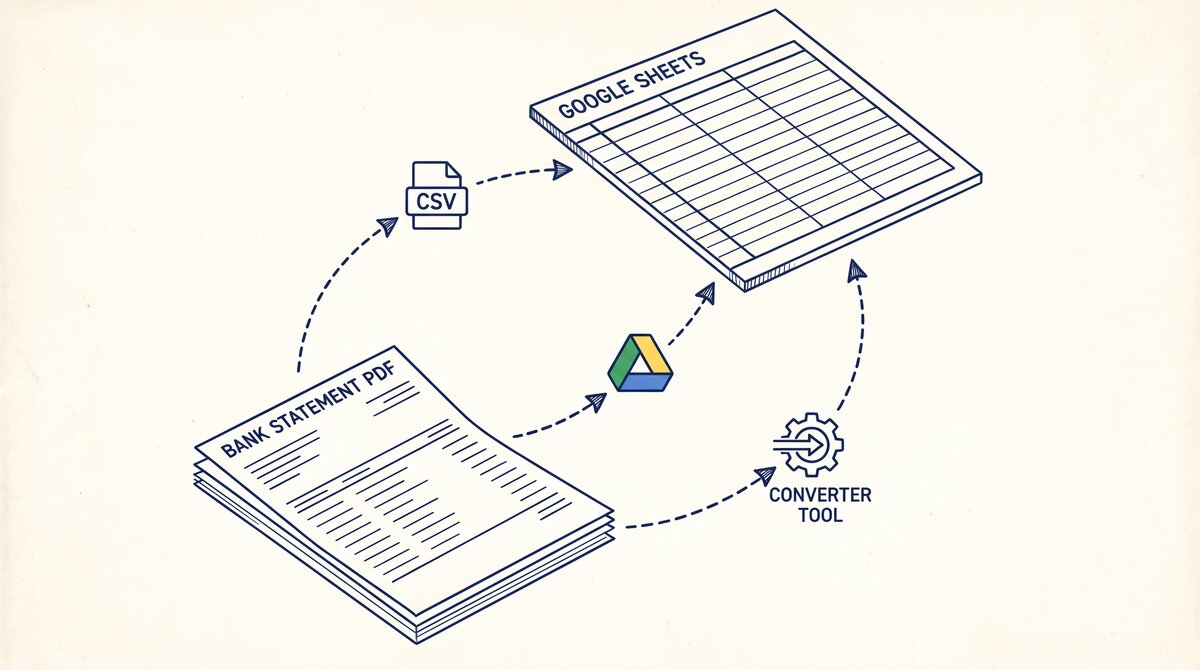
Converting a bank statement to Google Sheets (also called bank statement Google Sheets converter, bank statement to Google Sheets online, or bank statement into Google Sheets) means getting the bank’s PDF into a Sheets workbook with one row per transaction. There are three practical paths: export as CSV and import it, upload the PDF to Google Drive and convert via the built-in OCR, or use a dedicated converter that outputs Sheets-ready data.
The CSV path is the most reliable for clean data. The Drive OCR path is the only fully free option but loses table structure. The converter path is the fastest and most accurate for multi-page statements. For bank transactions to Google Sheets (the transactions specifically), see the CSV to Google Sheets import guide.
For the spreadsheet overview (Excel, Google Sheets, Numbers), see convert a bank statement to a spreadsheet. For the broader conversion workflow, see bank statement converter.
What Bank Statement to Google Sheets Conversion Actually Means
A bank statement is a PDF (or, less commonly, an image of a paper statement). Google Sheets is a live, shareable, browser-based spreadsheet. Converting between them means: take the data trapped in the PDF (account number, period, opening/closing balance, list of transactions with dates, descriptions, amounts) and put it into a Sheet where you can sort, filter, sum, and share it.
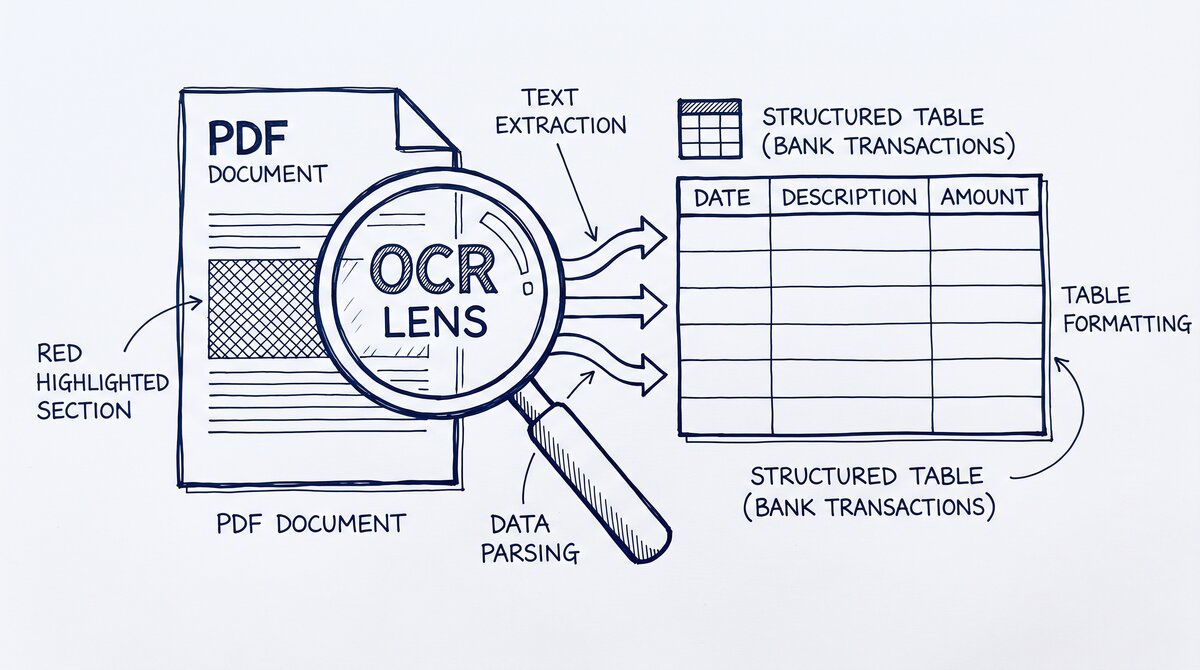
What most guides miss about Google Sheets conversion is that the quality depends on the mechanism, not on the tool. Two tools that look different on the surface often run the same 4-step process underneath: read, find, parse, verify. The difference is in how well each step handles edge cases (merged cells, missing balances, non-standard date formats, scanned vs digital input). Choosing between tools based on UI alone misses the actual quality lever.
The Three Characteristics of a Bank Statement Conversion
The conversion has three characteristics that make it different from a one-off file export:
- The data has structure. A bank statement is a table with consistent columns (date, description, amount, balance). The conversion must preserve that structure, or downstream analysis breaks.
- The data is sensitive. Account numbers, full names, and transaction history are PII. The conversion path determines where that data lives and who can see it.
- The destination is live. Once in Sheets, the data can be referenced by formulas, shared via link, and version-controlled. The PDF, by contrast, is static.
Why Most Bank Statement Users Choose Google Sheets
Most users who search for this workflow are looking for the cleanest way to do the conversion without paying for desktop software or learning QuickBooks. Google Sheets is free, almost everyone has a Google account, and sharing a link is easier than emailing a CSV.
This is one of the format destinations in the broader bank statement conversion landscape. The two dominant formats are CSV and Excel; Google Sheets is a third path with its own tradeoffs.
The 3 Paths from PDF Bank Statement to Google Sheets
There is no single button that takes a bank statement PDF and drops it into a Sheet as a clean table. Every path requires at least one intermediate step, and the intermediate step is where things go right or wrong.
Path 1, 2, and 3 at a Glance
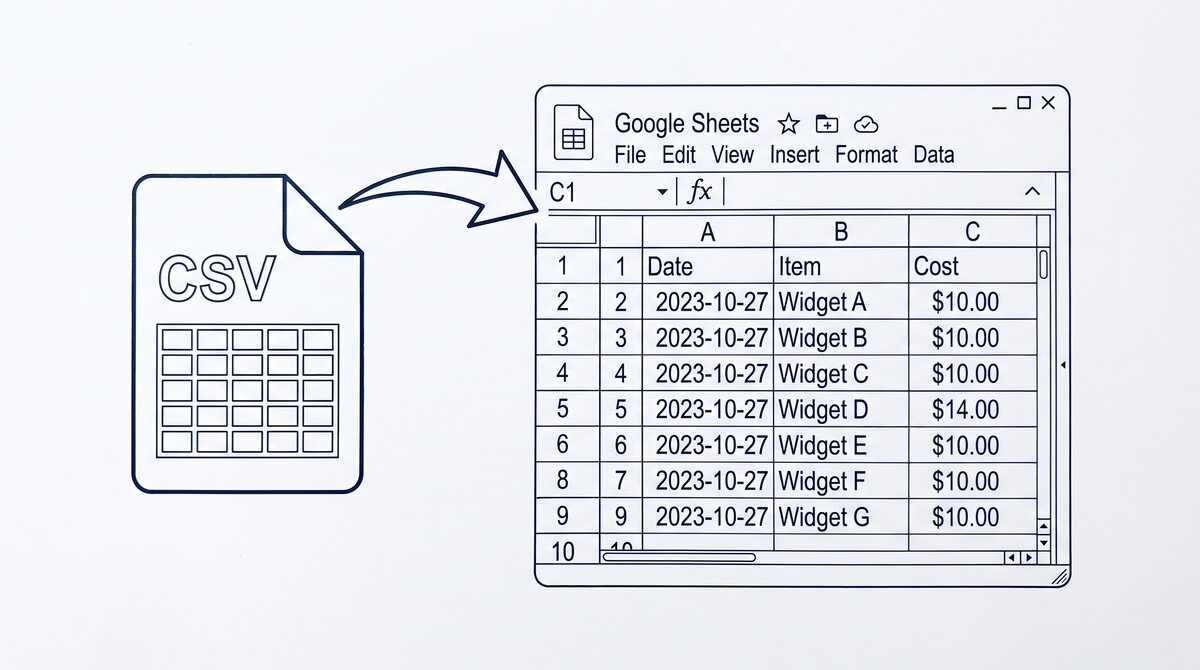
Path 1: Export as CSV, then import to Sheets. The bank provides the statement in multiple formats (PDF, CSV, sometimes OFX or QFX). You download the CSV and import it into Sheets via File > Import > Upload. This is the most reliable path because CSV is a structured, plain-text format that preserves the row-and-column shape.
Path 2: Direct PDF upload to Google Drive, then convert. You upload the PDF to Google Drive, right-click and open it as a Google Doc, and Google runs OCR on it. The output is a Google Doc with the text extracted; you then copy or save the data into a Sheet. This path is the only fully free option that does not require any third-party tools, but the OCR output is a per-visual-line text dump, not a table.
Path 3: Use a dedicated converter, then sync to Sheets. A converter tool reads the PDF, extracts the transaction table using purpose-built table detection, and outputs a clean CSV or directly a Google Sheets file. You then import the CSV to Sheets (or the tool creates a Sheet for you via API). This path is the fastest and most accurate for multi-page statements with merged cells, complex headers, or scanned images.
The three paths differ on cost, accuracy, time, and what they do with the table structure. The rest of the article goes into each one in detail.
From PDF to Excel in one click
Forget retyping line by line. Upload any bank statement, get a spreadsheet you can actually use. Your files are never stored, and you can test the converter with 3 free conversions.
Try it freePath 1: Export as CSV, Then Import to Sheets
The CSV path is the workhorse. Most banks let you download a CSV version of your statement from the online banking portal, often in the same place where you download the PDF. The CSV is already structured: one row per transaction, columns for date, description, amount, and balance. For a deeper look at the CSV format itself, see the bank statement CSV format guide, or the bank statement to CSV workflow if your bank only offers PDF.
The 6-Step Import Procedure
To import a CSV into Google Sheets, the typical steps are:
Open Google Sheets and create a new spreadsheet.
Go to File > Import > Upload.
Select the CSV file from your computer.
In the import dialog, choose “Replace current sheet” or “Insert new sheet.”
Set the separator type (comma is the default; some banks use semicolons).
Confirm.
Why the CSV Path Works (and Where It Breaks)
The CSV path works well because the data is already structured at the source. There is no OCR step, no table detection step, no image-to-text interpretation. The bank has already done that work when it generated the CSV.
The catch: the bank’s CSV format varies by institution. Some banks include a header row, some do not. Some use the date format YYYY-MM-DD, others use MM/DD/YYYY. Some use a single amount column, some use separate debit and credit columns. Some use a “balance after transaction” column, some do not. The variation means the CSV is clean, but it is not standardized.
The other catch: not every bank offers a CSV download. Smaller credit unions and some neobanks only offer PDF. For those statements, the CSV path is not available, and you have to use Path 2 or Path 3. The PDF to CSV conversion path covers how to get to CSV from a PDF-only bank.
Path 2: Direct PDF Upload to Google Drive, Then Convert
The Drive OCR path is the only option that does not require a third-party tool.
The 5-Step Procedure
The full procedure:
Upload the PDF to Google Drive.
Right-click the PDF and choose “Open with > Google Docs.”
Google runs OCR on the PDF and opens the result as a Google Doc with editable text.
Select the table content in the Doc, copy, and paste into a Google Sheet.
Use Data > Split text to columns to split the pasted text into columns.
When This Path Is Best (and When It Is Not)
The OCR works well for digital PDFs (statements generated by bank software, where the text layer is real text). It works less well for scanned PDFs (where the text layer is an image, and OCR has to interpret the pixels). For scanned PDFs, accuracy drops to roughly 80-90% depending on scan quality, and the OCR can misread characters in merchant names, amounts, or account numbers.
The bigger limitation: Google Drive’s OCR outputs one line of text per visual line in the PDF, not one row per transaction. If a transaction wraps to two visual lines in the PDF (which happens for long merchant names), the OCR splits the transaction into two output lines. The user has to manually re-merge them.
This path is best for single-page statements with clean visual tables, personal use where the user is willing to do some manual cleanup, and cases where data sensitivity rules out any third-party tool. This path is worst for multi-page statements with consistent transaction tables, statements with merged cells, subtotals, or running balances, and time-sensitive workflows where manual cleanup is not affordable.
Path 3: Use a Converter Tool, Then Sync to Sheets
A dedicated PDF-to-Sheets converter is the path that handles the edge cases. A bank statement converter reads the PDF, detects the table structure, and outputs a Google Sheets file directly. The convert bank statement to Google Sheets tool follows this path.
The 4-Step Procedure
The procedure:
Upload the bank statement PDF to the converter.
The converter detects the table structure, extracts the transactions, and outputs a clean CSV or directly a Google Sheets file.
If CSV: import to Google Sheets (same as Path 1).
If direct Sheets: the converter creates a Sheet in your Google Drive via API, populated with the structured data.
The Cost and Data Sensitivity Trade-Offs
The converter path is the most accurate because the tool is purpose-built for bank statements. It handles merged cells, multi-line transactions, date format variations, and scanned PDFs better than Drive OCR. It is also the fastest for large statements: a 50-page statement that takes 20 minutes of manual work via Drive OCR takes 30 seconds in a converter.
The cost: most dedicated converters are paid tools, either per-statement or monthly subscription. The free tier usually caps the number of pages or statements per month.
The data sensitivity consideration: when you upload a bank statement to a third-party converter, the data leaves your device and is processed on the converter’s server. For users with strict data handling rules (financial advisors handling client data, bookkeepers with NDAs), this is a non-starter. The CSV path keeps the data on your device; the Drive OCR path keeps the data inside Google’s infrastructure; the converter path involves a third party.
When Google Sheets Wins Over Excel and QuickBooks
Google Sheets is not the right destination for every bank statement workflow. But there are specific cases where it is the better choice, and the cases map to what Sheets does that Excel and QuickBooks do not.
Sheets wins for shared workflows. If the bank statement needs to be reviewed by a partner, an accountant, or a landlord, a Google Sheet can be shared via a single link. The recipient can view, comment, or edit (depending on permissions) without downloading anything. Excel requires sending a file; QuickBooks requires granting the recipient access to your books.
Sheets wins for version history. Every change to a Google Sheet is automatically saved and versioned. If you accidentally delete a column or overwrite a formula, you can roll back to a previous version. Excel has version history in OneDrive but not for local files. QuickBooks has audit logs but they are not user-editable.
Sheets wins for live formulas that pull from external sources. A Google Sheet can pull live exchange rates, live stock prices, or live bank balances via Google Finance formulas or IMPORTDATA. Excel can do this with Power Query and external data connections, but the setup is heavier. QuickBooks is not a spreadsheet, so it does not have this capability.
Sheets loses for offline workflows. If you need to work on the bank statement without an internet connection, Sheets is limited to view-only offline mode. Excel is fully offline-capable.
Sheets loses for very large datasets. A bank statement is rarely over a few hundred transactions, so this is rarely a real limitation, but Google Sheets’ 10 million cell cap is well below Excel’s. For a personal bank statement workflow, this is not a constraint.
Limits, Errors, and Fixes
The most common error in the Drive OCR path is row splits: a transaction that wraps to two visual lines in the PDF gets split into two rows in the OCR output. Bookkeepers often catch this in reconciliation when a single transaction shows up as two unmatched entries. The fix is to scan the pasted text for transactions that are split, identify the row boundary (the second half has no date, or a continuation description), and merge the two lines into one.
The most common error in the CSV path is encoding. Some banks export CSV in Windows-1252 encoding, which mangles special characters (curly quotes, accented letters, em-dashes) when imported into a UTF-8 Google Sheet. The fix is to open the CSV in a text editor, save it as UTF-8, and re-import. AIGC-generated CSV files often have the same problem if the generator does not specify encoding.
The most common error in the converter path is formula auto-format. Google Sheets auto-converts anything that looks like a formula on import. A bank statement rarely has formula-looking content, but merchant names that start with =, +, or @ (rare but real, e.g. loyalty point confirmations) get corrupted. The fix is to import the CSV as plain text first (use the “Create new spreadsheet” option and uncheck “Convert text to numbers, dates, and formulas”), or to pre-pend a single quote to the merchant column.
The pattern across all three paths: the conversion is rarely the problem. The failure mode is in the import step, where the destination format interprets the source data in ways the source did not intend. Knowing the failure modes is the difference between a Sheet that is ready in 2 minutes and a Sheet that needs an hour of cleanup. For reference, see how to convert a PDF bank statement to Google Sheets for the full guide. For reference, see bank statement to Google Sheets vs Excel for the full guide.
For a deeper understanding, see: google sheets deep dive.
Turn any PDF statement into a clean sheet
Skip the typos and the hours of copying. Our converter handles any bank statement format and outputs Excel, CSV, or QBO for QuickBooks. No file retention, free to try.
Convert your statement