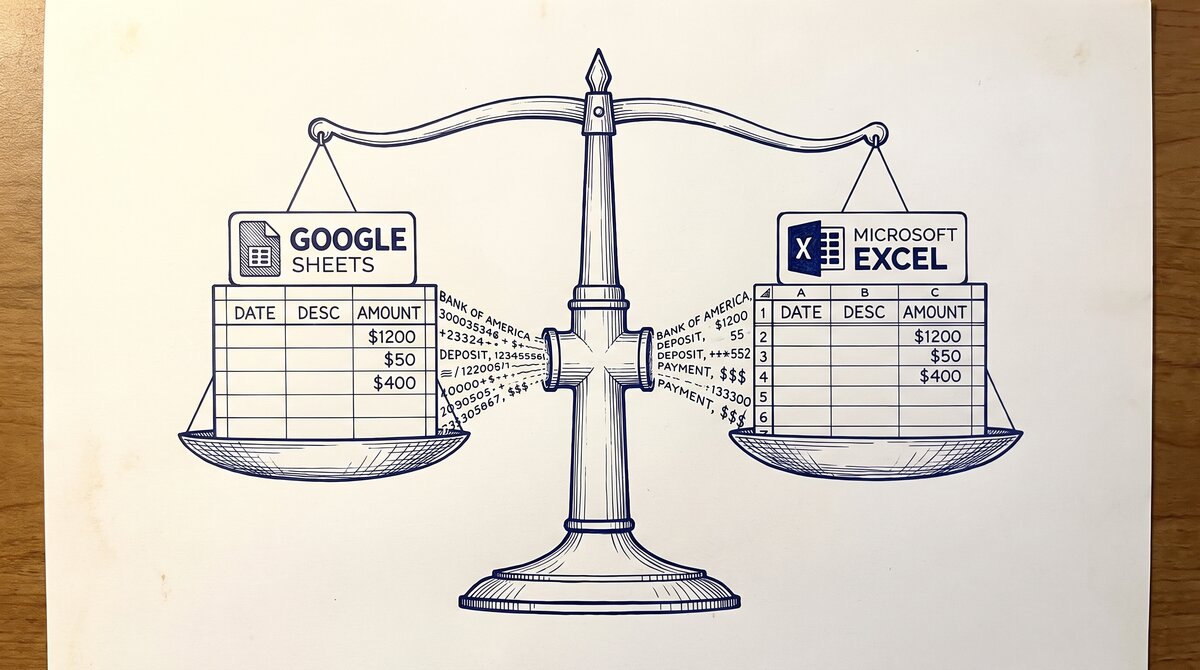

Choosing between Google Sheets and Excel for a bank statement workflow is a decision most users make by default, not by reasoning. They use whichever app they already have open. But the two apps handle bank statements differently on cost, sharing, formula power, offline behavior, and file size, and the right choice depends on what the user is going to do with the data after the conversion.
TL;DR. Google Sheets wins for shared workflows, version history, and free cost. Excel wins for offline work, formula power, and large files. For a personal bank statement, Google Sheets is usually the right choice. For a business bookkeeper handling 100+ statements, Excel is usually the right choice. The format that wins for shared audit, rental, and mortgage workflows is Google Sheets, because the link-sharing model is what the recipient expects.
The Format Decision Most Bank Statement Users Get Wrong
Most users who convert a bank statement think they are choosing between formats (CSV vs Excel vs Google Sheets vs QuickBooks) when they are actually choosing between workflows. The format is the output. The workflow is who needs to see the data, what they need to do with it, and how long the data needs to live.
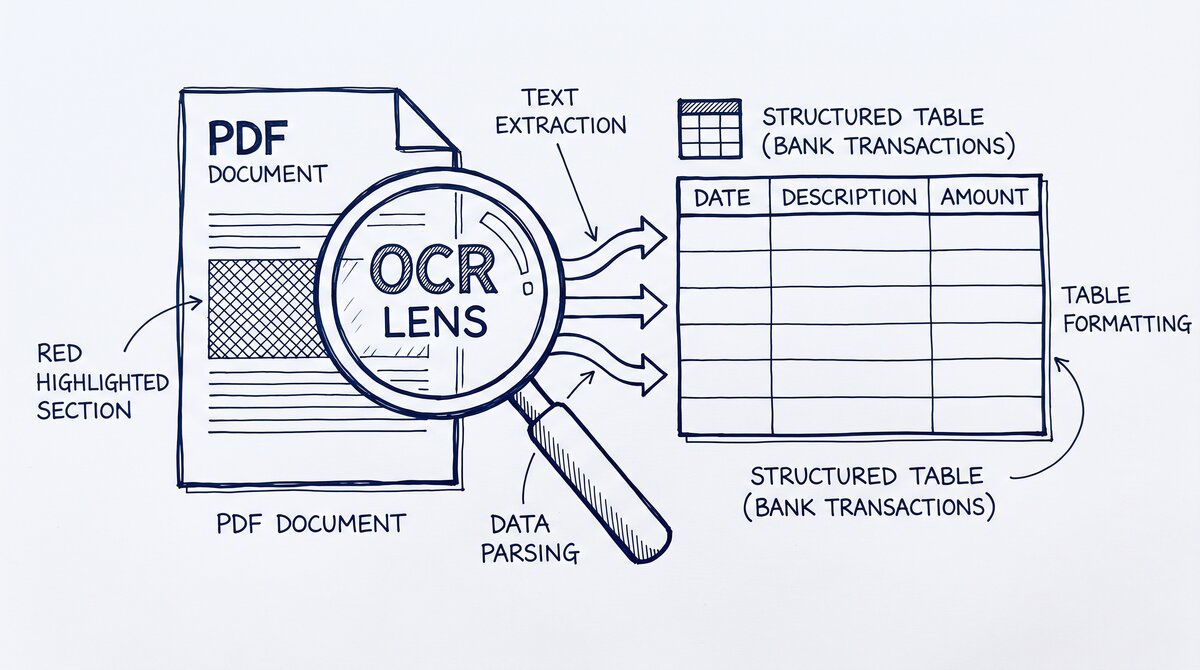
What most guides miss about Excel conversion is that the quality depends on the mechanism, not on the tool. Two tools that look different on the surface often run the same 4-step process underneath: read, find, parse, verify. The difference is in how well each step handles edge cases (merged cells, missing balances, non-standard date formats, scanned vs digital input). Choosing between tools based on UI alone misses the actual quality lever.
Three Workflow Shapes for a Bank Statement
A bank statement conversion has three workflow shapes. Personal use: the user converts the statement for their own analysis (budget tracking, expense categorization, tax prep). The data is private, used once or twice, and discarded after. Shared review: the user converts the statement for someone else to review (a landlord for a rental application, a lender for a mortgage, an accountant for tax prep). The data is shared, may be referenced multiple times, and lives in the recipient’s records. Continuous bookkeeping: the user converts the statement as part of an ongoing workflow (monthly bookkeeper reconciliations, business expense tracking, audit prep). The data is processed multiple times, links to other data sources, and lives for years.
The Format Follows the Workflow
The right format depends on the workflow shape, not the data. A personal-use workflow can use either format. A shared-review workflow favors Google Sheets. A continuous-bookkeeping workflow favors Excel.
5 Criteria Where Google Sheets and Excel Actually Differ
Five criteria separate Google Sheets and Excel on bank statement use.
Cost
Google Sheets is free with a Google account. Excel requires a Microsoft 365 subscription ($7-10/month for personal, $13-20/month for business) or a one-time purchase of Office Home ($150). For a one-time conversion, Google Sheets wins. For a business that already has M365, Excel is the marginal-zero option.
Sharing
Google Sheets shares via a link. The recipient views, comments, or edits based on the permissions the user sets. No file attachment, no email bounce, no version mismatch. Excel shares as an email attachment or as a OneDrive link. The OneDrive option is similar to Sheets, but most users still email Excel files.
Version History
Google Sheets saves every change automatically. The user can roll back to any version in the last 30 days (longer with Google Workspace). Excel saves changes only when the user clicks save. OneDrive adds version history, but local Excel files do not have it. For a bank statement that the user might need to roll back after a formula error, Sheets is safer.
Formula Language
Google Sheets has Google Sheets formulas (mostly compatible with Excel but with some differences: IMPORTRANGE, GOOGLEFINANCE, ARRAYFORMULA). Excel has Excel formulas (the original, with Power Query, Power Pivot, and external data connections). For pure financial math, the two are equivalent. For data integration (live exchange rates, external data), Excel is more powerful.
Offline Behavior
Google Sheets is view-only offline (or fully offline if the user enables the Chrome offline extension). Excel is fully offline-capable. For a bookkeeper on a plane reviewing a bank statement, Excel wins.
Turn PDF Bank Statements Into Workable Spreadsheets
Your bank statement is a mess of numbers, but your books shouldn't be. Use our converter to get Excel, CSV, or QBO files — ready for QuickBooks.
Try It Free NowUse Google Sheets When…
Google Sheets is the right choice for bank statement workflows that match these criteria.
The Match Conditions
The data is shared with a recipient who has a Google account (most people) and who expects a link, not a file. The user is doing personal finance analysis: budget tracking, expense categorization, monthly reconciliation. The data lives for a short time (a few weeks or months) and does not need to be archived in a file system. The user wants to pull live data into the Sheet (live exchange rates via GOOGLEFINANCE, live bank feeds via Plaid or Tink). The user does not already have a Microsoft 365 subscription and does not want to pay for one.
A Common Pattern That Matches
A common pattern that matches: a renter converting a bank statement to share with a landlord for a rental application. The landlord expects a link, will look at the data once or twice, and does not need to integrate it with other systems. Google Sheets is the right format for this.
Use Excel When…
Excel is the right choice for bank statement workflows that match these criteria.
The Match Conditions
The data is processed by a business or bookkeeper who already has an Excel-based workflow. The user needs to work offline or on a device that does not have a browser. The data is part of a larger workbook with multiple sheets, complex formulas, and external data connections. The user is doing a one-time deep analysis (10+ formulas, pivot tables, what-if scenarios) where Excel’s formula power exceeds Sheets. The data is archived in a file system (OneDrive, SharePoint, network drive) where Sheets is not the natural fit.
A Common Pattern That Matches
A common pattern that matches: a bookkeeper doing monthly reconciliation for a small business. The bookkeeper has an Excel workbook with the chart of accounts, the prior month, and the formulas that flag anomalies. The bank statement is imported into a sheet, the formulas run, and the result is filed in the workbook. Excel is the right format for this. The bank statement to Excel path covers the conversion details.
The Format That Wins for Shared Audit and Rental Workflows
For shared workflows (rental applications, mortgage applications, audit prep, accountant review), Google Sheets wins.
Why Sheets Wins for Shared Workflows
The recipient expects a link. Sending a Google Sheet link is what most recipients are set up to receive. The recipient can view, comment, and (with permission) edit without needing Microsoft Excel. The user controls access at any time. If the landlord does not need to see the bank statement after the lease is signed, the user revokes the link. The user does not need to remember to send updated versions. The recipient always sees the latest data.
For shared audit workflows specifically, the version history in Google Sheets is a feature. The auditor can see who changed what, when, and roll back if a change is incorrect. Excel version history in OneDrive provides this, but the setup is heavier and most users do not enable it.
A common failure mode bookkeepers report is treating this as a single operation rather than a chain of dependent steps. The temptation is to find a tool that ‘just works’ and stop investigating the mechanism. The result is a wrong-fix cycle: the tool gives partial output, the bookkeeper spends 30+ minutes troubleshooting, the fix is for the wrong step, and the same error recurs on the next statement. The fix: identify which step failed and apply the right intervention to that step.
How to Switch Between Them Without Losing Data
Users sometimes need to switch formats. A bookkeeper might receive a bank statement in Google Sheets and need to work with it in Excel, or a personal user might want to move from Sheets to Excel after a year of tracking.
The Three Conversion Paths
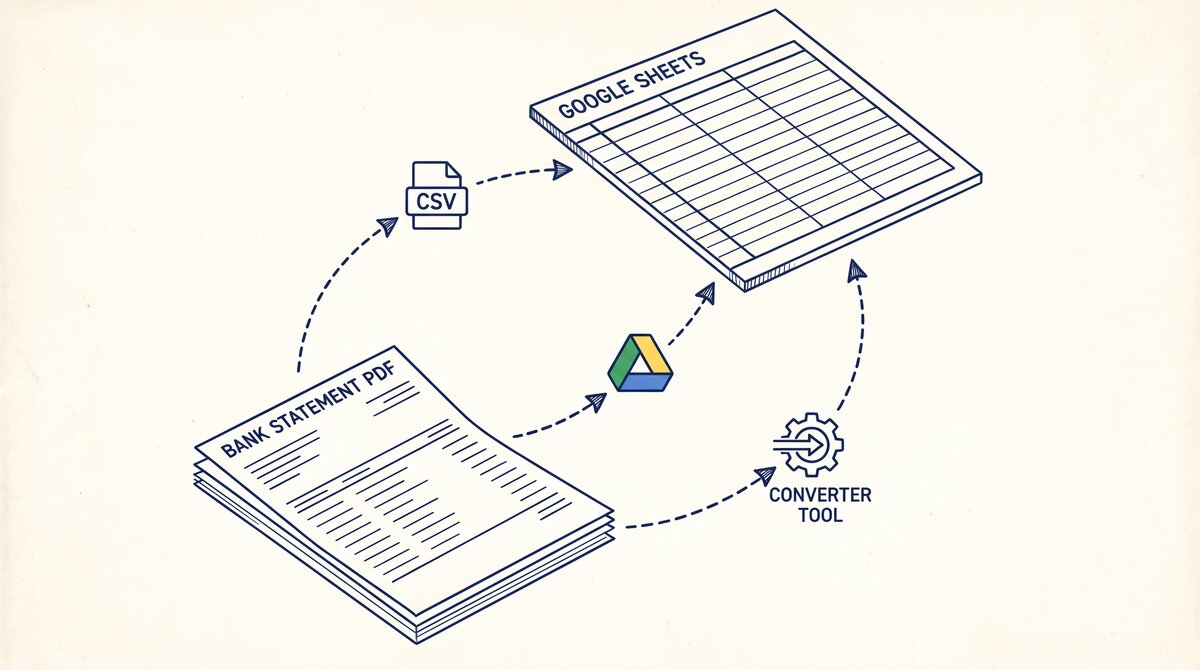
Google Sheets to Excel: File > Download > Microsoft Excel (.xlsx). The file downloads as an XLSX. Formulas, formatting, and charts are preserved. Google Sheets-only features (GOOGLEFINANCE, IMPORTRANGE) are converted to static values or removed. Excel to Google Sheets: File > Import > Upload the XLSX. The file imports as a Google Sheet. Excel-only features (Power Query, complex VBA macros) are not preserved. Both to CSV: File > Download > Comma-separated values (.csv) or File > Download > CSV. The CSV is a portable format that opens in both apps and in any text editor.
For most bank statement workflows, the data is small enough (a few hundred transactions) that the conversion between Sheets and Excel is lossless. The exceptions are formulas that reference external data and complex formatting (conditional formatting rules, custom number formats) that may not transfer cleanly.
The bank statement to Google Sheets and bank statement to Excel conversion paths cover the specific format choices in more detail.
For a deeper understanding, see: google sheets deep dive. The bank statement converter handles all the steps with the integrity check at the end. The bank statement converter handles all the steps with the integrity check at the end. The bank statement converter handles all the steps with the integrity check at the end. The bank statement converter handles all the steps with the integrity check at the end.
Turn any PDF statement into a clean sheet
Skip the typos and the hours of copying. Our converter handles any bank statement format and outputs Excel, CSV, or QBO for QuickBooks. No file retention, free to try.
Convert your statement