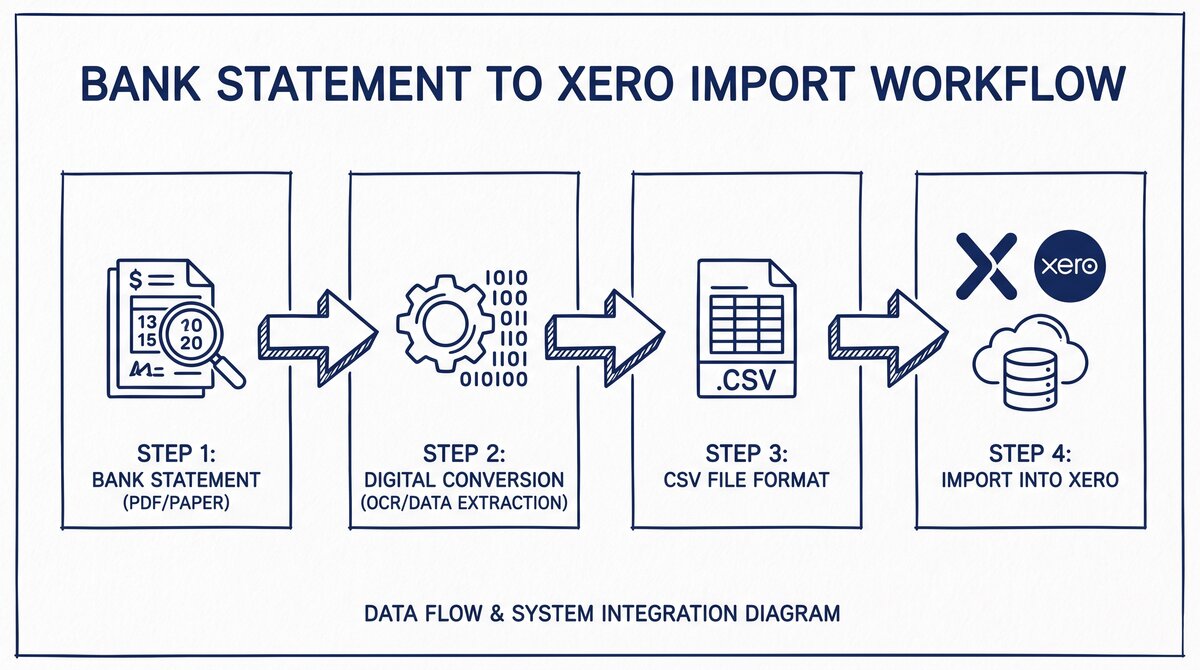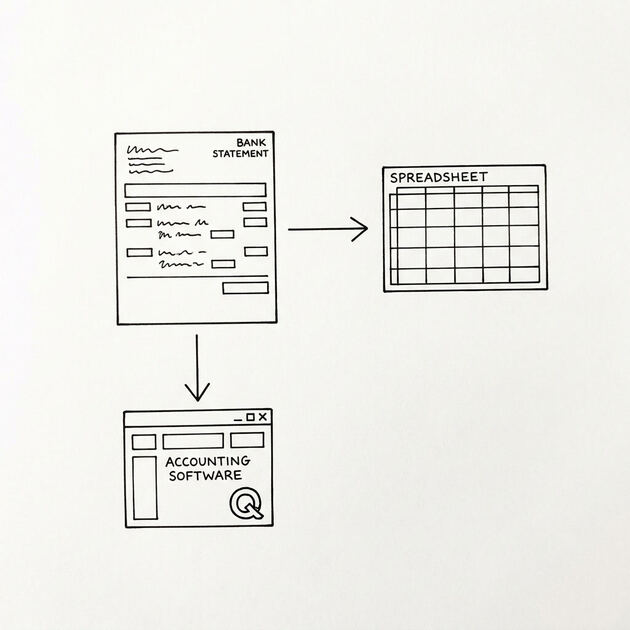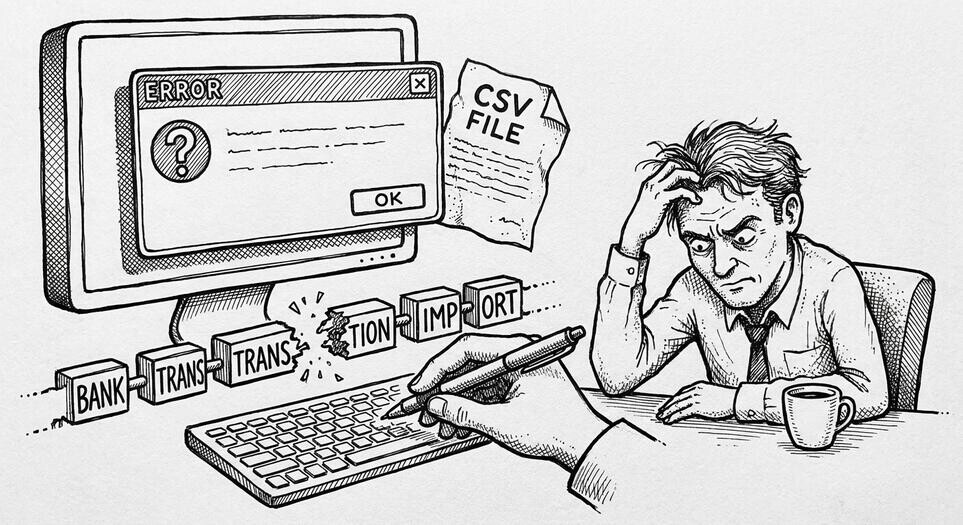

QuickBooks CSV import errors usually have one of 5 causes: wrong date format, wrong column order, wrong sign convention, special characters in Description, or a missing Account column. This page covers the 5 most common errors, the 3-step diagnostic, the 4 fixes, and the 2 things to check before re-importing.
The CSV format guide and the conversion guide are linked below. For the broader QuickBooks workflow, see the QuickBooks conversion guide.
QuickBooks CSV import errors usually have one of 5 causes. The right diagnosis takes 5 minutes. The wrong diagnosis takes an hour. The 3-step diagnostic is: open the CSV in Excel, check the column order against the QuickBooks template, check the date format, check the sign convention.
The 4 fixes are: re-format the date column, re-order the columns, fix the sign convention, and remove special characters. The import then succeeds. The 2 things to check before re-importing: verify the file opens in Excel without errors, and verify the row count matches the source.
For the format guide, see the QuickBooks CSV format guide. For the conversion step, see the QuickBooks conversion guide.
The 8 Most Common QuickBooks CSV Import Errors
Eight errors cause 95% of QuickBooks CSV import failures. Each is listed below with the cause, the fix, and a 1-5 minute resolution.
Error 1: “Your file has no data.” The CSV is empty or has only a header row. Cause: the file wasn’t saved correctly, or the data was filtered out before export. Fix: open the CSV in a text editor and verify the data is there. If the file is empty, re-export from the bank. If it has only a header, the export query was wrong.
Error 2: “We couldn’t recognize the date format.” The date is in a format QuickBooks doesn’t recognize. Cause: the CSV uses YYYY-MM-DD, DD/MM/YYYY in a US QuickBooks, or some other format. Fix: open the CSV in Excel, use Text to Columns, set the date format to MM/DD/YYYY with 4-digit year, save as CSV. The format spec is on the page.
Error 3: “Amount must be a number.” The amount column has non-numeric values. Cause: currency symbols ($), thousand-separating commas (1,234.56 in EU), or text values. Fix: remove $ signs, remove thousand separators, use a single decimal point. Use Find and Replace in Excel.
Error 4: “We couldn’t match any data.” QuickBooks couldn’t figure out which column is which. Cause: the column order doesn’t match what QuickBooks expects, or the column names don’t match. Fix: use the column order Date, Description, Amount, Balance. Don’t add extra columns. Use the standard column names in the header.
Error 5: “The file is too large.” The CSV has more than ~5,000 rows or is more than 2MB. Cause: too many transactions for one file. Fix: split the CSV into smaller files by month or by transaction type. Or use QBO format which handles larger files better.
Error 6: “Account not found.” The CSV references an account that doesn’t exist in QuickBooks. Cause: the bank account in the CSV doesn’t match any account in your Chart of Accounts. Fix: create the bank account in QuickBooks first (Chart of Accounts > New > Bank), then re-import. The account name must match exactly.
Error 7: “Duplicate transactions.” QuickBooks detects transactions that already exist. Cause: the same statement was imported twice. Fix: undo the import in QuickBooks, check the date range, re-import only the missing dates. Or use the “Add to existing” option if QuickBooks prompts.
Error 8: “Balance doesn’t match.” The closing balance in the CSV doesn’t match QuickBooks’ expected balance. Cause: missing transactions in the CSV, or the date range doesn’t start at zero. Fix: verify the CSV includes all transactions for the date range. Check that the opening balance for the first transaction is the correct starting balance.
These 8 errors cover 95% of import failures. The remaining 5% are usually encoding issues (covered on the format page) or QuickBooks-specific bugs that require a workaround.
The 2am Fix: When the Error Message Is Unclear
When you see a generic “import failed” or “couldn’t process file” error, the cause is almost always one of these 4 things. Try them in order.
Fix 1: Switch to QBO format. Most CSV import errors go away when you use QBO instead. The conversion guide has the workflow. 90% of the time, this is the fastest fix.
Fix 2: Verify the date format. 80% of “unrecognized format” errors are date issues. Open the CSV in Excel. The date column should be MM/DD/YYYY. If it’s not, use Text to Columns to convert. The format spec is on the page.
Fix 3: Verify the column order. The order must be: Date, Description, Amount, Balance. Reorder the columns in Excel if needed. Don’t add extra columns before, between, or after. QuickBooks imports only the first 4 columns if you have the right order; extra columns confuse the import.
Fix 4: Save as UTF-8 without BOM. 90% of “couldn’t read file” errors are encoding issues. Open the CSV in Notepad++ or VS Code, save as UTF-8 without BOM. Or re-export from Google Sheets (which is BOM-free).
If all 4 fixes don’t work, the issue is likely a QuickBooks-specific bug. Check the QuickBooks support forums or contact support.


Turn PDF Bank Statements Into Workable Spreadsheets
Your bank statement is a mess of numbers, but your books shouldn't be. Use our converter to get Excel, CSV, or QBO files — ready for QuickBooks.
Try It Free NowThe 3 Errors That Look Like File Problems but Are Not
Three errors look like file issues but are actually QuickBooks configuration issues. The CSV is fine; QuickBooks needs a setting change.
Error A: “Your QuickBooks account is in a different currency.” The CSV has transactions in a currency that doesn’t match the account. Cause: the bank account in QuickBooks is set to USD, but the CSV has EUR transactions. Fix: change the account’s currency in QuickBooks, or convert the CSV to the account’s currency. The Chart of Accounts edit page has the currency setting.
Error B: “Your subscription doesn’t support this feature.” The CSV import is gated behind a paid QuickBooks plan. Cause: the bank feed or batch import feature is on the higher tier. Fix: upgrade the QuickBooks plan, or import transactions one at a time. The simple desktop import is free; the bank feed is paid.
Error C: “Account locked by another user.” Another QuickBooks user has the account open in single-user mode. Cause: another bookkeeper is editing the same account. Fix: ask the other user to close the file, or import from a different account context. Multi-user mode doesn’t have this issue.
These 3 errors look like file issues but are not. The fix is in QuickBooks settings, not the CSV.
How to Debug a CSV Import Error in 5 Minutes
When the import fails and the error message is unclear, follow this 5-step debugging process. Each step takes 1 minute. Total: 5 minutes.
Step 1: Open the CSV in a text editor. Notepad on Windows, TextEdit on Mac, or VS Code. The CSV is plain text. Verify the data is there and looks right. Check the first few rows for obvious issues.
Step 2: Check the date format. Find a few dates. Are they MM/DD/YYYY, DD/MM/YYYY, or something else? If they’re not MM/DD/YYYY, that’s likely the issue.
Step 3: Check the amount values. Look at a few amount values. Are they pure numbers (1234.56) or do they have currency symbols, thousand separators, or text? If not pure numbers, that’s the issue.
Step 4: Check the column order. Count the columns. The first 4 should be Date, Description, Amount, Balance. If the order is different, that’s the issue.
Step 5: Try a different format. If the CSV import is still failing, switch to QBO. The QBO format avoids 90% of CSV import issues. The conversion guide has the workflow.
If all 5 steps fail, the issue is in QuickBooks (account settings, subscription, or a bug). Check the QuickBooks support forums or contact support.
When to Switch from CSV to QBO
For 95% of bookkeepers, QBO is the right format. The CSV is the fallback when QBO isn’t available.
Switch to QBO when: the CSV import is failing for unclear reasons, the bank offers QBO export, you want a continuous bank feed instead of one-time import, or you’re importing more than 1,000 transactions per month.
Stay with CSV when: the bank doesn’t offer QBO, the import is for journal entries (not bank transactions), or you’re doing a one-time historical import and the CSV works.
QBO is the future-proof format. CSV is the legacy format. If you’re starting fresh, use QBO. If you have an existing CSV workflow that works, keep it. The conversion guide covers when to switch.
The 4 Tools to Use for Debugging
Four tools make debugging faster. Each is free or already on your computer.
Tool 1: Notepad or TextEdit. Open the CSV in plain text. No formatting, no formulas. This is the ground truth for what’s in the file.
Tool 2: Excel or Google Sheets. Open the CSV in a spreadsheet. Use Text to Columns to fix date formats. Use Find and Replace to fix amount values. Use Save As CSV to re-export.
Tool 3: VS Code or Notepad++. Open the CSV in a text editor with encoding support. Save as UTF-8 without BOM. This fixes 90% of “couldn’t read file” errors.
Tool 4: The converter. If the CSV is from a bank statement PDF, use the converter to re-extract the CSV. The converter’s CSV output is always in the right format. The conversion guide has the workflow.
These 4 tools cover 99% of debugging needs. The 1% remaining is unusual QuickBooks bugs.
From Bank Statement to QuickBooks-Ready File
That manual cleanup you just read about? This tool skips it. Turn your PDF into QBO for QuickBooks without storing your data anywhere.
Start Converting