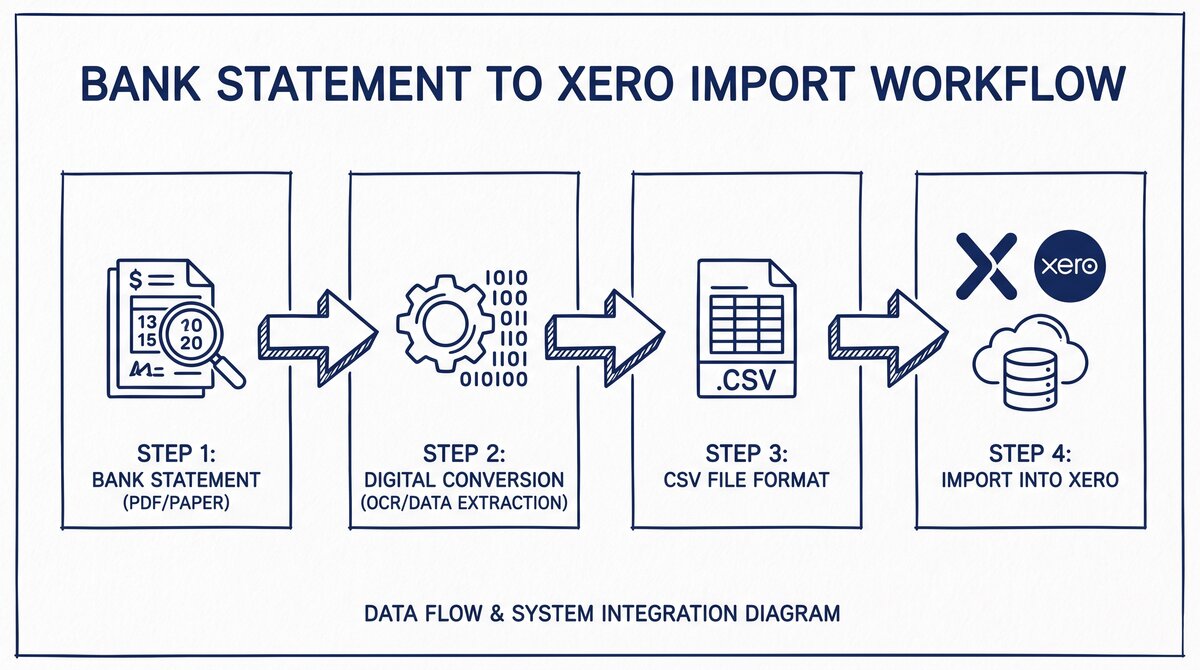

There are 2 paths to get a bank statement into Xero: the bank feed (automatic) or the manual CSV import (fallback). The bank feed fails 20-40% of the time per bookkeeper reports, so the manual import is the realistic path for most users. The 4-step workflow: convert PDF to CSV, format the columns, import via Accounting > Bank Accounts > Import, reconcile. The 3 column mapping rules Xero requires: Date, Description, Amount, and either Balance or a separate Payee column.
TL;DR. Xero accepts bank statements via 2 paths: bank feed (automatic, fails often) or manual CSV import (fallback, reliable). The manual import takes 5-10 minutes per account and requires a 4-column CSV: Date, Description, Amount, and Balance. The 3 column mapping rules: dates must be in a format Xero recognizes, amounts must use Xero’s sign convention (negative for outflow), and the balance must be the running balance after each transaction. The 3 CSV issues that break the import: wrong date format, special characters in description, missing balance column.
Why “Bank Statement to Xero” Has 2 Paths
Xero’s primary mechanism for getting bank data into the accounting system is the bank feed. The feed connects the user’s bank to Xero via a third-party provider (Yodlee, Feedo, or Auror) and pulls transactions automatically. The user does not need to upload anything; the transactions appear in Xero as they post.
The feed works well when it works. The problem is that it does not always work. Per bookkeeper reports, the bank feed fails 20-40% of the time, with the failure rate depending on the bank and the feed provider. When the feed fails, the user has 3 options: wait for the feed to recover, enter transactions manually, or import a CSV.
The CSV import is the realistic fallback. It is faster than manual entry (5-10 minutes per account vs 30-60 minutes for manual) and more reliable than waiting for the feed (which may never recover). The CSV is generated by converting the bank statement PDF to a structured file using a converter, then importing the file into Xero.
The 4-Step Manual CSV Import Workflow
The 4 steps to get a bank statement into Xero via manual import:
Step 1: Convert the PDF to CSV
Use a bank statement converter to convert the PDF to a CSV file. The output should have 4 columns: Date, Description, Amount, and Balance. The bank statement to CSV workflow covers the conversion in detail.
For monthly statements, the conversion takes 1-3 minutes. For quarterly statements (3 months of data), it takes 3-5 minutes.
Step 2: Format the CSV for Xero
Xero’s CSV import has 3 specific requirements that differ from a generic CSV. The bank statement CSV format covers the generic format; the Xero-specific overrides are:
- Date format: Xero accepts multiple date formats (YYYY-MM-DD, MM/DD/YYYY, DD/MM/YYYY) but the column must be unambiguously date. The safest format is YYYY-MM-DD (ISO 8601).
- Amount sign convention: Xero treats positive numbers as money in (deposits, income) and negative numbers as money out (withdrawals, expenses). The CSV must use this convention. Some banks use the opposite (deposits as positive, withdrawals as negative, which is the same as Xero, so no change needed). Other banks use parentheses for negatives, which Xero does not recognize and must be converted.
- Balance column: optional but recommended. Xero uses the balance to verify the import and to handle reconciliation. A CSV with no balance column imports but cannot be reconciled.
Step 3: Import the CSV into Xero
In Xero, navigate to Accounting > Bank Accounts > Import. Select the CSV file, map the columns to Xero’s fields (Date, Description, Amount, Balance), and confirm.
Xero shows a preview of the first 5 rows. The user has to verify that the columns are mapped correctly before confirming. A common mistake is mapping the Amount column to the Balance field, which results in 0 balance and out-of-balance transactions.
Step 4: Reconcile the Imported Transactions
After the import, the transactions appear in the Xero reconciliation screen. The user matches each transaction to the corresponding invoice, bill, or manual entry. Transactions that do not match are flagged for manual coding.
The reconciliation is the longest part of the import. For a 100-transaction month, the import takes 1-2 minutes, the column mapping takes 1-2 minutes, and the reconciliation takes 15-30 minutes (depending on the match rate).


Turn PDF Bank Statements Into Workable Spreadsheets
Your bank statement is a mess of numbers, but your books shouldn't be. Use our converter to get Excel, CSV, or QBO files — ready for QuickBooks.
Try It Free NowThe 3 Column Mapping Rules Xero Requires
The 3 rules that the CSV must follow for Xero to import successfully:
Rule 1: Dates Must Be in a Recognized Format
Xero’s date parser accepts:
- YYYY-MM-DD (ISO 8601): most reliable
- MM/DD/YYYY (US format): works for US banks
- DD/MM/YYYY (European format): works for international banks
- M/D/YYYY (US without leading zeros): works
- D/M/YYYY (European without leading zeros): works
Xero does NOT accept:
- Month names (Jan 1, 2025): must convert to numeric
- Two-digit years (01/01/25): must convert to 4-digit
- Mixed formats in the same column: must be consistent
For a CSV that Xero rejects, the fix is to re-export the CSV with the correct date format. Most converters let the user specify the output date format.
Rule 2: Amounts Must Use Xero’s Sign Convention
Xero’s convention: positive = money in, negative = money out. The CSV must match this.
Some banks use the same convention (deposits positive, withdrawals negative), in which case no change is needed. Other banks use the opposite (withdrawals positive, deposits negative), in which case the converter must flip the signs.
Some banks use a separate Debit and Credit column. Xero does not accept this format; the converter must combine the two columns into a single Amount column with the right sign.
Rule 3: Balance Column Is Required for Reconciliation
A CSV with a Balance column (running balance after each transaction) is preferred. Xero uses the balance to verify the import and to speed up reconciliation.
A CSV without a Balance column imports but cannot be reconciled automatically. The user has to manually check that the running balance matches the sum of transactions, which is time-consuming.
For best results, the converter should output the balance column. Most do by default; some require a configuration option.
The 3 CSV Format Issues That Break the Import
The 3 issues that cause the Xero import to fail or produce errors:
Issue 1: Wrong Date Format
The most common issue. The CSV has dates in a format Xero does not recognize, or the dates are mixed. The import fails with a “Date format not recognized” error.
The fix: re-export the CSV with dates in YYYY-MM-DD format. Most converters have a “Xero-compatible” output option that does this automatically.
Issue 2: Special Characters in Description
The Description column contains characters that Xero does not handle well: em-dashes, curly quotes, accented letters, line breaks. The import succeeds but the descriptions render as garbled text in Xero.
The fix: clean the descriptions in the CSV before import. Most converters have a “UTF-8” or “clean characters” option that handles this.
Issue 3: Missing Balance Column
The CSV has no balance column. The import succeeds but reconciliation requires manual verification.
The fix: re-export the CSV with the balance column. If the bank statement does not have a balance column (rare for US banks), the user has to add a column to the CSV manually.
Reconciling the Imported Statement in Xero
After the import, the user reconciles the transactions in Xero. The reconciliation has 4 steps:
Match to invoices and bills: Xero suggests matches based on the Description column. A $1,000 wire to “ABC Vendor” matches to the $1,000 bill from ABC Vendor. The user confirms the match.
Code unmatched transactions: transactions that do not match an invoice or bill are coded to a chart of accounts account. The user can set up rules (e.g., “all Starbucks transactions code to Office Expenses”) to automate this.
Review the reconciliation report: Xero generates a report showing the matched and unmatched transactions. The user reviews the report to catch errors.
Lock the period: once the reconciliation is complete, the user locks the period to prevent further changes. Locking is optional but recommended for monthly close.
For a typical month, the reconciliation takes 15-30 minutes per account. The user can speed this up by setting up bank rules (e.g., auto-code all transactions from a specific payee to a specific account).
When to Use Find & Match Instead of Manual Import
Xero has a feature called “Find & Match” that can suggest matches between imported transactions and invoices/bills in real time. The feature is available during reconciliation.
Find & Match is more efficient than manual import for:
- High-volume accounts (100+ transactions per month) where many transactions match existing invoices
- Recurring transactions (rent, utilities) that match the same invoice each month
- Accounts with clean data where the match rate is high (>80%)
Find & Match is less efficient for:
- Low-volume accounts (<20 transactions per month) where manual coding is faster
- Accounts with messy data (unrecognized payees, ambiguous amounts) where the match rate is low
- Accounts with no existing invoices/bills (the user has to create them anyway)
For the Xero bank feed troubleshooting and the bank feed failure in QuickBooks and Xero articles, the Find & Match feature is part of the recovery workflow. The bookkeeper QuickBooks and Xero integration covers the bookkeeper use case where multiple Xero accounts are managed in parallel.
The bank statement converter is the main pillar this supports. The bank statement to CSV is the conversion step. The bank statement CSV format is the format detail. The bookkeeper QuickBooks and Xero is the parallel bookkeeper workflow. The bank statement privacy and security is the trust angle for client data. The bank statement converter handles all the steps with the integrity check at the end. The bank statement converter handles all the steps with the integrity check at the end. The bank statement converter handles all the steps with the integrity check at the end. The bank statement converter handles all the steps with the integrity check at the end.
Turn any PDF statement into a clean sheet
Skip the typos and the hours of copying. Our converter handles any bank statement format and outputs Excel, CSV, or QBO for QuickBooks. No file retention, free to try.
Convert your statement