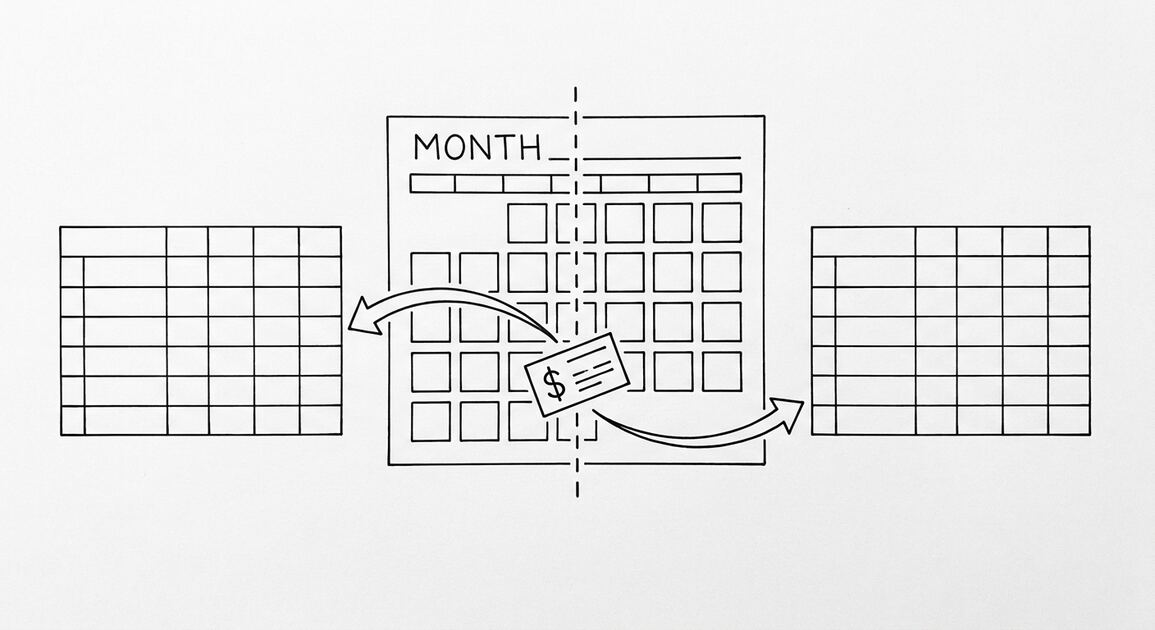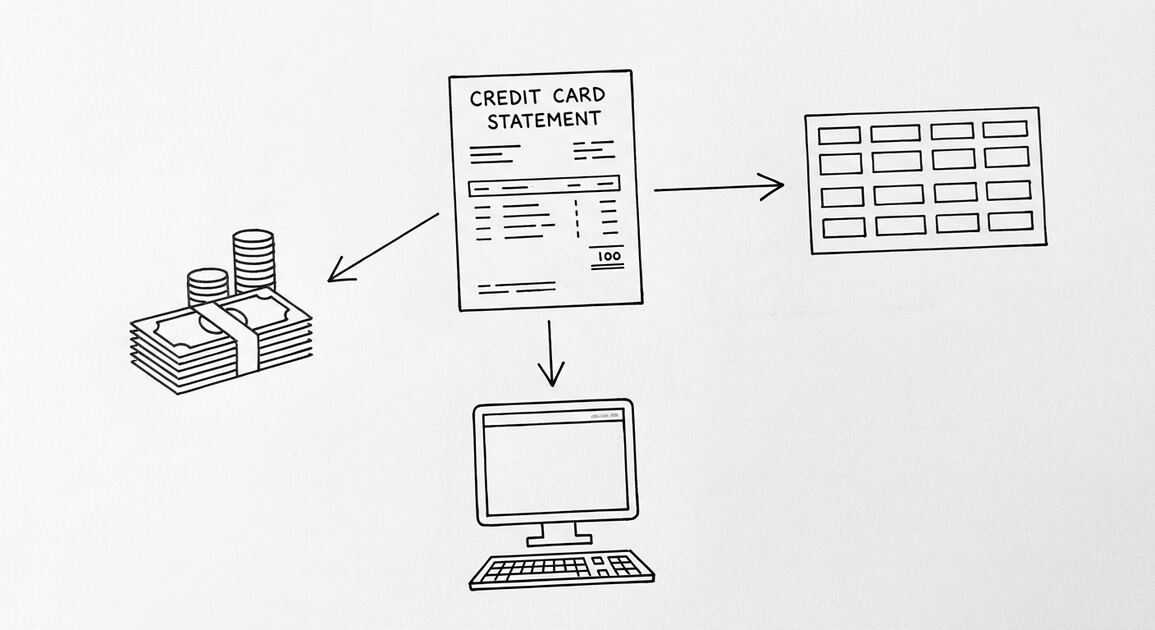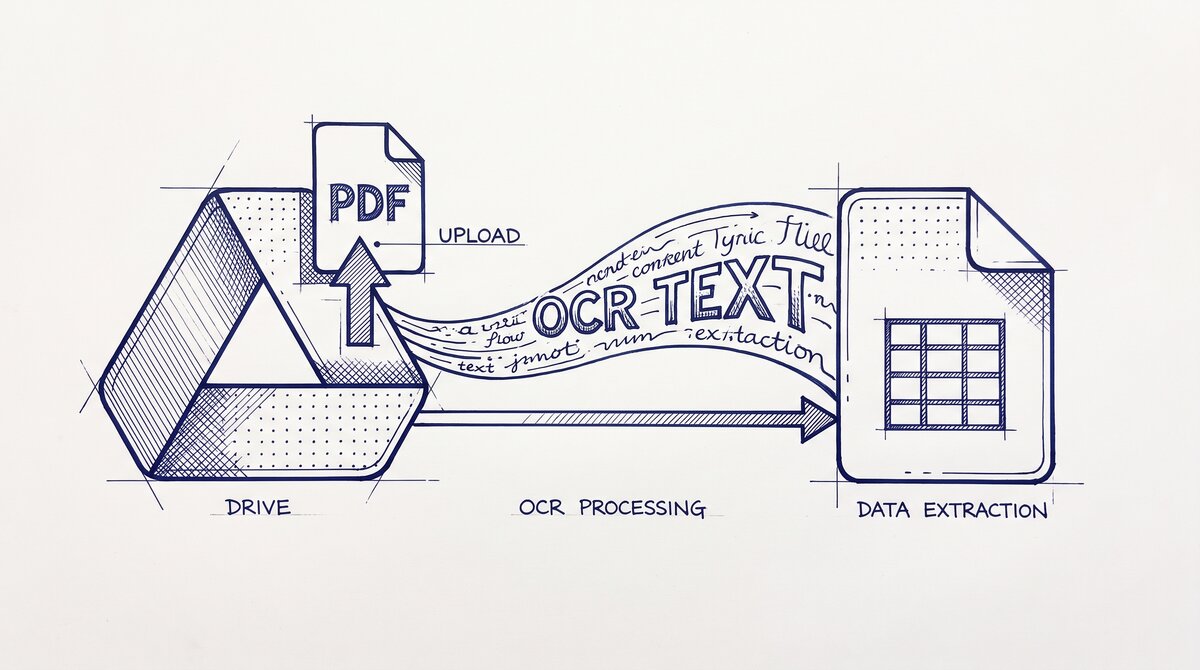

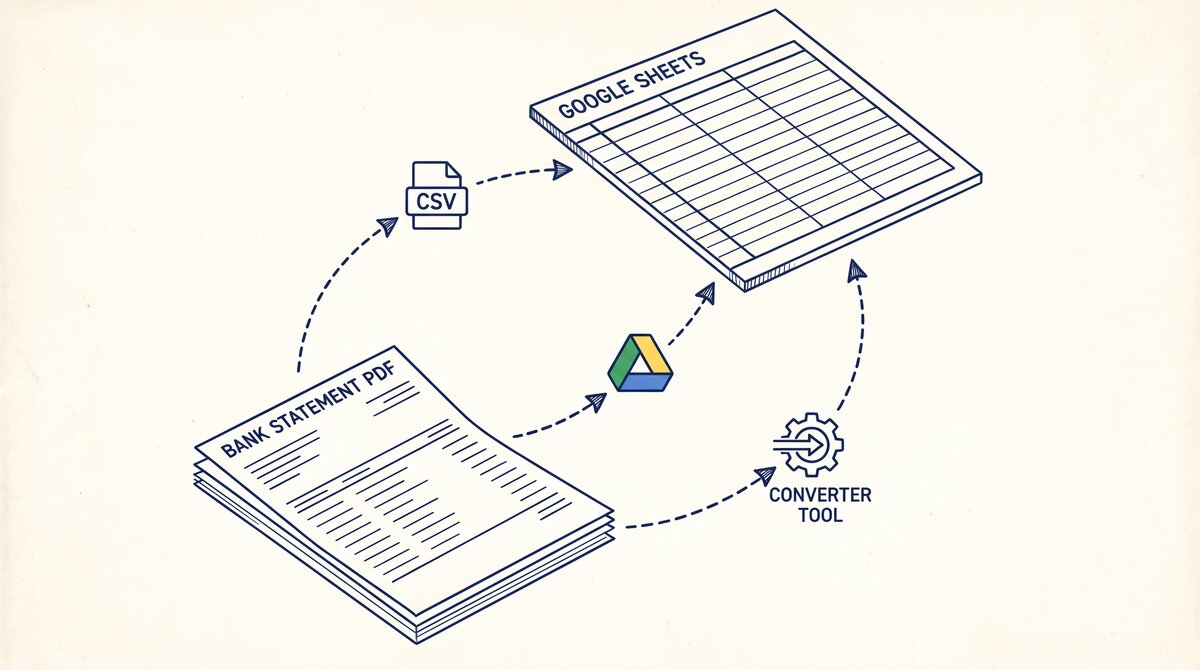
The free path to get a bank statement into Google Sheets runs entirely inside Google: upload the PDF to Drive, open it as a Google Doc, and copy the text into a Sheet. No third-party tools, no monthly fees, no data leaving the Google ecosystem. The catch: the result is not a clean table. It is a text dump with one OCR line per visual line in the PDF, and the user has to do the table reconstruction work.
TL;DR. To use Google Drive OCR for a bank statement: upload the PDF to Drive > right-click > Open with Google Docs > wait for OCR > select the transaction rows > copy > paste into a Sheet > use Data > Split text to columns. The path is fully free and stays inside Google, but the output is a per-visual-line text dump, not a table. It works for short clean digital PDFs (1-2 pages) and breaks for scanned or multi-page statements.
The “Free” Path: Uploading a PDF to Google Drive and Opening It as a Doc
Google Drive’s built-in PDF-to-Google-Docs feature is the closest thing to a free, zero-tool PDF-to-Sheets converter.
What most guides miss about Google Sheets conversion is that the quality depends on the mechanism, not on the tool. Two tools that look different on the surface often run the same 4-step process underneath: read, find, parse, verify. The difference is in how well each step handles edge cases (merged cells, missing balances, non-standard date formats, scanned vs digital input). Choosing between tools based on UI alone misses the actual quality lever.
The OCR Mechanism
The mechanism is OCR: Google runs its text recognition engine on every page of the PDF and produces an editable Google Doc that approximates the visual layout.
The OCR engine is the same one that powers Google Lens, Google Translate, and Google Search by Image. It is among the best general-purpose OCR engines available, with character-level accuracy above 99% for typed text in digital PDFs and 80-90% for clean scans. The accuracy drops for low-resolution scans, handwritten text, and special characters in non-Latin scripts.
Why the Output Is a Doc, Not a Sheet
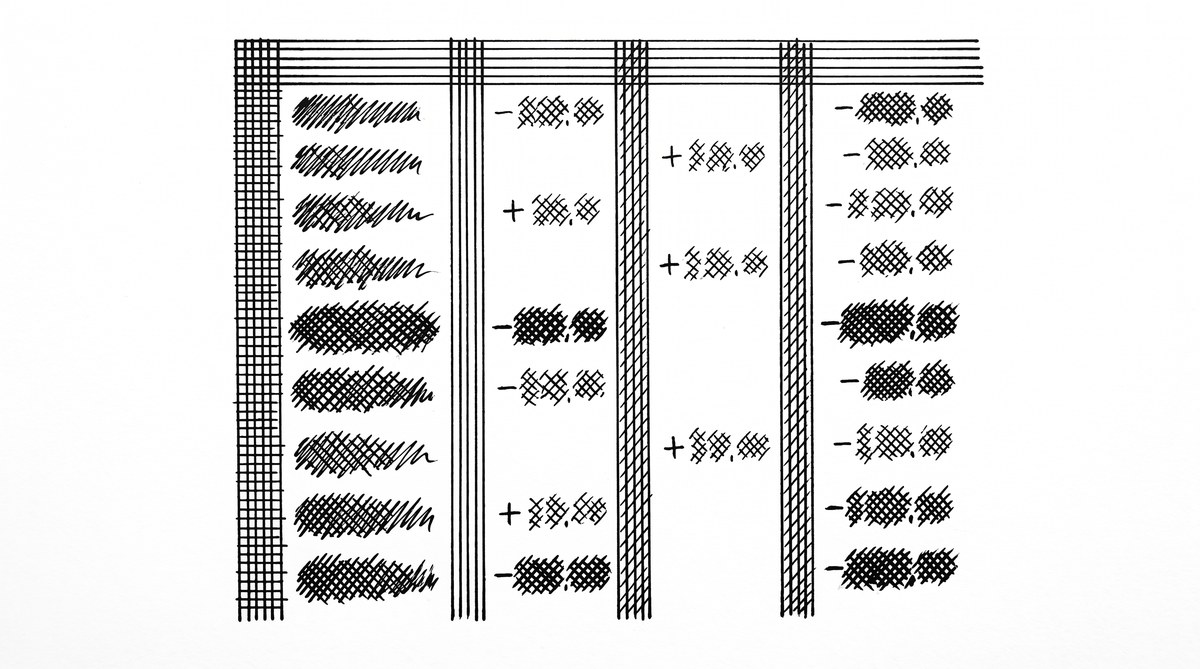
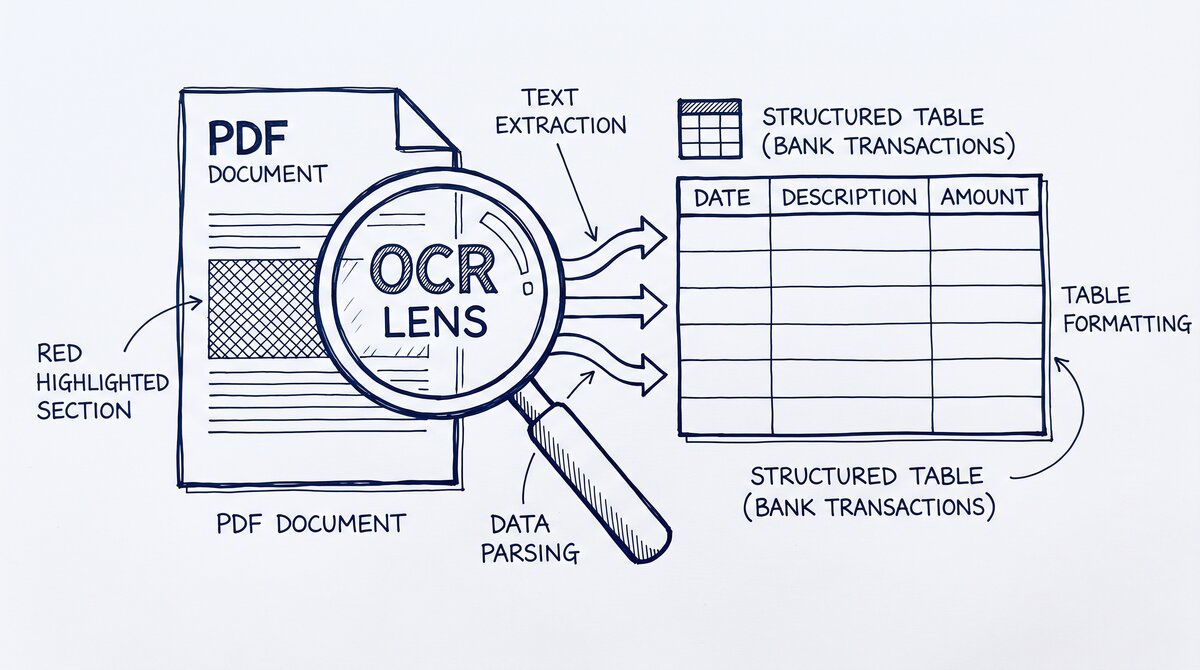
The key distinction the user has to understand: the OCR engine produces a Google Doc, not a Sheet. The output is a text document with one paragraph per visual element in the PDF. A bank statement with 50 transactions, each on a single visual row, becomes a Google Doc with 50 paragraphs of text, each containing the date, description, amount, and balance separated by spaces. The user has to manually split this into columns in a Sheet.
The convert PDF to Google Sheets sub-pillar covers the alternatives for cases where this manual reconstruction is too slow.
Step-by-Step: From Drive Upload to a Clean Google Sheet
The procedure that produces a usable Sheet from a short, clean PDF bank statement.
The 7-Step Procedure
Open Google Drive in a browser. Click “New > File upload” and select the bank statement PDF. Wait for the upload to complete (usually 5-10 seconds for a 1-2 MB PDF).
Once uploaded, right-click the PDF in Drive. Choose “Open with > Google Docs.” A new browser tab opens with a Google Doc. The first few seconds show “Converting…” while the OCR runs. For a 2-page statement, the OCR finishes in under 30 seconds.
The Google Doc shows the OCR’d text with a best-effort layout. The transaction table is now a block of text with each transaction on a paragraph. Some transactions span multiple paragraphs (if the original PDF had a long merchant name that wrapped to a second line).
Click and drag to select just the transaction block in the Google Doc. Avoid the header (account number, statement period) and the footer (page number, “continued on next page” text). Copy the selection with Ctrl+C.
Open a new Google Sheet. Click on cell A1, paste with Ctrl+V. The text pastes as a single column.
Select the pasted column. Go to Data > Split text to columns. Choose “Space” as the separator (the OCR usually separates fields with spaces). Click “Split.”
The result is a Sheet with the date, description, amount, and balance in separate columns. Some columns may need manual adjustment (dates may be in the wrong format, descriptions may be split across columns, amounts may be text instead of numbers).
The Time Budget
The procedure takes 2-5 minutes for a 1-2 page digital PDF. The output is good enough for personal use: the data is in a Sheet, it can be sorted and filtered, and the user can reference the data with formulas. The bank statement data extraction pillar covers the broader category of data extraction paths.
From PDF to Excel in one click
Forget retyping line by line. Upload any bank statement, get a spreadsheet you can actually use. Your files are never stored, and you can test the converter with 3 free conversions.
Try it freeWhere This Path Breaks: Scans, Multi-Page Statements, and Merged Cells
Three scenarios break the Drive OCR path.
Scanned PDFs
When the bank statement is a scan of a paper statement, the OCR accuracy drops. Common errors: misread digits in amounts (a “1” read as a “7”), misread letters in merchant names, and missed characters in low-contrast areas. A 50-transaction statement with 90% accuracy has 5 errors that the user has to find and fix manually.
Multi-Page Statements
Each page of the PDF becomes a separate block of text in the Google Doc. The user has to manually copy each page’s transactions into the same Sheet. For a 10-page statement with 300 transactions, this is 10 copy-paste operations, each of which produces its own column-splitting cleanup. The total time approaches an hour.
Merged Cells and Complex Layouts
Some bank statements have a “debit/credit” column that spans two columns (one for the amount, one for a category code). The OCR cannot represent this as two separate fields. The result is a single column with both values mixed. The fix requires manual editing, not just data splitting.
The pattern: the Drive OCR path works for short, clean, digital PDFs and degrades quickly as the statement gets longer, more complex, or scanned. Users who handle more than 2-3 statements a month from different banks find the path too slow.
Comparing Drive OCR to a Dedicated Converter
The comparison is on three dimensions: time, accuracy, and structure.
Time
Drive OCR takes 2-5 minutes for a short statement and 30-60 minutes for a multi-page statement with cleanup. A dedicated converter takes 30 seconds to 2 minutes for the same input.
Accuracy
Drive OCR has 90-99% character-level accuracy for digital PDFs, 80-90% for clean scans. A dedicated converter built for bank statements has table-aware parsing that handles the common bank statement layouts, and character-level accuracy in the 98%+ range for both digital and scanned PDFs.
Structure
Drive OCR outputs a per-visual-line text dump that requires manual column splitting. A dedicated converter outputs a structured table with the columns pre-identified and the transactions pre-aligned.
The trade-off: Drive OCR is free and stays inside Google, but it is slow and error-prone for non-trivial statements. A dedicated converter is faster and more accurate but requires trusting a third-party tool with the bank statement data.
When Drive OCR Is Good Enough (and When It Is Not)
When Drive OCR Is the Right Choice
Drive OCR is good enough when the statement is 1-2 pages, the PDF is digital (not a scan), the user is comfortable doing 5-10 minutes of manual cleanup, the statement is for personal use rather than an audit-quality workflow, and the user has strict data sensitivity rules that prevent using third-party tools.
When Drive OCR Is Not Enough
Drive OCR is not good enough when the statement is 5+ pages with consistent transaction tables, the PDF is a scan of a paper statement, the data feeds into a bookkeeper, accountant, or business workflow that requires clean structured data, or the user handles 10+ statements a month.
For the “not good enough” cases, the bank statement to Google Sheets converter path replaces Drive OCR with a tool purpose-built for the task. The PDF to Sheets conversion sub-pillar covers the trade-offs in more detail.
For a deeper understanding, see: google sheets deep dive. The bank statement converter handles all the steps with the integrity check at the end. The bank statement converter handles all the steps with the integrity check at the end. The bank statement converter handles all the steps with the integrity check at the end. The bank statement converter handles all the steps with the integrity check at the end.
From Bank Statement to QuickBooks-Ready File
That manual cleanup you just read about? This tool skips it. Turn your PDF into QBO for QuickBooks without storing your data anywhere.
Start Converting