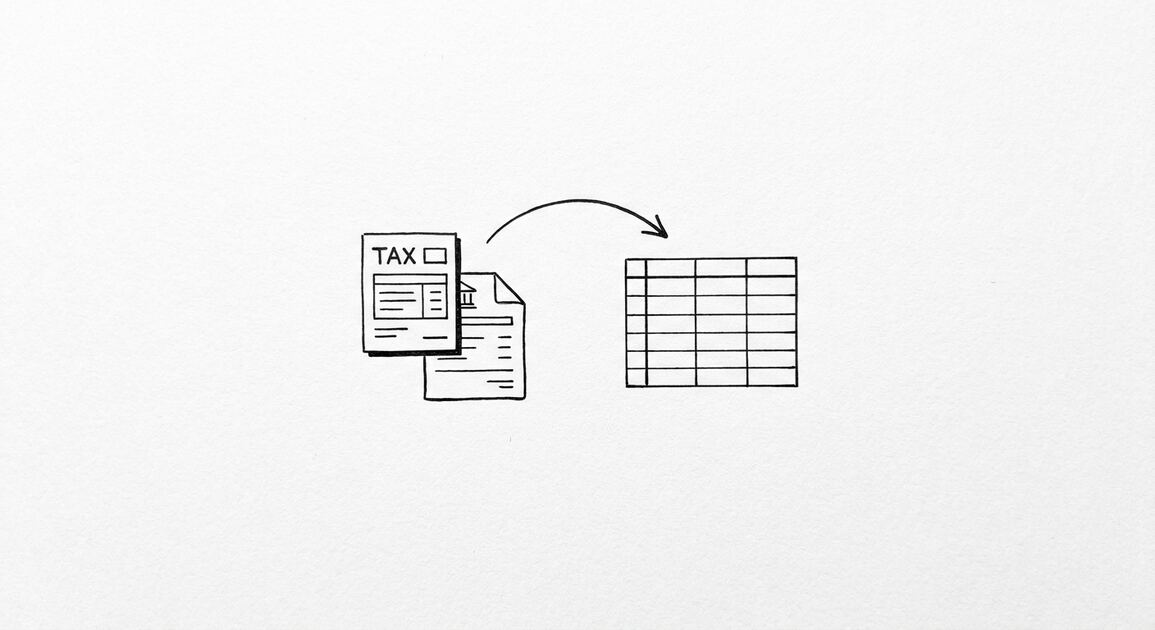

Credit card statement to Excel conversion takes a PDF and turns it into a structured .xlsx workbook. This page covers the output format, the sign convention, the merchant category, and the 4 pitfalls to avoid.
The credit card-specific conversion guides for 5 major US cards are linked below. For the broader credit card conversion workflow, see the credit card statement guide.
Related Deep Dives
For the deeper concepts that affect credit card to Excel conversions, see these focused pages.
- Credit card sign convention: the standard rule (charges positive, payments negative) and the 3 industry conventions, with 5 edge cases (refunds, chargebacks, FX, fees, interest) and the math verification that catches errors.
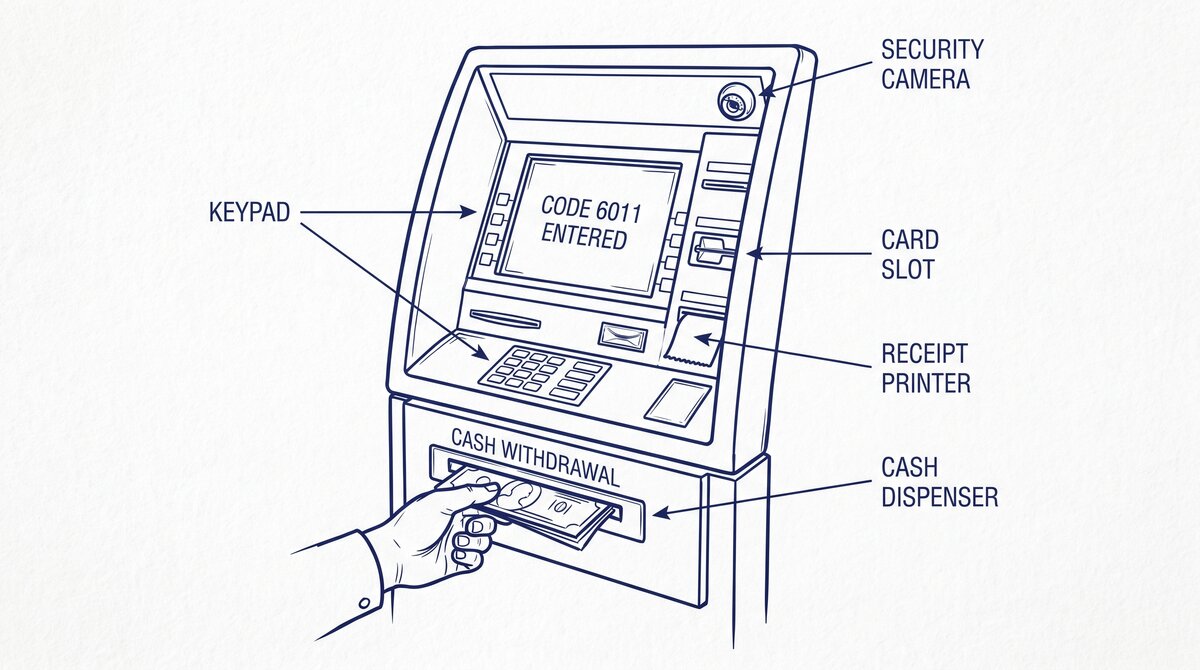
- Merchant Category Code (MCC): the 4-digit code assigned by the card network, with the 10 major MCCs and the IRS Schedule C mapping for tax prep.
- Authorization hold: the pending charge that reduces available credit but is invisible to the Excel converter, with the 3 transaction states and the hold duration table.
- Statement balance: the 5 balance types (statement, current, available credit, minimum payment, total), with which one the Excel file shows and which are in the issuer’s portal.
- Refund fix: the 3 most common refund errors (positive sign, missing, cross-statement) and the 3 manual fixes for each.
- Foreign transaction fix: the 3 most common FX errors (rate looks wrong, fee missing, multi-currency math) and the 3 manual fixes for each.
- Credit card vs bank statement: the 7 key differences (balance meaning, sign convention, transaction types, fees, refunds, credit limit, accounting treatment) with a quick reference table.
Converting a credit card statement to Excel produces a .xlsx workbook with one transaction per row. The columns are Date, Description, Amount, and Merchant Category. The balance column is optional. The output opens cleanly in Excel, Google Sheets, and Numbers.
For credit card statements, the sign convention matters: charges are positive, payments and refunds are negative. The transaction date is the date the charge was made, not the date it posted. The merchant category (MCC) is included for most cards and is useful for expense categorization.
For specific cards, see the credit card statement guide. For the general workflow, see the Excel guide.
The 4-Column Excel Output
The Excel file from a credit card statement has the same 4 columns as a checking account statement: date, description, amount, balance. The difference is in what each column means.
Date. The transaction date. For charges, this is when the merchant processed the transaction (which may differ from the statement date by 1 to 3 days). For payments, this is when the payment posted. The date format is usually MM/DD/YYYY, but older statements and some issuers use MM/DD/YY.
Description. The merchant descriptor. This is the short code the merchant’s bank passed to the card network. “AMZN MKTPS” for Amazon Marketplace. “STARBUCKS #1234 SEATTLE WA” for Starbucks. “PAYPAL *NETFLIX” for a PayPal-funded Netflix charge. The description is the raw text from the statement, not a cleaned-up merchant name.
Amount. The transaction amount. Positive for charges, fees, and interest. Negative for payments. A $500 charge followed by a $500 payment is +500, -500 in the amount column. The closing balance is the running total.
Balance. What you owe after this transaction. This is the running balance on the card. A $5,000 balance means you owe $5,000. It is not cash you have. The balance increases with charges and decreases with payments.

Turn PDF Bank Statements Into Workable Spreadsheets
Your bank statement is a mess of numbers, but your books shouldn't be. Use our converter to get Excel, CSV, or QBO files — ready for QuickBooks.
Try It Free NowThe Sign Convention Trap
The sign convention is where most credit card conversions go wrong. Three patterns show up in practice, and only one is correct.

Correct: charges positive, payments negative. This matches how QuickBooks, Xero, and most accounting software expect credit card transactions. A $500 charge is +500. A $500 payment is -500. The sum of all amounts in a month equals the net change in balance.
Wrong: all positive. A naive converter outputs all amounts as positive, treating charges and payments the same. The result is a spreadsheet that says you spent $14,000 when you actually spent $11,000 and paid $3,000. The math is wrong by the payment amount. This is the most common sign convention error.
I learned this the hard way on my first Amex conversion. The fix was a 10-minute manual correction, not a re-conversion.
Wrong: all negative. Less common, but some converters default to negative amounts. The result is a spreadsheet where every charge is -$500 and every payment is +$500. The math goes the other way. QuickBooks will reject this on import (it expects charges positive, payments negative).
The 5-Step Conversion Workflow
The workflow is the same as for any bank statement. Each step has a credit-card-specific addition. Total time per statement is 1 to 3 minutes, same as a checking account.
Step 1: Get the PDF
Log into the card issuer’s online portal (Chase, Amex, Capital One, etc.) and download the statement as a PDF. The PDF is the easy case. The full PDF extraction workflow is on the PDF extraction guide. If the statement is paper (mailed to you), the scanned PDF guide has the 5-minute pre-processing that makes paper work.
Step 2: Confirm the sign convention
Before uploading, check the converter’s sign convention. Most modern converters default to “charges positive, payments negative” for credit cards. Some have a setting you can change. If the converter outputs all positive, the output is wrong by the payment amount.
One way to verify: convert one statement, then check the sign of the payment transactions. The payment should be negative. If it is positive, the converter is wrong for credit cards. Switch converters or fix the output manually.
Step 3: Convert and download
Upload the PDF, confirm the detected transaction block, and let the converter run. For digital PDFs, the conversion takes 5 to 30 seconds. The output is an Excel file with 4 columns: date, description, amount, balance. The Excel conversion guide has the format details if you need to understand the column structure.
Step 4: Validate the sign and balance
Open the Excel file. The validation step has 4 specific checks for credit card statements.

Sign check. Sort by amount. The largest negative values should be the payments. If they are not, the sign convention is wrong and the conversion needs to be redone with a different converter or a manual fix.
Count check. Count the transactions on the source statement. Count the rows in the Excel file. They should match. The four credit card transaction types (charges, payments, fees, interest) all count toward the total. If they do not match, the converter missed something.
Balance check. The last row’s balance should match the closing balance on the source statement. The full validation workflow is in the data check guide.
Cross-statement check. The closing balance on this statement should match the “previous balance” on the next month’s statement. If they differ, an error occurred somewhere in the conversion or in your payment history.
Step 5: Reconcile with the payment
The last step is to confirm the payment transactions in the Excel file match the actual payments you made. If you paid $3,000 on the 15th, the Excel file should show a payment of -$3,000 on the 15th (or within 1 to 3 days, depending on the issuer’s processing time).
If the payment is missing or wrong, the conversion missed it. The fix is to add the payment manually as a new row in the Excel file, not to re-convert. Re-converting risks introducing the same error.
Excel Format Details for Credit Cards
The Excel file from a credit card statement has 3 format-specific details that matter for downstream use. Each has a default and a workaround.
The date format
Most US bank statements use MM/DD/YYYY or MM/DD/YY. Some Canadian and European statements use DD/MM/YYYY. The Excel file preserves whatever format the source uses. If you are importing into software that expects ISO 8601 (YYYY-MM-DD), the CSV conversion guide has the fix. For credit card statements, the date format is rarely a problem because most software handles both formats.
The merchant descriptor
The merchant descriptor is the raw text from the statement. “STARBUCKS #1234 SEATTLE WA” is the full text. The store number and city are included. This is useful for tax prep (proving a charge was in a specific city) but messy for budget tracking (you cannot easily group all Starbucks charges).
The fix is a post-conversion step: a merchant lookup. Some converters apply this automatically. Most do not. For manual lookup, a free tool like the Merchant Category Code database (mcc-codes.com) maps descriptors to category codes. Excel can then sort and group by category.
The amount column type
The amount column in the Excel file is a number, not a string. Currency symbols are stripped. The format is plain decimal (e.g., 1234.56, not $1,234.56). This is the right format for arithmetic, sorting, and importing into other software. If you need the dollar signs back, Excel’s number format does that without changing the underlying value.
A common failure mode bookkeepers report is treating this as a single operation rather than a chain of dependent steps. The temptation is to find a tool that ‘just works’ and stop investigating the mechanism. The result is a wrong-fix cycle: the tool gives partial output, the bookkeeper spends 30+ minutes troubleshooting, the fix is for the wrong step, and the same error recurs on the next statement. The fix: identify which step failed and apply the right intervention to that step.
What Excel Is Good For (and What It Is Not)
Excel is the right output when you want to look at the data yourself. It is the wrong output when you want to feed the data into another system.
Good for: monthly expense review, quarterly tax prep, budget tracking, finding trends (which merchants you spend the most at), annual reconciliation. Excel’s sort, filter, and pivot capabilities make it the best tool for human-readable analysis.
Not good for: feeding directly into QuickBooks, Xero, or other accounting software. Those tools prefer QBO (for QuickBooks) or CSV (for everything else). The CSV conversion guide covers the format. The QBO conversion guide covers the QuickBooks-specific workflow.
For more on this, see the ACH vs wire transfer page.
For more on this, see the bank statement for debt consolidation page.
Turn PDF Bank Statements Into Workable Spreadsheets
Your bank statement is a mess of numbers, but your books shouldn't be. Use our converter to get Excel, CSV, or QBO files — ready for QuickBooks.
Try It Free Now