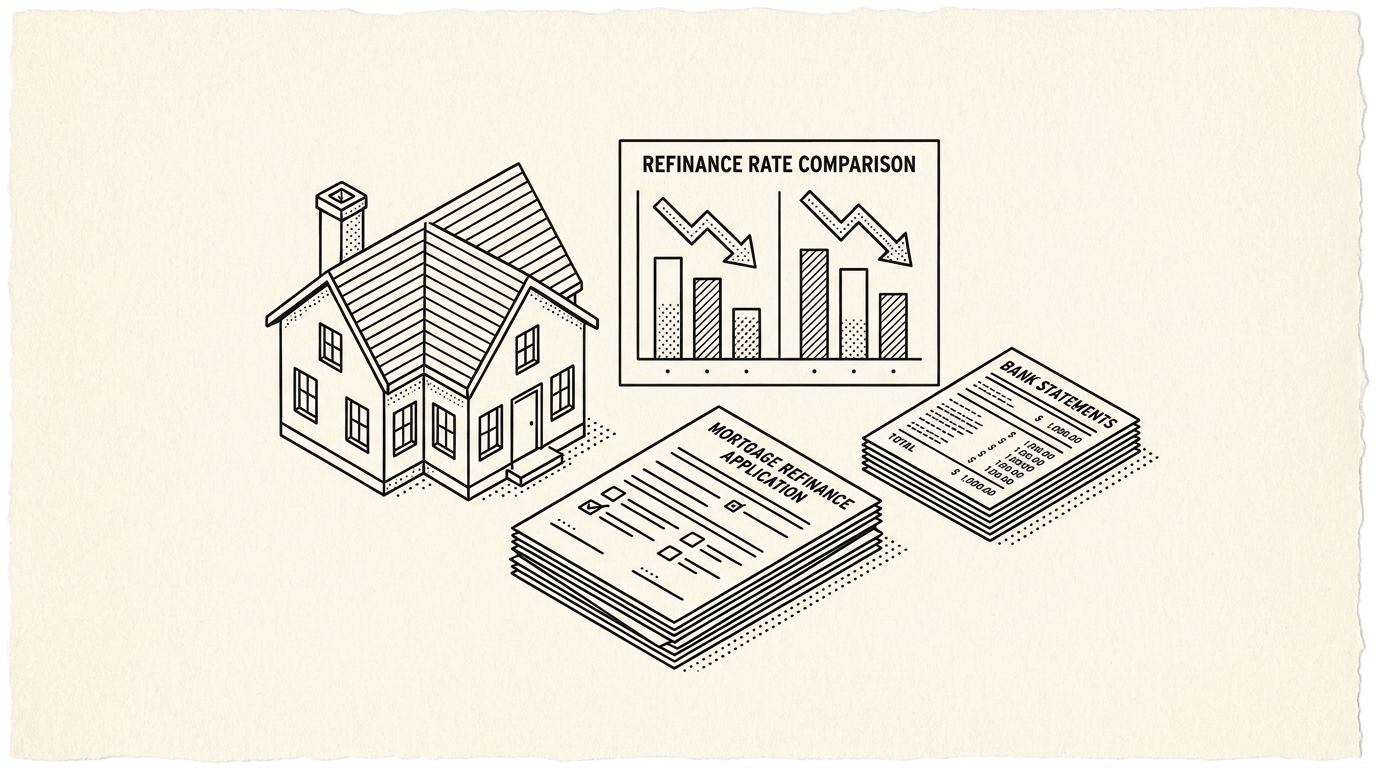

Credit card statement conversion is the process of turning a credit card PDF into a structured file. This page is the directory of credit card statement conversion. It covers the 5 differences from bank statement conversion, the 4 main credit cards, and the 3 things that go wrong.
The detailed guides for each card are linked below. For the broader conversion workflow, see the bank statement to Excel guide.
Related Deep Dives
For the deeper concepts and fixes that come up in credit card conversion, see these focused pages.
What most guides miss about credit card statements is that the quality depends on the mechanism, not on the tool. Two tools that look different on the surface often run the same 4-step process underneath: read, find, parse, verify. The difference is in how well each step handles edge cases (merged cells, missing balances, non-standard date formats, scanned vs digital input). Choosing between tools based on UI alone misses the actual quality lever.
- Credit card to Excel: the Excel-specific guide covering the 4-column output, the sign convention, the 5-step workflow, and the format details.
- Sign convention: the standard rule (charges positive, payments negative) and the 5 edge cases (refunds, chargebacks, FX, fees, interest) with the math verification.
- Refund fix: the 3 most common refund errors and the 3 manual fixes for each.
- Foreign transaction fix: the 3 most common FX errors and how to handle each.
Credit card statement conversion takes a PDF and turns it into a structured .xlsx, .csv, or .qbo file. The columns are Date, Description, Amount, and often Merchant Category Code (MCC). The balance column is optional: credit cards do not have a running balance in the same way bank accounts do.
Credit card statements differ from bank statements in 5 ways: the balance is the statement balance (not running), the sign convention is charges-positive and payments-negative, the date is the transaction date (not the posting date), the MCC is included, and the interest charges are listed separately.
For specific cards, see the credit card to Excel guide. For the general conversion workflow, see the converter guide.
What Makes a Credit Card Statement Different
Four structural differences between a credit card statement and a checking account statement. Each one changes how the conversion has to handle the data.
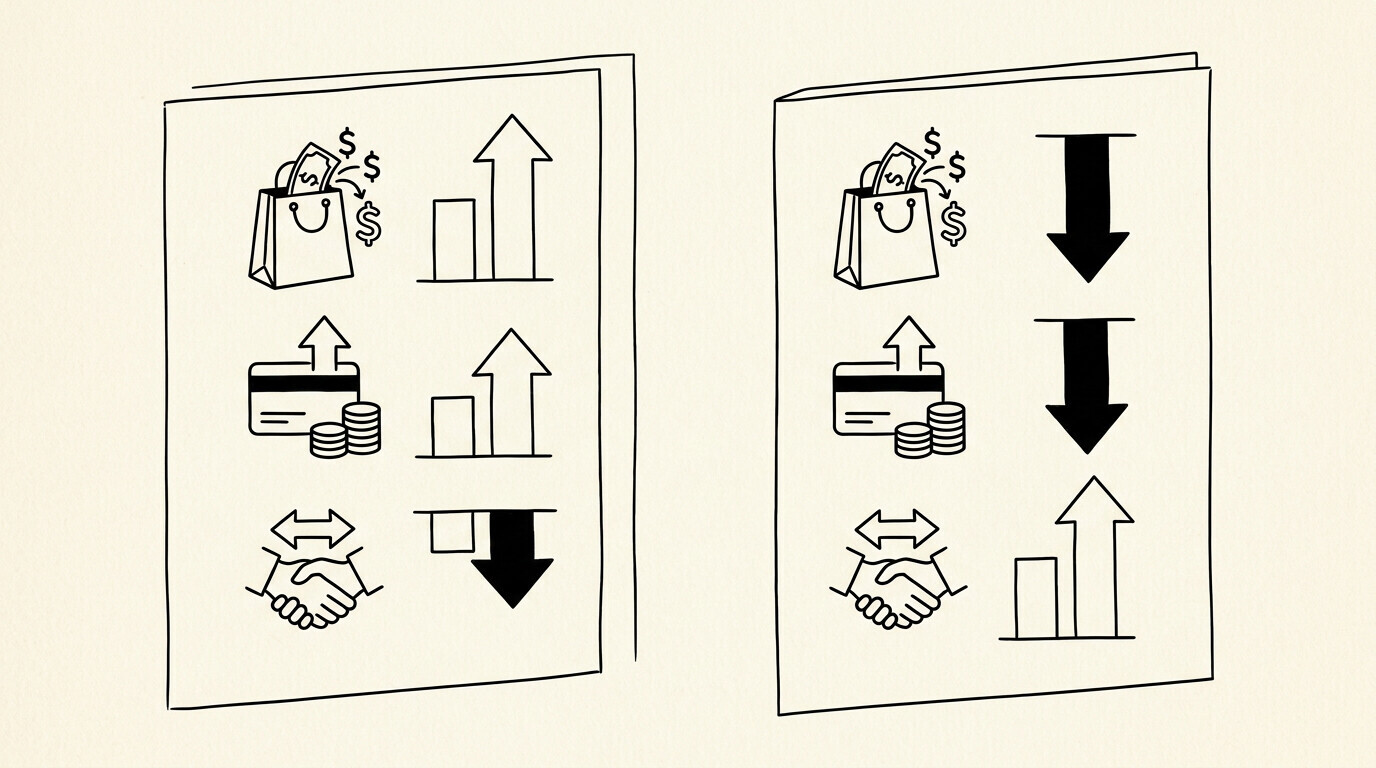
Amounts are charges, not debits. On a checking account statement, the “amount” column shows money leaving the account. On a credit card statement, the “amount” column shows money you owe.
The sign convention is the same (a charge is a positive number), but the meaning is different. A $1,000 charge on a credit card means you spent $1,000. A $1,000 charge on a checking account means $1,000 left your account.
The balance is debt, not cash. On a checking account statement, the “balance” column shows what you have. On a credit card statement, the “balance” column shows what you owe. A $5,000 balance on a credit card is $5,000 in debt. A $5,000 balance on a checking account is $5,000 in cash. The math goes the other way.
Transactions are merchant descriptors, not payee names. A checking account transaction reads “CHASE BANK – AUTO PAY” or “VERIZON WIRELESS”. A credit card transaction reads “AMZN MKTPS” or “VERIZON WRLS PMT”.
The credit card transaction is a merchant descriptor, a short code that the merchant’s bank passes to the card network. The actual merchant name is “Amazon Marketplace” or “Verizon Wireless”, but the statement only shows the short code.
Payments are negative amounts, not withdrawals. When you pay your credit card bill from your checking account, the credit card statement shows the payment as a negative amount (a credit to the card).
It is not a charge. It is not a refund. It is a payment that reduces your balance. The conversion has to recognize this and emit it as a negative amount, not a positive charge.

Turn PDF Bank Statements Into Workable Spreadsheets
Your bank statement is a mess of numbers, but your books shouldn't be. Use our converter to get Excel, CSV, or QBO files — ready for QuickBooks.
Try It Free NowThe 5-Step Workflow for Credit Card Statements
The workflow is the same as for any bank statement. Each step has a credit-card-specific addition. Total time per statement is 1 to 3 minutes, same as a checking account.
Step 1: Confirm the source
Credit card statements come from the card issuer (Chase, Amex, Capital One, Citi, Discover, etc.), not the bank. They are usually available as digital PDFs in the issuer’s online portal, mailed as paper, or both. The PDF is the easy case. The paper is the same as for a checking account. The full PDF extraction workflow is on the PDF extraction guide.
One thing to check: some issuers (especially Amex) use a non-standard PDF format with a slightly different layout. The converter may not recognize it on the first try. The fix is the same as for any other case: draw a rectangle over the right region.
Step 2: Recognize the four transaction types
A credit card statement has four transaction types. A good converter recognizes all four. A generic converter may merge them into one column.

Charges. The purchases you made. Positive amounts. This is the largest section of the statement. The transaction description is the merchant descriptor. The amount is what you spent. The date is the transaction date (which may differ from the statement date by 1 to 3 days).
Payments. The money you sent to the card issuer from your checking account. Negative amounts. The transaction description is usually “PAYMENT – THANK YOU” or “AUTOMATIC PAYMENT – THANK YOU”. The amount is what you paid. The date is the payment date.
Fees. Late fees, annual fees, foreign transaction fees, balance transfer fees. Positive amounts (they add to your balance). The transaction description is the fee type. The amount is the fee amount. These are usually small but matter for tax and expense reporting.
Interest. The interest charged on the balance. Positive amounts. The transaction description is “INTEREST CHARGE” or similar. The amount depends on your balance and APR. Interest is the most common transaction that gets missed in a generic conversion. It is usually in a separate section at the bottom of the statement.
Step 3: Preserve the sign convention
The output file should have a single “amount” column where charges and fees are positive, and payments are negative. This matches how QuickBooks, Xero, and most accounting software expect credit card transactions. If the converter outputs a single positive column for everything, the import into accounting software will treat payments as charges and double the expenses.
I learned this the hard way the first quarter I converted my Amex statements. The converter gave me positive amounts for everything. My spreadsheet said I spent $14,000 on the card. The actual spend was $11,000.
The difference was the $3,000 payment I made. I caught it in the validation step, not in the conversion. The fix was a 10-minute manual sign correction, not a re-conversion.
Step 4: Validate the running balance
The validation step is more important for credit card statements than for checking accounts. The math has to be right because credit card balances are debt. An error in the conversion means an error in your tax filing or your budget.

The four checks from the data check guide all apply, with one credit-card-specific addition: confirm the closing balance matches the “new balance” on the next statement. If the closing balance on this statement is $4,500 and the “previous balance” on the next statement is $4,500, the running math is right. If they differ, an error occurred somewhere in the conversion.
Step 5: Reconcile with the payment
The final step is to confirm the payment transactions match the actual payments you made. If you paid $3,000 on the 15th, the statement should show a payment of $3,000 on the 15th (or within 1 to 3 days, depending on the issuer’s processing time).
If the statement shows a different amount or a different date, either the converter missed a payment or the issuer processed it differently than expected.
This step matters most for monthly reconciliation. A missed payment shows up as a discrepancy between the credit card balance and the checking account outflow. The fix is usually to add the missing payment manually, not to re-convert.
Output Format Considerations
For credit card statements, the output format choice has slightly different implications than for checking accounts. Three things to consider.
Excel for review. If you are doing monthly expense review or quarterly tax prep, Excel is the right output. The 4-column table (date, description, amount, balance) maps directly to your spreadsheet. You can sort, filter, and pivot by merchant, by category, by month. The Excel conversion guide has the specifics.
CSV for accounting imports. If you are importing into Xero, Wave, or FreshBooks, CSV is the right output. The accounting software treats the credit card as a credit card account (negative balances, payments as credits). The CSV conversion guide covers the format details.
QBO for QuickBooks. If you are feeding QuickBooks Online or Desktop, QBO is the right output. The QBO file is a Web Connect file that QuickBooks imports as a native credit card feed, with no column mapping. The QBO conversion guide covers the import workflow. QuickBooks handles the sign convention correctly when you import a QBO from a credit card statement.
Common Credit Card Conversion Traps
Three things go wrong with credit card conversions more than any others.
The “I paid it off” trap. A statement that shows $0 balance and zero charges is not a typo. It means you paid the previous balance in full. The charges and payments for the period cancel out. The conversion produces a list of charges and a list of payments, both correct. The math is just at zero. Don’t assume the conversion failed.
The foreign transaction trap. A $100 charge in a foreign currency shows up as $100 in the merchant descriptor, but the actual charge in USD is $103 (with the 3% foreign transaction fee). The fee is a separate line item. The conversion needs to capture both the charge and the fee. A generic converter that only captures the $100 line misses the $3 fee.
The refund-as-positive trap. A refund on a credit card is a negative amount (a credit). Some converters, expecting all amounts to be positive, flip the sign. The output shows a positive $50 instead of a negative $50. The merchant’s actual charge was -$50. The fix is to check the sign convention against the statement before importing.
A common failure mode bookkeepers report is treating this as a single operation rather than a chain of dependent steps. The temptation is to find a tool that ‘just works’ and stop investigating the mechanism. The result is a wrong-fix cycle: the tool gives partial output, the bookkeeper spends 30+ minutes troubleshooting, the fix is for the wrong step, and the same error recurs on the next statement. The fix: identify which step failed and apply the right intervention to that step.
Multi-Card Workflow
If you have 3 or more credit cards (common for freelancers and small business owners), the multi-card workflow has its own considerations. Three practical patterns.
One file per card. Convert each card’s statement into its own Excel or CSV file. Import each into your accounting software as a separate credit card account. This is the cleanest workflow if the cards have different purposes (personal vs business) or different issuers.
One combined file with a card column. Convert all cards into one combined file with a column for the card name. Use this for combined monthly expense review. The combined file is not directly importable into accounting software, but it is the right format for budget tracking and tax prep.
One combined file per card via batch processing. Use the batch workflow (12 statements at once, one per card per month) to produce a year-end combined file per card. The combined file has 12 months of one card, sorted by date. This is the right format for annual expense review and for finding trends.
For more on this, see the MCC code reference list page.
For more on this, see the statement balance explained page.
For more on this, see the ACH vs wire transfer page.
For more on this, see the bank statement for debt consolidation page.
From Bank Statement to QuickBooks-Ready File
That manual cleanup you just read about? This tool skips it. Turn your PDF into QBO for QuickBooks without storing your data anywhere.
Start Converting