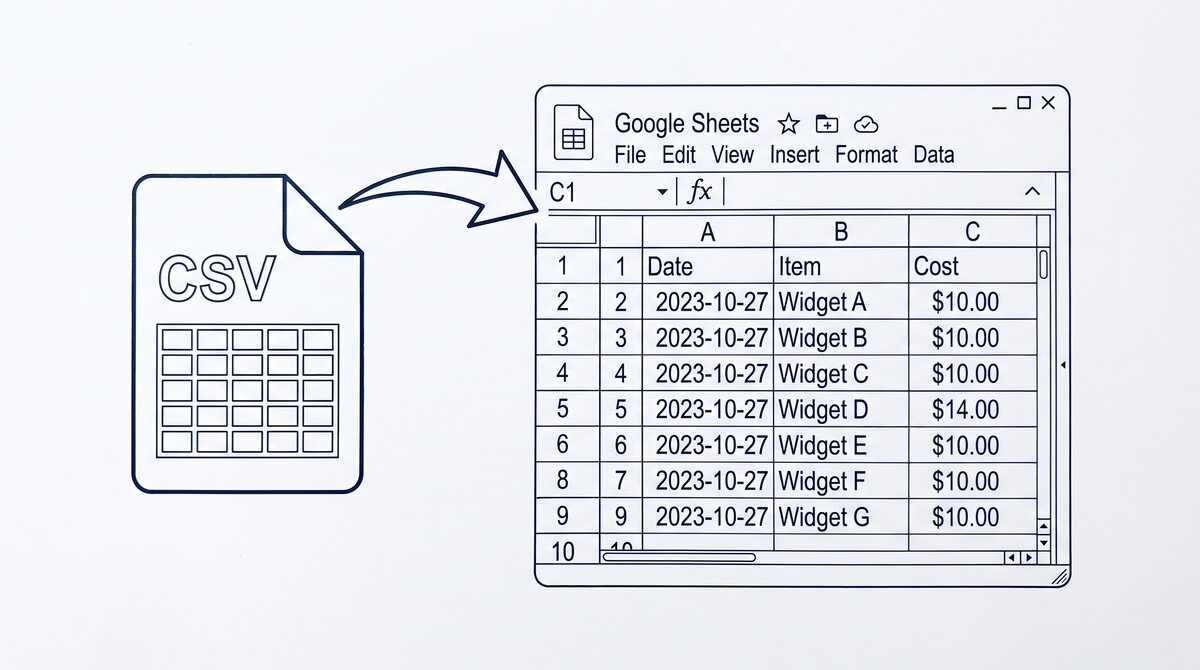

If you already have a bank statement as a CSV file, getting it into Google Sheets should take 30 seconds. The CSV is structured, the import dialog is straightforward, and the result is a clean table. The catch: Google Sheets’ import dialog has a few defaults that silently corrupt bank statement data, and the defaults are designed for general spreadsheets, not for financial data with edge cases.
TL;DR. To import a bank statement CSV into Google Sheets: File > Import > Upload > select the CSV > choose “Replace current sheet” > set the separator (comma is the default) > confirm. The 3 traps to watch for: phantom columns from trailing commas, date auto-format converting transaction timestamps incorrectly, and formula auto-format corrupting merchant names that look like formulas. Disable “Convert text to numbers, dates, and formulas” if you have any of these edge cases.
Why Most People Use the CSV Path to Get Bank Statements into Google Sheets
The CSV path is the most common way to land a bank statement in a spreadsheet, and it is the path most users search for.
What most guides miss about CSV conversion is that the quality depends on the mechanism, not on the tool. Two tools that look different on the surface often run the same 4-step process underneath: read, find, parse, verify. The difference is in how well each step handles edge cases (merged cells, missing balances, non-standard date formats, scanned vs digital input). Choosing between tools based on UI alone misses the actual quality lever.
Three Reasons the CSV Format Wins
The bank provides the CSV. Most online banking portals offer the statement in multiple formats, and CSV is one of the structured ones (along with OFX, QFX, and sometimes XLS). CSV is portable. The same CSV opens in Excel, Numbers, LibreOffice Calc, and Google Sheets without conversion. CSV is small. A bank statement CSV is typically 50-500 KB, well under Google Sheets’ 100 MB import limit.
Why Google Sheets Specifically
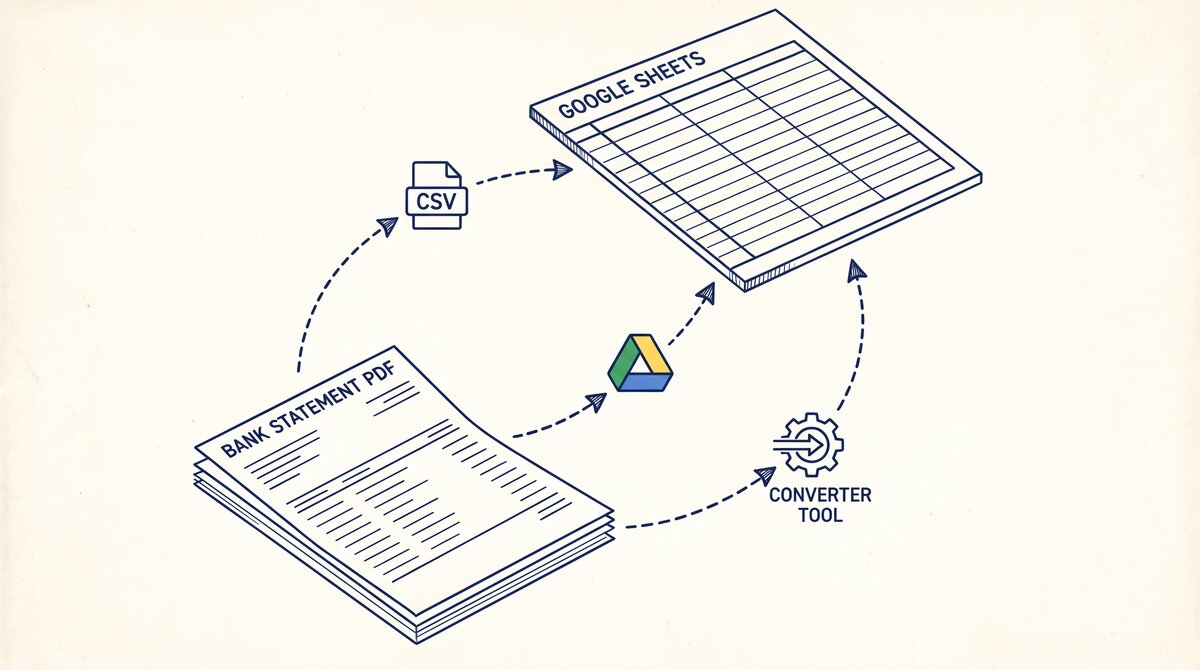
The CSV path is also the path users take when they want the bank statement in Google Sheets specifically, not just any spreadsheet. Sheets handles CSV imports well, supports formulas on the imported data, and lets the user share the result via link. The bank statement to Google Sheets workflow treats CSV as the intermediate step in most conversion paths.
The Google Sheets CSV Import Dialog: 4 Settings That Matter
When you go to File > Import > Upload and select a CSV file, Google Sheets shows a dialog with a few import options. Most users accept the defaults. For bank statement CSVs, four settings matter.
Import Location
“Replace current sheet” replaces the data in the active sheet with the CSV. “Insert new sheet” creates a new sheet in the current spreadsheet. “Create new spreadsheet” creates a new file. For an empty spreadsheet where the CSV is the data, “Replace current sheet” is correct. For a workbook with multiple data sources, “Insert new sheet” is correct.
Separator Type
“Comma” is the default and matches most US bank CSVs. “Tab” matches some European bank CSVs. “Custom” lets you specify any single character. “Detect automatically” works for clean CSVs but fails for files with semicolons and mixed delimiters. If the import produces a single column instead of multiple columns, the separator is wrong.
Convert Text to Numbers, Dates, and Formulas
This is the most consequential setting. When checked (the default), Google Sheets interprets “03/04/2024” as a date, “1234.56” as a number, and “=SUM(A1:A10)” as a formula. When unchecked, everything is text. For bank statement CSVs, the default is usually correct for the date and amount columns, but it can corrupt specific fields.
First Row as Headers
When checked, the first row of the CSV becomes the column headers (Date, Description, Amount, Balance, etc.). When unchecked, the headers become the first row of data. For bank statement CSVs, the bank almost always includes a header row, so this should be checked.
From Bank Statement to QuickBooks-Ready File
That manual cleanup you just read about? This tool skips it. Turn your PDF into QBO for QuickBooks without storing your data anywhere.
Start ConvertingHow to Import a Bank Statement CSV Without Phantom Columns
The most common error in the CSV import path is the phantom column. A bank statement CSV has trailing commas on every row (a common CSV quirk), and the import treats them as empty data columns. The result: a Sheet with 5 expected columns plus 3-4 empty columns on the right.
Why Auto-Detection Fails
The fix: in the import dialog, set the separator manually to “Comma” instead of “Detect automatically.” Auto-detection can pick up the wrong delimiter when the CSV has irregular trailing characters. If the CSV uses semicolons (common in European bank exports), set the separator to “Custom” and enter a semicolon.
When the CSV Is Truly Broken
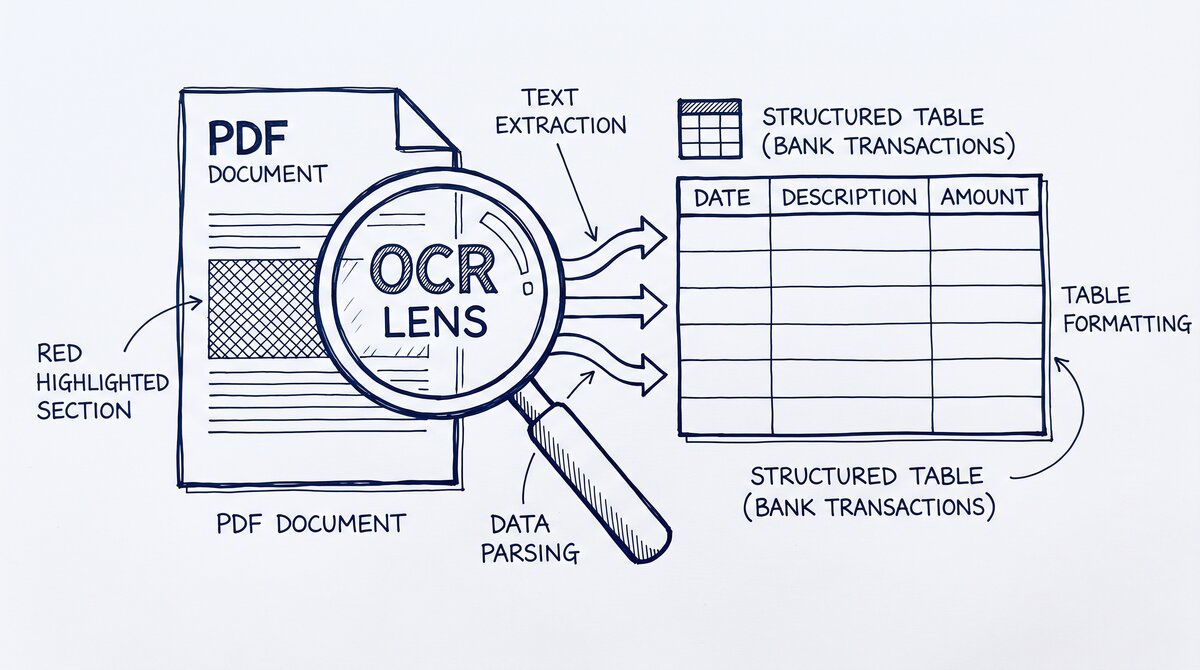
For CSVs with truly mixed delimiters (rare but real), the workaround is to open the CSV in a text editor first, replace the separators, save as a new file, and re-import. This is a 60-second fix that prevents a 10-minute data cleanup. The PDF to CSV conversion path produces a clean intermediate CSV for cases where the bank’s CSV is unusable.
The 3 Auto-Format Traps (and How to Disable Them)
Google Sheets’ “Convert text to numbers, dates, and formulas” setting causes three specific failure modes on bank statement CSVs.
Date Auto-Format Trap
The bank’s date format is “03/04/2024” and Google Sheets interprets it as “March 4, 2024” (US format) instead of “April 3, 2024” (European format). The dates end up in the wrong month. The fix: use Format > Number > Date and select the correct locale, or use a custom date format that matches the bank’s format exactly.
Formula Auto-Format Trap
A merchant name in the description column starts with =, +, or @. Google Sheets interprets the cell content as a formula. A merchant named “=REF!” becomes a formula error. A merchant named “+1-800-Flowers” becomes a formula attempt. The fix: uncheck “Convert text to numbers, dates, and formulas” in the import dialog, or pre-pend a single quote to the cell content to force text interpretation.
Leading-Zero Auto-Format Trap
Account numbers, ZIP codes, and merchant reference numbers often have leading zeros. “01234” becomes “1234” when interpreted as a number. The fix: format the column as “Plain text” before pasting, or pre-pend a single quote to each cell with a leading zero.
The pattern: the auto-format settings are useful for general spreadsheets but harmful for financial data with edge cases. The safe rule for bank statement CSVs is to import once with auto-format on (for the standard cases), check the result for the three traps above, and re-import with auto-format off if any trap is hit.
When the CSV Path Fails and What to Try Next
The CSV path fails in four cases. The bank does not offer a CSV download; some credit unions and neobanks offer only PDF, and the workaround is to use a PDF to CSV converter first, then import the resulting CSV. The CSV is in a non-standard encoding; some banks export CSV in Windows-1252 instead of UTF-8, special characters render as garbled text, and the fix is to open the CSV in a text editor, save as UTF-8, and re-import. The CSV has more than 10 million cells; the workaround is to split the CSV by month or by quarter, import each piece into a separate Sheet, and reference across Sheets. The CSV is structurally broken; the bank has merged cells, multi-line transactions, or inconsistent column counts, and the workaround is to use a PDF-to-Sheets converter that handles structural cleanup, not just format conversion.
For most personal bank statement workflows, the CSV path works. For bookkeepers and accountants handling 50+ statements a month from different banks, the bank statement to Google Sheets automation path replaces the manual import with a single click.
For a deeper understanding, see: google sheets deep dive. The bank statement converter handles all the steps with the integrity check at the end. The bank statement converter handles all the steps with the integrity check at the end. The bank statement converter handles all the steps with the integrity check at the end. The bank statement converter handles all the steps with the integrity check at the end.
Turn That PDF Into a Spreadsheet in Minutes
You've seen how to do it manually — now let the tool handle the heavy lifting. Upload your bank statement and get Excel, CSV, or QBO in a few clicks.
Try It Free