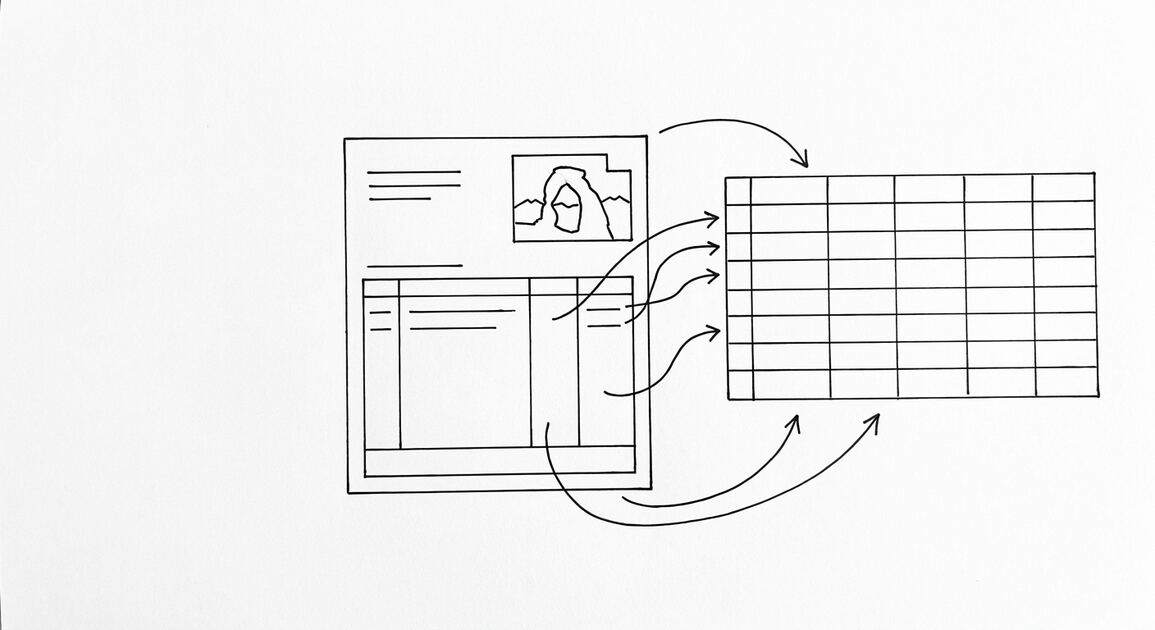

You can convert a bank statement PDF into a spreadsheet by extracting its transaction table and saving the results as Excel or CSV. The process usually involves:
Converting a bank statement to a spreadsheet (also called turning a bank statement into a spreadsheet, or bank statement to a spreadsheet online) means turning the bank’s PDF into a row-and-column file you can open in Excel, Google Sheets, Numbers, or any spreadsheet app. The conversion extracts every transaction, structures the columns, and exports to your format of choice.
Excel is the most common destination for editing, and Google Sheets is the most common destination for sharing and live collaboration. This page covers the overview: what the converted file looks like, why you’d pick one spreadsheet over another, and the workflow from PDF to spreadsheet. For bank transactions spreadsheet use (the transactions specifically, not the whole statement), see the extract transactions from bank statement guide.
For Excel-specific details (formulas, formatting, multi-sheet workbooks), see convert bank statement to Excel. For Google Sheets (sharing, automation, live data), see convert bank statement to Google Sheets.
- Download the statement from your bank as a PDF.
- Upload the PDF to a bank statement converter that supports transaction extraction.
- Review the extracted fields, such as:
- Transaction date
- Description
- Debit or withdrawal
- Credit or deposit
- Amount
- Balance
- Export the transaction data to Excel or CSV.
- Check the spreadsheet against the original statement before using it for bookkeeping, reconciliation, or accounting.
Convert a bank statement PDF to Excel or CSV
With EasyStatementSheet, you can upload a supported bank or credit card statement PDF and convert the transaction data into a structured spreadsheet format. The resulting file can then be opened in:
What most guides miss about this workflow is that the quality depends on the mechanism, not on the tool. Two tools that look different on the surface often run the same 4-step process underneath: read, find, parse, verify. The difference is in how well each step handles edge cases (merged cells, missing balances, non-standard date formats, scanned vs digital input). Choosing between tools based on UI alone misses the actual quality lever.
- Microsoft Excel
- Google Sheets
- Other spreadsheet applications
- Bookkeeping or accounting workflows that accept structured transaction data
The conversion is intended to turn the statement’s transaction table into usable data. It does not replace reviewing the original statement or checking the extracted information.
What a converted bank statement spreadsheet contains
A typical spreadsheet may include columns such as:
| Date | Description | Debit | Credit | Balance |
|---|---|---|---|---|
| 01/15/2026 | Payment received | 1,250.00 | 4,820.00 | |
| 01/16/2026 | Office supplies | 86.45 | 4,733.55 |
The exact columns depend on how the bank formats its statement. Some statements use a single Amount column, while others separate withdrawals and deposits. Dates, descriptions, and balances may also appear in different positions.


From Bank Statement to QuickBooks-Ready File
That manual cleanup you just read about? This tool skips it. Turn your PDF into QBO for QuickBooks without storing your data anywhere.
Start ConvertingWhy convert a bank statement to a spreadsheet?
A spreadsheet makes statement data easier to:
- Sort transactions by date or amount
- Filter income and expenses
- Categorize bookkeeping entries
- Search for specific payments
- Compare activity across periods
- Prepare data for reconciliation
- Transfer information into another accounting workflow
Converting a PDF can also reduce the need to manually retype every transaction. However, the extracted data should still be checked, particularly when the PDF contains scanned pages, unusual layouts, combined columns, or unclear text.
PDF bank statement versus scanned statement
There are two common types of bank statement PDFs:
Text-based PDF
A text-based PDF contains selectable text. Transaction extraction is generally more straightforward because the dates, descriptions, amounts, and balances are stored as text.
Scanned or image-based PDF
A scanned statement is made from page images. It may require optical character recognition, or OCR, to identify the transaction data. OCR can produce errors when:
- Characters are blurred
- Columns are closely spaced
- The scan is skewed
- Numbers resemble other characters
- The statement uses an unusual layout
For either type, compare the spreadsheet with the original PDF before relying on the converted data.
What to check after conversion
Review these items before using the spreadsheet:
- The statement period is correct.
- All pages were included.
- Transaction dates are present and correctly ordered.
- Deposits and withdrawals are in the correct columns.
- Negative amounts have the correct sign.
- Decimal points and commas were read correctly.
- Descriptions were not split across rows.
- Opening and closing balances match the statement.
- Duplicate or missing transactions are not present.
A useful check is to compare the spreadsheet’s transaction totals with the totals shown on the bank statement. If they do not agree, inspect the original PDF for unreadable text, formatting changes, or transactions that span multiple lines.
Converting a bank statement to Google Sheets
If the converter exports CSV, you can open the file in Google Sheets:
- Open Google Sheets.
- Create a blank spreadsheet.
- Select File → Import.
- Upload the CSV file.
- Choose the import settings.
- Confirm that dates, amounts, and columns are displayed correctly.
For an Excel file, upload it to Google Drive and open it with Google Sheets, or import it from within a spreadsheet.

Converting a bank statement for bookkeeping
For bookkeeping, first decide how the extracted data will be used. A spreadsheet may need additional columns, such as:
- Account or category
- Customer or vendor
- Memo
- Tax treatment
- Reconciliation status
- Review status
The converted statement provides transaction data, but it does not automatically determine the correct accounting category or tax treatment. Those decisions depend on the transaction and your bookkeeping process.
Can every bank statement be converted?
No. Results depend on the statement PDF and its layout. Problems are more likely when a statement:
- Is password-protected
- Contains only images
- Uses a complex multi-column design
- Includes transaction descriptions across several lines
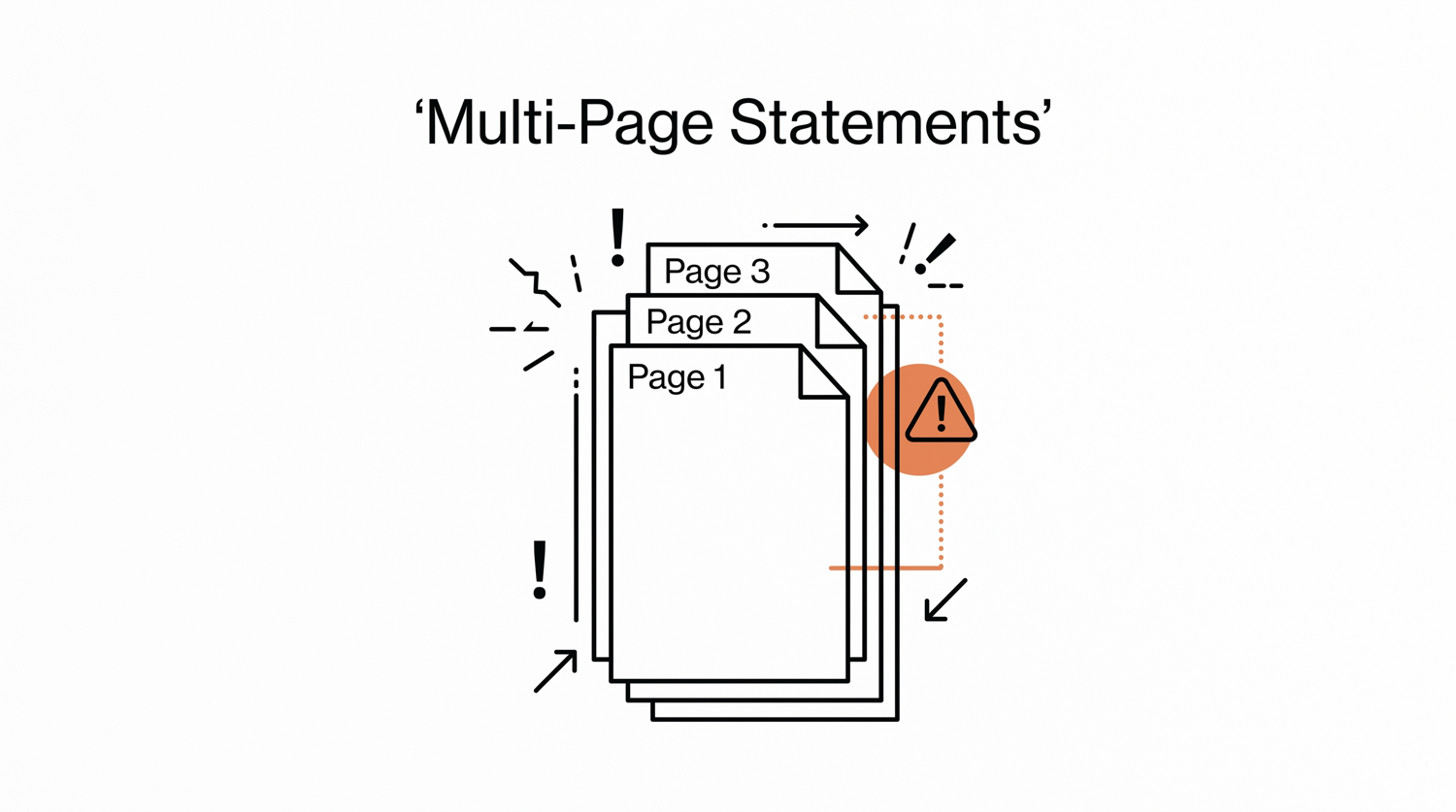
- Has tables that continue between pages
- Uses unusual date or number formats
- Contains handwritten or low-quality scanned content
If the extracted spreadsheet does not match the original statement, use the PDF as the source for verification and correct the affected rows manually.
A common failure mode bookkeepers report is treating this as a single operation rather than a chain of dependent steps. The temptation is to find a tool that ‘just works’ and stop investigating the mechanism. The result is a wrong-fix cycle: the tool gives partial output, the bookkeeper spends 30+ minutes troubleshooting, the fix is for the wrong step, and the same error recurs on the next statement. The fix: identify which step failed and apply the right intervention to that step.
The practical workflow
For most statements, the safest process is:
Bank statement PDF → Transaction extraction → Excel or CSV → Review → Bookkeeping or reconciliation
If you want the Excel-specific deep-dive (formulas, formatting, multi-sheet workbooks), see convert bank statement to Excel. For Google Sheets (sharing, automation, live data), see convert PDF bank statement to Google Sheets. For CSV (raw tabular data, scripts, integrations), see convert bank statement to CSV. If you have a scanned or paper statement, see convert scanned bank statement PDF.
For the broader overview of the conversion process (not just spreadsheet), see convert bank statement. For the tool itself, see bank statement converter.
EasyStatementSheet is designed for the conversion step: turning supported bank or credit card statement PDFs into structured transaction data that can be used in spreadsheet and accounting workflows. Always review the converted file against the original statement before making bookkeeping decisions or importing the data elsewhere.
Turn any PDF statement into a clean sheet
Skip the typos and the hours of copying. Our converter handles any bank statement format and outputs Excel, CSV, or QBO for QuickBooks. No file retention, free to try.
Convert your statement