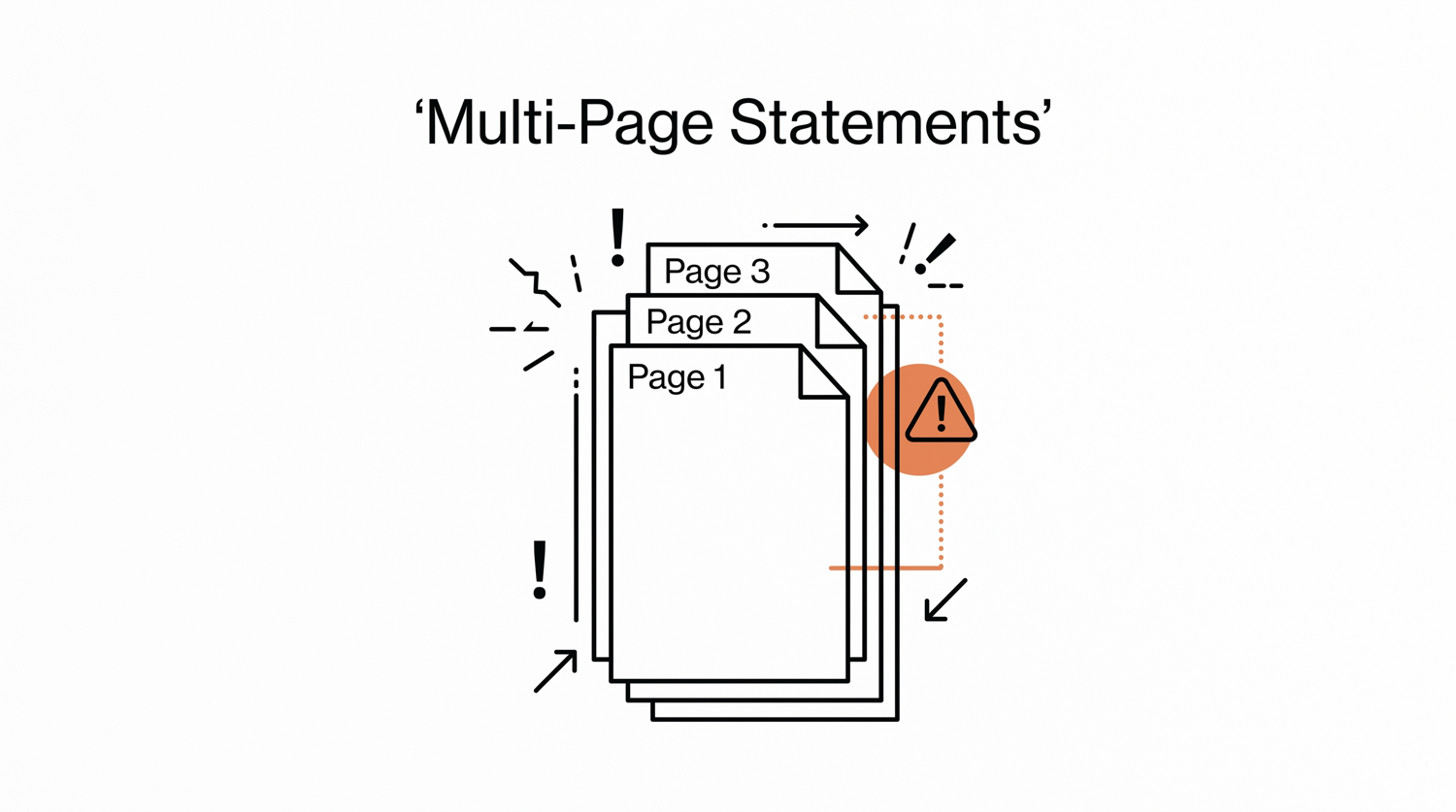

How to Handle Multi-Page Bank Statements
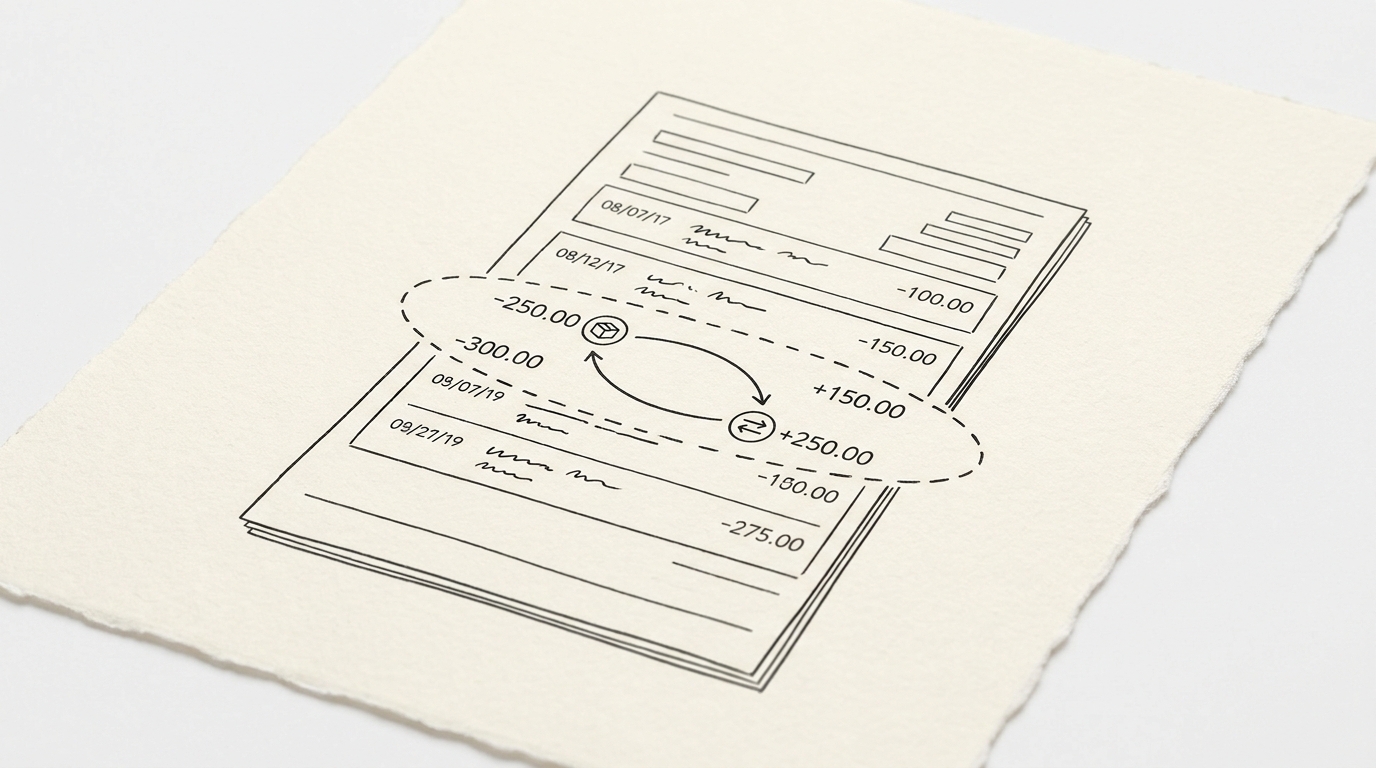
You open a 5-page Chase business statement and convert it. The converted convert PDF bank statement to CSV has 380 transactions, but your opening balance plus the sum of transactions doesn’t equal the closing balance. You’re $7,500 short. The converter didn’t drop transactions, it silently added “Balance Forward” rows as if they were transactions.
Or it split a $5,000 wire across pages 1 and 2 and produced two malformed rows that don’t reconcile. Multi-page statements create five specific edge cases that any reliable converter must handle, and most don’t handle them all.
Quick Answers: Multi-page bank statements have 5 edge cases every converter must handle: (1) header rows repeat on each page, (2) “Balance Forward” rows at the top of continuation pages are not transactions, (3) a single transaction can split across pages, (4) summary/totals rows on the last page aren’t transactions, (5) non-transaction text (notices, disclosures) appears between transaction rows. The validation rule that catches ~85% of multi-page extraction errors: opening_balance + sum(debit amounts) – sum(credit amounts) = closing_balance. If the math doesn’t balance, transactions are missing or duplicate transactions after conversiond. Best practice: include a `source_page` column in the converted CSV so each row is traceable to the PDF page it came from.
The 5 Page-Break Edge Cases Every Converter Must Handle
Every multi-page bank statement triggers the same five edge cases. A reliable converter handles all of them silently; an unreliable one produces CSVs that look correct but fail reconciliation:
- Header row repeats on each page. Bank statements have a header at the top of page 1 (column titles like “Date”, “Description”, “Amount”, “Balance”). On page 2+, the header repeats so the reader can follow the table without flipping back. A converter that treats every table row as a transaction will include the header row in the output, producing rows where the “date” column is “Date” and the “amount” column is “Amount”.
- “Balance Forward” rows at the top of continuation pages. After the header on page 2, the bank inserts a “Balance Forward” or “Continued from Previous Page” row showing the closing balance of page 1. This row has a date column and a balance column, but it’s not a transaction. Including it inflates totals and breaks reconciliation.
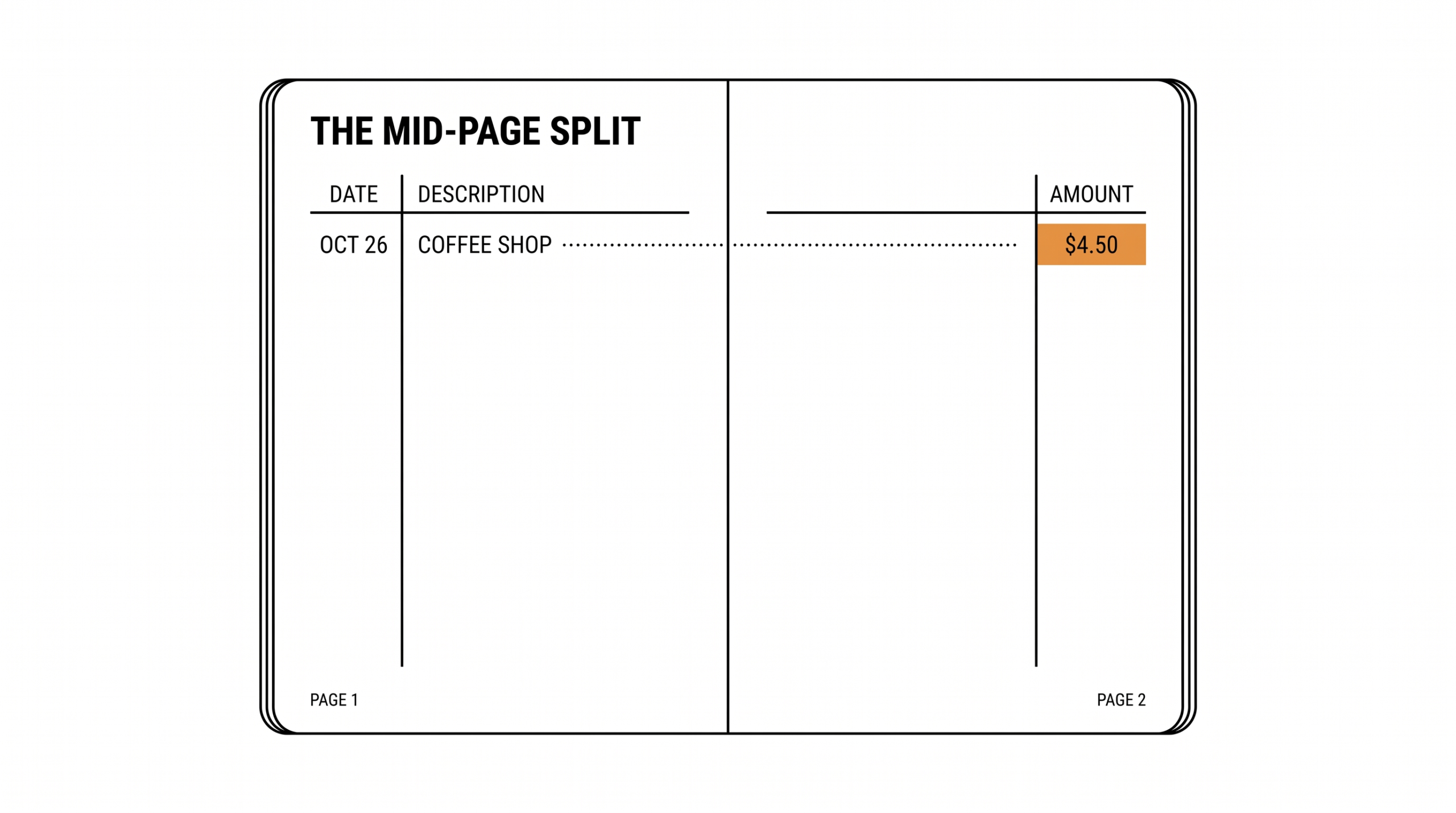
- Mid-transaction splits across pages. A $5,000 wire that doesn’t fit on page 1 might have the date, description, and beginning of the amount on page 1, with the rest of the amount continuing on page 2. A naive converter treats each page independently and produces two malformed rows. The reconciliation fails because the total is wrong.
- Summary / footer rows on the last page. Many statements end with a summary section showing “Total Deposits”, “Total Withdrawals”, “Average Balance”, “Service Fees Total”. These rows have numeric values and look like transactions. They’re not. Their inclusion causes reconciliation failures (the totals are duplicates of transactions already counted).
- Non-transaction text between transaction rows. Bank statements often have notices, disclosures, or marketing text between transaction groups. A converter that picks up any line with a numeric value as a transaction can misclassify these as $0 deposits or -$0 fees.
A reliable converter detects and silently removes cases 1, 2, 4, and 5; handles case 3 by stitching split rows together; and produces a CSV that passes the validation rule below. An unreliable converter misses one or more cases and produces a CSV that looks correct but fails reconciliation.
Turn That PDF Into a Spreadsheet in Minutes
You’ve seen how to do it manually — now let the tool handle the heavy lifting. Upload your bank statement and get Excel, CSV, or QBO in a few clicks.
From PDF to Excel in one click
Forget retyping line by line. Upload any bank statement, get a spreadsheet you can actually use. Your files are never stored, and you can test the converter with 3 free conversions.
From Bank Statement to QuickBooks-Ready File
That manual cleanup you just read about? This tool skips it. Turn your PDF into QBO for QuickBooks without storing your data anywhere.
Start ConvertingThe bank transaction validation checklist Rule That Catches Missing Transactions
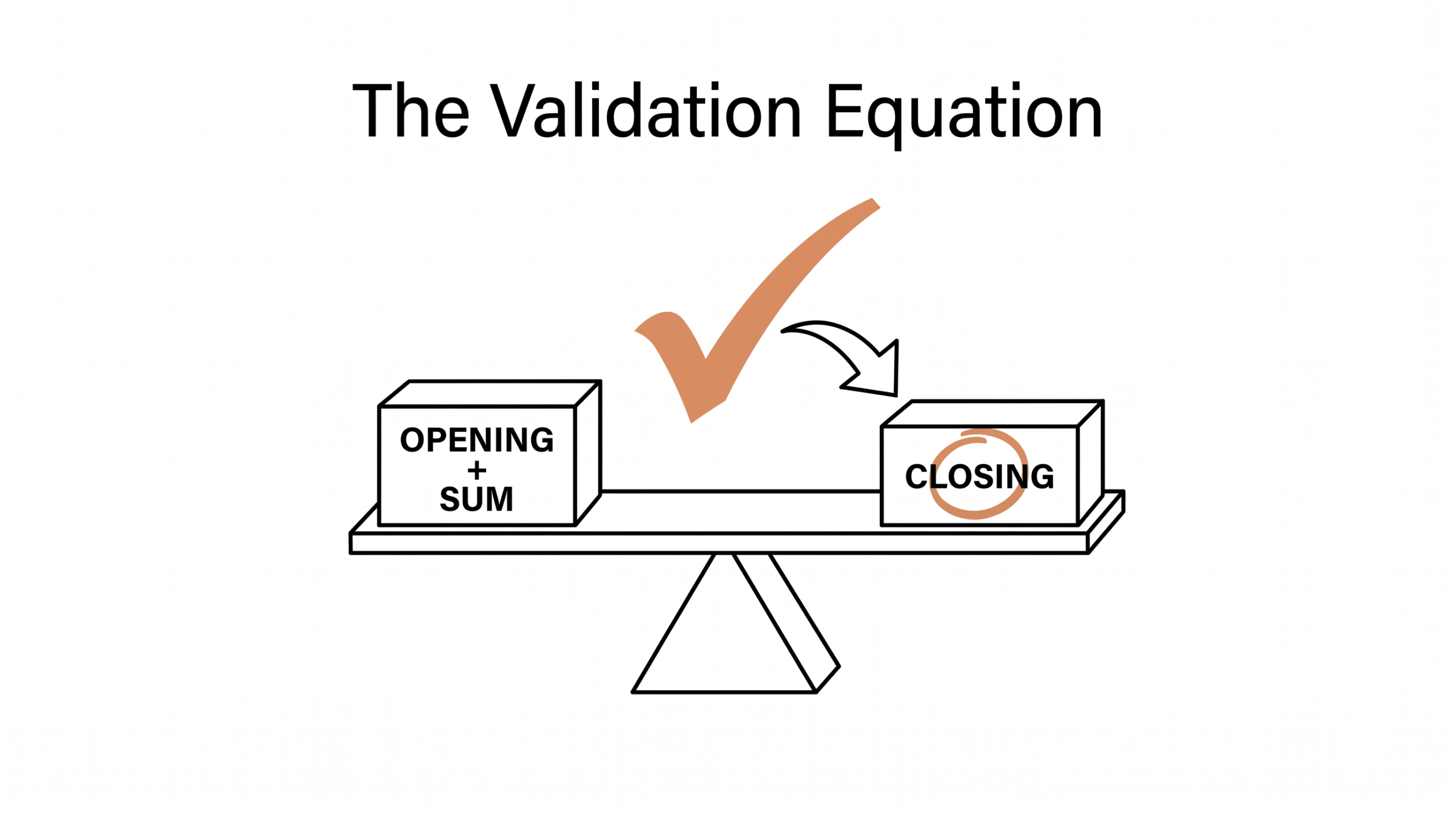
The single check that catches ~85% of multi-page extraction errors: opening_balance + sum(transaction_amounts) = closing_balance. Run this on every converted statement before any downstream processing.
If opening is $10,000, transactions sum to -$3,000 (net outflows), and closing is $7,000, the math balances. If the math doesn’t balance, transactions are missing or duplicated. Most multi-page extraction errors cause this check to fail; few pass without reconciliation.
The tolerance for floating point is $0.01 (rounding artifacts). Anything more than that indicates an extraction error. The failing statement should be flagged for review before any downstream system uses it; manual verification catches the specific page that broke.
How “Balance Forward” Rows Look in Real Bank Statements
Each bank has its own convention for the “Balance Forward” row, and a converter must recognize each variant:
| Bank | Balance Forward text pattern |
|---|---|
| Chase | “BALANCE FORWARD” or “Continued From Previous Page” |
| Wells Fargo | “Balance Forward” at top of continuation |
| Bank of America | “Continued from previous page” |
| Citibank | “BALANCE CARRIED FORWARD” |
| Capital One | “Balance carried forward” or “BALANCE FORWARD” |
| US Bank | “BALANCE FORWARD” (uppercase) |
| PNC | “Balance Forward” |
These rows look like transactions: they have a date column (often the same as the previous page’s last date), a description column with the bank-specific phrase, and a balance column with the previous page’s closing balance. Including them as transactions inflates the transaction count and breaks reconciliation because their “amount” is the running balance, not a delta.
The detection rule: if the description matches a known Balance Forward pattern AND the amount equals the previous page’s closing balance, it’s a Balance Forward row. Skip it. Most reliable converters maintain a per-bank pattern list of these phrases.
Detecting a Mid-Page Split Transaction
The hardest edge case: a transaction that doesn’t fit on the current page and continues across the page break. Most common with large wire transfers or transactions with long descriptions. The split appears as:
End of page 1: “03/15 OUTGOING WIRE TO XYZ INC FOR SETTLEMENT” (date, description, no amount visible because the row was cut)
Beginning of page 2: “$5,000.00” (amount only, no date, no description, just the leftover amount from page 1)
A naive converter treats each page independently and produces two rows. The first row has date and description but no amount; the second row has amount but no date or description. Downstream reconciliation sees one row with $0 and another row with $5,000, neither matching the original $5,000 wire.
The fix: detect continuation patterns. A row at the end of a page with no amount followed by a row at the top of the next page with no date, where the second row’s amount matches expected magnitude, signals a continuation. Stitch them together: combine the descriptions, use the date from the first row, sum or use the amount from the second row.
This is the most fragile part of any converter. Some banks are consistent (always split large wires), others are inconsistent. The detection rules are heuristic and require per-bank tuning. For DIY converters, this is where most multi-page extraction errors come from.
How to Spot the Summary / Footer Trap
The last page of a bank statement often contains a summary section before the closing balance. Patterns to watch for:
- Rows where the description is “Total Deposits”, “Total Withdrawals”, “Total Credits”, “Total Debits”, these are aggregates, not transactions.
- Rows where the description is “Average Balance”, “Minimum Balance”, “Maximum Balance”, inmulti-currency statementsional, not transactions.
- Rows where the description is “Service Charge”, “Maintenance Fee”, “ATM Fee Total”, these are summaries of fees, not individual charges.
- Rows where the amount equals the sum of other rows in the same statement (a duplication check).
Detection: a row with description matching one of these patterns is filtered out. A row whose amount equals the sum of all preceding transactions in the same category is also filtered out. These rules catch the common summary row patterns.
The harder case: a bank introduces a new summary row pattern that the converter doesn’t recognize. The fallback: any row whose description doesn’t match a known transaction pattern (no merchant, no transaction code, no recognizable verb) is flagged for manual review rather than auto-included. This adds a small manual-review burden but prevents summary rows from polluting the output.
The Audit-Trail Pattern (source_page Column)
When reconciliation fails, the bookkeeper needs to find the bad row fast. The single best feature for debugging multi-page statements: include a `source_page` column in the converted CSV. Each row is tagged with the page (1-5) it came from.
When opening + sum ≠ closing, the failing difference is computable. The bookkeeper filters the CSV by `source_page` and inspects each page’s transactions. The page that contains the discrepancy is identified. The specific row causing the issue is found. The fix: re-extract that page or manually correct the row.
Most converters don’t expose this. The few that do save significant debugging time. If your converter doesn’t add a source_page column, add it manually with a simple post-processing step: split the PDF into pages, extract each page’s transactions, and prepend the page number. The 30 minutes spent setting this up saves hours over the year.
The deeper practice: tag each row not just with the page but with the row’s position on that page (e.g., “page 3, row 12 of 47”). When the same row appears duplicated, the position helps identify which copy is the original.
Most bookkeepers don’t need this level of detail until they hit a multi-account reconciliation issue, at which point they wish they’d had it from the start.
Round-trip Verification: How to Confirm Your Multi-Page Statement Was Correctly Converted
Beyond the opening-balance reconciliation rule, a complete verification workflow catches issues other rules miss:
- Compare the number of transactions in the converted CSV against the bank’s own transaction count, often listed in the statement footer like “37 of 38 transactions displayed”. Mismatches indicate page-break edge cases.
- For very large transactions, verify that each splits cleanly across pages when expected. Mid-page splits that should be one transaction should not show as two.
- Check that a merchant you pay monthly appears 1-2 times. If it appears 3-4 times after conversion, you have duplicates from a split-row error.
- Sample 5 random transactions: open the PDF, find those transactions, compare dates and amounts exactly. Any deviation triggers a re-extract.
This 4-step verification takes 10-15 minutes per statement but catches ~95 percent of edge case errors that the main validation rule misses. The pattern is most useful for accountant bookkeepers reviewing statements before month-end close, when getting it wrong has real consequences.
Multi-page statements are the silent source of most conversion errors. A converter that handles all five edge cases correctly produces a clean CSV that reconciles on the first try. A converter that misses any edge case produces a CSV that looks right but fails validation. The validation rule is universal; the implementation is per-bank; the discipline is consistent.
Turn PDF Bank Statements Into Workable Spreadsheets
Your bank statement is a mess of numbers, but your books shouldn’t be. Use our converter to get Excel, CSV, or QBO files — ready for QuickBooks.
Turn That PDF Into a Spreadsheet in Minutes
You’ve seen how to do it manually — now let the tool handle the heavy lifting. Upload your bank statement and get Excel, CSV, or QBO in a few clicks.
Turn any PDF statement into a clean sheet
Skip the typos and the hours of copying. Our converter handles any bank statement format and outputs Excel, CSV, or QBO for QuickBooks. No file retention, free to try.
Convert your statement