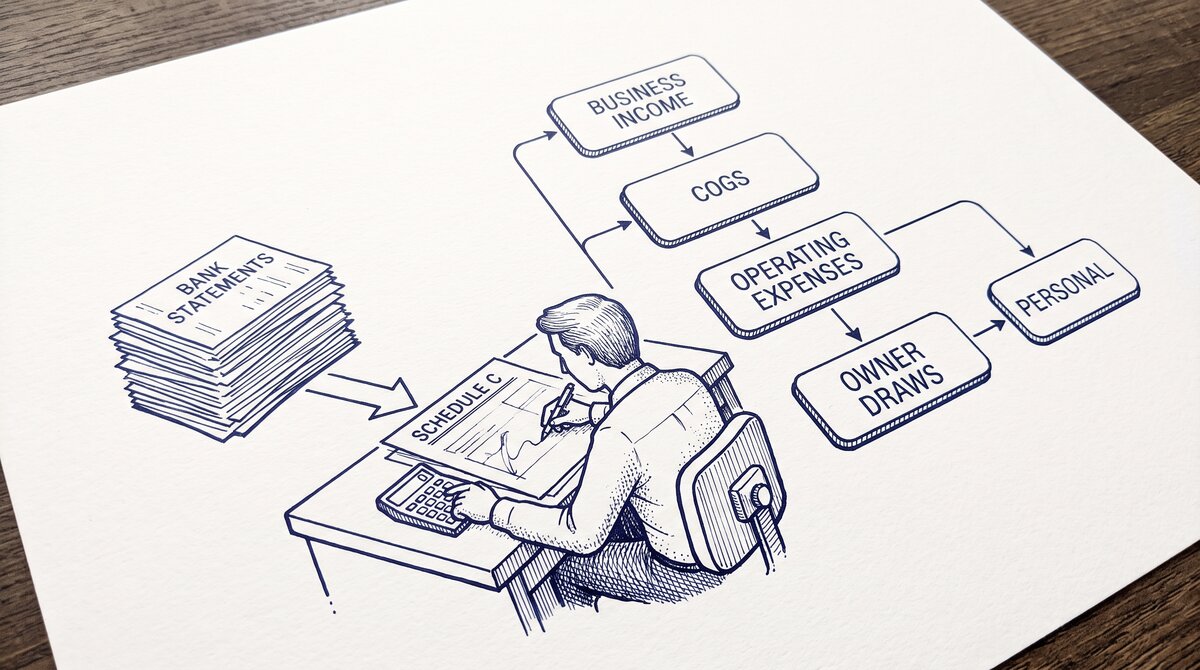

A tax preparer handling Schedule C clients needs to convert and categorize 12 months of bank statements per client. The 4-step workflow: convert PDF to CSV, categorize into Schedule C lines, match against 1099 forms, validate. The 5 categories from bank statement data: business income, cost of goods sold, operating expenses, owner draws, and personal expenses (not deductible). The 4 IRS 1099 forms that match bank statement income: 1099-NEC, 1099-K, 1099-INT, 1099-DA.
TL;DR. Tax preparers convert 12 months of bank statements per Schedule C client. The 4-step workflow: convert PDF to CSV (5-10 min), categorize into 5 Schedule C categories (1-2 hours), match against 4 IRS 1099 forms (30-60 min), validate (30 min). The 5 categories: business income, cost of goods sold, operating expenses, owner draws, personal expenses. The 4 matching 1099 forms: 1099-NEC (self-employment), 1099-K (payment processor), 1099-INT (interest), 1099-DA (crypto). The 3 common mistakes: missing 1099 match, mis-categorizing owner draws, double-counting transfers.
Why Tax Preparers Need to Convert Client Statements
For Schedule C clients (self-employed individuals and small business owners), the tax preparation workflow depends on the bank statements. The statements are the source data for the income and expense categories on Schedule C.
The workflow:
Collect 12 months of statements from the client (12 checking, 12 savings, plus any business credit cards)
Convert the statements to a structured format (CSV or Excel)
Categorize each transaction into the appropriate Schedule C line
Match the income transactions against the 1099 forms the client received
Validate the categorization with the client (resolve any unclear transactions)
Generate the Schedule C and the related forms (C-EZ, SE, etc.)
The conversion and categorization is the most time-consuming part. For a typical Schedule C client with 500-1000 transactions per year, the conversion and categorization takes 2-4 hours. The workflow is highly manual and depends on the tax preparer’s familiarity with the client’s business.
The 4-Step Annual Bank Statement Workflow
The 4 steps to convert and categorize a client’s annual bank statements for Schedule C:
Step 1: Convert the PDFs to CSV
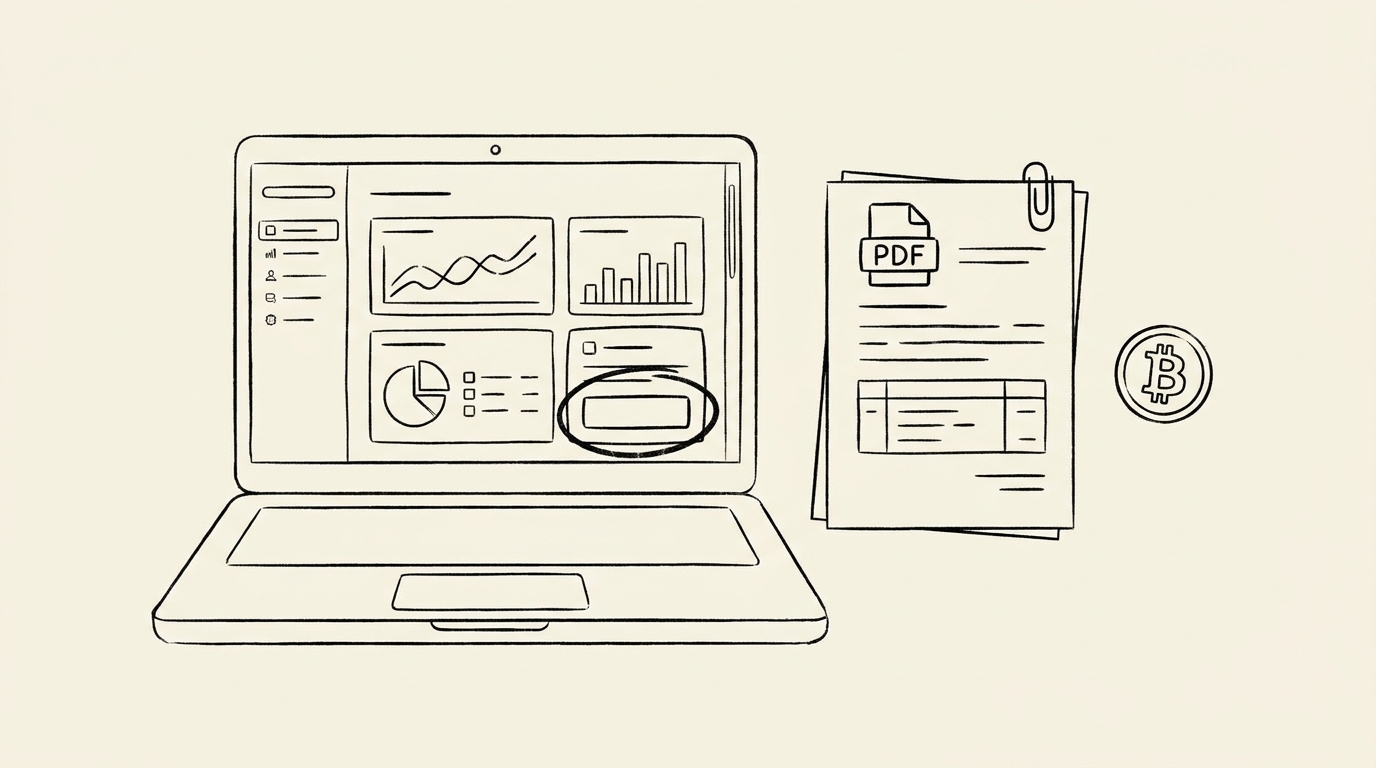
Use a bank statement converter to convert each PDF statement to a CSV or Excel file. For a year of statements (12 monthly checking + 12 monthly savings + 12 monthly credit card), the conversion takes 30-60 minutes.
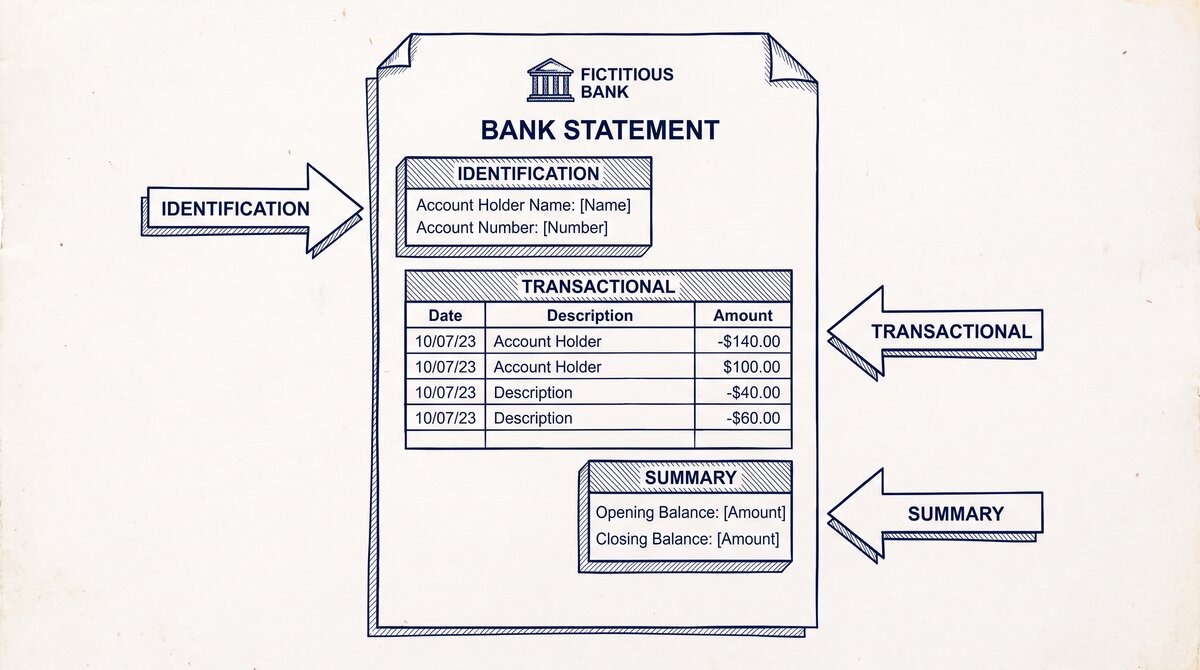
The output should have 4 columns: Date, Description, Amount, Balance. The bank statement CSV format is the typical output format.
Step 2: Categorize Each Transaction
For each transaction, assign a Schedule C line. The categorization is based on the merchant name, the amount, and the client’s business. The 5 categories are listed below.
The categorization is the most time-consuming step. For 500-1000 transactions, the categorization takes 1-2 hours. Tax preparation software (Drake, ProConnect, Lacerte) has auto-categorization features that can speed this up by 50%, but manual review is still required.
Step 3: Match Against 1099 Forms
For each income transaction, check whether the client received a corresponding 1099 form. The 4 IRS 1099 forms that match bank statement income are listed below.
The match is required by the IRS: the income reported on the 1099 must match the income reported on Schedule C. Mismatches trigger IRS notices (CP2000) and potential audits.
The matching takes 30-60 minutes per client. The tax preparer uses the client’s 1099 forms (received in January for the prior tax year) to verify the income categories from the bank statements.
Step 4: Validate with the Client
For any unclear transactions, the tax preparer reviews them with the client. Common unclear transactions:
- Large deposits that may be income, loans, or transfers
- Expenses that may be personal or business
- Owner draws or shareholder distributions
- Refunds or credits that may need special handling
The validation takes 30-60 minutes per client, depending on the number of unclear transactions. The tax preparer may need to ask the client for receipts, bank statements from other accounts, or other documentation.
Turn any PDF statement into a clean sheet
Skip the typos and the hours of copying. Our converter handles any bank statement format and outputs Excel, CSV, or QBO for QuickBooks. No file retention, free to try.
Convert your statementThe 5 Schedule C Categories from Bank Statement Data
The 5 categories that bank statement transactions map to on Schedule C:
Category 1: Business Income
Deposits from customers, clients, or payment processors. Maps to Schedule C line 1 (gross receipts) or line 6 (other income).
Common examples:
- Customer payments via check or ACH
- Stripe, PayPal, or Square deposits
- Wire transfers from customers
- Cash deposits (less common for documented businesses)
Category 2: Cost of Goods Sold
Payments to suppliers and vendors for inventory or materials that are resold to customers. Maps to Schedule C line 2 (COGS) or the more detailed lines 3-5.
Common examples:
- Wholesale supplier payments
- Inventory purchases
- Raw materials
- Manufacturing costs
Note: COGS only applies to businesses that sell physical goods. Service businesses do not have COGS.
Category 3: Operating Expenses
Day-to-day business expenses that are not COGS. Maps to Schedule C lines 8-27a (advertising, car and truck, commissions, contract labor, depletion, depreciation, employee benefits, insurance, interest, legal, office expense, pension, rent, supplies, taxes, travel, meals, utilities, wages, other).
Common examples:
- Office rent
- Software subscriptions (Adobe, Microsoft 365, QuickBooks)
- Marketing and advertising
- Travel for business
- Business meals (50% deductible)
- Utilities for the business location
Category 4: Owner Draws (or Shareholder Distributions)
Money the owner takes from the business for personal use. Not a deductible expense; reduces the owner’s basis in the business. For sole proprietors, this is a draw (not a salary). For LLCs and S-corps, this is a distribution.
Common examples:
- ATM withdrawals for personal use
- Personal credit card payments from the business account
- Transfers to personal accounts
Category 5: Personal Expenses (Not Deductible)
Personal expenses paid from the business account. Not deductible. The owner has to reimburse the business (or declare the payment as a draw, which has tax consequences).
Common examples:
- Personal groceries
- Personal travel
- Personal entertainment
- Personal medical expenses
The tax preparer flags these for the client. The client has to decide whether to reimburse the business or accept the tax consequences.
The 4 IRS 1099 Forms That Match Bank Statement Income
The 4 IRS 1099 forms that the tax preparer matches against bank statement income:
1099-NEC (Nonemployee Compensation)
Issued by businesses that paid $600+ to a non-employee (independent contractor, freelancer). The recipient reports this on Schedule C as business income.
The match: a 1099-NEC from Client X with a $5,000 amount should match a $5,000 deposit from Client X in the bank statement. Mismatches trigger IRS notices.
1099-K (Payment Card and Third-Party Network)
Issued by payment processors (Stripe, PayPal, Square) for payments processed on behalf of the recipient. The threshold is $5,000 for 2024 (will drop to $2,500 in 2025 and $600 in 2026).
The match: a 1099-K from Stripe with a $10,000 amount should match a $10,000 deposit from Stripe in the bank statement. The amounts may differ slightly due to fees (the 1099-K reports gross, the bank statement shows net).
1099-INT (Interest Income)
Issued by banks and financial institutions for $10+ of interest paid. The recipient reports this as interest income (Schedule B, not Schedule C).
The match: a 1099-INT from the bank should match the interest deposits in the bank statement. Interest is not Schedule C income, but it is taxable.
1099-DA (Digital Asset)
New for tax year 2025 (issued in 2026 for 2025 transactions). Issued by crypto brokers for digital asset sales and exchanges. The recipient reports this on Form 8949 and Schedule D.
The match: a 1099-DA from a crypto broker should match the crypto sale deposits in the bank statement. The amounts may differ due to fees and timing. The 1099-DA bank statement reconciliation is the dedicated workflow.
The 3 Common Mistakes
The 3 common mistakes that tax preparers make when working with bank statements:
Mistake 1: Missing the 1099 Match
The tax preparer categorizes the income from the bank statement but does not match against the 1099 forms. The income is reported, but the mismatch (income on the return that does not match the 1099) triggers an IRS notice.
The fix: always match every income transaction against the corresponding 1099 form. The match should be explicit (line by line) and documented in the workpaper.
Mistake 2: Mis-Categorizing Owner Draws
The tax preparer categorizes an owner draw as a business expense (e.g., “Office Expense” or “Other Expenses”). The expense is deducted, but it is not a deductible expense. The IRS may disallow the deduction, and the owner may be liable for additional tax plus penalties.
The fix: identify all transfers from the business account to the owner’s personal account, and categorize them as Owner Draws (not expenses). The owner draws are not deductible but do reduce the owner’s basis.
Mistake 3: Double-Counting Transfers
The tax preparer counts a transfer from the business checking to the business savings as both a withdrawal and a deposit. The transfer is not income or expense; it is an internal transfer. The double-counting inflates the business’s gross receipts and total expenses.
The fix: identify all transfers between the client’s own accounts and exclude them from the income and expense calculations. The bank statement should show the transfer as two transactions (one out, one in); the tax preparer should match them and exclude both.
The Automation Tools That Save 10+ Hours
For tax preparers handling many Schedule C clients, automation can save 10+ hours per client:
Bank Statement to CSV Conversion
Tools like EasyStatementSheet convert the PDF to a structured CSV in 1-3 minutes per statement. For a year of statements (12 monthly), the conversion takes 15-30 minutes instead of 2-4 hours.
Auto-Categorization
Tools like QuickBooks, Xero, and Wave have auto-categorization features that learn the client’s categorization patterns and apply them to new transactions. For a client with consistent categorization (e.g., always “Office Expense” for Adobe), the auto-categorization can handle 60-80% of transactions.
1099 Matching
Tools like Drake, ProConnect, and Lacerte have 1099 matching features that automatically match 1099 forms to the corresponding bank statement deposits. The match is usually 90%+ accurate; the tax preparer reviews the exceptions.
Total Time Savings
For a typical Schedule C client:
- Without automation: 4-6 hours of conversion, categorization, and matching
- With automation: 1-2 hours of review and exception handling
The time savings compound across clients. For a tax preparer with 50 Schedule C clients, the annual time savings is 150-200 hours, or $7,500-$15,000 in labor costs at a $50/hour billing rate.
The bank statement converter is the main pillar this supports. The 1099 contractor bookkeeping is the 1099-specific workflow. The 1099-DA IRS reporting is the crypto-1099 case. The 1099-DA bank statement reconciliation is the dedicated reconciliation workflow. The bookkeeper monthly workflow is the parallel bookkeeper workflow. The bank statement workflow for bookkeepers is the bookkeeper pillar. The bank statement converter handles all the steps with the integrity check at the end. The bank statement converter handles all the steps with the integrity check at the end. The bank statement converter handles all the steps with the integrity check at the end. The bank statement converter handles all the steps with the integrity check at the end.
Turn PDF Bank Statements Into Workable Spreadsheets
Your bank statement is a mess of numbers, but your books shouldn't be. Use our converter to get Excel, CSV, or QBO files — ready for QuickBooks.
Try It Free Now