
Convert Bank Statement to Zapier, Automation Workflow
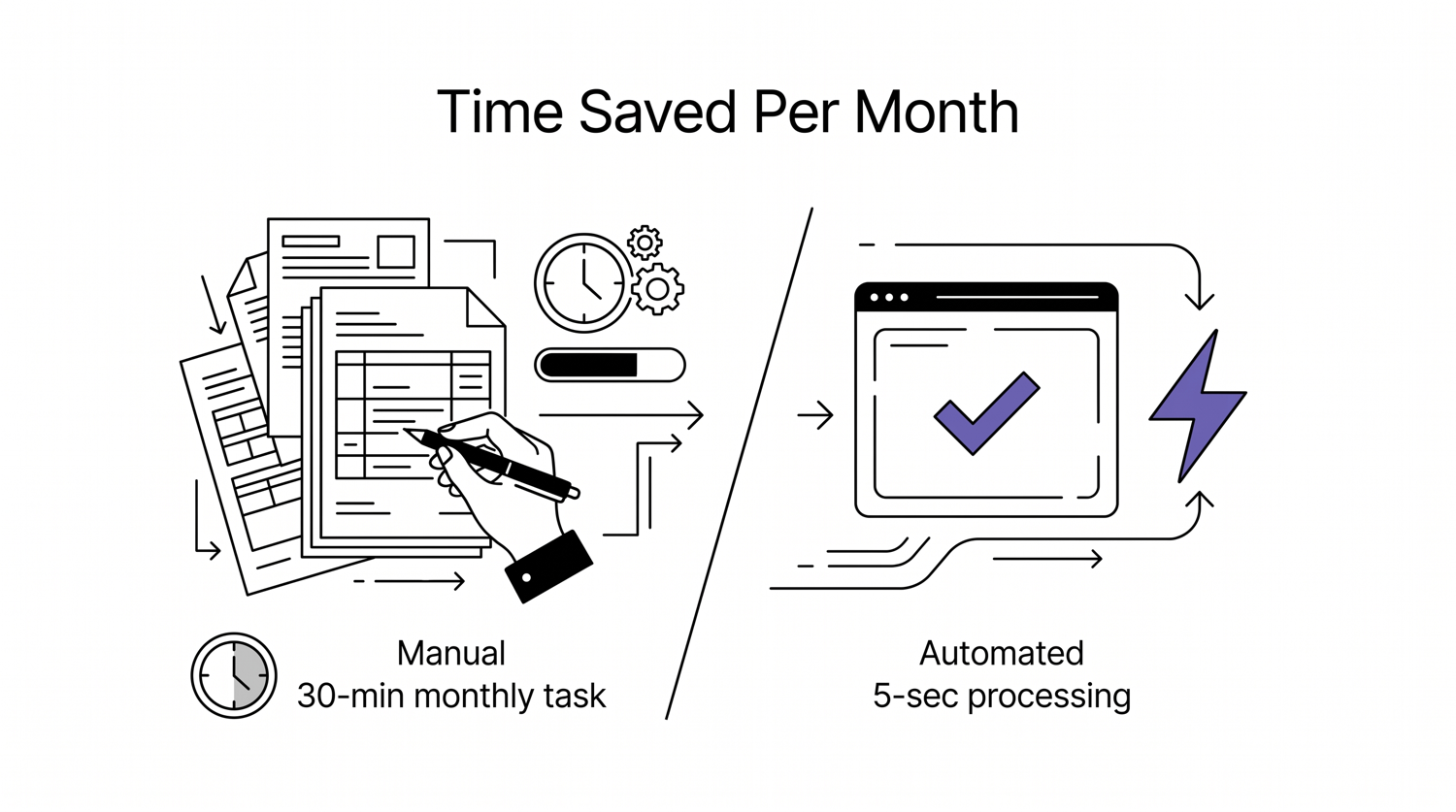
You converted the monthly bank statement to converting bank statements to CSV and now you’re going to email it to your bookkeeper, upload it to convert bank statement to QuickBooks, archive it in Google Drive, and log it in convert bank statement to Google Sheets. Four manual steps that take 30 minutes each, every single month.
You hear about Zapier and try to set it up, but the trigger doesn’t fire correctly, the CSV only sends the first row instead of all 250, and the Zap fails silently halfway through. By the time you check, the month-end deadline is two days away and the automation never worked.
The fix is a small set of trigger and looping choices that handle CSV files correctly the first time.
Quick Answers: To automate monthly bank statement processing with Zapier: (1) Trigger on ‘New file in Google Drive/Dropbox folder’ filtered to ‘statement.csv’. (2) Use ‘Formatter by Zapier’ to parse the CSV. (3) For multi-row CSVs, use ‘Looping by Zapier’ (premium feature) to process each row. (4) Actions: append to Google CSV to Google Sheets import bank statement, email to bookkeeper, or push to QuickBooks. Starter plan ($19.99/month) handles single-step CSVs; Professional ($49/month) supports looping for row-by-row processing. Add a final notification step so silent failures don’t go unnoticed. Test the Zap with a known file before letting it run unattended.
The 5-Step Zapier Setup for Monthly Bank Statements
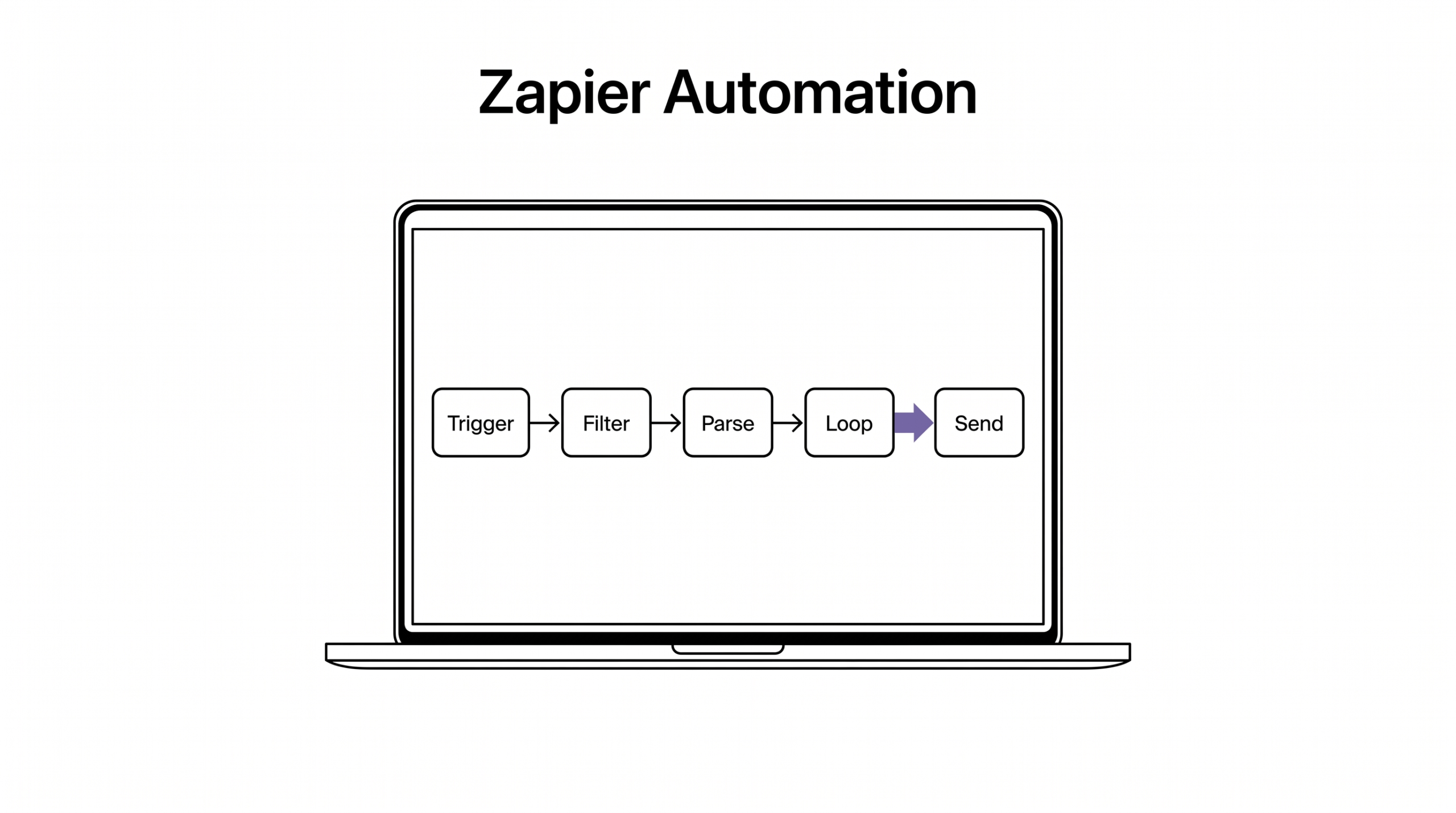
From “convert statement lands in folder” to “delivered to bookkeeper and logged in Sheets,” five steps handle most monthly workflows:
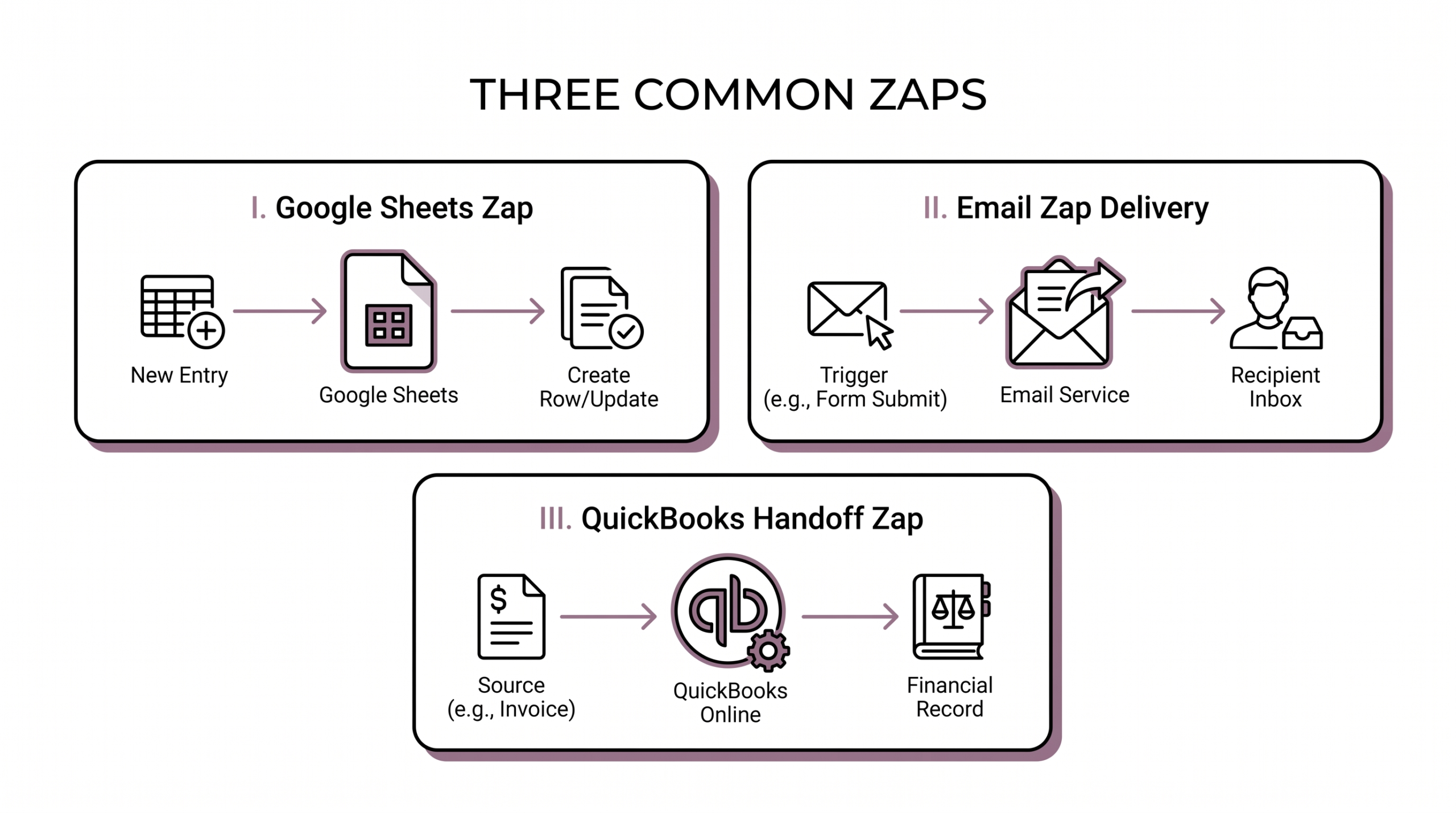
- Trigger: New file in folder. In Zapier, choose Google Drive or Dropbox as the app, then ‘New File in Folder’ as the trigger event. Select the specific folder where the converted CSV lands (typically a ‘Bank Statements’ subfolder). This trigger fires whenever a new file appears in that folder.
- Filter: Filename matches statement pattern. Add a Filter step that only continues if the file name contains “statement” or matches a specific date pattern. This prevents the Zap from firing on unrelated files in the same folder.
- Action: Parse CSV. Use ‘Formatter by Zapier’ → ‘Utilities’ → ‘Parse CSV’ to convert the CSV text into a structured array. The output is a list of rows that downstream steps can iterate over.
- Action: Create row(s) in Google Sheets. For each parsed row, append it to a master Google Sheet. For single-action processing, map the parsed row directly. For multi-row processing, use ‘Looping by Zapier’ to iterate.
- Action: Send notification email. Send yourself or your bookkeeper a confirmation email: “Statement for [month] processed: 250 rows added to Sheet.” This is also the failure-detection mechanism, if the email doesn’t arrive, the Zap failed.
Total setup time: 20-30 minutes for someone familiar with Zapier basics. For first-time Zapier users, expect 60-90 minutes for the first Zap. Once the pattern works, additional Zaps for the same workflow are 5-10 minutes each.
Turn That PDF Into a Spreadsheet in Minutes
You’ve seen how to do it manually — now let the tool handle the heavy lifting. Upload your bank statement and get Excel, CSV, or QBO in a few clicks.
From Bank Statement to QuickBooks-Ready File
That manual cleanup you just read about? This tool skips it. Turn your PDF into QBO for QuickBooks without storing your data anywhere.
From Bank Statement to QuickBooks-Ready File
That manual cleanup you just read about? This tool skips it. Turn your PDF into QBO for QuickBooks without storing your data anywhere.
Start ConvertingTrigger Choice: Folder Watcher vs Scheduled vs Email
Three trigger strategies work for monthly statement workflows:
| Trigger | Best for | Reliability | Setup effort |
|---|---|---|---|
| New file in folder (Google Drive / Dropbox) | Statements land in a consistent location | High (event-driven) | Medium |
| Scheduled (1st of month) | No folder convention; pull most recent file | High (always fires) | Low |
| Email parser (forward to Zapier email) | Statements arrive by email | High (with stable email) | High |
Folder watcher is the most reliable for predictable monthly workflows. The event-driven trigger fires only when a new file lands, so the Zap doesn’t waste tasks on idle days. The cost: requires a stable folder convention (the same folder receives every monthly statement).
Scheduled trigger is the simplest setup. Configure it to run on the 1st of every month at 9am, pull the most recent file matching a filename pattern, process. No folder convention required. The cost: a single Zap task every month even when no statement lands (low cost but not zero).
Email parser is for when statements arrive via email (common for shared business accounts where the bank sends PDFs to a shared inbox). Zapier provides a unique email address; forward the statement to that address; the trigger fires. The cost: depends on email reliability and the parsing complexity of the email body.
Multi-Row CSV Handling, The Looping Gotcha
Zapier parses a CSV into multiple rows, but the default Action setup processes only the first row. To handle all 250 rows, you need ‘Looping by Zapier,’ a premium feature available on the Professional tier and above.
Without looping, only the first row of the CSV goes to the destination (Google Sheets gets one row, the email mentions “1 transaction”, and the rest of the statement data is silently lost). With looping, all rows are processed sequentially: each iteration of the loop takes one parsed row, runs the downstream Action on that row, and continues until all rows are processed.
For monthly bank statements with 200+ transactions, looping is essential. The cost of the Professional tier (vs Starter) is justified by the looping feature alone.
Alternative without looping: use a ‘Create Multiple Rows’ action (Google Sheets supports this in Zapier natively). The action takes the entire parsed array and creates all rows in a single API call, no looping needed. This works for Google Sheets destinations but not for email or QuickBooks pushes, which need row-by-row processing.
Three Common Zaps for Monthly Statement Workflow
Three Zap templates cover most small business use cases:
- Zap A: Basic Google Sheets logger. New CSV in Drive → Filter statement → Parse CSV → Create Multiple Rows in master Google Sheet → Email confirmation. For personal finance and small business, this Zap replaces a manual monthly upload. Setup: 15 minutes.
- Zap B: Bookkeeper delivery. New CSV in Drive → Filter → Email CSV to bookkeeper (with subject “Statement for {filename}”). The email body includes the file as an attachment. For bookkeepers who want raw CSVs without a Sheets step. Setup: 10 minutes.
- Zap C: QuickBooks handoff. New CSV in Drive → Filter → Parse → Loop → Push to QuickBooks Online via ‘Create Bill’ or ‘Create Journal Entry’ action. This is the most advanced Zap and requires a QuickBooks Online subscription with API access. For bookkeepers with multiple clients, this Zap is the right scale-up.
For most small businesses, Zap A is the right starting point. It logs everything to a master sheet, which serves as a single source of truth for downstream analysis. The bookkeeper can access the sheet directly; no email forwarding needed.
Zapier Pricing Tiers vs Monthly Volume
Zapier pricing is based on tasks (a single action step is one task) and tier features. For monthly statement automation:
| Tier | Tasks/month | Looping | Multi-step | Cost for monthly CSV |
|---|---|---|---|---|
| Free | 100 | No | No (single-step only) | Too limited for 200-row statements |
| Starter | 750 | No | Yes | Only works with batch actions (Create Multiple Rows) |
| Professional | 2,000 | Yes | Yes | Sufficient for 200-row statements with looping |
| Team | 50,000 | Yes | Yes | For multi-statement workflows (10+ clients) |
For a single monthly statement with 200 transactions: Professional at $49/month is the right tier. The 2,000-task allowance covers the trigger, filter, parse, loop (250 iterations), and notification. The cost is roughly the same as 2 hours of bookkeeper time saved.
For bookkeepers managing 10+ clients: Team at $299/month amortized across 10 clients is $30/client. Each client workflow is one Zap, and the volume scales linearly. This is competitive with hiring additional staff for routine monthly processing.
Error Handling and Notification
Zaps fail silently by default. The most common failure modes: file format changes (the bank changes the CSV layout), authentication expires (Google Drive / Dropbox access token times out), or the destination app rejects the row (QuickBooks schema mismatch). Without error handling, you find out about the failure during month-end reconciliation, which is too late to fix without a manual run.
The fix: add a final notification step. After all the data processing completes, send a Slack message or email “Zap completed: {Zap name}, processed {row count} rows.” If the message doesn’t arrive, the Zap failed and you can investigate.
For critical Zaps (bookkeeper delivery, QuickBooks handoff), add a ZAP ERROR HANDLER path. Zapier has a built-in error handler feature (under Settings → Error Handling). When a step fails, the error handler can send a notification with the failure details. Configure the error handler to send a Slack message to a specific channel: “Zap {name} failed at step {step name} for file {file name}.
Error: {error message}.”
The pattern that works in production: a Zap that succeeds and sends “200 transactions processed” looks the same to most operators as a Zap that failed and sent nothing. Adding a clear success notification is what makes the difference between “I know it worked” and “I hope it worked.”
Testing and Ongoing Maintenance
Before turning the Zap loose on real monthly statements, test it with a known input file. Most banks’ PDFs are stable month to month, but they do change. A test file from last quarter might be slightly different from this quarter’s. Run the test, check the output, verify the math reconciles.
Quarterly review quarterly: re-test the Zap with a fresh file. Banks occasionally update their PDF format, which cascades into the converter output, which then breaks the Zap. A 15-minute quarterly test catches most issues before they hit the production run.
When the Zap fails and you need to recover: the original CSV is still in the folder (the Zap didn’t move or delete it). Open it manually, do whatever the Zap would have done (upload to Sheets, email to bookkeeper), and investigate the failure separately. The folder-convention design means the file is never lost even if the Zap misbehaves.
The Zap workflow for monthly bank statements is a one-time setup that pays back every month. The first time you open a month-end reconciliation and the data is already in your convert a bank statement to a spreadsheet, ready to review, is the moment the investment pays off.
From then on, the only question is what to do with the 90 minutes per month you used to spend on manual processing.
Turn any PDF statement into a clean sheet
Skip the typos and the hours of copying. Our converter handles any bank statement format and outputs Excel, CSV, or QBO for QuickBooks. No file retention, free to try.
Turn That PDF Into a Spreadsheet in Minutes
You’ve seen how to do it manually — now let the tool handle the heavy lifting. Upload your bank statement and get Excel, CSV, or QBO in a few clicks.
From Bank Statement to QuickBooks-Ready File
That manual cleanup you just read about? This tool skips it. Turn your PDF into QBO for QuickBooks without storing your data anywhere.
Start Converting