
You have an America First Credit Union account. You need 18 months of history for a mortgage refinance.
America First is the largest credit union in Utah, with 1.3M+ members, and a clean export path.
This page is the America First Credit Union export guide. It covers the 2 download options for personal accounts (PDF and QFX), the 18-month QFX history, the regional focus on Utah/Idaho/Nevada, the credit card portal, and the business account path. The detailed step-by-step is below.
America First gives you 24 months of monthly PDF statements and 18 months of combined QFX download. The QFX history is 18 months, matching BECU’s OFX history. There is no CSV, but the QFX is the Intuit proprietary version of OFX, so it works in QuickBooks.
America First is the largest credit union in Utah, with 1.3M+ members. Founded in 1939 to serve Utah’s public sector employees, the credit union now extends membership to anyone who lives, works, or worships in Utah, Idaho, or Nevada. The regional focus is a defining feature.
America First is one of 10 major US credit unions covered in our credit union export guide, which maps the download flow for each. The conversion step (PDF to Excel) is the same for every credit union, just as it is for every bank.
What America First Actually Gives You
America First’s online portal at americafirst.com gives personal account holders 2 export options. Both are useful in different situations.
What most guides miss about Excel conversion is that the quality depends on the mechanism, not on the tool. Two tools that look different on the surface often run the same 4-step process underneath: read, find, parse, verify. The difference is in how well each step handles edge cases (merged cells, missing balances, non-standard date formats, scanned vs digital input). Choosing between tools based on UI alone misses the actual quality lever.
- Monthly PDF Statements going back 24 months (2 years). One PDF per month per account. The PDF has the standard America First branding, the account summary, and the transaction list. This is the official statement you would send to a lender.
- Combined QFX Download going back 18 months. This is the cleanest export. The file is a single QFX with all transactions for the date range. It opens in QuickBooks and most accounting software. A converter that handles QFX can also turn it into an Excel file.
There is no CSV, no OFX, no QBO. The QFX is the Intuit version of OFX, so QuickBooks users get a clean path. Xero, Sage, and other non-QuickBooks software may need a converter to read QFX files.
There is no combined statement feature. Each account is downloaded separately. The 18-month QFX limit and 24-month PDF limit apply per account.
How to Download America First PDF Statements Step by Step
The PDF export is in the “Documents” section. Here is the click-by-click flow.
- Log into americafirst.com with your Username and Password.
- Click on the account you want the statement for (e.g., “Free Checking”).
- Click “Documents” in the navigation.
- You will see a list of monthly statements going back 24 months.
- Click the statement you want. The PDF opens in your browser.
- Save the PDF (Ctrl+S or File > Save).
The PDF is one file per month per account. For 24 months of history across 2 accounts, you are downloading 48 files. The PDF is well-formatted and a converter that handles America First’s standard layout will extract the transactions cleanly.


Turn PDF Bank Statements Into Workable Spreadsheets
Your bank statement is a mess of numbers, but your books shouldn't be. Use our converter to get Excel, CSV, or QBO files — ready for QuickBooks.
Try It Free NowHow to Download America First QFX Step by Step
The QFX export is the cleanest path. Here is the click-by-click flow.
- Log into americafirst.com.
- Click on the account.
- Click “Account History” in the navigation.
- Set the date range. The maximum is 18 months.
- Click the “Download” button.
- Choose “Quicken (QFX)” from the format dropdown.
- Click “Download” again. The file saves to your default downloads folder.
The file is named something like account_history_2025-01-15_to_2026-07-15.qfx. Open it in QuickBooks or convert it through a tool that handles QFX files.
I learned this the hard way the first time a Utah teacher needed 18 months of statements for a mortgage refinance. I downloaded 18 monthly PDFs. Then I found the QFX export, which would have given me 18 months in one file. The QFX covered the full history, so the PDF route was not needed at all.
The lesson: always check the QFX first. With America First’s 18-month QFX limit, the QFX covers most mortgage and refi history requests in a single download.
The 18-Month QFX Limit (and How to Get More)
America First’s QFX export goes back 18 months. The PDF export goes back 24 months. For most users, 18 months is enough. For some use cases (long-term tax audits, historical financial analysis), 18 months is not enough.
Two ways to get more than 18 months:
- Download the QFX in 18-month chunks. America First’s portal lets you pick any date range, but the maximum span is 18 months. Run the export for the last 18 months. Then run it for the 18 months before that. Combine the two files in Excel with a simple append.
- Use the PDF statements for older history. The PDF download goes back 24 months. Download the older PDFs and convert them. Combine with the QFX.
For most users, 18 months is enough. The 18-month limit is an America First portal limit. Older data exists. Getting it requires a phone call or the multi-chunk QFX approach.
America First Account Types and Their Export Flow
America First offers a tiered account structure based on the member’s relationship with the credit union. The export flow is the same for all account types.
- Free Checking is the standard checking account. No monthly fee, no minimum balance, no opening deposit. The export flow is the same.
- Rewards Checking earns interest on balances above $1,000. No monthly fee with eStatements and direct deposit. The export flow is the same.
- Regular Savings is the basic membership account. $5 minimum balance to maintain membership. The export flow is the same.
- Money Market is a higher-yield account with limited check-writing. Tiered interest rates based on balance. The export flow is the same.
- Certificates (CDs) are time deposits. The export flow shows interest payments as separate transactions and the maturity as a single large transaction at the end of the term.
For all account types, the export flow is identical. The click-by-click in the “How to Download” sections above works for any America First account you have.
America First Credit Card Statements
America First credit cards (Visa Platinum, Visa Cash Rewards, etc.) are managed through a separate portal. The export flow is different from personal banking.
- Log into the credit card portal at creditcard.americafirst.com with your credit card credentials.
- Click on the credit card account.
- Click “Statements” in the navigation.
- You will see a list of monthly statements going back 12 months for credit cards (vs 24 for personal banking).
- Click the statement you want. The PDF opens in your browser.
- Save the PDF (Ctrl+S or File > Save).
America First credit cards do not have a QFX download option. PDF only. For credit card transactions, you will need a converter to turn the PDFs into Excel files.
For business credit cards, the export flow goes through America First’s business banking portal, which is a separate login. The export options there are PDF (24 months) and QFX (18 months), same as personal accounts.
America First Business Accounts
America First business accounts (Business Checking, Business Savings) are managed through a separate portal at businessamericafirst.com. The export flow is similar to personal accounts.
- Log into businessamericafirst.com.
- Click on the business account.
- Click “Account History” in the navigation.
- Set the date range (up to 18 months for QFX, 24 months for PDF).
- Click the “Download” button.
- Choose “Quicken (QFX)” or “PDF” from the format dropdown.
- Click “Download” again.
For America First business accounts, the QFX limit is 18 months, same as personal accounts. America First does not offer a CSV download for business accounts, unlike some other credit unions (like Navy Federal’s business account, which gives both OFX and CSV).
If you are an America First personal member who needs more than 18 months of QFX history, consider opening an America First business account. The export path is similar, but the per-account limits are the same. The advantage of a business account is the ability to add multiple authorized users and to consolidate multiple sub-accounts under one download.
How to Convert America First PDF to Excel
Once you have the PDF (or QFX), you need to convert it. The PDF is the harder case. The QFX is the easier case.
Converting America First QFX to Excel
QFX is a structured data file (Intuit’s proprietary version of OFX). A converter that handles QFX will read the file and produce a clean Excel file with the transactions. The output has Date, Description, Amount, and Balance as separate columns. The date format is YYYY-MM-DD. The amount format is positive for deposits, negative for withdrawals.
The conversion takes 5 to 10 seconds per file. The output is clean. You can open it in Excel or Google Sheets and start working with the data immediately. For QuickBooks users, the QFX is the cleanest path. Our QuickBooks conversion guide covers the import dance for both QFX and QBO files.
Converting America First PDF to Excel
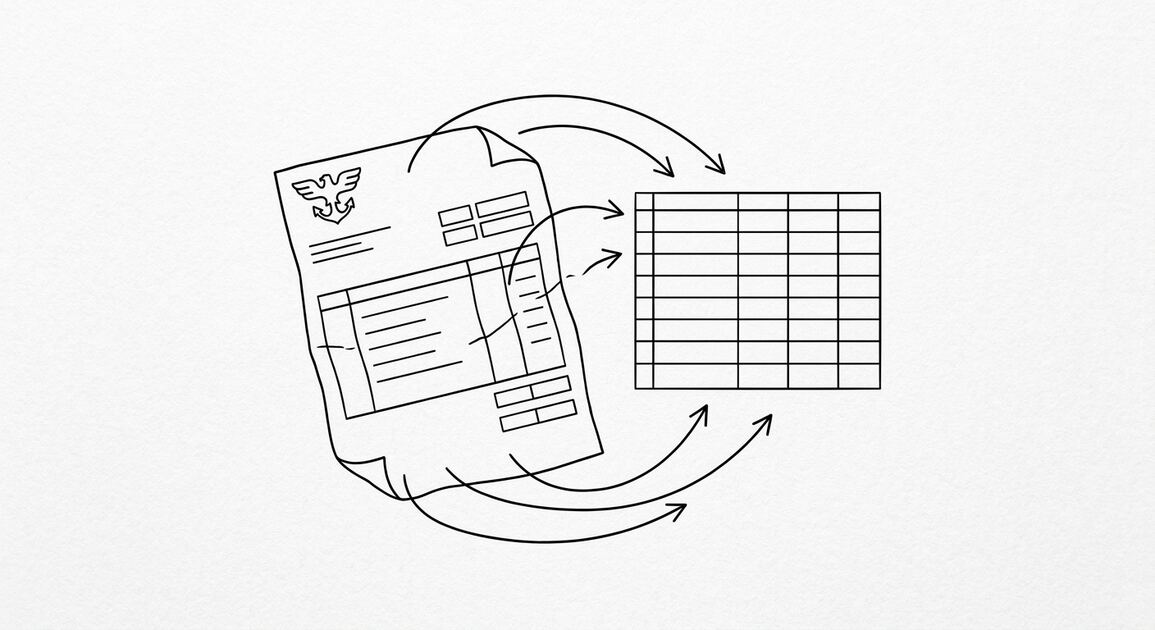
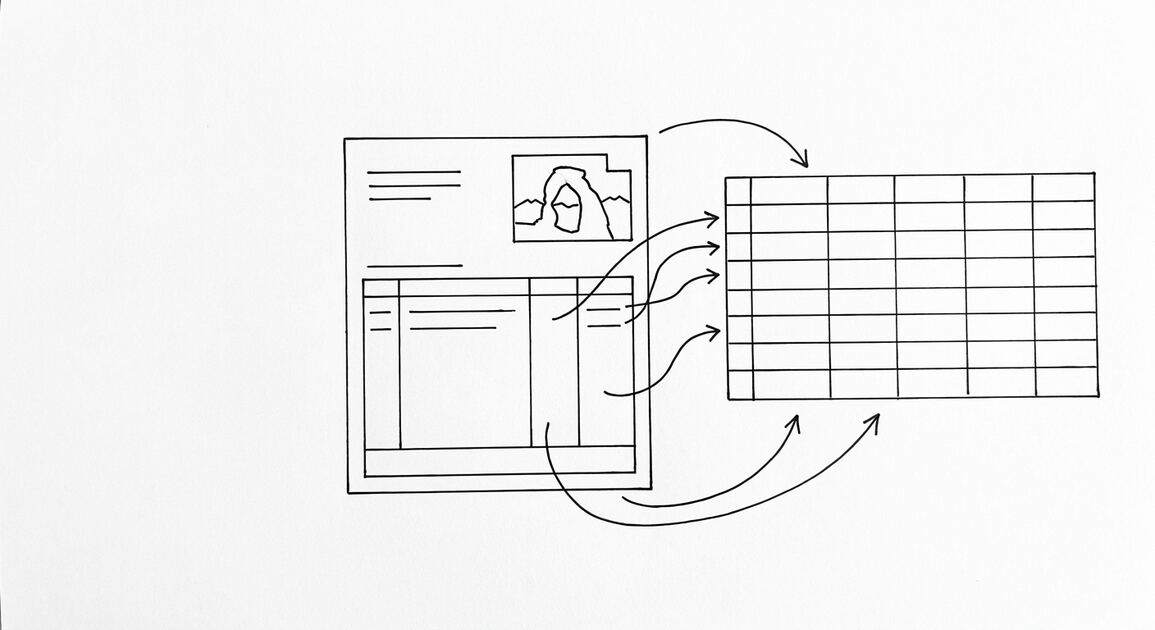
PDF is harder. The transactions are in a 4-column table inside the PDF. A converter needs to recognize that table, extract the rows, and write them as a spreadsheet.
America First’s PDF layout is standard. Most modern converters handle it. The 2am test: if the converter does not produce a clean Excel file on the first try, try a different one. A good converter should handle America First’s PDF on the first try.
The output for a PDF conversion has the same columns as the QFX output: Date, Description, Amount, Balance. The date format may be MM/DD/YYYY instead of YYYY-MM-DD. Check the format and convert it in Excel if needed. For the broader conversion workflow, our general PDF-to-Excel conversion guide covers the 5-point validation check and the 3 things to do after every conversion.
The 2am Test for America First Conversions
If you are converting America First statements at 2am, here is the flow that works.
- Open americafirst.com. Log in.
- Click the account. Click “Account History”. Set the date range. Click “Download”.
- Choose QFX. Click Download.
- If you need more than 18 months, click “Documents” instead. Download PDFs for the older months.
- Open the QFX file in a converter. Save the output as one sheet.
- Open each PDF in a converter. Save the output as separate sheets in the same workbook.
- Combine the sheets in Excel or Google Sheets.
If the converter gives you a file with merged cells, broken dates, or chopped descriptions, the converter is not handling America First’s format correctly. Try a different converter. The QFX format is standard, not custom. A good converter should produce clean output every time.
A common failure mode bookkeepers report is treating this as a single operation rather than a chain of dependent steps. The temptation is to find a tool that ‘just works’ and stop investigating the mechanism. The result is a wrong-fix cycle: the tool gives partial output, the bookkeeper spends 30+ minutes troubleshooting, the fix is for the wrong step, and the same error recurs on the next statement. The fix: identify which step failed and apply the right intervention to that step.
What to Do With Multiple America First Accounts
If you have multiple America First accounts (Free Checking, Rewards Checking, Money Market, credit card) and need them all in one file, the workflow is the same as for a single account: download the QFX for each, convert each, combine in Excel.
America First does not offer a combined statement feature. Each account is downloaded separately. The 18-month QFX limit and 24-month PDF limit apply per account.
For users managing many America First accounts, the combined approach is essential for tracking total dividend income and credit card rewards for tax reporting. The QFX files have the same column structure across accounts, so combining is just an append operation. Add an “Account” column to identify which account each transaction came from.
Our batch conversion guide covers the desktop converter setup that handles 100+ statements efficiently.
For comparison with other credit unions, Navy Federal Credit Union has a similar export flow but with 60-month PDF history (vs America First’s 24 months) and 18-month OFX (same as America First’s QFX). Navy Federal serves military members and families. America First serves Utah, Idaho, and Nevada residents.
America First is one of 10 major US credit unions covered in our credit union export guide, which maps the download flow for each. For a broader view across all US banking entities, our bank-statement-converter guide covers the major banks, credit cards, and credit unions in one map.
The conversion step is the same regardless of whether your statement comes from a bank, credit union, or credit card issuer. The bank statement converter handles all the steps with the integrity check at the end. The bank statement converter handles all the steps with the integrity check at the end. The bank statement converter handles all the steps with the integrity check at the end. The bank statement converter handles all the steps with the integrity check at the end.
Turn PDF Bank Statements Into Workable Spreadsheets
Your bank statement is a mess of numbers, but your books shouldn't be. Use our converter to get Excel, CSV, or QBO files — ready for QuickBooks.
Try It Free Now