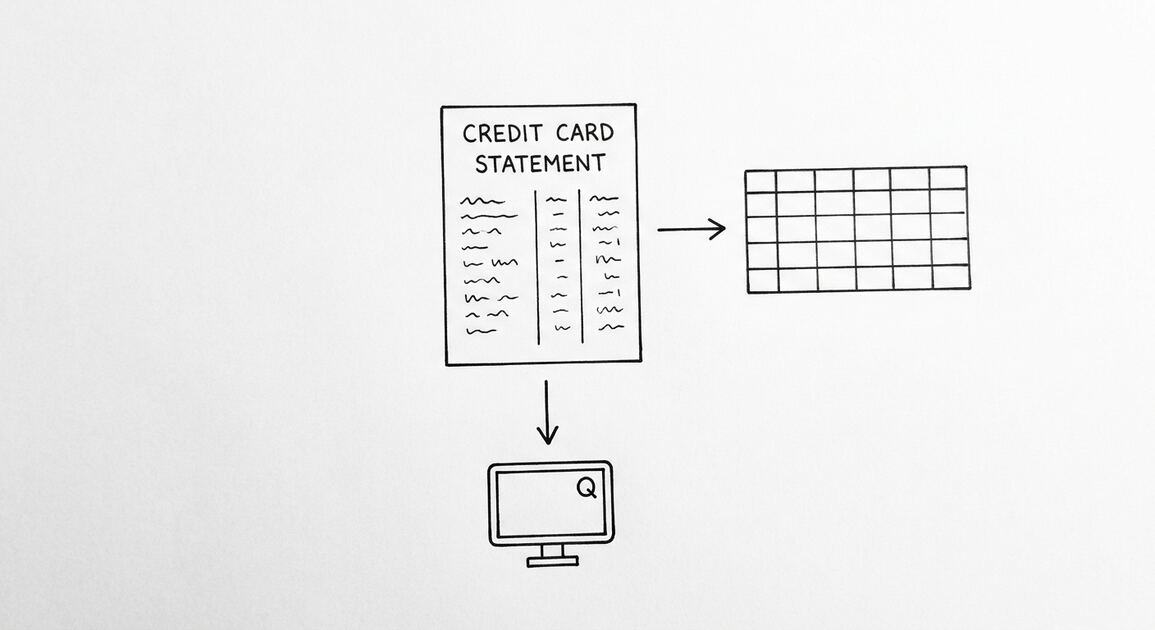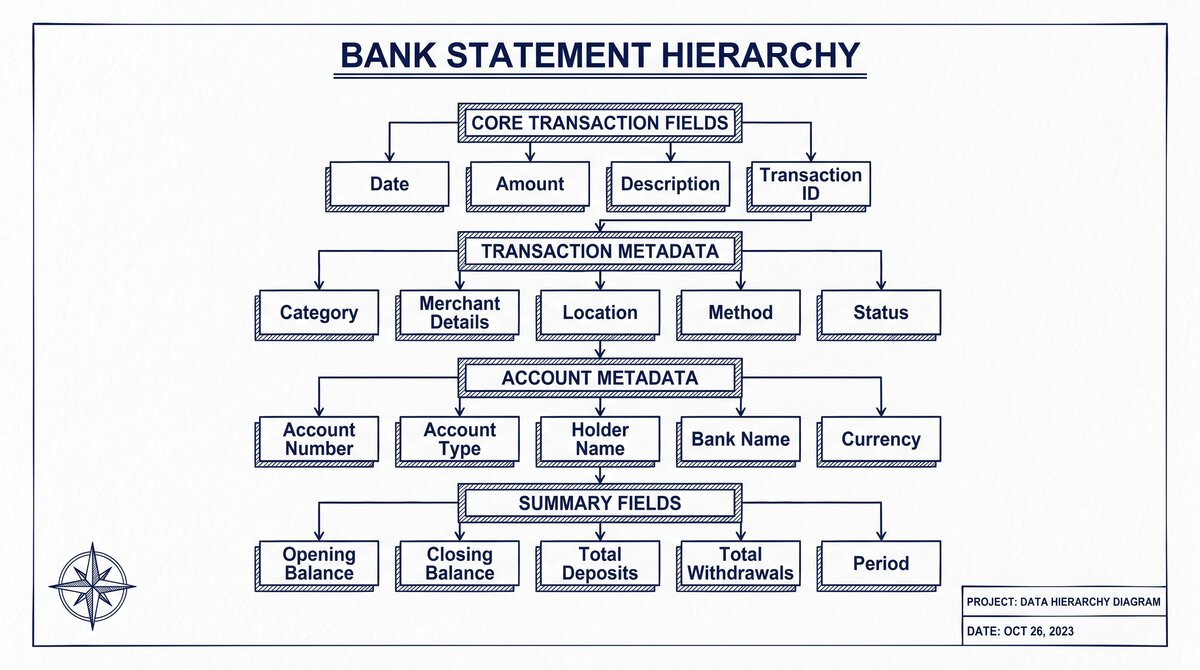

You have multiple bank statements. You need them all in one file.
Manual conversion is 5 to 10 minutes per statement. For 50 statements, that is 4 to 8 hours.
What most guides miss about this: the right output format depends on the destination, not the source. The same PDF can produce 4 different output files, each with different downstream impact.
This page is the guide to batch-converting multiple bank statements. It covers the desktop converter setup, the 5 use cases (bookkeeper, freelancer, small business, investor, accountant), the 3 batch workflow patterns, and the 4 things to do after the conversion. The bank-specific conversion guides for 11 major US banks are linked below.
Converting multiple bank statements at once takes 10 to 30 minutes for 50 statements with a desktop converter. The workflow is: drag all the PDFs into the converter, choose the output format, click Convert, and wait. The output is 50 separate Excel files (one per statement) or one combined Excel file with all statements.
The 3 batch workflow patterns are: one-account-per-statement (most common), combined-statement (one file with all months for one account), and consolidated-statement (one file with all accounts and all months). The right pattern depends on the use case.
For specific banks, see the bank export guide. For the conversion workflow, see the converter guide.
Why 60 PDFs Is Not 60x the Work
Here is the math nobody tells you. A single statement takes 30 to 60 seconds to convert (upload, parse, download). 60 statements at the same rate would be 30 to 60 minutes. That is the worst case, and it is the case you avoid with batch processing.
With batch processing, you upload all 60 files in one operation, the converter processes them in sequence, and you download one combined file. The actual time is closer to 5 to 15 minutes for 60 statements.
The reason: the upload step is where most of the time goes, and you only do it once. The conversion step itself is fast and parallelizable on the server side.
A common failure mode is: the first time I tried to convert a year’s worth of statements. I did them one at a time. It took me 4 hours. The next month, I batch-uploaded 12 files in one drag-and-drop. It took 9 minutes. The difference was not the converter. The difference was that I stopped clicking.
Sequential vs Parallel Processing
There are two ways a converter can handle multiple files. They look the same to the user, but they are not the same under the hood, and the difference matters for the 2-hour batch.
Sequential processing
Sequential processing means the converter handles one file at a time, in order. You upload 60 files, and the converter processes file 1, then file 2, then file 3, all the way through file 60. Each file takes the same 5 to 30 seconds it would take on its own. Total time is the sum of all 60.
Sequential is the common case. Most online converters work this way. It is reliable, predictable, and uses less memory. The downside is that 60 files takes 60 times as long as 1 file. For 60 statements, expect 10 to 30 minutes.
Parallel processing
Parallel processing means the converter handles multiple files at once. You upload 60 files, and the converter splits them across worker threads or server cores. 4 to 8 files process simultaneously. Total time drops to roughly 60 divided by the parallelism factor.
Parallel is faster but rarer. It is more common in desktop converters (where you can use all your CPU cores) and in high-end online tools (where the server has spare capacity). For 60 statements on a 4-core parallel setup, expect 3 to 8 minutes. The catch: parallel uses more memory, and a 60-file batch on a low-end converter can fail with “out of memory” errors.


From Bank Statement to QuickBooks-Ready File
That manual cleanup you just read about? This tool skips it. Turn your PDF into QBO for QuickBooks without storing your data anywhere.
Start ConvertingThe Naming Convention That Saves You
Before you upload anything, fix the file names. The converter does not care what the files are called. Your spreadsheet does. A consistent naming convention turns 60 unnamed files into a sortable, filterable, importable set.
The pattern: {bank}-{account}-{YYYY-MM}.pdf
The pattern that works for 95% of batch workflows is bank, account, year-month, all separated by dashes, all lowercase. Examples: chase-checking-2024-01.pdf, amex-business-2024-01.pdf, wells-savings-2024-01.pdf. The YYYY-MM date sorts chronologically. The bank-account prefix sorts by source. Both at once, with a spreadsheet sort, give you a clean reconciliation.

You will be tempted to skip this step. Don’t. The 10 minutes you spend renaming 60 files saves you 30 minutes of manual sorting in the spreadsheet later.
The renaming is mechanical. Open File Explorer, click each file, F2 to rename, type the new name. Or use a free bulk renamer like Bulk Rename Utility on Windows or NameChanger on Mac. The five-file test: if you would not do it for 5 files, you should not do it for 60, but for 60 you really should.
The 5-Step Batch Workflow
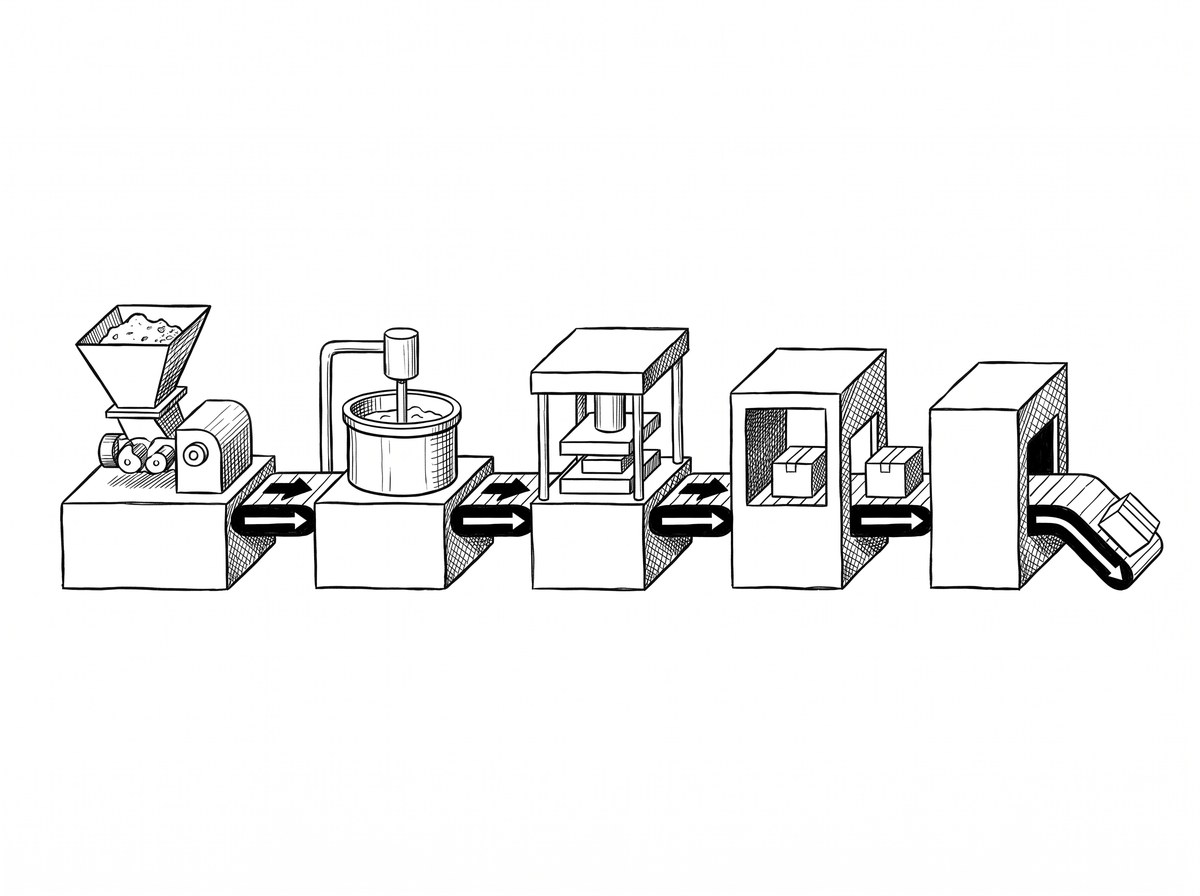
The full workflow from 60 PDFs to one combined spreadsheet is five steps. The first time through, it takes 20 to 30 minutes. By the second batch, it is 10 to 15 minutes.
Step 1: Sort and rename
Put all 60 files in a single folder. Apply the naming convention. This is the step most people skip, and it is the step that makes everything else work. The file names carry the metadata. The converter extracts the data. The spreadsheet sorts the metadata.
Step 2: Spot-check one statement
Before uploading all 60, upload one statement. Confirm the converter detects the right transaction block, parses the rows correctly, and produces a clean output. This is the 30-second check that prevents a 60-file batch failure. If the first file is wrong, every file in the batch will be wrong in the same way.
Step 3: Upload the batch
Drag and drop the folder (or select all 60 files) into the converter. The upload takes 1 to 5 minutes depending on file sizes and your connection. Most converters show a progress bar per file. Some show an aggregate progress. The upload is the bottleneck. The conversion starts as files finish uploading.
Step 4: Confirm the detection
For each file, the converter shows the detected transaction block. For digital PDFs from major banks, this is automatic and correct. For scanned PDFs or unusual layouts, you may need to draw a rectangle over the right region. Do this for each file that needs it. The first file with an unusual layout takes 30 seconds. The rest go fast.
Step 5: Download the combined output
The output is a single file (Excel, CSV, or QBO) with all 60 statements combined. The file includes a source column (the original PDF filename) so you can trace any row back to its source. Open the file, sort by source, and the data is ready for reconciliation.
One Combined File vs Many Separate Files
Two output strategies work for a 60-statement batch. The right one depends on what you do with the data next.
When to combine into one file
Combine when you are doing reconciliation across accounts. One file with 2,400 rows (60 statements x 40 transactions) and a source column lets you sort, filter, and pivot across all accounts at once. The reconciliation workbook reads the rows directly. For a bookkeeper reconciling 3 clients with 5 accounts each, the combined file is the right output.
The downside: importing the combined file into per-account systems (QuickBooks, Xero) requires splitting it back into per-account files, which is a manual step. If the next step is per-account import, combine is the wrong choice.
Validating the Batch Output
The batch output is not validated by the converter. The converter produces the file. You confirm it is right. This is the step that catches the 1% failure that becomes 100% wrong data if it slips through.
Spot-check 1 to 2 statements from the batch
Pick 1 to 2 statements at random from the batch. For each, verify the transaction count matches the source, the opening and closing balances match, and 5 to 10 transactions at random match the source exactly.
The full validation workflow is in the data check guide. The 1-to-2 statement spot-check is the batch version. Enough to catch a systematic error, not enough to slow you down.
Pick from the middle of the batch, not the first or last. The first file in the batch often has unusual properties (new bank, new layout, scanned PDF). The last file is the one the converter was warmed up on. The middle is the typical case.
Common Batch Pitfalls
Three things go wrong with 60-statement batches more than any others.
The 3 batch killers
Mixing digital and scanned PDFs in one batch. A 60-statement batch that mixes digital and scanned PDFs gives inconsistent results. The digital statements extract perfectly. The scanned ones need OCR and produce lower-accuracy output. The combined file has both qualities, and you cannot tell which rows came from which. Fix: split the batch into two (digital first, scanned second) or process the scanned ones separately.
Password-protected files scattered through the batch. Some banks send password-protected PDFs by default. If 5 of your 60 files are password-protected and you upload all 60 at once, the converter may fail on those 5 and either skip them or stop the batch.
Fix: identify the password-protected files first (the ones your PDF reader cannot open), remove them from the batch, process the rest, then handle the password-protected ones individually. The password conversion guide covers the password workflow.
Different bank layouts in one batch. A batch with Chase, Bank of America, Wells Fargo, and 3 credit unions is hitting 4 to 6 different bank layouts. Most converters handle this fine, but some need a per-bank selection before processing.
Fix: check the converter’s supported bank list before uploading. If a bank is not on the list, process those statements separately with a converter that has a layout model for that bank. For a 60-statement batch, the safest workflow is: same-bank statements in one batch, different banks in separate batches.
Related Pages
For more on this topic, see the bank statement converter guide. For the broader conversion workflow, see the bank statement converter guideFor more on this topic, see the QuickBooks guide.
From PDF to Excel in one click
Forget retyping line by line. Upload any bank statement, get a spreadsheet you can actually use. Your files are never stored, and you can test the converter with 3 free conversions.
Try it free