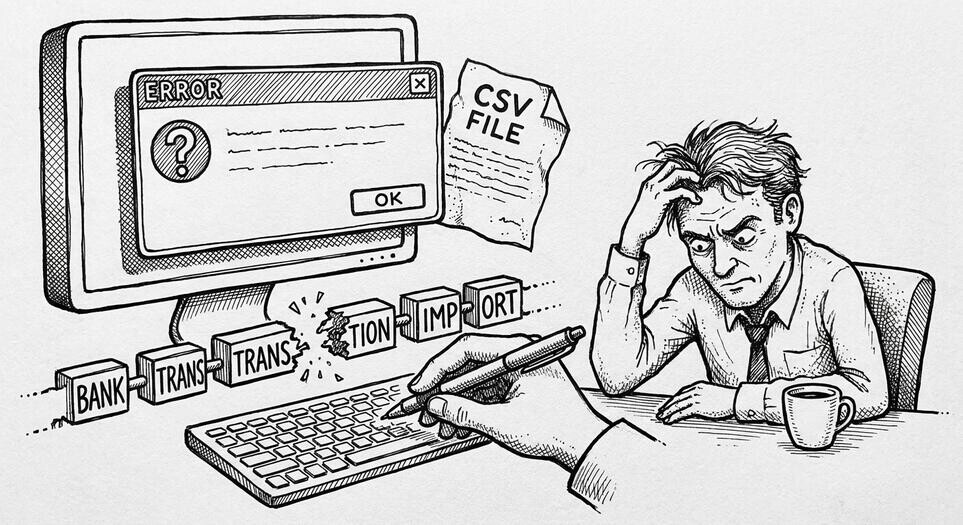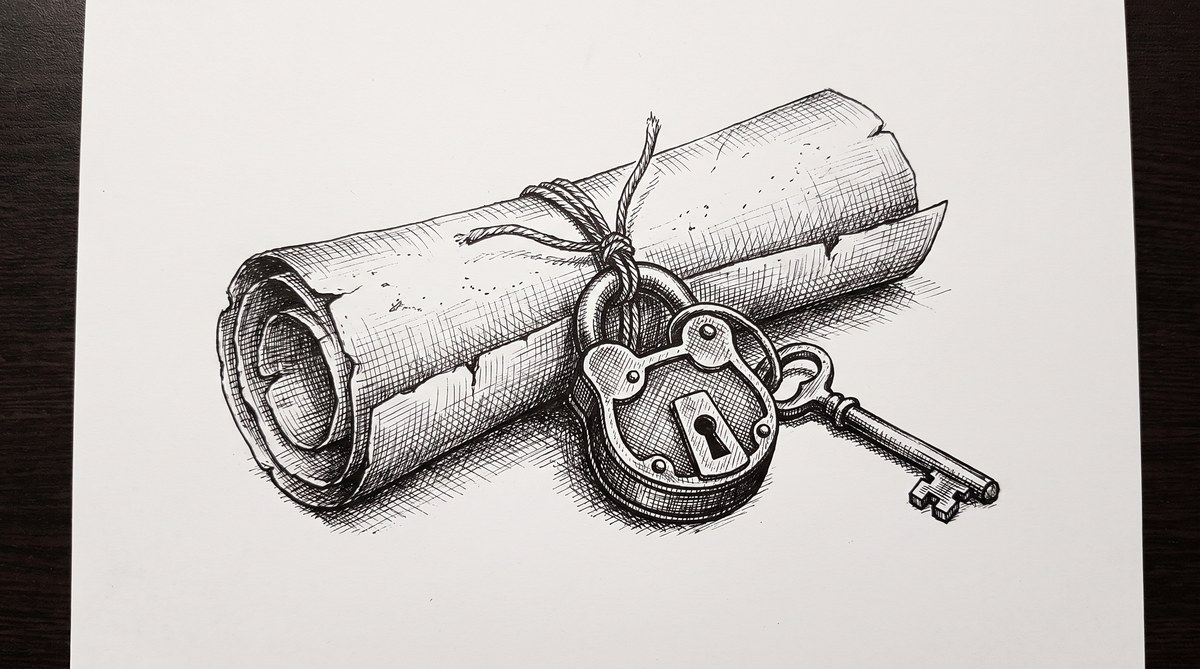

Your bank statement is password-protected. You don’t know the password. The PDF won’t open. Most banks use the same 3 passwords across all their statements. Here is how to figure out which one in 30 seconds, and the converter workflow that handles the rest.
This page is the troubleshooting guide for password-protected bank statements. The general conversion workflow is on the conversion page. The scanned PDF guide is on a separate page. This page zooms in on the “the PDF won’t open, what’s the password?” question.
Converting a password-protected bank statement is the same as converting a regular one once you know the password. Most banks use one of 3 standard passwords: the account number, the last 4 digits of the SSN, or the date of birth in MM/DD/YYYY format. Try all 3 before anything else.
The wrong password is the most common reason a PDF won’t open. The right password is almost always one of the 3 standard patterns. The conversion tool reads the PDF like any other statement once it is unlocked.
For the conversion step, see the Excel guide. For the bank-specific export, see the bank export guide.
TL;DR. Banks use 3 standard passwords: last 4 of SSN, date of birth (MM/DD/YYYY), or full account number. The password is consistent across all statements from the same bank for the same account.
The fastest diagnosis is 30 seconds: check the email subject, check the bank’s FAQ, try the 3 standards, call the bank if all else fails. Once you know the password, save it in your password manager. The converter handles decryption automatically.
The 3 Standard Bank Passwords
Banks use the same 3 passwords across all their statements, year after year. The password is per-customer or per-account, not per-statement. Once you know the password for one statement, you know it for all statements from the same bank.
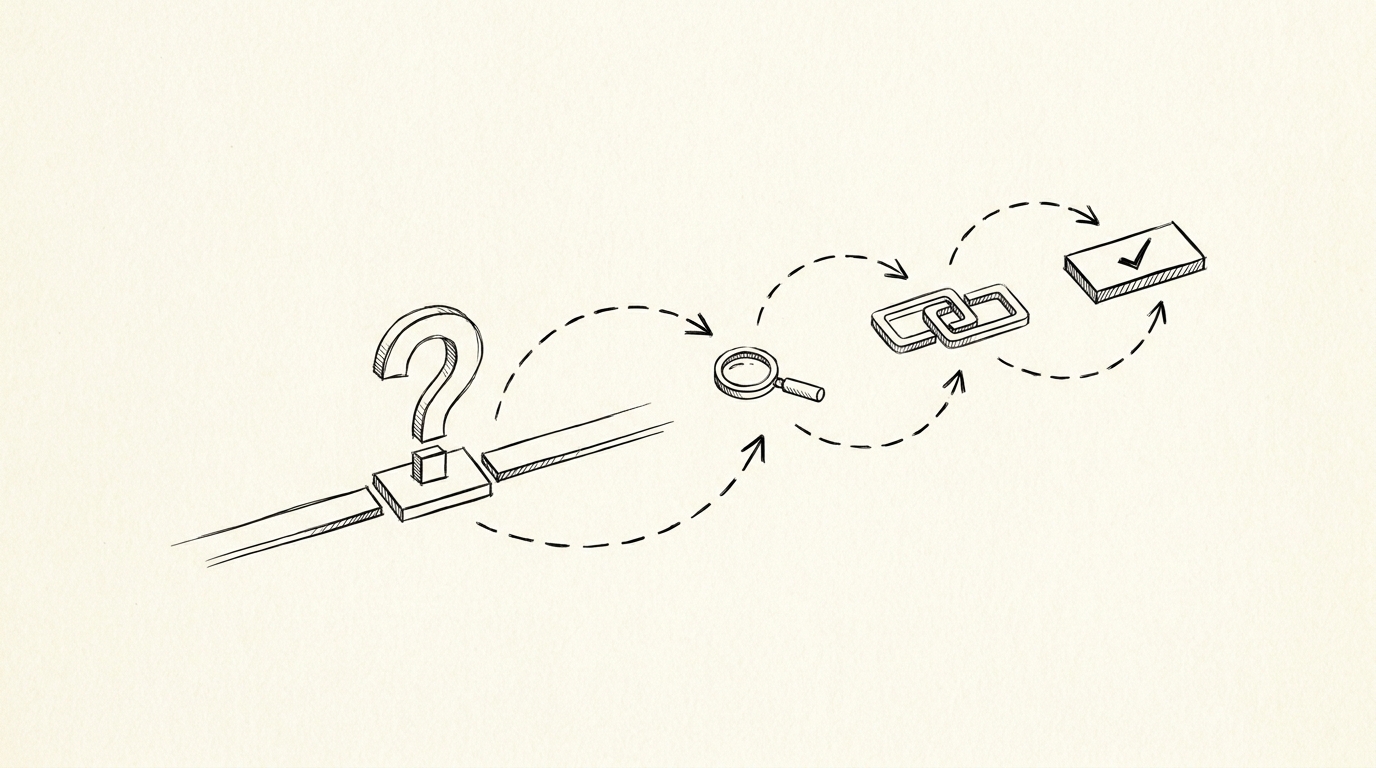
What most guides miss about this workflow is that the quality depends on the mechanism, not on the tool. Two tools that look different on the surface often run the same 4-step process underneath: read, find, parse, verify. The difference is in how well each step handles edge cases (merged cells, missing balances, non-standard date formats, scanned vs digital input). Choosing between tools based on UI alone misses the actual quality lever.
Last 4 of SSN. Many US banks use the last 4 digits of the customer’s Social Security Number as the statement password. The password is consistent across all statements and accounts, for that SSN. If you have 2 accounts at the same bank, both use the same SSN-last-4 password. The password is NOT case-sensitive in most bank systems.
Date of birth (MM/DD/YYYY). Some banks use the customer’s date of birth. The format is usually MM/DD/YYYY for US banks and DD/MM/YYYY for non-US banks. Try 8 digits, no slashes. The password is consistent across all statements for that customer.
Full account number. Some banks use the full account number as the password. The password is the account number, no dashes, no last-4. The password is per-account, not per-customer. If you have 2 accounts at the same bank, each has a different password. This is the most common password for business accounts.
I learned this the hard way on a Chase statement I could not open for 3 days. I tried the SSN, the DOB, the account number. None worked. I called Chase. The password was the SSN with a leading zero I had not been entering.
The bank’s password rule stripped the leading zero on the website but required it for the PDF. I lost 3 hours of tax-prep time over a single zero. Save the password the first time it works.
The 30-Second Diagnosis
The fastest path to the right password, in order. Each step is 5 to 10 seconds.
Step 1: Check the email subject. Most banks mention the password in the subject line of the email that delivered the statement. The subject is usually “Your statement is ready – password is X” or “Your statement – DOB as password.” Look at the original email. If you downloaded the PDF from the email, the subject is in the email client, not the PDF.
Step 2: Check the bank’s FAQ. Most banks have a help page titled “What is my statement password?” with the answer. The URL is usually bank.com/help/statement-password or bank.com/personal/checking/statements. The answer is one of the 3 standards.
Step 3: Try the 3 standards. Open the PDF in your converter. Most converters have a password field where you enter the password before the conversion. Try each of the 3 in order: SSN-last-4, DOB, account number. The right one will open the PDF. The wrong ones will return “incorrect password” or “cannot decrypt.”
Step 4: Call the bank if all else fails. The customer service number is on the back of your debit card. Ask for “the password for my monthly statement PDF.” The rep will tell you in 30 seconds. They will not ask for verification beyond your name and account number, because the password is not security-sensitive (it is a customer-verification pattern, see below).

From Bank Statement to QuickBooks-Ready File
That manual cleanup you just read about? This tool skips it. Turn your PDF into QBO for QuickBooks without storing your data anywhere.
Start ConvertingWhy Banks Password-Protect Statements
Two reasons, and neither is security.
It is not security, it is customer verification. Anyone with the statement and your basic info can guess the password. The password is the same one you use to verify your identity on the phone.
The encryption is symmetric (same password for lock and unlock). The point is to ensure the person opening the PDF is the account holder, not to prevent a determined attacker from reading the data.
Most banks do this for compliance, not safety. Federal regulations require financial institutions to verify customer identity before sharing account data. The PDF password is a low-friction way to satisfy the requirement without forcing every customer to log in to online banking.
The password is a regulatory artifact, not a security feature. Knowing this changes how you think about the password problem: it is not “encrypted secret,” it is “verification token.”
The Converter Workflow
Once you know the password, the conversion is 3 steps.
Decrypt the PDF. Open the PDF in your converter. Most converters have a password field above the upload area. Enter the password. The PDF unlocks in 1 to 2 seconds. The decrypted version stays in memory; nothing is written to disk unless you save it.
Save the decrypted version (optional). If you want to keep a copy of the unlocked PDF for future reference, save it with a clear filename (chase-checking-2024-01-unlocked.pdf). Some converters do this automatically. The unlocked PDF is a normal PDF that anyone can open without a password.
Run the conversion. The conversion is the same as for any other bank statement. The 4-step workflow (assess, upload, confirm, parse) is identical. The only difference is the password field at the start. Total time: 1 to 3 minutes per statement.
When the Password Doesn’t Work
Three cases where the 3 standard passwords fail. Each has a specific workaround.
You have the wrong account number. Some banks (especially business accounts) use the full account number, and the account number on the statement may differ from the account number on your checkbook. The fix: look at the top of the statement for the account number. Use that one, not the checkbook one.
The bank uses an unusual format. Some banks use routing number, customer’s name, or “password” as the actual password. The fix: call the bank. Do not guess 5 times in a row; some banks lock you out for 24 hours after 5 failed attempts.
The PDF is corrupted. If the password is right and the PDF still won’t open, the file is corrupted (incomplete download, broken transfer, virus-damaged). The fix: re-download the statement from the bank’s website. The new file is the same content, but the bytes may be intact.
The bank uses an unusual format. Some banks use routing number, customer’s name, or “password” as the actual password. The fix: call the bank. Do not guess 5 times in a row; some banks lock you out for 24 hours after 5 failed attempts.
The PDF is corrupted. If the password is right and the PDF still won’t open, the file is corrupted (incomplete download, broken transfer, virus-damaged). The fix: re-download the statement from the bank’s website. The new file is the same content, but the bytes may be intact.
A common failure mode bookkeepers report is treating this as a single operation rather than a chain of dependent steps. The temptation is to find a tool that ‘just works’ and stop investigating the mechanism. The result is a wrong-fix cycle: the tool gives partial output, the bookkeeper spends 30+ minutes troubleshooting, the fix is for the wrong step, and the same error recurs on the next statement. The fix: identify which step failed and apply the right intervention to that step.
Related Pages
For more on this topic, see the bank statement converter guide. For the broader conversion workflow, see the bank statement converter guideFor more on this topic, see the scanned statement guide. For the broader conversion workflow, see the bank statement converter guideFor more on this topic, see the Excel guide. For the related how to handle password-protected bank statements: 3 unlock methods page, see the linked article.
Turn any PDF statement into a clean sheet
Skip the typos and the hours of copying. Our converter handles any bank statement format and outputs Excel, CSV, or QBO for QuickBooks. No file retention, free to try.
Convert your statement