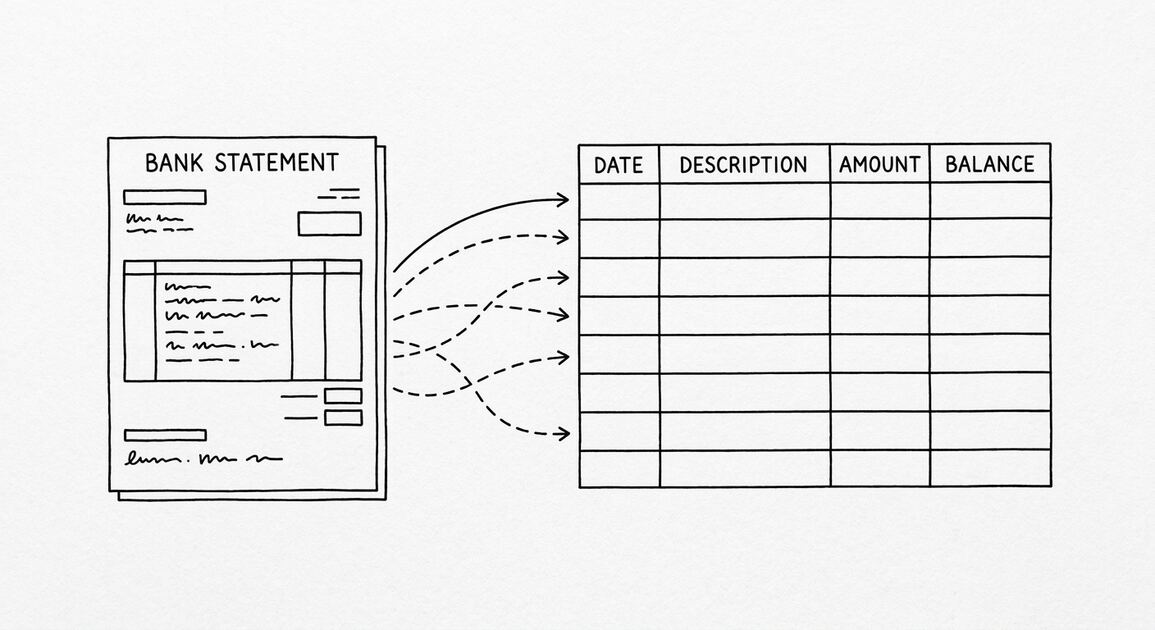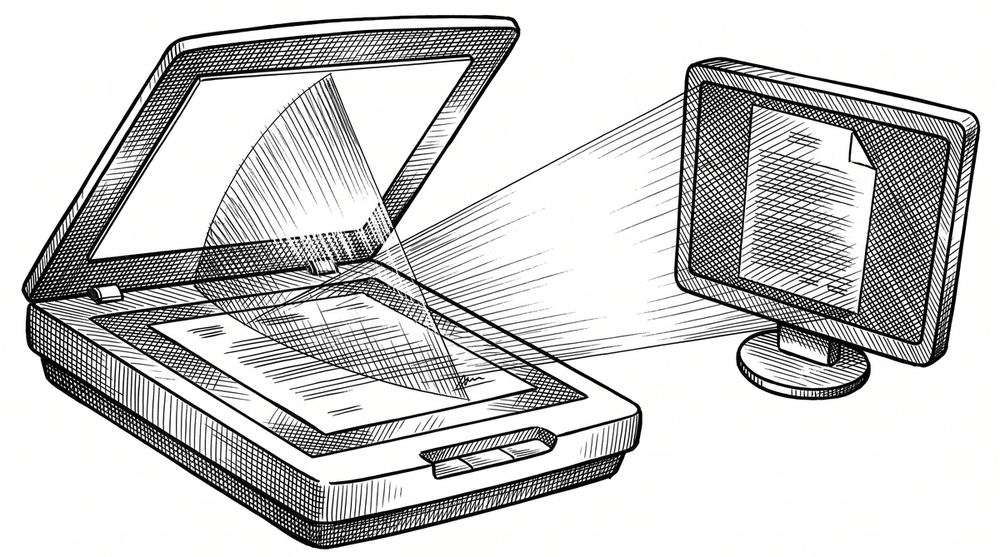

You scanned the bank statement. The PDF looks right. But the converter says “no transactions found.” The PDF is an image, not text. Your conversion tool can’t read the transactions because there are no characters in the file, just pixels. Here’s why, and the 5-minute pre-processing that fixes it.
This page is the troubleshooting guide for scanned bank statements. The general conversion workflow is on the conversion page. The PDF extraction mechanism is on the mechanism page. This page zooms in on the “my PDF is an image, not text” question.
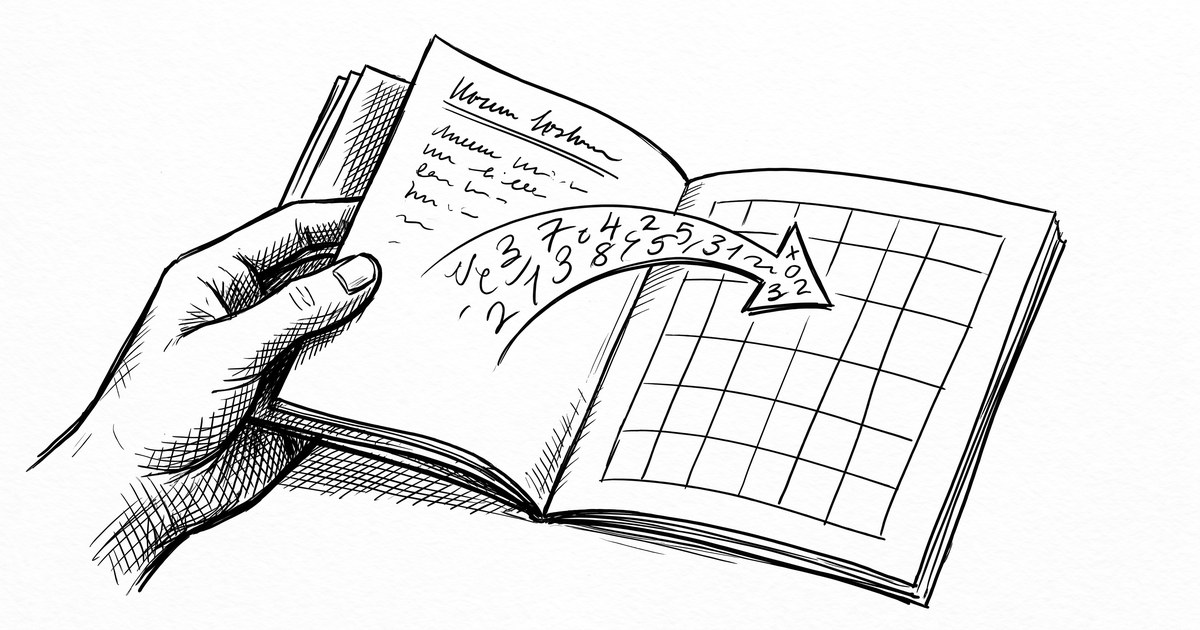
Converting a scanned bank statement to Excel, CSV, or QBO (also called converting an image bank statement to Excel or CSV, image PDF bank statement to spreadsheet, or scanned PDF bank statement converter) is the process of using OCR (Optical Character Recognition) to read the text from a scanned or photographed PDF and output it as a row-and-column Excel file. The same workflow applies whether the input is a flatbed scan, a phone photo, or an image-only PDF.
Scanned PDFs are images, not text. They need OCR before any extraction. The accuracy gap between native text PDFs and scanned PDFs is 2-4%. The fix: pre-process the scan (deskew, denoise, contrast enhance) before conversion. 5 minutes of pre-processing lifts accuracy 5-10%. The 5-point validation check is mandatory for scanned statements. For extracting transactions from a scanned statement (not converting to a specific format), see the extract transactions from PDF bank statement guide.
The 3 quality factors: scan DPI (300+ for accuracy), contrast (black on white, no smudges), and orientation (no rotation, deskewed). Get these right and the conversion is 99%+ accurate. Get them wrong and you get 95% accuracy and hours of fixing. For how OCR actually works, see the how OCR works for bank statements guide.
Why Scanned PDFs Fail
A native PDF (the one your bank emails you) is a text file. Each character is encoded as text. A converter can extract the text directly. A scanned PDF is a photograph. Each character is a pattern of pixels. A converter can’t extract text from a photograph. It needs OCR (Optical Character Recognition) to read the pixels and turn them into text.
What most guides miss about Excel conversion is that the quality depends on the mechanism, not on the tool. Two tools that look different on the surface often run the same 4-step process underneath: read, find, parse, verify. The difference is in how well each step handles edge cases (merged cells, missing balances, non-standard date formats, scanned vs digital input). Choosing between tools based on UI alone misses the actual quality lever.
Most modern converters handle both. The “scanned” filter is built in. But OCR has limitations. Native text is read perfectly. Scanned text is read with some error rate. The error rate depends on the scan quality.
The image vs text problem
You can’t see the difference between a native PDF and a scanned PDF by looking at them. Both look like bank statements. The difference is in the file: native PDFs have a text layer, scanned PDFs don’t.
You can verify by opening the PDF in a text editor, or by trying to select text in a PDF viewer. If the text is selectable, it’s native. If it’s a selection of pixels, it’s scanned.
What “scanned” actually means
Most bank statement “scans” are not from a scanner. They’re from a bank’s mobile app, a screenshot, or a fax. The output is the same: a flat image. The image might be 200 DPI or 600 DPI, color or grayscale, rotated or deskewed. The OCR accuracy depends on all of these.
The accuracy gap (99% vs 95%)
Native text PDFs convert at 99% accuracy. Scanned PDFs convert at 95-98% accuracy. The 2-4% difference is the difference between “trust the conversion” and “validate every row.” For a 200-row statement, that’s 4-8 wrong transactions in a scan vs 0-2 in a native PDF. The 5-point check on the validation page catches most of these. The spot-check is mandatory for scans.
The 3 Quality Factors
The 3 things that determine OCR accuracy: DPI, contrast, orientation. Get all 3 right and the conversion is 99%+ accurate. Get any of them wrong and accuracy drops. I’ll cover each.
Scan DPI (300+ for accuracy)
DPI (dots per inch) is the resolution of the scan. 200 DPI is the minimum for OCR. 300 DPI is the sweet spot for accuracy without file size bloat. 600 DPI is overkill for bank statements.
If you’re scanning at 100 DPI, the converter will fail or give very low accuracy. The fix: rescan at 300 DPI. Most modern scanners default to 300 DPI. Mobile apps typically scan at 200-400 DPI.
Contrast (black on white, no smudges)
OCR works best with high contrast: black text on white background, no smudges, no faded ink. Old bank statements (pre-2010) often have faded ink. Photocopies of photocopies have lower contrast. The fix: enhance the contrast before OCR. Most PDF editors have an “enhance contrast” or “auto-level” feature. Or use a free tool like GIMP or ImageMagick.
Orientation (no rotation, deskewed)
If the page is rotated (90°, 180°, 270°) or skewed (the page isn’t perfectly straight), OCR accuracy drops dramatically. The fix: deskew the page before OCR. Most PDF editors have a “rotate” or “deskew” feature. Or use a free tool like ScanTailor. The deskew is one click. The accuracy gain is 5-10%.


From Bank Statement to QuickBooks-Ready File
That manual cleanup you just read about? This tool skips it. Turn your PDF into QBO for QuickBooks without storing your data anywhere.
Start ConvertingThe 5-Minute Pre-Processing
The 3-step pre-processing that lifts OCR accuracy 5-10%: deskew, denoise, contrast. Each step takes 1-2 minutes. Total: 5 minutes.
I skip this for a month once. I ended up with 4-6% error rate across 60+ statements. 60 × 8 wrong = 480 wrong transactions. Each took 5-15 minutes to find during reconciliation. 480 × 10 = 80 hours of fixing. The 5-minute pre-processing would have saved 75+ hours.
Step 1: Deskew the pages
Open the scanned PDF in a PDF editor. Most have an “auto-deskew” or “straighten pages” feature. Click it. Save. The pages are now perfectly straight. If your tool doesn’t have auto-deskew, use ScanTailor (free, open source). It handles batches.
Step 2: Denoise and clean up
Open the scanned PDF in GIMP or ImageMagick. Apply a “despeckle” or “noise reduction” filter. This removes the small specks and smudges that confuse OCR. Save. The text is now cleaner.
Step 3: Enhance contrast
Apply “auto-level” or “contrast enhance.” The faded gray text becomes black. The yellowed background becomes white. Save. The text is now high-contrast black on white. OCR loves this.
Tools: free options that work
For pre-processing, the free tools that work: GIMP (cross-platform, full-featured), ImageMagick (command-line, fast for batches), ScanTailor (auto-deskew specialist), Adobe Acrobat Reader (basic rotate/deskew, free). None require a paid license for the features you need.
When the Conversion Still Fails
Sometimes even with pre-processing, the conversion fails or gives poor results. Here are 3 cases and the fallback for each.
When the scan is too faded
Pre-2010 bank statements often have faded ink. Pre-processing helps but doesn’t restore the data. The fix: re-scan the original paper statement if you have it. Or contact the bank for a digital copy. Most banks can re-issue statements in PDF format going back 7 years.
When the bank uses unusual fonts
OCR is trained on common fonts (Times, Arial, Helvetica, Courier). If a bank uses a custom font, OCR may misread specific characters. The fix: train the OCR on the bank’s specific font. Some tools (Adobe Acrobat Pro) have a “train OCR” feature. Or use a tool that’s been trained on bank statements specifically (like the EasyStatementSheet converter).
When multi-column layouts confuse the parser
Some bank statements have multi-column layouts (transactions on the left, summary on the right). The OCR may read across columns, mixing the data. The fix: use a converter that handles multi-column layouts. Or manually edit the OCR output to separate the columns. The wrong-data guide covers how to spot this error.
The Validation Step (Don’t Skip)
For native PDFs, the 5-point check is “run it once and trust the result.” For scanned PDFs, the 5-point check is mandatory. The 2-4% accuracy gap means 4-8 wrong transactions in a typical 200-row scan. Skipping the validation is how silent errors propagate into your books.
Why scanned PDFs need stricter validation
Native PDFs have a 99% accuracy floor. The 1% error rate is concentrated in specific patterns. Scanned PDFs have a 95-98% accuracy floor. The 2-5% error rate is more random. The 5-point check catches the systematic errors. The spot-check catches the random ones. You need both for scans.
The 5-point check on every scanned statement
Run the 5-point check on every scanned statement, every time. Don’t trust the totals alone. Don’t trust the row count alone. Spot-check 5-10 random transactions. The wrong-data guide covers what to look for. The validation page covers the full process.
A common failure mode bookkeepers report is treating this as a single operation rather than a chain of dependent steps. The temptation is to find a tool that ‘just works’ and stop investigating the mechanism. The result is a wrong-fix cycle: the tool gives partial output, the bookkeeper spends 30+ minutes troubleshooting, the fix is for the wrong step, and the same error recurs on the next statement. The fix: identify which step failed and apply the right intervention to that step.
Related Pages
For the broader conversion workflow, see the bank statement converter guide. For OCR quality on scanned statements, see the best OCR for bank statements guide. For the Excel output format, see the bank statement to Excel guide. For the related how long does it take to convert a bank statement to excel? (real numbers) page, see the linked article.
For more on this, see the how to verify converted data page.
Turn any PDF statement into a clean sheet
Skip the typos and the hours of copying. Our converter handles any bank statement format and outputs Excel, CSV, or QBO for QuickBooks. No file retention, free to try.
Convert your statement