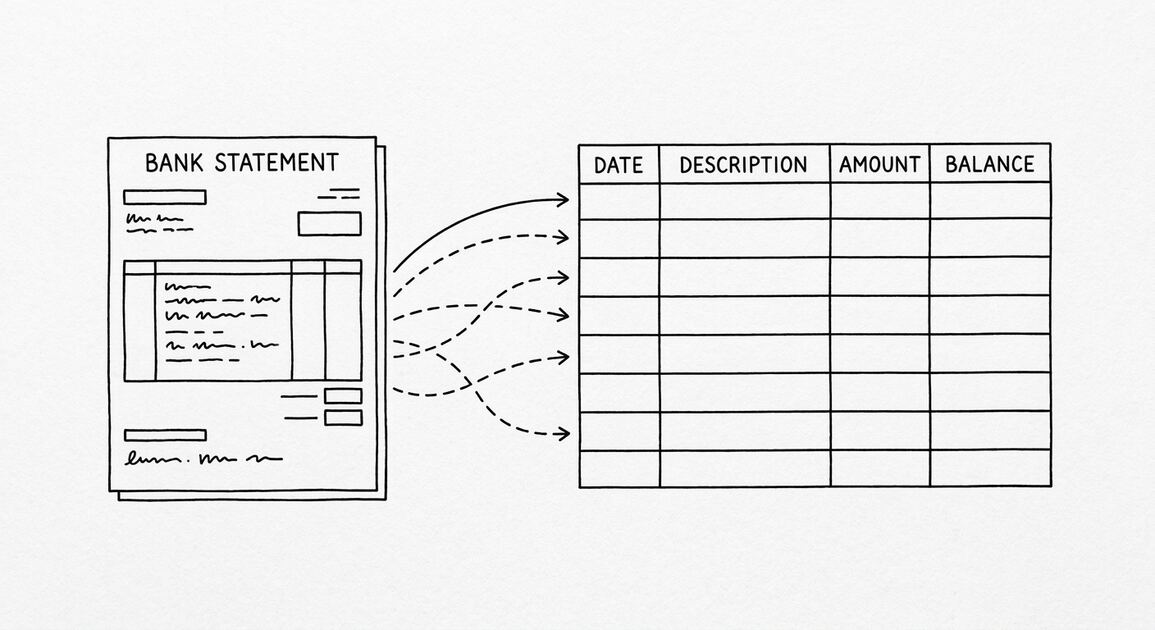

You have a Citibank account. You click “Download.” You pick “CSV.” You save the file. You open it in Excel. It works. The date, description, amount, and balance are in 4 separate columns. No PDF. No conversion. No 4-hour dance. This is the cleanest export of any major US bank.
This page is the Citibank export guide. It covers the click-by-click flow, the 7-year history, the international account support, and what to do with the file once you have it.
Citibank is the only major US bank that gives you a clean CSV directly from the export flow. Not a screenshot. Not a PDF. A real CSV with Date, Description, Amount, and Balance as separate columns. The date range goes back 7 years. The file opens in Excel and Google Sheets without conversion.
This is the cleanest export of any major US bank. The click-by-click takes 30 seconds. The file is ready to use.
Citi is also the best US bank for international accounts. If you have a Citi account in multiple currencies (USD, EUR, GBP, JPY), the CSV export includes all currencies in a single file with a currency code column. No other major US bank does this.
What Citibank Actually Gives You
Citi’s online portal has 3 places where you can get your transaction data out. Each one is useful in a different way. None of them require a converter.
What most guides miss about Excel conversion is that the quality depends on the mechanism, not on the tool. Two tools that look different on the surface often run the same 4-step process underneath: read, find, parse, verify. The difference is in how well each step handles edge cases (merged cells, missing balances, non-standard date formats, scanned vs digital input). Choosing between tools based on UI alone misses the actual quality lever.
- Account Activity CSV is the main export. It is a single file with all transactions for whatever date range you pick, up to 7 years. The columns are Date, Description, Amount, Balance, and (for international accounts) Currency. This is the file you want for Excel.
- Monthly PDF Statements are the official statements. One PDF per month per account, going back 7 years. These are the files you would send to a lender for a mortgage application. They have the Citi logo, the account holder’s name, and the official statement formatting.
- OFX Files are the older banking standard. Available for the last 24 months. They open in QuickBooks and most accounting software. They do not open in Excel natively.
The CSV is the cleanest. The PDF is the most official. The OFX is for QuickBooks. Pick based on what you need. This is one of 10 banks covered in our US bank export guide, which maps every major US bank to its specific download flow.
How to Download the Citibank CSV Step by Step
Here is the click-by-click flow. It works for any Citi account (checking, savings, credit card) on the consumer portal. Business accounts have a slightly different flow covered below.
- Log into online.citi.com with your User ID and Password.
- Click on the account you want the statement for (e.g., “Citi Priority Checking”).
- Click the “Activity” tab.
- Set the date range. Use the date pickers. You can go back up to 7 years for the CSV option. The page will tell you the maximum range.
- Click the “Download” button (usually in the upper right corner of the activity table).
- In the format dropdown, pick CSV. Pick “Excel” if you want an .xlsx (also clean). Pick OFX if you use QuickBooks.
- Click “Download” again. The file saves to your default downloads folder.
The file is named something like activity_2024-01-15_to_2025-01-15.csv. Open it in Excel. The data is in 4 or 5 columns. Done.
I learned this the hard way after spending years converting BofA PDFs to Excel one month at a time. A client switched to Citi, and I asked for the same 24 months of history. They sent a single CSV. I almost cried. The conversion step that took 4 hours for BofA took 30 seconds for Citi.
From PDF to Excel in one click
Forget retyping line by line. Upload any bank statement, get a spreadsheet you can actually use. Your files are never stored, and you can test the converter with 3 free conversions.
Try it freeThe 7-Year History Limit (and How to Get More)
Citi’s CSV export goes back 7 years. For most users, that is enough. For some use cases (long-term tax audits, historical financial analysis), 7 years is not enough.
Two ways to get more than 7 years:
- Download the CSV in 7-year chunks. Run the export for the last 7 years. Then run it for the 7 years before that. Citi’s portal lets you pick any date range, but the maximum span is 7 years. Combine the two files in Excel with a simple append.
- Request older statements by phone. Call Citi customer service at the number on the back of your card. Ask for statements older than 7 years. They can mail you PDFs or email them. The PDFs will be the older “image statement” format, which is harder to convert.
For most users, 7 years is enough. The 7-year limit is a Citi portal limit, not a banking limit. Older data exists. Getting it requires a phone call.
For the broader conversion workflow, our general PDF-to-Excel conversion guide covers the 5-point validation check and the 3 things to do after every conversion.
International and Multi-Currency Accounts
If you have a Citi account in multiple currencies, the CSV export is the cleanest way to get the data. The export will include a “Currency” column with the 3-letter currency code (USD, EUR, GBP, JPY, etc.) for each transaction. The Amount column is in the local currency. The Balance column is in the local currency.
For example, if you have a USD account and a EUR account, the CSV will have rows for both accounts, with the Currency column telling you which is which. The Amount column will be in the respective currency (no conversion).
To convert to USD, you need to do the math in Excel using the exchange rate on the transaction date. The CSV does not include the exchange rate. You will need to add a column with the daily rate and a calculated column for the USD equivalent.
Citi also offers a separate “World Currency” account feature, which is a single account that holds balances in multiple currencies. For these accounts, the CSV includes a “Currency” column and the transactions are tagged with the currency they were made in.
Citi Business Accounts
If you have a Citi business account (Business Checking, Business Savings, Business Credit Card), the export flow is slightly different. You log into a different portal: business.citi.com. The flow is similar but the menus are labeled differently.
- Log into business.citi.com.
- Click on the account you want.
- Click “Statements” or “Activity” in the left sidebar.
- Pick the date range.
- Click “Download” and pick CSV.
The CSV format is the same as personal accounts. The date range for business accounts is also 7 years. The international support is also the same. The main difference is the portal URL and the menu labels.
For Citi Commercial Banking (larger businesses with treasury management), the export flow goes through Citi Treasury and Trade Solutions. That portal has different export options including BAI2 files (a bank-specific format) and MT940 (SWIFT format). Those are out of scope for most readers.
Citi Credit Card Statements
Citi credit cards (Citi Premier, Citi Double Cash, Citi Custom Cash) are managed through the same online portal as personal banking. The export flow is the same: log in, click the card account, go to Activity, set the date range, download CSV.
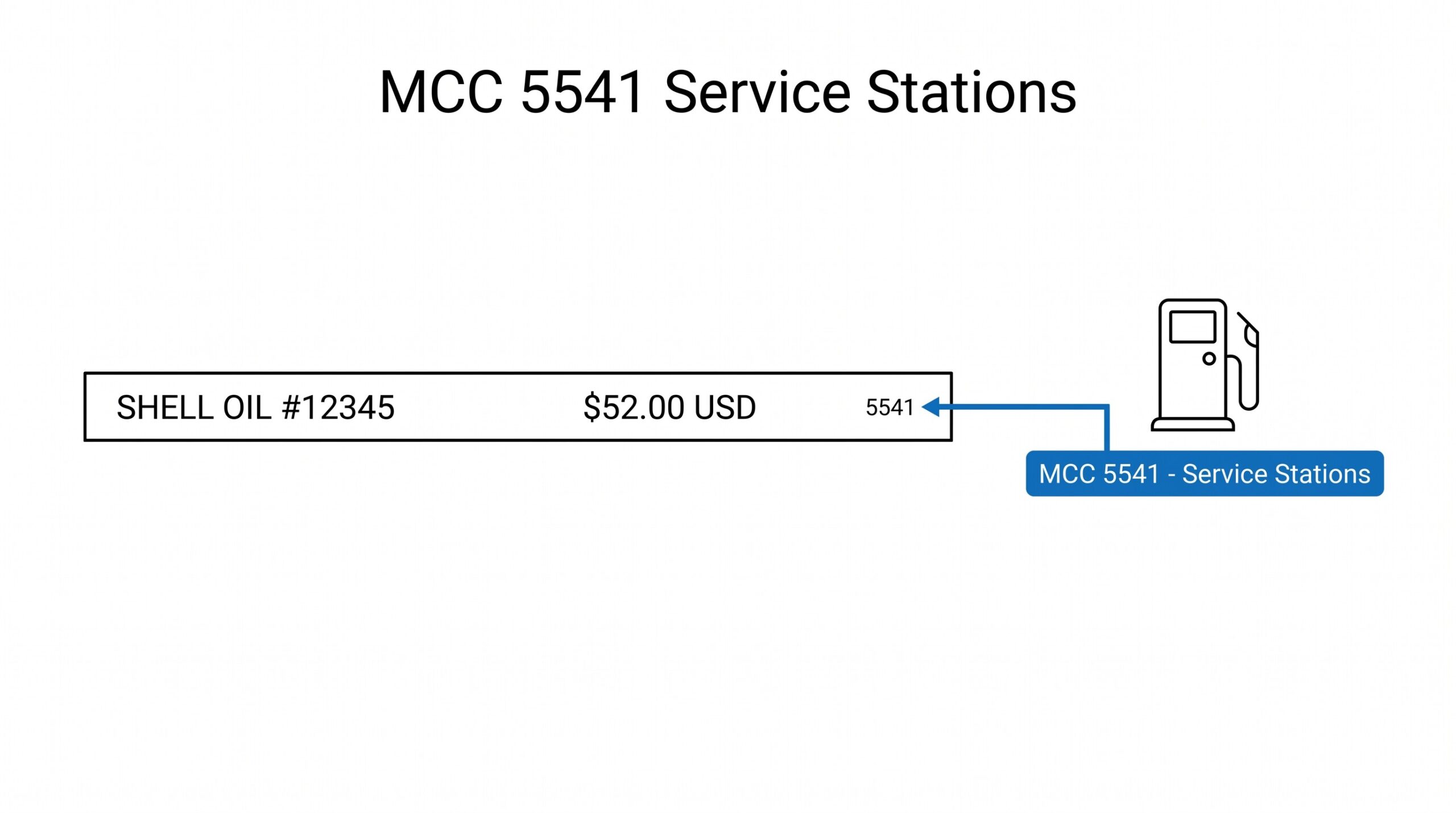
For Citi credit cards, the CSV includes a few extra columns that are specific to credit cards: the merchant category code (MCC, a 4-digit number) and the card member (if you have multiple cards on the same account). These columns are useful for expense categorization but not strictly necessary for accounting.
For credit card transactions that are not in USD (e.g., a card used while traveling), the CSV includes the original currency in a separate column. The Amount column is in the original currency. The USD equivalent is in a separate “USD Amount” column. This is cleaner than the bank account flow, where you have to add the exchange rate yourself.
The 2am Test for Citi Conversions
If you are exporting a Citi statement at 2am, here is the flow that works.
- Open online.citi.com. Log in.
- Click the account. Click Activity. Set the date range. Click Download.
- Pick CSV. Click Download. The file is ready.
- Open the CSV in Excel. The data is already in 4 columns: Date, Description, Amount, Balance.
- If you need the running balance, it is in the last column. If you do not need it, delete the column.
- Save the file as .xlsx if you want to keep working in Excel.
There is no conversion step. The CSV is the file. This is the easiest export of any major US bank. For larger batches across multiple accounts, our batch conversion guide covers the desktop converter setup that handles 100+ Citi statements at once.
What to Do With the CSV Once You Have It
Once you have the CSV, here are the most common next steps.
For QuickBooks Users
Save the CSV as .xlsx. Then in QuickBooks, go to File > Import > Excel. Map the columns: Date column to the Date field, Description to the Description field, Amount to the Amount field. The Balance column is informational and does not need to be imported.
Our QuickBooks conversion guide covers the QBO download path for banks that offer it and the import dance for the CSV path.
If you use QBO (QuickBooks Online), the flow is similar: Banking > Add account > Upload file. The CSV format works but the date format may need to be adjusted to YYYY-MM-DD before import.
For Excel Users
Open the CSV directly. The dates may be in MM/DD/YYYY format. If you need them in YYYY-MM-DD for sorting or pivot tables, use Excel’s TEXT function or convert the column to a date format and reformat the display.
The Description column may have merchant names with extra spaces or special characters. Use Excel’s TRIM and CLEAN functions to clean them up.
For Google Sheets Users
Open the CSV in Google Sheets (File > Import > Upload). The date format may need adjustment. The rest of the data should come in clean.
What If the CSV Has Missing Transactions
If you run the export and the transaction count is lower than expected, check the date range. The CSV export only includes transactions within the date range you picked. Pending transactions and transactions from the last 1 to 3 business days may not appear.
Pending transactions are not in the CSV. They show up in the Activity view in the portal but are not in the official record until they post. If you need pending transactions, you need to wait for them to post (usually 1 to 3 business days) and re-run the export.
If the count is significantly lower than expected (like 50% lower), there may be a date format issue. Some browsers display the date as MM/DD/YYYY but the underlying data is in a different format. Try setting the date range using a different format (e.g., “Last 90 days” instead of specific dates) and re-run.
A common failure mode bookkeepers report is treating this as a single operation rather than a chain of dependent steps. The temptation is to find a tool that ‘just works’ and stop investigating the mechanism. The result is a wrong-fix cycle: the tool gives partial output, the bookkeeper spends 30+ minutes troubleshooting, the fix is for the wrong step, and the same error recurs on the next statement. The fix: identify which step failed and apply the right intervention to that step.
The Difference Between CSV and “Excel” Export
Citi offers both CSV and Excel (.xlsx) downloads. They contain the same data, but the format is different.
- CSV is a plain text file. It opens in Excel, Google Sheets, and any text editor. The data is raw: no formatting, no formulas, no merged cells. This is the best format for further processing.
- Excel is a binary .xlsx file. It opens only in Excel and Google Sheets. The data has some formatting: the date column is formatted as a date, the amount column is formatted as a number, and the header row is bold. This is the best format for human review.
If you are going to import the data into accounting software, use CSV. If you are going to review the data in a spreadsheet, use Excel. The conversion between the two is trivial in Excel itself. For PDFs from older history, our general PDF-to-Excel conversion guide covers the broader workflow. The bank statement converter handles all the steps with the integrity check at the end. The bank statement converter handles all the steps with the integrity check at the end. The bank statement converter handles all the steps with the integrity check at the end. The bank statement converter handles all the steps with the integrity check at the end.
From PDF to Excel in one click
Forget retyping line by line. Upload any bank statement, get a spreadsheet you can actually use. Your files are never stored, and you can test the converter with 3 free conversions.
Try it free