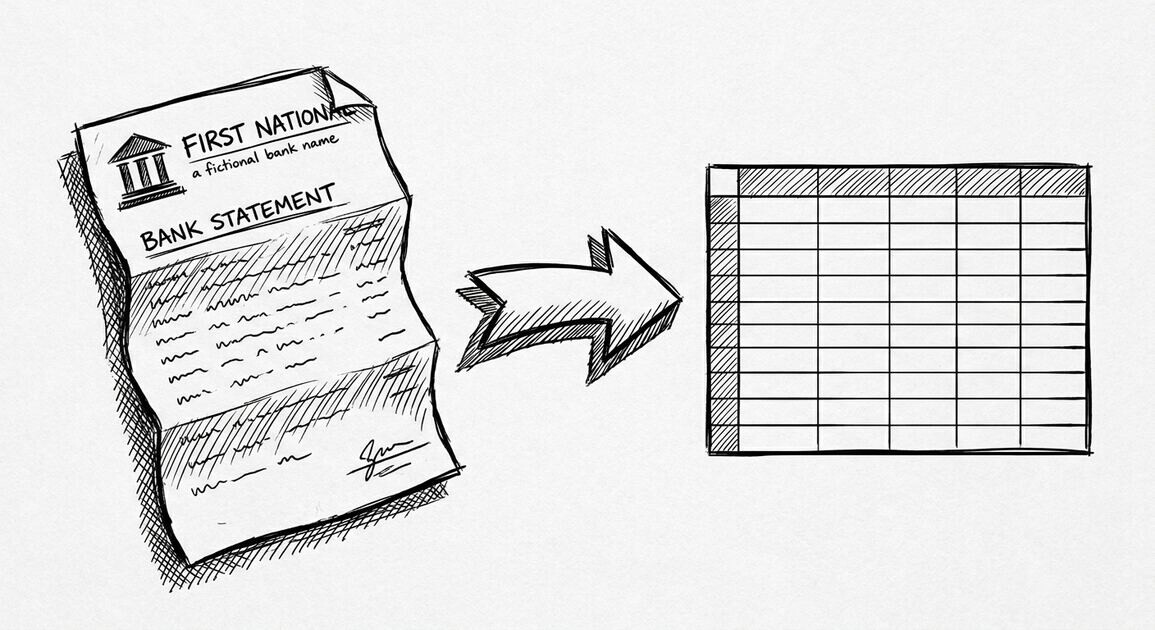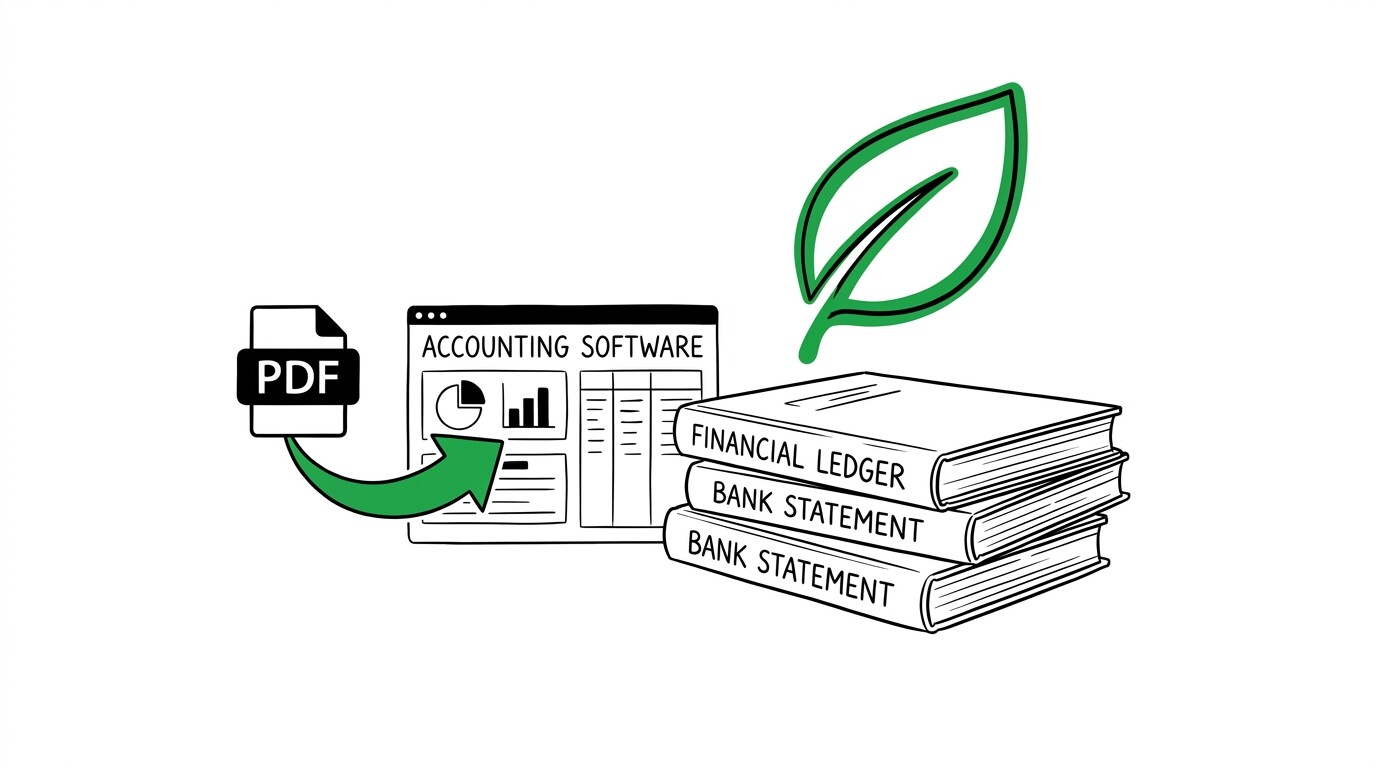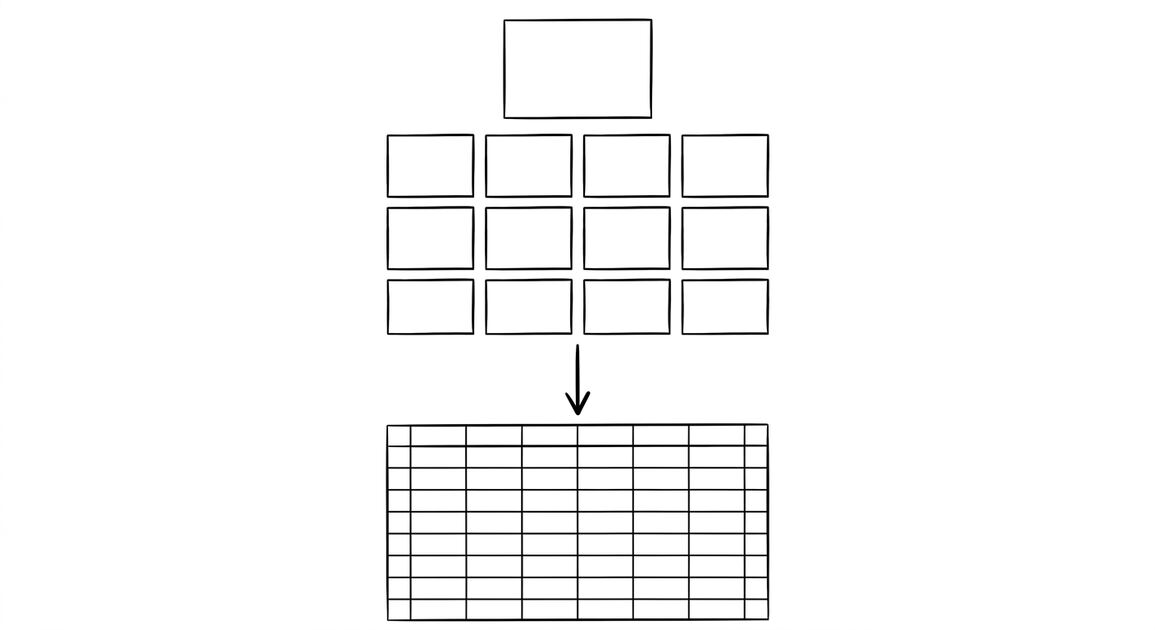

You have a Bank of America account. You need 12 months of history for a tax audit. The portal shows 12 separate monthly PDFs. That is how BofA does it. There is no combined download. There is no “give me everything” button. The “Download to Excel” option on the portal gives you a screenshot, not a spreadsheet. It is useless for accounting.
This page is the Bank of America export guide. It covers the 3 download options BofA gives you, which one to use, and how to get the file into Excel or QuickBooks without spending 4 hours on it.
Bank of America gives you 12 PDFs a year, one per month, for each account. If you have a checking, a savings, and a credit card, that is 36 files to download for one year of history. The “Download to Excel” button on BofA’s portal gives you a screenshot, not a spreadsheet. It is useless for accounting.
The good news: BofA’s PDFs are clean and well-formatted. A converter that reads BofA’s PDF layout will give you a perfect Excel file with the transactions extracted. The bad news: you need to do this once per month per account, and BofA does not let you batch it.
The other option: BofA’s “Download account activity” feature gives you an OFX file for the last 3 months, which is clean and works in QuickBooks. But it is capped at 3 months. For anything longer, you are doing the PDF dance.
What Bank of America Actually Gives You
BofA’s online portal has a “Statements” section under each account. When you click in, you see a list of monthly statements, one per month, going back as far as the account is open. For most accounts, that is 18 months. For Preferred Rewards clients, it is 7 years.
What most guides miss about Excel conversion is that the quality depends on the mechanism, not on the tool. Two tools that look different on the surface often run the same 4-step process underneath: read, find, parse, verify. The difference is in how well each step handles edge cases (merged cells, missing balances, non-standard date formats, scanned vs digital input). Choosing between tools based on UI alone misses the actual quality lever.
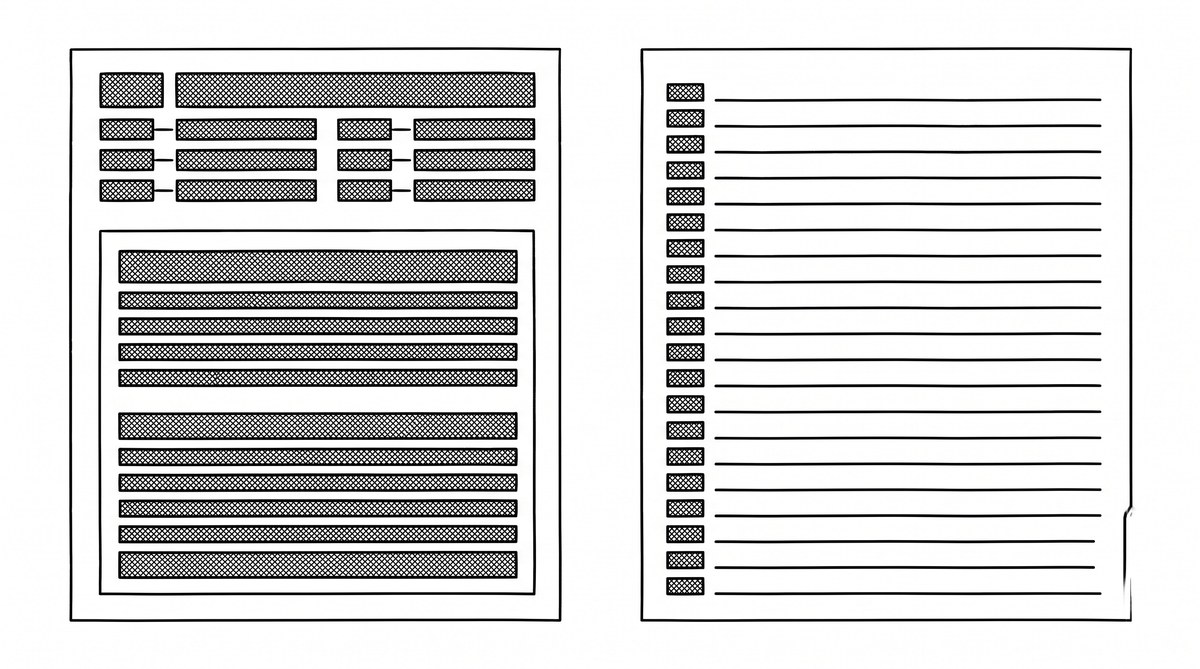
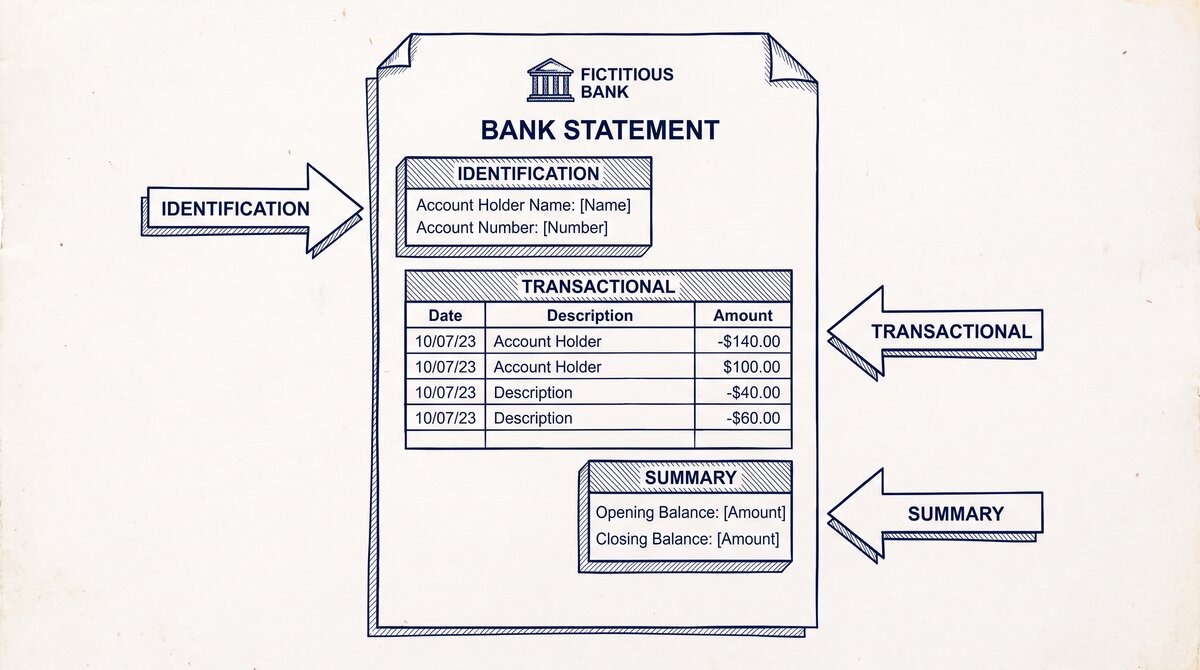
Each statement is a PDF. The PDF has a header with the BofA logo, the account number, the statement period, and the account holder’s name. Below that is a summary with the beginning balance, total deposits, total withdrawals, and ending balance.
Below that is the transaction list, with one row per transaction, including the date, description, and amount. Below that is the interest summary (if applicable) and the overdraft summary (if any).
There is no “Download to Excel” button. There is a “Download” button, but the file is a PDF. The Excel file you get from BofA’s portal (if you find the option) is a screenshot of the statement, not a data file. It has merged cells, no headers, and the description column chopped at 30 characters. Do not use it.
This is one of 10 banks covered in our US bank export guide, which maps every major US bank to its specific download flow.
The 3 Download Options BofA Offers
Bank of America gives you 3 ways to get your transaction data out of the portal. None of them are perfect. Here is what each one is, and when to use it.
Option 1: Monthly PDF Statements (the long path)
This is the option you use when you need more than 3 months of history. Click into the account, go to Statements, pick the month, click Download. Repeat for each month, for each account. The file is a PDF, and it has clean transaction data inside, but you need a converter to extract it.
The downsides: it is one file per month per account. 12 statements × 3 accounts = 36 files for one year. And the converter needs to be set up for BofA’s specific PDF layout (it has a 4-column transaction table with specific font and spacing). Most converters handle this. Some do not.
Option 2: Download Account Activity OFX (the short path)
Inside the account activity page, there is a “Download” button. The dropdown gives 3 options: PDF, CSV, and OFX. The PDF and CSV options are limited to what is currently visible on the screen. The OFX option is the one you want.
Pick a date range (up to 3 months), choose OFX, click Download. The file you get is a clean OFX with all transactions for the date range. It opens in QuickBooks, Xero, and most accounting software. It does not open in Excel natively, but a converter that reads OFX will turn it into a clean Excel file.
The downside: 3 months. If you need 24 months, you need 8 OFX downloads.
Option 3: Combined Statements (the workaround)
If you are a Preferred Rewards client, BofA gives you a “Combined Statement” feature. This is a single PDF that covers all your BofA accounts (checking, savings, credit card, mortgage) in one document, with the transactions for each account in separate sections.
The combined statement is a single file per month, instead of one file per account. If you have 4 accounts, that is 4x fewer files. The PDF layout is the same as the individual statements, so any converter that handles BofA’s standard layout will handle the combined statement too.
The downside: only available for Preferred Rewards clients (which requires a minimum balance of $20,000 across accounts). If you are not a Preferred Rewards client, you are doing 12 × N downloads for N accounts.
From Bank Statement to QuickBooks-Ready File
That manual cleanup you just read about? This tool skips it. Turn your PDF into QBO for QuickBooks without storing your data anywhere.
Start ConvertingHow to Download BofA Statements Step by Step
Here is the click-by-click flow for downloading the OFX option. The PDF option is the same path minus the format choice.
- Log into bankofamerica.com with your Online ID and Passcode.
- Click on the account you want the statement for (e.g., “My Checking”).
- Click the “Activity” tab (NOT the “Statements” tab).
- Set the date range. Use the calendar picker. The “Download” button will not work without a date range set.
- Click “Download” in the upper right.
- In the format dropdown, pick OFX. Pick PDF if you need history beyond 3 months.
- Click “Download” again. The file saves to your default downloads folder.
If you pick OFX, the file is named something like statement_2025-01-15_to_2025-04-15.ofx. The naming is helpful. If you pick PDF, the file is named statement_2025-01.pdf.
The 12-File-Per-Year Problem
Let me say the obvious thing out loud: BofA makes you download one file per month per account. For a small business with 3 BofA accounts (checking, savings, credit card), that is 36 PDF downloads for one year of history. For a personal user with 2 accounts, it is 24 downloads. There is no batch download. There is no “give me everything” button.
I learned this the hard way the first time I had a BofA client who wanted 24 months of history for a tax audit. I downloaded 24 PDFs. Then I realized each one was just one account. The client had 3 accounts. I downloaded 72 PDFs. Then I converted them one by one. The total time was 4 hours.
This is not a problem if you only need the last 3 months. Use the OFX option. This is a problem if you need 12 or 24 months for taxes, an audit, or a mortgage application. In that case, you are downloading one file at a time.
The fastest workflow I have found:
- Open the BofA portal in one tab.
- Open a spreadsheet in another tab (Google Sheets works).
- Download the OFX for the last 3 months. Convert it. Move on.
- Download the next 3 months of OFX. Convert. Move on.
- Repeat until you have all the history you need.
This is faster than the PDF route because you are downloading 8 OFX files instead of 24 PDFs. Each OFX covers 3 months. Each PDF covers 1 month.
BofA Business Accounts vs Personal Accounts
If you have a BofA business account (LLC, S-Corp, sole proprietor with EIN), the export flow is slightly different. The “Cash Flow” tab on the business account page has a “Download” button that gives you the same 3 options (PDF, CSV, OFX), but the date range goes back further. For business checking, you can get 24 months of OFX in a single download.
For business credit cards, the export flow goes through BofA’s “Business Card Services” portal, which is a separate login. The export options there are PDF (12 months) and CSV (12 months). The CSV is clean and works directly in Excel. This is the cleanest BofA export for credit cards.
For personal credit cards, the export flow is the same as for personal checking: PDF (18 months) and OFX (3 months).
How to Convert BofA PDFs to Excel
Once you have the PDF or OFX file, you need to convert it. The PDF is the harder case. The OFX is the easier case.
Converting BofA OFX to Excel
OFX is a structured data file. A converter that handles OFX will read the file and produce a clean Excel file with the transactions. The output has Date, Description, Amount, and Balance as separate columns. The date format is YYYY-MM-DD. The amount format is positive for deposits, negative for withdrawals.
For QuickBooks users who want to skip the conversion step entirely, our QuickBooks conversion guide covers the QBO download path and the import dance.
The conversion takes 5 to 10 seconds per file. The output is clean. You can open it in Excel or Google Sheets and start working with the data immediately.
Converting BofA PDF to Excel
PDF is harder. The transactions are in a 4-column table inside the PDF. A converter needs to recognize that table, extract the rows, and write them as a spreadsheet.
Most modern converters handle BofA’s PDF layout. The 2am test: if the converter does not produce a clean Excel file on the first try, try a different one. BofA’s PDF is a standard layout, not a custom design. A good converter should handle it on the first try.
For the broader conversion workflow, our general PDF-to-Excel conversion guide covers the 5-point validation check and the 3 things to do after every conversion.
The output for a PDF conversion has the same columns as the OFX output: Date, Description, Amount, Balance. The date format may be MM/DD/YYYY instead of YYYY-MM-DD. Check the format and convert it in Excel if needed.
What to Do With Multiple BofA Accounts
If you have multiple BofA accounts and need a single Excel file with all of them, you have 3 options.
- Download each account separately, convert each, then combine in Excel. The slowest option, but the most reliable. You get a separate sheet per account, or a single sheet with an “Account” column added.
- Use the Combined Statement feature (Preferred Rewards only). One PDF per month covers all accounts. Convert that. The output has a “Section” column that identifies which account each transaction belongs to. Filter or pivot in Excel.
- Use BofA’s “Download Account Activity” feature in a loop. For each account, download 3 months of OFX. Convert each. Combine. 12 months of history across 3 accounts is 12 OFX downloads. Manageable.
For most users, option 3 is the fastest. For Preferred Rewards clients with many accounts, option 2 is the cleanest.
For users with many BofA accounts, the batch conversion guide shows how to handle 36+ files efficiently with a desktop converter.What BofA’s Excel Export Actually Is
There is a feature inside BofA’s portal called “Download to Spreadsheet” or “Export to Excel” depending on the page. The file you get is technically a .xls or .xlsx file, but the content is a screenshot of the statement, not a data file.
The Excel file has merged cells for the BofA logo and the account header. The transaction list is in a table, but the column widths are fixed, and the description column chops at 30 characters. The date column is text, not a real date. The amount column is text, not a number. You cannot sum the amount column without cleaning it first.
Do not use this file for accounting. If you find yourself using it, you are doing it wrong. The PDF and OFX exports are the right path. Use a converter on those instead.
A common failure mode bookkeepers report is treating this as a single operation rather than a chain of dependent steps. The temptation is to find a tool that ‘just works’ and stop investigating the mechanism. The result is a wrong-fix cycle: the tool gives partial output, the bookkeeper spends 30+ minutes troubleshooting, the fix is for the wrong step, and the same error recurs on the next statement. The fix: identify which step failed and apply the right intervention to that step.
The 2am Test for BofA Conversions
If you are converting BofA statements at 2am, here is the flow that works.
- Open the BofA portal. Pick the account. Go to Activity. Set the date range. Download OFX.
- If you need more than 3 months, do it again with the next 3-month window.
- Open the OFX file in a converter. The output is a clean Excel file. Save it.
- Open the next OFX file. Convert. Save as the second sheet of the same workbook.
- When you have all the history, combine the sheets in Excel or pivot in Google Sheets.
If the converter gives you a file with merged cells, broken dates, or chopped descriptions, the converter is not handling BofA’s OFX correctly. Try a different converter. The OFX format is standard, not custom. A good converter should produce clean output every time.
For a deeper look at the conversion step, see our general guide to converting bank statements to Excel. For QuickBooks users, see our QuickBooks-specific conversion guide. If you have multiple banks to convert at once, see our batch conversion guide. For the full map of which bank gives what, see our US bank export guide. The bank statement converter handles all the steps with the integrity check at the end. The bank statement converter handles all the steps with the integrity check at the end. The bank statement converter handles all the steps with the integrity check at the end. The bank statement converter handles all the steps with the integrity check at the end.
Turn PDF Bank Statements Into Workable Spreadsheets
Your bank statement is a mess of numbers, but your books shouldn't be. Use our converter to get Excel, CSV, or QBO files — ready for QuickBooks.
Try It Free Now