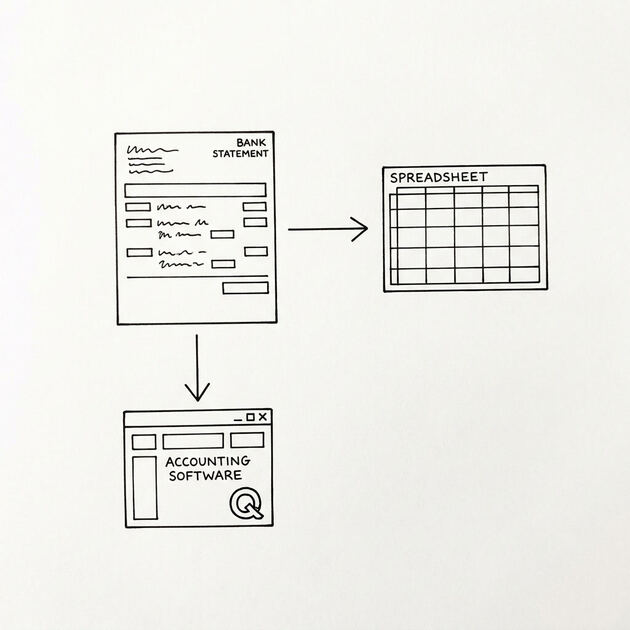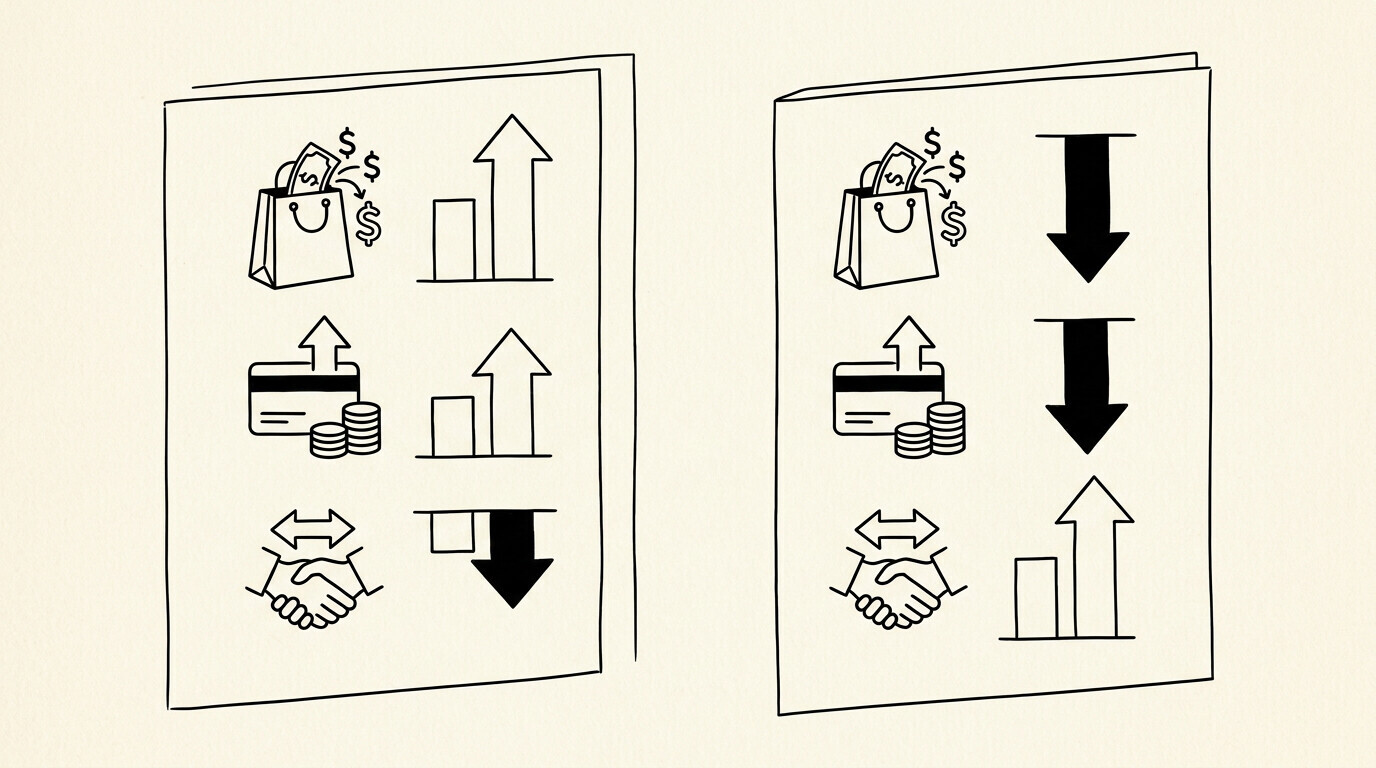

A credit card statement is the monthly document from your card issuer showing every charge, payment, fee, and interest charge for the cycle. The short answer: a credit card statement has 4 standard sections plus a rewards summary. The 4 standard sections are: account summary, transaction table, payment information, and fee summary. Each section has specific data you need for tax, expense, or audit purposes. The conversion to Excel is 2-5 minutes per statement and the result is a clean table with date, merchant, amount, and category for every charge.
TL;DR. A credit card statement has 5 sections: account summary (balance, credit limit, payment due date), transaction table (every charge with date, merchant, amount), payment information (minimum payment, statement balance, available credit), fee summary (interest, late fees, over-limit fees), and rewards summary (points earned, cash back, miles). The 4 most useful conversions: to Excel for expense reports, to QBO for QuickBooks import, to CSV for spreadsheet analysis, and to JSON for programmatic use. The 3 most common uses: expense reimbursement, tax preparation, and small business bookkeeping. The 3 mistakes to avoid: ignoring the statement balance vs current balance difference, missing the credit card’s closing date, and confusing refunds with original charges.
Why Credit Card Statements Matter
A credit card statement is a financial record of every transaction on the card during a billing cycle. The statement is the official document for the cycle and is used for tax preparation, expense reimbursement, business bookkeeping, and dispute resolution. Most cardholders see the statement monthly, and the statement is the source of truth for what was charged, when, and by whom.
The statement is different from a bank statement in 3 ways. First, the credit card statement is for a credit line, not a deposit account. The balance owed is a liability, not an asset. Second, the credit card statement shows the available credit (the credit limit minus the current balance) rather than the available balance. Third, the credit card statement includes rewards data (points, cash back, miles) that bank statements don’t have.
For the comparison in detail, see the credit card statement vs bank statement reference.
The 5 Sections of a Credit Card Statement
Every credit card statement has 5 sections, regardless of issuer (Visa, Mastercard, Amex, Discover, or store cards). The 5 sections cover the complete picture of the account for the cycle.
1. Account summary. The header section shows the account holder’s name, the account number (typically masked to the last 4 digits), the statement period (e.g., January 1 to January 31), the payment due date, the statement balance, the minimum payment due, and the available credit. The account summary is the top section of the statement and is what most cardholders look at first.
2. Transaction table. The middle section shows every charge, payment, fee, and interest charge that posted during the cycle. Each row has the transaction date, posting date, merchant name, merchant category code (MCC), and amount. The transaction table is the longest section and is what most cardholders need for expense reporting or tax preparation.
3. Payment information. The section that shows the previous balance, payments and credits, purchases, cash advances, balance transfers, fees charged, interest charged, and new balance. The payment information summarizes the activity for the cycle in 7 line items and is used to understand how the balance changed.
4. Fee summary. The section that shows any interest charges, late fees, over-limit fees, returned payment fees, foreign transaction fees, and other fees. The fee summary is the source of truth for any fees charged during the cycle and is used for dispute resolution if a fee is unexpected.
5. Rewards summary. The section that shows the points earned, cash back accumulated, or miles accrued during the cycle. The rewards summary is unique to credit cards (not on bank statements) and is used to track rewards for redemption.
Turn PDF Bank Statements Into Workable Spreadsheets
Your bank statement is a mess of numbers, but your books shouldn’t be. Use our converter to get Excel, CSV, or QBO files , ready for QuickBooks.
Try It Free NowTurn PDF Bank Statements Into Workable Spreadsheets
Your bank statement is a mess of numbers, but your books shouldn't be. Use our converter to get Excel, CSV, or QBO files — ready for QuickBooks.
Try It Free NowStatement Balance vs Current Balance
The statement balance and the current balance are different numbers, and confusing them is the most common credit card statement error.
Statement balance: the balance on the statement at the end of the cycle. This is the amount due by the payment due date. Paying the statement balance in full by the due date avoids interest charges.
Current balance: the balance at the moment you look, including charges that have posted since the statement was generated. The current balance is typically higher than the statement balance because new charges have posted.
The 3 decisions to make: pay the statement balance in full (avoids interest), pay the current balance in full (avoids interest plus reduces balance further), or pay the minimum payment (avoids late fee but accrues interest on the remaining balance). For the detailed comparison, see the statement balance on a credit card reference.


The 4 Most Useful Conversions
Credit card statements can be converted to 4 formats depending on the use case:
1. To Excel (.xlsx). The most common conversion. The result is a clean table with date, merchant, category, and amount for every charge. Use for expense reports, manual analysis, or any spreadsheet-based workflow. The bank statement converter handles the conversion in 2-5 minutes with no upload.
2. To QBO (QuickBooks Online). Direct import to QuickBooks Online. The QBO file format is a CSV with specific column headers that QuickBooks recognizes. Use for small business bookkeeping where QuickBooks is the system of record. The conversion saves 2-3 minutes of manual import setup.
3. To CSV. The most compatible format. CSV is editable in any text editor, importable to any software, and smaller than Excel. Use when the destination is not Excel-compatible (e.g., Google Sheets, custom databases, scripts).
4. To JSON. For programmatic use. JSON is the format for APIs, scripts, and custom integrations. Use when the data is consumed by software rather than humans. JSON is rare for personal use but common for fintech apps.
For the format comparison, see the PDF vs CSV vs QBO vs Excel guide.
3 Most Common Uses
3 scenarios where converting a credit card statement to Excel is essential:
1. Expense reimbursement. An employee submits monthly credit card charges for reimbursement. The employer needs the statement in Excel to verify the charges, categorize them, and process the reimbursement. The conversion takes 2-5 minutes per statement. The reimbursement processing takes 30-60 minutes per month for a typical 30-50 charge statement.
2. Tax preparation. A freelancer or self-employed person uses a personal credit card for business expenses. The statement is the source of business expense data. The conversion produces the Excel file that the CPA uses to prepare the Schedule C. The conversion takes 2-5 minutes; the categorization takes 1-2 hours.
3. Small business bookkeeping. A small business uses a business credit card for purchases. The business credit card statement is imported to QuickBooks monthly. The conversion to QBO skips the manual import step. The import is 2-3 minutes per statement; the reconciliation is 30-60 minutes per month.
For the small business context, see the bank statement for small business guide. For the freelancer context, see the bank statement for freelancers reference.
3 Mistakes to Avoid
3 mistakes that show up frequently in credit card statement handling:
1. Ignoring the statement balance vs current balance. Paying the current balance when the statement balance is the amount due can result in overpayment. Paying the statement balance when the current balance is what’s due can result in an underpayment and late fee. The fix: pay the statement balance in full by the due date unless the goal is to pay down the balance faster.
2. Missing the credit card’s closing date. Each billing cycle has a closing date. Charges before the closing date appear on the current statement; charges after the closing date appear on the next statement. The fix: know your closing date (typically the same day each month) and plan large purchases accordingly.
3. Confusing refunds with original charges. A refund shows as a negative amount or as a separate row labeled “refund” or “credit.” Treating the refund as a new charge (and paying the negative amount) is an error. The fix: refunds reduce the balance, they don’t add to it. If a refund is missing or in the wrong row, the balance is wrong.
The 5-Step Conversion Process
5 steps to convert a credit card statement to Excel:
- Download the statement PDF from the card issuer’s website. Most issuers provide 12-24 months of statements online. The download is 1-2 minutes.
- Open a browser-based converter like EasyStatementSheet. The converter processes the PDF in your browser with no upload to a server.
- Drop the PDF into the converter. The conversion starts automatically. The conversion is 2-5 minutes for a typical 30-50 charge statement.
- Download the Excel file. The file has 4 columns: date, merchant, amount, category. The category is based on the merchant category code (MCC).
- Validate the data with the 5-check process: row count, opening/closing balance, sum, date range, description format. The validation is 5-10 minutes.
Total time: 10-20 minutes per statement. For the validation in detail, see the how to verify converted data reference.
The Merchant Category Code (MCC) System
The merchant category code is a 4-digit number that classifies each merchant. The MCC is included on every credit card transaction and determines the rewards rate for some cards (1%, 2%, 3%, 5% cash back depending on the category). The MCC also determines the expense category for tax purposes.
The most common MCCs: 5411 (grocery stores), 5812 (restaurants), 5541 (gas stations), 5311 (department stores), 5814 (fast food), 4121 (taxicabs), 7011 (lodging), 4111 (local transit), 5995 (pet stores), 5999 (miscellaneous). The MCC is set by the merchant, not the cardholder, and is the most reliable way to categorize a charge for tax or expense purposes.
For the MCC reference list, see the merchant category code on a credit card statement page. For the conversion context, see the bank statement converter page.
The Rewards Component
Credit card statements include a rewards summary that’s not on bank statements. The rewards summary shows the points earned, cash back accumulated, or miles accrued during the cycle. The data is used to track rewards for redemption.
The 3 common rewards types: cash back (1-5% on every purchase), points (1-5 points per dollar, redeemable for travel or merchandise), miles (1-2 miles per dollar, redeemable for flights). The rewards rate depends on the card and the category. Some cards have a flat rate (2% on everything), some have category bonuses (3% on dining, 1% on everything else), and some have rotating categories (5% on the category of the quarter).
The rewards value is a meaningful component of the credit card statement. A 2% cash back card on $5,000 of monthly spending returns $100/month, or $1,200/year. The rewards are tax-free for personal cards; for business cards, the rewards may reduce the business expense deduction.
Tools and Resources
3 tools that make credit card statement handling faster:
A common failure mode bookkeepers report is treating this as a single operation rather than a chain of dependent steps. The temptation is to find a tool that ‘just works’ and stop investigating the mechanism. The result is a wrong-fix cycle: the tool gives partial output, the bookkeeper spends 30+ minutes troubleshooting, the fix is for the wrong step, and the same error recurs on the next statement. The fix: identify which step failed and apply the right intervention to that step.
Related Resources
| Resource | What You Get |
|---|---|
| Bank Statement Converter | Convert to Excel |
| Credit Card Statement Vs Bank Statement | See comparison |
| Statement Balance On Credit Card | See reference |
| Merchant Category Code On Credit Card Statement | See reference |
| How To Verify Converted Data | See reference |
- Browser-based converter: The bank statement converter handles credit card statement PDFs the same way as bank statement PDFs. The conversion is 2-5 minutes with no upload.
- Spreadsheet with category column: Excel or Google Sheets, with a category dropdown based on the 11 most common categories. The category column makes expense reports and tax prep much faster.
- Card issuer app or website: For real-time balance, available credit, and statement downloads. Most issuers also offer alert-based transaction notifications.
For the conversion step, see the bank statement converter page. For the validation step, see the how to verify converted data reference. For the category framework, see the bank transaction categorization page. For the underlying statement structure, see the how to read a bank statement guide. For the broader bank statement glossary, see the bank statement glossary expansion page.
From Bank Statement to QuickBooks-Ready File
That manual cleanup you just read about? This tool skips it. Turn your PDF into QBO for QuickBooks without storing your data anywhere.
Start ConvertingTurn any PDF statement into a clean sheet
Skip the typos and the hours of copying. Our converter handles any bank statement format and outputs Excel, CSV, or QBO for QuickBooks. No file retention, free to try.
Convert your statement