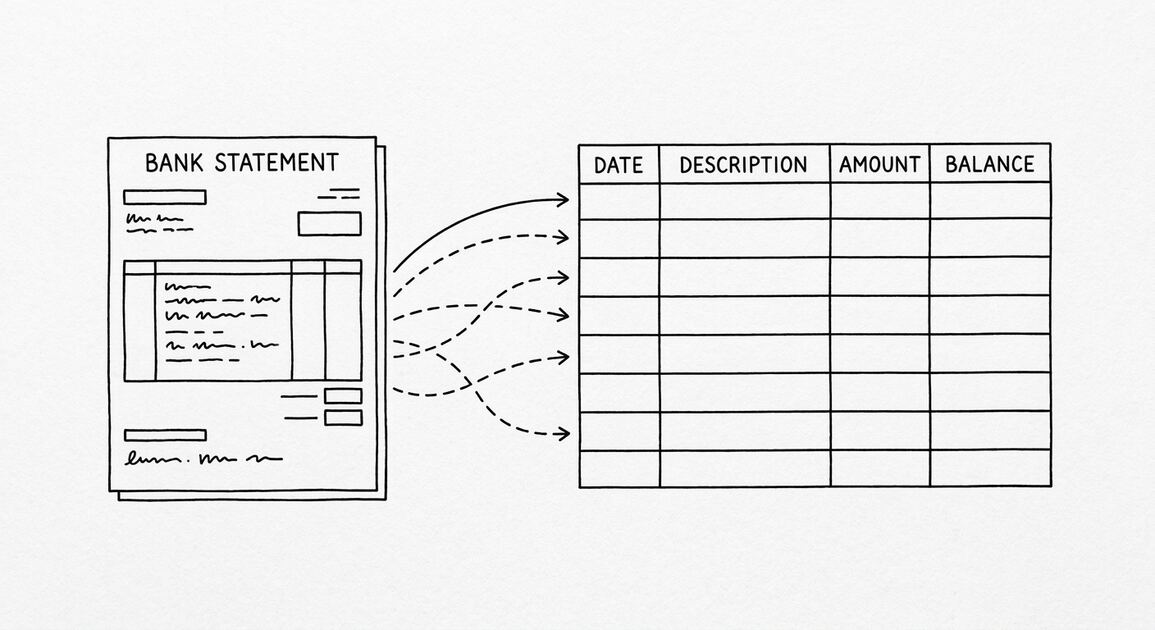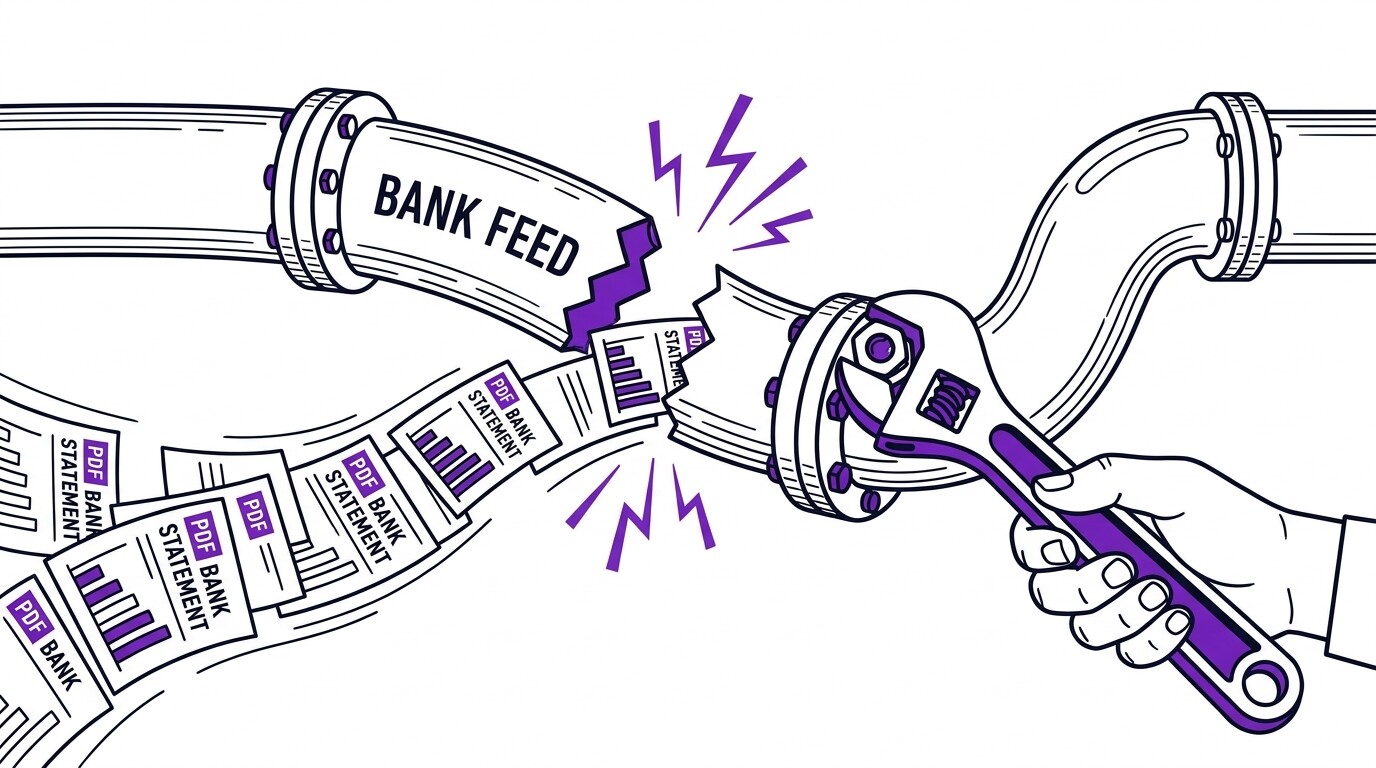

Bank statement conversion troubleshooting diagnoses and fixes 5 recurring issues: missing, duplicate, incorrect, OCR errors, and split rows. The short answer: bank statement conversion has 5 recurring issues. Each issue has a specific cause and a specific fix. The 5-step diagnosis walks through the issues one by one and applies the fix. The result is a clean Excel file ready for the use case (bookkeeping, tax prep, loan, etc.).
TL;DR. Bank statement conversion troubleshooting has 5 common issues: missing transactions, duplicate transactions, incorrect amounts, OCR errors, and split rows. The 5-step diagnosis: (1) check row count, (2) check opening/closing balance, (3) check sum of transactions, (4) check date range, (5) check description format. The 3 fixes: re-convert with different settings, manually edit the Excel file, or use OCR post-processing. The 4 most useful tools: the converter, a spreadsheet with validation formulas, a text editor for find-replace, and a reference PDF for cross-checking. The 3 best practices: validate every conversion, archive the source PDF, and use a consistent naming convention.
Why Bank Statement Conversion Goes Wrong
Bank statement conversion goes wrong for 5 reasons. The 5 reasons cover 90%+ of issues.
1. The PDF is scanned, not digital. A scanned PDF is an image, not text. The converter must use OCR to read the text. OCR is less accurate than direct extraction (95-99% vs 99%+). The fix: use a converter with high-quality OCR or scan the original document at higher resolution.
2. The PDF has a non-standard layout. Some banks use a non-standard table layout that the converter doesn’t recognize. The transactions may be in 2 columns, 3 columns, or a non-tabular format. The fix: use a converter that supports multiple layouts, or manually reformat the Excel file.
3. The PDF is password-protected. The PDF is encrypted and the converter cannot read it without the password. The fix: provide the password to the converter (typically the last 4 digits of the SSN or account number).
4. Multi-page transactions are split. A transaction that spans 2 visual lines (long merchant name, multi-line description) may be split into 2 rows by the converter. The fix: manually merge the split rows, or use a converter that handles multi-line transactions.
5. The statement is too long or has too many transactions. A statement with 500+ transactions across 30+ pages may exceed the converter’s processing limit. The fix: split the PDF into smaller chunks, or use a converter designed for high-volume use.
The 5 Most Common Issues
5 issues that show up in 90%+ of problematic conversions:
1. Missing transactions (2-5% of total). A transaction that posts on the last day of the period may be missed if the converter doesn’t read the last page. Or a transaction split across multiple pages may be counted once instead of twice. The fix: check the row count against the statement summary, and look at the last few rows of the converted data.
2. Duplicate transactions (1-2% of total). A transaction that posts twice in the source (e.g., a pending transaction and the final posted transaction) may be extracted twice. The fix: search for duplicate rows using date + amount + description as the key.
3. Incorrect amounts (1-2% of total). OCR misreads the amount, especially for amounts with multiple zeros (e.g., $1,000 may be read as $100 or $10,000). The fix: compare the total of the Amount column to the expected total (closing balance minus opening balance).
4. OCR errors in descriptions (1-3% of characters). OCR misreads characters, especially in low-quality or scanned statements. Common errors: “0” (zero) read as “O” (letter), “1” (one) read as “l” (letter), “$” read as “S” or “5”. The fix: check a sample of descriptions, and search for the most common errors in the description column.
5. Split multi-line transactions. A merchant name that wraps to 2 visual lines may be split into 2 rows. The fix: look for rows where the date is missing (which indicates a continuation of the previous row) and merge them.
From Bank Statement to QuickBooks-Ready File
That manual cleanup you just read about? This tool skips it. Turn your PDF into QBO for QuickBooks without storing your data anywhere.
Start ConvertingThe 5-Step Diagnosis Process
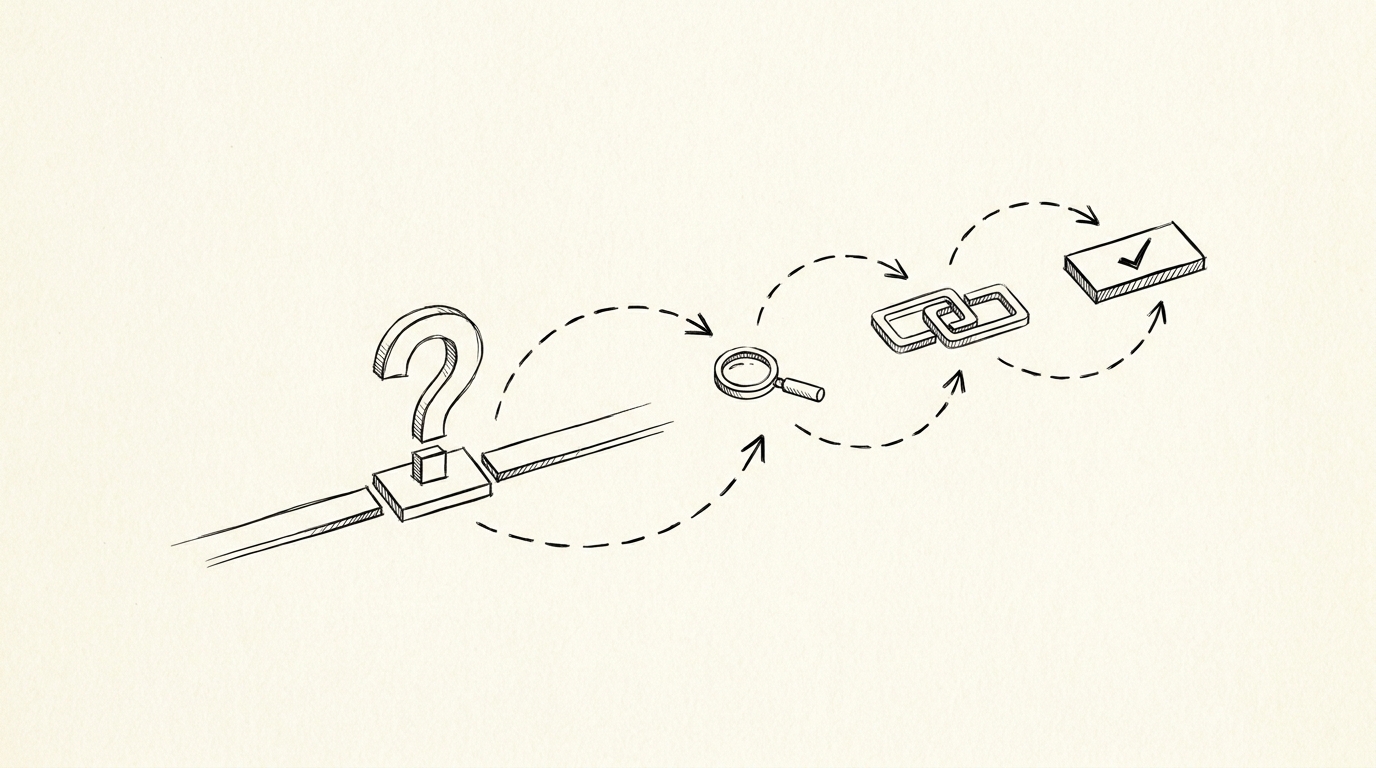
5 steps to diagnose any conversion issue:
- Check the row count. Count the rows in the Excel file. Compare to the transaction count in the statement summary. They should match within 1-2. A larger gap indicates missing or extra transactions.
- Check the opening and closing balance. The first row’s balance should match the opening balance. The last row’s balance should match the closing balance. If either differs by more than $0.01, the extraction is wrong.
- Check the sum of transactions. Sum the “Amount” column. The total should equal (closing balance – opening balance). If the difference is non-zero, the extraction is wrong.
- Check the date range. The first row’s date should be within the statement period. The last row’s date should also be within the period. Transactions outside the period indicate a parsing error.
- Check the description format. Scan 10-20 random descriptions. They should be the merchant names you’d expect. Garbled descriptions indicate OCR errors.
The 5 steps take 5-10 minutes per statement. The 5 checks cover 90%+ of issues. If all 5 pass, the conversion is correct. If any fail, the corresponding issue is identified and can be fixed.

3 Fixes for Common Issues
3 fixes for the most common issues:
1. Re-convert with different settings. If the issue is a layout mismatch, the converter may have a different setting for that layout. Most converters offer “auto-detect,” “bank statement,” “credit card statement,” “scanned,” and “multi-column” options. Try the right setting for the statement type.
2. Manually edit the Excel file. If the issue is a few specific rows (missing, duplicate, incorrect), the fix is to manually edit the Excel file. The edits are 5-10 minutes per statement. The result is the same as a clean conversion.
3. Use OCR post-processing. If the issue is OCR errors in descriptions, the fix is to use OCR post-processing. The post-processing uses a reference dictionary (e.g., known merchant names) to correct the OCR errors. Some converters include this feature; others require manual correction.
The 3 fixes are the most common approaches. For more complex issues, the fix may involve a different converter, a different PDF source, or a manual transcription of the source.
4 Most Useful Tools
4 tools that make troubleshooting faster:
1. The converter with debug mode. Some converters show a “debug” or “preview” mode that highlights which text is being extracted and how it’s being parsed. The debug mode is invaluable for diagnosing layout mismatches. The bank statement converter shows a preview before the final conversion.
2. A spreadsheet with validation formulas. Excel or Google Sheets with formulas for row count, sum, opening/closing balance, and date range. The formulas catch the most common errors automatically. The validation is 1-2 minutes per statement.
3. A text editor for find-replace. A text editor like Sublime Text, VS Code, or Notepad++ for bulk find-replace operations on the description column. The find-replace is useful for fixing OCR errors (e.g., “l0” to “10”) and standardizing merchant names.
4. A reference PDF for cross-checking. The source PDF should be archived alongside the Excel file. The reference PDF is the source of truth for any disputed transaction or unclear description.
3 Best Practices
3 best practices that prevent most issues:
1. Validate every conversion. The 5-step validation takes 5-10 minutes per statement. The investment prevents hours of downstream cleanup. The 1-2% error rate of even the best converter means that without validation, 1-2 errors per 100 transactions will silently corrupt the data.
2. Archive the source PDF. The PDF is the original record. The Excel is the extracted data. Keep the PDF for 7 years (the IRS retention requirement) and the Excel for the same period. The dual archive allows verification in case of audit or dispute.
3. Use a consistent naming convention. Save the files as “YYYY-MM-account-name.pdf” and “YYYY-MM-account-name.xlsx”. The naming convention makes it easy to find any statement later and to track the conversion history.
The 5 Most Common Bank Statement Layouts
5 layouts that account for 90%+ of US bank statements:
1. Single-column table (most common). The transactions are in a single column with the date, description, amount, and balance on each row. Most large banks (Chase, Bank of America, Wells Fargo) use this format.
2. Multi-column table. The transactions are in 2-3 columns, with the date in one column, the description in another, and the amount in a third. Some credit cards and some smaller banks use this format.
3. Running balance format. The balance is shown for every transaction (a running balance). This is the most common format for checking accounts.
4. Debit/credit separate columns. The debits and credits are in separate columns, with no sign convention in the amount. This format requires post-processing to add a sign convention.
5. Multi-line description. The merchant name spans 2-3 lines (e.g., a long business name with multiple words). This format requires post-processing to merge the lines.
The 5 layouts cover most US bank statements. International statements may have different layouts and may require a converter with international support.
The Conversion Quality Score
A simple quality score for any conversion:
100% perfect: All 5 validation checks pass. The Excel is identical to the source PDF in transaction count, balances, sum, dates, and descriptions.
95-99% good: 1-2 minor issues (e.g., 1 missing transaction, 1-2 OCR errors in descriptions). The Excel is usable for the intended purpose with minor cleanup.
90-94% usable: 3-5 issues that require 15-30 minutes of manual cleanup. The Excel is usable but requires more work.
<90% not usable: 5+ issues that require manual re-conversion or transcription. The Excel is not usable and should be regenerated.
The target for any conversion is 99%+. Anything below 95% should be re-converted with a different setting or converter.
Tools and Resources
3 resources for the troubleshooting process:
Related Resources
| Resource | What You Get |
|---|---|
| Bank Statement Converter | Convert to Excel |
| Fix Missing Transactions | See fix |
| Fix Duplicate Transactions | See fix |
| Fix Incorrect Data | See fix |
| Best Ocr For Scanned | See reference |
- Browser-based converter with debug mode: The bank statement converter shows a preview before the final conversion, making it easier to identify layout issues.
- Spreadsheet template with validation formulas: Excel or Google Sheets with the 5-check validation pre-built.
- Conversion checklist: The bank statement conversion checklist page has the complete 5-step validation process.
For the missing transactions fix, see the fix missing transactions reference. For the duplicate transactions fix, see the fix duplicate transactions reference. For the incorrect data fix, see the fix incorrect data reference. For the OCR context, see the best OCR for scanned bank statements page. For the verification step, see the how to verify converted data reference.
Turn any PDF statement into a clean sheet
Skip the typos and the hours of copying. Our converter handles any bank statement format and outputs Excel, CSV, or QBO for QuickBooks. No file retention, free to try.
Convert your statement