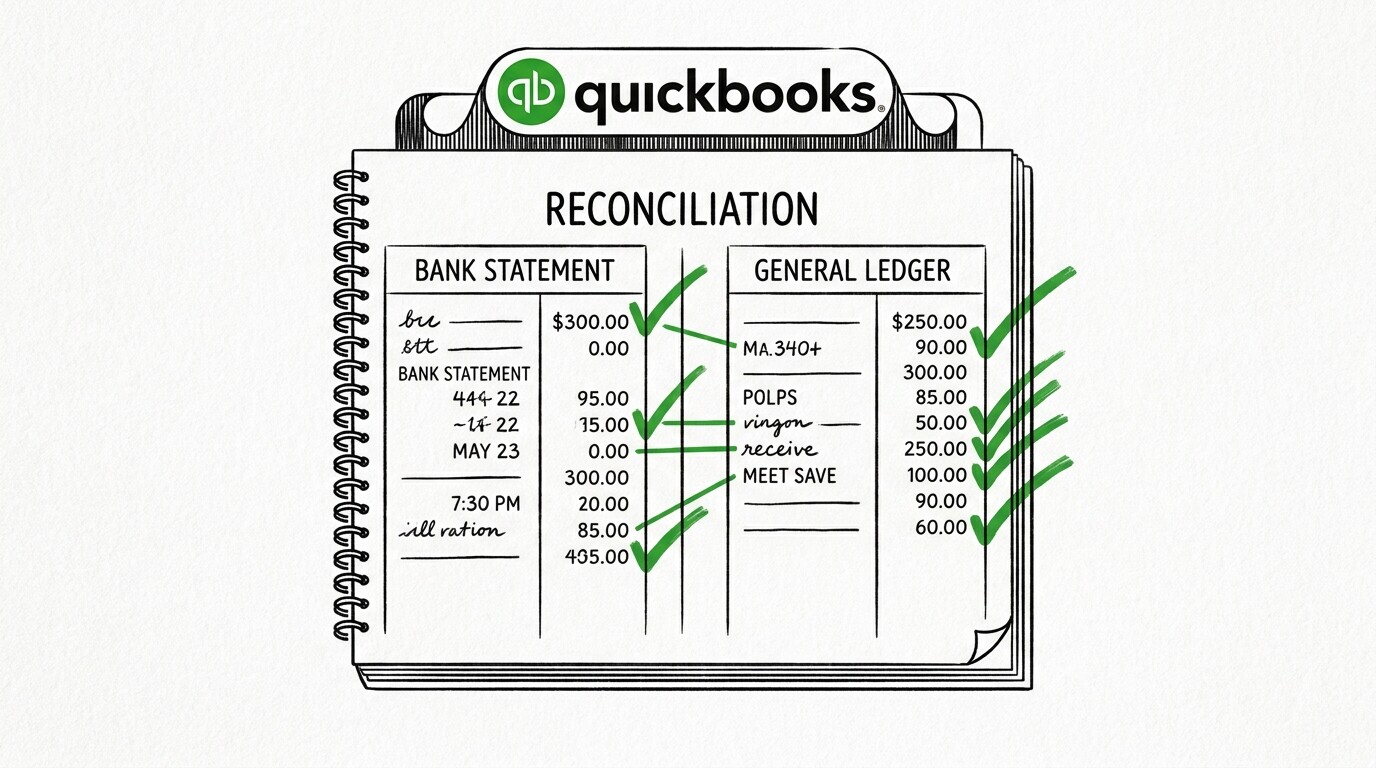

You imported your PDF bank statement into QuickBooks Online, and now you have a list of transactions in your QBO register that may or may not match the actual bank statement. Reconciliation is the process of comparing your QBO register against the bank’s official record and identifying discrepancies. Done correctly, reconciliation gives you confidence that your books match reality.
Done incorrectly, it leaves errors that compound over months.
Quick Answers: QuickBooks Online reconciliation works in the Banking tab under Reconcile. You select the account, enter the statement ending balance and ending date, then QBO walks through each transaction asking you to mark it cleared. Matched transactions get a checkmark, and when the cleared balance equals the statement balance, the reconciliation completes. The whole process takes 10-15 minutes per account per month. Bank feed auto-match (when working) reduces this to 3-5 minutes, but bank feeds fail regularly and you need the manual fallback workflow.
Where do you find reconciliation in QBO?
QBO’s reconciliation tool is in the left navigation under Banking, then click Reconcile in the dropdown menu. If you have multiple bank accounts, QBO shows a list of accounts and a per-account reconciliation status (Reconciled, In progress, Needs attention, Unreconciled). Click Reconcile next to the account you want to reconcile, and QBO opens the reconciliation screen.
The reconciliation screen has four key fields you need to complete: Statement ending balance (the bank’s reported balance at the statement end date), Statement ending date (the last day covered by the statement), Beginning balance (QBO pre-fills this from your last successful reconciliation), and the transaction list below.
Once you enter the ending balance and date, QBO shows you the difference between your register balance and the statement balance, which is the amount you need to reconcile through matching.
Two common failure modes at this stage are: (1) entering the wrong ending balance (a typo or missing decimal), which makes the reconciliation fail by a tiny amount; (2) entering the wrong ending date, which can cause QBO to show transactions outside the reconciliation period.
The fix for both is to verify before import the statement values against the actual bank statement before clicking Start reconciling.
The statement values appear in the upper-right of every bank statement, so a 5-second visual check saves 30 minutes of troubleshooting later.
How does the transaction-matching workflow work?
After you click Start reconciling, QBO walks through the transaction list one by one. Each transaction has a checkbox on the left and a description, date, and amount. You check the box for transactions that appear on the bank statement and leave unchecked for transactions that do not appear yet (outstanding checks, in-transit deposits) or that you want to investigate.
As you check transactions, QBO updates the reconciliation balance in the upper-right corner of the screen. The difference between the cleared balance and the statement balance shrinks toward zero. When the difference is zero, a green banner appears saying “You’ve finished reconciling,” and you can click Finish now to complete the reconciliation.
If the difference is non-zero, QBO shows the amount in red, and you need to investigate which transactions are missing or incorrectly matched.
QBO has three shortcuts that make matching faster: (1) the Match column on the right shows a green checkmark next to transactions QBO is confident match (based on amount and date within 5 days) and you can click “Match” to confirm (2) the Difference column at the bottom shows the running reconciliation balance updating in real time.
(3) you can use the search field at the top to find specific transactions by amount or description. For a typical 100-transaction statement, the manual workflow takes about 5-7 minutes using the Match shortcuts.
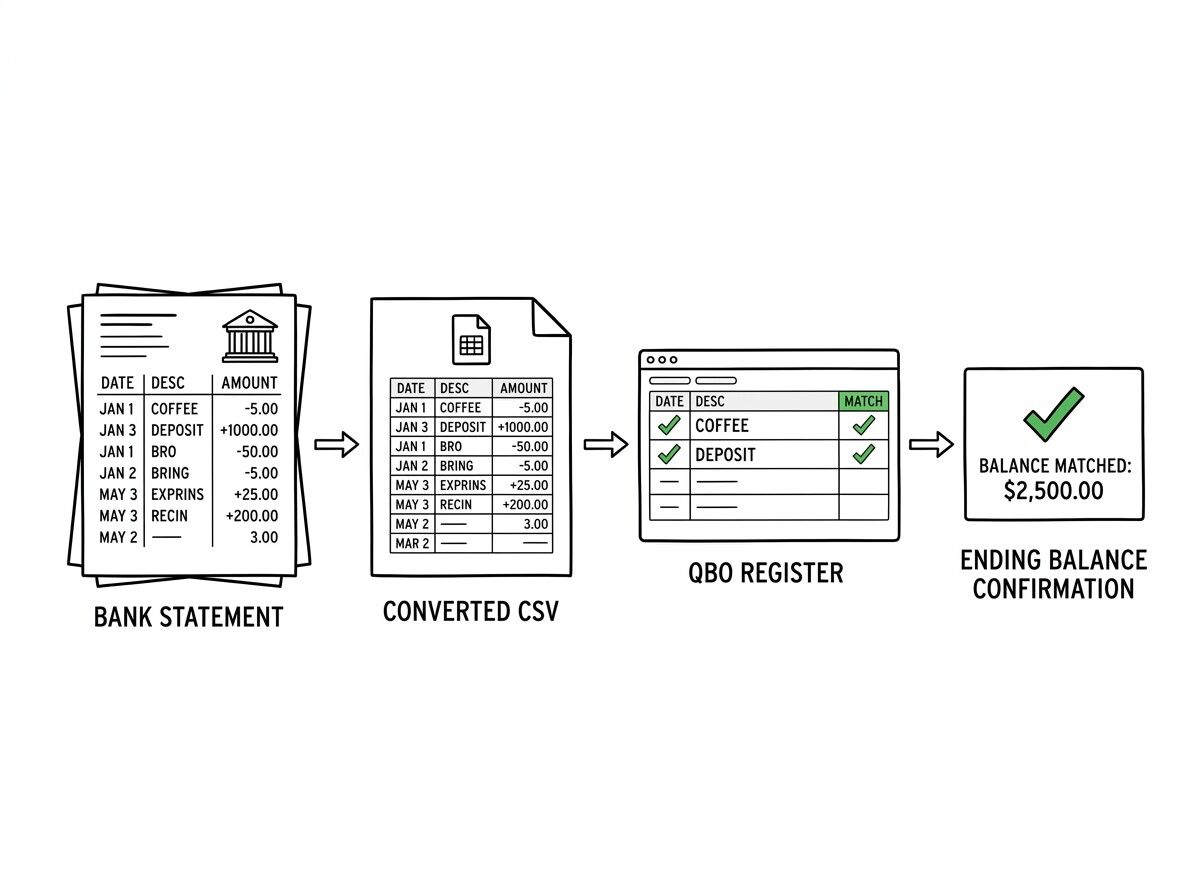
From Bank Statement to QuickBooks-Ready File
That manual cleanup you just read about? This tool skips it. Turn your PDF into QBO for QuickBooks without storing your data anywhere.
Start ConvertingWhat about bank feed auto-matching?
QBO’s bank feed (via Plaid, Finicity, or direct bank integrations) automatically pulls transactions from your bank and attempts to match them against transactions in your register. When a transaction matches (same amount, similar date, similar description), QBO marks it as a suggested match, and you confirm or reject the match.
This is faster than manual entry because you don’t have to retype the transaction details, but you still need to confirm the match.
The two situations where bank feed auto-matching fails are: (1) timing differences where the bank posts a transaction on a different date than QBO’s register shows (common at month-end with checks in transit); (2) amount differences where the bank’s fee or interest is not yet entered in QBO. In both cases, you can manually enter the missing transaction or adjust the date, then continue reconciliation.
The recommended workflow is: open the reconciliation, let QBO’s bank feed suggest matches, review each suggestion in 2-3 seconds, click Confirm for matches that look correct, and manually enter or adjust any transactions that don’t match. For a 100-transaction statement with a working bank feed, this takes about 3-5 minutes total.
For a 100-transaction statement without bank feed (or with a broken feed), the manual workflow takes 10-15 minutes.
What do you do if the difference doesn’t reach zero?
Three common reasons the reconciliation difference doesn’t reach zero: (1) outstanding transactions (checks written but not cashed, deposits in transit) that need to be left unchecked; (2) bank fees, interest, or adjustments that posted to your bank but are not yet in QBO; (3) data entry errors where a transaction has the wrong amount or date in your register. The fix for each is different.
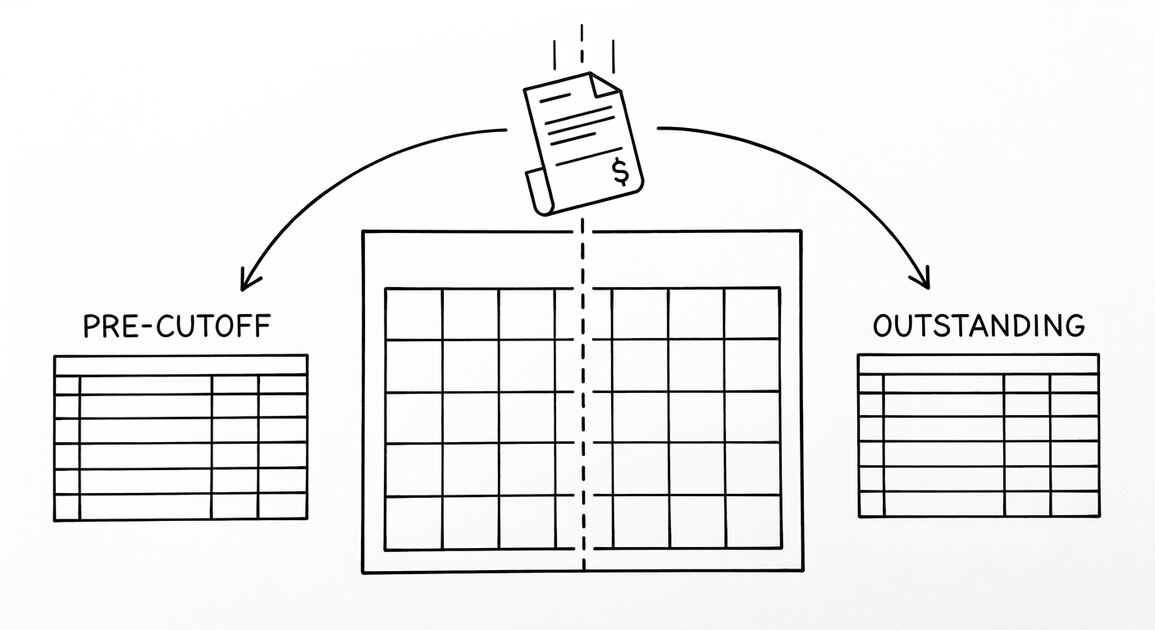
For outstanding transactions, leave them unchecked in the reconciliation. They are real transactions that the bank has not yet processed, and they will reconcile in the next month’s statement when they clear. If you have many outstanding transactions (50+), it may indicate a deeper issue like an old uncleared check that you forgot about, which you should investigate.
For bank fees and interest, QBO’s recommended workflow is to enter these as journal entries or as adjustments to the register. If your bank charged a $15 wire fee, you enter a -$15 transaction in your register dated to the bank’s posting date, categorized to “Bank Fees” or “Bank Service Charges.” After entering, the cleared balance should match the statement balance.
For interest income, you enter a positive transaction categorized to “Interest Income.”
For data entry errors, QBO’s Discrepancy Report (in the Reports tab under “Reconciliation Discrepancy”) shows the cumulative reconciliation difference across all months. If you have a $50 discrepancy that’s been sitting for 3 months, the report helps you trace it back to the original transaction. The fix is to find the incorrect transaction, edit it to the correct amount or date, and reconcile again.
Most reconciliation discrepancies are caused by typos, transposed digits, or transactions entered with the wrong sign.
How often should you reconcile?
Most small businesses reconcile monthly, matching each month’s bank statement within a week of receiving it. This cadence keeps the reconciliation workload manageable (about 15 minutes per account per month) and prevents discrepancies from accumulating. Reconciling less frequently (quarterly or annually) makes the workload larger and increases the risk that errors compound into material misstatements.
Some businesses reconcile more frequently: weekly for high-volume accounts (restaurants, e-commerce, marketplaces), daily for treasury accounts with large balances, or on-demand when investigating a specific issue. The frequency depends on transaction volume and the risk of errors. A freelancer with 30 transactions per month can reconcile monthly; a small business with 500 transactions per month may want to reconcile bi-weekly.
For most small businesses, the optimal cadence is monthly within 5 business days of receiving the statement. This gives you time to import the statement via your PDF-to-QBO workflow, review bank feed matches, and complete the reconciliation before the next month’s transactions start posting.
What are common QBO reconciliation errors and fixes?
Error 1: “Beginning balance doesn’t match prior reconciliation.” This happens when someone edits or deletes a previously reconciled transaction. QBO preserves the reconciliation history, so any change to a cleared transaction breaks the audit trail. The fix is to reverse the change and contact QBO support if the change was intentional.
Error 2: “Reconciliation shows the wrong difference.” This usually means a transaction was entered in the wrong amount (e.g., $123 entered as $132). The fix is to find the transaction, edit it to the correct amount, and the reconciliation balance updates automatically. For older discrepancies, use the Reconciliation Discrepancy report to find the offending transaction.
Error 3: “QBO won’t let me finish reconciliation.” This happens when the difference is not exactly zero. The fix is to either match one more transaction, unmatch an incorrectly matched transaction, or enter an adjustment to make the balance reconcile. QBO will not allow a half-finished reconciliation; it requires either a zero difference or an explicit adjustment.
How does QBO handle multi-account reconciliation?
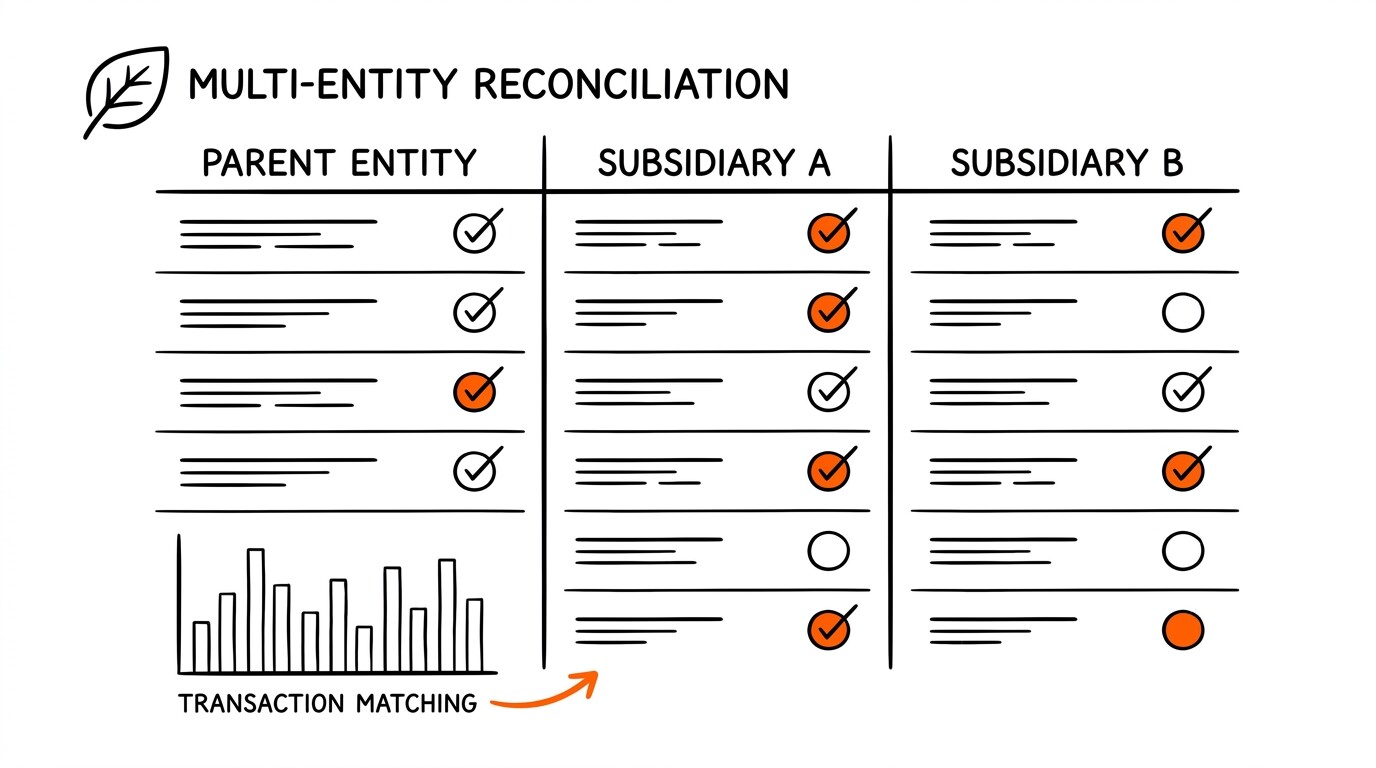
For businesses with multiple bank accounts (checking + savings + credit card + multiple entities), QBO handles each account independently. You reconcile one account at a time, and the reconciliation status is per-account. There is no consolidated reconciliation screen that shows all accounts at once, but you can use the Banking tab to see all accounts and their reconciliation status in a list view.
For businesses with multiple entities (using QBO Plus or Advanced, which support class and location tracking), the reconciliation is still per-account but you can filter the register by class or location to reconcile a specific subset.
For example, if your checking account has transactions for two LLC setups tagged with different classes, you can reconcile the entire account and then run a Profit and Loss by Class report to see the breakdown. QBO does not require per-class reconciliation, which simplifies the workflow.
For more complex multi-entity setups (5+ entities with intercompany transactions), NetSuite or Sage Intacct is a better fit than QBO. QBO supports up to 50 classes or locations, but the reconciliation workflow becomes cumbersome beyond 5-10 entities. For those use cases, upgrading to a multi-entity accounting platform saves time on the monthly close.
What about year-end reconciliation and audit trails?
At year-end, your CPA or bookkeeper will review the year’s reconciliations as part of the financial statement preparation or tax return. QBO preserves all reconciliation history indefinitely, so any past reconciliation can be re-opened and reviewed. The Accountant Toolbox in QBO gives your accountant read-only access to the reconciliation history without needing your password.
For IRS audit purposes, the bank statement is the primary evidence and QBO reconciliation history is secondary. If you receive an IRS notice, the bank statement is what the auditor will examine, not your QBO register. This means the reconciliation accuracy matters for your own confidence in the books, but the bank statement is the legal source of truth for tax purposes.
For audit trail purposes, QBO tracks who reconciled each account, when the reconciliation was completed, and what adjustments were made. This audit trail is preserved automatically and is accessible from the Account History or Audit Log reports.
If you have a bookkeeper reconciling some accounts and you reconciling others, the audit trail shows who did what, which is useful for both internal accountability and external audits.
Workflow example for this topic in practice
Consider a small-business owner handling monthly reconciliation. They receive a bank statement and a credit-card statement each month. They run each through a converter that produces a four-column output, with Date, Description, Amount, and Merchant Category Code on the credit-card portion and Running Balance on the bank-account portion. They import the converted files into QuickBooks Online and run the rule-based categorization.
The merchant category code on each credit-card transaction drives the expense category assignment. The ACH or wire label on each bank-account transaction determines whether the line item maps to Revenue, Expense, or Owner Draw. The conversion output handles the categorization automatically. The owner only manually categorizes vendors not yet in the rule set.
Consider a bookkeeper onboarding a new client mid-year. The conversion workflow is the same, but the rule set is built fresh for the new client. The most labor-intensive step is the first month, where the chart of accounts and the categorization rules are aligned. From the second month forward, the workflow runs in roughly 60-90 minutes per client including the variance check.
Consider a lender underwriting a mortgage. They pull the bank statement and credit-card statement from the applicant. The four-column output makes the merchant category and rail labels obvious. Cash advances at MCC 6011 and quasi-cash at MCC 6051 draw scrutiny regardless of the applicant profile. Self-employed applicants with significant merchant category code complexity on their business credit-card statement require additional documentation.
Easy Statement Sheet handles all three of these workflows. The four-column output is the same across small-business, bookkeeper, and lender workflows. Plans start at $15 per month after the first three free conversions. Files are never stored and conversion runs in memory.
Turn any PDF statement into a clean sheet
Skip the typos and the hours of copying. Our converter handles any bank statement format and outputs Excel, CSV, or QBO for QuickBooks. No file retention, free to try.
Convert your statement