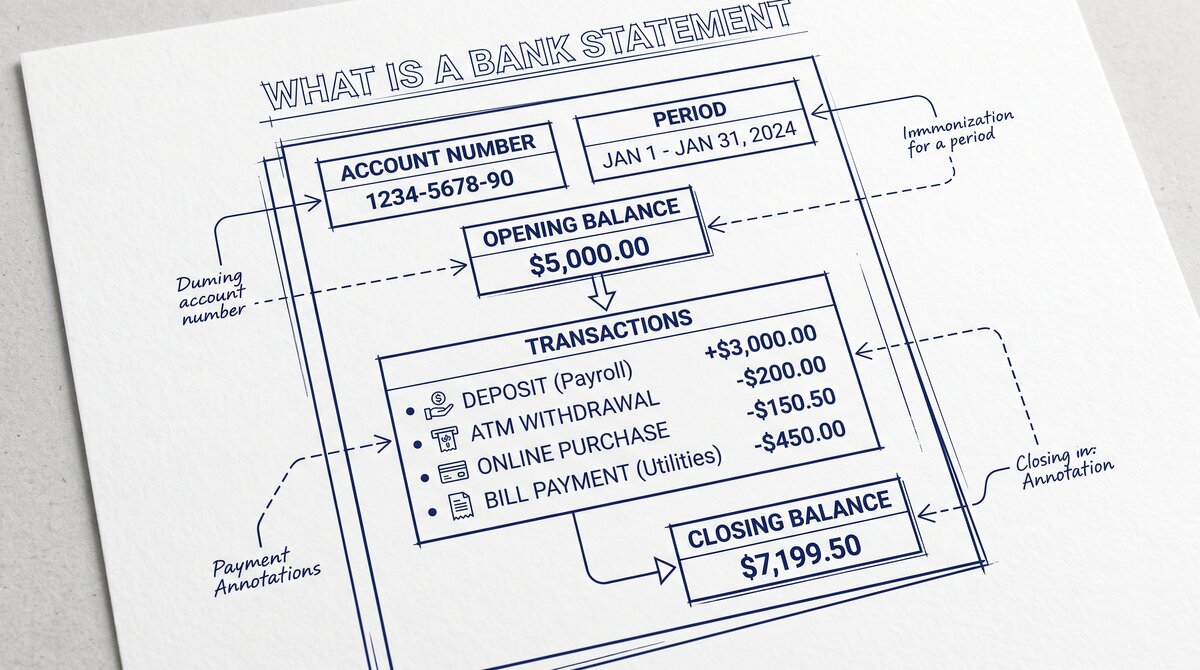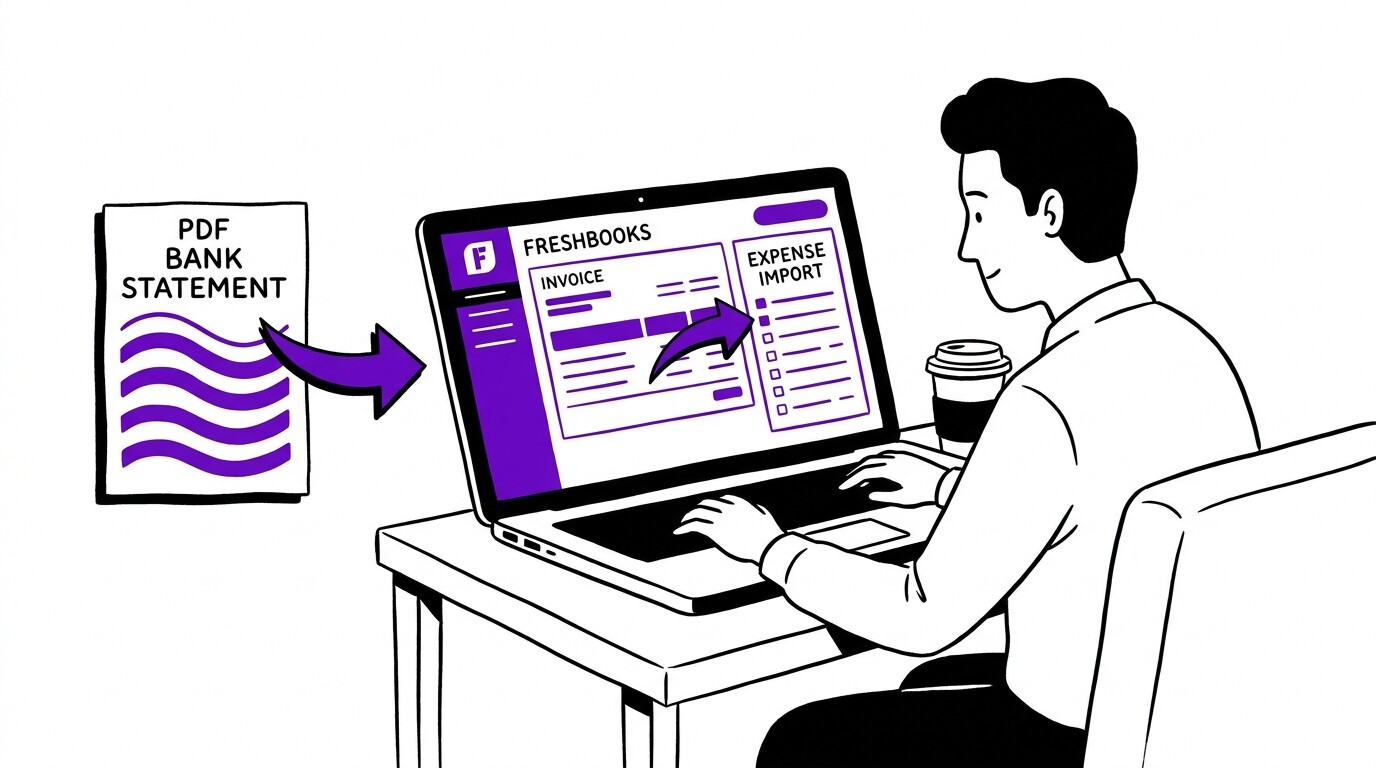

You use FreshBooks for invoicing and expense tracking as a freelancer or service-business owner, and you want to import your monthly bank statement transactions without manually retyping each one. FreshBooks’ expense import is simpler than full accounting software, but it has a specific column format you need to match for a clean import.
Quick Answers: FreshBooks supports PDF bank statement import through two paths: (1) the Expenses page Upload button for manual CSV import (free with all paid FreshBooks plans), and (2) the Bank Reconciliation import for matching imported transactions against bank statements. The fastest PDF-to-FreshBooks workflow is: PDF → ESS conversion → CSV with FreshBooks-compatible columns → Expenses page upload. FreshBooks is designed for service-business invoicing and expense tracking, not full double-entry accounting, which makes the import workflow faster than accounting-focused platforms.
What is FreshBooks and who uses it?
FreshBooks is a cloud-based accounting and invoicing platform designed for service-based small businesses and freelancers, owned by the Newtek Business Services Corp. as of 2024.
FreshBooks is best known for its invoicing features (customizable templates, automated payment reminders, recurring invoices) and its expense tracking, which is what makes it popular with freelancers, consultants, agencies, and service businesses that bill clients by the hour or by the project.
FreshBooks’ pricing starts at $19/month for the Lite plan (5 clients), $33/month for the Plus plan (50 clients), and $60/month for the Premium plan (unlimited clients). All paid plans include unlimited bank account connections, expense tracking, and basic financial reporting.
Unlike QuickBooks Online and Sage, FreshBooks does not support double-entry accounting or full general ledger functionality, which makes it less suitable for product-based businesses with complex inventory.
For bank statement import specifically, FreshBooks focuses on the expense side of the workflow: it tracks what you spent and on which client or project, not the full general ledger with accounts payable, accounts receivable, and balance sheet reconciliation. This makes the import workflow simpler than accounting-focused platforms because you only need to capture date, vendor, amount, and category, not the full double-entry structure.
What does the FreshBooks CSV import format require?
FreshBooks accepts CSV files for expense import in a specific column structure. The required columns are: Date, Vendor/Payee, Amount, and Category (an expense category like “Office Supplies,” “Travel,” or “Meals”). Optional but recommended columns are: Client (the billable client this expense should be assigned to), Project (the specific project this expense belongs to), Notes, and Tax (the tax rate applied to the expense, if any).
The CSV file must use UTF-8 encoding and comma separation.
The two FreshBooks-specific gotchas are: (1) the Amount column must use negative numbers for expenses (or positive numbers with a separate Type column, depending on your FreshBooks configuration), and (2) the Client and Project columns must reference existing FreshBooks clients and projects. If you assign an expense to a client that doesn’t exist in FreshBooks, the import silently skips that row.
The fix is to create the missing client or project in FreshBooks before importing, or filter the CSV to exclude those rows.
From Bank Statement to QuickBooks-Ready File
That manual cleanup you just read about? This tool skips it. Turn your PDF into QBO for QuickBooks without storing your data anywhere.
Start ConvertingHow do you import a converted bank statement into FreshBooks?
FreshBooks’ expense import workflow is in the Expenses page under “Upload” or in the Banking tab under “Import Transactions.” The process is: select your CSV file, FreshBooks auto-detects the column mapping, you confirm the destination account and any default categories, and click Import. FreshBooks validates the file size and format, processes the import, and shows a confirmation screen with the imported expense count.
The import typically takes 10-30 seconds for a typical monthly bank statement with 50-200 transactions. For freelancers with 50-100 transactions per month, this is essentially instant. For service businesses with 200+ transactions per month, the import is still under a minute. After import, the expenses appear in the Expenses page as “uncategorized” with auto-categorization rules applied if you have any configured.
FreshBooks’ auto-categorization is similar to QuickBooks Online‘s: it learns from your past categorizations and applies them to new transactions. For example, if you’ve categorized “Amazon Web Services” as “Software” ten times, FreshBooks will suggest “Software” for the eleventh transaction. This auto-categorization gets smarter over time and reduces the manual categorization burden for repeat vendors.
What about FreshBooks’ automatic bank feed import?
FreshBooks’ automatic bank feed import is in the Banking tab under “Connections.” You connect your bank account once via Plaid or similar provider, and transactions appear in FreshBooks automatically within 1-2 business days of posting at your bank. The bank feed is free with all paid FreshBooks plans and supports thousands of U.S. banks and credit cards.
The two situations where manual CSV import is still needed are: (1) historical statements older than 90 days (most bank feeds only pull the last 90 days), and (2) banks not supported by Plaid or FreshBooks’ bank feed partners (some smaller credit unions, international banks, business-only accounts with limited online access). For these cases, the PDF-to-CSV-to-FreshBooks workflow is the right path.
The recommended combined workflow is: connect your bank feed for ongoing transactions, then use PDF-to-CSV import once for historical backfill (typically the previous 12-24 months of statements). This gives you complete expense history in FreshBooks without manual retyping, and the imported historical transactions reconcile cleanly against the imported bank statements.
How does FreshBooks handle scanned paper bank statements?
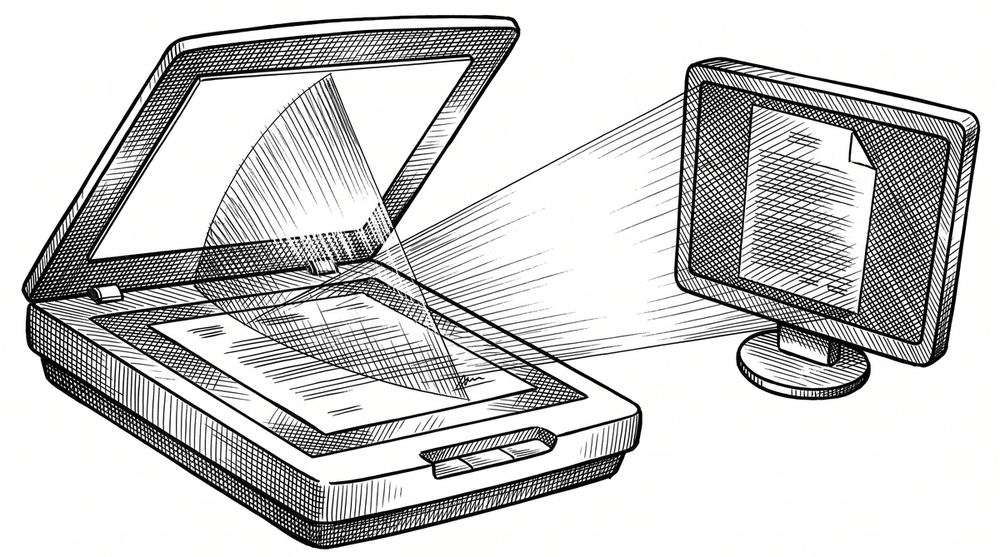
FreshBooks does not have native OCR for scanned PDF bank statements. If you have a scanned image PDF (from a paper statement that was scanned or faxed), you need a conversion tool with OCR capability to extract the text before importing to FreshBooks.
ESS includes OCR for scanned PDFs, and accuracy is similar to other tools: 99% for high-quality 300 DPI scans, 80-90% for lower-quality scans.
The cleanup workflow for low-quality scans is: convert PDF to CSV with OCR, review the CSV in a spreadsheet (sort by Amount, look for obvious errors), correct any misread amounts or descriptions, then import the cleaned CSV to FreshBooks. For freelancers with 50-100 transactions per month, this review step typically takes 5-10 minutes per statement.
How do you assign expenses to clients and projects in FreshBooks?
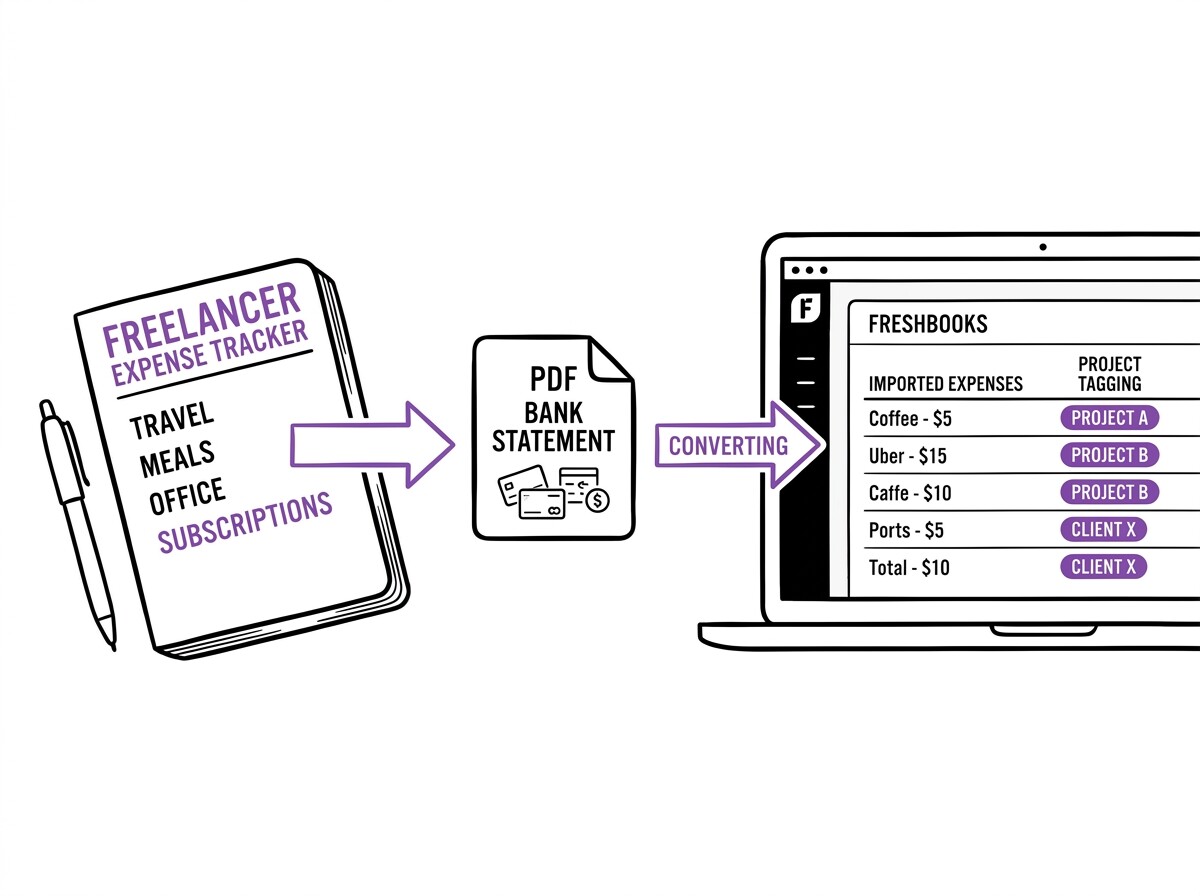
The killer feature of FreshBooks for freelancers and service businesses is the ability to assign imported expenses to specific clients and projects, which then flows through to invoicing and profitability reports.
If you spent $50 on a client lunch and want to bill it back to that client, you import the expense with the Client column set to that client, and FreshBooks includes the expense in the client’s billable costs.
The CSV format for assigning expenses to clients is straightforward: include a Client column with the client’s name (or ID) in FreshBooks. For projects, include a Project column with the project name (or ID). FreshBooks auto-detects the column header and maps it.
The imported expenses then appear in the Expenses page filtered by Client or Project, which makes it easy to see which clients and projects are profitable.
The profitability reporting is the most valuable outcome of this workflow. By importing all expenses with proper Client and Project tagging, you can run a profitability report in FreshBooks that shows revenue per client minus expenses per client, giving you the actual net profit per client.
This is harder to replicate in Wave or QuickBooks Online without manual setup, which is why FreshBooks is popular with freelancers who need per-client profitability tracking.
What are the limits and operational rules for FreshBooks imports?
FreshBooks imposes a 1,000-row limit per CSV import, which is roughly 6-12 months of expenses for a typical freelancer or small service business. For larger imports, you must split the CSV into multiple files. FreshBooks also limits CSV file size to 5MB, which is rarely an issue for typical expense imports but can matter for businesses with very long transaction histories.
FreshBooks does not support scheduled imports or API-based uploads, so every CSV import is a manual click-through in the UI. For most freelancers and service businesses, this is fine because they import monthly or quarterly. If you need daily automation or programmatic import, FreshBooks is the wrong tool, and you should consider QuickBooks Online or Xero, which both support API-based transaction upload.
Bank feed rate limits from Plaid apply to FreshBooks similarly to other platforms: typically 100-500 transactions per refresh, with refreshes every 4-24 hours depending on the bank. For most freelancers, this is invisible because transactions are pulled in smaller batches throughout the day. The rate limits do not apply to manual CSV imports, which can process up to 1,000 transactions in seconds.
How does FreshBooks compare to QuickBooks, Wave, and Xero?
Compared to QuickBooks Online, FreshBooks is more focused on invoicing and expense tracking, less focused on full double-entry accounting. FreshBooks is easier to learn but has fewer advanced accounting features. Compared to Wave, FreshBooks is more expensive (starting at $19/month vs free) but has stronger client billing and time-tracking features.
Compared to Xero, FreshBooks is more expensive (starting at $19/month vs $15/month) but has stronger invoicing.
The right platform depends on the business type. For freelancers and service businesses that bill clients, FreshBooks is the strongest choice because of its invoicing, time tracking, and per-client profitability features. For product-based businesses with inventory, FreshBooks is the wrong choice, and QuickBooks Online or Xero is better. For very small businesses with simple needs, Wave’s free tier is the most cost-effective.
For bank statement import specifically, FreshBooks’ workflow is the simplest of the four platforms: PDF to CSV, upload to Expenses page, optional client/project tagging. The simplicity comes from FreshBooks’ focus on service-business workflows rather than full double-entry accounting. For freelancers who want to spend their time on billable work rather than bookkeeping, the simplicity is a feature.
From Bank Statement to QuickBooks-Ready File
That manual cleanup you just read about? This tool skips it. Turn your PDF into QBO for QuickBooks without storing your data anywhere.
Start Converting