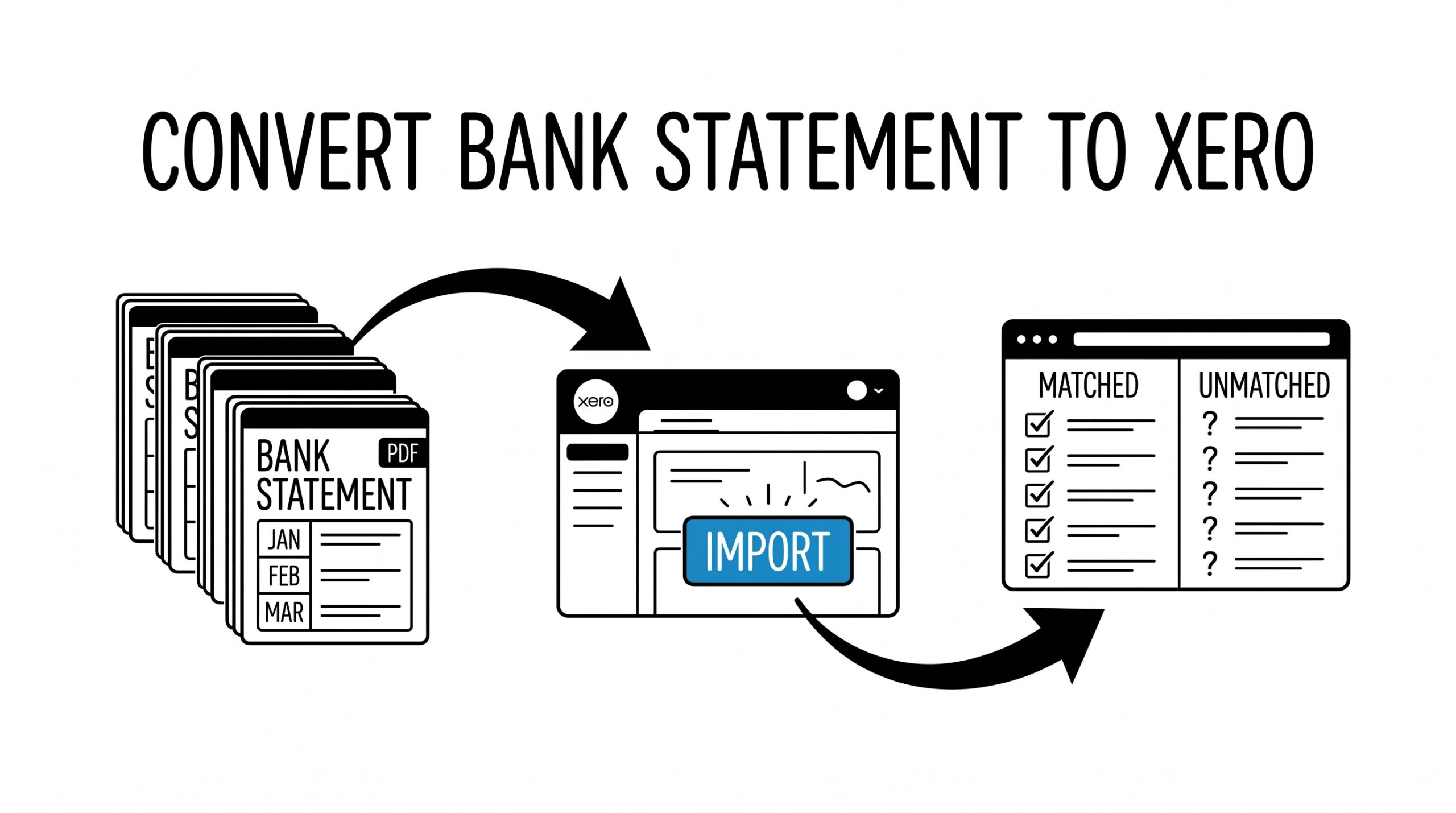

You just onboarded a new client who runs a small consulting business.
They have 6 months of Chase bank statements in PDF format, plus 2 months of American Express statements for business expenses.
Your accounting platform is Xero, and you need to import all 8 months of historical transactions before you start the monthly bookkeeping. Xero accepts CSV files for manual import, but the statements are PDFs. You need a workflow that converts them and imports them cleanly.
Converting bank statements for Xero import is similar to other accounting platform workflows but has Xero-specific requirements for the CSV format and the import process. The end goal is the same: get transactions into Xero’s bank reconciliation system. But Xero imposes specific column naming, character limits, and import procedures that differ from QuickBooks Online, Sage, or Wave.
Quick Answers: Xero accepts CSV files for manual bank statement import with three required columns: Date, Description, Amount.
Xero imposes a 30-character limit on the Description field, longer merchant names get truncated, which can affect auto-categorization.
Xero does NOT accept OFX/QFX files for manual import; those are reserved for live Bank Feed connections. Multi-account conversion requires each bank account to be a separate CSV and a separate Xero bank account in the Chart of Accounts. ESS converts bank statement PDFs to the Xero-compatible CSV format with the same workflow used for other accounting platforms.
What Xero Accepts for Bank Statement Import
Xero supports three methods for getting bank transactions into the platform: manual CSV import, live Bank Feed connection, and third-party integrations. Each has different use cases and limitations.
Manual CSV import is the most flexible. Xero accepts a CSV file with three required columns: Date (in YYYY-MM-DD or DD/MM/YYYY format depending on locale), Description (up to 30 characters, longer values get truncated), and Amount (positive for credits, negative for debits). Two optional columns are Payee and Reference, which help with reconciliation but aren’t required.
Xero Bank Feed is the live connection between Xero and supported banks. The bank sends new transactions to Xero automatically, typically within 24 hours of posting. Bank Feed is faster than manual import but requires the bank’s cooperation; not all banks support it, and some smaller banks or credit unions have limited integration. For unsupported banks, manual CSV import is the fallback.
Third-party integrations include Hubdoc, AutoEntry, and similar services that extract transactions from PDFs and push to Xero. These are paid services with per-document pricing, suitable for high-volume bookkeepers. For low-volume or one-off conversions, manual CSV import is faster and cheaper.
For most bookkeepers onboarding a new client, the manual CSV import path is the standard workflow. The Xero import flow is: Accounting → Bank Accounts → select the account → Manage Account → Import a Statement. Xero accepts CSV files up to 10MB and 1,000 transactions per file. Larger imports need to be split.
The 5-Step Xero Import Workflow
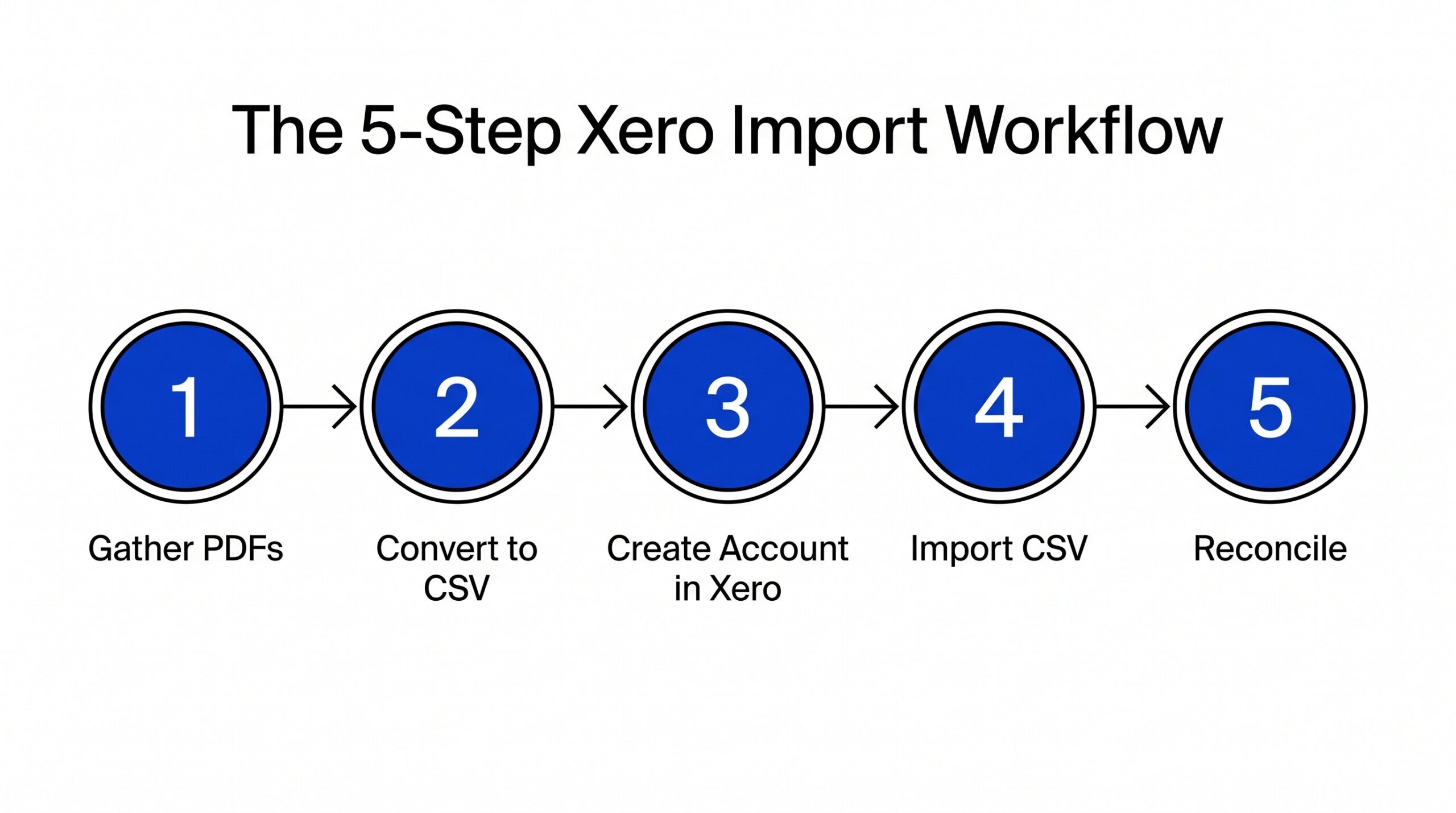
The conversion workflow for Xero import is similar to other accounting platforms but has a few Xero-specific steps. Five steps take a folder of bank statement PDFs to an imported Xero dataset.
Step 1: Gather all bank statement PDFs. Most small business clients have 2-5 bank accounts: a business checking account, possibly a savings account, a credit card or two, and sometimes a PayPal or Stripe business account. Put all PDFs in one folder with clear filenames: “2025-01-business-checking.pdf”, “2025-01-amex-business.pdf”, and so on.
Step 2: Convert each PDF to a Xero-compatible CSV.
ESS reads both digital PDFs (where text is selectable) and scanned paper forms (where OCR is needed). The output is one CSV per PDF with Xero’s required columns: Date, Description, Amount. The 30-character Description limit means some merchant names get truncated; the conversion handles this by keeping the most identifiable part (usually the first 30 characters of the merchant name).
Step 3: Verify the CSV format. Open the converted CSV and check that: dates are in YYYY-MM-DD format (or whatever locale Xero expects), amounts have negative values for expenses, descriptions are under 30 characters, and there are no blank rows. Fix any issues before uploading to Xero.
Step 4: Create the bank account in Xero first. Before importing, Xero requires the bank account to exist in the Chart of Accounts. Go to Accounting → Chart of Accounts → Add Bank Account. Enter the account name, account type (Checking, Savings, Credit Card), and currency. Once the account exists, Xero accepts the CSV import.
Step 5: Import the CSV and reconcile. In Xero, navigate to Accounting → Bank Accounts → click the account → Manage Account → Import a Statement. Upload the CSV, map the columns to Xero’s expected fields, and complete the import. Xero will then show the imported transactions as “unreconciled” and you can begin matching them against invoices, bills, or manual entries.
Turn PDF Bank Statements Into Workable Spreadsheets
Your bank statement is a mess of numbers, but your books shouldn't be. Use our converter to get Excel, CSV, or QBO files — ready for QuickBooks.
Try It Free NowThe Xero CSV Format in Detail
Xero’s CSV format requirements are specific. Getting them right avoids import errors and reconciliation issues.
Date column. Xero accepts dates in YYYY-MM-DD format (ISO 8601) or DD/MM/YYYY depending on the organization’s locale setting. The locale is set during Xero setup and can be changed later, but most US-based Xero organizations use MM/DD/YYYY. The conversion should output dates in the locale format Xero expects.
Description column. Xero truncates descriptions at 30 characters with no warning. A merchant name like “WHOLE FOODS MARKET #12345 MAIN ST” gets truncated to “WHOLE FOODS MARKET #12345 MAIN”, missing the street. This matters for reconciliation because Xero’s auto-matching uses the truncated description.
For better reconciliation, the Description column should prioritize the most identifiable part of the merchant name. “WHOLE FOODS #12345” is better than “WHOLE FOODS MARKET – 12345 MAIN STREET”. The first 30 characters that include the store number and merchant name are most useful for matching.
Amount column. Xero expects positive amounts for money coming in (credits, deposits, refunds) and negative amounts for money going out (debits, expenses, payments). Most bank statements use the opposite convention; the conversion needs to flip signs before importing.
Optional Payee and Reference columns. These columns help with reconciliation but aren’t required. Payee is the merchant name (which can be longer than the 30-character description). Reference is typically the check number, transaction ID, or memo from the original statement.
Why Xero Doesn’t Accept OFX or QFX for Manual Import
Xero reserves OFX (Open Financial Exchange) and QFX (Quicken Format Exchange) file types for live Bank Feed connections. These file formats contain bank authentication tokens and account details that Xero uses to establish a live connection with the bank, not just a one-time transaction import.
If you have an OFX or QFX file from your bank’s website, Xero can use it to establish a Bank Feed, but the workflow is different from manual CSV import. The Bank Feed path requires entering bank credentials in Xero, verifying the connection, and waiting for the bank to send historical transactions (typically 30-90 days).
For historical data beyond what the Bank Feed provides, manual CSV import is the only path. This is why converting bank statement PDFs to CSV is the standard workflow for bookkeepers onboarding new clients (see also joint bank statement conversion for multi-accountant scenarios): the bank statements go back further than the Bank Feed supports, and Xero can’t accept the PDF format directly.
For broader bank statement conversion workflows that apply to other accounting platforms, the bank statement to Excel workflow covers the general conversion step, and the PDF to Google Sheets workflow covers an alternative target format.
Multi-Account Conversion for Xero
Most small business clients have multiple bank accounts that need to be imported into Xero as separate accounts. The conversion workflow scales linearly with the number of accounts.
Imagine a client with 3 accounts: business checking at Chase ($4,200/month average), business savings at Chase ($200/month interest), and a business credit card at Amex ($3,800/month average spend). The conversion produces 3 separate CSV files, and Xero requires 3 separate bank accounts in the Chart of Accounts before import.
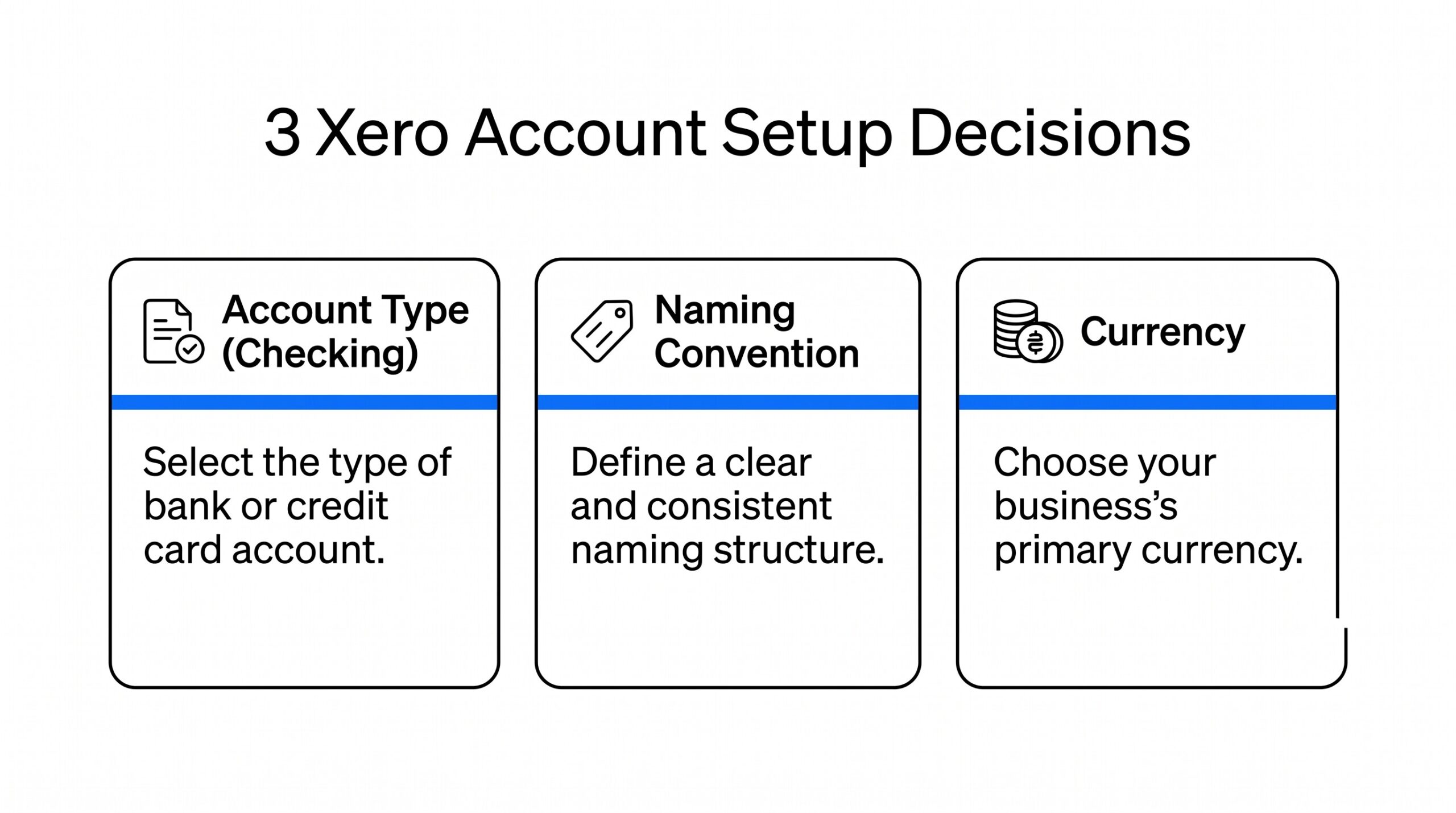
The naming convention for the Xero accounts should match the client’s internal naming. “Chase Business Checking” rather than just “Chase” or “Checking”. The account type matters for Xero’s reconciliation: Checking, Savings, and Credit Card have different reconciliation rules. A credit card account should be set up with the credit card’s outstanding balance as the opening balance, not zero.
For multi-account conversion in one workflow, the multi-currency statement conversion workflow covers the file-format variations across banks, and the business bank statement conversion workflow covers the typical account structures for small businesses.