
PDF is read-only, CSV is editable. Pick based on whether you need to read or process. The short answer: PDF is the bank’s default format and is read-only, designed for printing and viewing (also called bank statement PDF vs CSV, or bank statement format comparison), designed for printing and viewing. CSV is the structured data format and is editable, designed for spreadsheet and accounting workflows. Use PDF when you receive a statement from your bank and want to view it. Use CSV when you want to process the transactions in a spreadsheet, accounting software, or any data workflow. For most bookkeepers and accountants, the right workflow is to download the PDF from the bank and convert it to CSV (or Excel) using a tool like the bank statement converter.
TL;DR. PDF is read-only, CSV is editable. PDF is the bank’s default format, designed for printing and viewing. CSV is the structured data format, designed for spreadsheet and accounting workflows. Use PDF when you receive a statement and want to view it. Use CSV when you want to process the transactions in a spreadsheet, accounting software, or any data workflow.
What most PDF vs CSV guides miss is that the choice is not about file type. It is about the workflow that follows. PDF is the bank’s default because the bank wants you to read it, not edit it. CSV is the accountant’s preference because the accountant needs to process it. The right answer depends on whether you are the reader or the processor. Most guides treat it as a feature comparison when it is actually a workflow decision.
This page covers the 3 differences between PDF and CSV, when to use each, the 4 use cases where CSV wins, and the 2 cases where PDF is the right choice. If you want to skip the analysis and go straight to conversion, see convert bank statement to CSV. For the format comparison with Excel, see bank statement to Excel vs CSV.
Bank statement PDF vs CSV: PDF is read-only and designed for printing and viewing; CSV is structured data designed for spreadsheet and accounting workflows. The 3 main differences are: (1) PDF is binary and human-readable, CSV is text and machine-readable, (2) PDF preserves visual layout but not data structure, CSV preserves data structure but not visual layout, (3) PDF requires OCR or parsing to extract transactions, CSV opens directly in Excel or any data tool. Use PDF when the statement is for viewing, sharing, or archiving. Use CSV when the statement is for processing, analysis, or import. The most common workflow is: download PDF from bank, convert to CSV with a converter, import to spreadsheet or accounting software.
For the PDF-to-CSV conversion workflow, see convert bank statement to CSV. For the format decision with Excel, see bank statement to Excel vs CSV. For the QBO format (a third option for QuickBooks), see convert bank statement to QBO. If you want to skip the conversion step, use the bank statement converter to produce a clean CSV from the PDF in 2 to 5 minutes.
The 3 Core Differences Between PDF and CSV
PDF and CSV are different in 3 fundamental ways. The difference determines when to use each.
What most guides miss about CSV conversion is that the output quality depends on row parsing, not on the file extension. A CSV with the wrong sign convention produces accounting errors. A CSV with the right sign convention but wrong date format produces date-sort errors. The output format is just serialization; the parsing is the work.
What most guides miss about CSV conversion is that the quality depends on the mechanism, not on the tool. Two tools that look different on the surface often run the same 4-step process underneath: read, find, parse, verify. The difference is in how well each step handles edge cases (merged cells, missing balances, non-standard date formats, scanned vs digital input). Choosing between tools based on UI alone misses the actual quality lever.
What most guides miss about CSV conversion is that the quality depends on the mechanism, not on the tool. Two tools that look different on the surface often run the same 4-step process underneath: read, find, parse, verify. The difference is in how well each step handles edge cases (merged cells, missing balances, non-standard date formats, scanned vs digital input). Choosing between tools based on UI alone misses the actual quality lever.
What most guides miss about CSV conversion is that the quality depends on the mechanism, not on the tool. Two tools that look different on the surface often run the same 4-step process underneath: read, find, parse, verify. The difference is in how well each step handles edge cases (merged cells, missing balances, non-standard date formats, scanned vs digital input). Choosing between tools based on UI alone misses the actual quality lever.
Difference 1: Binary vs Text, Human vs Machine
A PDF is a binary file that contains instructions for rendering text, images, and layout on a screen or printer. A human can open a PDF and read it. A computer needs OCR or a parsing library to extract the text. A CSV is a plain text file that contains rows of comma-separated values. A human can read a CSV, but it is designed for a computer to parse. The CSV file is the data; the PDF is the rendering of the data.
This matters because the data workflow always starts with structured data, not rendered data. If the only thing you have is a PDF, the first step is to extract the data. The extraction can be done by OCR (for scanned PDFs) or by parsing (for text-based PDFs). The output is a structured format, typically CSV or Excel.
Difference 2: Visual Layout vs Data Structure
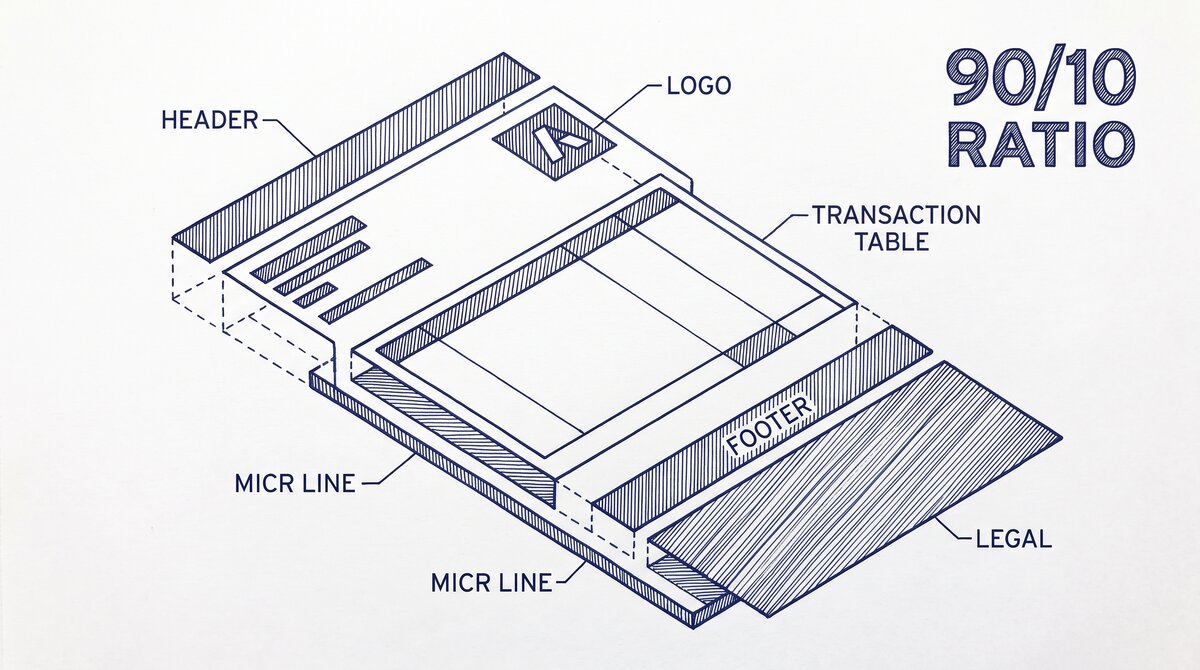
A PDF preserves the visual layout: the bank logo, the columns in their printed positions, the page breaks, the running headers. This is good for the user who wants to read the statement like a document. A CSV preserves only the data structure: the columns and rows, with no visual rendering. The columns are inferred from the comma positions, not from the pixel positions.
This matters because the visual layout is irrelevant to a data workflow. The bookkeeper does not need the bank logo on every row. The bookkeeper needs the transaction data in a structured form so they can sort, filter, and total. The visual layout is overhead for the data workflow, and the absence of it in CSV is a feature, not a bug.
Difference 3: File Size and Editability
A PDF for 1 month of statements is typically 100 KB to 1 MB, depending on whether it is text-based or scanned. A CSV for the same month is typically 5 to 50 KB, an order of magnitude smaller. The size difference matters for storage and email. The editability also matters: a CSV can be opened in Excel and modified. A PDF requires special tools to modify, and the modifications are typically visual (e.g., add a comment), not data-level (e.g., change an amount).
This matters because the data workflow involves editing: deduplication, column normalization, description standardization, category assignment. None of these are easy in a PDF. All of them are trivial in a CSV. The right format for any data workflow is the structured format (CSV or Excel), not the rendered format (PDF).
When to Use PDF (The 2 Cases)
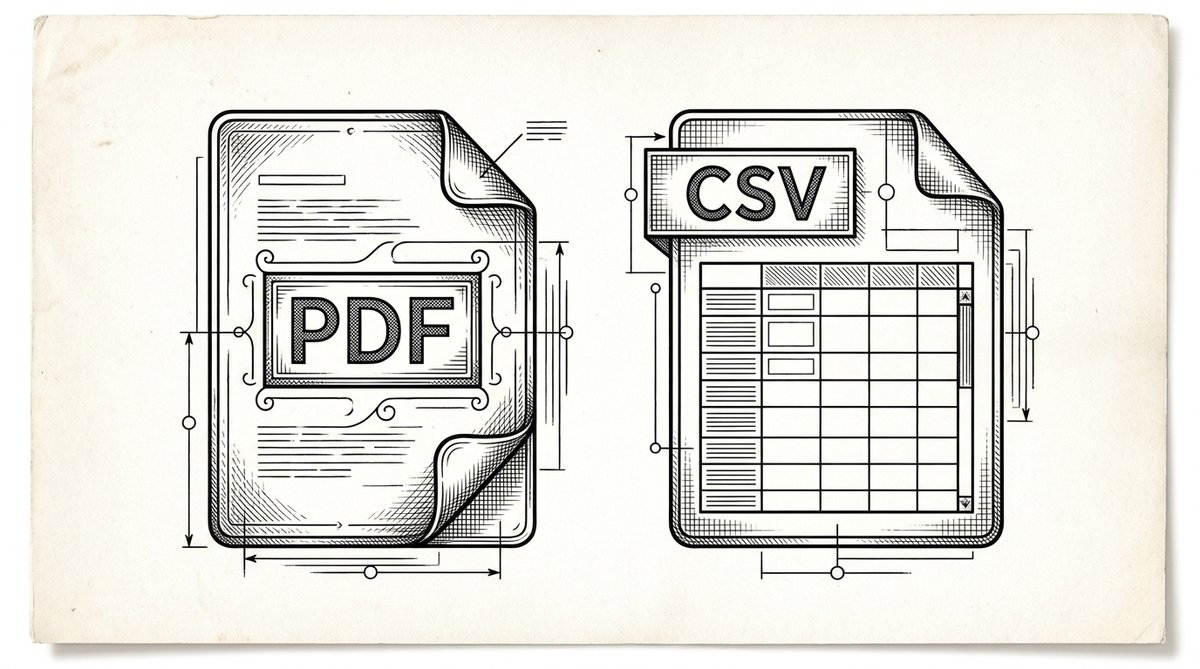
PDF is the right format in 2 specific cases. In all other cases, use CSV.
Case 1: Viewing or Sharing the Statement As-Is
If the goal is to view the statement, share it with someone, or print it, PDF is the right format. The visual layout is preserved. The bank’s branding is preserved. The page breaks are where the bank put them. For a bookkeeper sending a statement to a client for review, or for an applicant providing statements to a landlord or lender, PDF is the standard.
A common failure mode is sending a CSV to a non-technical recipient. The CSV opens in Excel but the formatting is minimal, the columns may not align, and the recipient may not know how to interpret the data. For non-technical recipients, send the PDF, not the CSV.
Case 2: Archiving for Long-Term Storage
For long-term storage (e.g., 7 years for tax records, or longer for some jurisdictions), PDF is the right format because it is stable. The PDF format has been around for 30+ years and will be readable for decades. The CSV format is stable in theory, but in practice, CSVs from 1990 may not open cleanly in modern Excel (encoding issues, delimiter issues, line ending issues). PDFs are more robust for archival.
For a bookkeeper keeping 7 years of statements, the right practice is: keep the original PDF as the source of truth, and keep the CSV (or Excel) as the working file for analysis. The PDF is the archive; the CSV is the work product. For more on statement archiving, see bank statement archive workflow.
Turn That PDF Into a Spreadsheet in Minutes
You’ve seen how to do it manually, now let the tool handle the heavy lifting. Upload your bank statement and get Excel, CSV, or QBO in a few clicks.
Try It FreeFrom Bank Statement to QuickBooks-Ready File
That manual cleanup you just read about? This tool skips it. Turn your PDF into QBO for QuickBooks without storing your data anywhere.
Start ConvertingWhen to Use CSV (The 4 Use Cases)
CSV is the right format in 4 use cases. In all 4, the data is the goal, not the visual layout.
Use Case 1: Spreadsheet Analysis (Excel or Google Sheets)
For any analysis in Excel or Google Sheets (formulas, pivot tables, charts, conditional formatting), CSV is the right input format. The CSV opens directly in Excel, the data is in cells, and the analysis tools work. A PDF cannot be analyzed as data; it can only be viewed as an image or extracted via OCR. The fix: convert the PDF to CSV first, then do the analysis.
For a bookkeeper doing monthly close on a year of statements (12 PDFs), the workflow is: convert each PDF to CSV (2 to 5 minutes per PDF with a converter), combine the 12 CSVs into one master file (10 to 20 minutes), then analyze. The total time is 30 to 60 minutes, which is 10x faster than trying to analyze the PDFs directly.
Use Case 2: Accounting Software Import (QuickBooks, Xero, Wave)
Most accounting software can import CSV files directly. QuickBooks imports CSV via the bank feeds feature or via the import wizard. Xero imports CSV via the bank reconciliation feature. Wave imports CSV similarly. The CSV is the standard interchange format for accounting software. A PDF cannot be imported directly; it must be converted to CSV (or QBO for QuickBooks) first.
For QuickBooks specifically, the QBO format is preferred over CSV because it preserves the bank feed structure. But CSV is the universal fallback. For more on the QBO format, see convert bank statement to QBO. For the Xero import workflow, see convert bank statement to Xero.
Use Case 3: Multi-Statement Combining (Year-End Aggregation)
For combining 12 monthly statements into one year-end file, CSV is the right format. The combine operation is mechanical: open each CSV, copy the transaction rows, paste into the master file, sort by date, verify. The combine is 10x faster with CSV than with PDF, where each statement would have to be opened in a separate PDF viewer and the transactions copied one-by-one.
For the multi-statement combine workflow, see combine multiple bank statements. For the dedup step that follows combining, see duplicate transactions after conversion.
Use Case 4: Backup and Version Control
For backing up transaction data, CSV is the right format because it is small, plain text, and version-control friendly. A 12-month statement file is 100 KB to 500 KB in CSV format, which is trivial to back up. The CSV file also diffs cleanly in git or any version control system, which is useful for tracking changes over time.
A common failure mode is relying on PDF as the backup. A PDF is a rendering, not the data. If you need to re-process the data (e.g., re-categorize transactions, recompute the running balance), you need the source data, not the rendering. The right practice: keep both the PDF (as the source of truth) and the CSV (as the work product). The PDF is the immutable archive; the CSV is the mutable analysis file.
The Standard Workflow (Download PDF, Convert to CSV, Process)
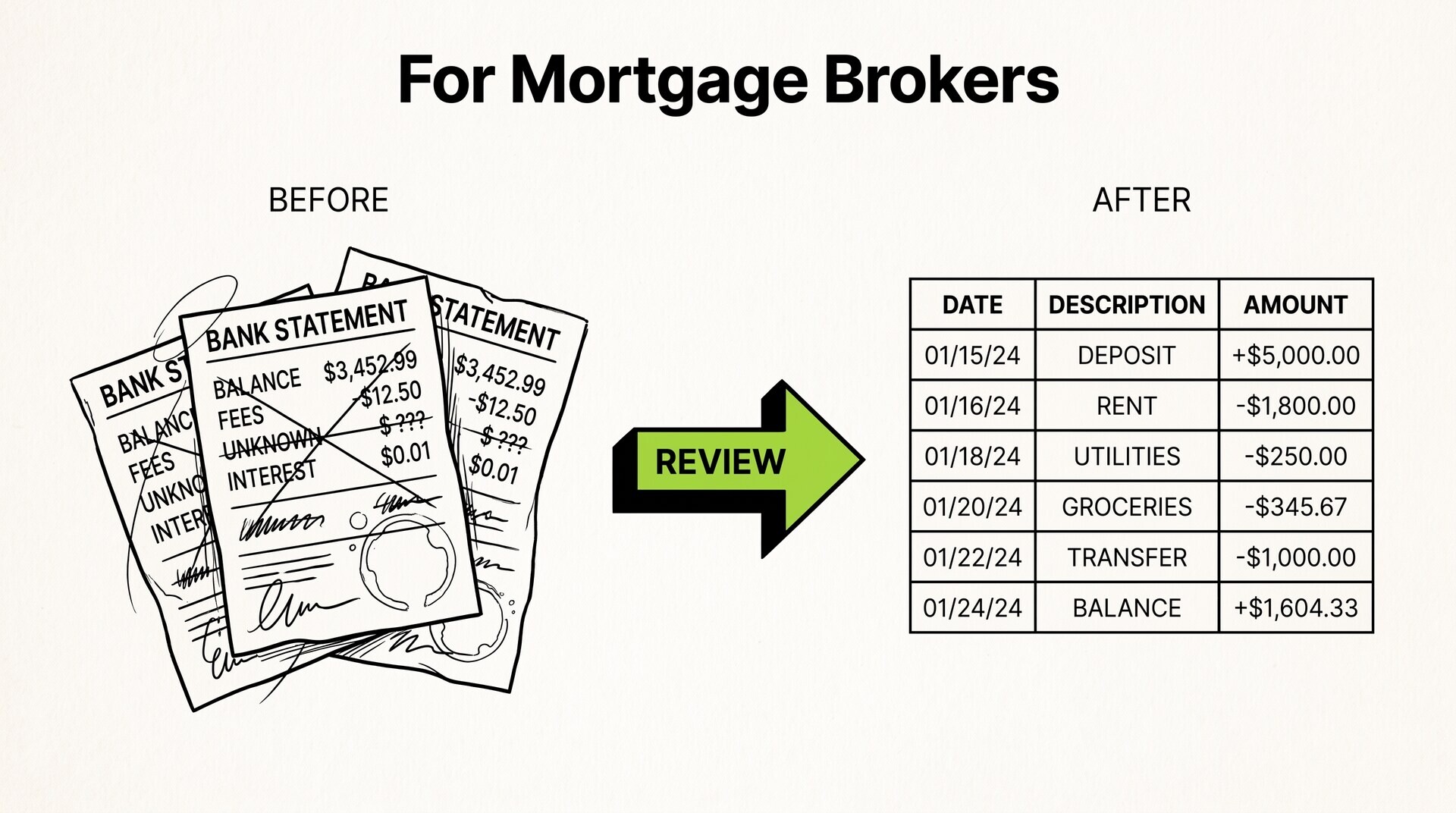
The standard workflow for any data processing task with bank statements is the same: download the PDF from the bank, convert it to CSV with a tool, then process the CSV. The conversion is the bridge between the bank’s preferred format (PDF) and the data workflow’s preferred format (CSV).
The conversion step is 2 to 5 minutes per statement with a converter, or 30 to 60 minutes manually (retyping or copy-pasting). For 12 statements, the converter saves 4 to 11 hours. For 100+ statements (year-end

close for multip
le clients), the converter saves 40+ hours. The economics are clear: use a converter for any batch larger than 2 to 3 statements.
How to Get the PDF vs CSV From Your Bank
Most banks let you download the statement in both PDF and CSV. The download path is usually: log in to the bank’s website, go to Statements or Documents, select the statement period, choose the format (PDF or CSV), click Download. The exact path varies by bank, but the pattern is the same.
Not all banks offer CSV download. Some banks only offer PDF (e.g., some credit unions, some regional banks). For these banks, the only path to CSV is to convert the PDF. The conversion tool is the bridge. For bank-specific download instructions, see the bank-specific export pages (e.g., export Chase bank statement to Excel).
3 Common Mistakes When Choosing Format
These are the 3 mistakes that cause the most trouble.
Mistake 1: Sending a CSV to a Non-Technical Recipient
CSVs are for data workflows. PDFs are for sharing. If you send a CSV to a client, landlord, lender, or anyone who is not a data professional, they will not know what to do with it. The fix: send the PDF for sharing, keep the CSV for processing. The two formats serve different audiences.
Mistake 2: Treating the PDF as the Data
The PDF is the rendering. The CSV (or the original database behind the PDF) is the data. If you need to analyze the transactions, you need the data, not the rendering. A common failure mode is trying to copy transactions from a PDF one-by-one into Excel. The fix: convert the PDF to CSV first, then analyze.
Mistake 3: Converting a CSV Back to PDF
If the bank gives you a CSV, do not convert it to a PDF and then convert it back to CSV. Each conversion loses information. The fix: use the CSV directly. If the bank only gives you a PDF, convert the PDF to CSV once. If the bank gives you both, use the CSV. The CSV is the canonical form for data workflows.
Start with the Workflow
The fastest path is to start with the conversion step, which produces the data that every other step needs. The bank statement converter handles the PDF-to-Excel step in 2-5 minutes, with no upload to a server.
For a complete reference of the terms used throughout this article, see the bank statement glossary.
Turn any PDF statement into a clean sheet
Skip the typos and the hours of copying. Our converter handles any bank statement format and outputs Excel, CSV, or QBO for QuickBooks. No file retention, free to try.
For more on this, see the accountant workflow page.
Convert your statementTurn PDF Bank Statements Into Workable Spreadsheets
Your bank statement is a mess of numbers, but your books shouldn't be. Use our converter to get Excel, CSV, or QBO files — ready for QuickBooks.
Try It Free Now