
You use Sage Intacct or Sage 50cloud, and you have a stack of monthly PDF bank statements that need to reconcile against the GL. The reconciliation workflow differs significantly between Sage Intacct (multi-entity cloud) and Sage 50cloud (single-entity on-premise), and the right approach depends on which product you have and how many subsidiaries you manage.
Quick Answers: Sage Intacct reconciliation is in the Cash Management module under Reconcile. You select the bank account, enter the statement ending balance and date, then Sage Intacct matches imported transactions against the GL automatically. The process takes 10-15 minutes per account. Sage 50cloud reconciliation is in the Banking module under Reconcile. You select the account, enter the statement balance, and manually match transactions against the GL. The process takes 15-20 minutes per account. Both products support automatic bank feeds that reduce the manual workload, but manual fallback workflows are essential when feeds fail.
Which Sage product do you actually use?
Sage publishes multiple accounting products in the U.S. market. For bank reconciliation workflows, the three relevant products are Sage 50cloud Accounting (single entity, on-premise with cloud sync), Sage 100 Contractor (project-based accounting for construction), and Sage Intacct (multi-entity cloud-native for mid-market). Each has a different reconciliation workflow, and using the wrong workflow is the most common error.
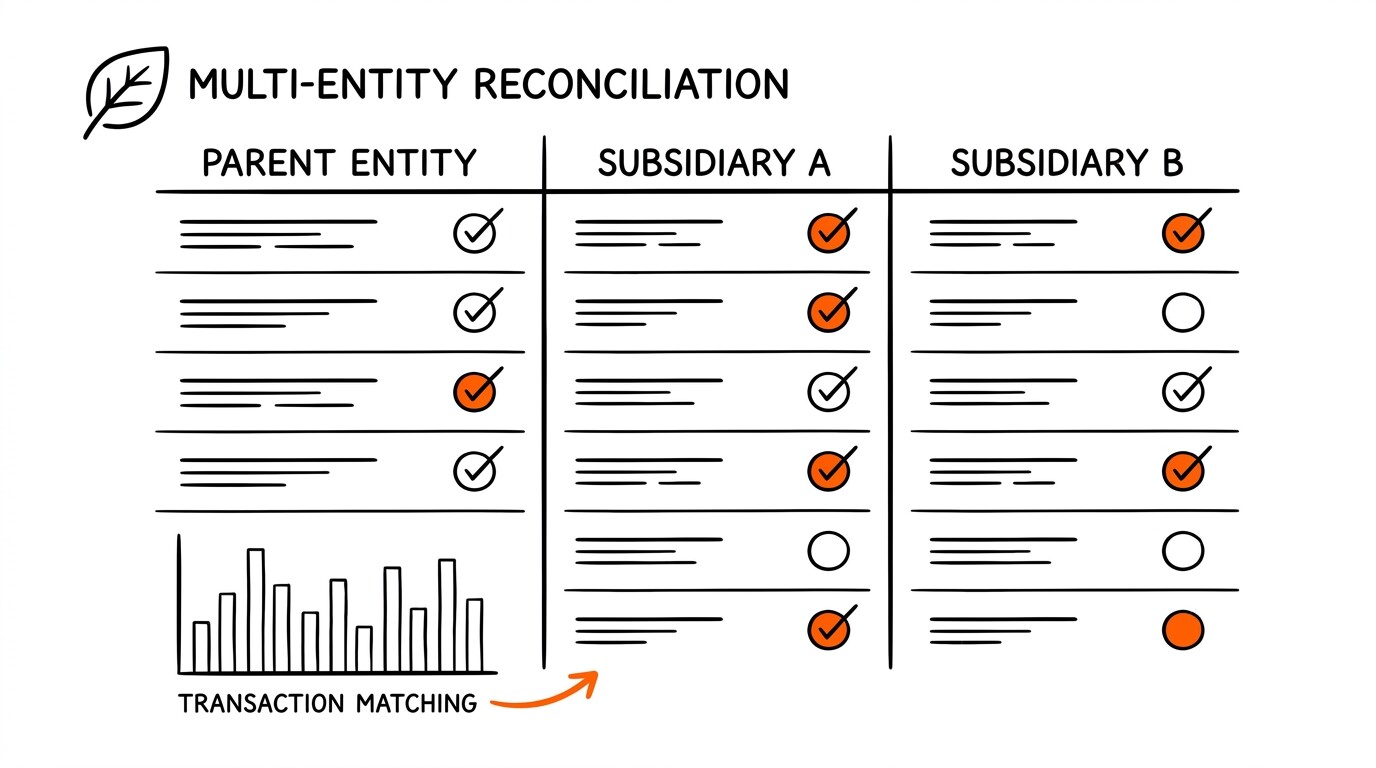
Sage Intacct is the dominant Sage product for mid-market U.S. companies (5-500 employees, $5M-$500M revenue). Its reconciliation supports multi-entity setups where a single Sage Intacct instance contains 5, 10, or 50+ subsidiaries, each with its own bank accounts and GL. The reconciliation workflow is per-account but supports batch reconciliation for multiple accounts at once.
Sage 50cloud is the dominant Sage product for small U.S. businesses (1-25 employees, under $5M revenue). Its reconciliation is per-account with no multi-entity support. The workflow is more manual than Sage Intacct because Sage 50cloud does not have the same level of automation. For QuickBooks Online users migrating to Sage, the Sage 50cloud reconciliation is closer in feel to QuickBooks Desktop’s old-style bank reconciliation.
How does Sage Intacct reconciliation work?
Sage Intacct’s reconciliation is in the Cash Management module under “Reconcile” then “New Reconciliation.” You select the bank account, enter the statement ending balance, statement ending date, and any fees or interest posted by the bank.
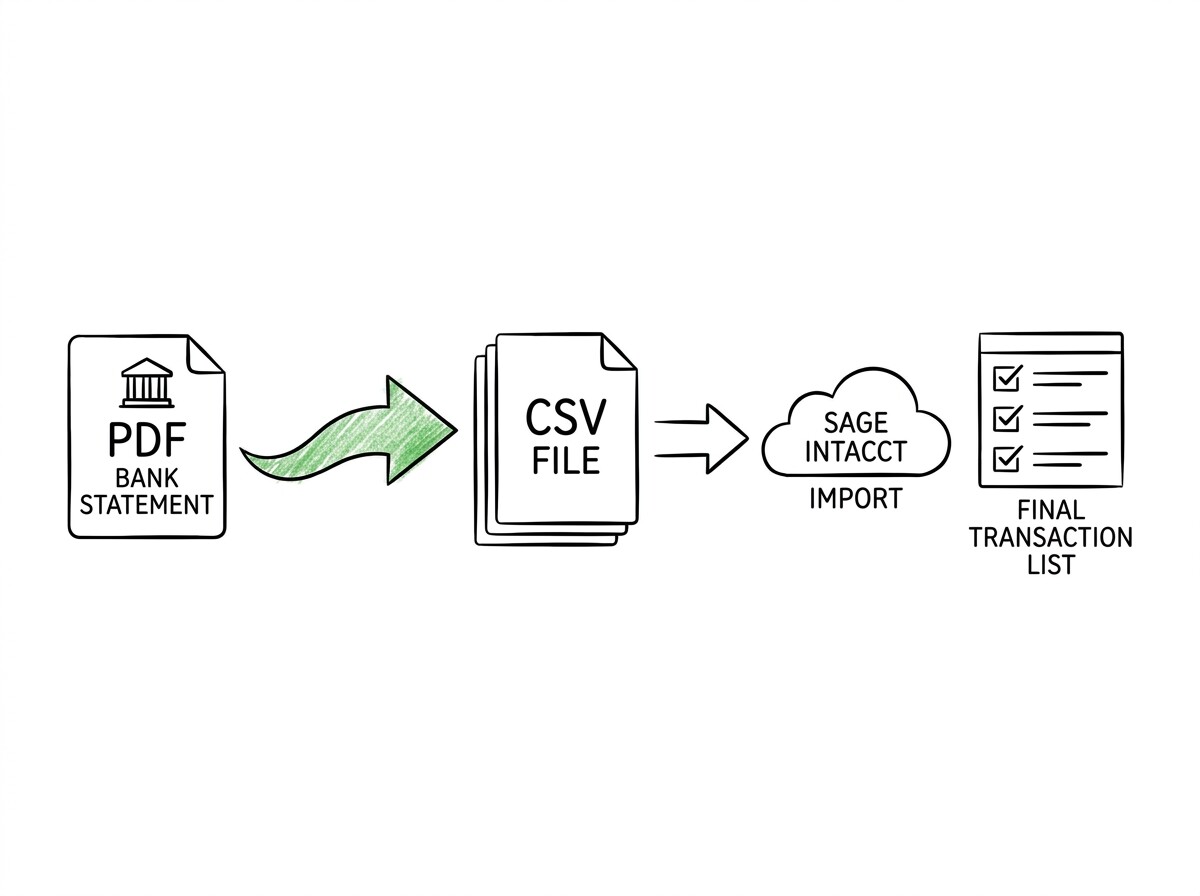
Sage Intacct then shows a list of imported transactions (from bank feeds or manual CSV import) that fall within the reconciliation period, and you match each one against the GL.
Sage Intacct’s matching logic is more sophisticated than QuickBooks Online‘s because it uses multiple criteria: transaction amount (within $0.01), date (within 7 days), vendor/customer name (fuzzy match), and reference number (exact match). When Sage Intacct is confident about a match (typically 80%+ confidence), it auto-marks the transaction as matched, and you confirm with one click.
When confidence is lower, Sage Intacct suggests the most likely match and lets you confirm or reject.
For multi-entity Sage Intacct users, the reconciliation can be done per-entity or as a batch across multiple entities. Per-entity reconciliation is the standard workflow and takes 10-15 minutes per entity. Batch reconciliation across all entities is a feature available on Sage Intacct’s Premium plan and reduces the time to about 5-10 minutes per entity by amortizing the overhead of opening and closing the reconciliation screen.
Turn PDF Bank Statements Into Workable Spreadsheets
Your bank statement is a mess of numbers, but your books shouldn't be. Use our converter to get Excel, CSV, or QBO files — ready for QuickBooks.
Try It Free NowHow does Sage 50cloud reconciliation work?
Sage 50cloud’s reconciliation is in the Tasks menu under “Banking” then “Reconcile.” You select the bank account, enter the statement ending balance and date, then Sage 50cloud opens the reconciliation screen showing all unreconciled transactions for the period. You click each transaction to mark it as cleared, and the cleared balance updates in real time.
The Sage 50cloud workflow is more manual than Sage Intacct’s because there is no auto-matching. You see a transaction in the reconciliation screen (say, a $250 vendor payment), and you check whether it appears on the bank statement. If yes, click to clear it. If no (because the bank hasn’t processed it yet), leave it unchecked as outstanding.
The workflow is similar to QuickBooks Desktop’s old reconciliation tool.
For a typical small business with 100-300 transactions per month, Sage 50cloud reconciliation takes 15-20 minutes per account. The workflow is straightforward but does not have the auto-match intelligence that Sage Intacct and QuickBooks Online provide. The tradeoff is lower cost (Sage 50cloud starts at $50/month vs Sage Intacct at $500/month) and simpler interface for non-technical bookkeepers.
What about bank feeds in Sage?
Sage Intacct supports bank feeds via Sage’s Bank Feeds service (powered by Yodlee, a data aggregator). The bank feed pulls transactions from your bank into Sage Intacct automatically, similar to how Plaid works for QuickBooks Online. Once enabled, transactions appear in Sage Intacct within 1-2 business days of posting at the bank.
The Sage Intacct bank feed has a few operational quirks. First, the feed pulls 30-90 days of historical transactions when first enabled, which can be useful for backfill but creates a one-time import of many transactions. Second, the feed refresh rate is typically 4-24 hours depending on the bank, so yesterday’s transactions may not appear until today’s afternoon.
Third, the feed can break if your bank credentials change or if the bank’s online banking UI changes, which requires manual reconnection.
Sage 50cloud supports bank feeds via the Sage Bank Feeds service, but the feature is less mature than Sage Intacct’s. Some banks are not supported, and the feed refresh rates can be slower. For businesses that rely heavily on bank feeds, Sage Intacct is the more reliable choice.
For businesses that prefer manual CSV import, Sage 50cloud works fine because the manual reconciliation workflow is straightforward.
How does the statement balance adjustment work?
The statement balance adjustment is the entry where you record any bank fees, interest, or adjustments that posted to your bank account but are not yet in your GL. In Sage Intacct, you enter these adjustments during the reconciliation setup, and Sage Intacct auto-creates the journal entries.
In Sage 50cloud, you enter them as separate transactions in the register before starting reconciliation, and they show up as cleared transactions when you import the statement.
Common adjustments in Sage reconciliation: bank service fees ($10-30 per month), wire transfer fees ($15-30 per wire), interest income on deposits (small amounts for low-interest accounts, larger for high-yield savings), merchant card fees (for businesses that accept card payments), and NSF fees (for returned checks). Each adjustment is a single transaction in the GL with a specific category (Bank Fees, Interest Income, Merchant Fees, etc.).
For multi-entity Sage Intacct users, the adjustments must be allocated to the correct subsidiary. If your bank charged a $30 wire fee on Subsidiary A’s account, the adjustment goes to Subsidiary A’s GL with category “Bank Fees.” Sage Intacct automatically routes the adjustment based on the bank account selected in the reconciliation, which simplifies the multi-entity workflow.
How does Sage handle multi-currency reconciliation?
For businesses with multi-currency bank accounts (USD, EUR, GBP, CAD), Sage Intacct handles the conversion automatically using the configured exchange rate. The reconciliation works in the account’s base currency, and the bank’s reported balance is converted from the transaction currency using the spot rate or the rate at the bank’s posting date.
Any exchange rate differences between the transaction posting date and the reconciliation date are flagged as discrepancies.
The most common multi-currency reconciliation issue is timing: if your bank converts a EUR 1,000 transfer at one rate today, and you reconcile at a different rate tomorrow, the difference is small but appears as a discrepancy. The fix is to run a periodic exchange rate adjustment (typically monthly or quarterly) to true up the rates, which Sage Intacct supports as a separate workflow.
Sage 50cloud has limited multi-currency support compared to Sage Intacct. The Sage 50cloud Premium plan supports up to 20 currencies, but the reconciliation workflow is simpler: you reconcile in the account’s base currency, and the foreign currency transactions are converted at the rate you enter manually. For businesses with extensive multi-currency operations, Sage Intacct is the better choice.
What are common Sage reconciliation errors and fixes?
Error 1: “Beginning balance doesn’t match prior reconciliation.” This happens when someone edits or deletes a previously reconciled transaction in Sage. Sage preserves the reconciliation history, so any change to a cleared transaction breaks the audit trail. The fix is to reverse the change or contact Sage support to re-open the prior reconciliation.
Error 2: “Reconciliation shows the wrong difference.” This usually means a transaction has the wrong amount or date in your GL. The fix is to find the transaction, edit it to the correct value, and the reconciliation balance updates automatically. For older discrepancies, Sage Intacct’s Reconciliation Discrepancy report shows the cumulative difference and helps trace it back to the original transaction.
Error 3: “Bank feed transactions don’t match GL.” This happens when the bank feed imports a transaction that has a slightly different date or amount than what’s in the GL. The fix is to either accept the bank’s date/amount (which creates a small adjustment in the GL) or edit the GL transaction to match the bank’s date/amount (which keeps the GL clean).
How does Sage reconciliation compare to QuickBooks Online and Wave?
Compared to QuickBooks Online, Sage Intacct has stronger multi-entity and multi-currency support but is more expensive (Sage Intacct starts at $500/month vs QBO at $30/month). For single-entity small businesses, Sage Intacct is over-engineered and QBO is the better choice. For multi-entity mid-market, Sage Intacct is the right choice and the additional cost is justified by the unified platform.
Compared to Wave, Sage Intacct has stronger accounting features but is dramatically more expensive (Wave is free for the bookkeeping tier). Wave does not support multi-entity, multi-currency, or project-based accounting, so for businesses with those needs, Sage Intacct is the right choice despite the cost. For freelancers and very small businesses, Wave is the more cost-effective option.
The optimal reconciliation cadence for Sage users is the same as for other platforms: monthly within 5 business days of receiving the bank statement. Sage Intacct’s auto-matching makes this faster than Sage 50cloud‘s manual workflow, but both products benefit from the monthly cadence. For multi-entity Sage Intacct users, batch reconciliation across all entities at month-end is the most efficient workflow.
From Bank Statement to QuickBooks-Ready File
That manual cleanup you just read about? This tool skips it. Turn your PDF into QBO for QuickBooks without storing your data anywhere.
Start Converting