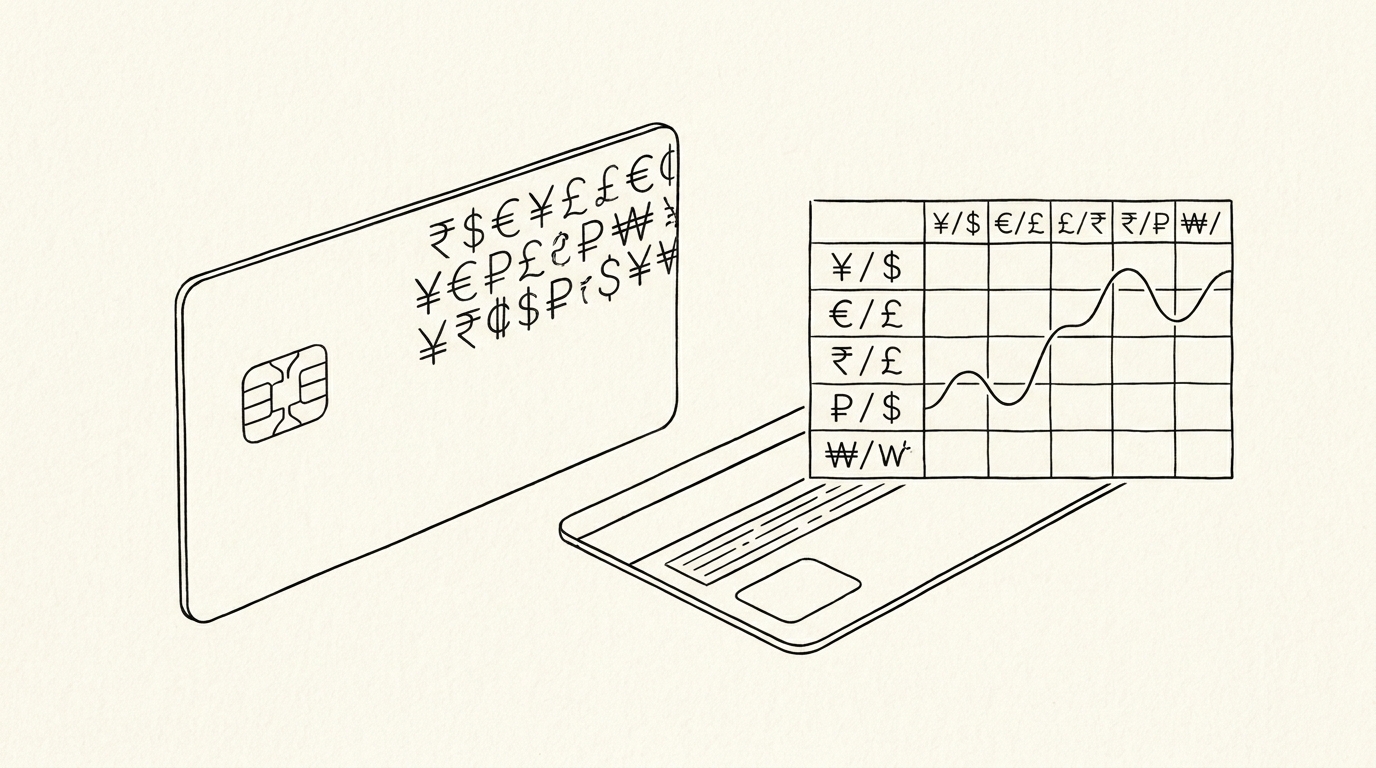

A 50 euro dinner shows as $58.42 in the Excel file, but the user expected $54.20 based on the exchange rate they saw on the news. The $4.22 difference is the FX fee, not a converter error. A user travels to Europe and uses their credit card for 3 weeks. The Excel file shows the final USD amounts.
The user wants to verify the FX rate. The card network’s rate is visible on the statement as a separate ‘Foreign Transaction Fee’ line, usually 1-3% of the foreign amount.
TL;DR. Foreign transactions on US credit cards are converted to USD by the card network using the network’s exchange rate (1-2% above mid-market). Many cards add a 1-3% foreign transaction fee. The Excel file shows the final USD amount. The exchange rate is not on the statement. The 3 most common errors: exchange rate looks wrong, FX fee is missing, multi-currency math doesn’t add up.
For the broader credit card to Excel workflow, see the credit card to Excel guide.
The 3 Most Common FX Errors
Foreign transactions create 3 common errors in Excel conversions. Each has a specific cause and a specific fix.
Error 1: The exchange rate looks wrong
The user expected the news rate (e.g., 1.08 EUR to USD). The statement shows 1.10. The final charge is at 1.10 plus a 3% fee. The math checks out. The user thinks the rate is wrong.
The fix: the network rate is 1-2% above mid-market, the FX fee is 1-3% of the foreign amount. Both are built into the final number. The expected math: foreign amount × network rate × (1 + FX fee %) = USD charge. The 1.10 network rate and the 3% fee produce the $58.42 final charge.
Error 2: The FX fee is missing from the Excel file
Some converters combine the FX fee with the original charge. Others split it as a separate line. The fix: if the FX fee is missing as a separate line, check the statement for a ‘Foreign Transaction Fee’ line. Add it to the Excel file if it’s there.
A 1-3% fee on a $5,000 trip is $50 to $150. The fee is not negligible. If the fee is missing from the Excel file, the per-category totals are off by the fee amount.
Error 3: The multi-currency math doesn’t add up
Charges in different currencies (e.g., EUR for hotels, GBP for restaurants) need to be converted to USD separately. The sum of the converted amounts should match the total foreign transaction amount on the statement. If they don’t, a charge was missed.
The fix: sum the converted amounts by currency. The total should match the per-currency totals on the statement. If a charge is missing, look for it in the next statement (some international charges post with a 1 to 2 statement delay).
How Card Networks Convert Currency
The 4 major card networks (Visa, Mastercard, American Express, Discover) each have their own exchange rate and conversion process. The process is similar across networks, but the rates differ.
The conversion process
When a foreign transaction occurs, the merchant’s bank converts the amount to the network’s base currency (usually USD). The network then converts the base currency amount to the cardholder’s currency. The cardholder sees the final amount in their home currency.
The network rate is set daily or in real-time, depending on the network. Visa and Mastercard publish their exchange rates online. The rate is typically 1-2% above the mid-market rate (the rate you see on Google or in the news).
The 1-3% FX fee
Many credit cards charge an additional foreign transaction fee on top of the network rate. The fee is typically 1-3% of the foreign amount, charged by the issuer (not the network). The fee is a separate line item on the statement, often labeled ‘Foreign Transaction Fee’ or ‘International Transaction Fee’.
Some cards (especially travel rewards cards) waive the foreign transaction fee. For these cards, the only conversion cost is the network rate’s 1-2% markup over mid-market. For other cards, the 1-3% fee is added on top.

Turn That PDF Into a Spreadsheet in Minutes
You've seen how to do it manually — now let the tool handle the heavy lifting. Upload your bank statement and get Excel, CSV, or QBO in a few clicks.
Try It FreeThe 3 Manual Fixes
The fix for each FX error is a single Excel operation. Re-conversion is not recommended; it risks introducing the same error.
Fix 1: Verify the network rate
The network rate is published by Visa and Mastercard. The rate on the date of the transaction is what was used. To verify, look up the network’s exchange rate for the transaction date and currency pair. The rate should be within 0.5% of the network’s published rate.
Fix 2: Add the FX fee
If the fee is missing from the Excel file, add it as a separate row with a ‘Foreign Transaction Fee’ descriptor. The fee amount is on the statement as a separate line. The date is the statement date (or the date the fee was assessed).
Fix 3: Multi-currency reconciliation
Sum the converted amounts by currency. The total should match the per-currency totals on the statement. If a charge is missing, look for it in the next statement. Add a manual row to the current statement’s Excel file with a note about the cross-statement timing.
The Failure Mode
A common failure mode bookkeepers report is the FX rate confusion. The user expected the news rate (1.08), the statement shows 1.10 (the network rate), and the final charge is at 1.10 plus a 3% fee. The math checks out, but the user thinks the rate is wrong.
The fix is education, not a converter change. The network rate is not the mid-market rate. The FX fee is on top of the network rate. The final charge is the sum of both. The Excel file is correct; the user’s expectation was off.
How to Prevent the Error Next Time
Before treating the Excel file as final, validate: the total foreign transaction amount matches the sum of the converted charges. The FX fee is present as a separate line or combined with the original charge (and the math works). The exchange rate is reasonable (within 5% of the mid-market rate on the transaction date).
For the broader credit card to Excel workflow, see the credit card to Excel guide. For related fixes: sign convention guide | credit card conversion pillar.
For a deeper understanding, see: credit card statement pillar. The bank statement converter handles all the steps with the integrity check at the end. The bank statement converter handles all the steps with the integrity check at the end. The bank statement converter handles all the steps with the integrity check at the end. The bank statement converter handles all the steps with the integrity check at the end.
From Bank Statement to QuickBooks-Ready File
That manual cleanup you just read about? This tool skips it. Turn your PDF into QBO for QuickBooks without storing your data anywhere.
Start Converting