The 5-point validation check takes 5 minutes and catches 95% of conversion errors. Validating converted bank statement data (also called how to verify bank statement conversion, verify converted data, post-conversion check, monthly statement verification, or account statement verification) means checking 5 things after the conversion: row count matches the source PDF, dates are correct, descriptions are intact, amounts match exactly, and the ending balance ties out. This page covers the 5-point check, the common error patterns, the reconciliation against the source PDF, and the 3 things to do before submitting.
The troubleshooting guides for missing, duplicate, and incorrect transactions are linked below. For the broader conversion workflow, see the converter guide.
The 5-point validation check takes 5 minutes and catches 95% of conversion errors. The most common error is the balance mismatch, which matters because it is the single most reliable signal that the data is wrong: the converted file’s ending balance does not match the source PDF’s ending balance. The cause is usually a transaction that the converter missed or parsed wrong.
The fix is to find the gap, re-convert with different settings, and reconcile again. The 3 things to do before submitting: verify the validation check, cross-check the totals against the source PDF, and confirm the file opens cleanly in your spreadsheet.
For specific error patterns, see the missing transactions guide and the duplicate transactions guide.
The 5-point validation check takes 5 minutes and catches 95% of conversion errors. Conversion tools advertise 99% accuracy. That sounds great until you do the math, which matters because the 1 percent is the difference between a clean dataset and one with errors. A statement with 200 transactions, converted at 99% accuracy, has 2 wrong entries. A month with 4 statements has 8 wrong entries. A bookkeeper with 14 clients has 112 wrong transactions per month.
The 1% is not a rounding error. It is the cost driver. Try the converter: the bank statement converter runs the 4 automated checks automatically and produces a verified Excel file in 2 to 5 minutes.
Why 99% accuracy is not enough.
Bank statement conversion is a high-volume task. Even at 99% accuracy, the absolute number of errors is high. The 1% error rate is concentrated in specific patterns: OCR misreads, ambiguous dates, similar payee names. These errors are not random. They cluster. A statement with 2 wrong transactions often has both errors in the same row pattern (e.g., a date format that confused the parser).
The cost of one wrong transaction.
A wrong transaction in the books takes 5-15 minutes to find and fix during reconciliation. The cost is not just the find-time. It is also the trust cost: every other transaction becomes suspect. This matters because the trust cost is often higher than the find-time; the bookkeeper ends up re-verifying the entire dataset, which takes 5 to 10x the time of the original conversion.
A bookkeeper who finds 1 wrong transaction in a 200-row statement now questions all 200. The validation process turns “1% might be wrong” into “I checked all 200 and they are right.” That confidence is worth the 5-7 minute investment.
Bank Statement Conversion Verification: The 5-Point Validation Check
The 5-point check is a specific, named process. Each check catches a different class of error. Run all 5 before you trust the converted data. The process takes 5-7 minutes per file.
Check 1: Row count.
Open the converted file. Count the rows (excluding the header). Compare to the source PDF: count the transactions on the source statement. The numbers should match exactly.
If the converted file has 198 rows and the source has 200, 2 transactions are missing. This is the most common error: the OCR missed 2 rows, or 2 rows got merged during the conversion. The 4-step mechanism page covers why this happens.
Check 2: Total amount.
Sum the Amount column in the converted file. Compare to the total of all transactions on the source PDF. The numbers should match to the cent. If the converted total is $0.50 off, 1 transaction is wrong. If the converted total is $50 off, multiple transactions are wrong. The 4-step mechanism page covers the math.
Check 3: Date range.
Find the earliest and latest date in the converted file. Compare to the statement period on the source PDF (e.g., “Statement Period: 01/01/2026 to 01/31/2026”). The dates should fall within that range. If the converted file has a date of 12/15/2025, the conversion grabbed a transaction from outside the statement period. Or a date was misread (e.g., 01/15 became 10/15).
Check 4: Sample transactions (manual).
Pick 5 random transactions from the converted file. For each, find the matching line on the source PDF. Verify the date, amount, and payee match exactly.
This is the one manual check, and it is the one that catches the most errors. The automated checks above catch systemic issues (missing rows, wrong totals, wrong dates). The manual check catches individual issues (one transaction with a wrong payee, one amount that was misread).
Check 5: Unusual entries (manual).
Scan the converted file for unusual entries: very large amounts, very small amounts, descriptions that look different from the rest (gibberish, special characters, all-caps). These are the transactions most likely to have OCR errors. A $5,000 wire transfer is more likely to have a misread amount than a $4.50 coffee purchase. Check those transactions against the source PDF specifically.
Bank Statement Conversion Verification: How to Do the 4 Automated Checks

Each automated check is a 30-second operation in a spreadsheet or a CSV viewer. Doing all 4 takes 2-3 minutes. Doing 0 takes 0 minutes but costs you days of reconciliation work later. The full data extraction workflow is on the data extraction page.

In Excel
Open the converted file in Excel. For row count, look at the row numbers in the left margin, or use the shortcut Ctrl+End to jump to the last cell. For total amount, click an empty cell below the Amount column, type =SUM(A2:A200), and press Enter.
For date range, click the Date column, go to Data, then Sort, and look at the top and bottom values. For unique count, click an empty cell, type =COUNTA(A2:A200), and press Enter.
In a CSV viewer
Open the converted file in a CSV viewer (Excel, Google Sheets, or any text editor). The row count is the line count minus the header. The total is a sum of the Amount column. The date range is the min and max of the Date column. The unique count is a distinct count of the Date+Amount combination. The exact steps depend on the tool.
In QuickBooks (after import)
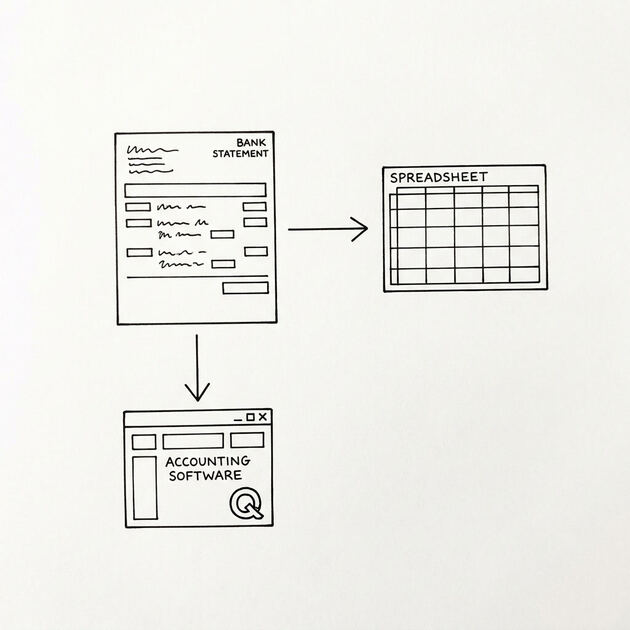
If you have already imported the file into QuickBooks, the validation is partial. QuickBooks shows the imported transaction count, but not against the source. Compare the imported total to the source total. If they match, the import was clean. If they differ, you need to find the wrong transaction in QuickBooks and fix it. The import workflow is on the conversion-and-import guide.
From Bank Statement to QuickBooks-Ready File
That manual cleanup you just read about? This tool skips it. Turn your PDF into QBO for QuickBooks without storing your data anywhere.
Start ConvertingBank Statement Conversion Verification: How to Do the 1 Manual Check
The manual check is the one that catches the most errors. It is also the one most people skip. Five minutes of cross-referencing saves hours of reconciliation. The check has 3 parts: pick 5 transactions, cross-reference, look for the OCR pattern.
Pick 5 random transactions
Open the converted file. Pick 5 random rows: row 5, row 50, row 100, row 150, row 200. Or use a random number generator. The point is to pick rows that are not at the beginning or end, where errors are most likely. The middle of the file is where OCR errors hide.
Cross-reference against the PDF
For each of the 5 transactions, find the matching line on the source PDF. Verify 3 things: the date is correct, the amount is correct (to the cent), the payee or description matches.
If any of the 3 is wrong, the conversion made an error on that transaction. Note which row and which field, and either fix it manually or re-run the conversion with a different tool.
Look for the OCR error pattern
The OCR error pattern is predictable. Common character substitutions: 0 (zero) and O (letter), 1 (one) and l (lowercase L) and I (uppercase i), 5 (five) and S (letter), 8 (eight) and B (letter).
Common digit misreads: 0 and 9 in small font, 6 and 0 in some fonts, 1 and 7 in some fonts. If you see $5.0O in the converted file, that is $5.00 with an O instead of a 0. If you see $5.OO, that is the same error. Look for these in the 5 sample transactions.
Bank Statement Conversion Verification: The OCR Error Pattern

OCR errors are not random. They follow specific patterns based on the font, the resolution, and the field type. Knowing the patterns helps you find the errors faster. Here are the three most common.
Common character substitutions
The most common OCR error is character substitution. Zero becomes O. One becomes l (lowercase L). Five becomes S. Eight becomes B. These errors are visual: the source has 0, the converted has O.
The values look right at a glance. They are wrong on closer inspection. The fix: search the converted file for any O, l, S, B in the amount or date columns. Replace with the correct digit. Or re-run the conversion with a tool that handles these substitutions.
Common digit misreads
The second most common error is digit misread. 6 becomes 0. 9 becomes 0. 1 becomes 7. These are font-specific. Some bank statement fonts have 6 and 0 that look similar in the small size of the amount column.
The fix: check the amount totals. If the total is $0.50 off, one amount has a misread digit. Search the converted file for amounts ending in .50 or .00 to find the suspect.
The “right number, wrong transaction” trap
The hardest error to catch is the one that is internally consistent. Two transactions with the same date and same amount but different payees. The conversion may have deduplicated them (taking the first one, dropping the second), or it may have created two rows with the same date and amount but wrong payees.
The fix: scan the converted file for duplicate Date+Amo

unt pairs. If you find 2, cross-reference both against the source PDF.
Bank Statement Conversion Verification: When to Skip the Validation
Validation is not always necessary. There are 3 situations where you can skip it. None of them are common, but they exist.
When you trust the source
If the conversion tool has a track record of 99.5%+ accuracy on your specific bank, and you have run the 5-point check on 20+ statements without finding errors, you can skip the manual check for routine imports.
Use the automated checks (row count, total, date range) on every converted file. The 1 manual check is no longer needed when the source is high-quality. The QBO file format details are on the QBO format guide.
When the conversion tool has high accuracy
Some conversion tools (the one on the EasyStatementSheet converter, for example) achieve 99%+ accuracy on most US banks. The accuracy is per-bank, not universal. If the tool publishes its accuracy for your bank and it is 99.5%+, you can skip the manual check. For the 60+ supported banks, the accuracy is documented.
When the data is going to be re-reconciled anyway
See the bank statement reconciliation page for the downstream process. If the converted data is going to be matched against another source, the reconciliation will catch any errors. The validation process is redundant. Skip it. But if the converted data is going directly into the books without a second check, run the validation. For the related how to fix incorrect transaction data after bank statement conversion page, see the linked article. For the 11 standard transaction categories used in bookkeeping, see the bank transaction categorization guide. For the 5 security questions to ask any bank statement converter before uploading, see the is a bank statement converter safe guide.
Turn PDF Bank Statements Into Workable Spreadsheets
Your bank statement is a mess of numbers, but your books shouldn't be. Use our converter to get Excel, CSV, or QBO files — ready for QuickBooks.
Try It Free Now