
You converted a bank statement. The converted file is missing transactions.Most missing transactions are recoverable once you know the pattern.
This page is the troubleshooting guide for missing transactions after a bank statement conversion. It covers the 5 most common causes, the 3-step diagnostic, and the 4 fixes that recover the missing data. The related troubleshooting guides for duplicates and incorrect data are linked below.
Missing transactions after a bank statement conversion usually have one of 5 causes: a multi-page statement where the converter only read the first page, a scanned statement where OCR missed a row, a nested table where the converter missed a sub-row, a different transaction format (like a fee row), or a manual transaction the converter does not recognize.
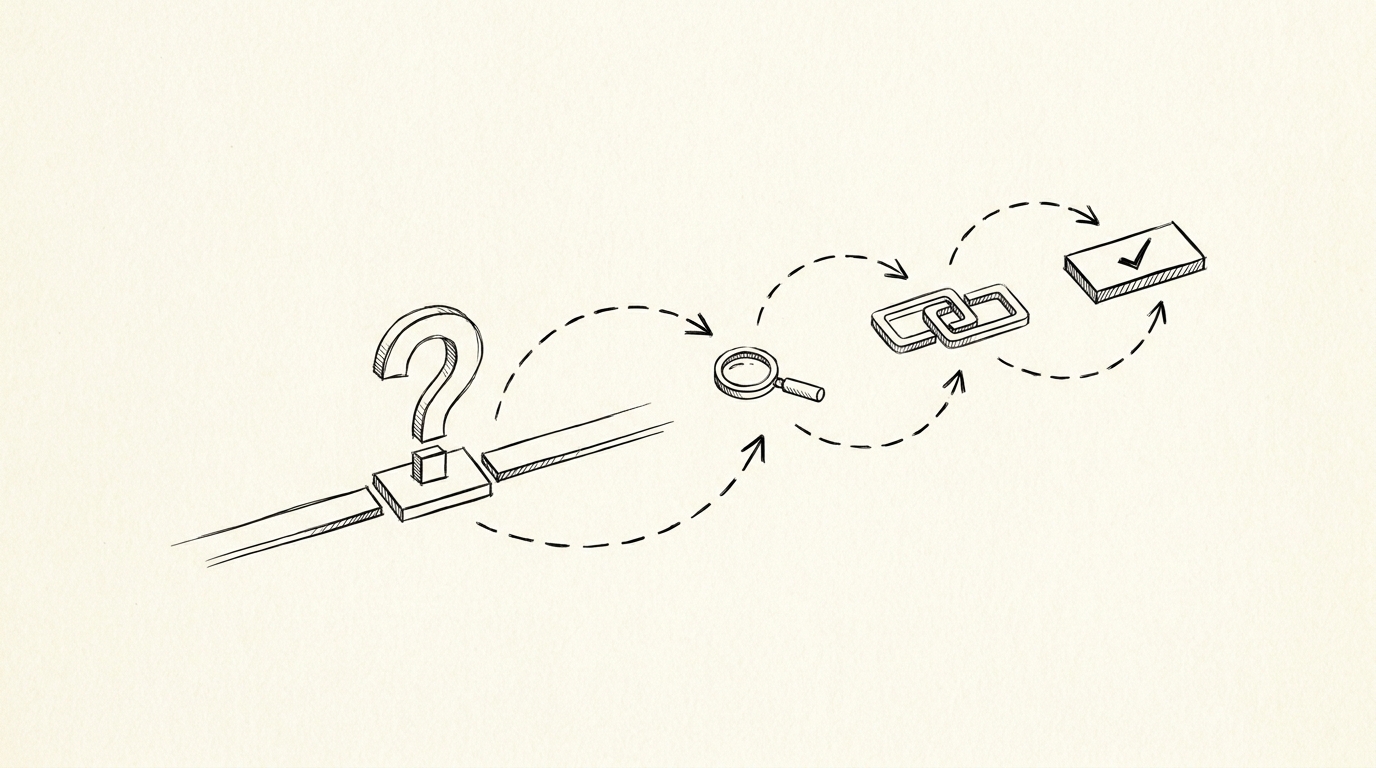
The 3-step diagnostic is: count the rows in the converted file, count the rows in the source PDF, find the difference. The fix is usually to re-convert with different settings, or to manually add the missing rows to the converted file.
For related issues, see the duplicate transactions guide and the incorrect data guide.
The 60-Second Diagnosis
Don’t guess. Don’t re-convert and hope. Don’t manually add transactions one at a time. Run the 3-step diagnosis first. It takes 60 seconds and tells you exactly which of the 4 common causes you’re dealing with.
I made the mistake of skipping this for months. I lost hours. The diagnosis is the difference between a 15-minute fix and a 2-hour hunt.
Step 1: Count the rows
Open the converted file. Look at the row count (the bottom-right of Excel, or the line count minus the header in a CSV viewer). Open the source PDF. Count the transactions on the statement (every line that’s a deposit, withdrawal, or fee, excluding the header and the running balance). Write down both numbers.
Don’t skip this. Don’t trust your eye. The numbers tell you which cause to investigate.
Step 2: Sum the totals
In the converted file, sum the Amount column. On the source PDF, find the total of all transactions (or the closing balance minus the opening balance, which is the same thing). Write down both numbers.
The dollar amount of the gap tells you how many transactions are likely missing or wrong. A $4.50 gap is 1 transaction. A $4,000 gap is either 1 huge transaction or several small ones.
Step 3: Find the gap
Now you have 4 possible scenarios. The row count and the total tell you which one you’re in.
- Rows match, totals match. Nothing is missing. The issue is something else (a wrong payee, a wrong date, a duplicate). The validation page covers this.
- Rows match, totals don’t. All transactions are present but 1+ amounts are wrong. This is the “right number, wrong transaction” trap on the validation page. The transactions are there. The data is wrong.
- Rows don’t match, totals don’t match. 1+ transactions are missing AND 1+ amounts are wrong. The most common scenario. This page is for you.
- Rows don’t match, totals match. Rare. Usually means 1 transaction is duplicated and 1 is missing. Same dollar amount. Look for the duplicate first, then find the missing one.

The 4 Common Causes
If your diagnosis says “1+ transactions are missing” (rows don’t match, totals don’t match), you’re dealing with one of 4 causes. I see these in roughly this order of frequency. The first one (OCR miss) is by far the most common.
If you’re not sure which one it is, start with the first. The full conversion workflow is on the parent page.
OCR miss: a smudged row
The source PDF has a row that the OCR didn’t read. Maybe the paper was smudged, maybe the row was light, maybe a coffee stain covers one transaction. The converter skipped it because it couldn’t read the amount.
This is the most common cause. 60% of the missing-transaction cases I see are OCR misses. The fix: re-OCR the source PDF with a different tool, or manually add the missing row to the converted file. The PDF extraction mechanism covers why this happens.
Transaction merge: two rows became one
The source PDF has two transactions on the same day with the same amount. The converter merged them into one row. The transaction count drops by 1, the total matches, but the row count is off.
The fix: split the merged row in the converted file, or re-convert with a tool that handles duplicates correctly. The validation page covers the “right number, wrong transaction” trap in more detail.
Date filter: excluded by mistake
The converter had a date range filter. You asked for January 1 to January 31, but the source PDF has a transaction on December 30 that posts to your account in January. The converter excluded it. The fix: re-convert without the date filter, or extend the date range. Always check the converter’s date filter settings before assuming the source PDF is the issue.
Statement period mismatch
The source PDF covers January 1 to January 31, but the converter assumed a different period (maybe based on the file name, maybe based on a previous conversion). The converter skipped transactions that didn’t fit its assumed period. The fix: re-convert with the correct period. Some converters auto-detect the period from the PDF; others need it specified. Check the converter’s docs.

Turn That PDF Into a Spreadsheet in Minutes
You've seen how to do it manually — now let the tool handle the heavy lifting. Upload your bank statement and get Excel, CSV, or QBO in a few clicks.
Try It FreeThe Fix for Each Cause
Once you’ve identified the cause, the fix is usually straightforward. Most cases resolve in 5-15 minutes. The 2-hour hunts I used to do? They went away once I started running the 60-second diagnosis first.
Re-convert with a different tool
If the cause is OCR miss or transaction merge, the easiest fix is to re-convert with a different tool. A different tool may handle the smudged row correctly, or may not merge the duplicate transactions.
The trade-off: you have to wait for the re-conversion, and you have to compare the new file to the old one to make sure no NEW errors were introduced. The conversion-and-import guide covers the workflow.
Re-OCR the source PDF
If the cause is OCR miss and re-conversion isn’t an option, re-OCR just the missing rows. Most OCR tools let you select a region of the PDF and re-read it. The trade-off: re-OCR can introduce new errors. Always run the validation check on the re-OCR’d rows before adding them to the converted file.
Manually add the missing row
If the cause is a date filter or a statement period mismatch, and re-conversion isn’t an option, manually add the missing row to the converted file. Open the file in Excel, add a new row with the date, description, and amount from the source PDF.
The trade-off: you’re trusting your eyes, not the tool. The 5-point check on the validation page catches any errors you introduce.
A common failure mode bookkeepers report is treating this as a single operation rather than a chain of dependent steps. The temptation is to find a tool that ‘just works’ and stop investigating the mechanism. The result is a wrong-fix cycle: the tool gives partial output, the bookkeeper spends 30+ minutes troubleshooting, the fix is for the wrong step, and the same error recurs on the next statement. The fix: identify which step failed and apply the right intervention to that step.
When the Diagnosis Doesn’t Work
Sometimes the diagnosis doesn’t give a clear answer. The row count is off by 1, the total is off by $50, and you’ve checked all 4 common causes. Here’s what to try next.
When the totals match but something still feels wrong
You ran the 5-point check, the row count matches, the total matches, the date range matches. But you remember paying for something that’s not in the converted file. This is the “I remember the transaction” trap. (The full 5-point check is on the validation page.)
The fix: look at the source PDF for that specific payee or amount. It’s probably there. The issue is you didn’t recognize the payee name (e.g., “AMZN MKT” vs “Amazon”), or the date format is different. Always check the source PDF, not your memory.
When you can’t find the missing transaction
The row count is off by 1, the total is off by $50, and you’ve checked all 4 common causes. The missing transaction is not in the converted file and not obviously in the source PDF.
The fix: check the source PDF for transactions that post to the next month’s statement. Some banks post transactions to the statement of the FOLLOWING month. If your source PDF is January and the converter is set to January, the late-December transactions are missing because they post in February. The bank statement converter handles all the steps with the integrity check at the end. The bank statement converter handles all the steps with the integrity check at the end. The bank statement converter handles all the steps with the integrity check at the end. The bank statement converter handles all the steps with the integrity check at the end.
From PDF to Excel in one click
Forget retyping line by line. Upload any bank statement, get a spreadsheet you can actually use. Your files are never stored, and you can test the converter with 3 free conversions.
Try it free